

You sign in with the email address or mobile number you registered with, plus your password. If you have forgotten the password, you can set a new one with a 6-digit code sent to that address or number. No account yet? Start with Create your account.
Before you start
- The email address or mobile number on your account.
- Access to that inbox or phone, for the code, if you are resetting your password.
Open the sign-in page
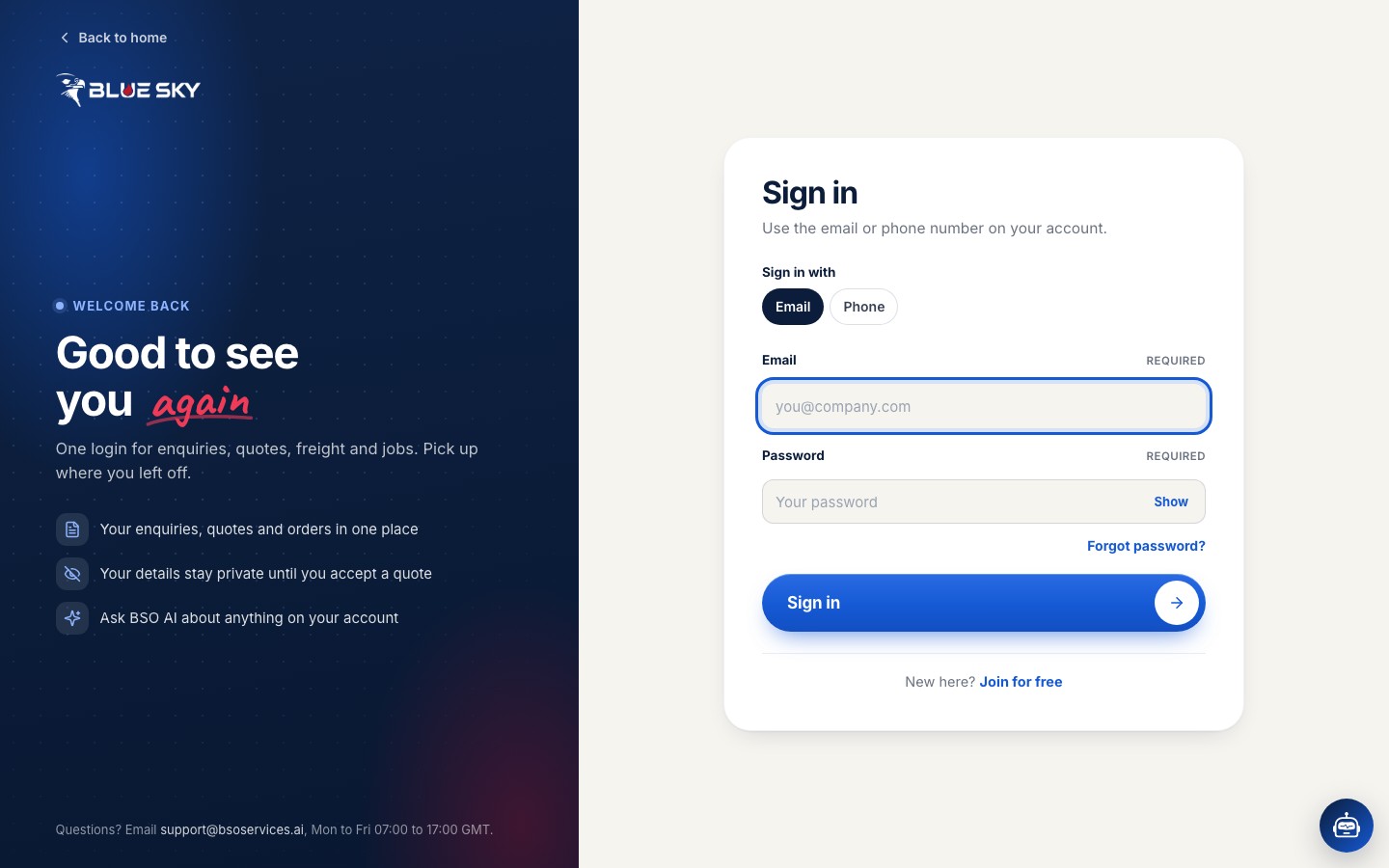
Click Login at the top of any page, or go to bsoservices.ai/sign-in.
Pick email or phone
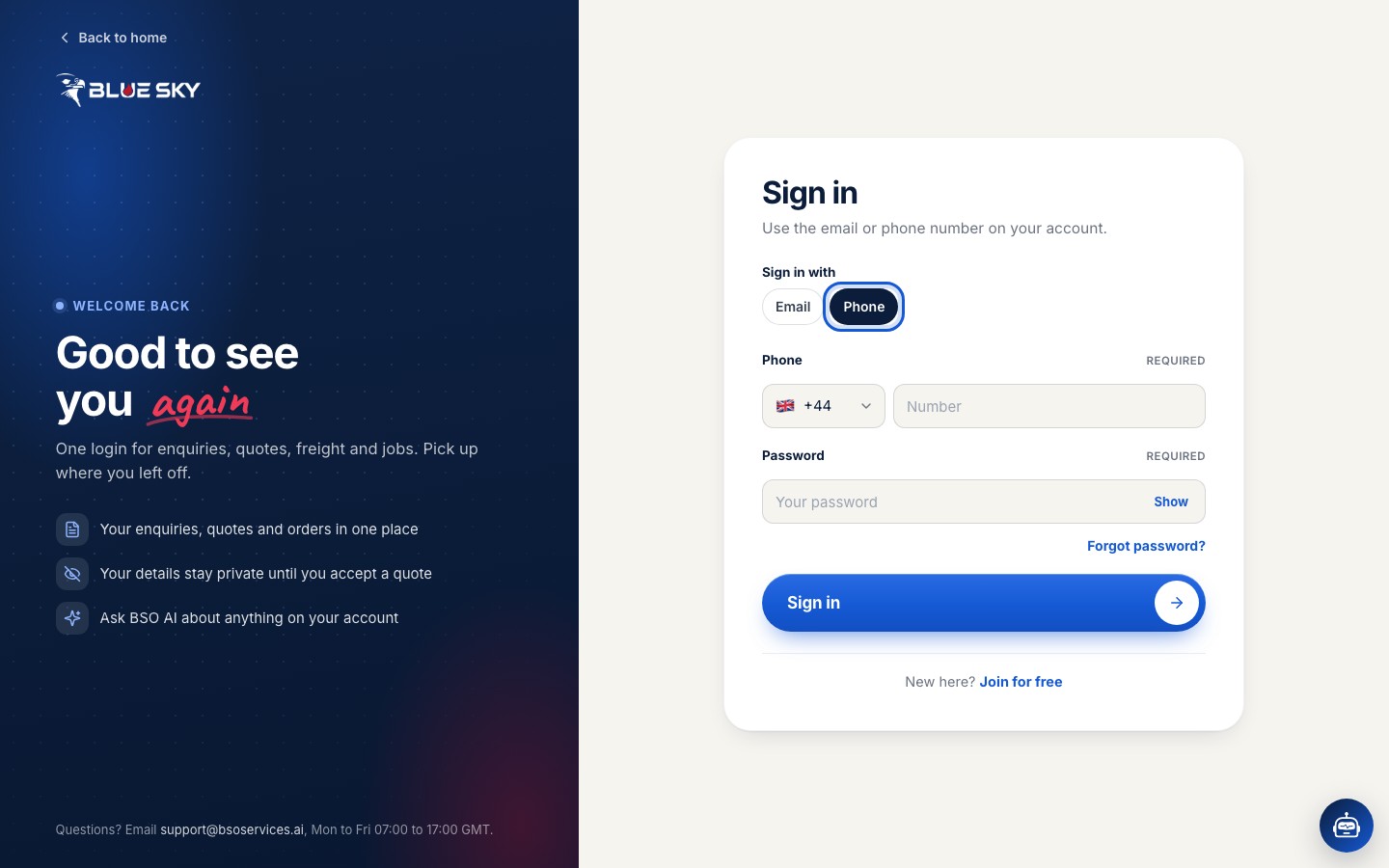
Under Sign in with, the form takes an email address by default. If your account was created with a mobile number, pick Phone, choose your country code and type the number.
Enter your password and sign in
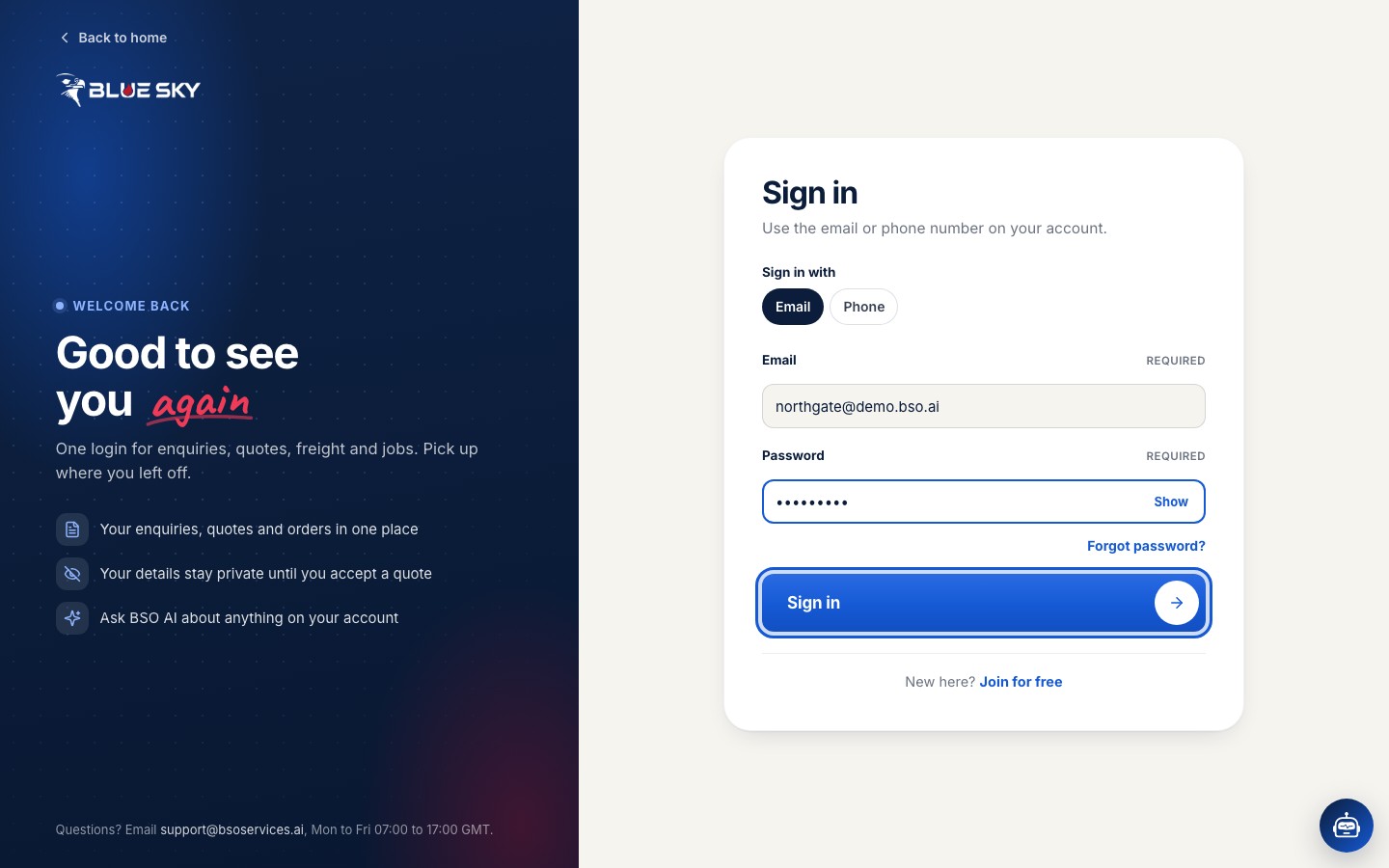
Type your password and click Sign in. Your dashboard opens.
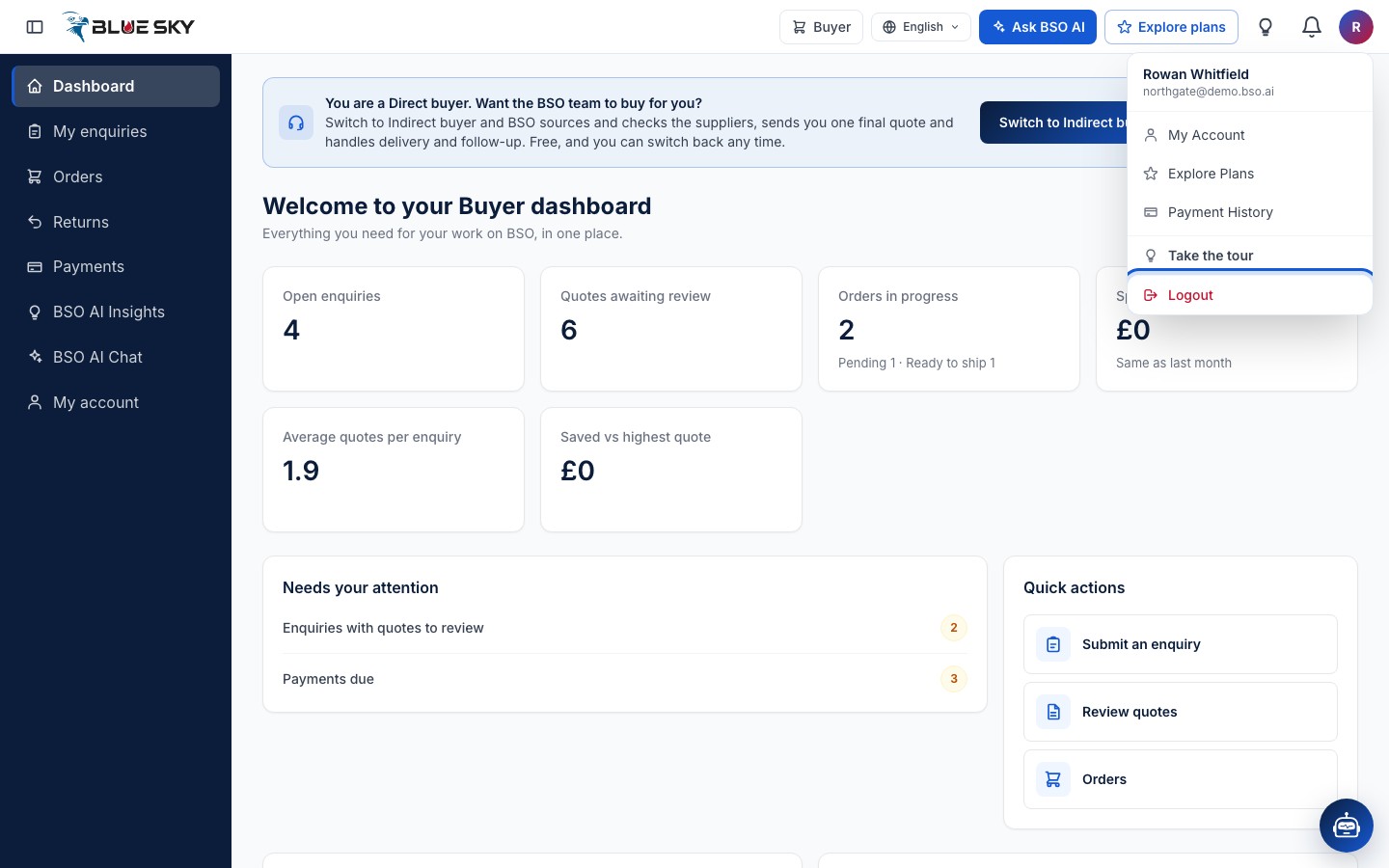
Find your account menu
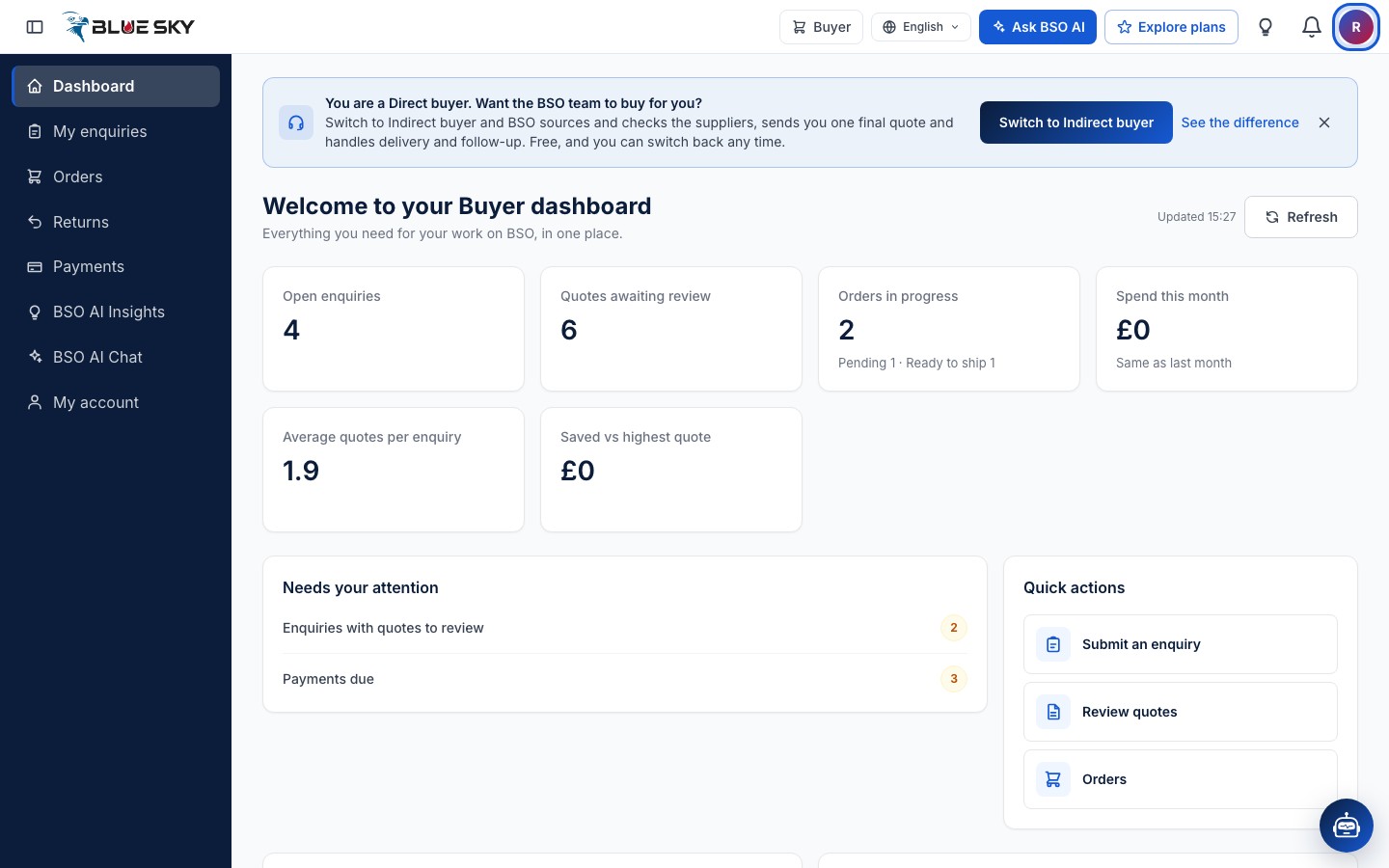
Your initial sits in a round button at the top right of the dashboard. Click it to open the account menu, which also takes you to My account, Explore plans and Payments.
Log out
Click Logout at the bottom of the menu. You are back on the home page. Do this on any shared computer.
Forgotten your password? Open the reset page
On the sign-in page click Forgot password?, or go to bsoservices.ai/forgot-password.
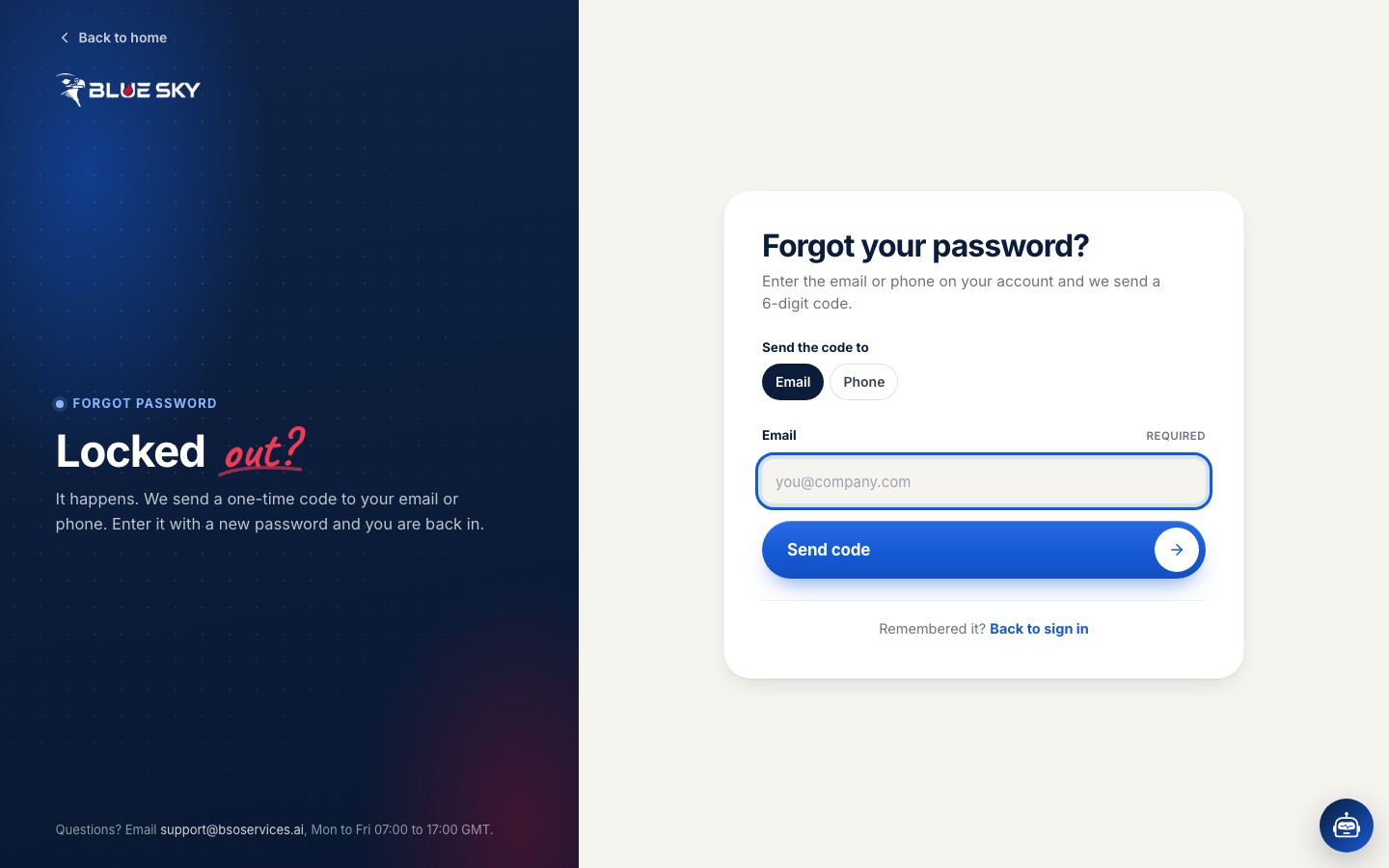
Ask for a code
Under Send the code to, pick Email or Phone, type the address or number on your account and click Send code. The next page, Set a new password, shows where the code went, with part of the address hidden.
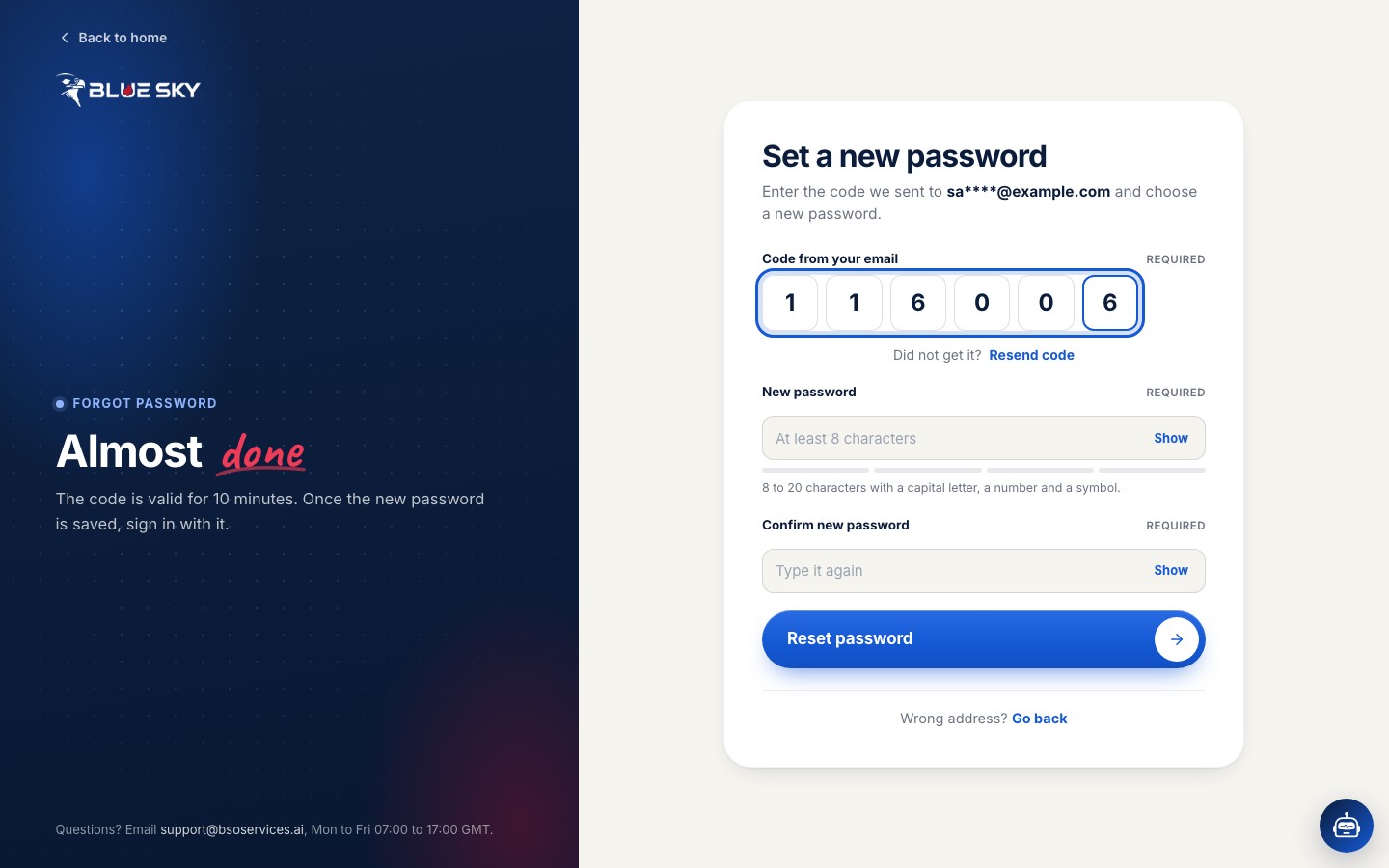
Enter the code and a new password
Type the 6-digit code from the email or text message into the code box (Code from your email, or Code from your text message when the code was sent by phone), then choose a New password and type it again in Confirm new password. The password rules are the same as at sign-up, and it must be different from the old one. Click Reset password.
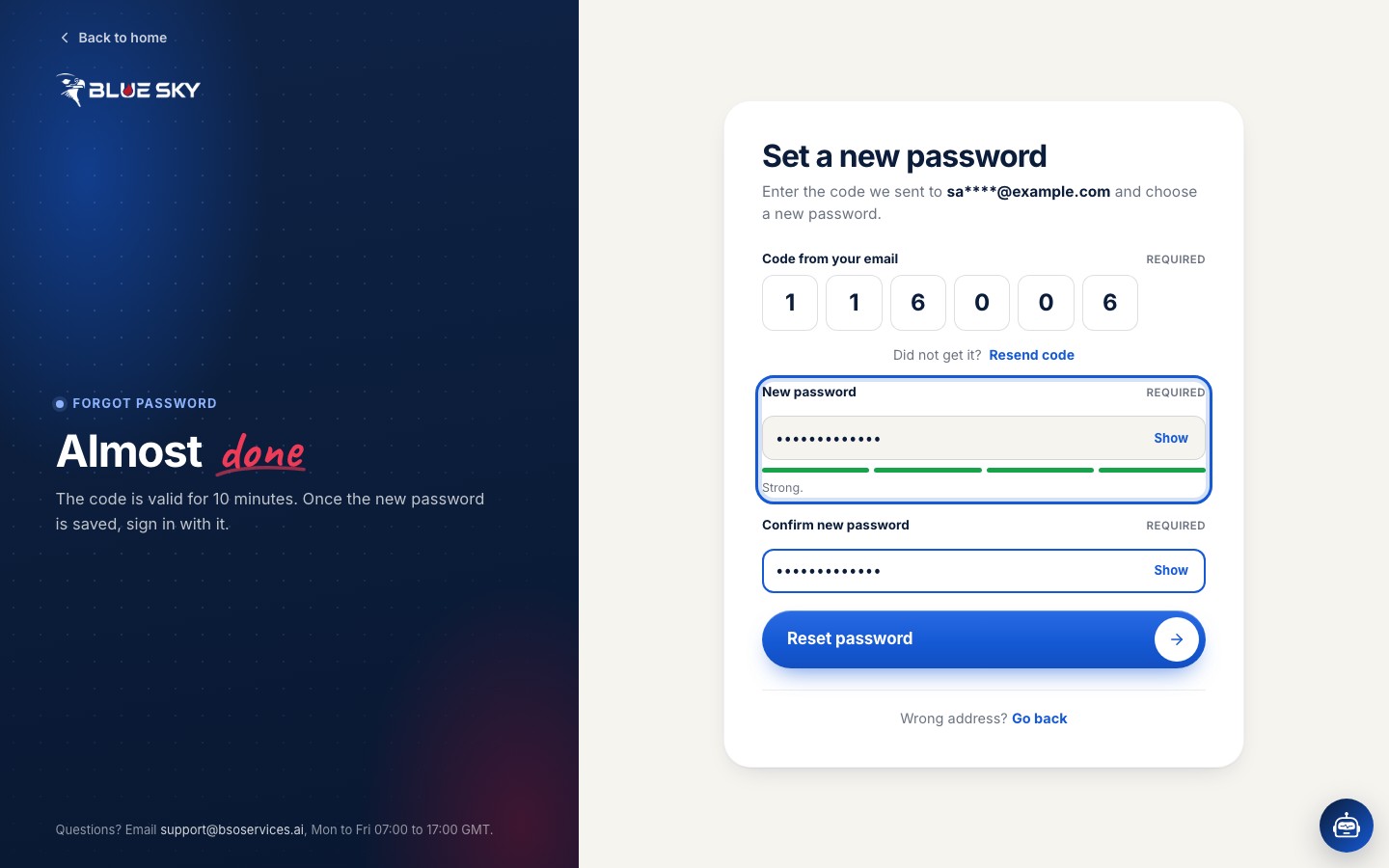
Sign in with the new password
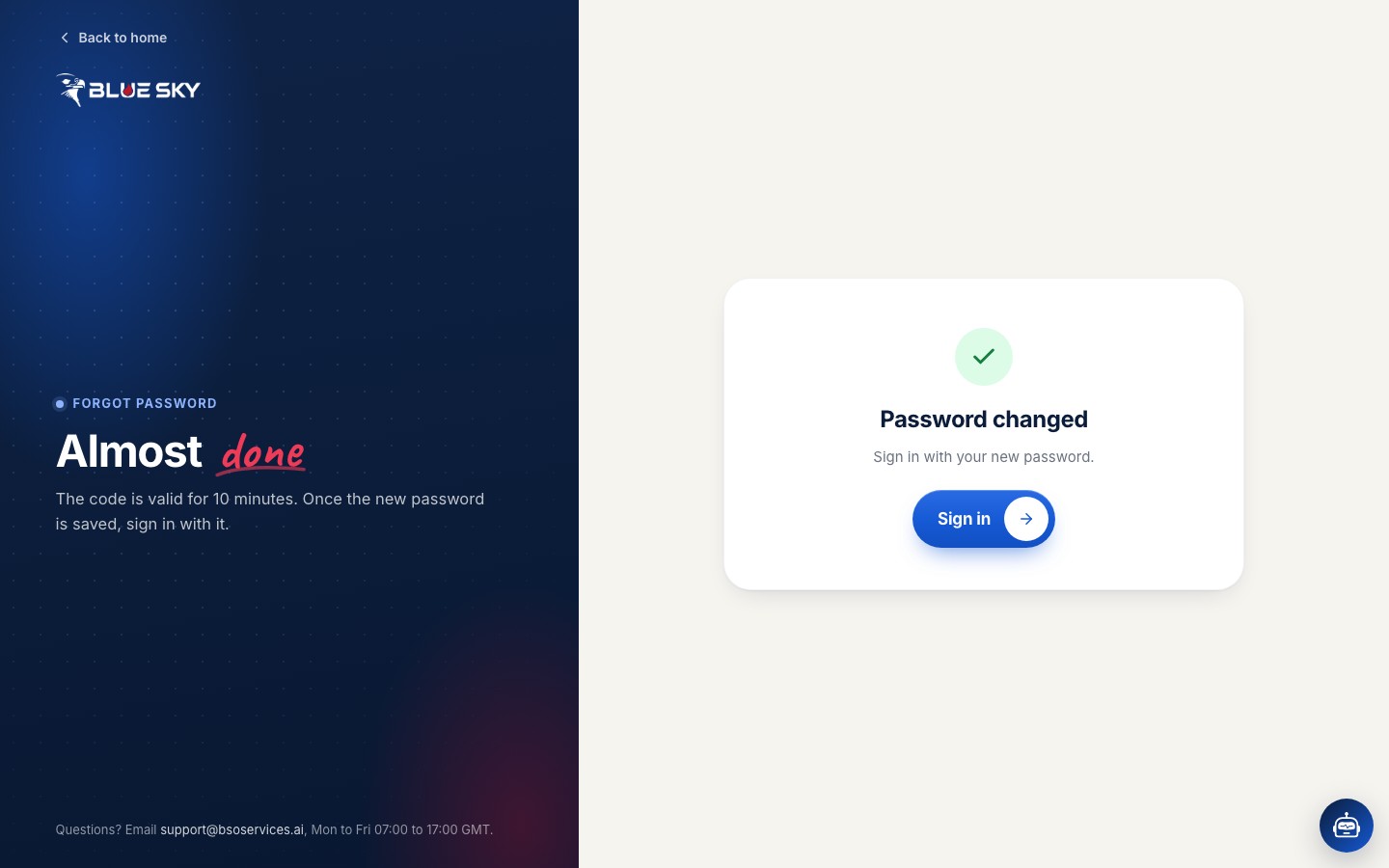
The page confirms Password changed. Click Sign in and use the new password.
Good to know
- Codes are valid for 10 minutes. If yours has expired, click Resend code.
- If no code arrives, check the spam folder, and make sure you typed the address or number that is on the account.
- You can change your password at any time while signed in, from My account, under Password.
- Need an account first? See Create your account.
Still stuck? We are here.
Open BSO AI Chat inside the platform, or email the support team. Monday to Friday, 07:00 to 17:00 UK time.