

While you are signed in, you change your password on My account, on the Password tab. You need your current password for it. If you have forgotten it, sign out and use the reset steps in Sign in, log out and reset your password instead.
Before you start
- Your current password.
- A new one that meets the rules: at least 8 characters, with an uppercase letter, a lowercase letter, a number and a symbol.
Open the Password tab
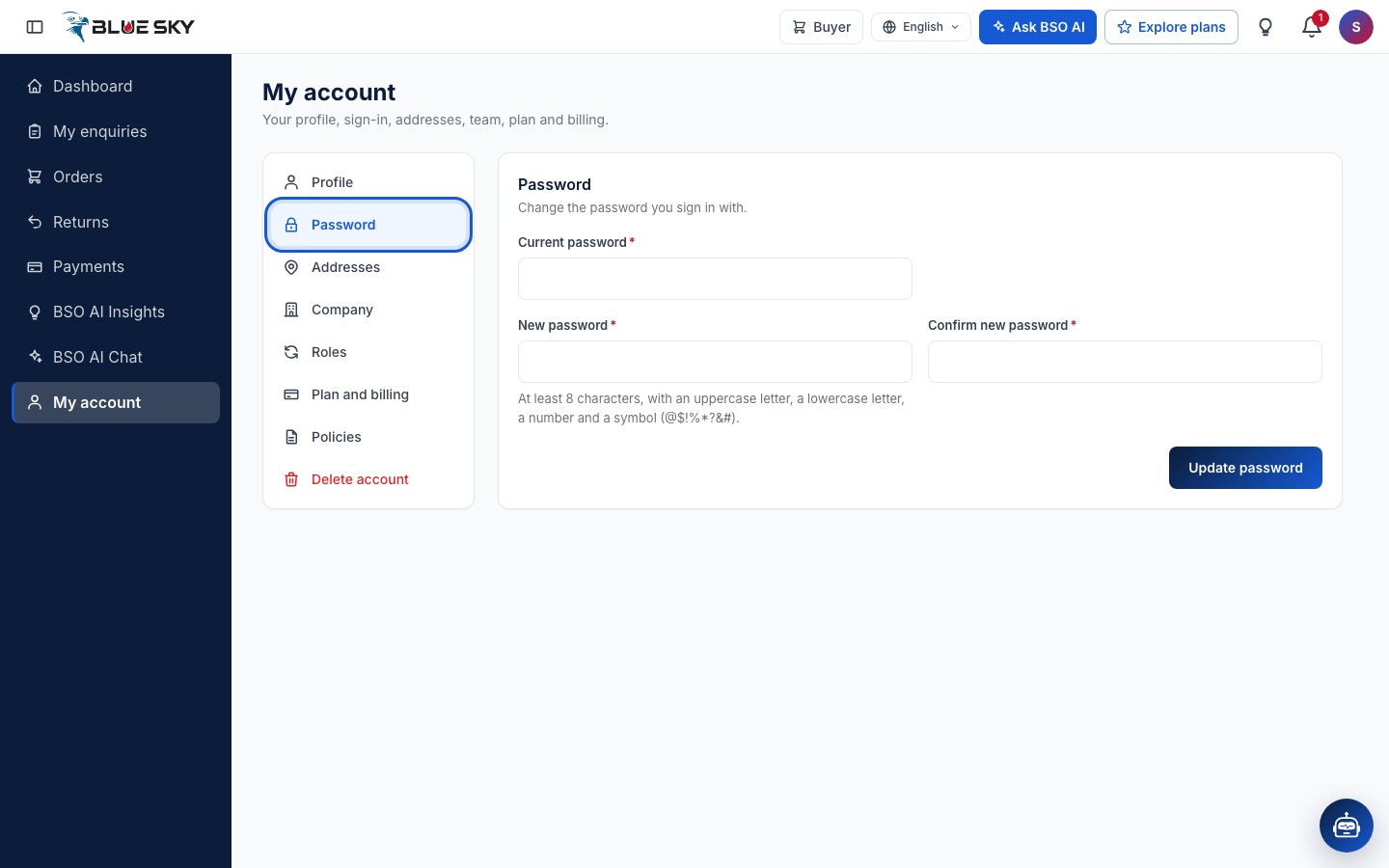
Go to My account and click "Password" in the list on the left (see Edit your profile and company details for where My account is). The tab holds one form: "Current password", "New password" and "Confirm new password".
Type the current and the new password
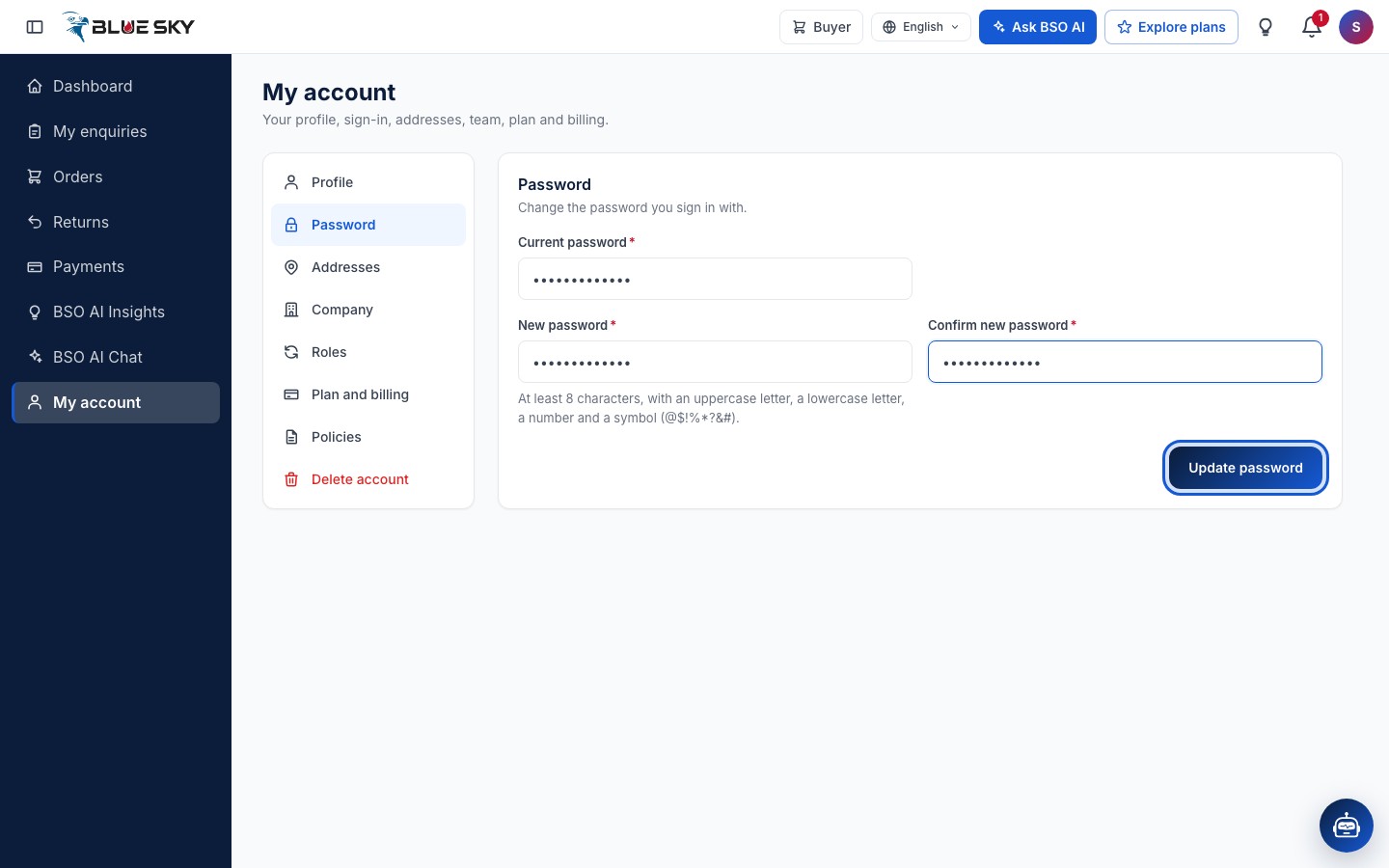
Type the password you sign in with today, then the new one twice. The hint under the field repeats the rules: at least 8 characters, with an uppercase letter, a lowercase letter, a number and a symbol. If the two new passwords differ, or a rule is not met, the field turns red and tells you what to fix.
Click Update password
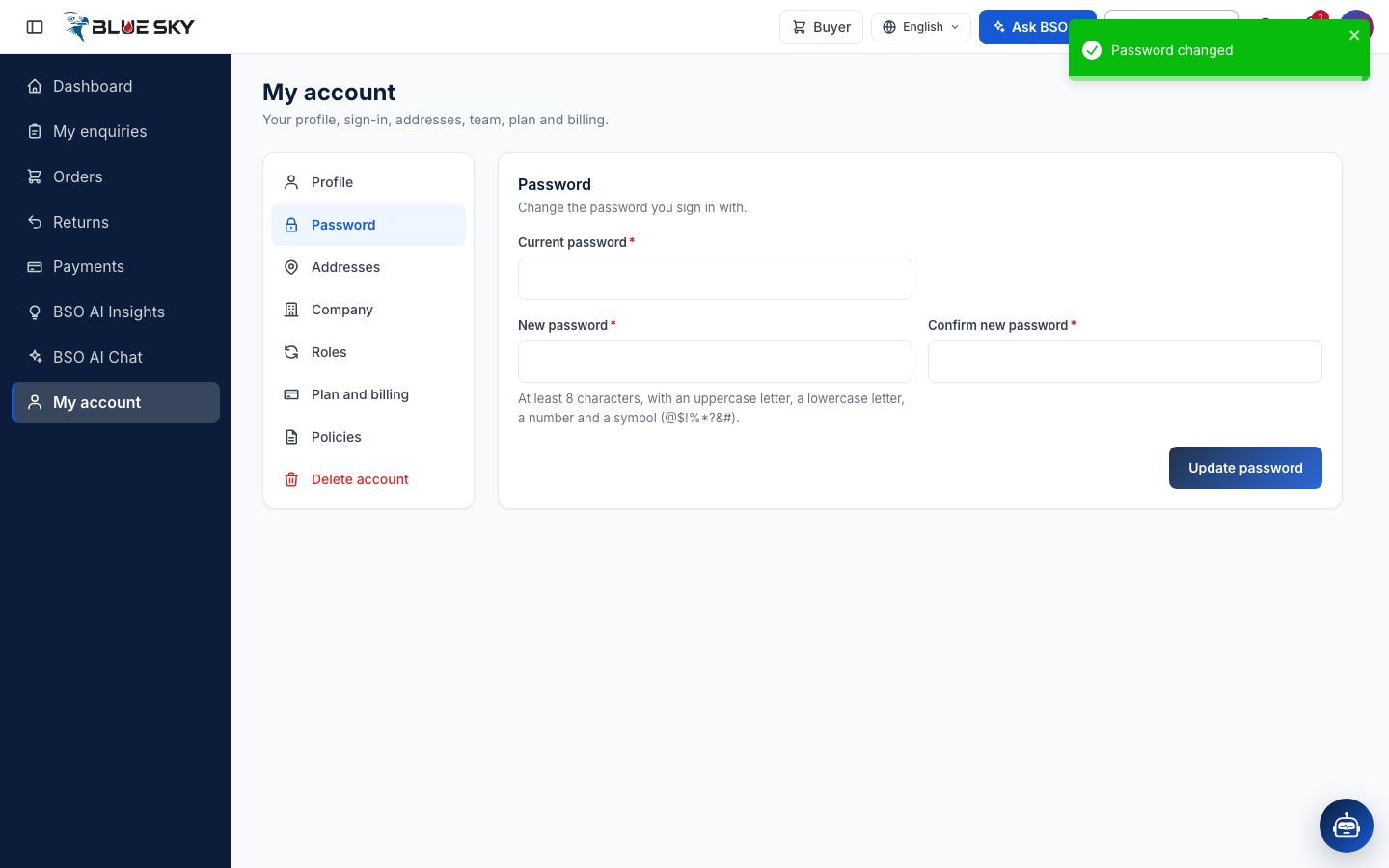
Click "Update password". A green message confirms the change and the form clears. From now on sign in with the new password on every device.
Good to know
- Changing the password does not sign you out of this session.
- If the current password is wrong, the page says so and nothing changes.
- Sign-in is by email or mobile number plus password only; there is no Google or social sign-in. See Sign in, log out and reset your password.
Related guides
Still stuck? We are here.
Open BSO AI Chat inside the platform, or email the support team. Monday to Friday, 07:00 to 17:00 UK time.