

Your personal details and your company details both live on My account, on the Profile and Company tabs. This guide follows a buyer; the same tabs are there for every role. You set most of this up when you created your account; here is where you change it later.
Before you start
- A BSO account, signed in.
- For the company logo, a JPG, PNG or WebP file of up to 2 MB.
Open My account
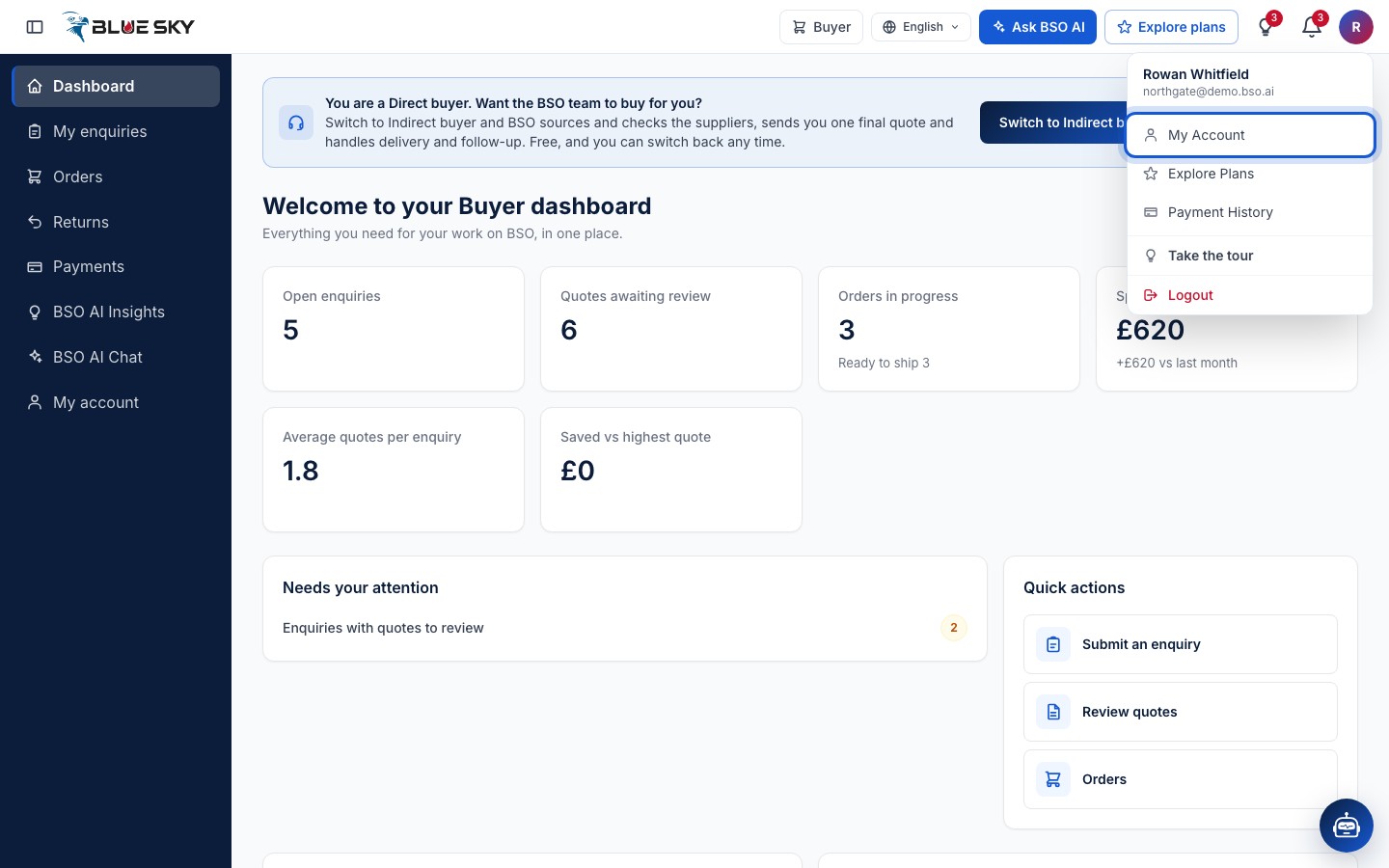
Click your initial at the top right of the dashboard and choose "My account", or click "My account" at the bottom of the left menu. The page is bsoservices.ai/my-account.
Check the Profile tab
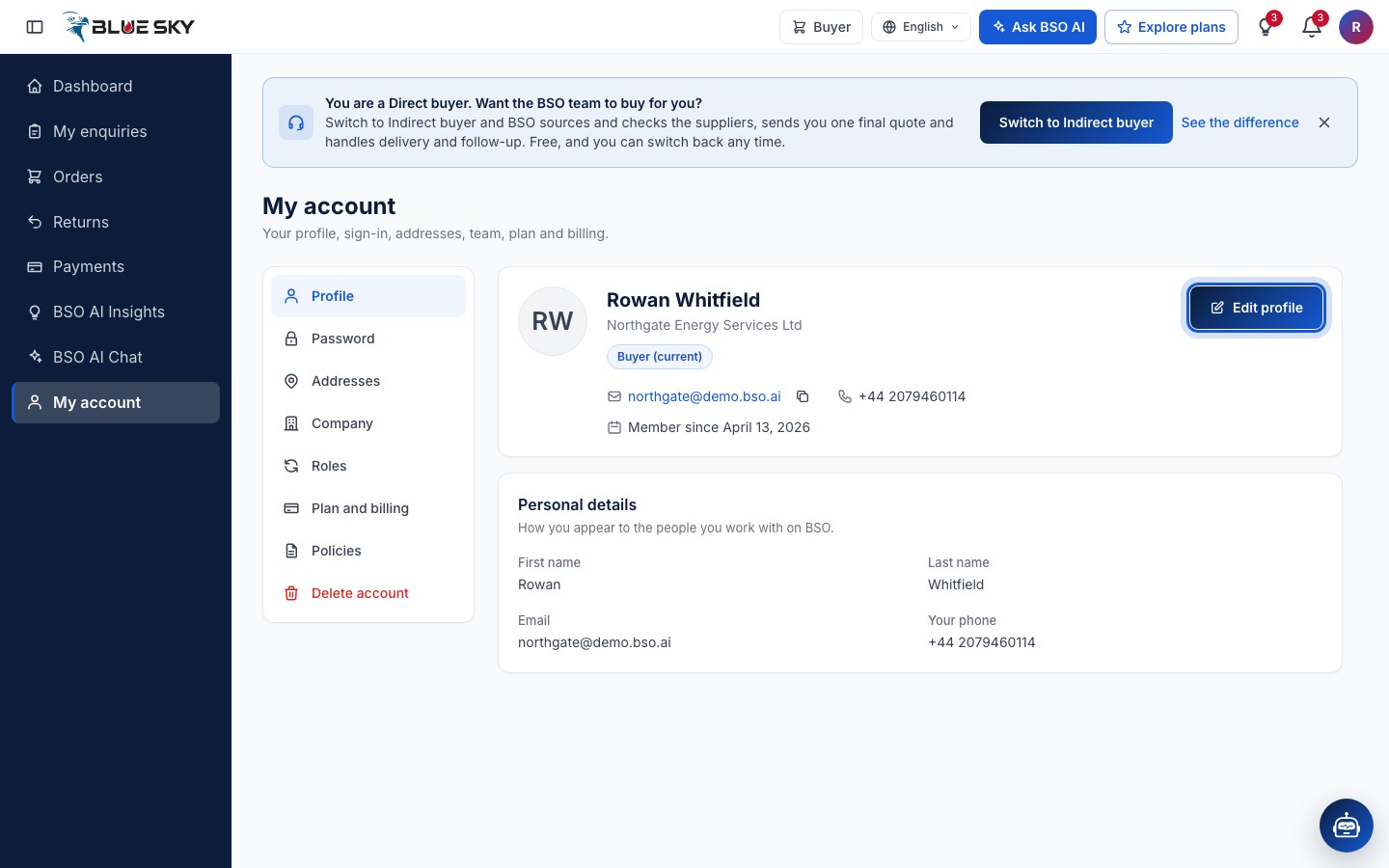
The page opens on "Profile": your name, company, the roles your account holds with the current one marked, your email and phone, and the date you joined. The other tabs are listed on the left: "Password", "Addresses", "Company", "Roles", "Plan and billing", "Policies" and "Delete account" (a Team tab appears on supplier and logistics accounts).
Edit your name, phone and photo
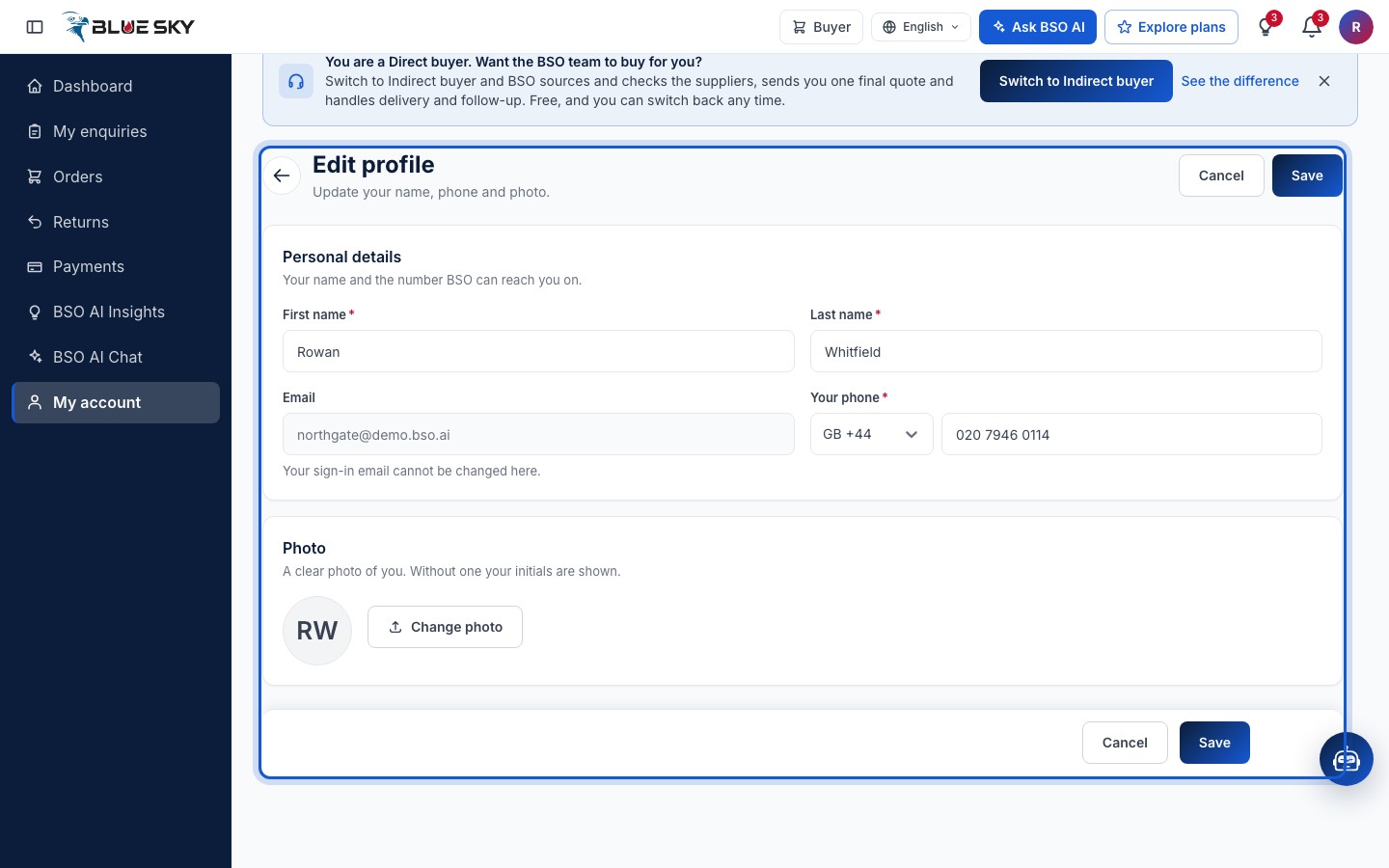
Click "Edit profile". Under "Personal details" change your "First name", "Last name" or "Your phone" (country code and number). Your sign-in email is shown but cannot be changed here.
Under "Photo", "Change photo" uploads a picture of you; without one your initials are shown. Click "Save" (at the top or the bottom of the form) or "Cancel" to leave without saving.
Names are 2 to 60 letters. If you leave the form with unsaved changes, it asks whether to discard them.
Open the Company tab
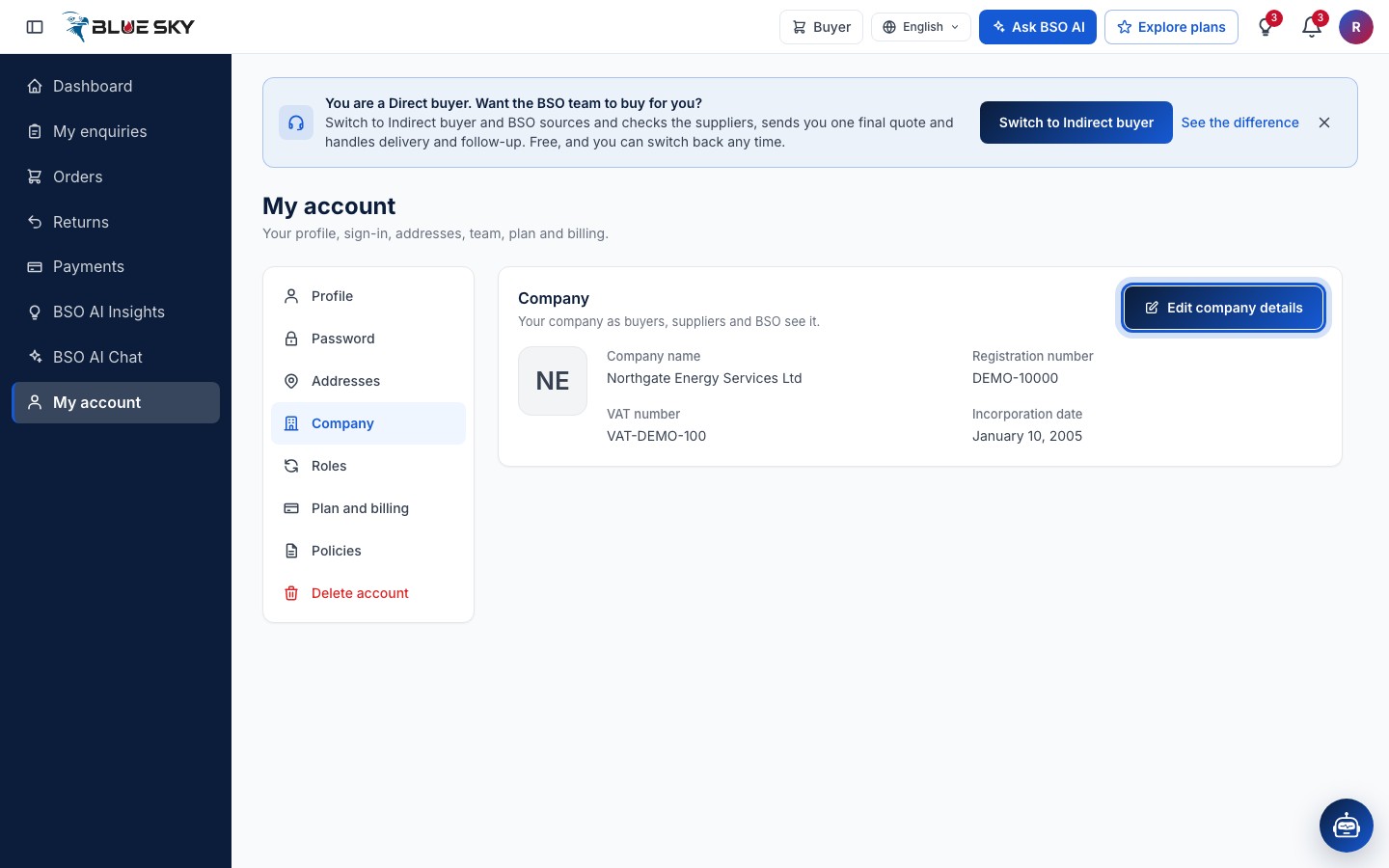
Click "Company" in the list on the left. It shows your logo, "Company name", "Registration number", "VAT number" and "Incorporation date" as buyers, suppliers and BSO see them. Suppliers, logistics providers and job seekers keep their company details on their own profile page instead; the tab links there.
Edit the company details and logo
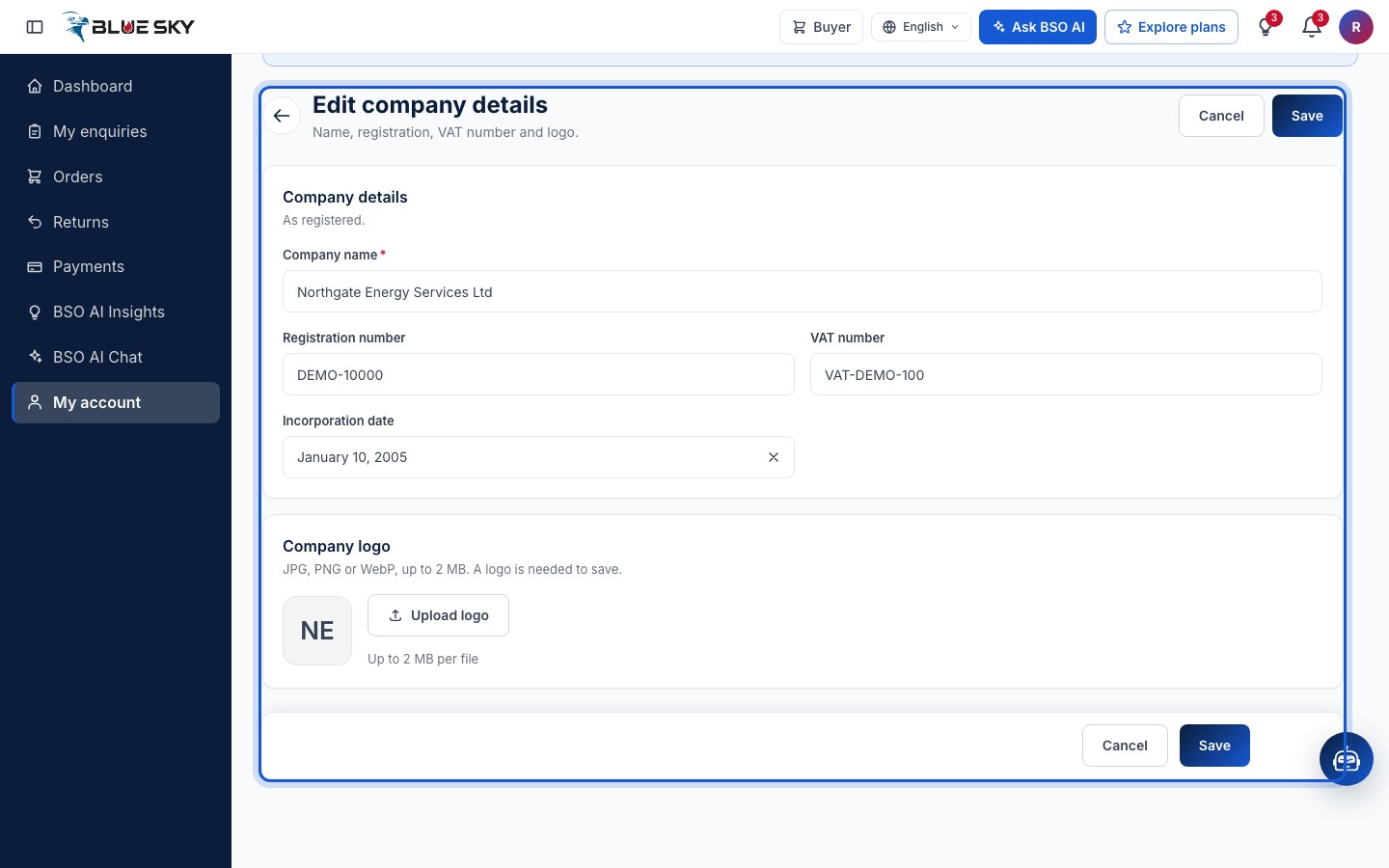
Click "Edit company details". "Company name" is required; the registration number, VAT number and incorporation date are optional. Under "Company logo", "Upload logo" takes a JPG, PNG or WebP of up to 2 MB, and a logo is needed before the form will save. Click "Save".
Good to know
- Your company name and logo appear on your enquiries, quotes, orders and invoices, so keep them as registered.
- Your password has its own tab: see Change your password. Roles are added and switched on the Roles tab: see Switch between roles.
- A team member invited by a company sees the company details read-only; only the account owner can change them.
Related guides
Still stuck? We are here.
Open BSO AI Chat inside the platform, or email the support team. Monday to Friday, 07:00 to 17:00 UK time.