

One account can hold several roles. Each role has its own dashboard and menu, so you pick the one you are working in: from the top bar, or from the Roles tab of My account. Adding a role is covered in Add a role; this guide is about moving between the roles you already have.
Before you start
- Two or more roles on your account. With one role there is nothing to switch, and the top bar just shows it. Paid roles need a plan before you can quote, post or publish.
With one role, the top bar shows a chip
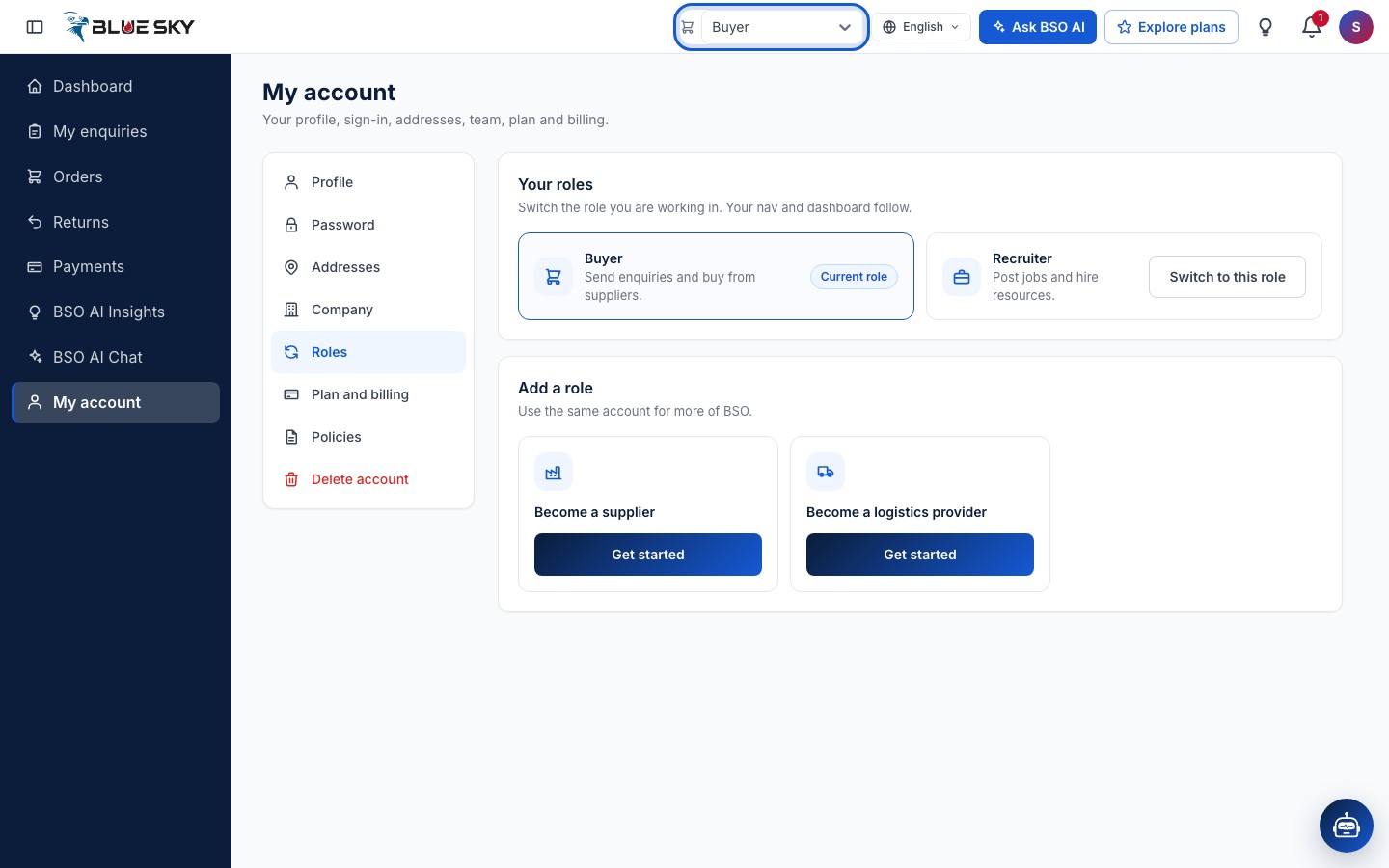
The role you are using is always in the top bar, next to the language button. An account with a single role shows it as a plain chip (here "Buyer").
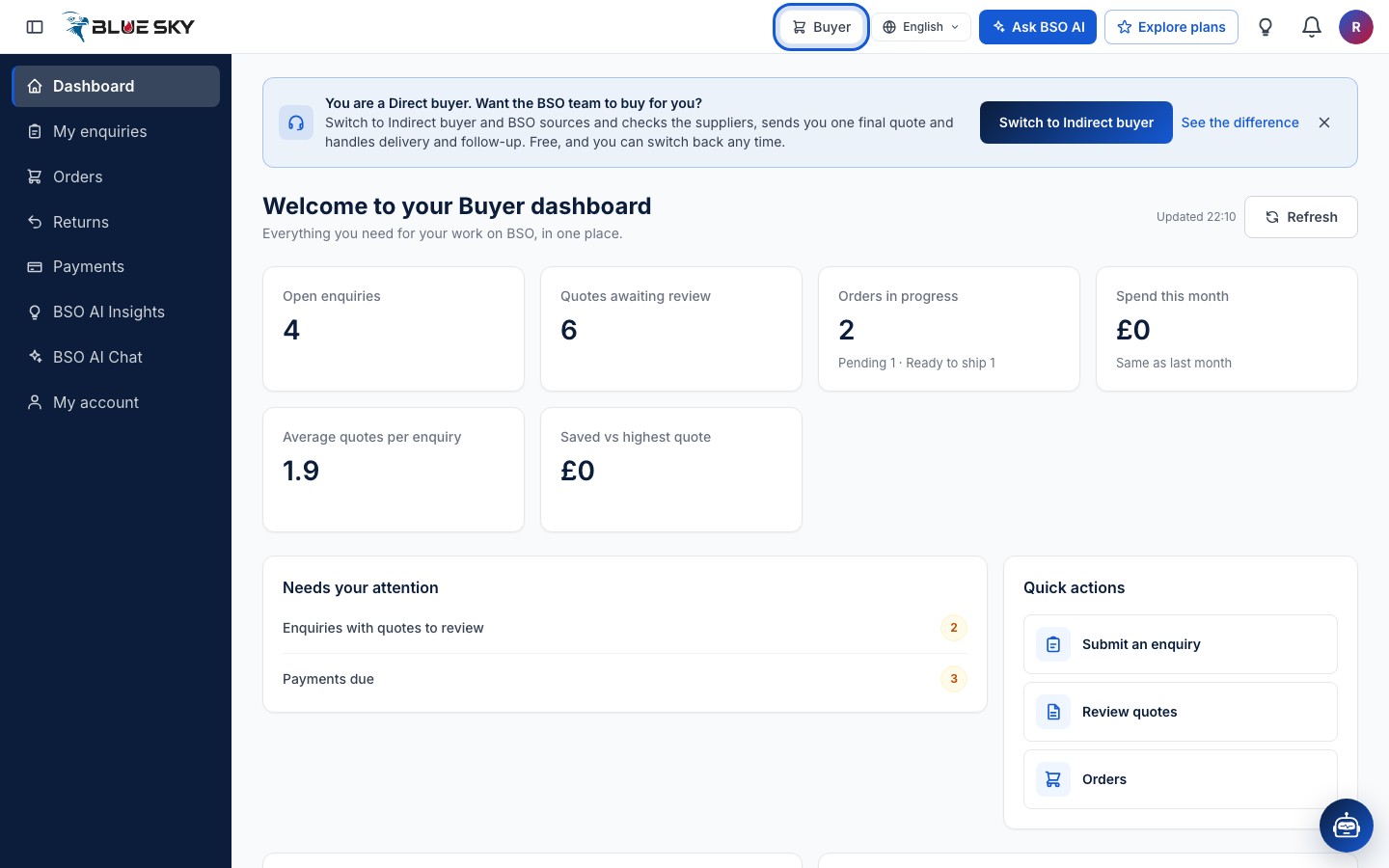
Add a second role if you need one
On the Roles tab of My account, under "Add a role", each card ("Become a supplier", "Become a logistics provider", "Become a recruiter") has a "Get started" button that opens that role's profile form. Saving the form adds the role and switches you to it.
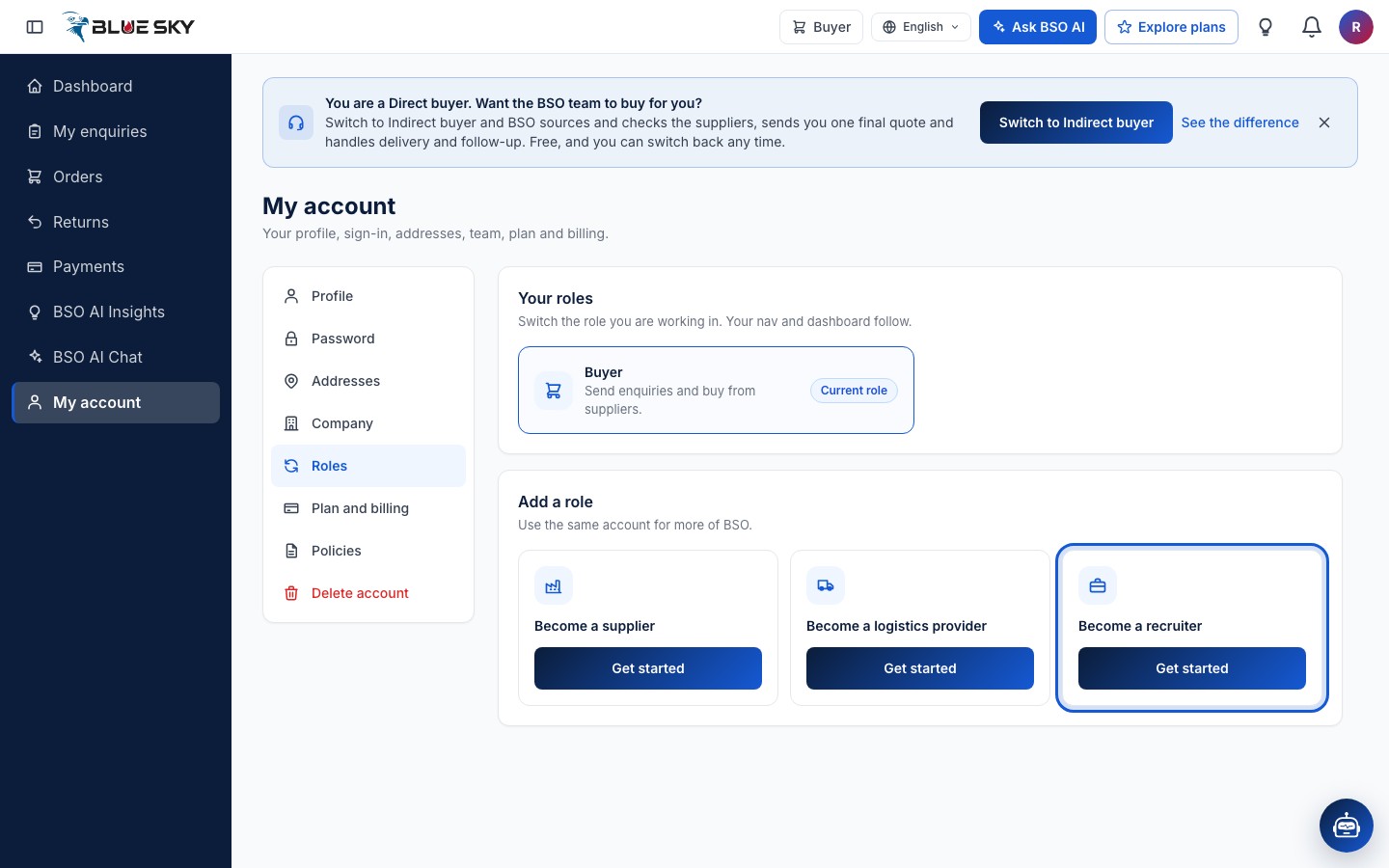
With two or more roles, the chip becomes a drop-down
Once the account holds a second role, the chip in the top bar becomes a drop-down list. Pick a role and the dashboard, the left menu and the pages change to that role. Your choice is kept until you change it again, also after a reload and on other devices.
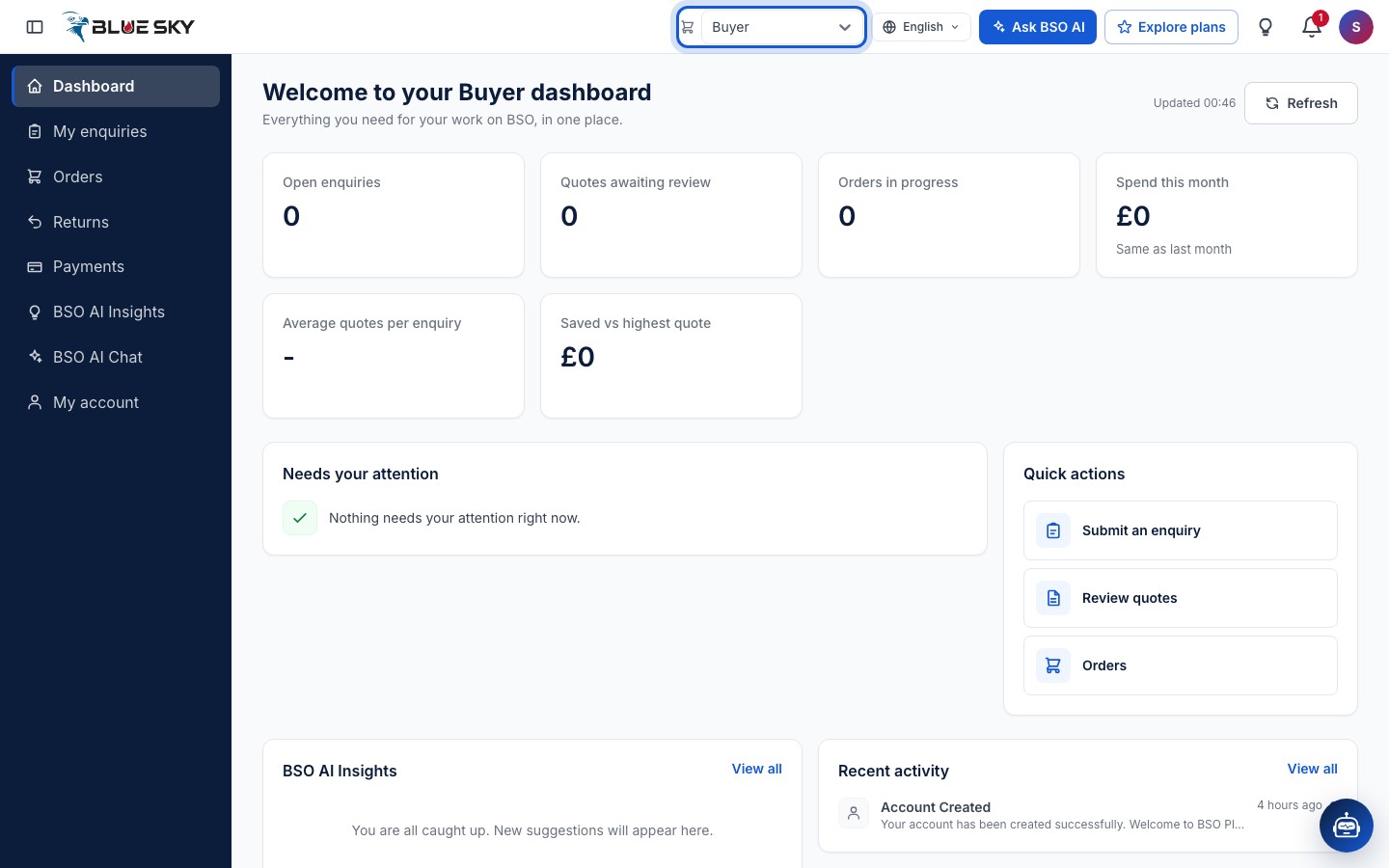
On a phone the same drop-down sits at the top of the menu drawer.
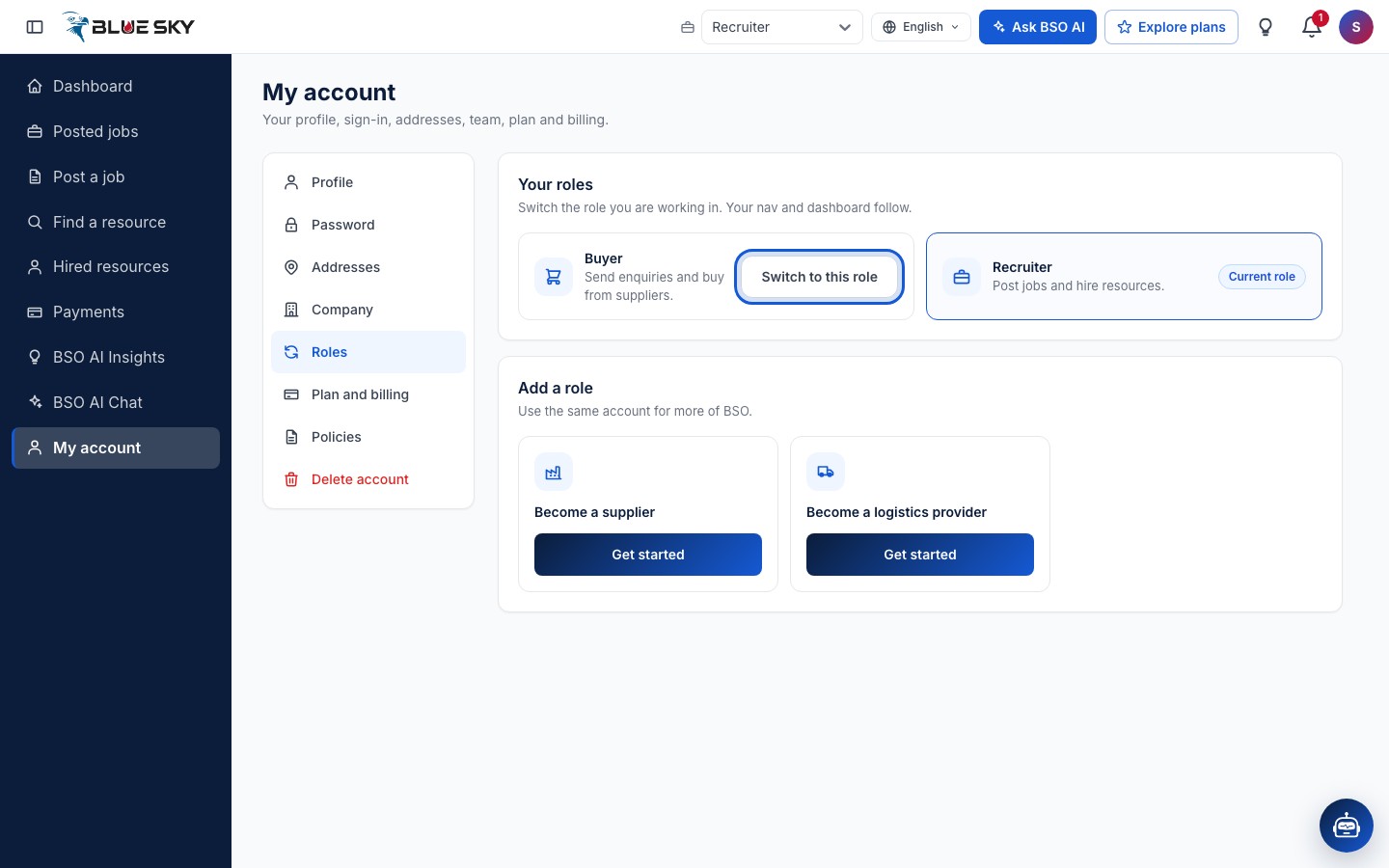
Or switch from the Roles tab
The Roles tab lists every role on the account under "Your roles" with a one-line reminder of what each is for. The one you are in is marked "Current role"; each of the others has a "Switch to this role" button.
Done
A short message confirms which role you are now using, and the top bar and menu follow. Nothing else changes: your enquiries, quotes, orders and settings stay where they are for each role.
Good to know
- The job seeker role is added from the public Jobs page with List yourself, not from the Roles tab.
- Supplier and logistics accounts get a Team tab: see Invite your team. A team member invited by a company works in the owner's role and cannot add roles.
- Switching the role never changes your plan or your buying mode; those are on Plan and billing.
Related guides
Still stuck? We are here.
Open BSO AI Chat inside the platform, or email the support team. Monday to Friday, 07:00 to 17:00 UK time.