

When you create an account you are a buyer. There is no separate sign-up for suppliers, logistics providers, recruiters or job seekers: you add the role you need to the account you already have, and one account can hold several roles at once.
Supplier, logistics provider and recruiter are added from My account, under Roles. The job seeker role is added from the public Jobs page. Being a buyer or a job seeker is free; the other three roles need a plan before you can quote, ship or post.
Before you start
- A BSO account you are signed in to.
- For a supplier, logistics or recruiter role: your company details, since the set-up page asks for them.
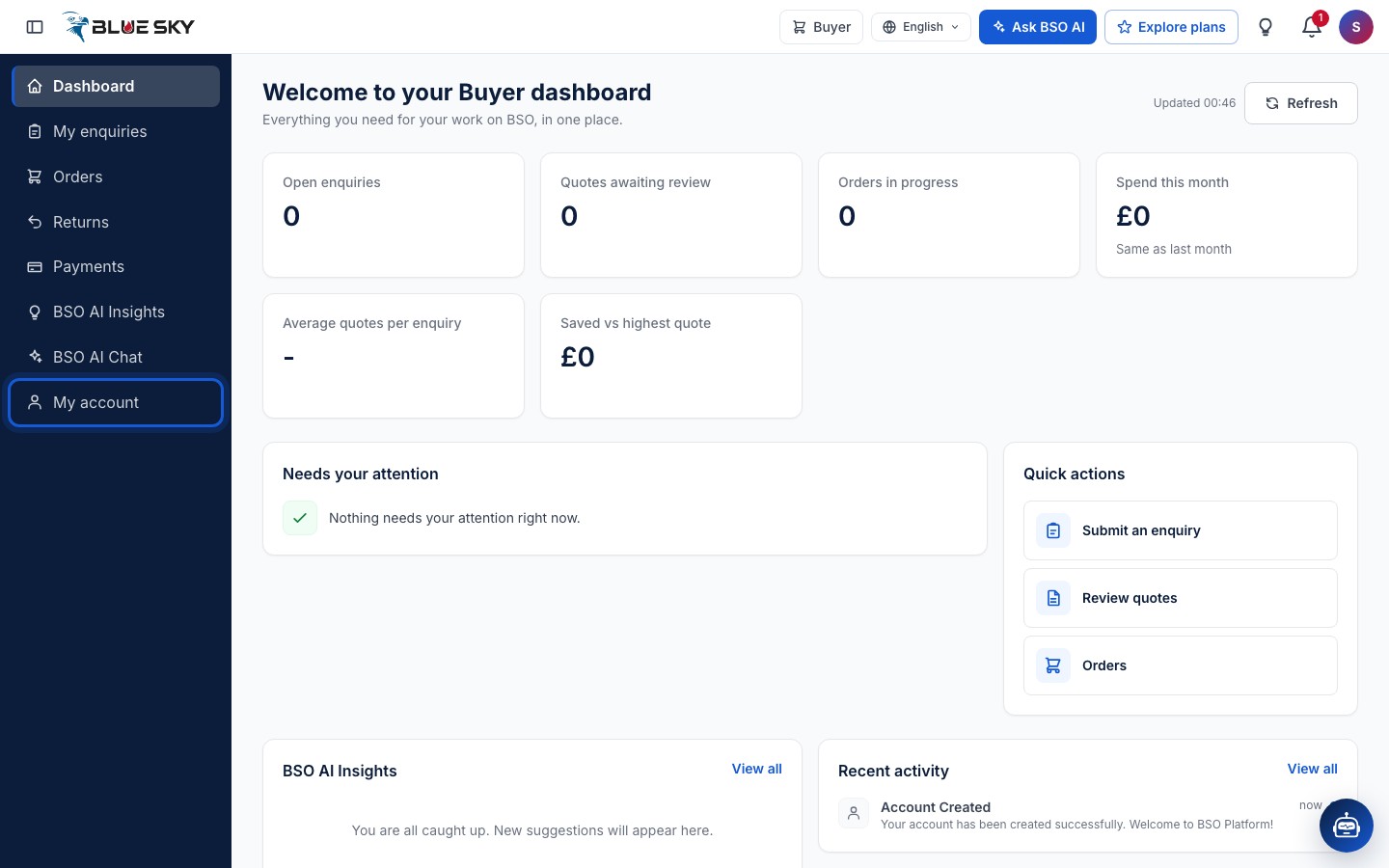
Open My account
Click My account at the bottom of the left menu, or open the account menu at the top right and click My account. Either way you land on bsoservices.ai/my-account. If the menu is new to you, see Find your way around.
Go to the Roles tab
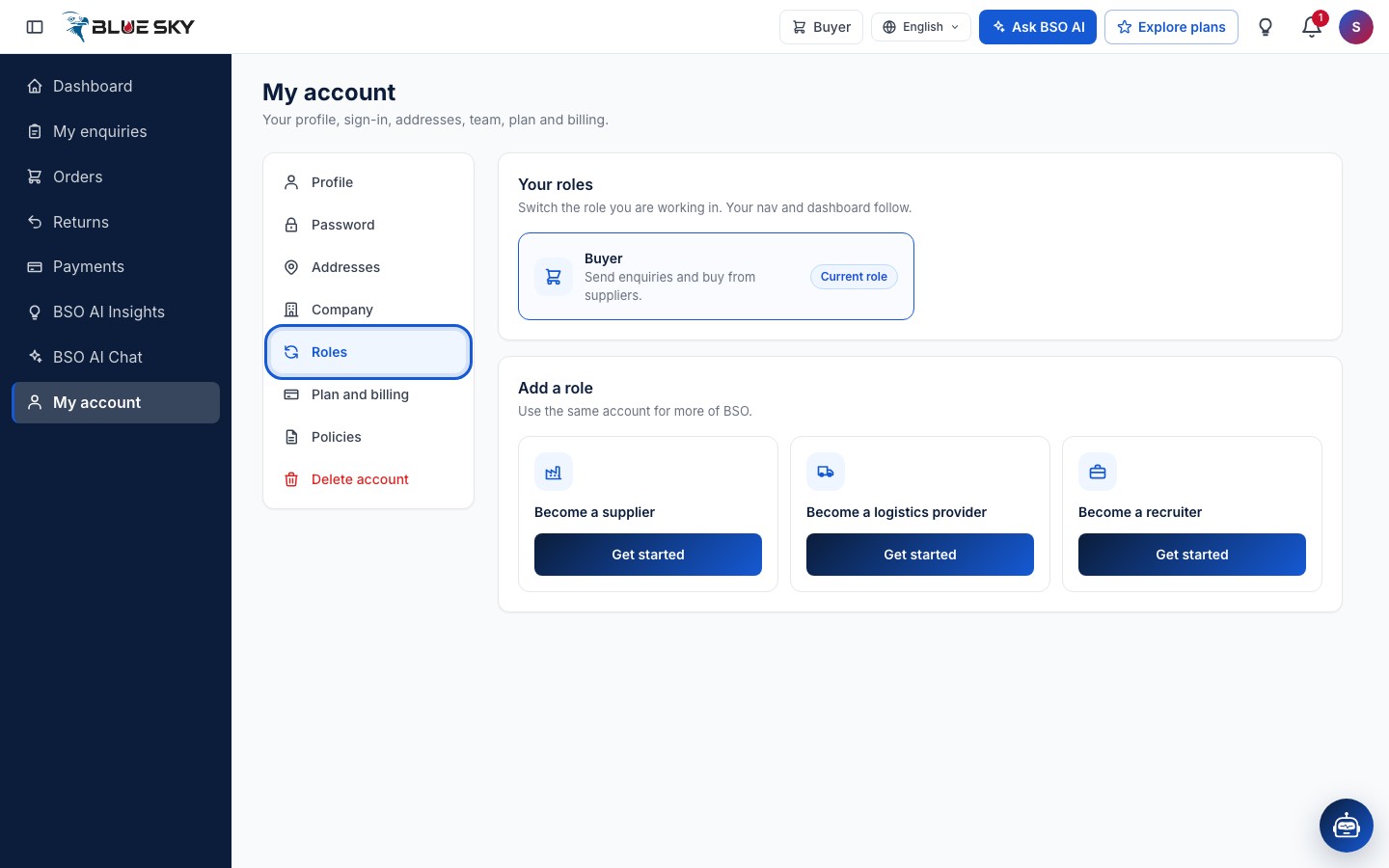
My account has tabs on the left: Profile, Password, Addresses, Company, Roles, Plan and billing, Policies and Delete account (Team is added on supplier and logistics accounts). Click Roles, or go straight to my-account?tab=roles.
Your roles lists every role the account holds. The one you are working in is marked Current role; any other role has a Switch to this role button. See Switch between roles.
Pick the role to add
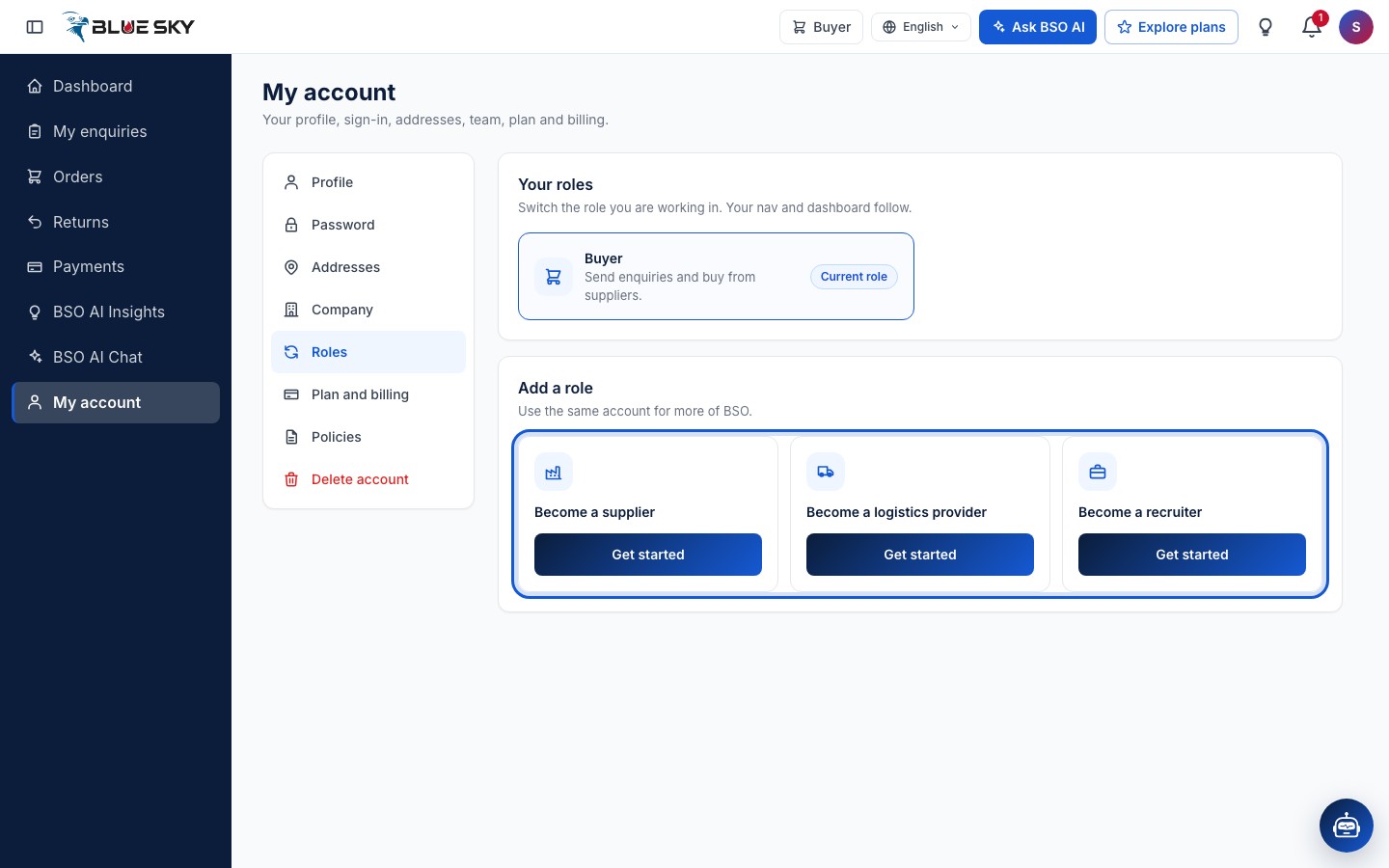
Below your roles is Add a role, with one card for each role you do not have yet: Become a supplier, Become a logistics provider and Become a recruiter. A card disappears once that role is on the account. If you were invited to a colleague's team, you work inside their company and this section is not shown.
Click Get started
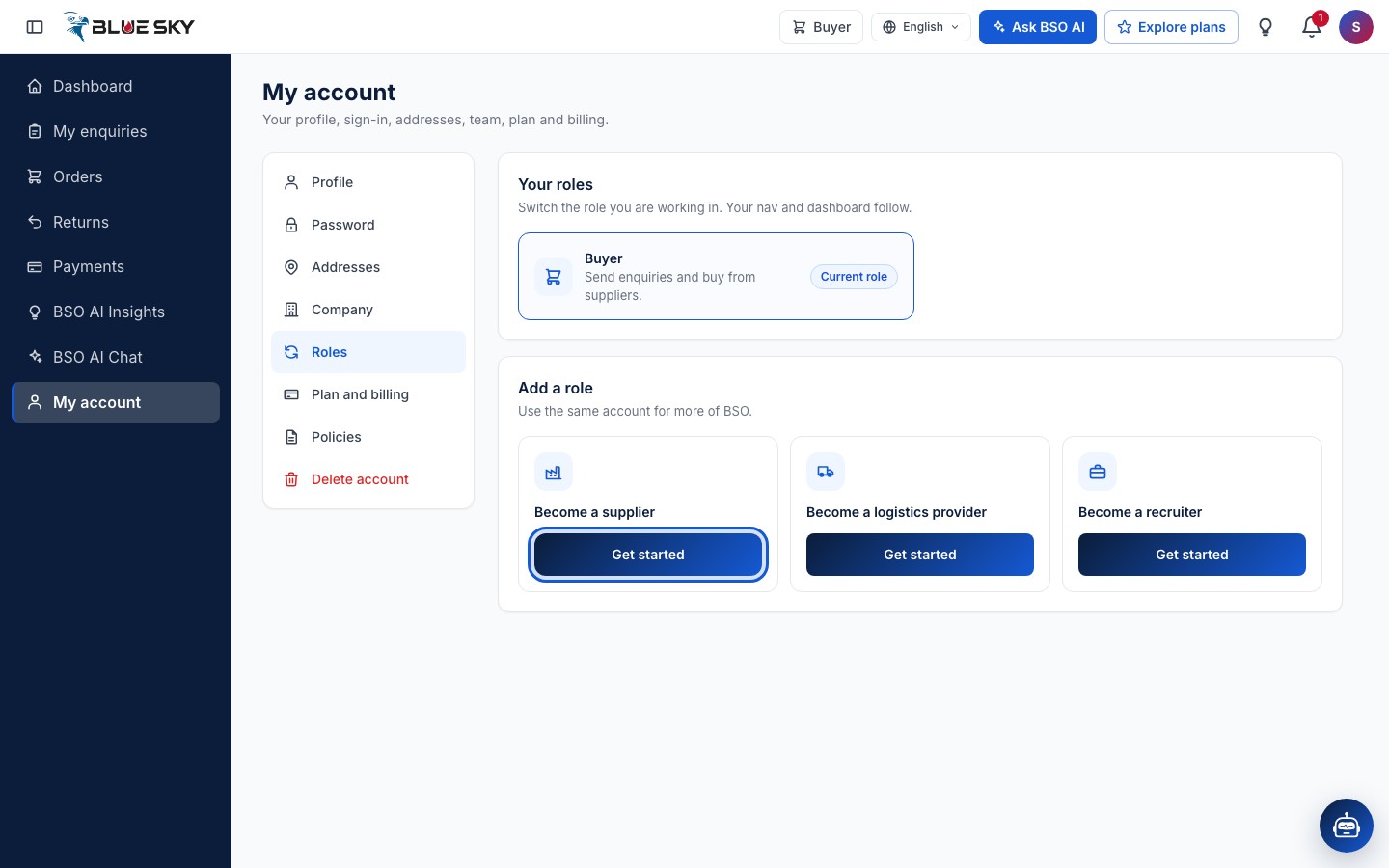
Each card has a Get started button. Click the one for the role you want. Nothing is added yet: the button only opens that role's set-up page.
Fill in the set-up page
Get started on Become a supplier opens Set up your supplier profile. The logistics card opens Set up your logistics profile and the recruiter card opens Set up your recruiter profile. Each is one page with no tabs: every field is tagged Required or Optional, and the details already on your account, such as your name, phone and company, are filled in for you. Back to home leaves the page without saving anything.
What each page asks for, and what happens after, is in Become a supplier, Become a logistics provider and Become a recruiter.
Click Finish, then choose a plan
When everything required is in, click Finish at the bottom of the page. The role is added to your account and becomes the role you are using: a message confirms the profile is saved and your dashboard opens with that role's menu. The Roles tab now lists the new role next to Buyer.
To quote on enquiries, quote on shipments or post jobs you also need an active plan for that role. Open Explore plans from the top bar and pick the plan for the role; Compare plans explains what each one includes and the All-in-One plan that covers every role.
Job seeker: List yourself on the Jobs page
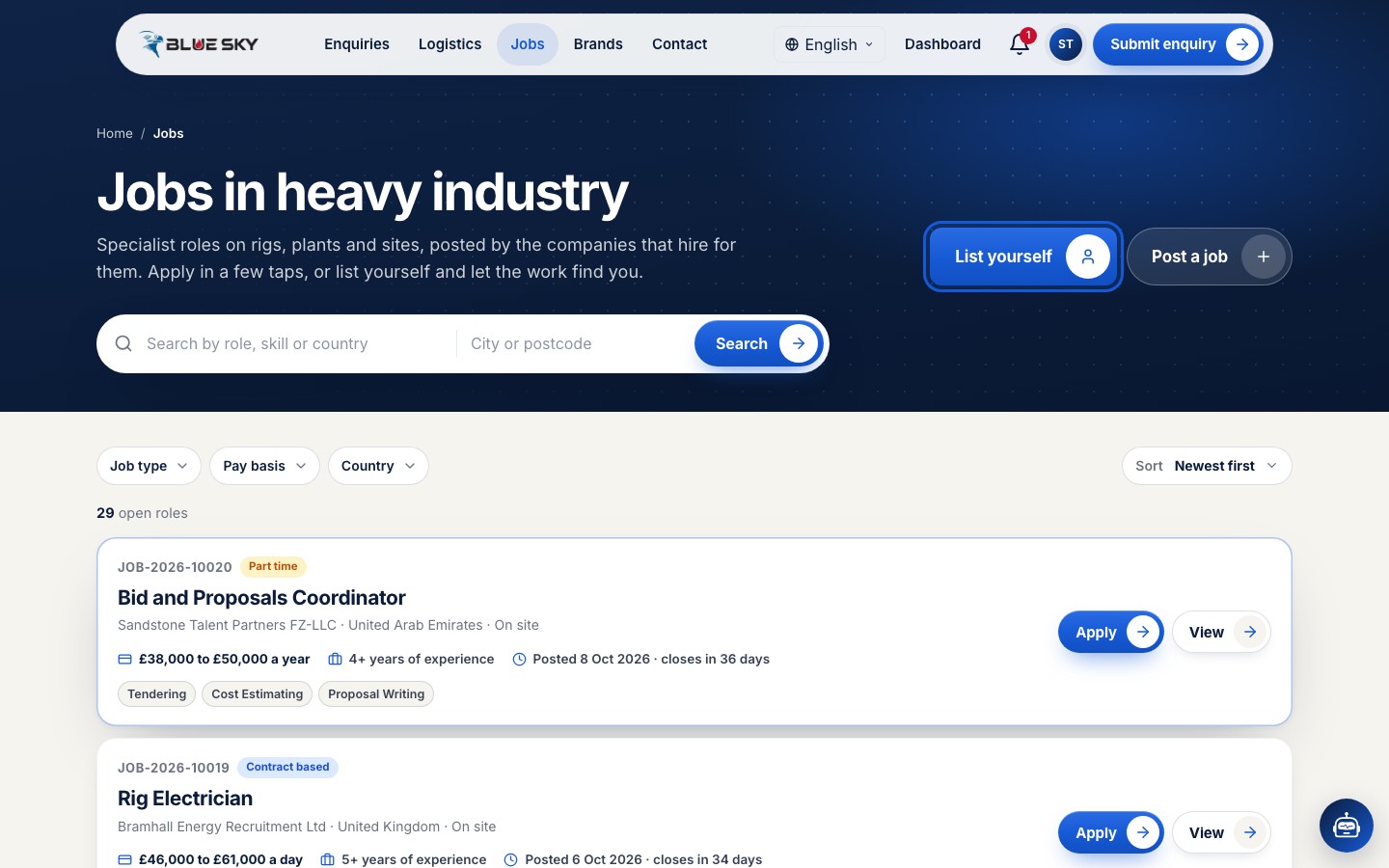
The job seeker role is not on the Roles tab. Open Jobs in the top menu of the public site (bsoservices.ai/search-job) and click List yourself at the top right. While you are signed in it opens Set up your job seeker profile; Finish there adds the job seeker role, which the role switch calls Resource.
The job seeker role is free. What the profile asks for, and how to apply for jobs, is in List yourself.
Good to know
- One account can be a buyer and a supplier, or any other mix. Switch between them from the role drop-down in the top bar or from the Roles tab; see Switch between roles.
- Each paid role needs its own plan, unless the account holds an All-in-One plan. Buying stays free whichever roles you add.
- Your name, email and password are shared by all your roles. Each set-up page fills in the name, phone and company details already on your account, so you only check them and add what that role needs.
- Questions about which role you need? Email support@bsoservices.ai, Monday to Friday 07:00 to 17:00 UK time.
Related guides
Still stuck? We are here.
Open BSO AI Chat inside the platform, or email the support team. Monday to Friday, 07:00 to 17:00 UK time.