

A recruiter posts jobs on BSO, reviews the people who apply and searches the job seekers listed on the platform. You do not sign up again for it: you add the role to the account you already have (see Add a role to your account). If you have no account yet, start with Create your account.
Two things are needed before your first job post: the recruiter profile, one short page with your name and your company details, and an active recruiter plan. The role itself is added the moment you click Finish on that page.
Before you start
- A BSO account you are signed in to.
- Your name and phone number.
- Your company name, company registration number, VAT number and the date the company was incorporated.
- A company logo file, if you want one on your profile (optional).
Open My account and go to Roles
Click My account at the bottom of the left menu, then the Roles tab, or go straight to my-account?tab=roles. Under Your roles you see the roles the account already holds. Below it, Add a role lists the roles you can add, each on its own card: Become a supplier, Become a logistics provider and Become a recruiter.
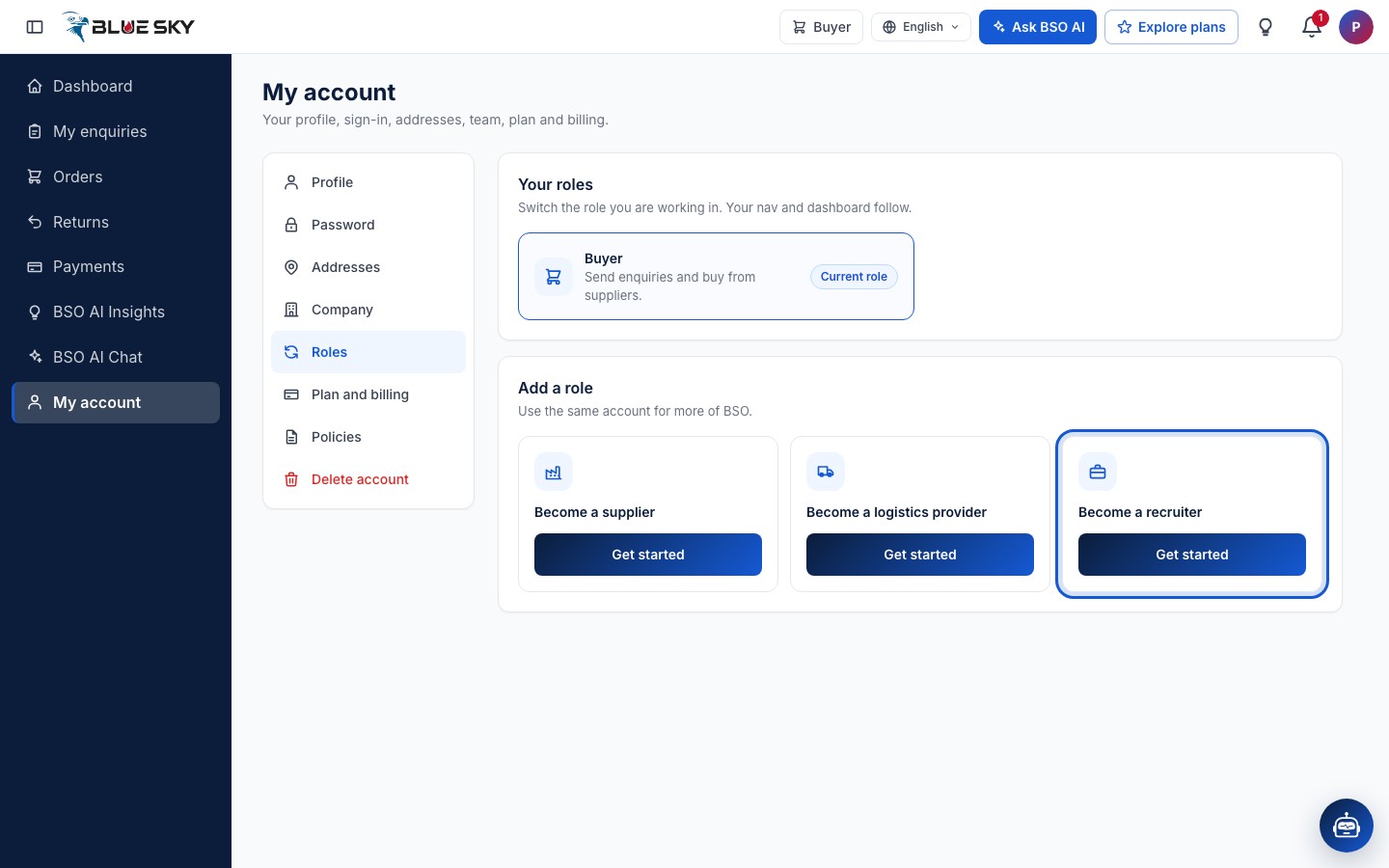
Click Get started on Become a recruiter
Each card has a Get started button. The one on Become a recruiter opens the recruiter set-up page. Nothing is added to your account until you click Finish on that page.
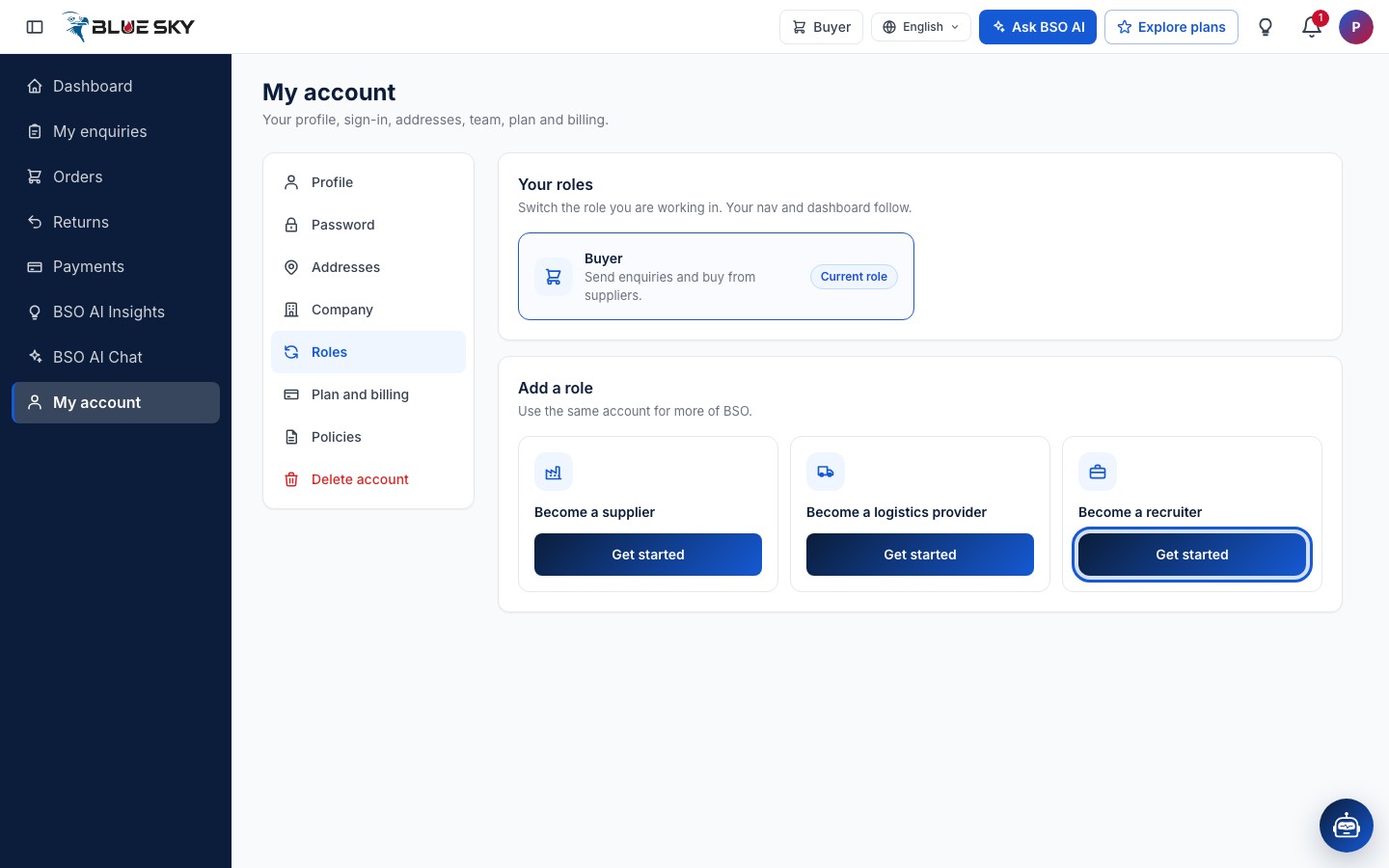
Look over the set-up page
You will see Set up your recruiter profile at complete-profile-recruiter. It is one short page: your First name, Last name and Phone, then Your company with the Company name, Registration number, VAT number, Incorporation date and an optional Company logo.
Every field is tagged Required or Optional; only the logo is optional. Anything already on your account, such as your name, phone and company details, is filled in for you. Back to home leaves the page without saving.
Already set up as a recruiter? Opening this page while you work as a recruiter takes you to My account, Company, ready to edit your company details.
Fill in your details and your company
Fill in your first and last name and your phone: pick the country code, then type the number without it.
Under Your company (Needed before you post jobs and hire), type the company name, the registration number and the VAT number, and pick the incorporation date, today or earlier. All four are required: without the registration number, the VAT number and the incorporation date you cannot post a job, accept an application or save a job seeker. Add a logo is optional (JPG or PNG).
The company details go on your profile only; candidates see your company name on your job posts.
Click Finish
Click Finish. If something is missing or wrong, the page marks it in red with a short message and takes you to the first one.
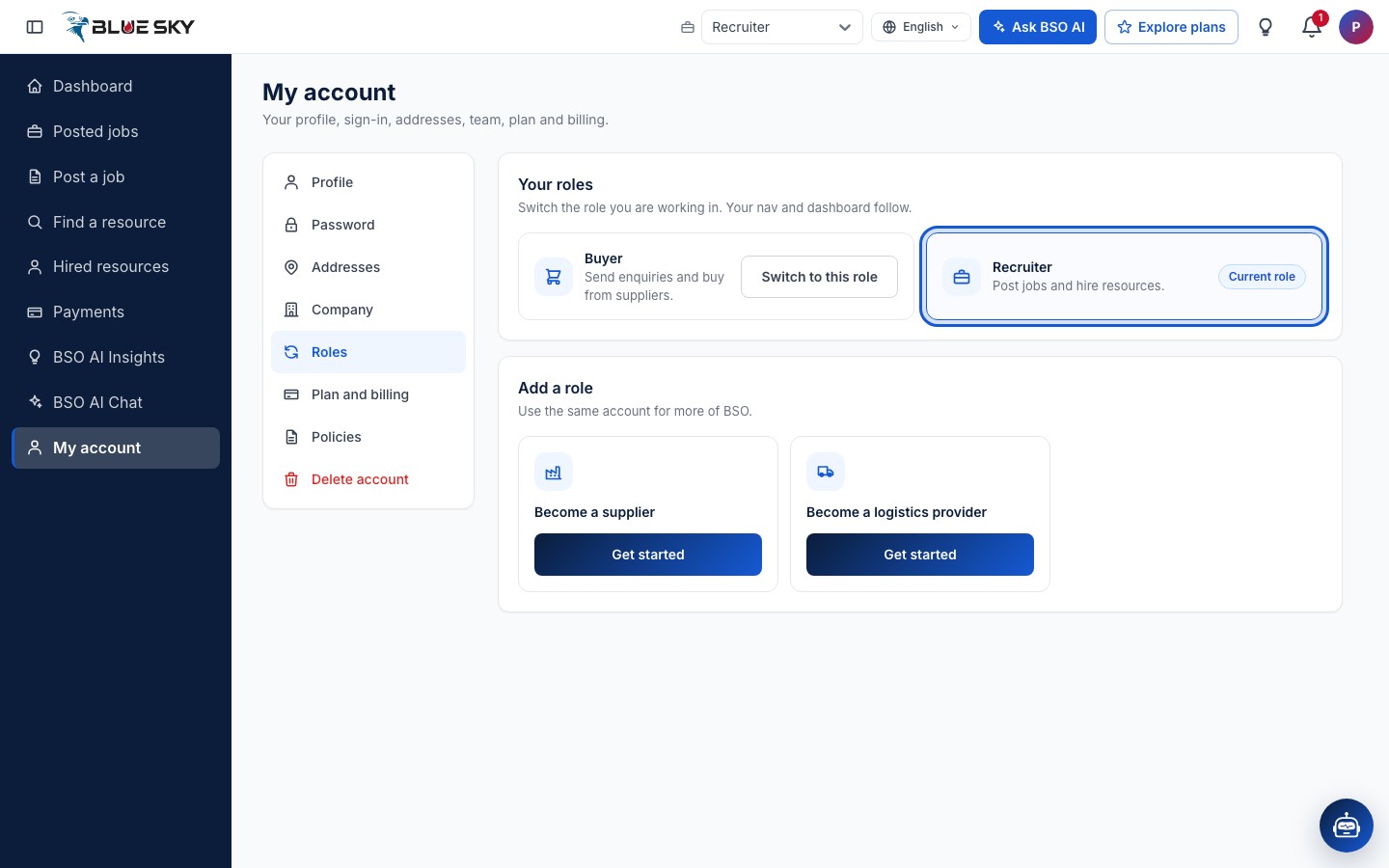
When everything is in, you will see Recruiter profile saved: the recruiter role is on your account and your dashboard opens as a recruiter. There is no extra confirmation box.
The recruiter role is on your account
The left menu now has the recruiter pages: Posted jobs, Post a job, Find a resource and Hired resources. Open the Roles tab of My account: Recruiter is listed next to Buyer and marked Current role, and the Become a recruiter card is gone. Use Switch to this role on the Buyer card whenever you want to go back to buying.
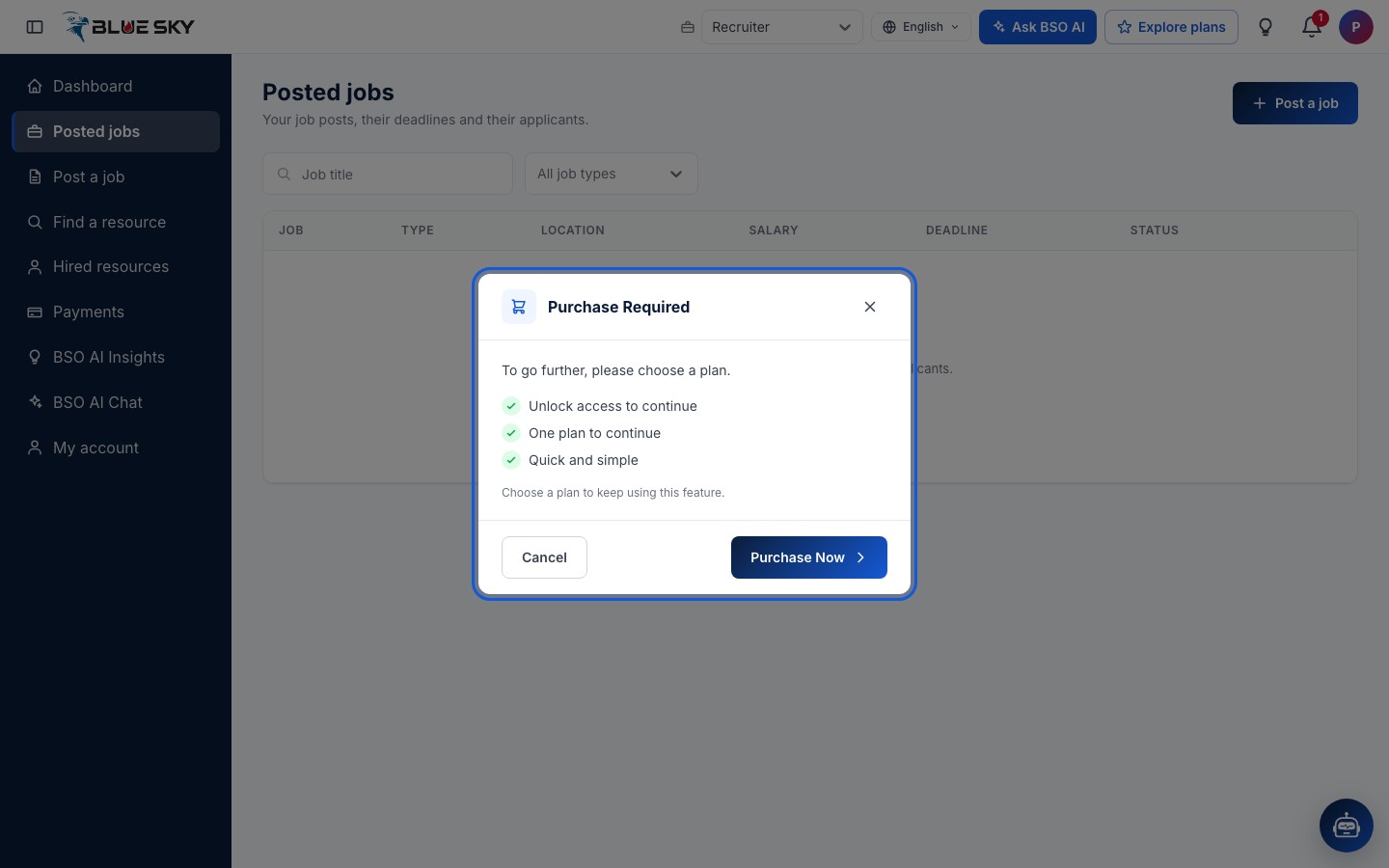
Pick a plan before you post
Posting a job, editing or reopening one, accepting an application and opening a job seeker's profile all need an active recruiter plan or the All-in-One plan. Without one, Post a job on Posted jobs shows a Purchase Required box: Cancel closes it, Purchase Now opens the Plans page.
The same box appears when you open a profile on Find a resource without a plan. What the plans include is in Compare plans; paying for one is in Buy a plan.
Choose a recruiter plan
Purchase Now opens Plans on the Recruiter tab, with a monthly and a yearly plan side by side. The tabs along the top switch between the Buyer, Supplier, Logistics, Recruiter and All-in-One plans. Pick the one that suits you; once it is active, Post a job opens the form.
Good to know
- If you already hold a supplier plan or a logistics plan, recruiter access comes with it for the same period: you do not need a separate recruiter plan.
- To change your company details later, open My account, Company and click Edit company details. That form needs a company logo (JPG, PNG or WebP, up to 2 MB) before it saves, even though the logo was optional on the set-up page.
- Ready to post? See Post a job. To look through the job seekers first, see Find a resource.
- Questions about the recruiter role or plans? Email support@bsoservices.ai, Monday to Friday 07:00 to 17:00 UK time.
Related guides
Add a role to your account
Become a supplier, logistics provider or recruiter too.
Post a job
The seven-step job form, with BSO AI to write it.
Find a resource
Search job seekers by skill and save the good ones.
Compare plans
Free roles, paid roles, monthly or yearly, All-in-One.
Buy a plan
Choose plan, complete the profile, pay by card.
Still stuck? We are here.
Open BSO AI Chat inside the platform, or email the support team. Monday to Friday, 07:00 to 17:00 UK time.