

A paid plan is bought from the Plans page of your dashboard: pick the role tab, click Choose plan and enter your card in the secure card box. The plan is active as soon as the payment goes through.
If your account does not hold that role yet, the platform asks you to complete the role's profile first; then you come back to the plan. This guide follows a buyer adding the Recruiter plan. A supplier or logistics plan works the same way with its own set-up page.
Before you start
- A BSO account you are signed in to.
- Your company details, if the role's set-up page still has to be filled in.
- A payment card. Plans are paid through Stripe, and the card details go straight to Stripe. If you have not decided which plan yet, start with Compare plans.
Open the Plans page
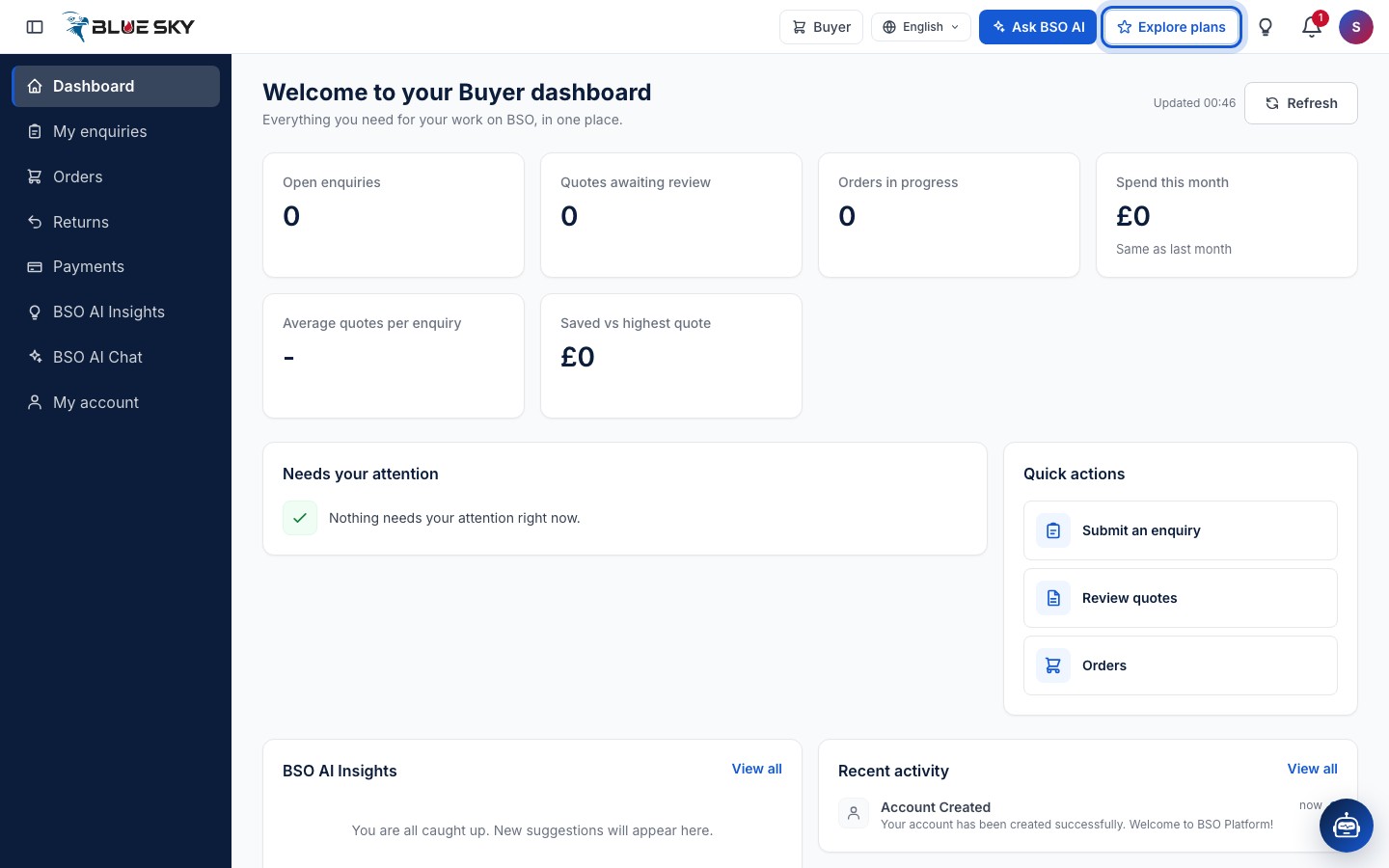
Click Explore plans in the top bar. It opens bsoservices.ai/subscription-plan with your current plans at the top and one tab per role below.
Pick the role tab
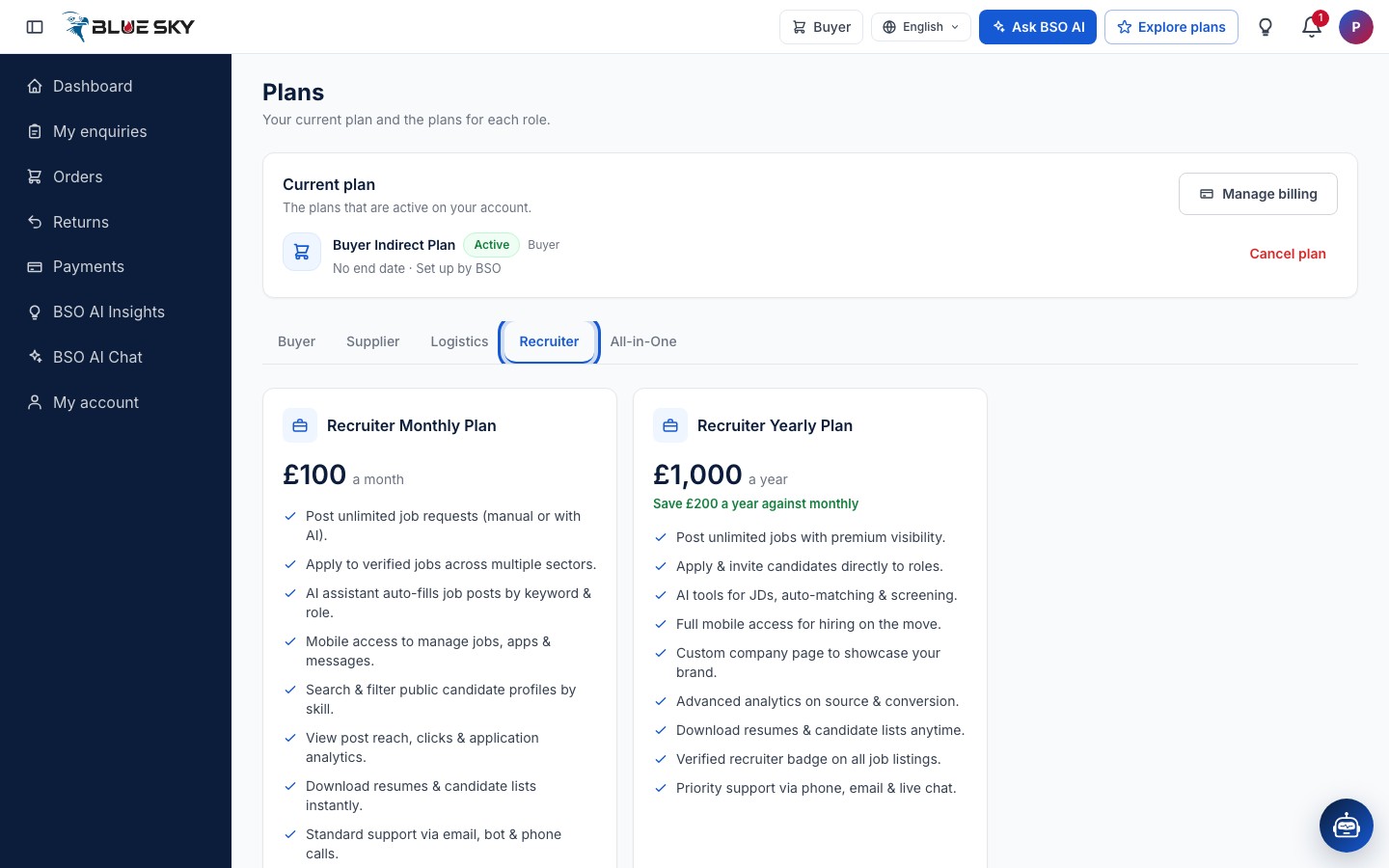
Click the tab of the role you want: Supplier, Logistics, Recruiter or All-in-One. Each shows a monthly and a yearly card with what the plan includes and a Choose plan button. Here the Recruiter tab is open. Prices are shown before VAT; for a UK business VAT is added at checkout and the purchase step shows the total with VAT before you confirm.
Click Choose plan
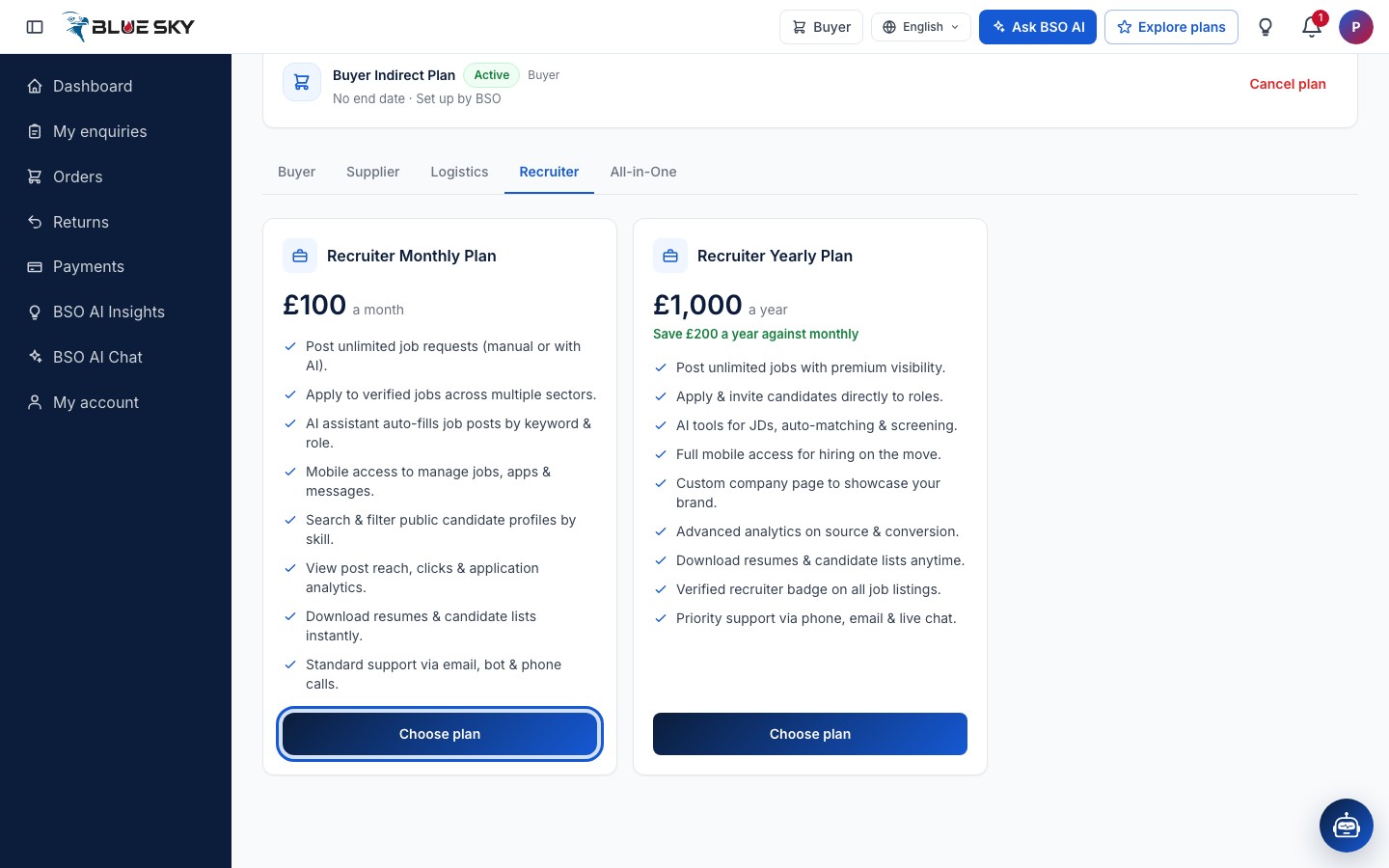
Click Choose plan on the card you want. Nothing is charged yet. What happens next depends on whether your account already holds the role.
Complete the role's profile first, if asked
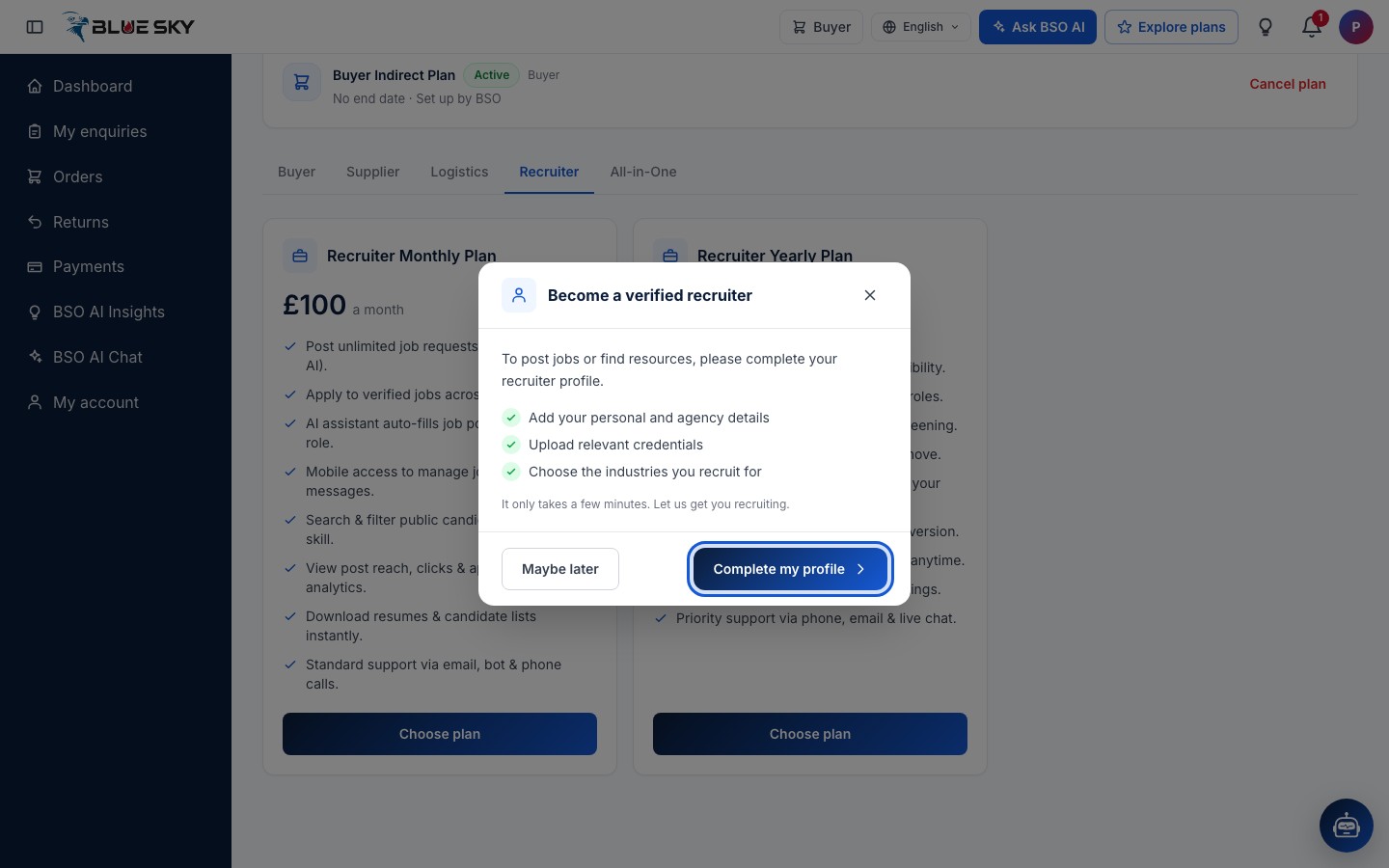
When the account does not hold the role yet, a prompt opens instead of the card box. For a recruiter it is titled Become a verified recruiter and explains that the recruiter profile has to be completed before you can post jobs or find resources. Click Complete my profile to open the set-up page, or Maybe later to close the prompt without buying.
The supplier and logistics prompts work the same way and open their own set-up pages. What each page asks for is in Become a supplier, Become a logistics provider and Become a recruiter; the Roles tab route to the same pages is in Add a role.
Fill in the set-up page
Complete my profile opens Set up your recruiter profile, one short page. It asks for your First name, Last name and Phone, then under Your company the Company name, Registration number, VAT number and Incorporation date (today or earlier). All of these are required; the Company logo is optional. Details already on your account are filled in for you.
Back to home leaves the page without saving. To carry on, fill it in and click Finish at the bottom.
Finish adds the role
If something is missing or wrong, the page marks it in red and takes you to it. When everything is in, Finish saves straight away, with no extra confirmation box: you will see Recruiter profile saved, the role is on your account and your dashboard opens as a recruiter. The top bar now has a role switch that includes the new role.
Choose the plan again and enter your card
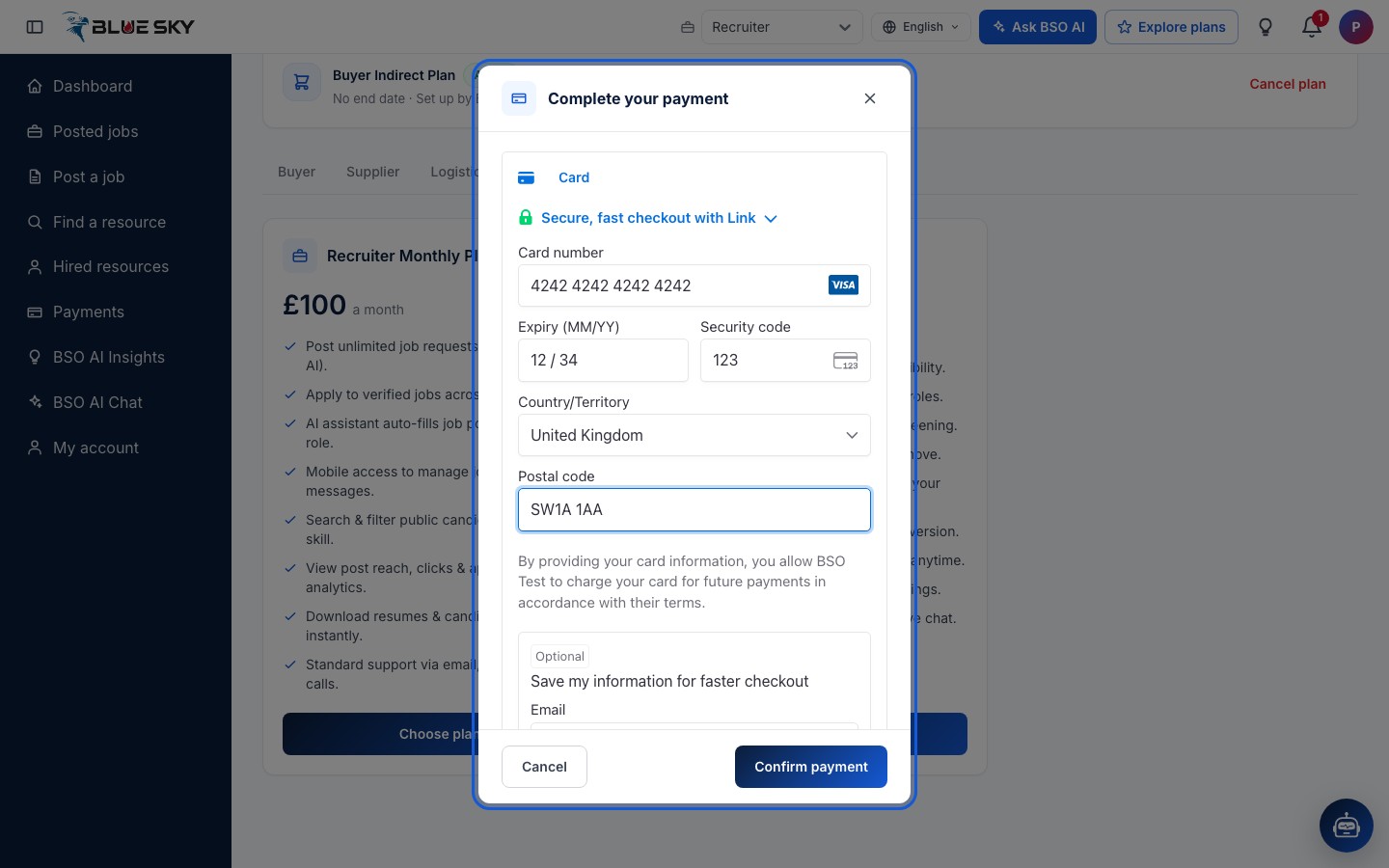
Open the Plans page again (Explore plans in the top bar), go to the same tab and click Choose plan. This time the Complete your payment box opens with the Stripe card form: Card number, Expiry (MM/YY), Security code, Country/Territory and, for some countries, Postal code. Type your card and click Confirm payment. Cancel closes the box without charging anything.
The amount charged is the price shown on the card you chose, for the first month or year. The payment goes through Stripe; BSO never sees the full card number.
The plan is active
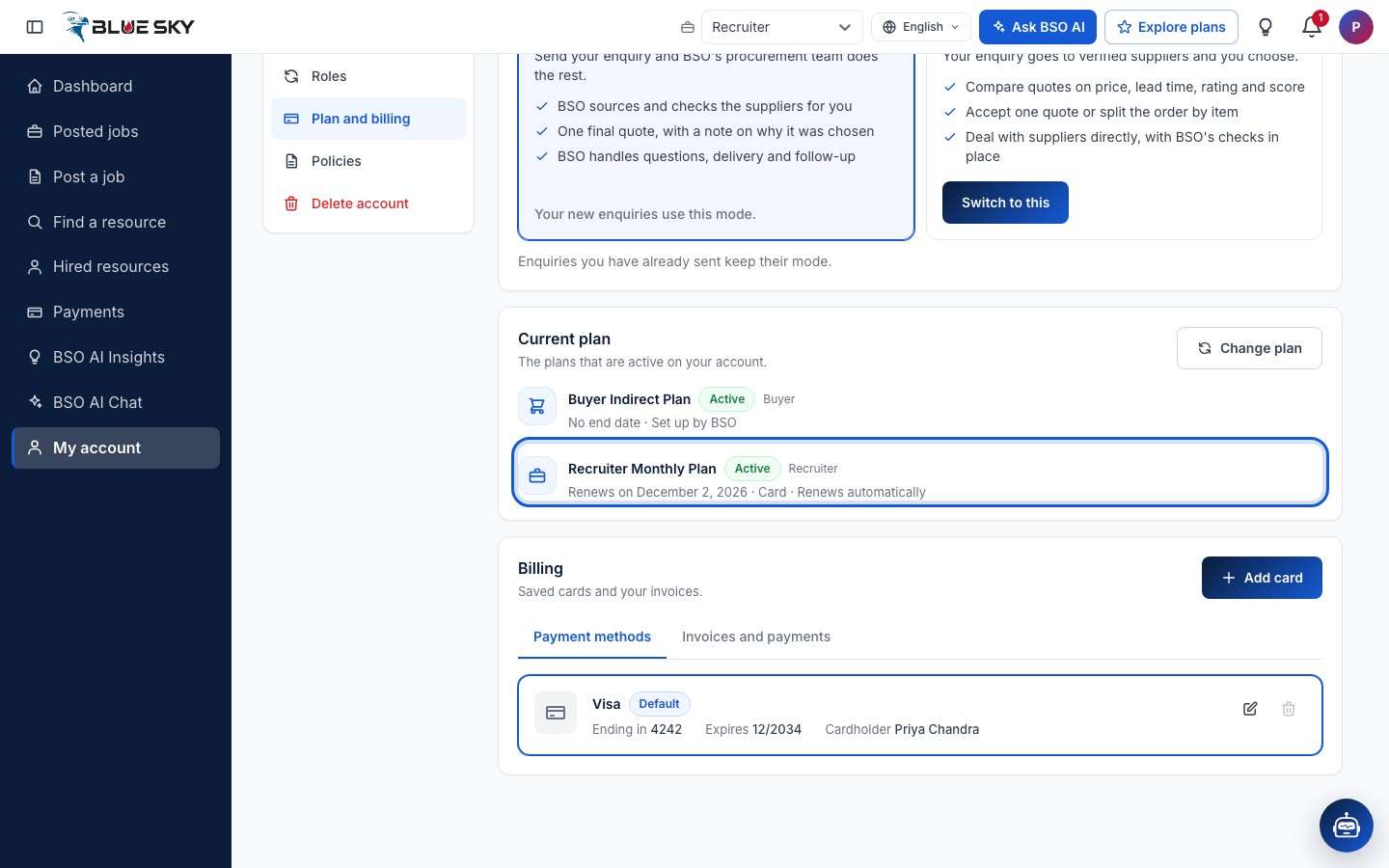
Once the payment succeeds you are taken to My account, Plan and billing. The new plan is listed under Current plan with the status Active, the date it renews on, the payment method and Renews automatically. The role's pages in the left menu now work: a recruiter can post jobs, a supplier can quote, a logistics provider can quote on shipments.
The invoice for the payment is under Invoices and payments on the same page; see Saved cards and invoices. Renewals, cancelling and moving to another plan are in Your plan.
Good to know
- If your account already holds the role, Choose plan opens the card box straight away. Supplier and logistics profiles are also reviewed by BSO, but it is the completed profile plus the active plan that lets you quote.
- Buying a supplier or logistics plan includes recruiter access for the same period, so while you hold one, Choose plan on the Recruiter tab is switched off.
- A role can hold one plan at a time: choosing a second plan for the same role is refused until the current one is cancelled. The free buyer plans are chosen the same way but ask for no card.
- There is no free trial. Payment problems or a card that is refused: support@bsoservices.ai, Monday to Friday 07:00 to 17:00 UK time.
Related guides
Compare plans
Free roles, paid roles, monthly or yearly, All-in-One.
Your plan: renewals, cancelling and buying mode
See your current plan, cancel it or move to another.
Saved cards and invoices
Your cards, your plan invoices, every payment you made.
Add a role to your account
Become a supplier, logistics provider or recruiter too.
Still stuck? We are here.
Open BSO AI Chat inside the platform, or email the support team. Monday to Friday, 07:00 to 17:00 UK time.