

A logistics provider quotes a shipping charge on goods that a supplier has packed and marked ready, collects them with a one-time code, delivers them with another, and is paid by BSO after the delivery. You do not sign up again for it: you add the role to the account you already have (see Add a role to your account). If you have no account yet, start with Create your account.
Two things are needed before your first quote: the logistics profile, one page with your name, your company name and your documents, and an active logistics plan. The role itself is added the moment you click Finish on that page.
Before you start
- A BSO account you are signed in to.
- Your name, your phone number and your company name.
- At least one certification and one licence as PNG, JPG, WebP or PDF files, up to 5 MB each.
- If you have them to hand: your delivery type, service area, company logo, company phone and email, registration number, VAT number, incorporation date and company address. They are optional on this page and can be added later.
- Your bank details are not part of the set-up page: BSO adds them for you (see Check My profile below).
Open My account and go to Roles
Click My account at the bottom of the left menu, then the Roles tab, or go straight to my-account?tab=roles. Under Your roles you see the roles the account already holds. Below it, Add a role lists the roles you can add, each on its own card: Become a supplier, Become a logistics provider and Become a recruiter.
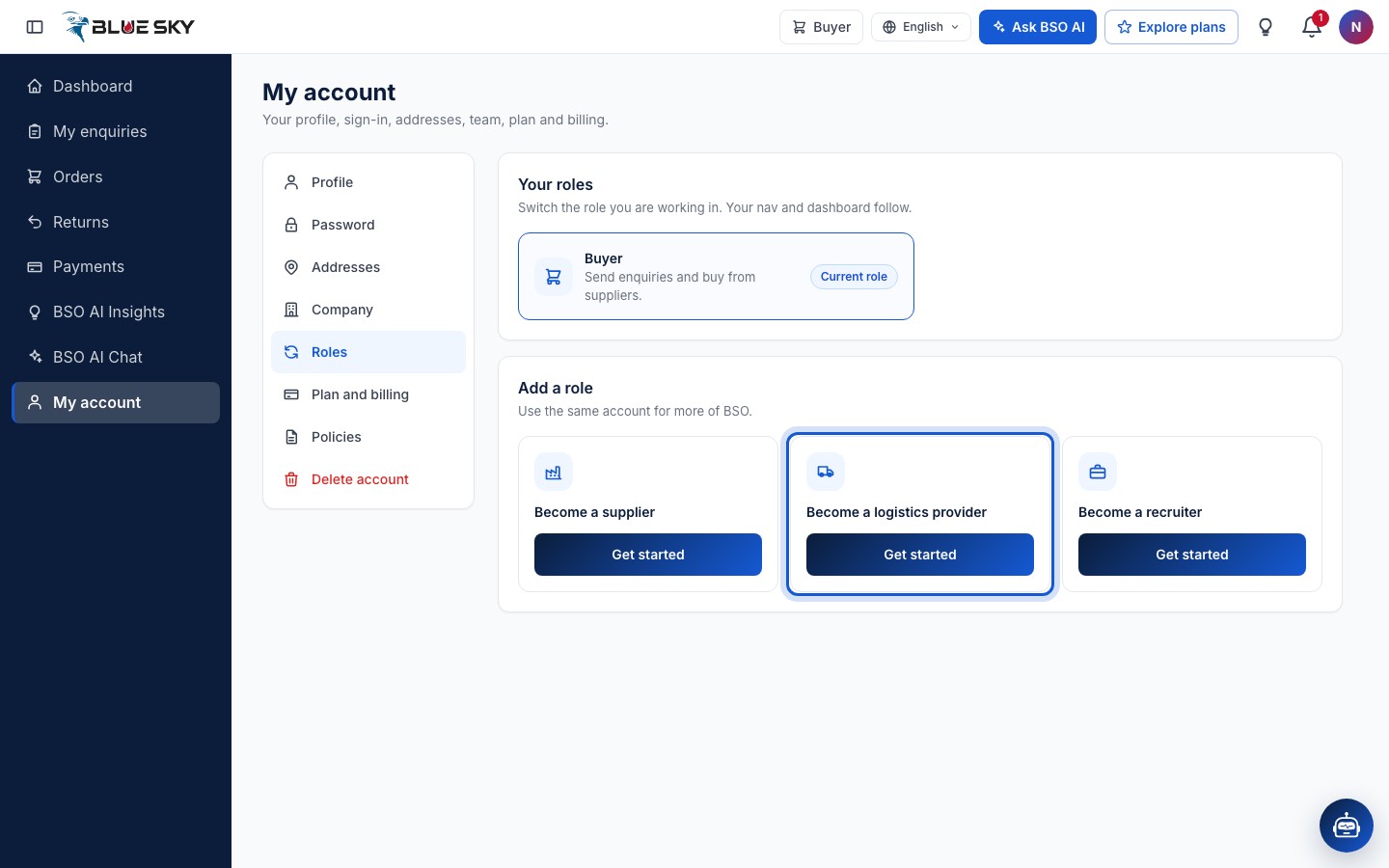
Click Get started on Become a logistics provider
Each card has a Get started button. The one on Become a logistics provider opens the logistics set-up page. Nothing is added to your account until you click Finish on that page.
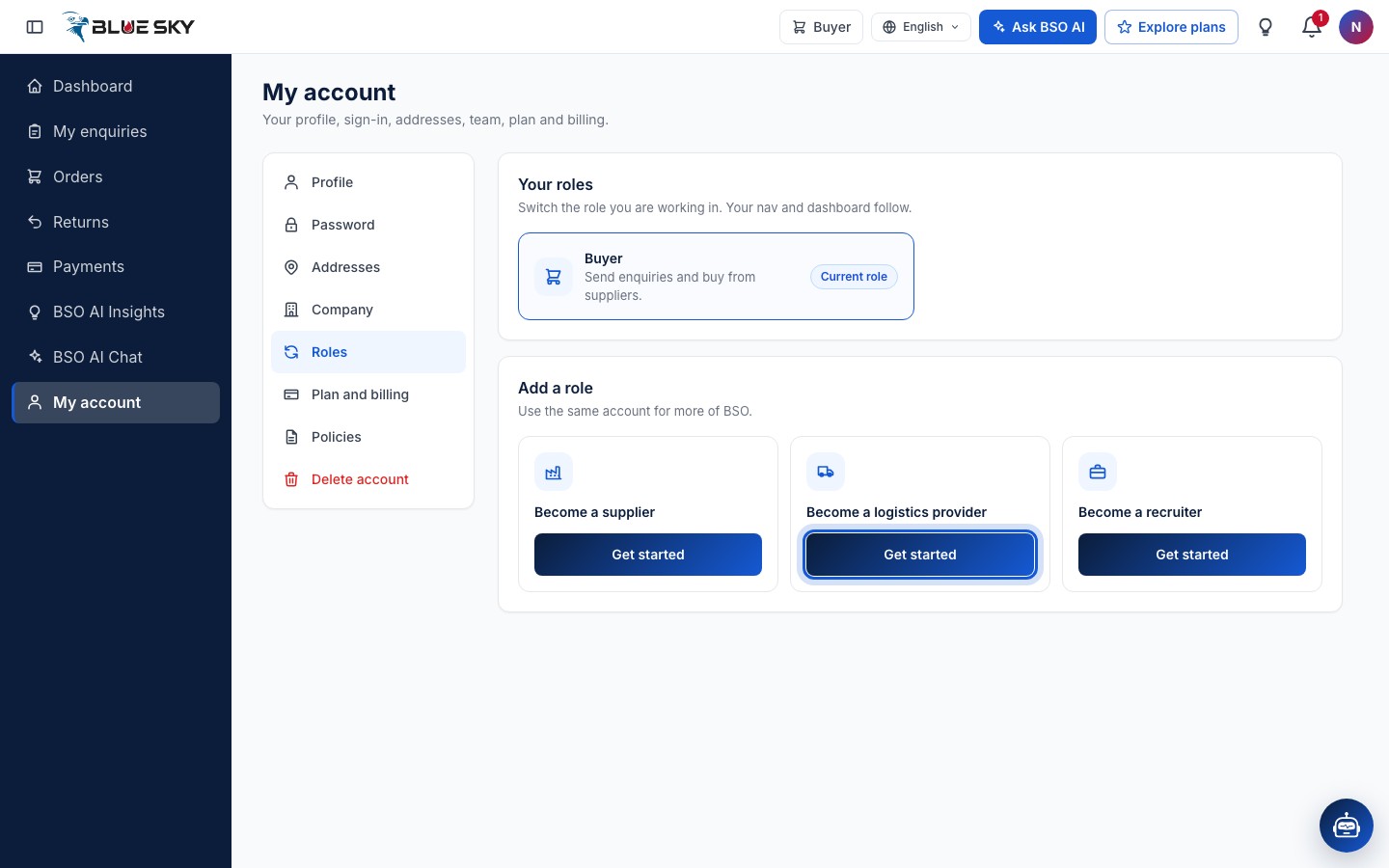
Look over the set-up page
You will see Set up your logistics profile at complete-profile-logistics. It is one page, top to bottom, with no tabs. The panel beside it lists what you need: your name and phone, your company name, a certification and a licence, and four policies to accept.
Every field is tagged Required or Optional. Anything already on your account, such as your name, phone and company, is filled in for you. Back to home leaves the page without saving.
Already set up as a logistics provider? Opening this page while you work in that role takes you to Edit profile instead.
Fill in your name, phone and company name
Fill in your First name and Last name and your Phone: pick the country code, then type the number without it. Your email is not asked for here; it stays the one on your account.
Under Your company, type the Company name: 2 to 100 characters, using letters, numbers, spaces and & . , ' - ( ) /.
The country code starts on +44. Pick your own country first if the number is from somewhere else.
Add more company details, if you like
Click More company details to open it. Everything in it is optional now and can be added or changed later from My profile. It opens by itself when some of these details are already saved.
Inside you can choose a Delivery type (Standard, Express or Same day) and type your Service area (for example Europe and the Gulf), then add a Company logo, the Owner name (letters and spaces, up to 30 characters), the Company email and Company phone, the Registration number, the VAT number, the Incorporation date (today or earlier), your Business categories (pick from the list; each one shows as a chip and the × removes it) and the Company address.
If you fill in any part of the address, or the service area, the page also needs Address line 1, City and Country. These details are only checked when you fill them in; if one needs fixing when you click Finish, this part opens and takes you to it.
Add your certifications and licences
Under Certifications and licences you need at least one of each. Click Add files under Certifications and choose one or more files: PNG, JPG, WebP or PDF, up to 5 MB per file. Each file uploads as soon as you choose it (the button says Uploading meanwhile) and then shows as a chip with its name. The × on a chip removes that file.
Do the same under Licences. Files of another type, larger files and programs are refused with a message, and Finish waits until every upload is done.
Accept the four policies
Under Policies there are four boxes, all required: I accept the Quality Procedures, I accept the Health and Safety Procedures, I accept the Anti-Bribery and Anti-Corruption Policy and I accept the Environmental Policy. The first time you tick one, its text opens in a window: Accept ticks the box, Close leaves it unticked. Policies you accepted before are already ticked.
Click Finish
The line above the button reminds you that you can change any of these details later from My profile. Click Finish.
If something required is missing or wrong, the page marks it in red with a short message and takes you to the first one. When everything is in, you will see Logistics profile saved: the logistics role is on your account and your dashboard opens as a logistics provider. There is no extra confirmation box.
The logistics role is on your account
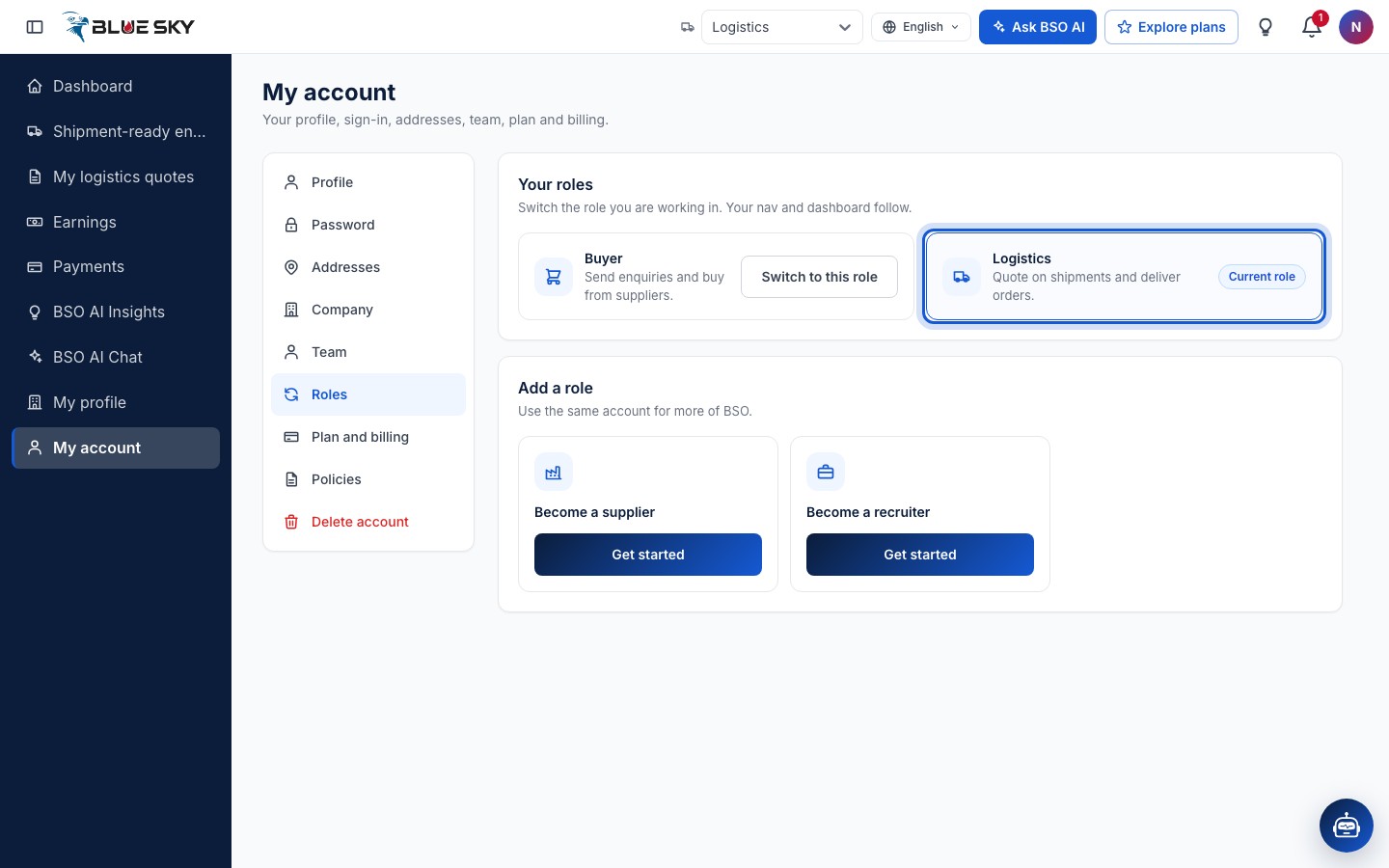
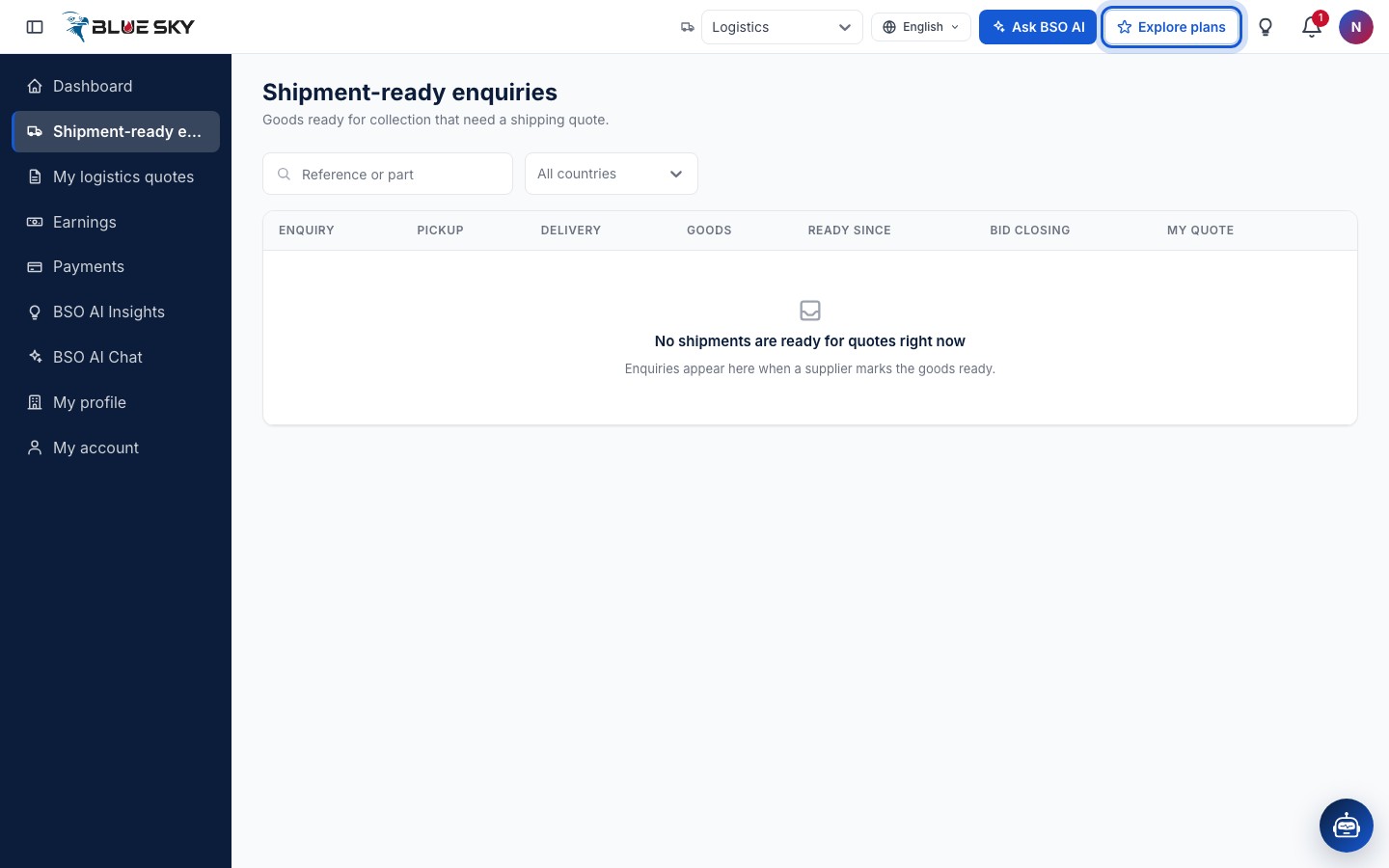
The left menu now has the logistics pages: Dashboard, Shipment-ready enquiries, My logistics quotes, Earnings, Payments, BSO AI Insights, BSO AI Chat, My profile and My account. Open the Roles tab of My account: Logistics is listed next to Buyer and marked Current role, and the Become a logistics provider card is gone. Use Switch to this role on the Buyer card whenever you want to go back to buying.
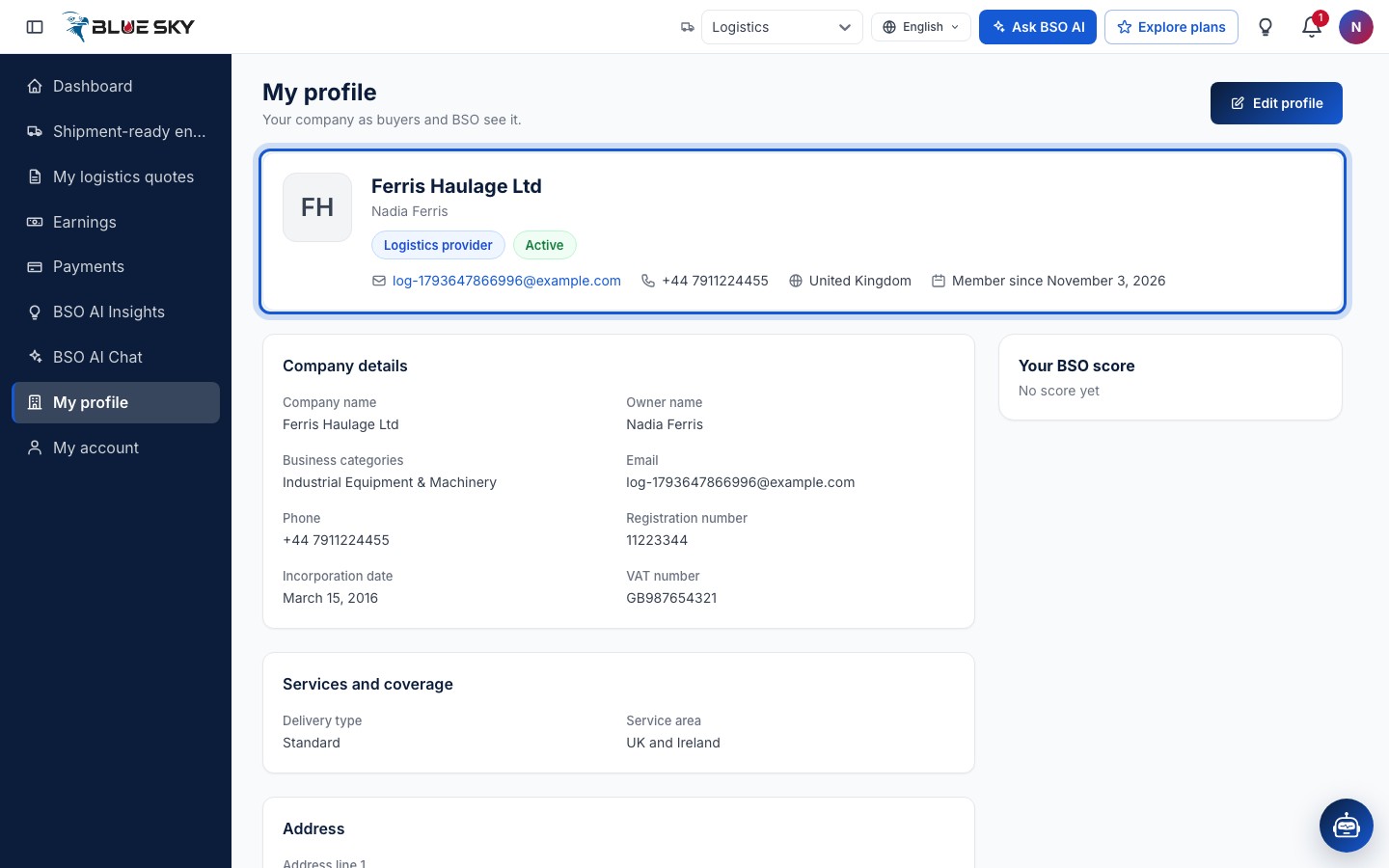
Check My profile
My profile in the left menu (profile-logistics) shows your company as buyers and BSO see it: the company name with a Logistics provider chip and your status, then Company details, Services and coverage, Address, Bank details, Certifications and licences and Policies. Edit profile at the top right opens the same details as a form (profile-logistics/edit). See Edit your profile and company.
Bank details is where BSO pays your earnings. It is shown to you only, and it is not something you type in: neither the set-up page nor Edit profile has bank fields, and the profile reads No bank details yet until BSO has added them. Email support@bsoservices.ai with your bank details before your first delivery, and again whenever they change.
Edit profile asks for more than the set-up page did: the delivery type, business categories, company phone and email, registration number, VAT number, incorporation date and the full company address with its postcode must be filled in before it saves, so have them to hand.
Pick a plan before you quote
Quoting on a shipment needs an active logistics plan or the All-in-One plan. Without one, Write quote on a shipment opens a page headed Shipping quote that shows the logistics plans instead of the quote form, and the platform refuses the quote. Pick the monthly or the yearly plan there, or click Explore plans in the top bar of your dashboard and use the Logistics tab.
What the plans include is in Compare plans; paying for one is in Buy a plan. Once the plan is active, Write quote opens the form.
Good to know
- A logistics plan also includes recruiter access for the same period, so you can post jobs without a separate recruiter plan.
- Ready to look for work? See Find shipments to quote and Quote a shipment.
- If the page says We could not open your profile, check your connection and click Try again. Nothing you typed is saved until you click Finish.
- Questions about the logistics role or plans? Email support@bsoservices.ai, Monday to Friday 07:00 to 17:00 UK time.
Related guides
Add a role to your account
Become a supplier, logistics provider or recruiter too.
Find shipments to quote
The Shipment-ready board and the public Logistics board.
Quote a shipment
One shipping charge and a note, then Submit quote.
Compare plans
Free roles, paid roles, monthly or yearly, All-in-One.
Buy a plan
Choose plan, complete the profile, pay by card.
Edit your profile and company details
Change your name, phone, photo and company details.
Still stuck? We are here.
Open BSO AI Chat inside the platform, or email the support team. Monday to Friday, 07:00 to 17:00 UK time.