

A shipment reaches the board when a supplier has packed an order and confirmed the package, weight, size and collection address (When your quote is accepted) and the delivery is to be done by a logistics provider booked through BSO, whether the buyer chose that or the supplier arranging the delivery did. From then on every logistics provider can quote on it until a logistics provider is picked, by the buyer or, on a delivery the supplier arranges, by the supplier.
Signed in as a logistics provider you work from Shipment-ready enquiries in your dashboard. The same shipments are also on the public Logistics board, where visitors see the route and the cargo but no names.
Before you start
- The logistics role on your account (Become a logistics provider). You can read the board without a plan; quoting needs one.
Open Shipment-ready enquiries
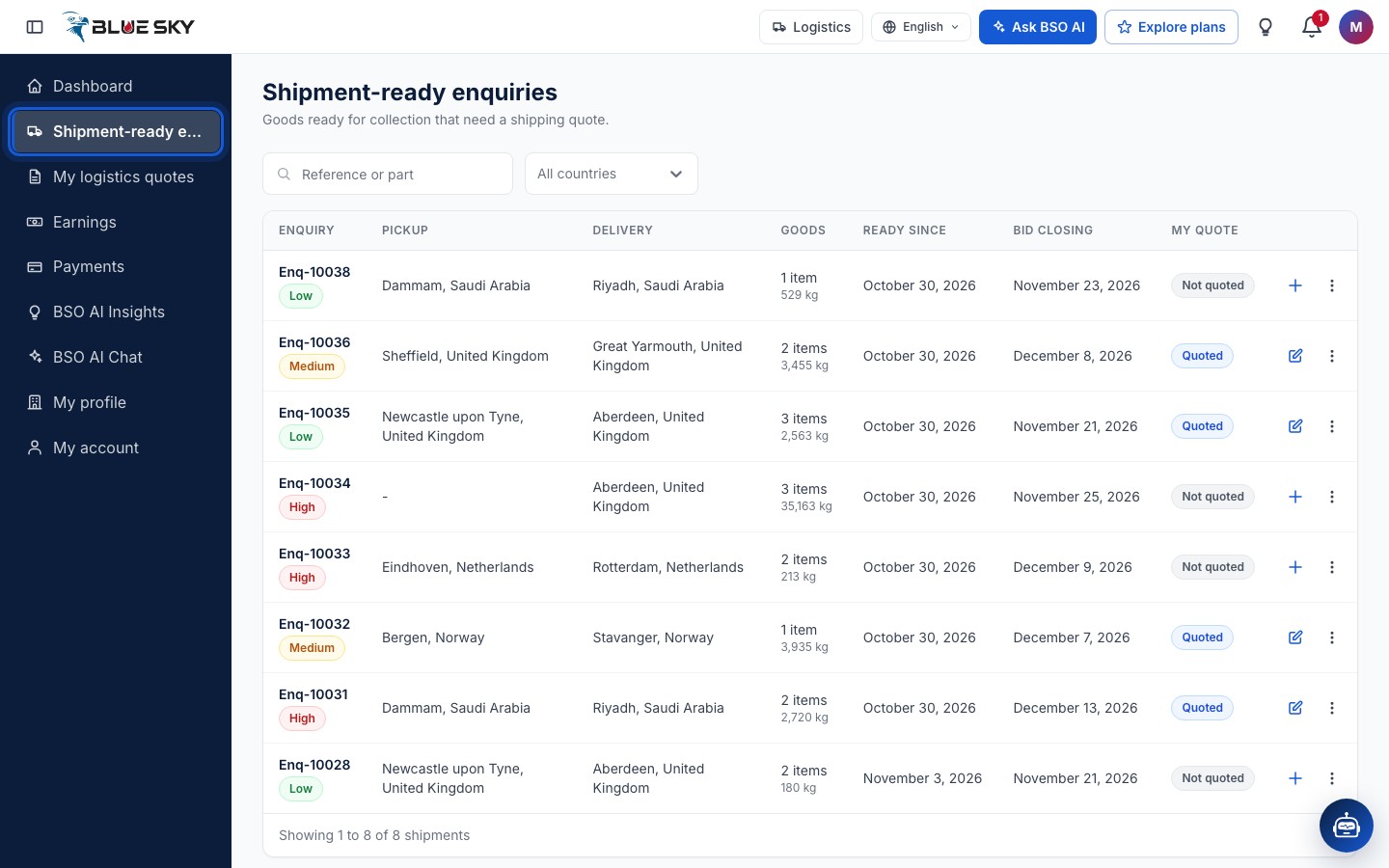
Click Shipment-ready enquiries in the left menu, or go to bsoservices.ai/logistics. The role shown in the top bar must be Logistics; if it reads Buyer, switch role there first (Find your way around).
Read the board
Shipment-ready enquiries: Goods ready for collection that need a shipping quote. Each row shows the Enquiry reference and its priority, the Pickup and Delivery places (city and country), the Goods (number of items and the weight the supplier declared), Ready since, Bid closing (the supplier's bid date, shown for information) and My quote.
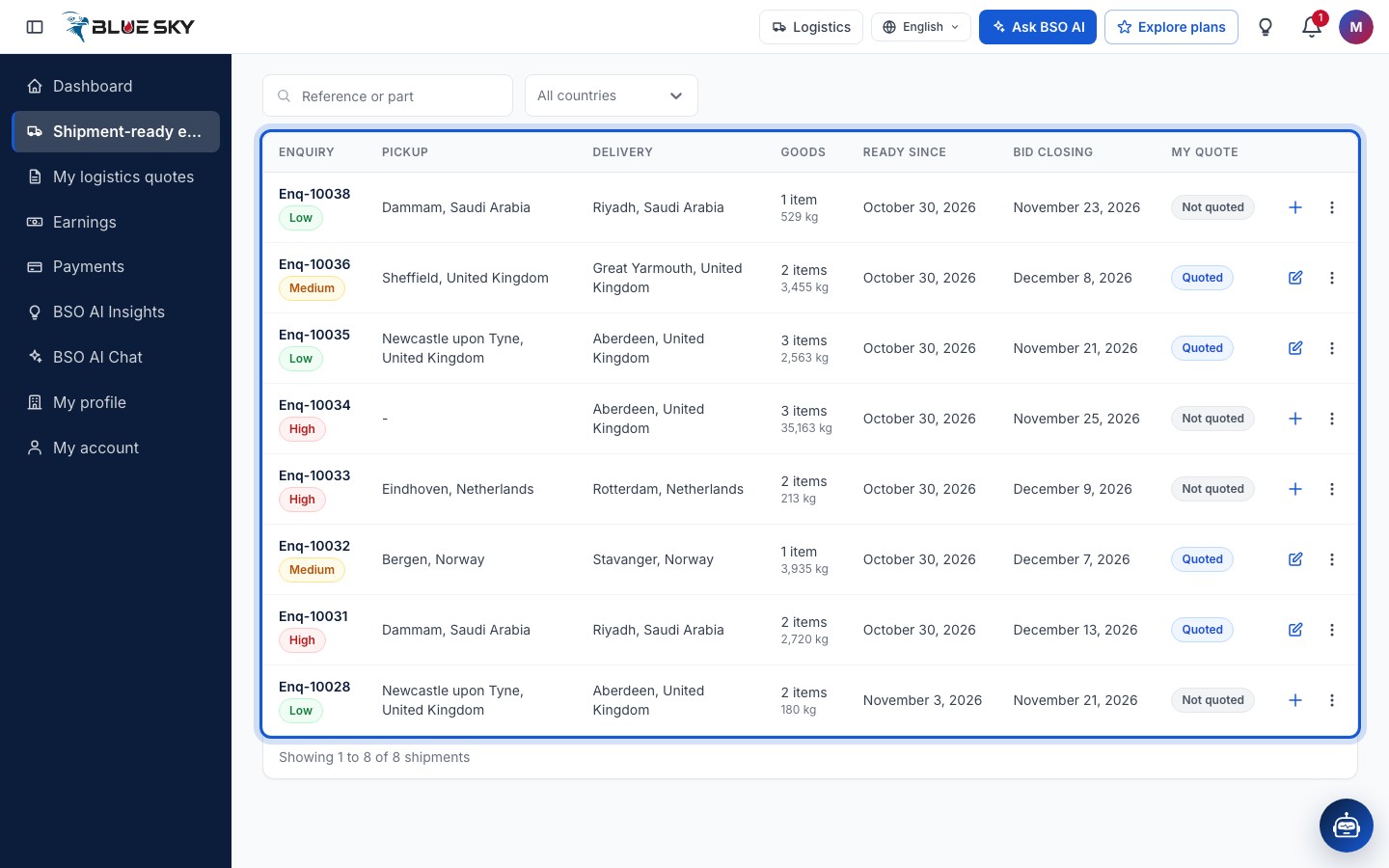
My quote is your own state on that shipment: Not quoted, Quoted once you sent a charge, Accepted when you were picked, and Awarded to another provider when someone else was. A shipment stays on the board after a logistics provider is picked, with one of those two badges, until that logistics provider confirms the pickup; its Write quote button is then greyed out. The Bid closing column shows the supplier's own bid date for information; a shipment reads Closed once a logistics provider has been chosen or the enquiry has moved on, not on that date. Above the list, the search box takes a Reference or part, the Delivery country list narrows the rows to one country, and Clear filters appears when a filter is set.
The row buttons
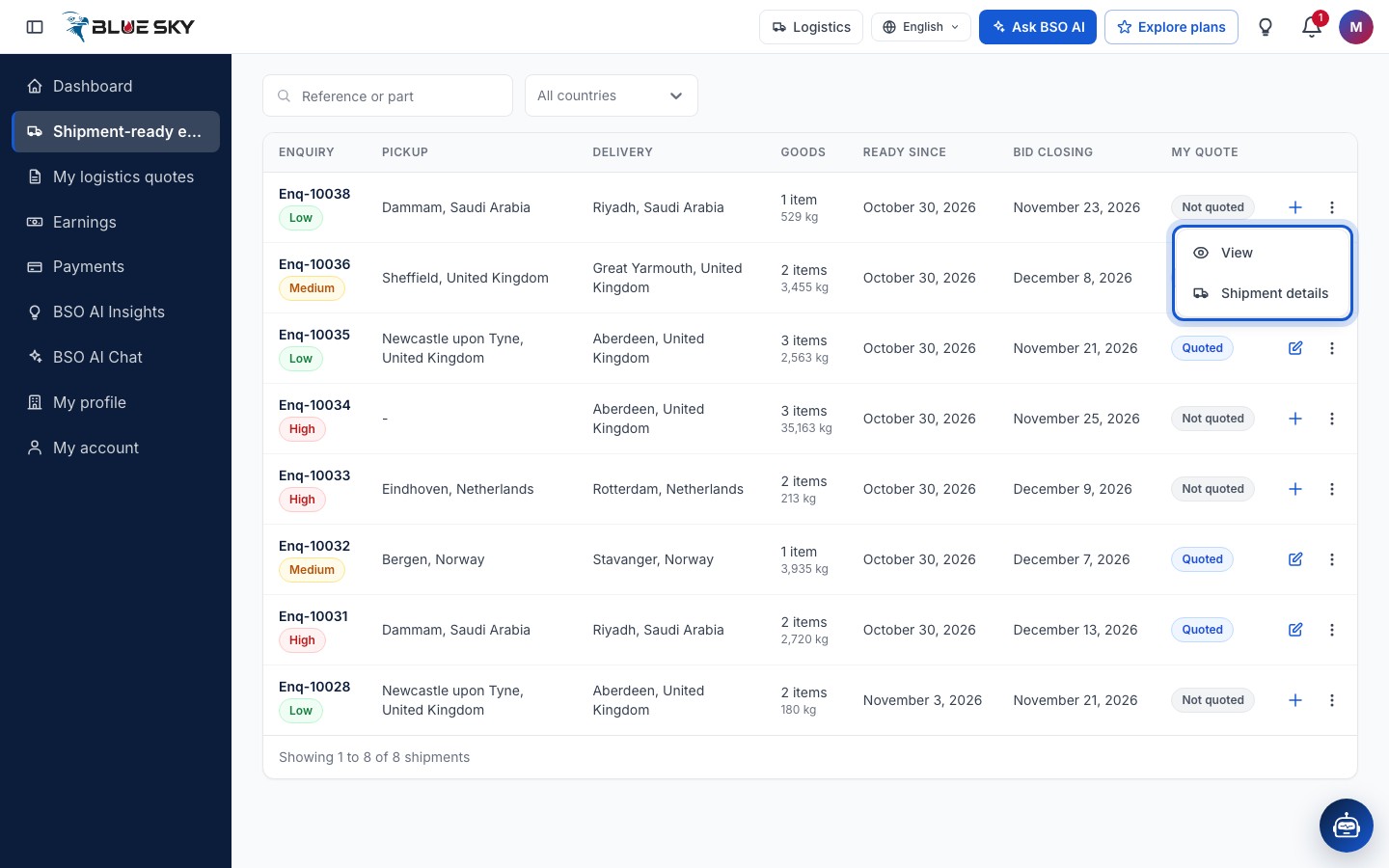
At the end of a row, the plus icon is Write quote (a pencil, Update quote, once you have quoted; View my quote once you are accepted). The three dots open a small menu with View and Shipment details. Clicking anywhere else on the row does the same as View: it opens the quote form, or your quote when it was accepted.
Shipment details
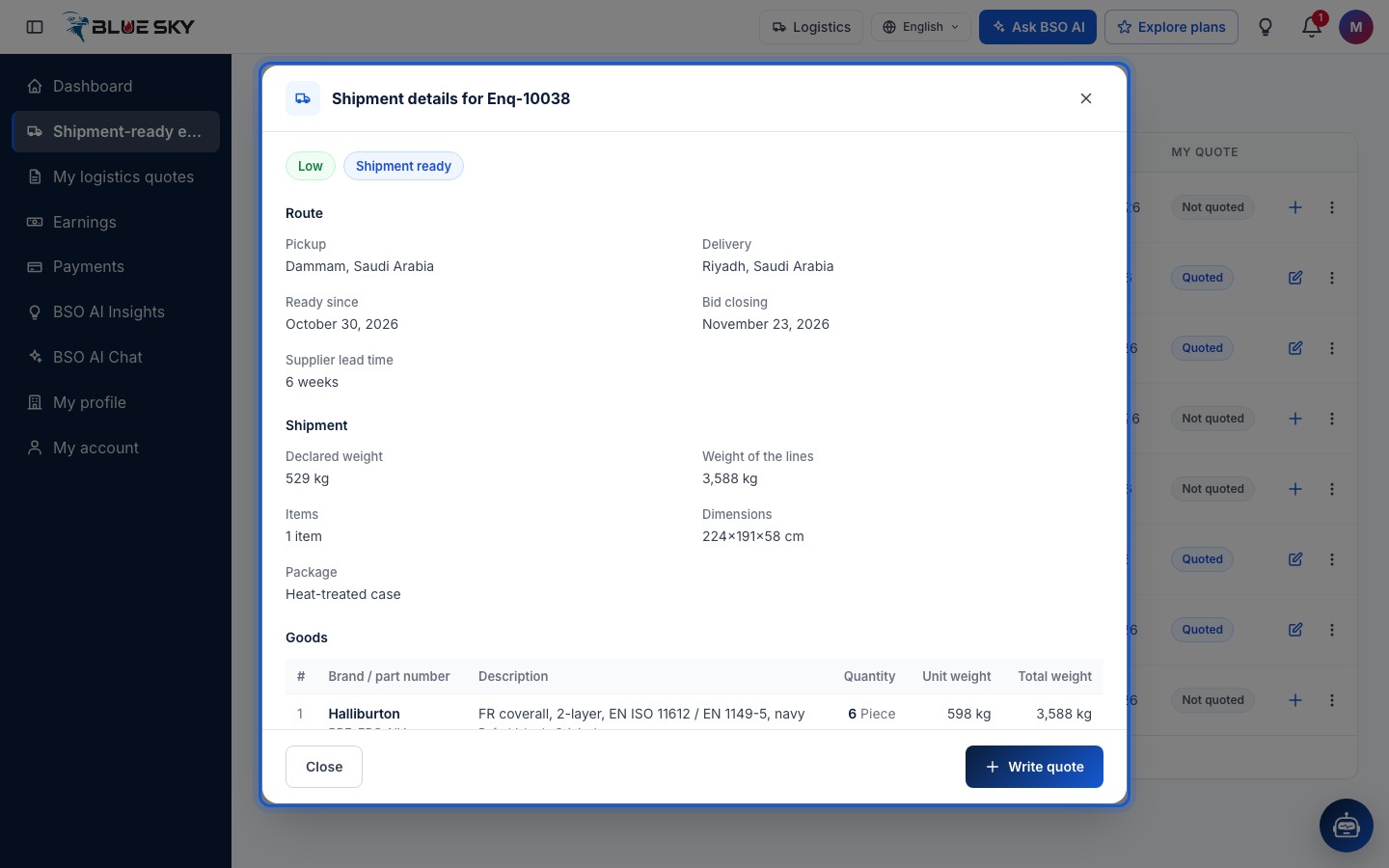
Shipment details opens a window headed with the enquiry reference, its priority and status. Route lists the Pickup and Delivery places, Ready since, Supplier bid closing and the Supplier lead time. Shipment lists the Declared weight (what the supplier entered when the goods were ready), the Weight of the lines (unit weights times quantities), Items, Dimensions and Package. Goods is the item table with brand and part number, description, quantity and weights, and Buyer's notes shows what the buyer wrote on the enquiry.
Close returns you to the board; Write quote opens the quote form straight away (Quote a shipment). If the enquiry is your own (an account that is a buyer and a logistics provider), the window says so and you cannot quote on it.
The public Logistics board
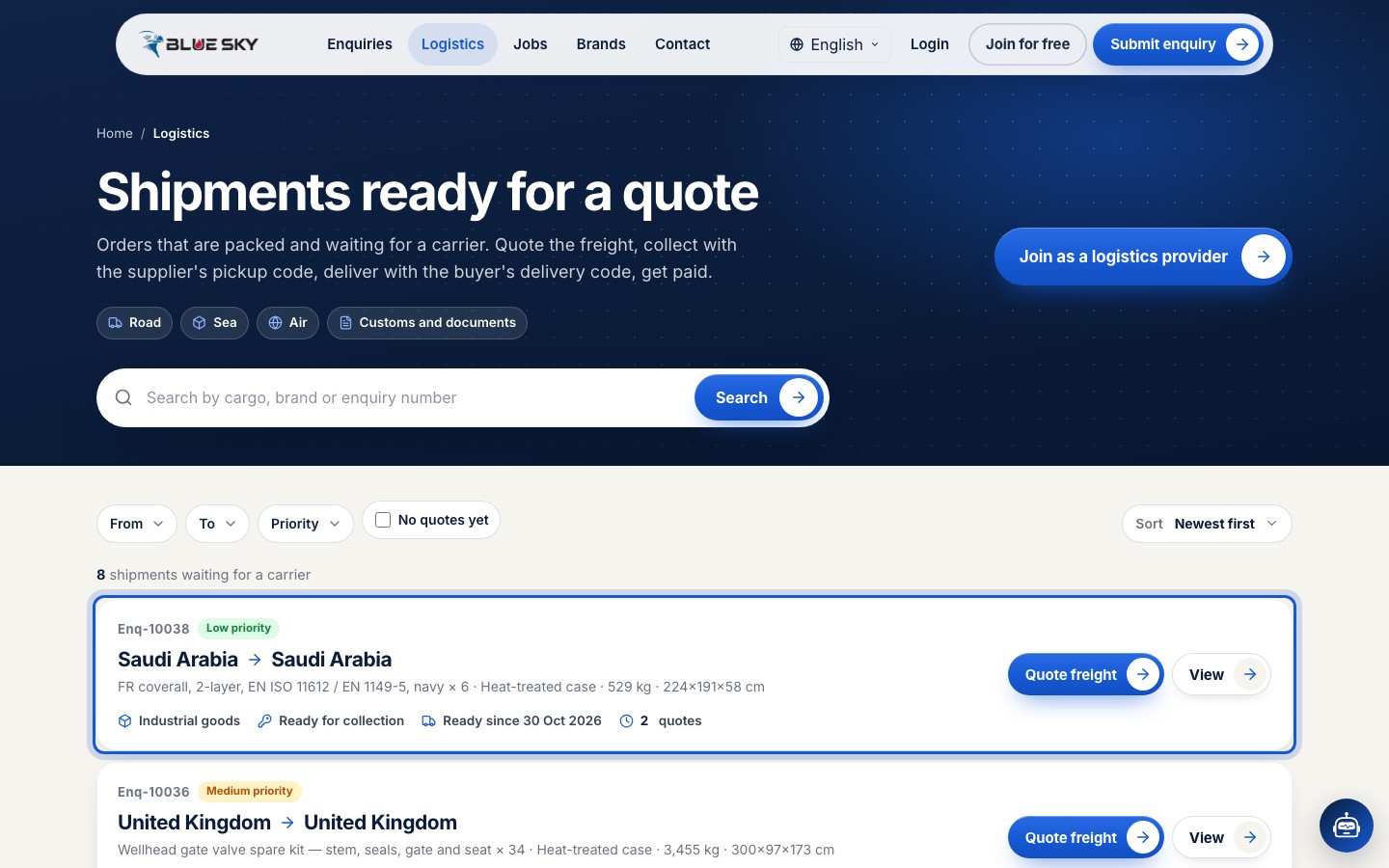
Visitors and other roles see the same shipments on bsoservices.ai/logistics: Shipments ready for a quote. Each card shows the enquiry reference, its priority, the route as countries only, the cargo line (package, weight, size and what is being shipped), Ready for collection, Ready since and how many quotes it has. Filters run along the top (From, To, Priority), with a No quotes yet toggle and a sort. Quote freight opens the quote form when you are signed in as a logistics provider; View opens the shipment page.
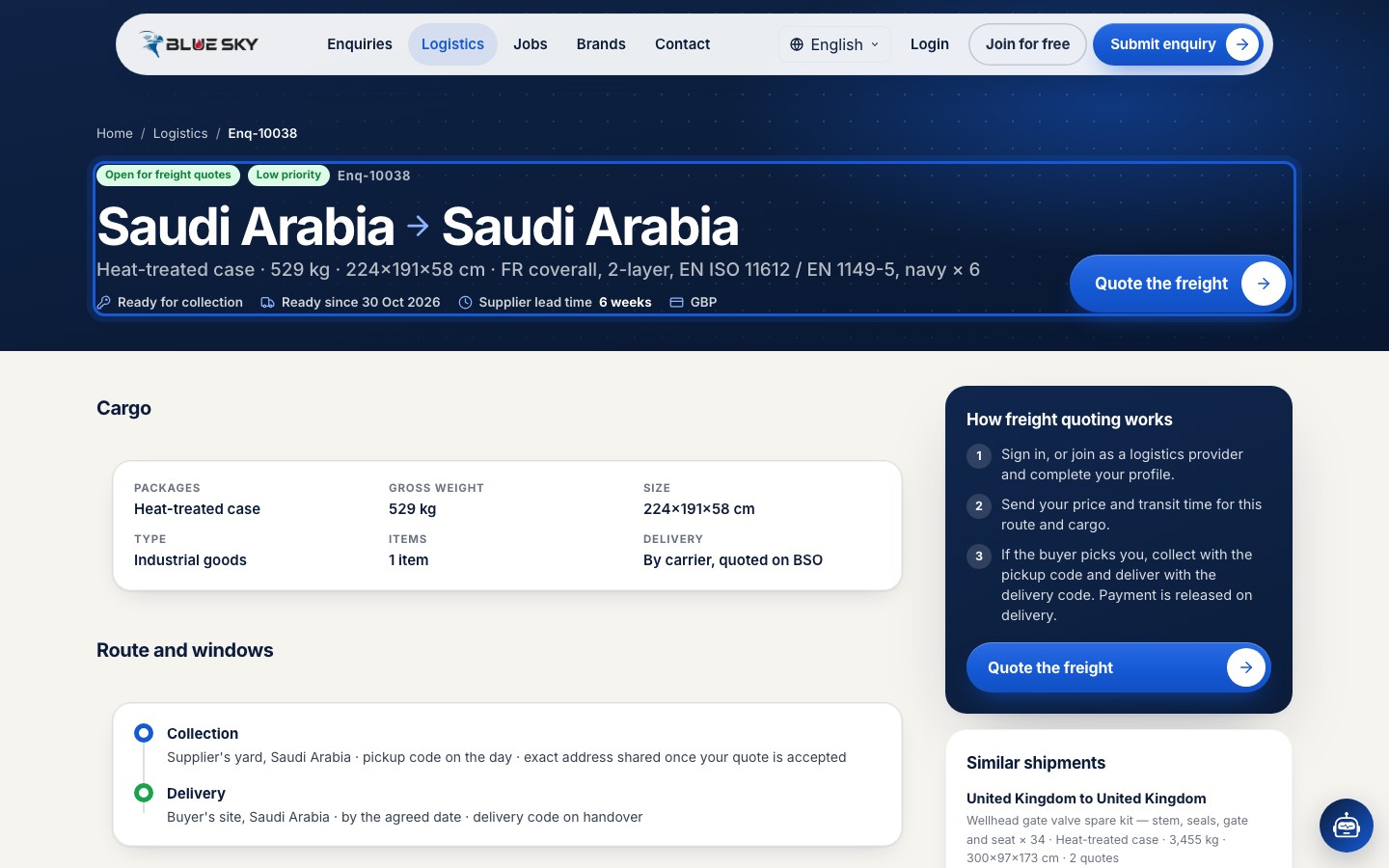
A public shipment page
The shipment page (logistics/:id) is headed Open for freight quotes, with the route, the cargo line, Ready since and the supplier lead time. Cargo gives Packages, Gross weight, Size, Type, Items and Delivery (By logistics provider, quoted on BSO); Route and windows shows the Collection and Delivery legs; What is being shipped lists the items. The buyer's and supplier's names and the exact addresses are shared with you only after the buyer accepts your quote; until then the buyer sees you as Logistics provider A, B or C. How freight quoting works on the right sums up the three steps.
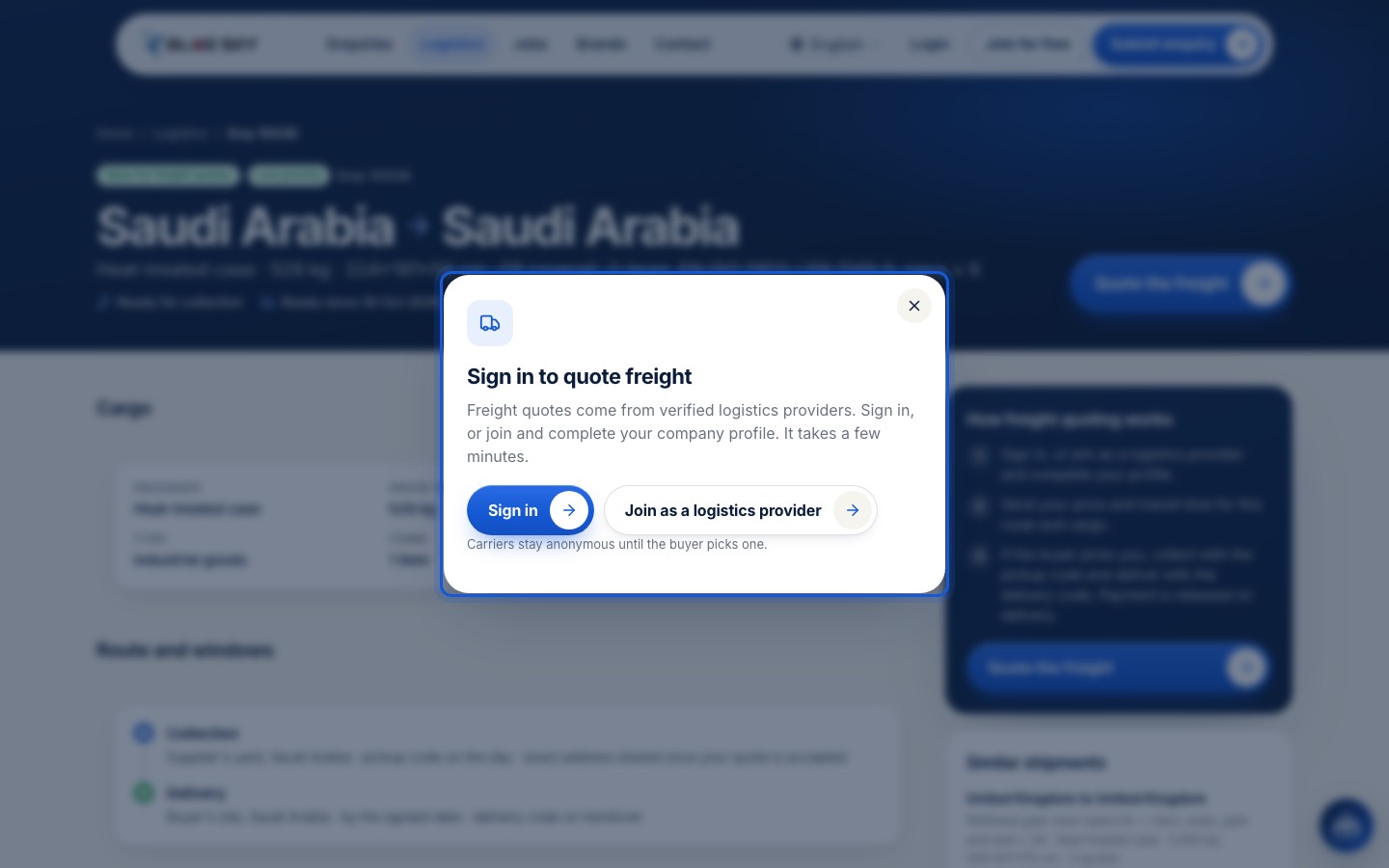
Quote the freight as a visitor
Quote the freight without being signed in opens Sign in to quote freight: Sign in, or Join as a logistics provider, which starts the sign-up. An account that is signed in but has no logistics role is told the quotes are for logistics providers and sent to its dashboard to add the role (Become a logistics provider).
Good to know
- Once you quote, the shipment reads Quoted on the board and your quote is listed under My logistics quotes (Your logistics quotes).
- A shipment leaves the board when the chosen logistics provider confirms the pickup, not when the logistics provider is picked. If you were picked, the next steps are in Pickup, document and delivery.
- You are told by email when your quote is accepted, and in the bell too if your browser or phone has allowed BSO notifications. New shipments are not announced by email: a device that allowed notifications may get a Logistics Update push when a buyer chooses delivery through BSO; otherwise check the board, or ask BSO AI Chat what is ready for collection.
- Questions about the board? Email support@bsoservices.ai, Monday to Friday 07:00 to 17:00 UK time.
Related guides
Become a logistics provider
Add the logistics role, set up your profile, pick a plan.
Quote a shipment
One shipping charge and a note, then Submit quote.
Your logistics quotes
The list, the statuses and the quote page.
Find your way around your dashboard
The menu, the top bar, the bell, the tour and the phone.
Still stuck? We are here.
Open BSO AI Chat inside the platform, or email the support team. Monday to Friday, 07:00 to 17:00 UK time.