

Two one-time codes protect every shipment on BSO. When you collect the goods, the supplier receives a code and you enter it: that confirms the pickup. When you hand the goods over, the buyer receives a code and you enter it: that marks the order delivered. Between the two you upload the shipping document. All three steps are on your quote's page, in the Shipment progress card, and each one only appears when the one before is done.
The buyer's side of the codes is in Delivery code and rating; the supplier's side, including the packing and the collection address, in When your quote is accepted.
Before you start
- A quote the buyer accepted (Your logistics quotes).
- The shipping stage paid by the buyer. Until then the pickup cannot be confirmed (step 4).
- The shipping document (PDF, JPG, PNG or DOCX) ready to upload.
Open the accepted quote
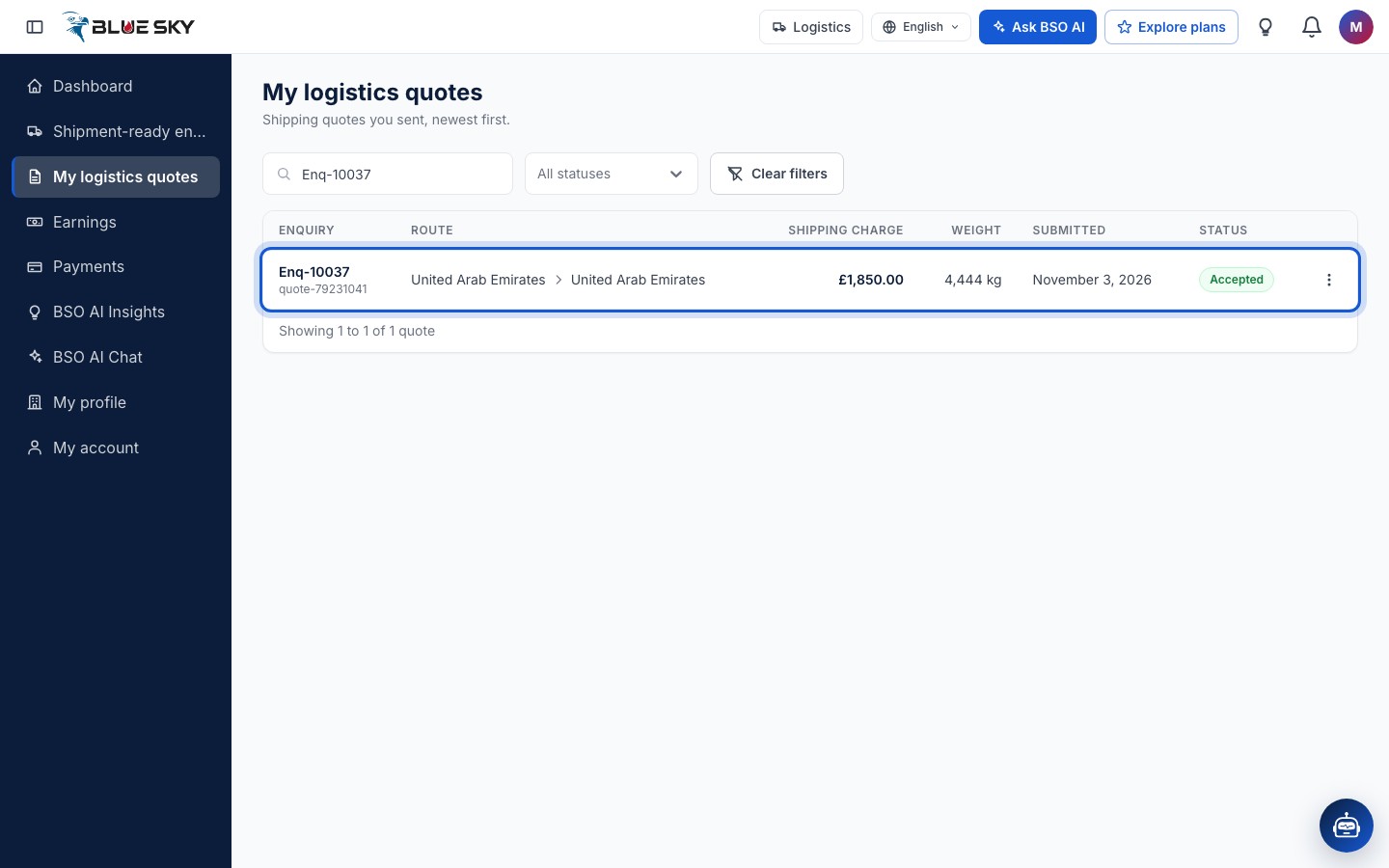
On My logistics quotes the shipment you were booked for reads Accepted. Click the row. You are also told by email when your quote is accepted, and in the bell too if your browser or phone has allowed BSO notifications: the notice says that the buyer has accepted your quote (that BSO has, on an enquiry BSO handles) and ends with the enquiry reference.
Find Shipment progress
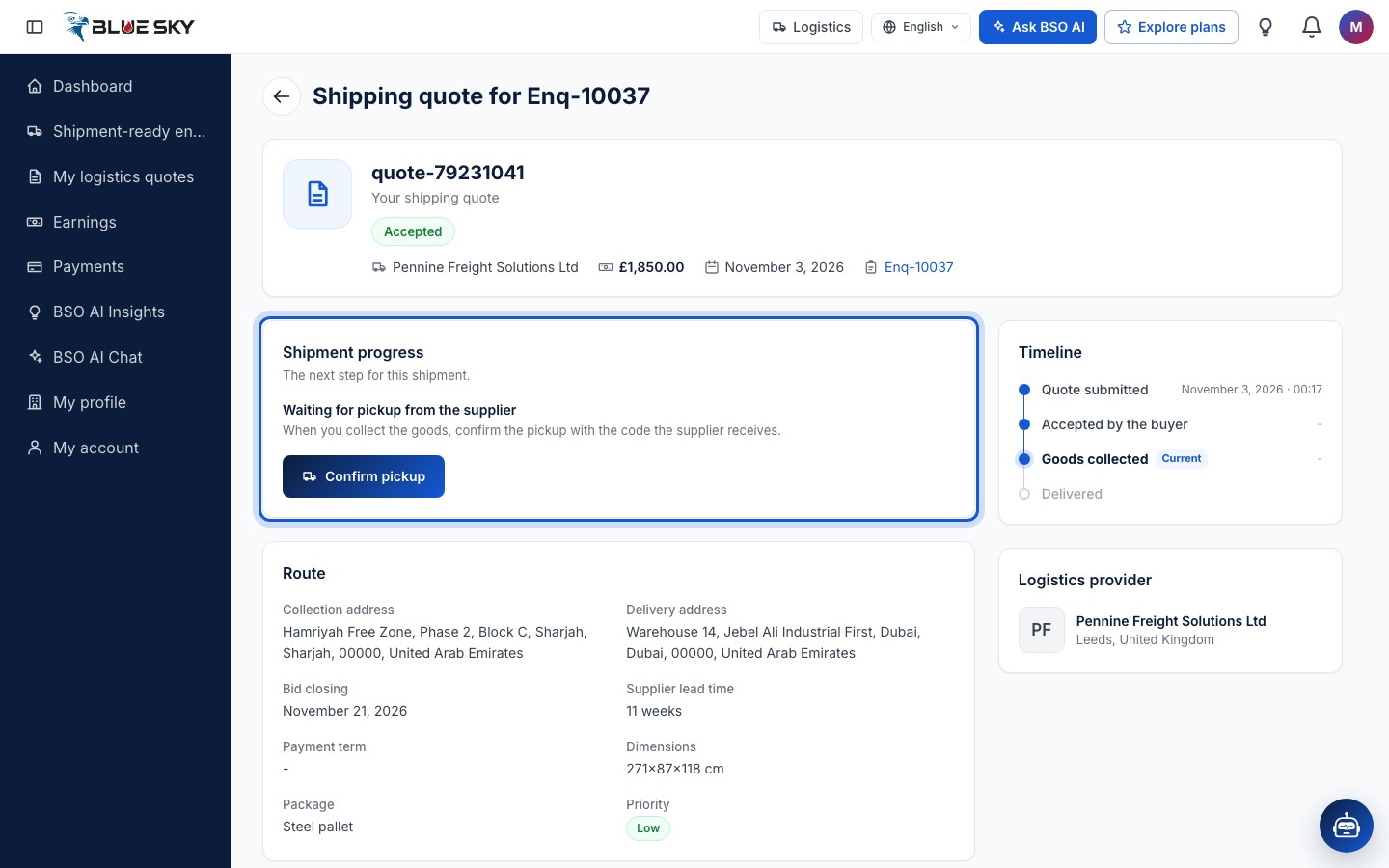
Above Route, the Shipment progress card shows The next step for this shipment. While the goods wait at the supplier it reads Waiting for pickup from the supplier: When you collect the goods, confirm the pickup with the code the supplier receives, with a Confirm pickup button. The Route card under it has the full Collection address and Delivery address, the supplier's lead time, the package and the dimensions. In the Timeline, Goods collected is the current step.
Confirm pickup: send the supplier's code
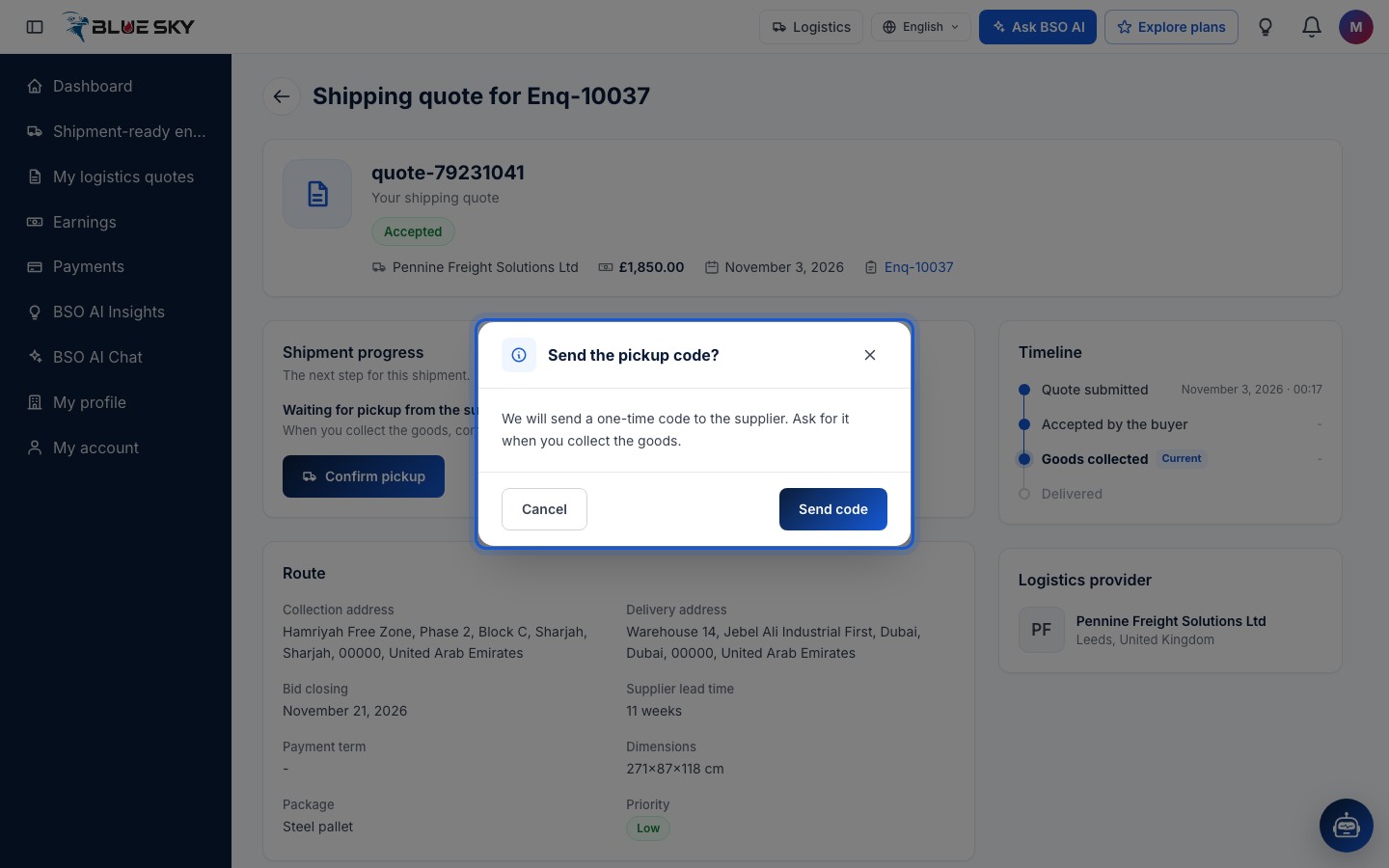
At the supplier's yard, click Confirm pickup. Send the pickup code? explains: We will send a one-time code to the supplier. Ask for it when you collect the goods. Cancel closes the box; Send code sends a 6-digit code to the supplier's email address and mobile number.
If the shipping stage is not paid yet
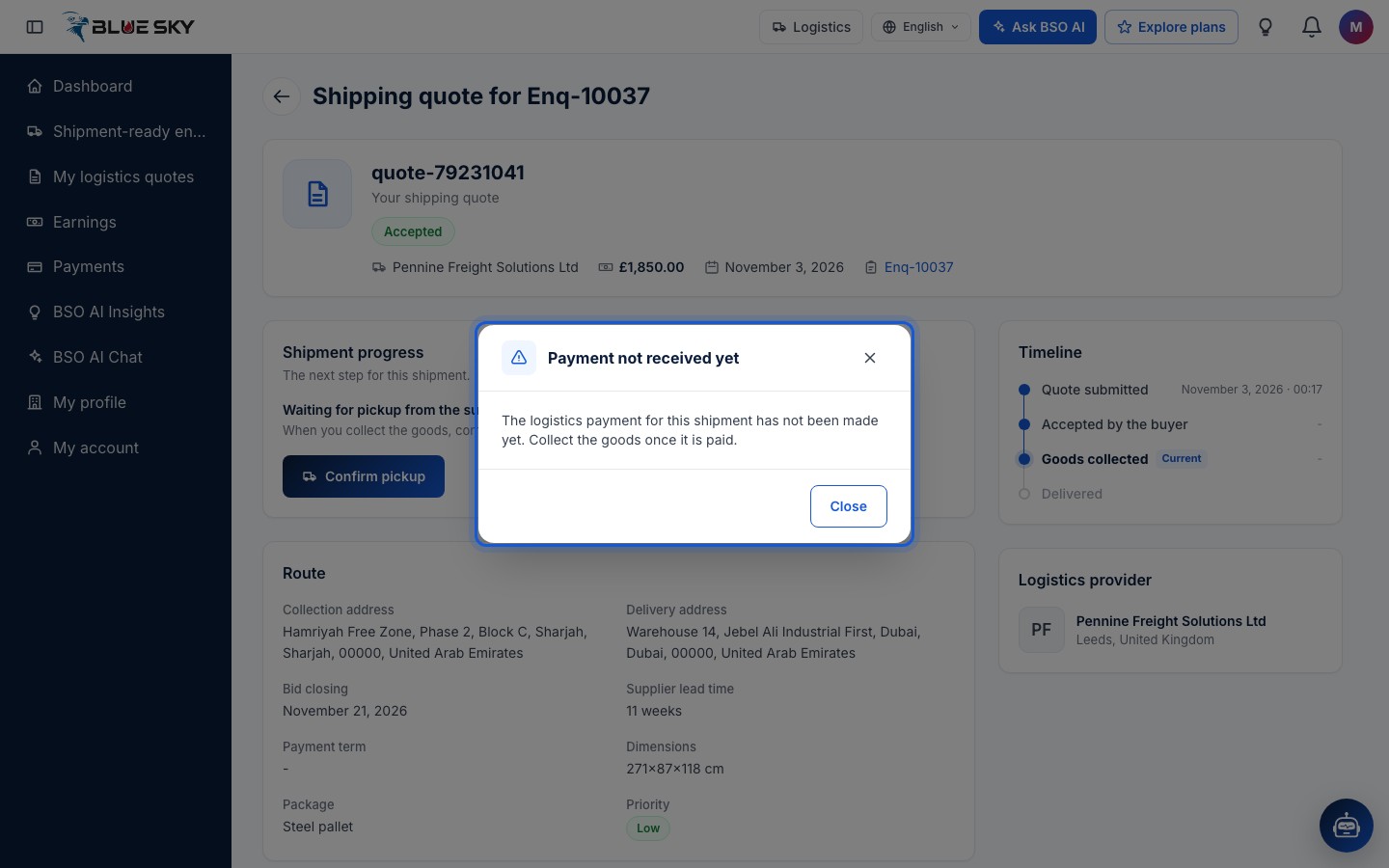
The buyer pays the shipping charge as its own stage after booking you (Track your order). If that stage is still unpaid when you click Send code, a Payment not received yet notice opens instead of the code window: The logistics payment for this shipment has not been made yet. Collect the goods once it is paid. Close it and try again later; the code window opens once the payment is recorded.
Enter the supplier's code
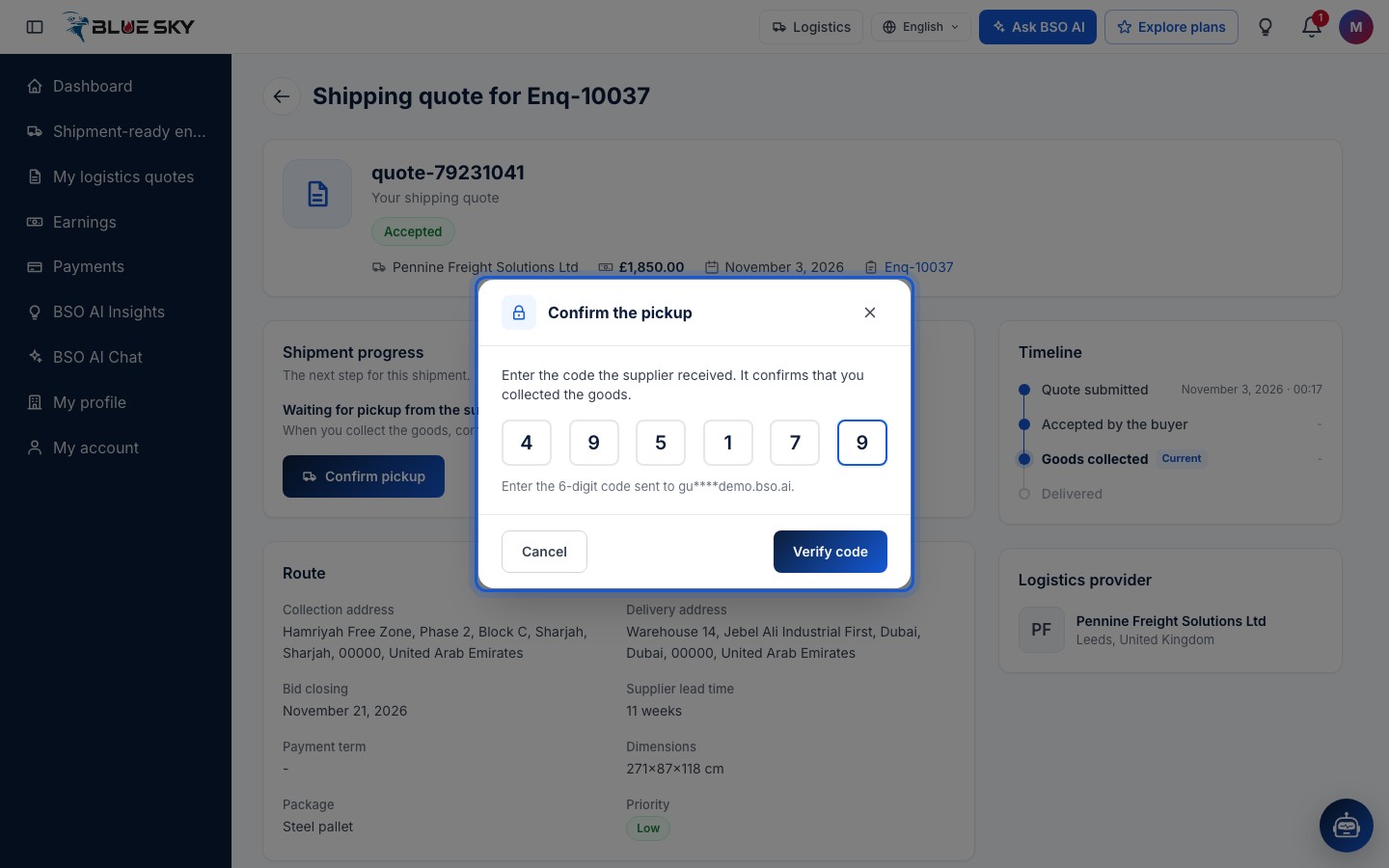
With the stage paid, Send code opens Confirm the pickup: Enter the code the supplier received. It confirms that you collected the goods. Ask the supplier for the code, type its six digits into the boxes and click Verify code. A wrong code says so and tells you how many tries are left; after three wrong codes the window locks and you close it and send a new code.
Pickup confirmed
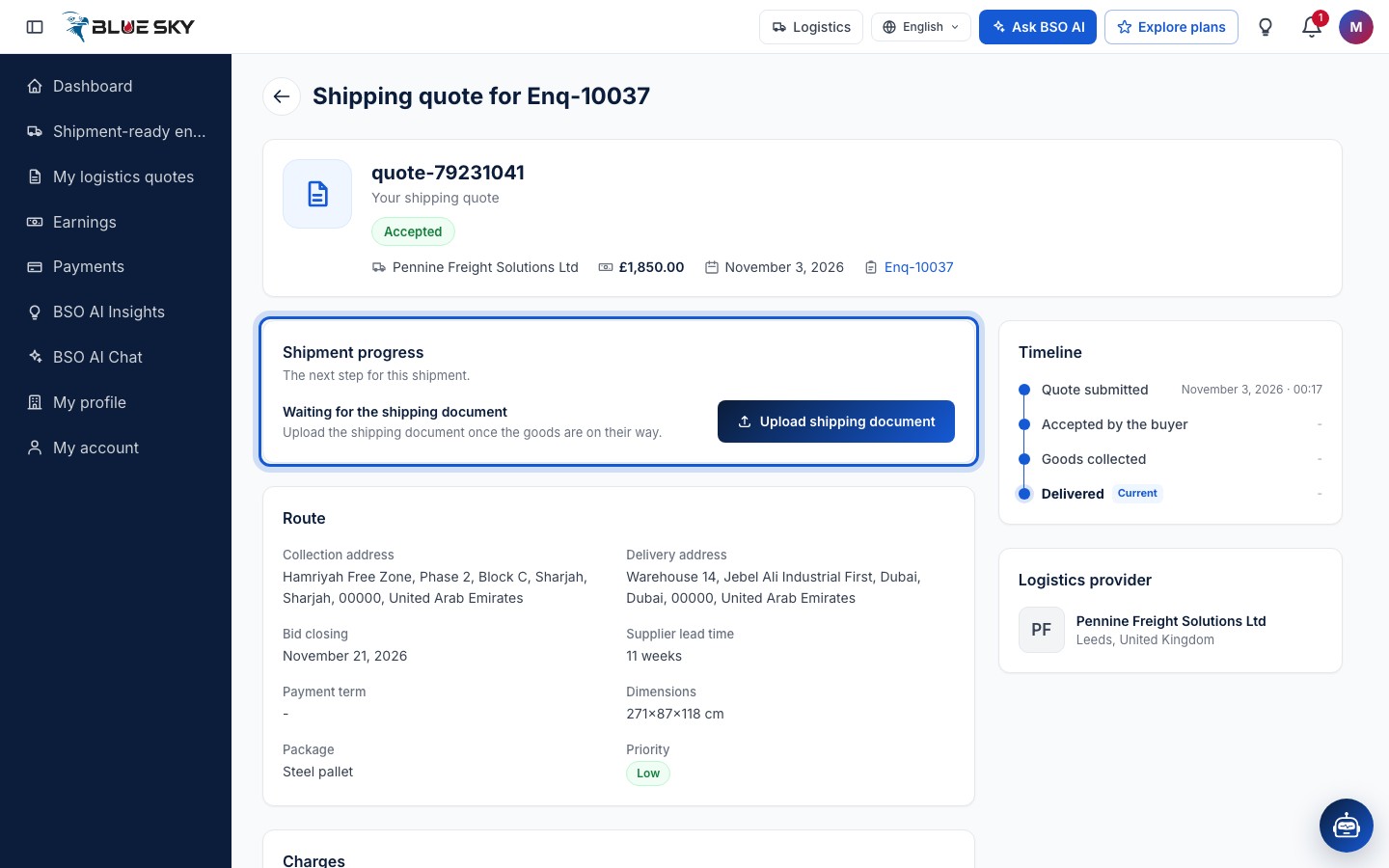
The page confirms with Pickup confirmed. The enquiry moves to Logistics pickup, the buyer's order to Shipped, Goods collected is done in the Timeline, and Shipment progress now reads Waiting for the shipping document: Upload the shipping document once the goods are on their way, with an Upload shipping document button.
Upload the shipping document
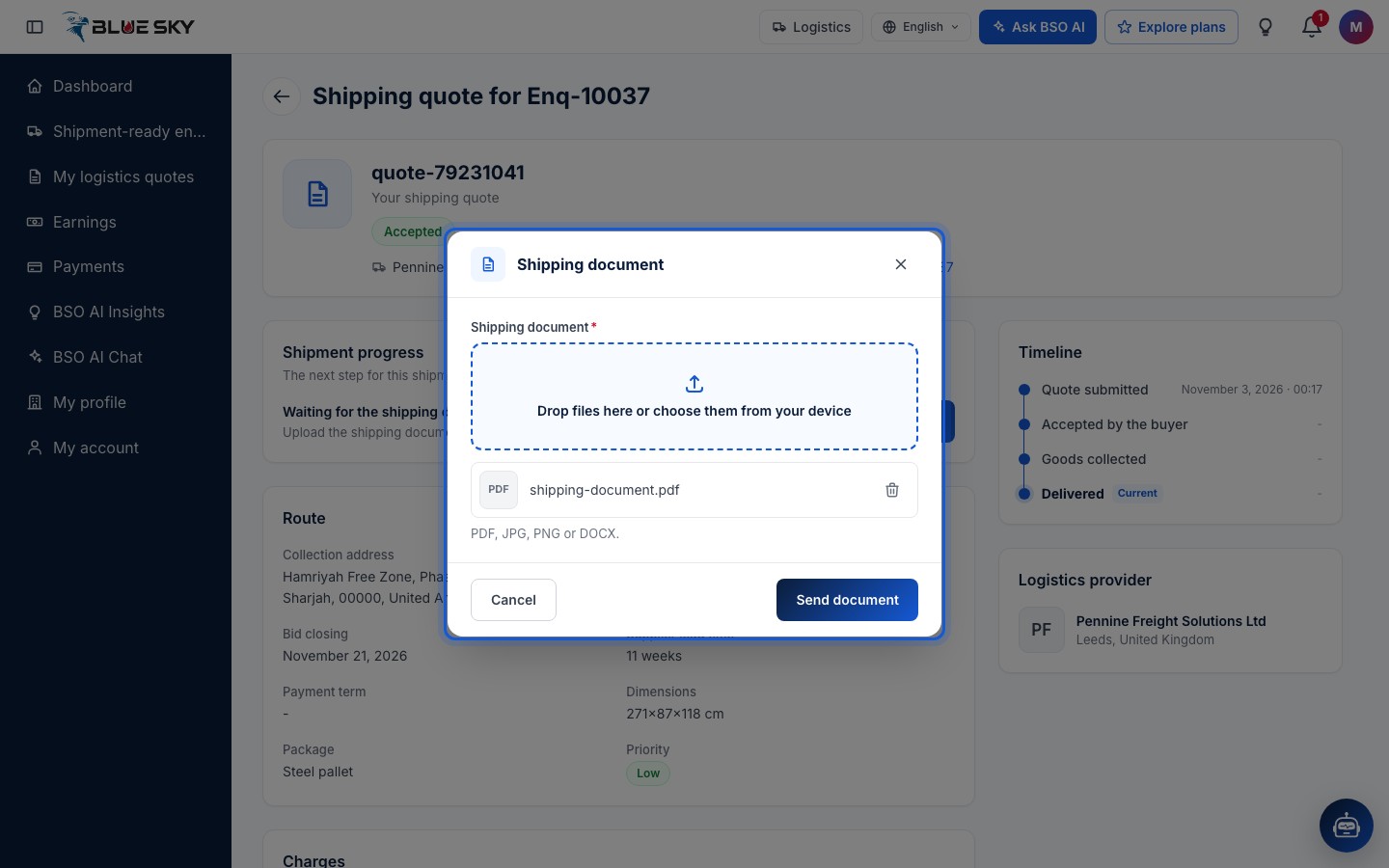
Upload shipping document opens a Shipping document window with one required field. Drop files here or choose them from your device: PDF, JPG, PNG or DOCX. The file is listed under the drop zone once it has uploaded; the bin icon removes it. Cancel closes without saving; Send document attaches it to the shipment.
Document sent
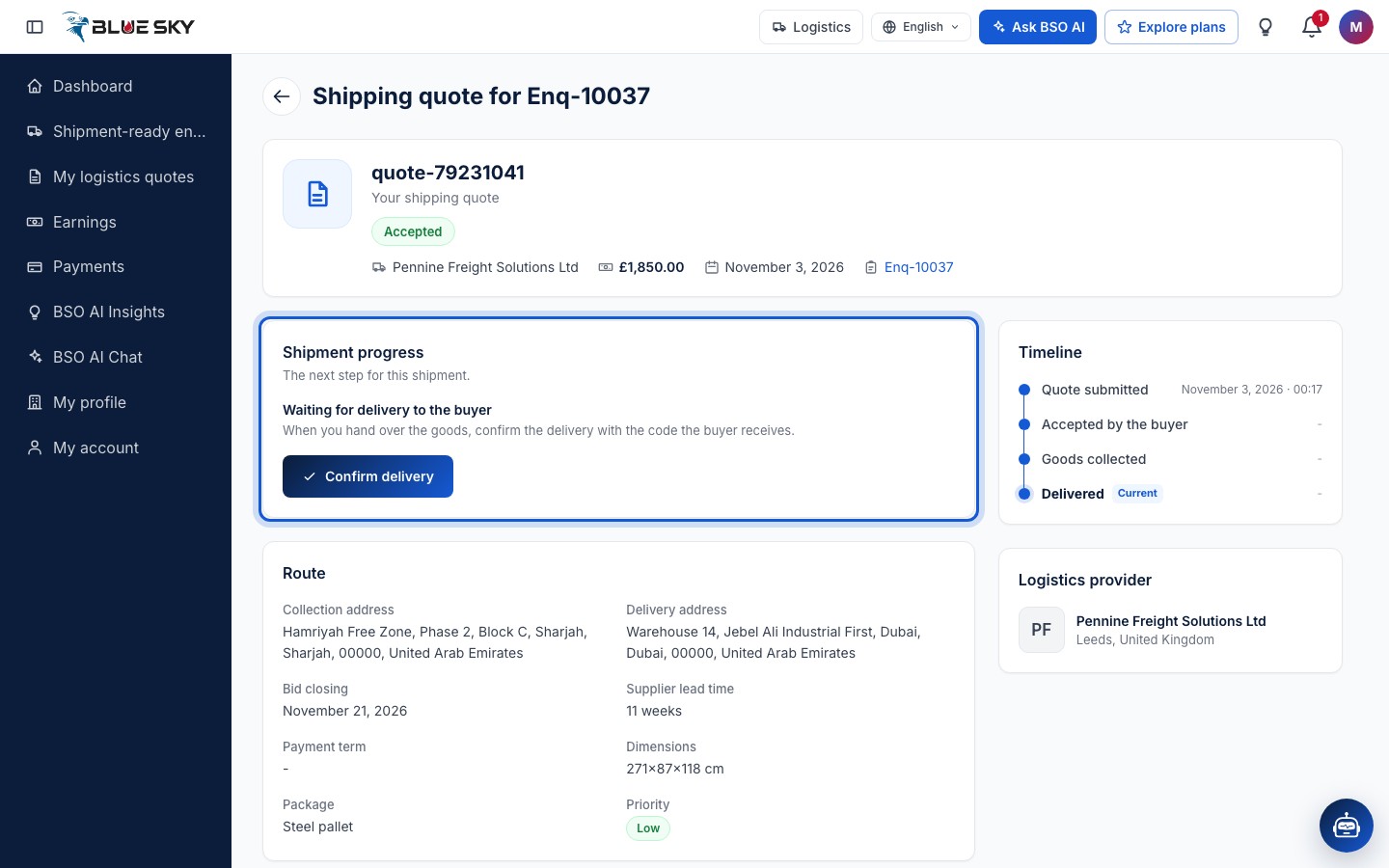
The page confirms with Shipping document sent. The document is now listed under Message and documents as Shipping document, with a View document link, and Shipment progress reads Waiting for delivery to the buyer: When you hand over the goods, confirm the delivery with the code the buyer receives, with a Confirm delivery button.
Confirm delivery: send the buyer's code
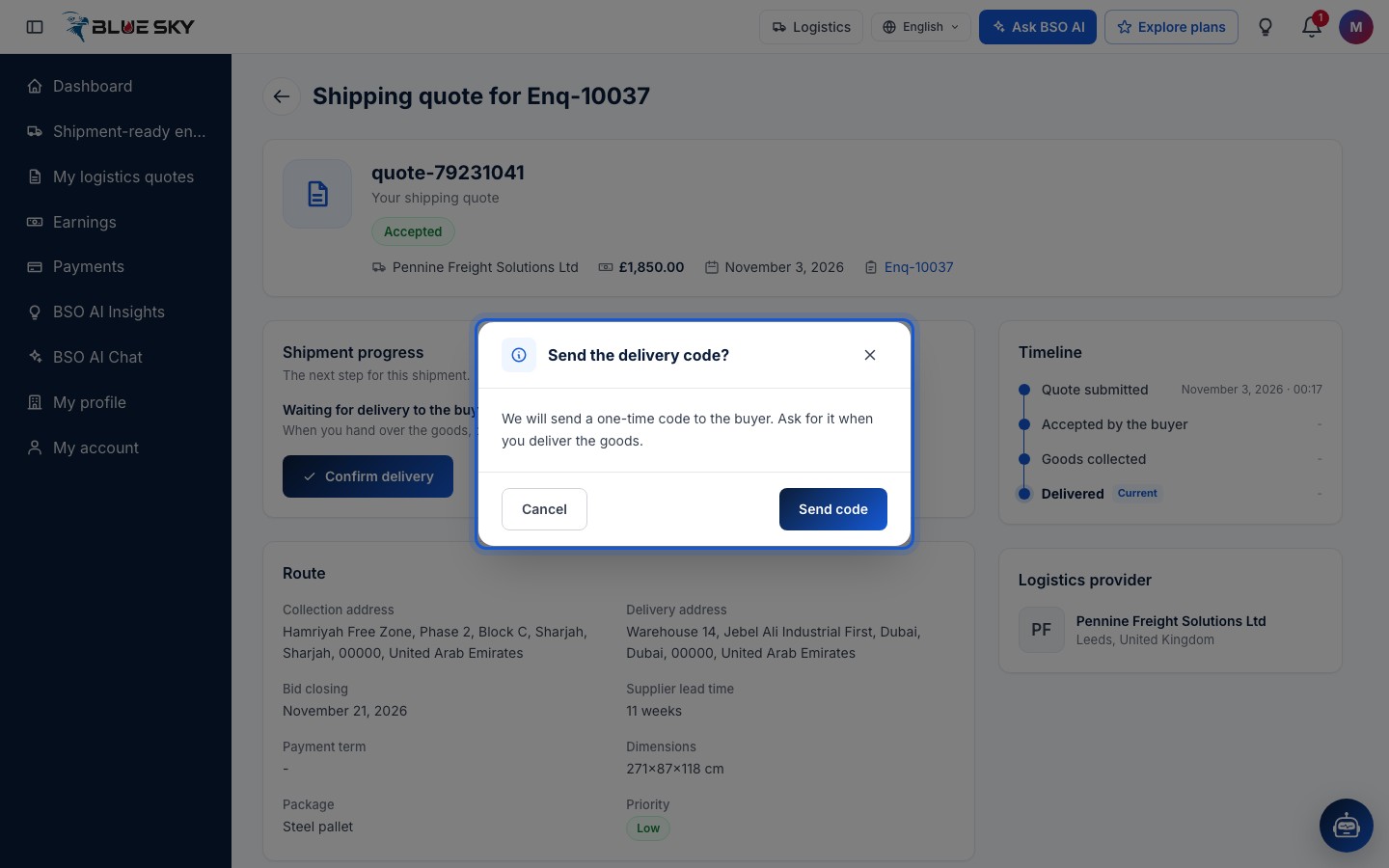
At the buyer's site, click Confirm delivery. Send the delivery code? explains: We will send a one-time code to the buyer. Ask for it when you deliver the goods. Send code sends a 6-digit code to the buyer's email address and mobile number.
Enter the buyer's code
A Confirm the delivery window opens, laid out like the pickup one: Enter the code the buyer received. It marks the order as delivered. Ask the buyer for the code, type the six digits into the boxes and click Verify code. As at pickup, a wrong code says so and tells you how many tries are left.
Order delivered
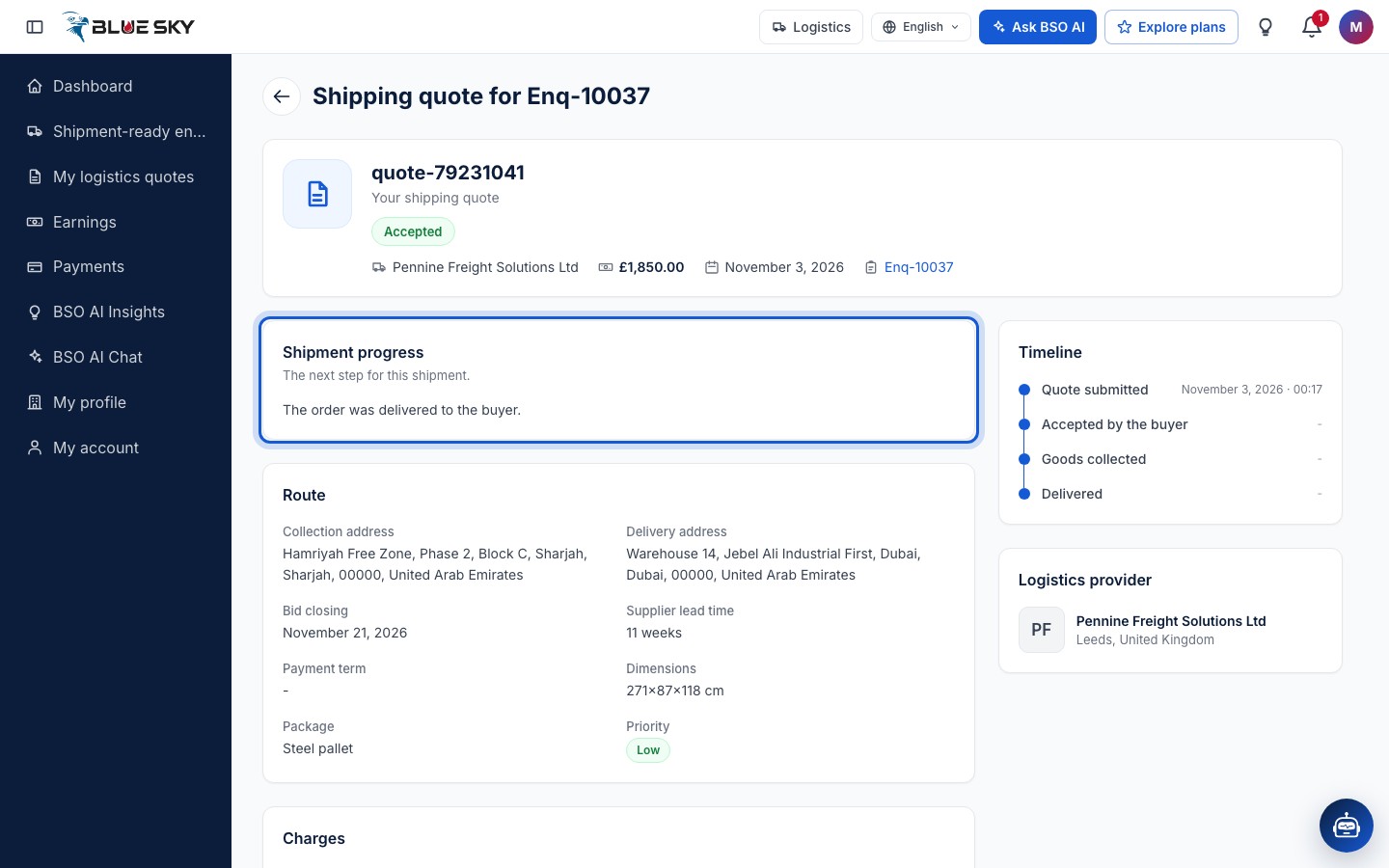
The page confirms with Order delivered. Shipment progress now reads The order was delivered to the buyer, every step of the Timeline is done, and the enquiry and the buyer's order read Delivered. The delivery date is what releases your payout: the row on your Earnings page moves from Pending to Ready to pay with that date as Payable from (Logistics earnings). The buyer can now rate you from 1 to 5 stars.
Good to know
- The codes go to the supplier's and the buyer's own contact details, never to you. Ask for them in person at the yard and at the site; they are not shown anywhere on the website.
- Each code is only asked for when you click Send code, so send the pickup code when you are at the supplier and the delivery code when you are with the buyer.
- You cannot confirm a pickup before the buyer has paid the shipping stage. If the notice keeps appearing, ask the buyer to pay the stage on the enquiry page, or email support@bsoservices.ai.
- Questions about a shipment? Email support@bsoservices.ai, Monday to Friday 07:00 to 17:00 UK time.
Related guides
Still stuck? We are here.
Open BSO AI Chat inside the platform, or email the support team. Monday to Friday, 07:00 to 17:00 UK time.