

When a buyer accepts your quote you are told in the bell and by email, the enquiry locks for other suppliers and your quote reads Accepted. The buyer then chooses a payment term and how the goods reach them (Accept a quote shows their side). Your order is created when the buyer pays the first stage. From then on your job is to pack the goods and mark them ready; the rest follows the delivery choice.
Before you start
- A quote the buyer accepted (see Your quotes).
- The package details: what it is packed in, the weight, the dimensions, the collection address and a packing list file.
See it on the board
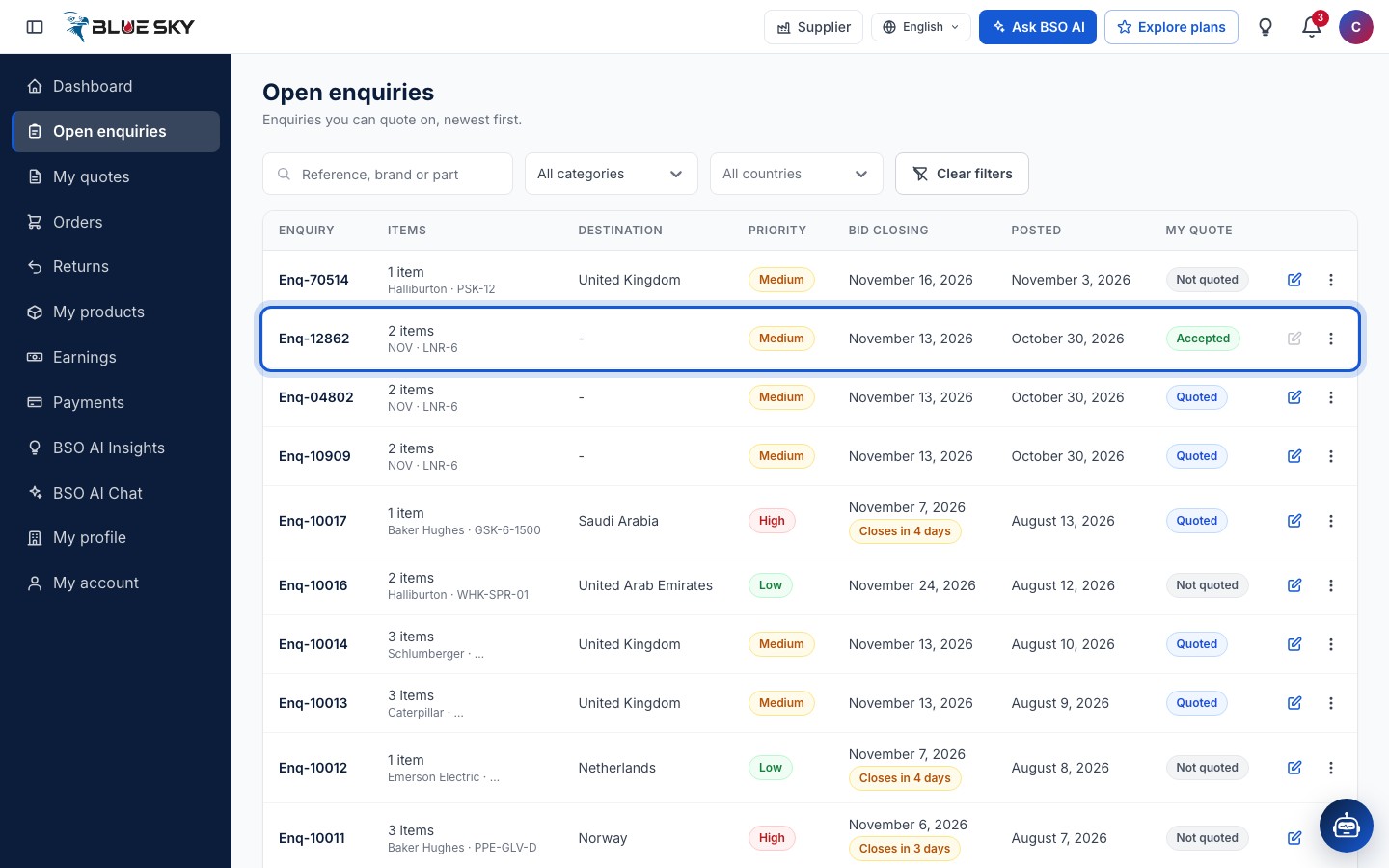
On Open enquiries the row reads Accepted under My quote and its quote button is locked; hovering it says The buyer accepted your quote. Enquiries another supplier won read Awarded to another supplier instead.
See it in My quotes
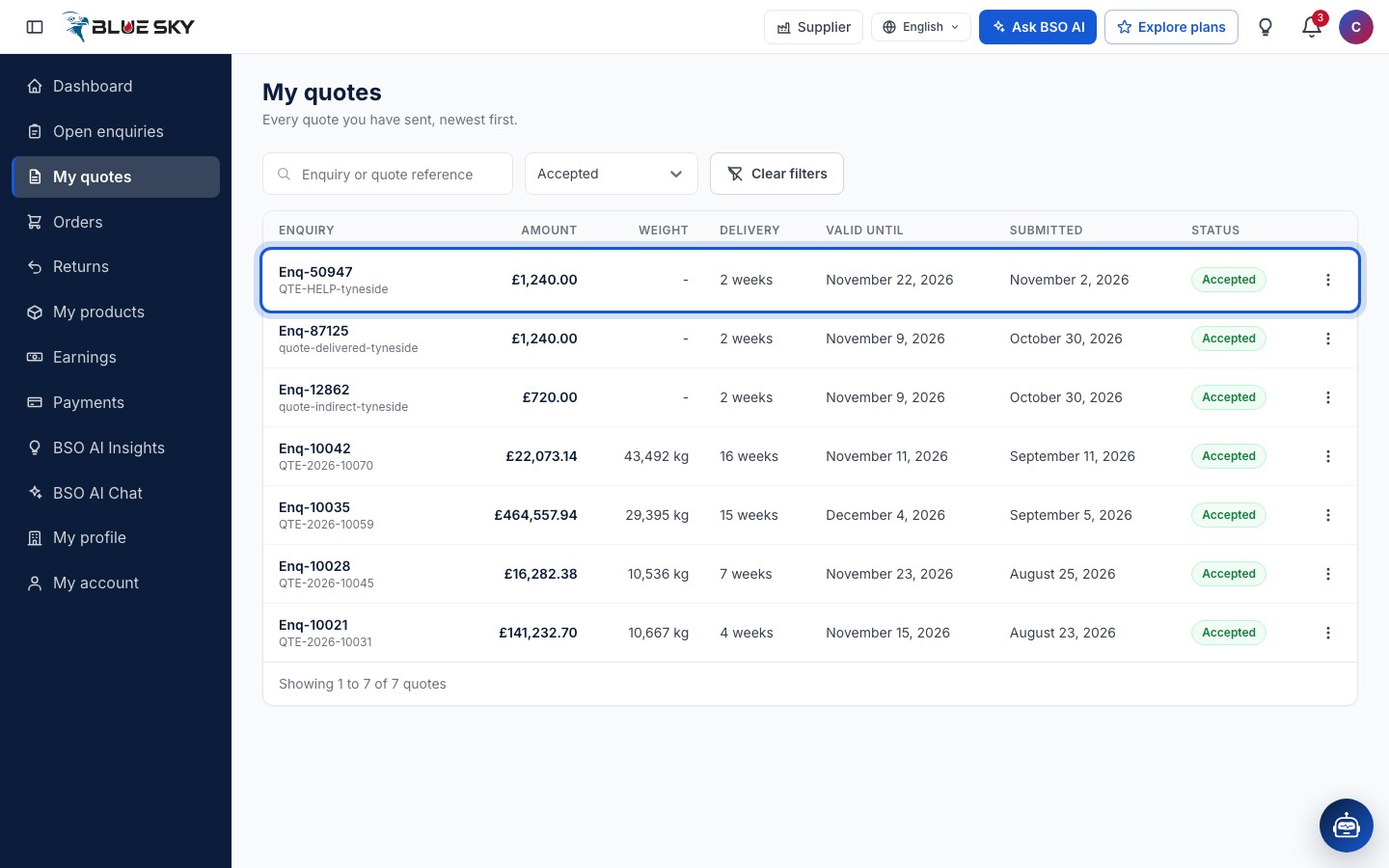
In My quotes the quote reads Accepted; filter the list by Accepted to see them all. Open the quote: the Terms card now shows the Selected payment terms, and a Payment schedule card lists each stage of that term with its percentage (or fixed value), its amount and whether it has been paid.
Find the order
Orders in the left menu lists Orders for quotes you won, in three tabs: Active, Delivered and Cancelled. A row shows the Order number, the Enquiry, the Buyer, the Items, the Total, the Payment state, the Status and Ordered on. The order exists once the buyer has paid the first stage; until then the accepted quote is all you see.
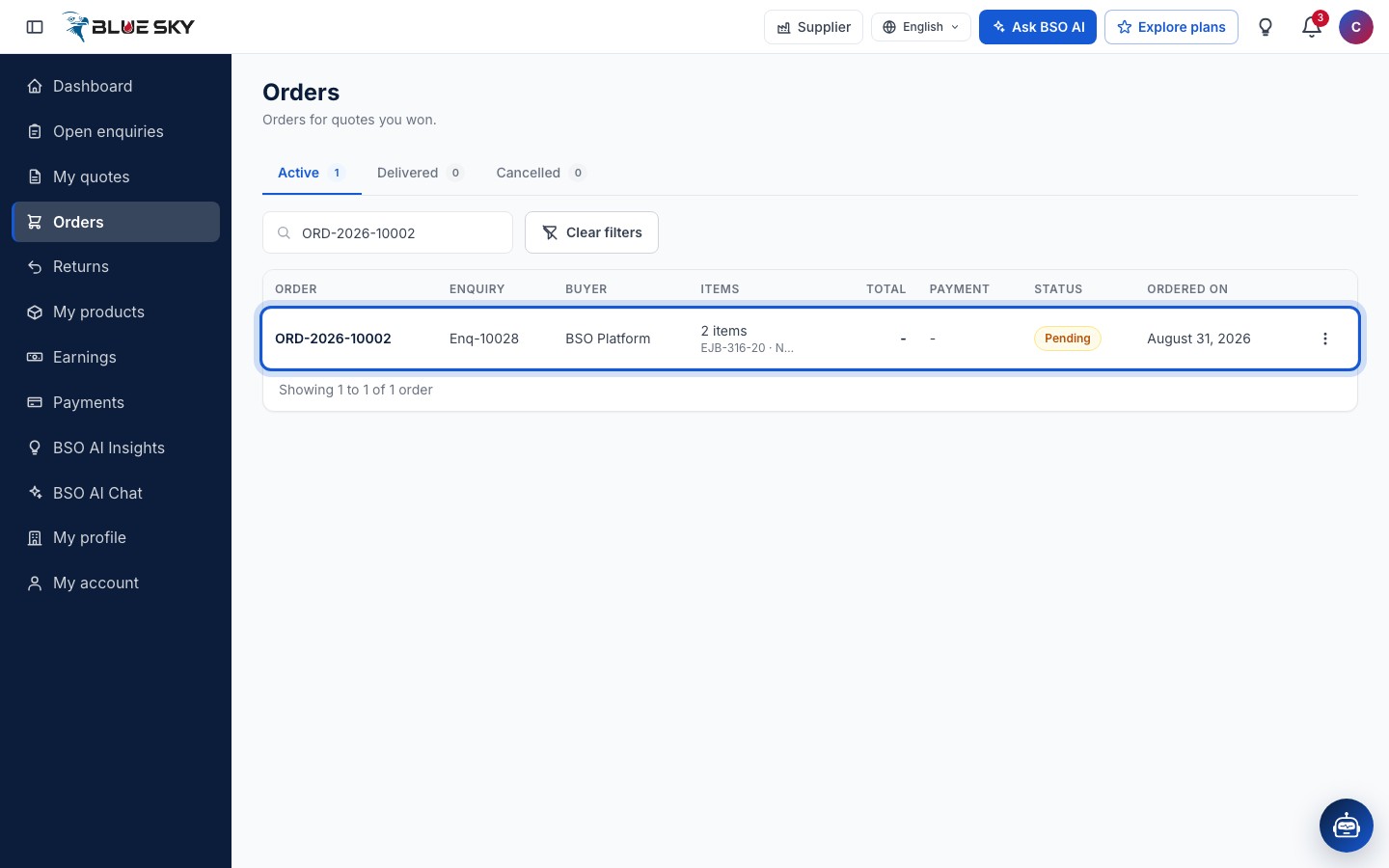
On an order placed through BSO (an indirect buyer) the Buyer reads BSO Platform and the order page says Through BSO and Billed through BSO: BSO is your counterparty, not the buyer.
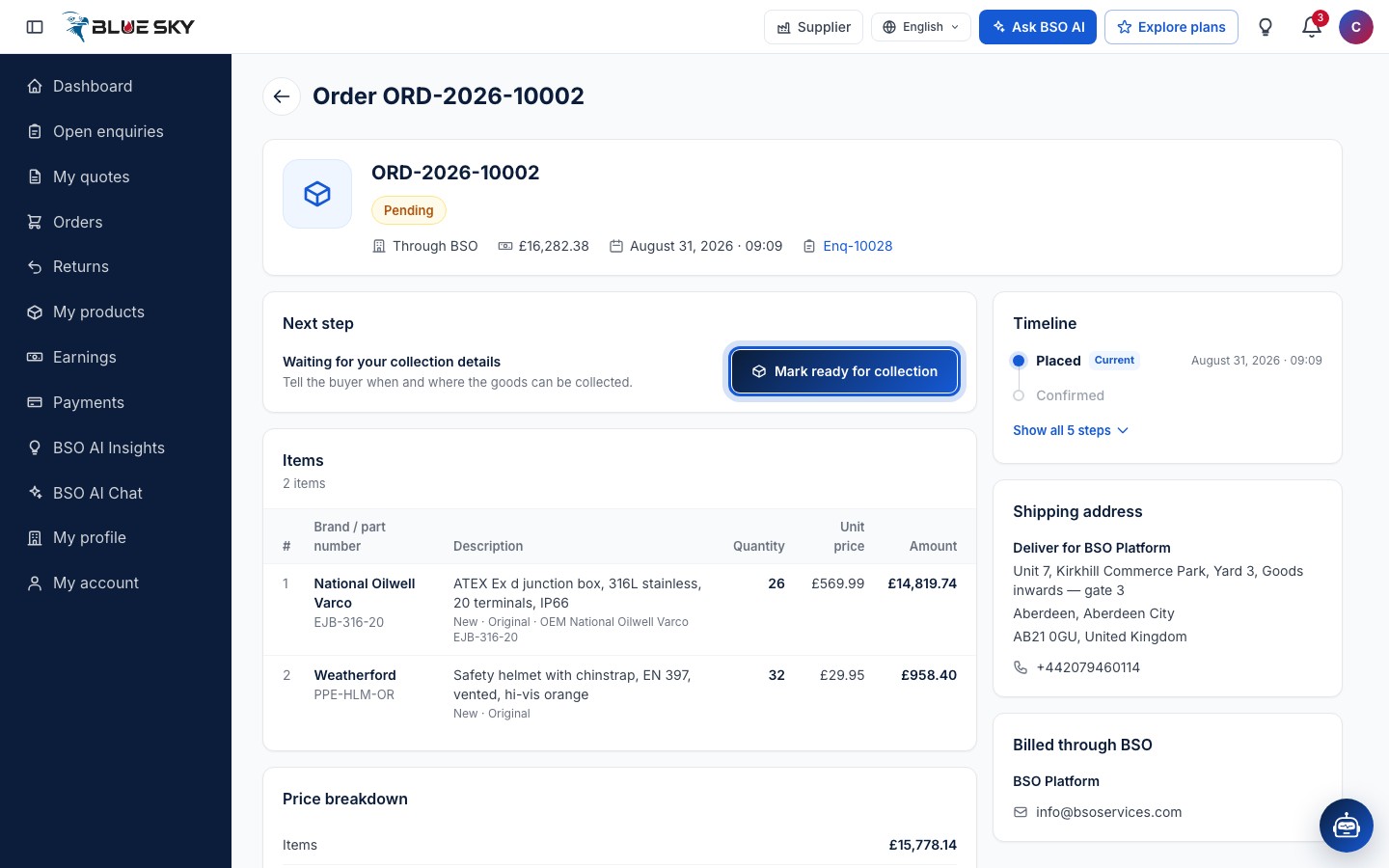
Open the order and click Mark ready for collection
The order page shows the status chip, the Items with your unit prices and amounts, a Price breakdown, the Delivery card, the Returns card, the Timeline and the Shipping address. While the goods are not yet ready, a Next step card at the top reads Waiting for your collection details, Tell the buyer when and where the goods can be collected, with the button Mark ready for collection.
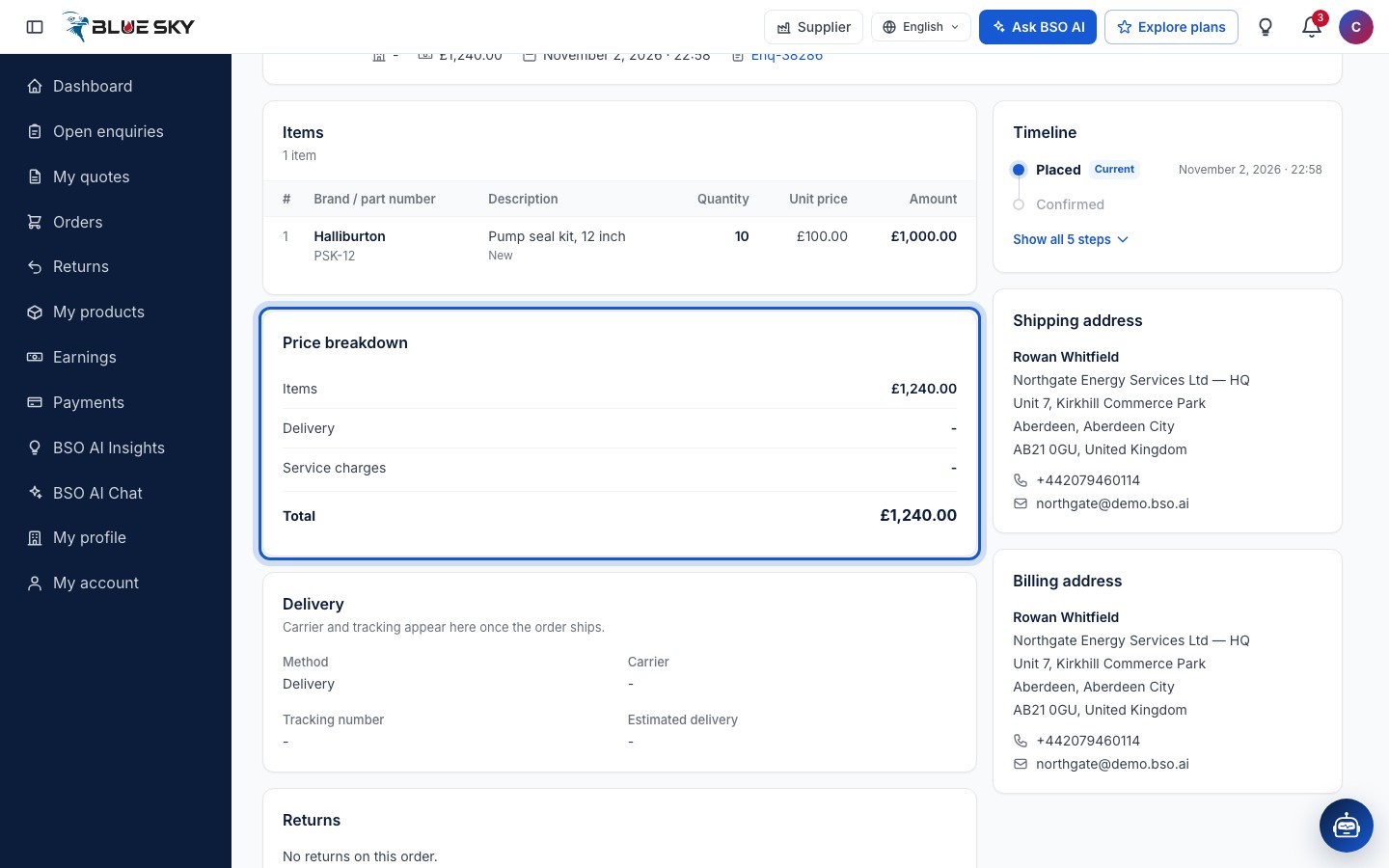
On a direct order the Price breakdown holds your own figures: your Items total, any charge you added and your Total. Service charges reads a dash, because the charge BSO adds for the buyer is never shown to you.
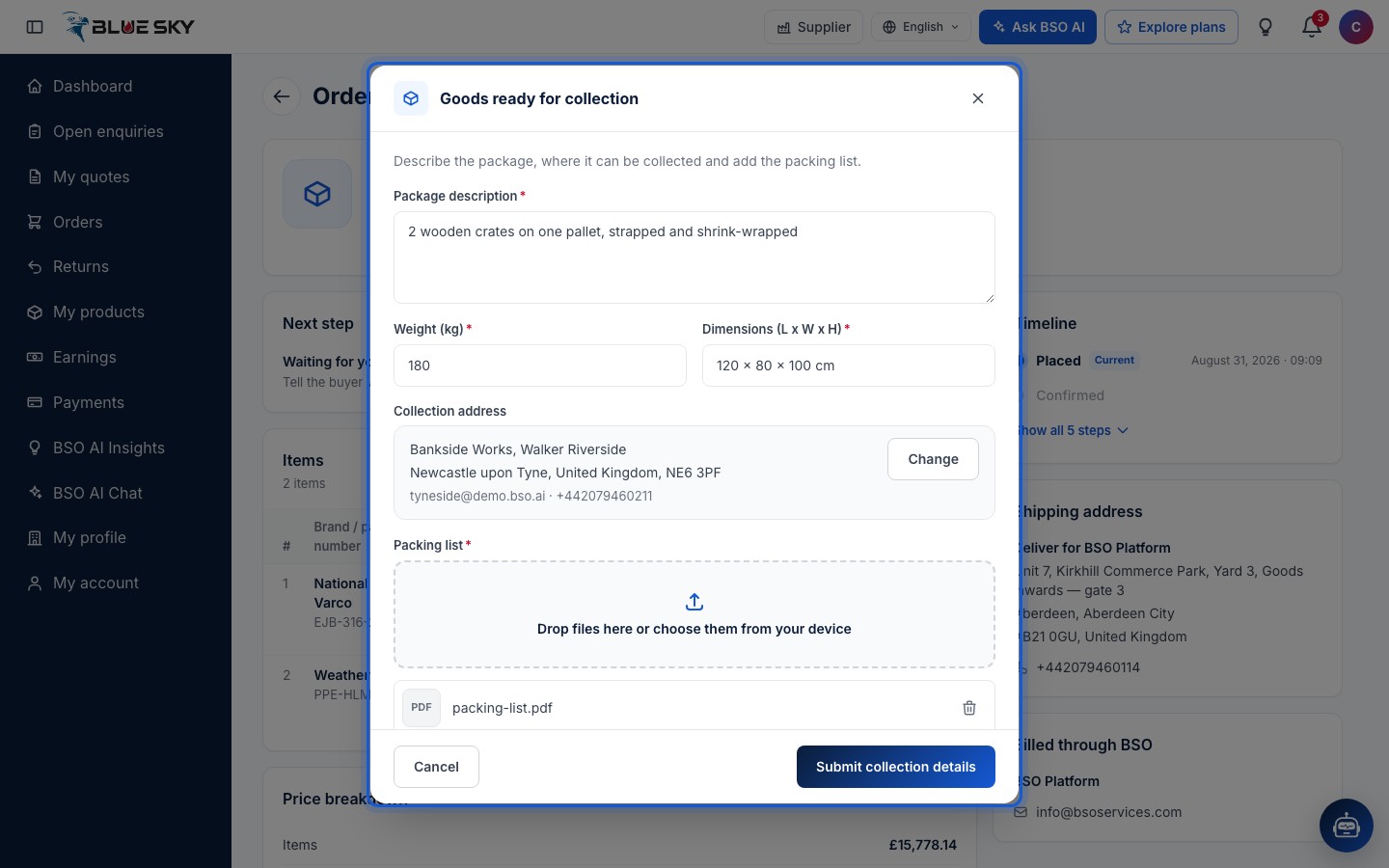
Fill in Goods ready for collection
Describe the package, where it can be collected and add the packing list: a Package description, the Weight (kg), the Dimensions (L x W x H), the Collection address (your saved address, with Change to pick another or Add address) and the Packing list file (PDF, JPG, PNG or DOCX). All of them are required. Click Submit collection details.
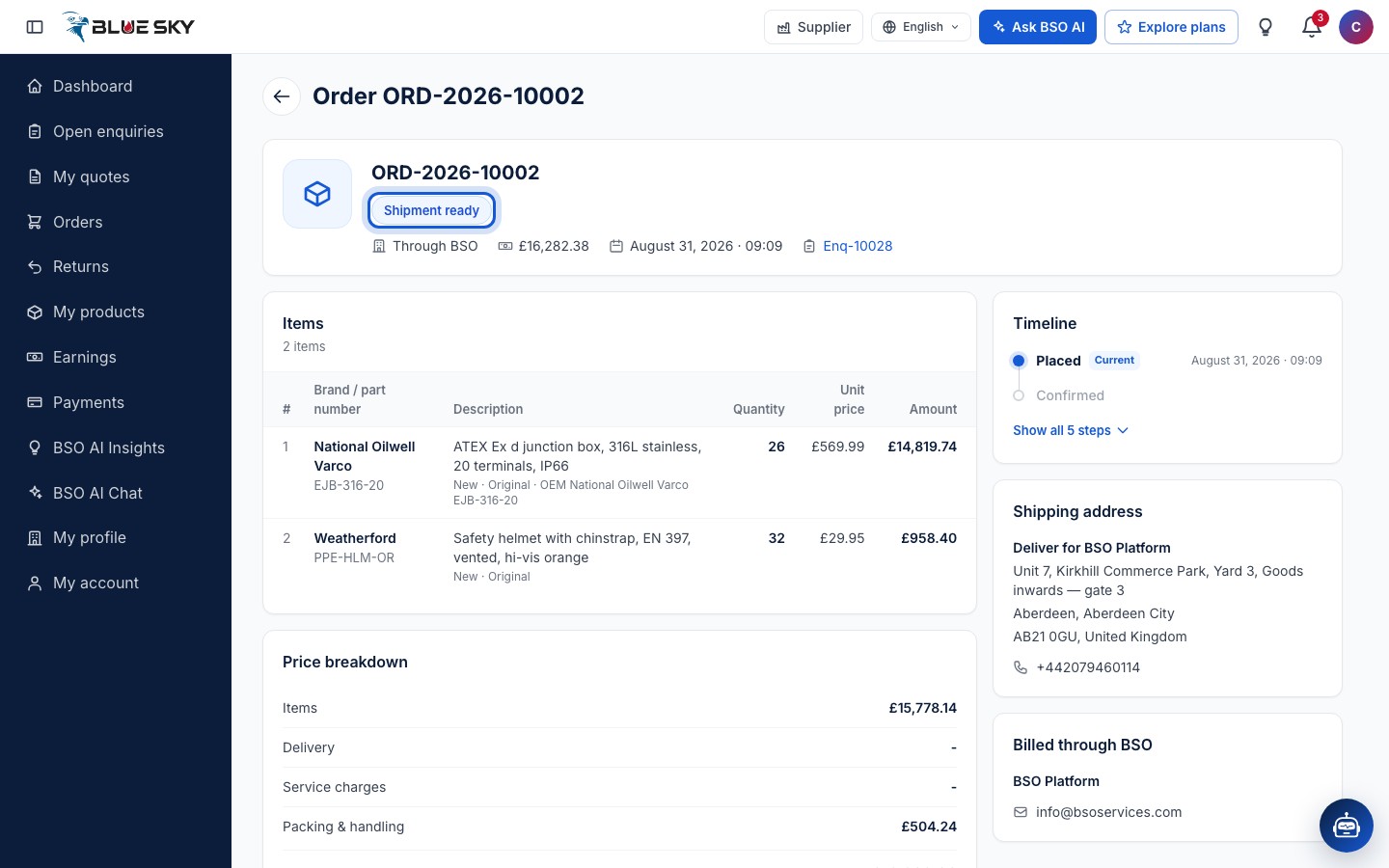
The order is Shipment ready
The page confirms Collection details sent. and the order's status reads Shipment ready; the Next step card is gone. Your quote in My quotes reads Shipment ready too.
What happens next depends on the buyer's delivery choice. Self pickup: the buyer is told where to collect, and your quote page shows Waiting for the buyer to collect with a Confirm pickup button. When the buyer arrives, click it and then Send code: the buyer receives a 6-digit code by email. Ask them for it and type it under Enter the pickup code; the page confirms Pickup confirmed. and the order is marked collected. Platform logistics: the shipment goes on BSO's Logistics board for logistics providers to quote, the buyer picks one, and the logistics provider collects with the code sent to you (see Pickup, document and delivery). The buyer's own logistics provider: they collect and add their tracking details.
If the payment term has a stage On readiness, the buyer is asked to pay it now.
If the buyer chose delivery by you, choose who delivers
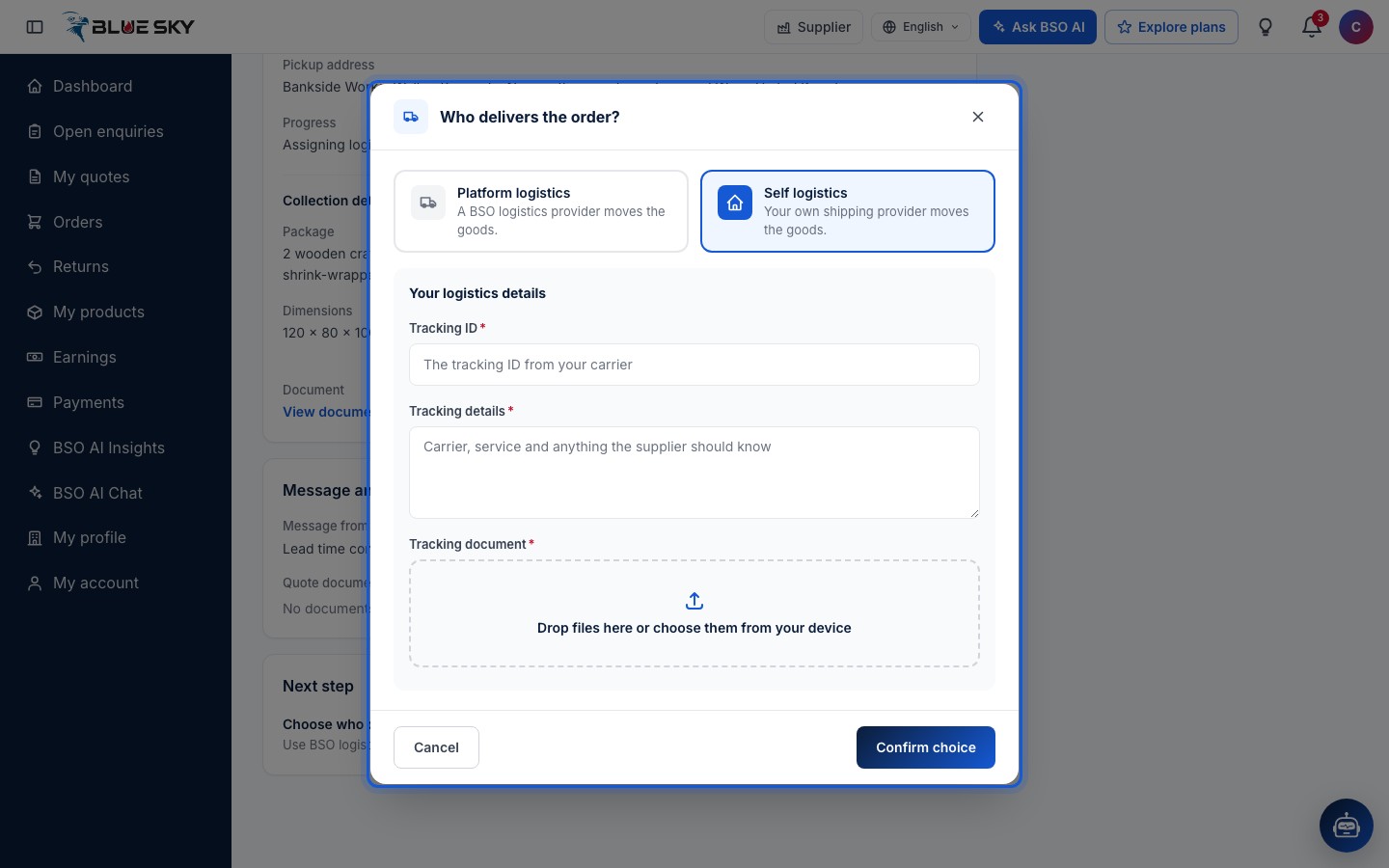
When the buyer picked Supplier delivery (your delivery charge applies), your quote page shows Choose who delivers the order, Use BSO logistics or your own provider, with a Choose logistics button. Who delivers the order? offers Platform logistics (A BSO logistics provider moves the goods) and Self logistics (Your own shipping provider moves the goods). Self logistics asks for the Tracking ID, the Tracking details and a Tracking document. Confirm choice saves it; once a logistics provider is chosen it cannot be changed.
What a direct order shows you
On a direct order the buyer's company and contact appear in the summary and in the Shipping address and Billing address cards, and the Price breakdown is your quote's total. Delivery shows Logistics provider and tracking appear here once the order ships. Once the goods are delivered the order moves to the Delivered tab, and the buyer can rate you.
Good to know
- Your payouts for the order appear under Earnings as the buyer pays each stage; see Earnings and payouts.
- How the buyer follows the order, picks a logistics provider and confirms delivery with a code is in Track your order and Delivery code and rating.
- Lost the enquiry? Its row reads Not selected in My quotes; nothing else is needed from you. To quote again on other enquiries, see Write a quote.
- Questions about an order? Email support@bsoservices.ai, Monday to Friday 07:00 to 17:00 UK time, with the order number.
Related guides
Your quotes
My quotes: statuses, Expired, the quote page.
Earnings and payouts
What BSO pays you, when, and why a payout waits.
Accept a quote
Payment term, delivery choice, who moves the goods.
Track your order
The order page, Shipment ready and the shipping quotes.
Delivery code and rating
Your delivery code, then rating the logistics provider.
Still stuck? We are here.
Open BSO AI Chat inside the platform, or email the support team. Monday to Friday, 07:00 to 17:00 UK time.