

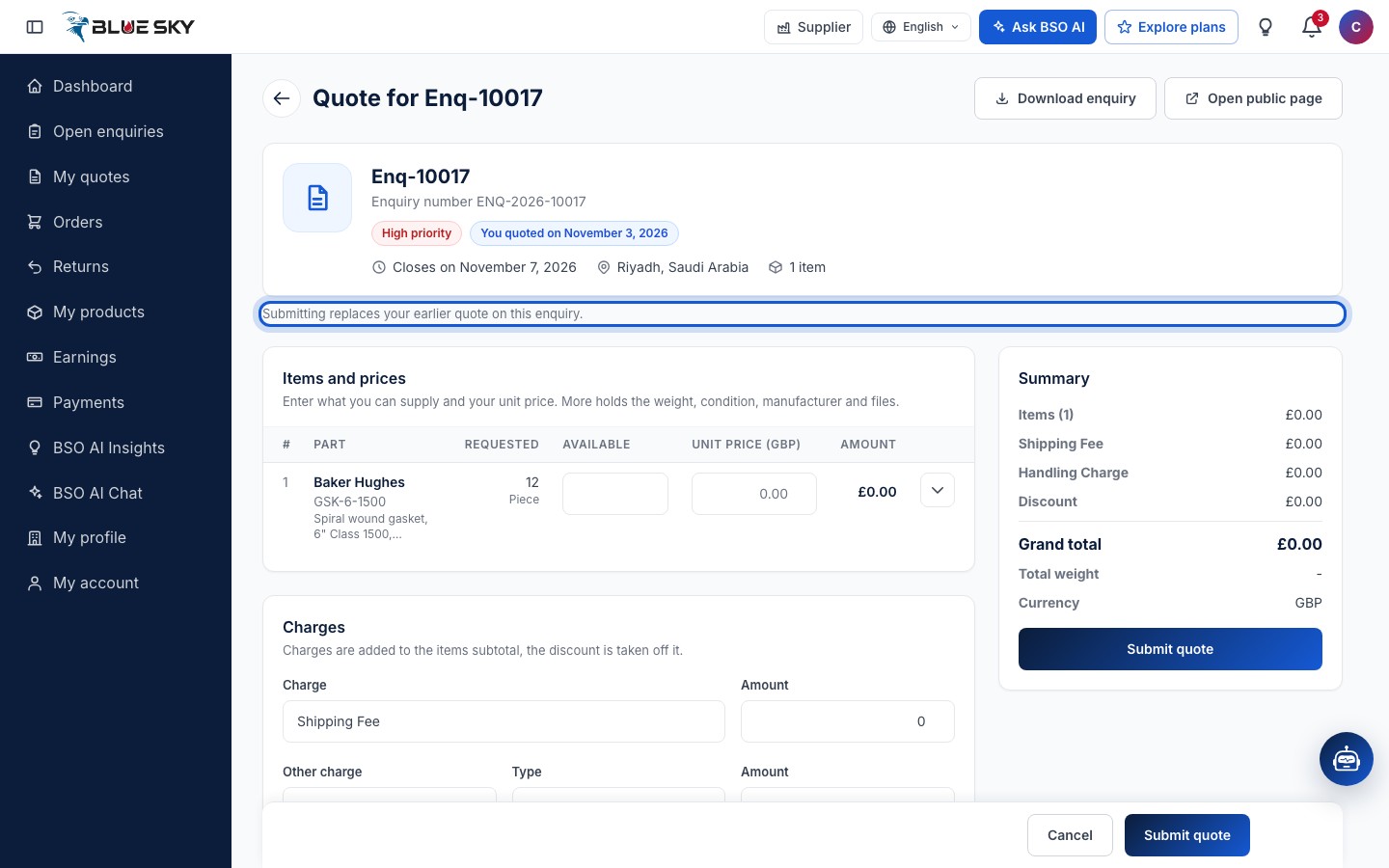
The quote form opens from Open enquiries (Write quote on a row, or Quote on this enquiry on the public page). It is one page with the enquiry summary at the top, the cards you fill in on the left and a Summary with the grand total on the right. You can send one quote per enquiry; sending it again replaces the earlier one.
Submitting needs an active supplier plan or the All-in-One plan (see Become a supplier and Compare plans). Without one the page shows a box, You need a supplier plan to quote, and you can still read the enquiry first (the summary and the items it asks for, without the buyer's name or contact details), with the plans below it.
Before you start
- An open enquiry on the board (quotes are refused after its closing date).
- Your unit prices, the quantity you can supply and the delivery time.
- A saved address the goods are collected from (the form lets you add one).
Read the enquiry summary
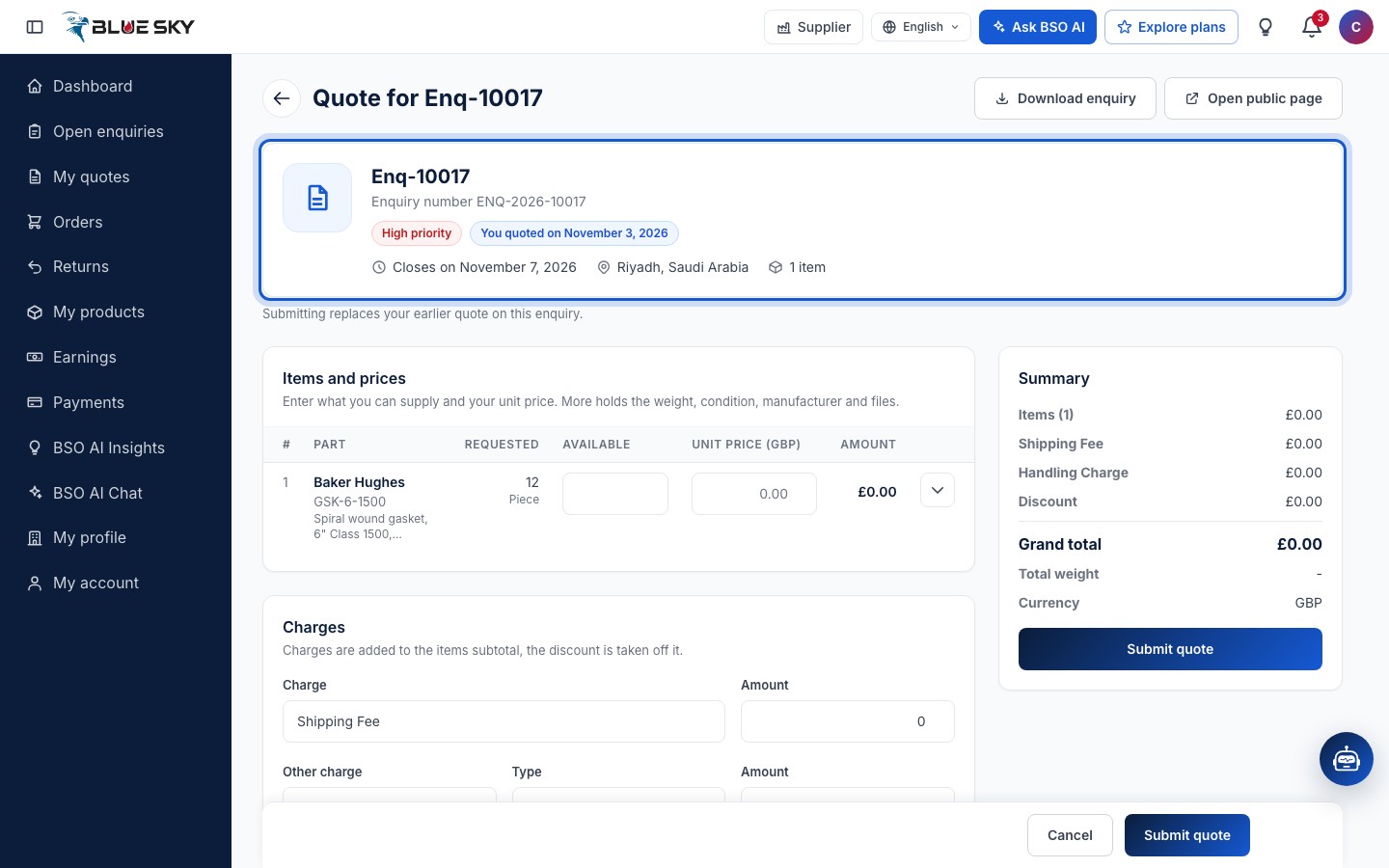
The page is headed Quote for the enquiry reference, with Download enquiry and Open public page at the top right. The summary card shows the enquiry number, the priority, when it Closes on, the destination and how many items there are. Once you have quoted, it also says You quoted on that date, and a note under the heading says that submitting replaces your earlier quote (the picture shows an enquiry already quoted).
Price each item
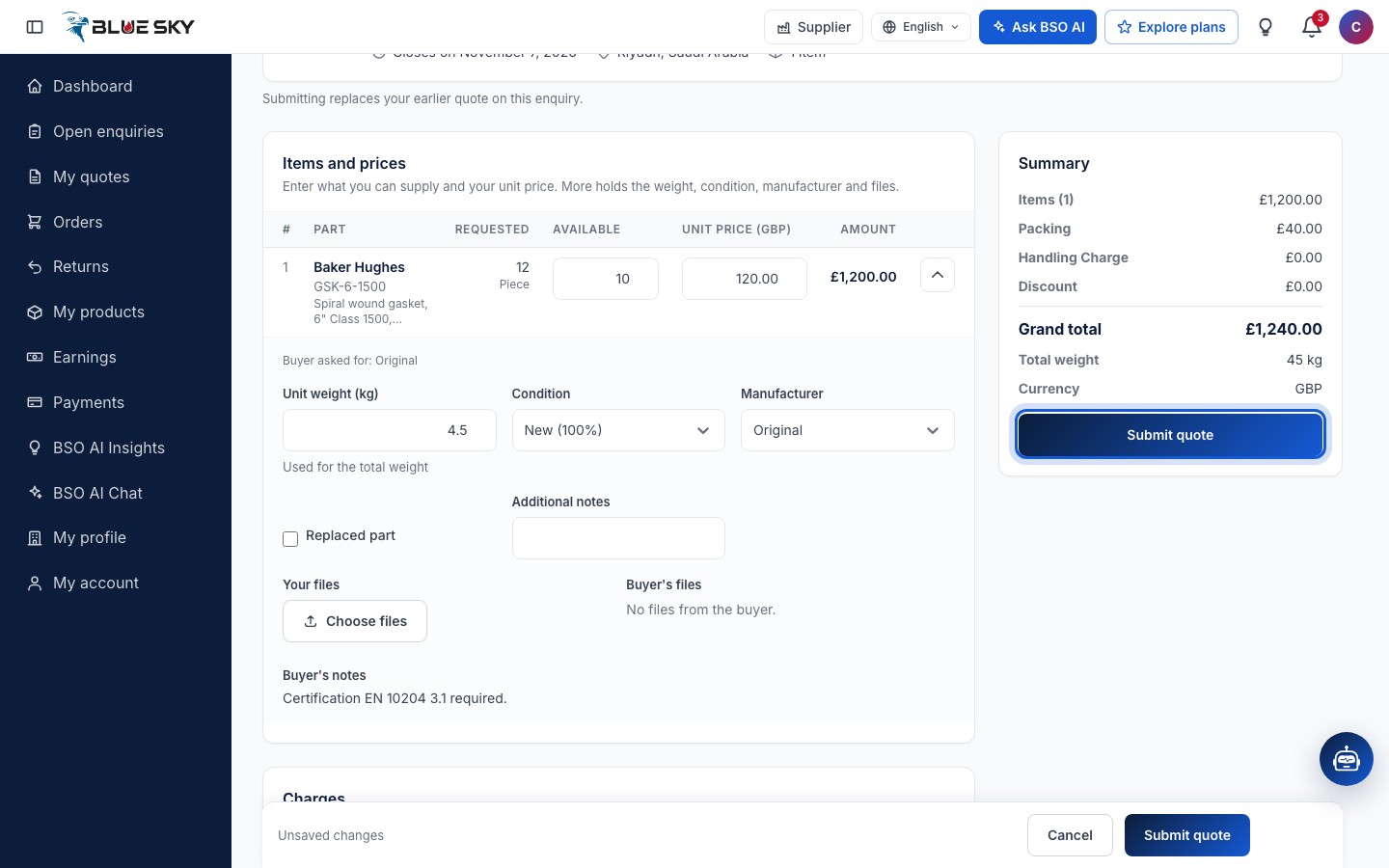
Items and prices lists what the buyer asked for: the Part (brand, part number and description) and the Requested quantity. Enter the Available quantity and the Unit price (GBP) for each item; the Amount is worked out for you. Both must be above zero.
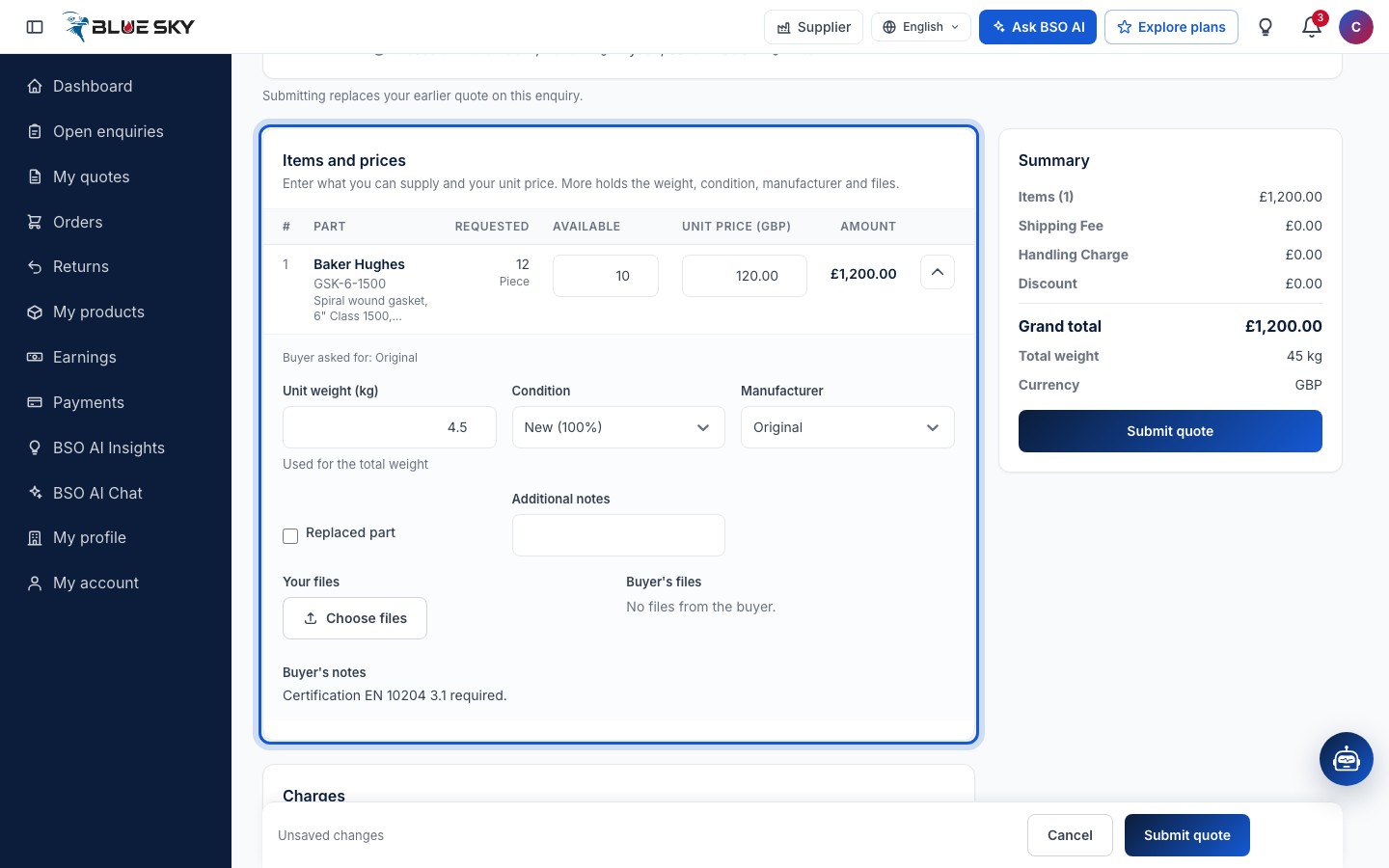
More on a row opens the Unit weight (kg) (used for the total weight), the Condition (New (100%), Reconditioned (80%) or Used (60%)), the Manufacturer (Original, OEM or Aftermarket), a Replaced part box when you offer a different part number, Additional notes and Your files for that item. Buyer asked for shows what the buyer specified, and the Buyer's notes and files sit under it.
When the buyer sent the enquiry as documents instead of an item list, the card lets you add the items you quote for yourself (Add item).
Add charges or a discount
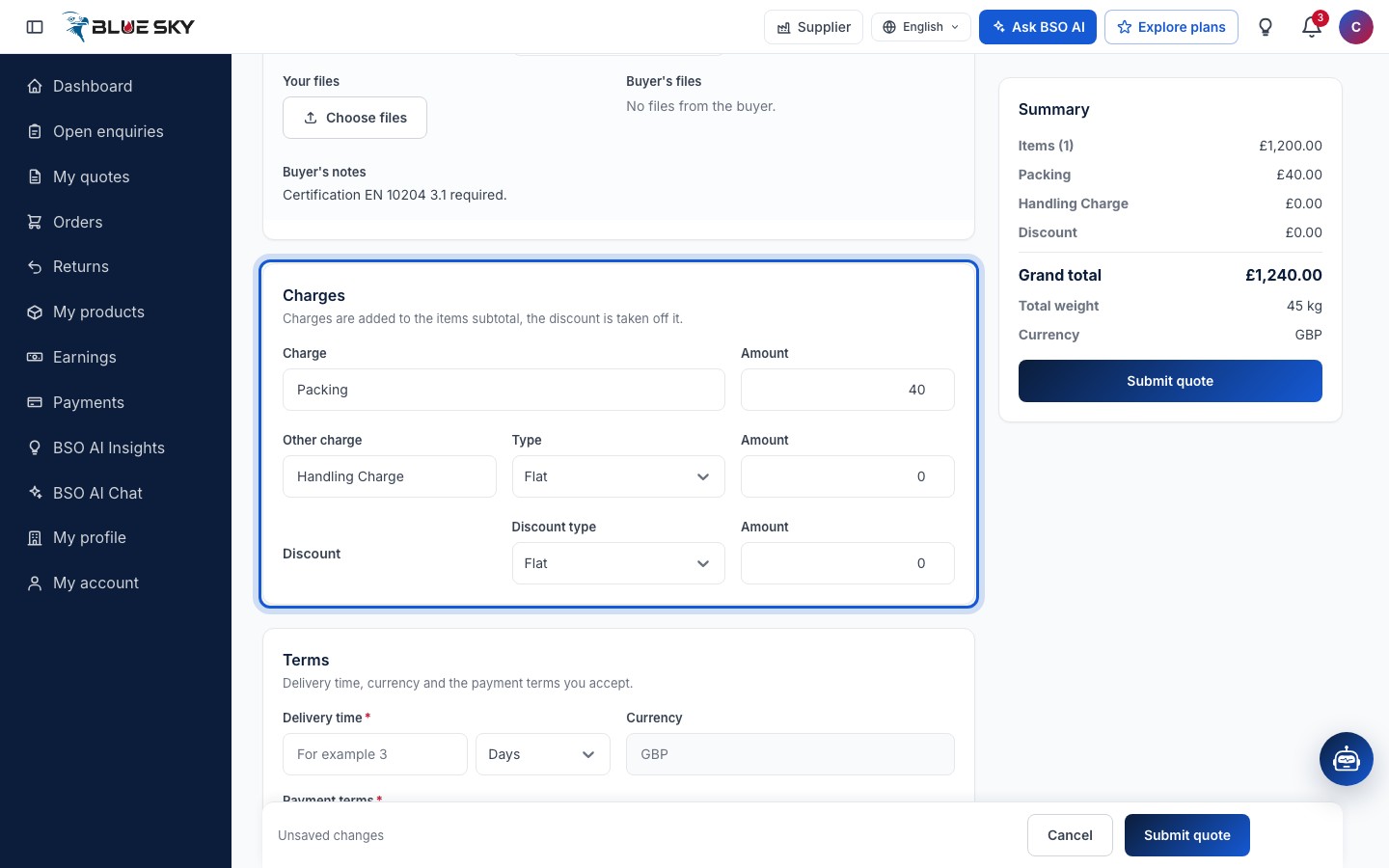
Charges are added to the items subtotal, the discount is taken off it. The first Charge is named Shipping Fee by default and you can rename it; it is the delivery charge the buyer pays only if they choose delivery by you. Other charge takes a name, a Type (Flat or Percent) and an Amount; Discount takes a Discount type and an Amount. Leave what you do not need at 0.
Set the delivery time and payment terms
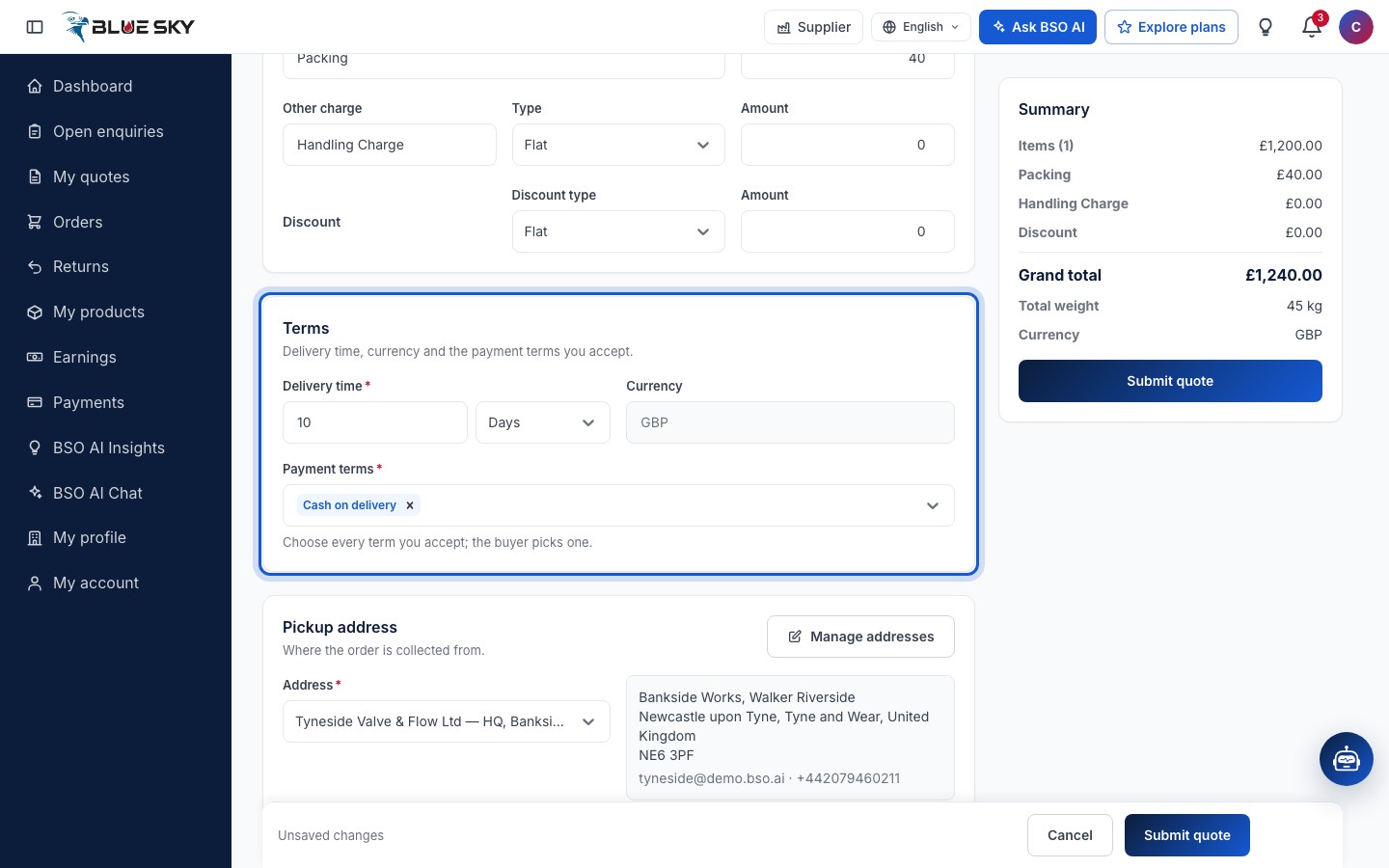
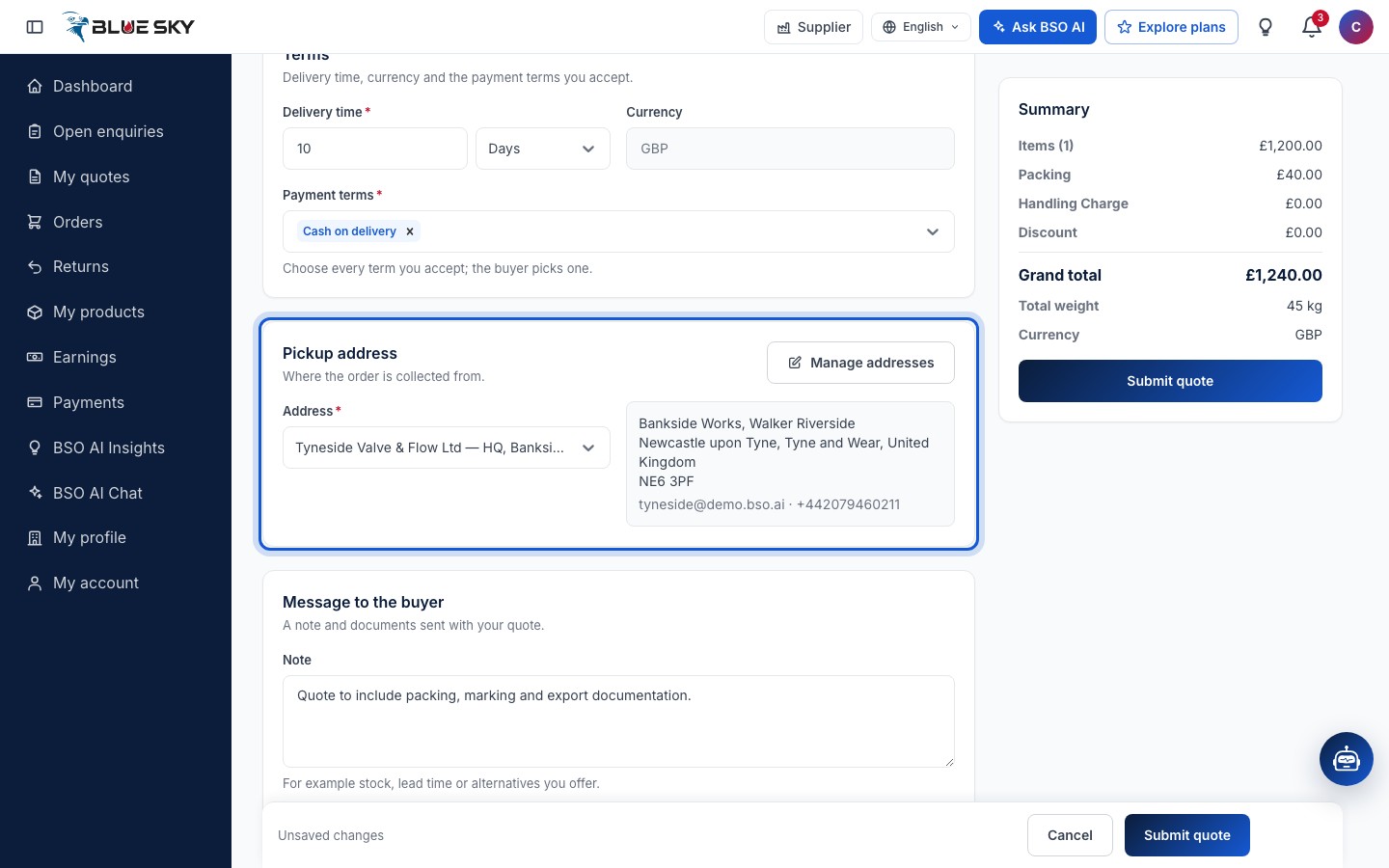
Under Terms, enter the Delivery time as a number of Days or Weeks. Currency is GBP and cannot be changed: every quote on BSO is in pounds. Payment terms lists the terms you accept, for example Cash on delivery or 50% advance, balance on delivery; tick every one you accept, the buyer picks one when accepting. At least one is required.
Choose the pickup address
Pickup address is where the order is collected from. The form shows your saved address; Manage addresses opens your address list to pick another or add one. A quote cannot be sent without one. Addresses are kept in My account; see Saved addresses.
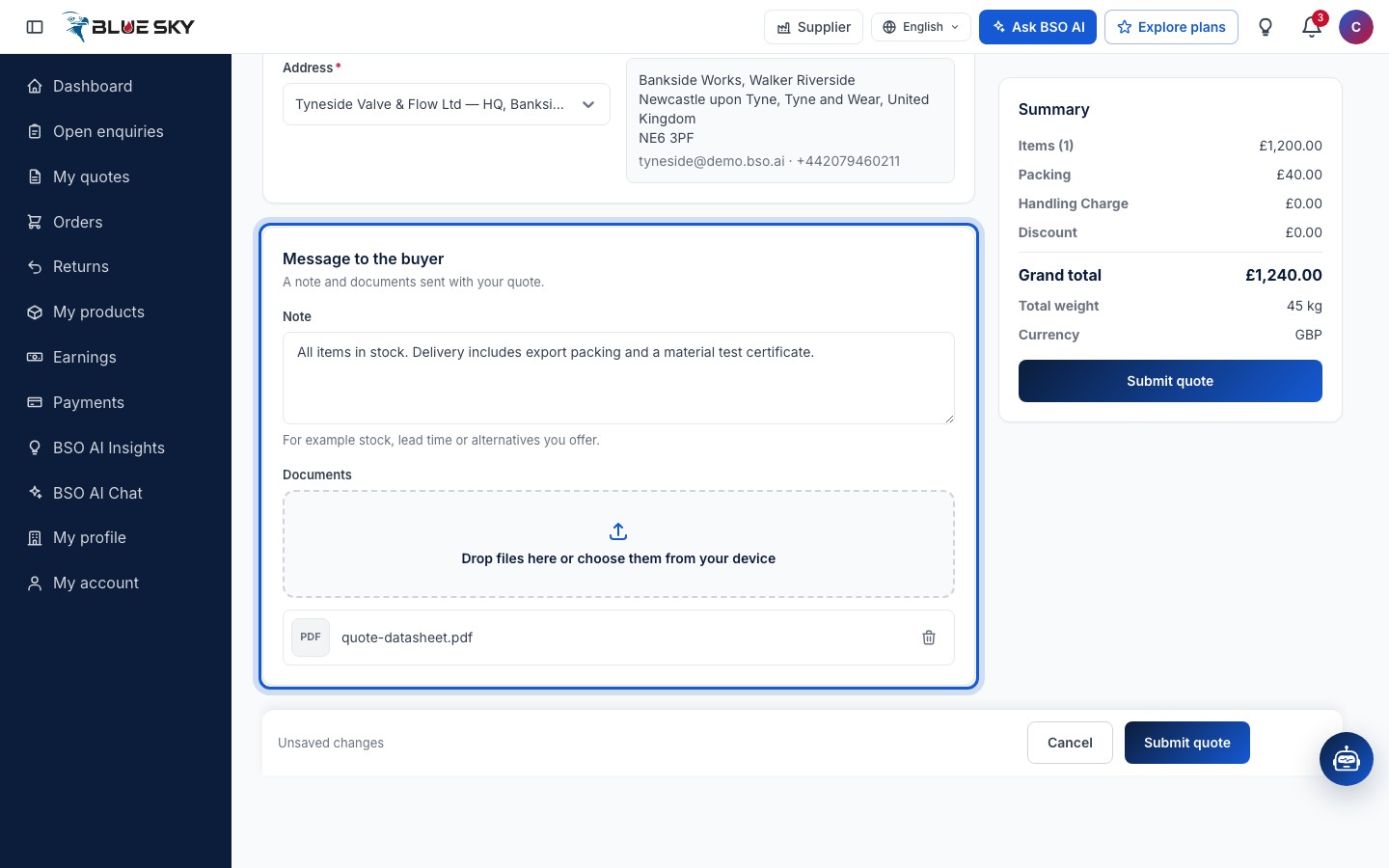
Write a note and attach documents
Message to the buyer takes a Note (for example stock, lead time or alternatives you offer) and Documents: drop files on the box or choose them from your device, such as a datasheet or a certificate in PDF. The buyer sees both with your quote.
Check the Summary and submit
The Summary on the right adds up the Items, the charges, the Discount and the Grand total, with the Total weight and the Currency. Fields that need attention are marked in red when you try to submit. Click Submit quote, in the Summary or in the bar at the bottom.
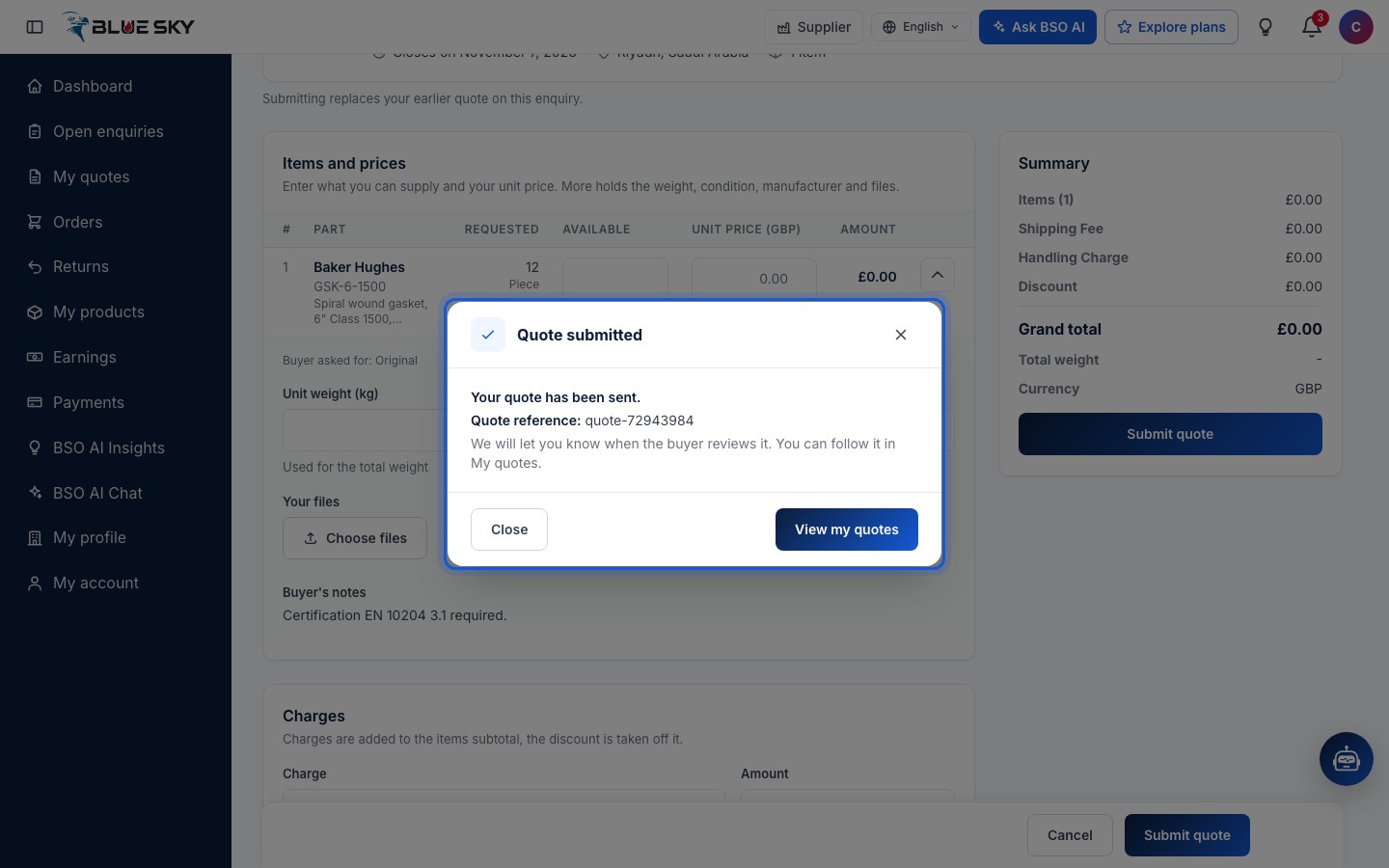
The quote is sent
A Quote submitted box confirms Your quote has been sent, with your Quote reference. We will let you know when the buyer reviews it. You can follow it in My quotes: Close returns to the form, View my quotes opens Your quotes.
Change your quote
Open the same enquiry again from the board (its button now reads Update quote and the My quote chip reads Quoted) and the form says Submitting replaces your earlier quote on this enquiry. Fill it in again and submit: the buyer sees the new figures under the same quote. This works until the closing date, and not once the buyer has accepted a quote.
Good to know
- Buyers see your quote without your company name until they accept it: they compare quotes on price, delivery time, terms and the BSO score. Keep the note factual.
- What happens when a buyer accepts is in When your quote is accepted.
- The quote's Valid until date in My quotes is the enquiry's closing date; a quote still pending after it reads Expired on that list, and the enquiry takes no new or updated quotes after that date.
- Questions about a quote? Email support@bsoservices.ai, Monday to Friday 07:00 to 17:00 UK time.
Related guides
Still stuck? We are here.
Open BSO AI Chat inside the platform, or email the support team. Monday to Friday, 07:00 to 17:00 UK time.