

Every enquiry needs a delivery address, and your default one is filled in for you. Keep the sites you deliver to under My account, Addresses, so that sending an enquiry is one click on Change away from the right yard.
Before you start
- A buyer account you are signed in to.
Open Addresses in My account
Click My account at the bottom of the left menu, then Addresses in the list on the left, or go straight to my-account?tab=addresses. The card is Addresses: Delivery and contact addresses for your enquiries and quotes, with an Add address button. The other tabs are in Add a role.
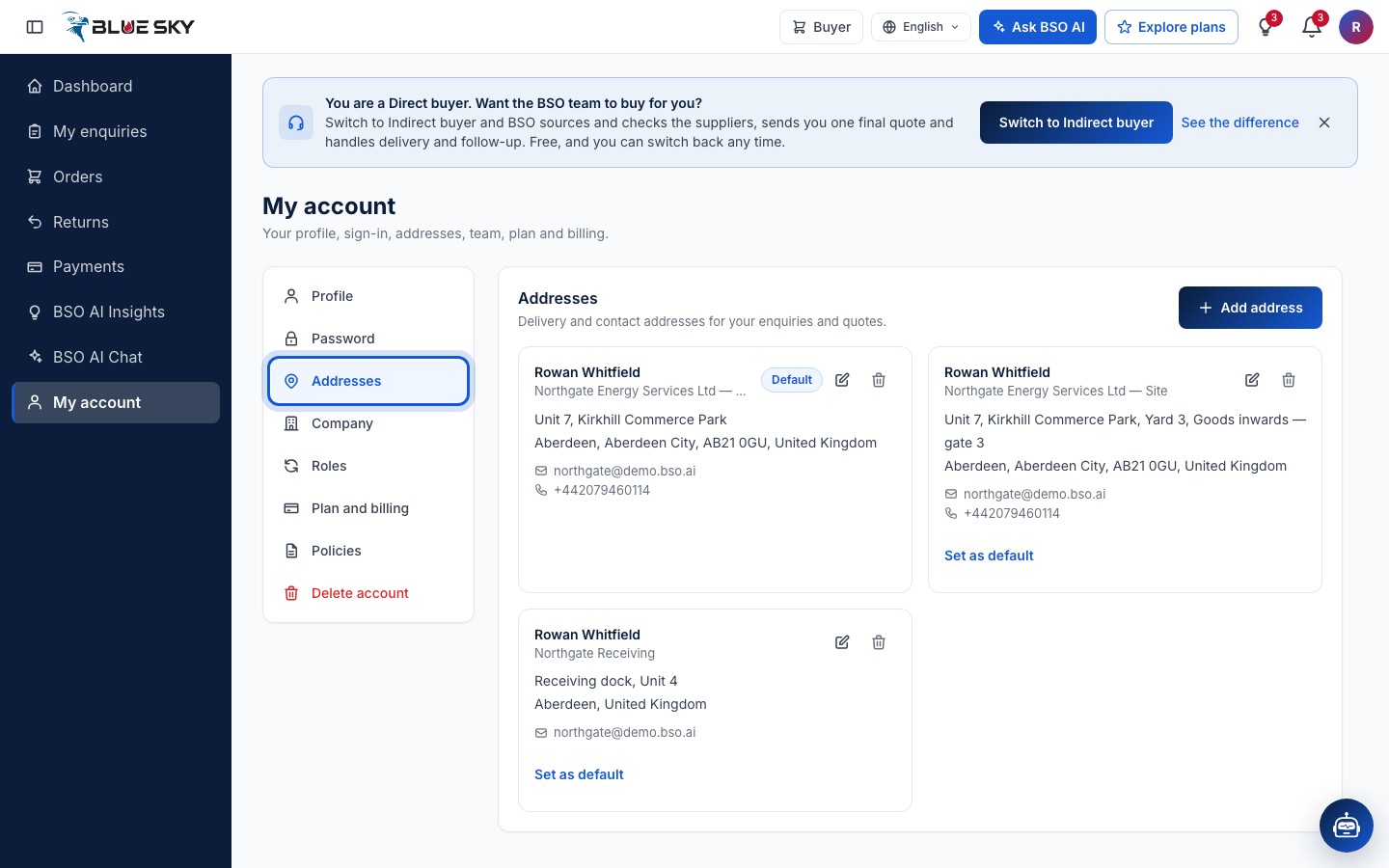
Read an address card
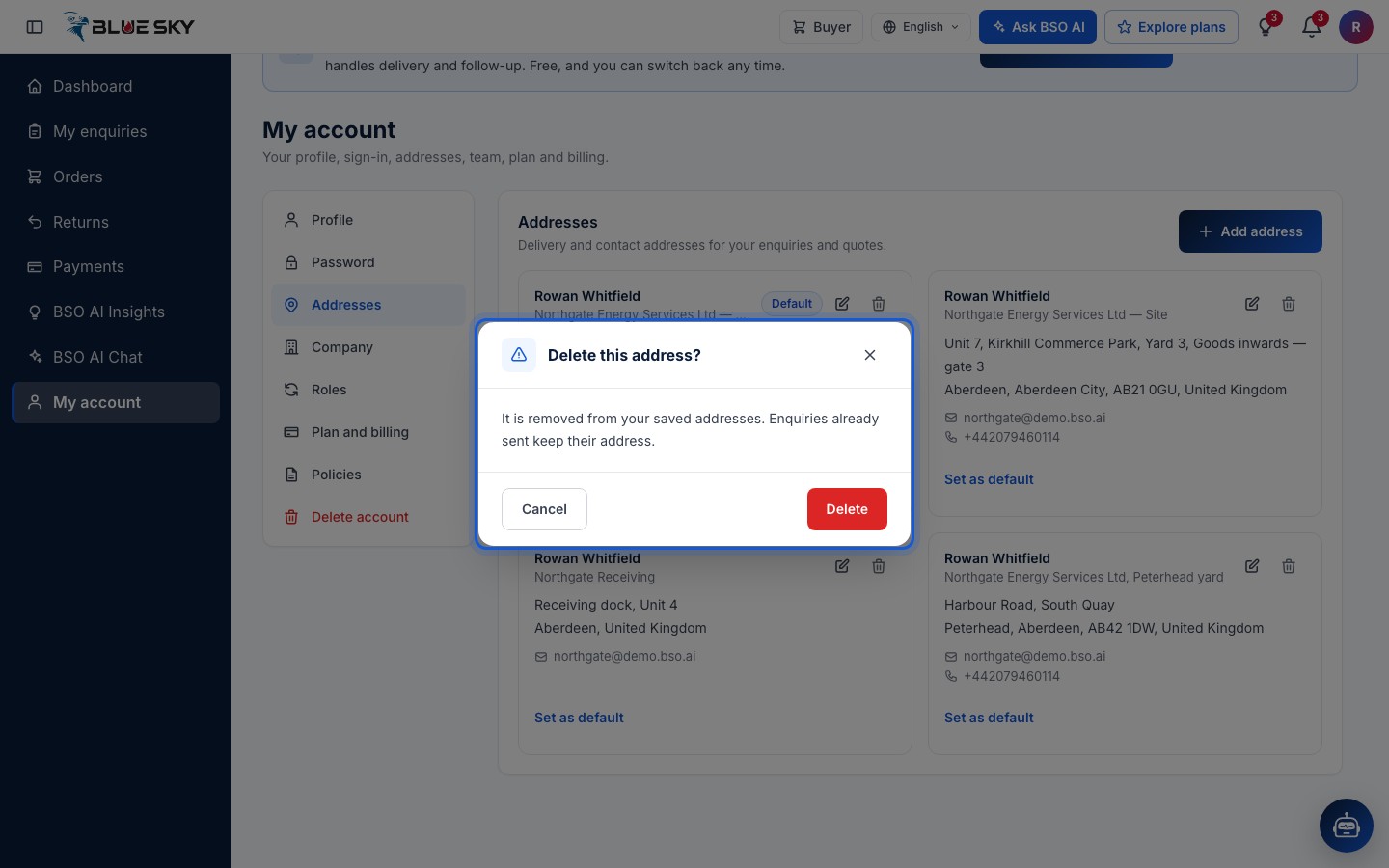
Each saved address is a card with the name, the company, the address, the email and phone. The one used for new enquiries carries the Default marker; every other card has a Set as default link. The pencil is Edit address and the bin is Delete address.
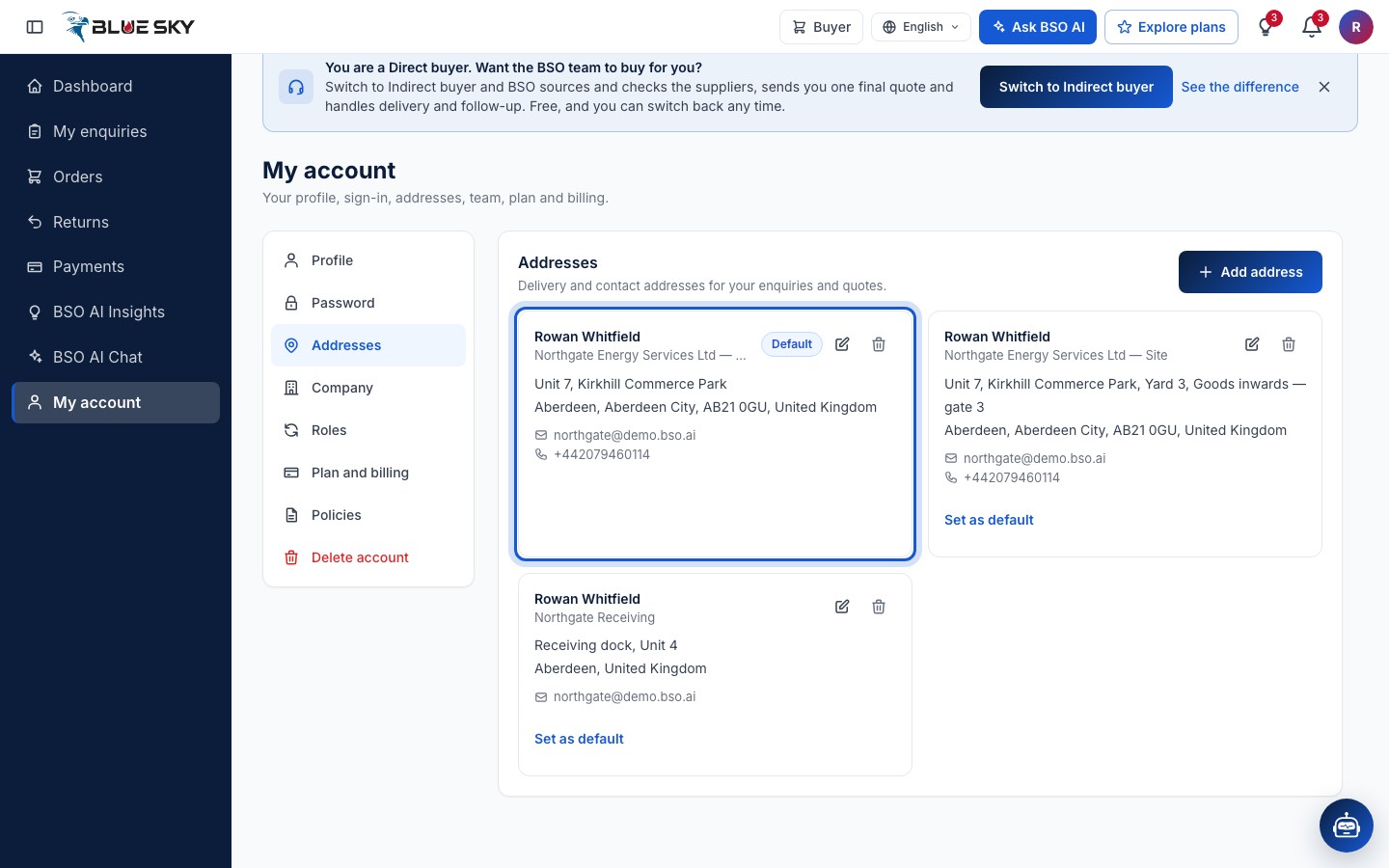
Add an address
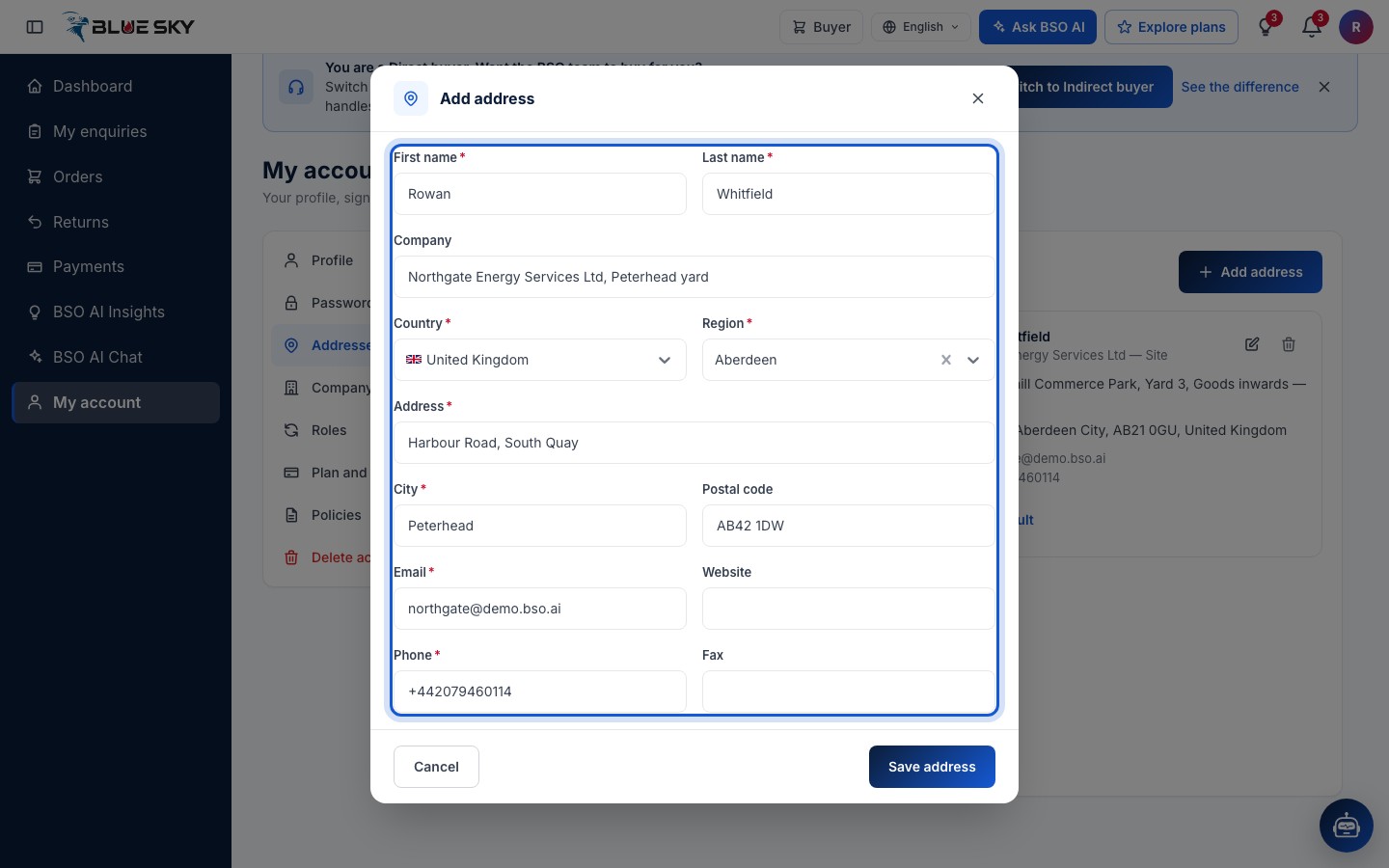
Click Add address. The form asks for the First name and Last name of the contact, the Country and Region, the Address, the City, the Email and Phone (these are required and marked with a star), and optionally the Company, the Postal code, the Website and Fax. Click Save address.
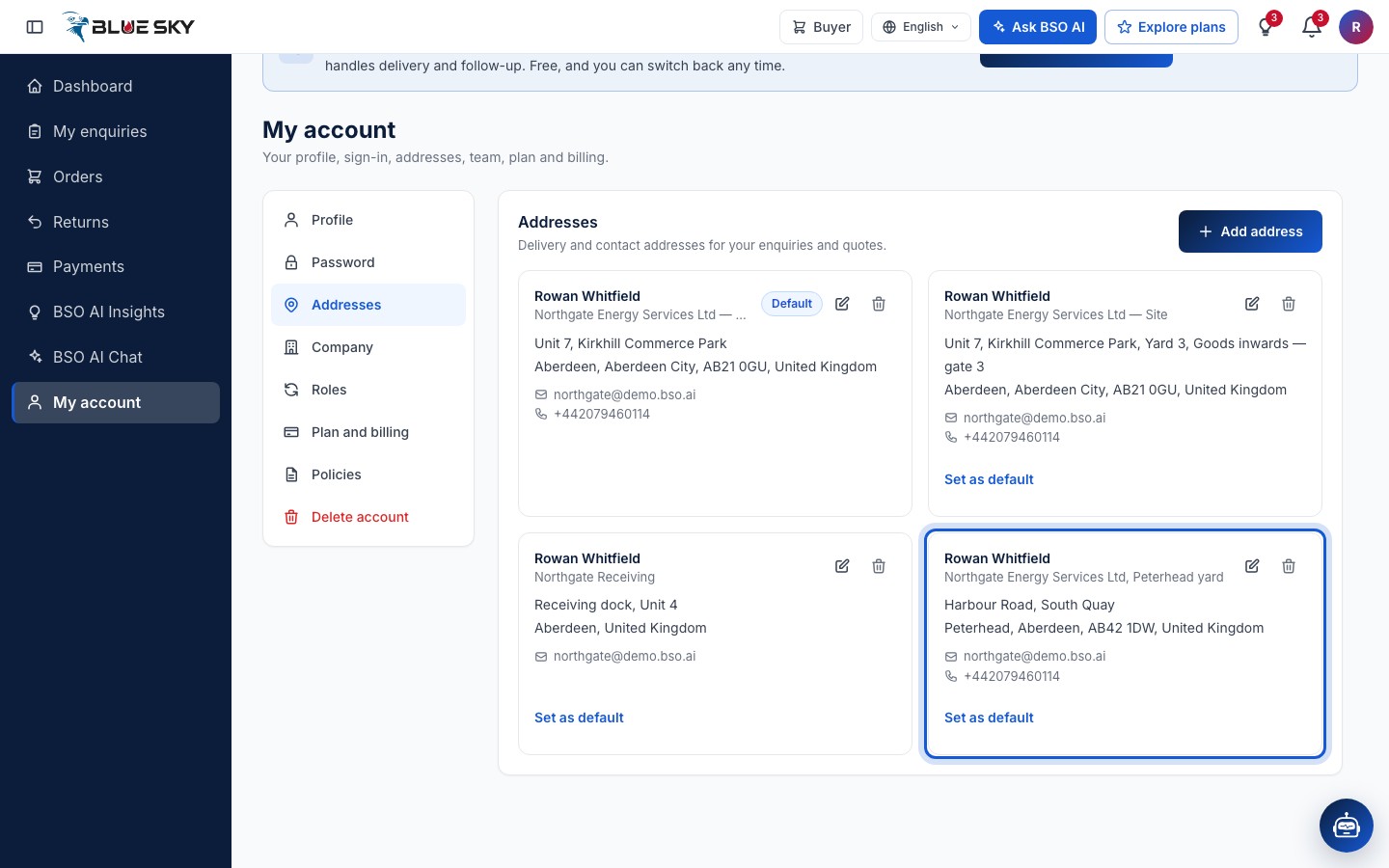
The address is listed
The page confirms Address added and the new card joins the list. Click Set as default on it if new enquiries should go there. Edit address opens the same form with the details filled in; Save address keeps the change.
Delete an address
Click the bin on a card. Delete this address? explains that it is removed from your saved addresses and that enquiries already sent keep their address. Delete confirms; Cancel keeps it.
Pick an address on an enquiry
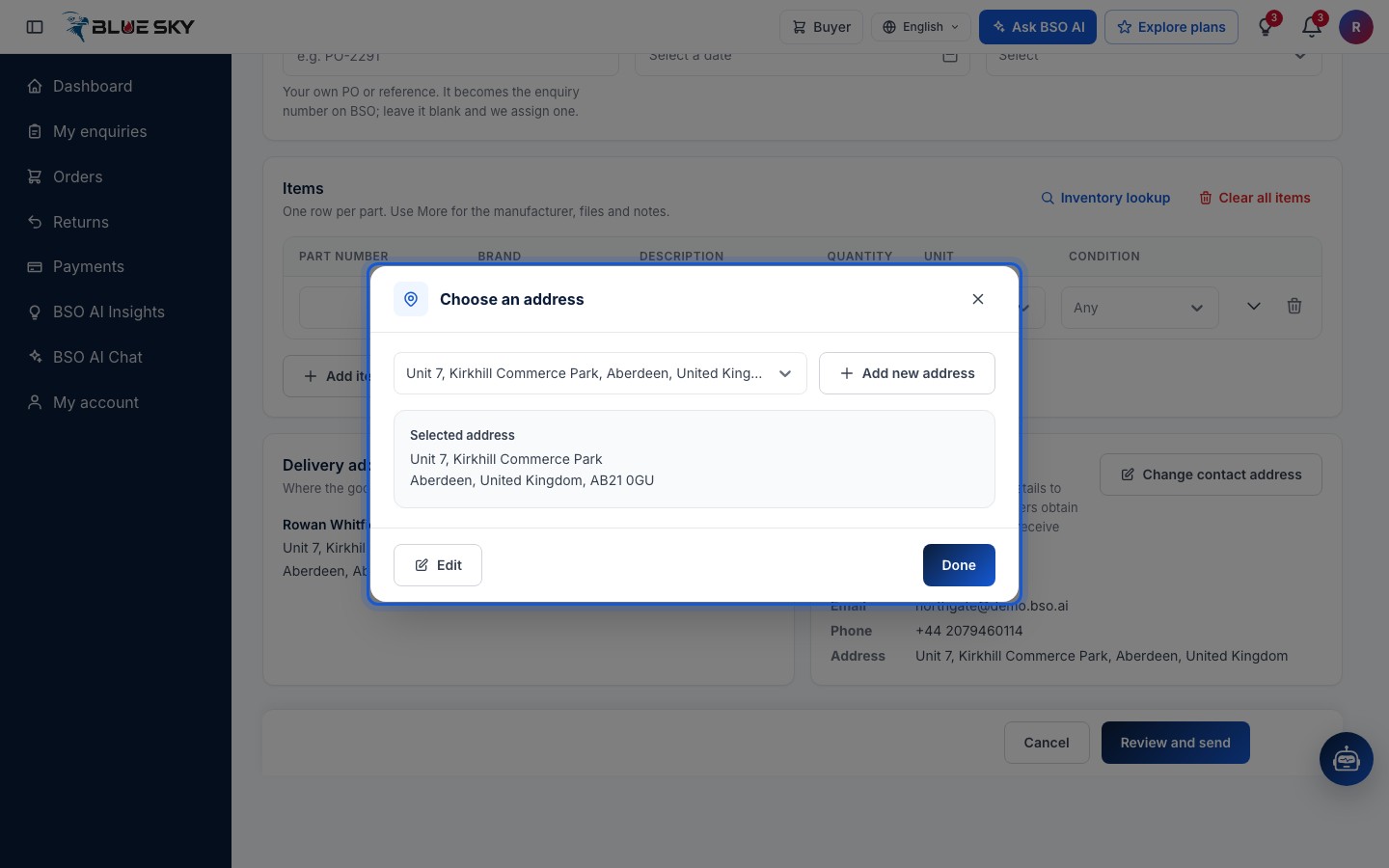
On the enquiry form, the Delivery address card shows your default address. Change opens Choose an address: pick one of your saved addresses from the list, check it under Selected address and click Done. Add new address opens the same form as My account, and Edit changes the one selected, without leaving the enquiry.
Good to know
- Team members invited to your company use the company's saved addresses; see Invite your team.
- Suppliers see only the country, region and city of the delivery address on the public Enquiries board. The full address is shown to the supplier you accept.
Related guides
Still stuck? We are here.
Open BSO AI Chat inside the platform, or email the support team. Monday to Friday, 07:00 to 17:00 UK time.