

Every quote you send from the board lands in My quotes, newest first. This guide shows what the list tells you, what each status means and what the quote page holds. Writing one is in Write a quote.
Before you start
- At least one quote sent.
Open My quotes
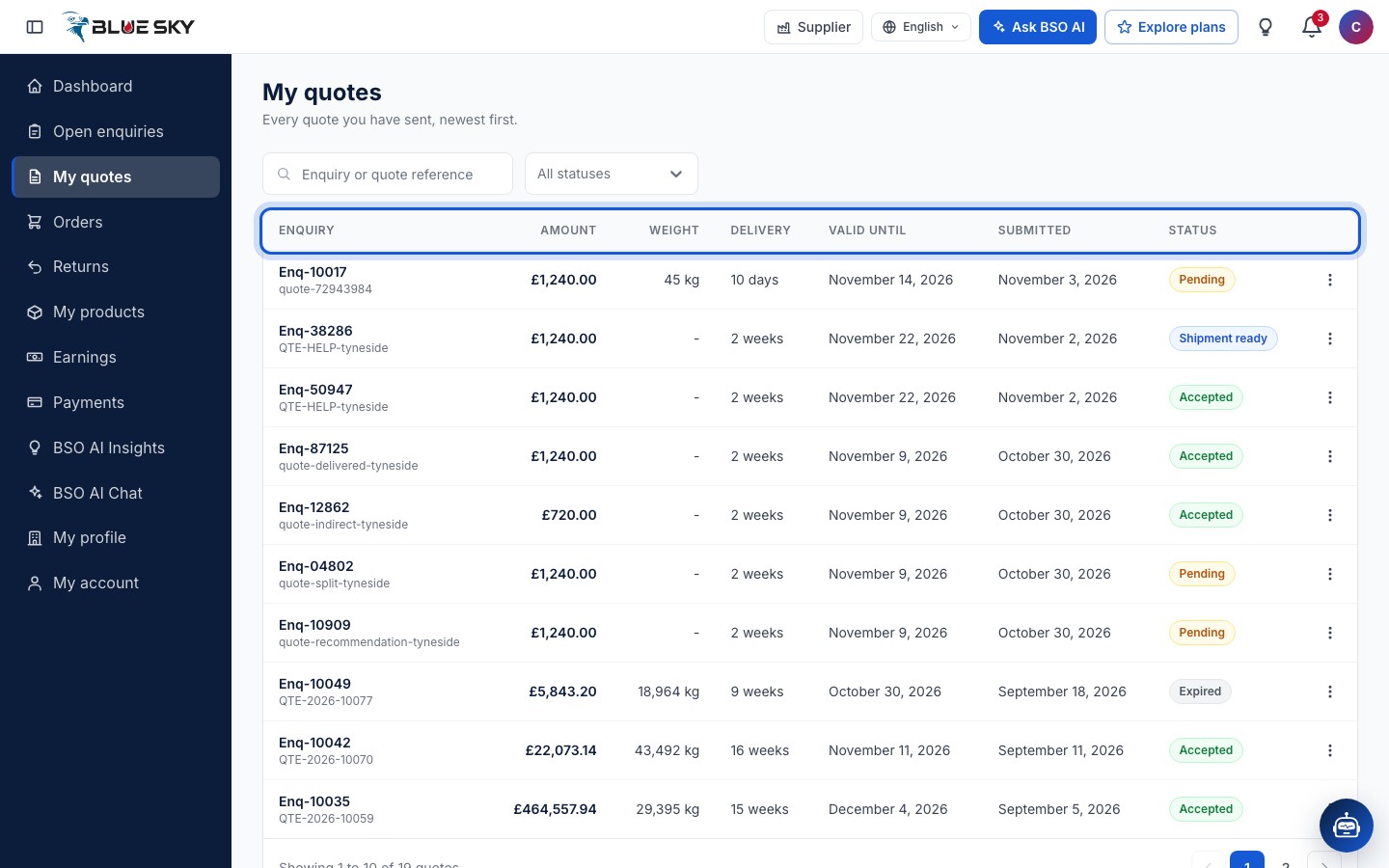
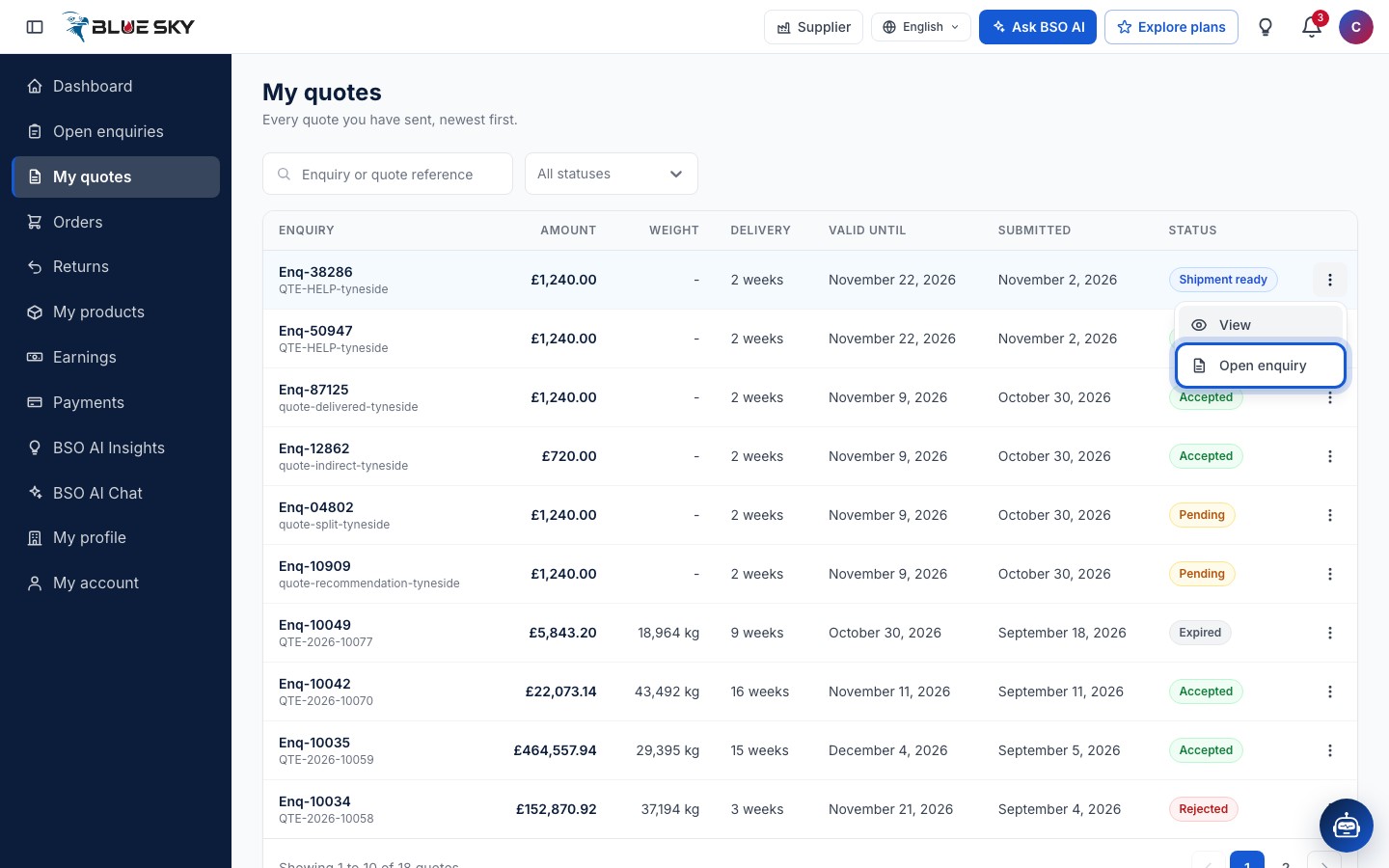
Click My quotes in the left menu, or go to bsoservices.ai/quotation-management: Every quote you have sent, newest first. Each row shows the Enquiry reference with your quote reference under it, the Amount (your grand total), the Weight, the Delivery time, Valid until, when it was Submitted and the Status. The search box takes an Enquiry or quote reference.
Filter by status
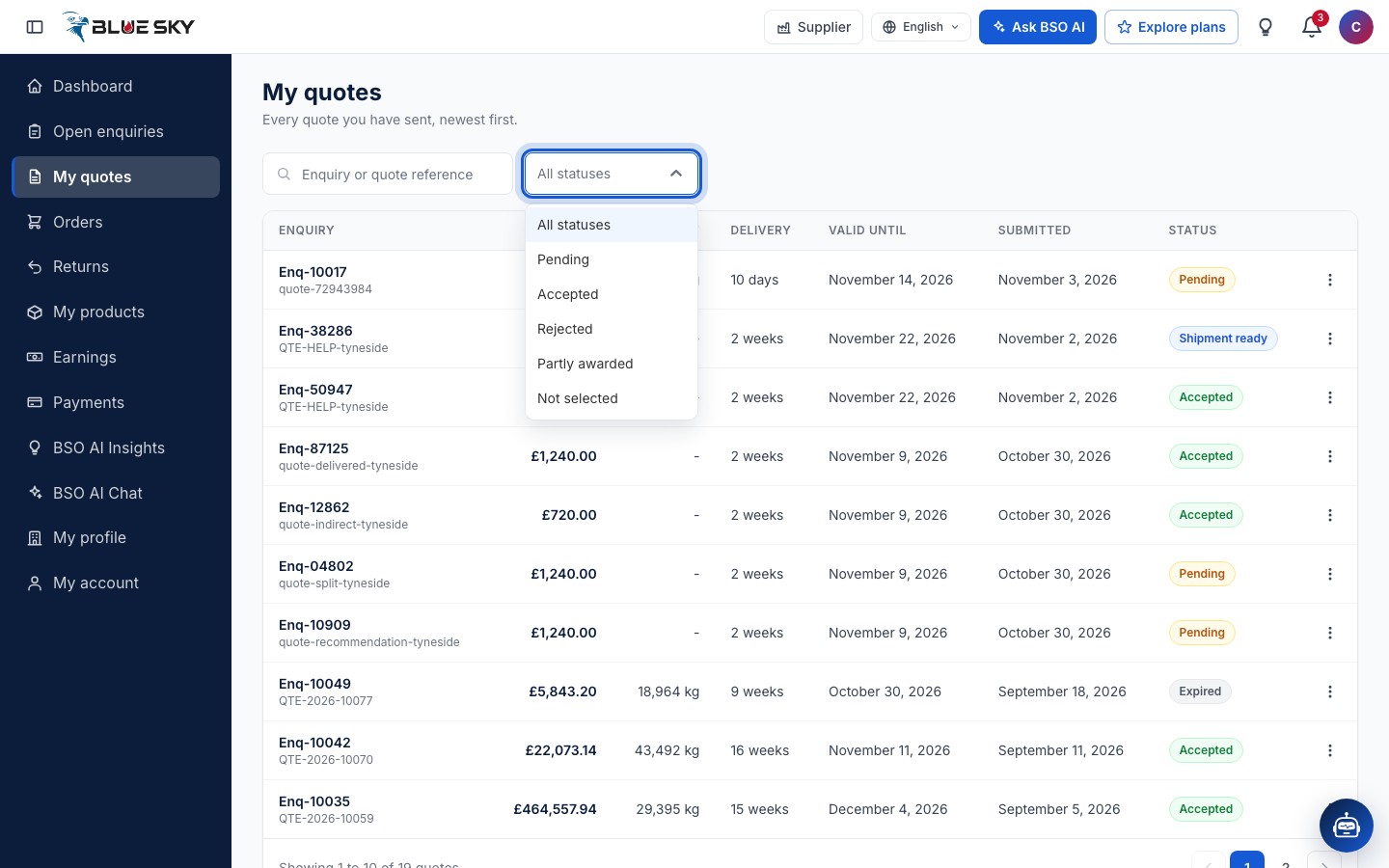
The status box offers All statuses, Pending, Accepted, Rejected, Partly awarded and Not selected. Pending means the buyer has not decided yet. Accepted means the buyer chose your quote. Not selected means the buyer accepted another supplier's quote on that enquiry. Partly awarded appears when the buyer awarded the enquiry item by item and part of it went to you. Rejected is a quote BSO turned down.
After an accepted quote moves on, the row follows the order: Shipment ready, for example, once you have marked the goods ready.
Expired quotes
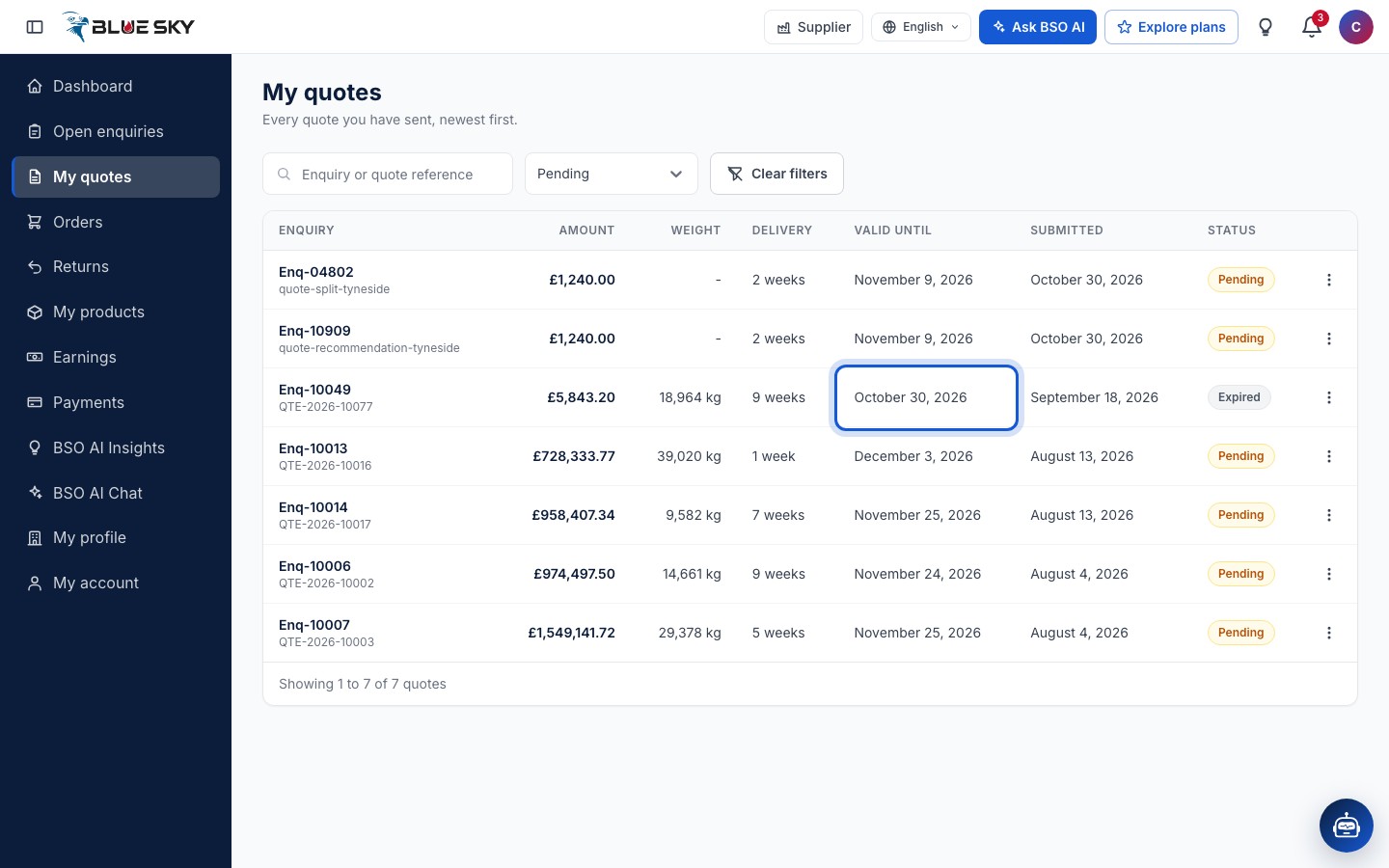
Valid until is the enquiry's closing date, copied into your quote when you send it. On your My quotes list a quote still Pending after that day reads Expired, and any other quote past that day shows an Expired chip under its Valid until date. The enquiry takes no new or updated quotes after its closing date. Nothing else changes on the quote itself.
Open a quote
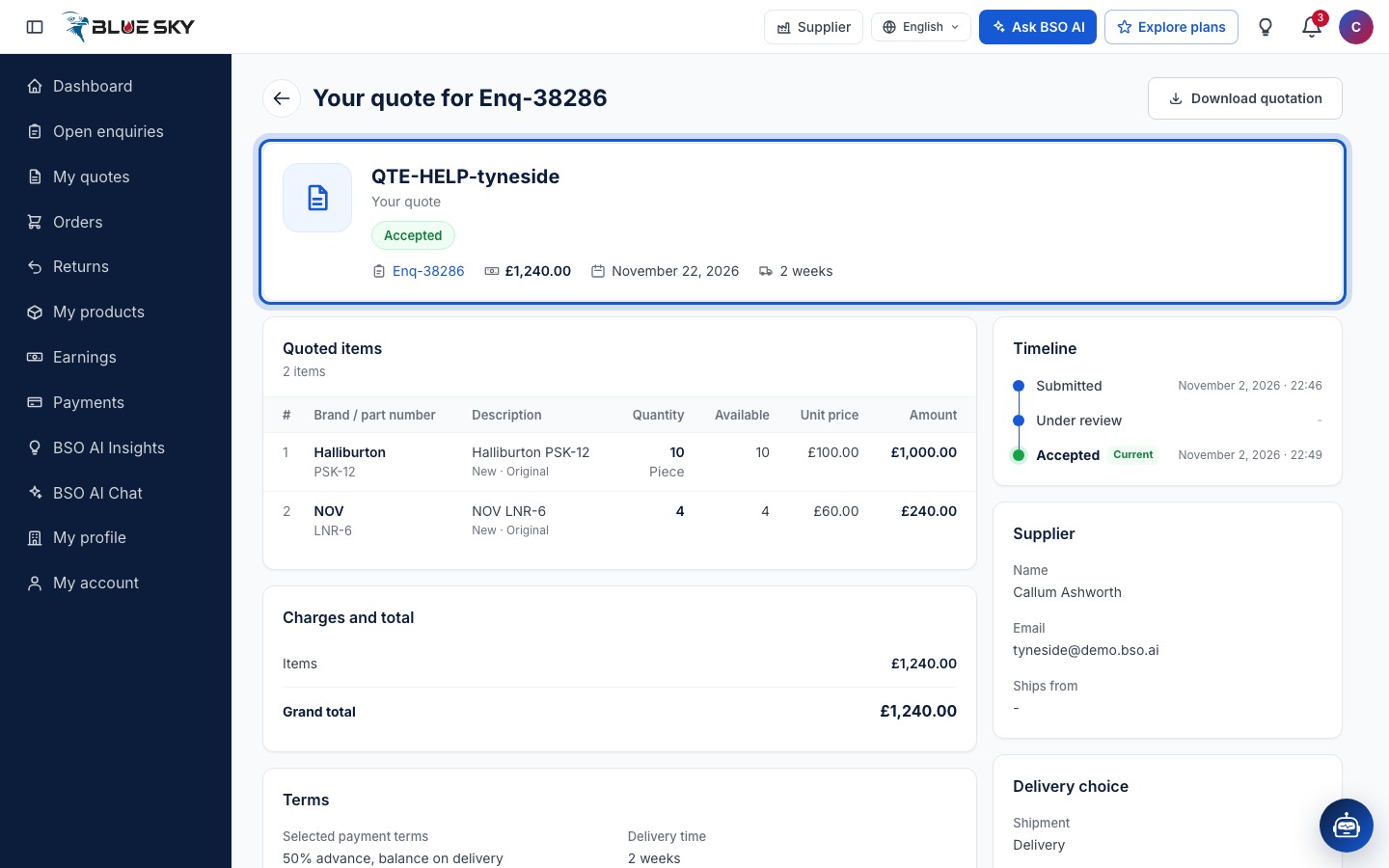
Click a row to open the quote page, headed Your quote for the enquiry reference, with Download quotation at the top right and the back arrow to My quotes. The summary shows the quote reference, its status, the Enquiry, the Total, Valid until and the Delivery time.
Below it: Quoted items, Charges and total, Terms (the payment terms you offered, or the Selected payment terms once accepted, the delivery time, the pickup address and the Progress), Message and documents, a Timeline (Submitted, Under review, Accepted or rejected), a Supplier card with your details, the Delivery choice and the Payment schedule once the buyer has accepted.
Open the enquiry again
The three dots on a row offer View (the quote page) and Open enquiry, which opens the quote form for that enquiry so you can update the quote while the enquiry is open.
Good to know
- There is no button to withdraw a quote. To change it, send it again from the enquiry; to pull out of an enquiry, email support@bsoservices.ai with the quote reference.
- When a quote reads Accepted, the next steps are on the order; see When your quote is accepted.
- Looking for more to quote on? See Find enquiries to quote.
- How buyers read and compare the quotes on their enquiry is in Compare quotes.
Related guides
Still stuck? We are here.
Open BSO AI Chat inside the platform, or email the support team. Monday to Friday, 07:00 to 17:00 UK time.