

My logistics quotes keeps every quote you sent from the board (Quote a shipment), newest first, with the decision on each. A quote's own page shows the route, your charge, the goods, your note and a timeline, and once you have been picked it becomes the page where you confirm the pickup and the delivery.
Before you start
- At least one shipping quote sent.
Open My logistics quotes
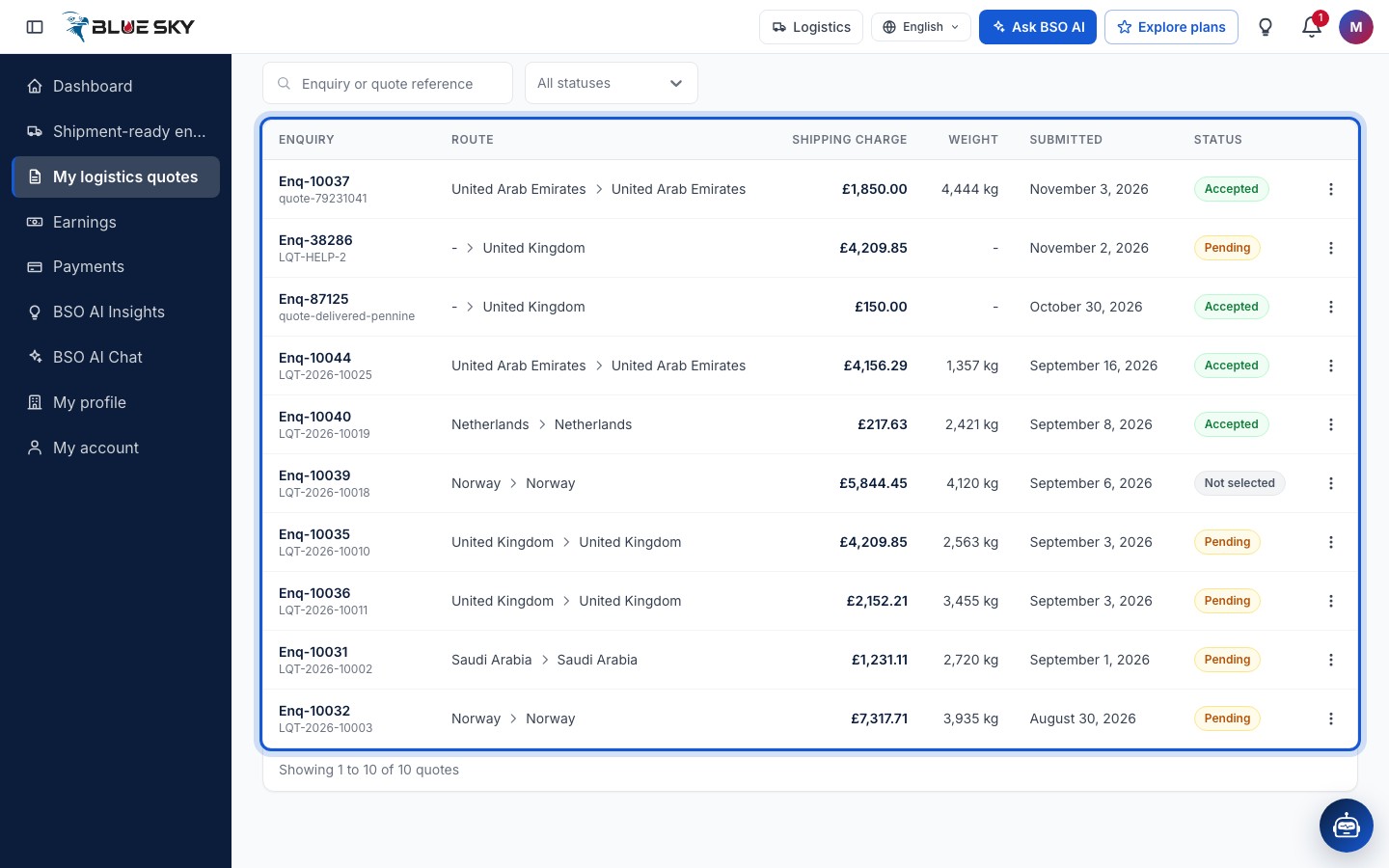
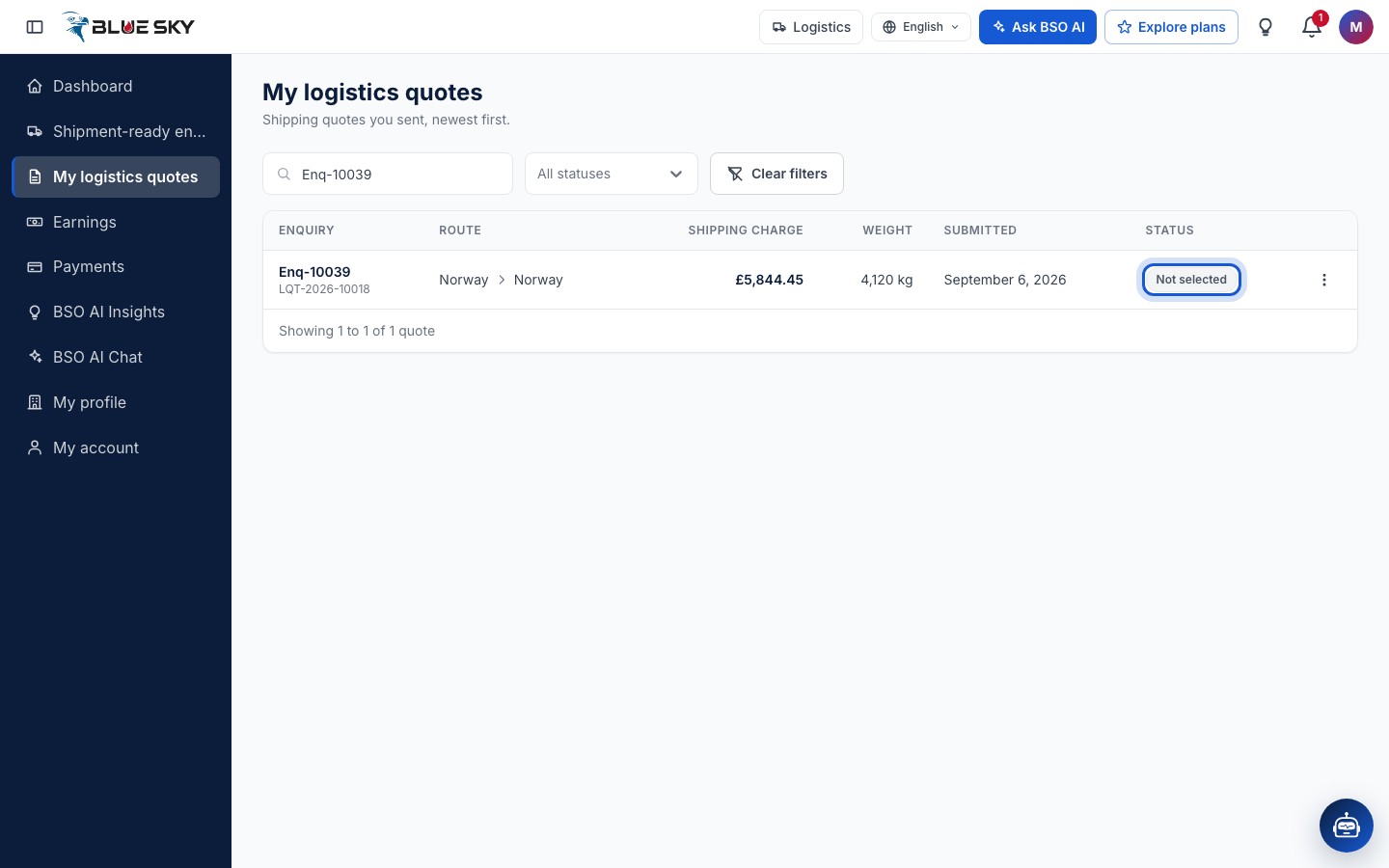
Click My logistics quotes in the left menu, or go to bsoservices.ai/quotation-management-logistics: Shipping quotes you sent, newest first. Each row shows the Enquiry reference with your quote reference under it, the Route as countries, the Shipping charge, the Weight the supplier declared, Submitted and the Status. The search box takes an Enquiry or quote reference.
What the statuses mean
Pending: your quote has not been picked. That is the case while no logistics provider has been chosen, and it stays the case when the buyer books another logistics provider: your quote keeps Pending here, and the shipment's row on the board reads Awarded to another provider. Accepted: your quote was picked, and the shipment is yours to collect and deliver. Not selected: the BSO team awarded the shipment to another logistics provider; when BSO makes the award, the other quotes on that shipment are marked Not selected. Rejected is the fourth state the filter offers. A quote whose enquiry the buyer deleted reads Enquiry removed; it can no longer be accepted or shipped.
The status list above the table filters the rows to one state (All statuses shows everything); Clear filters appears while a filter or search is set.
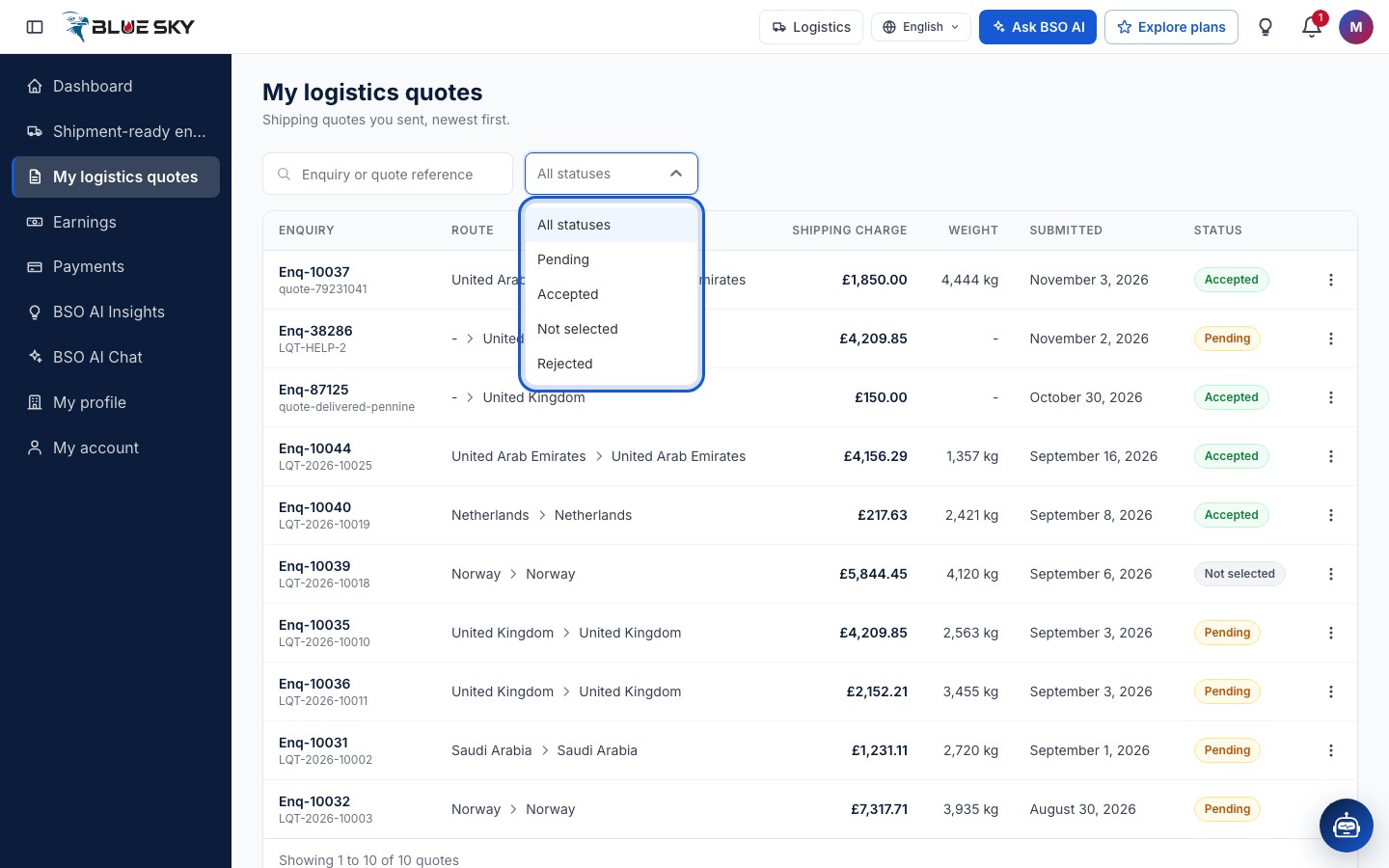
Filter to one state
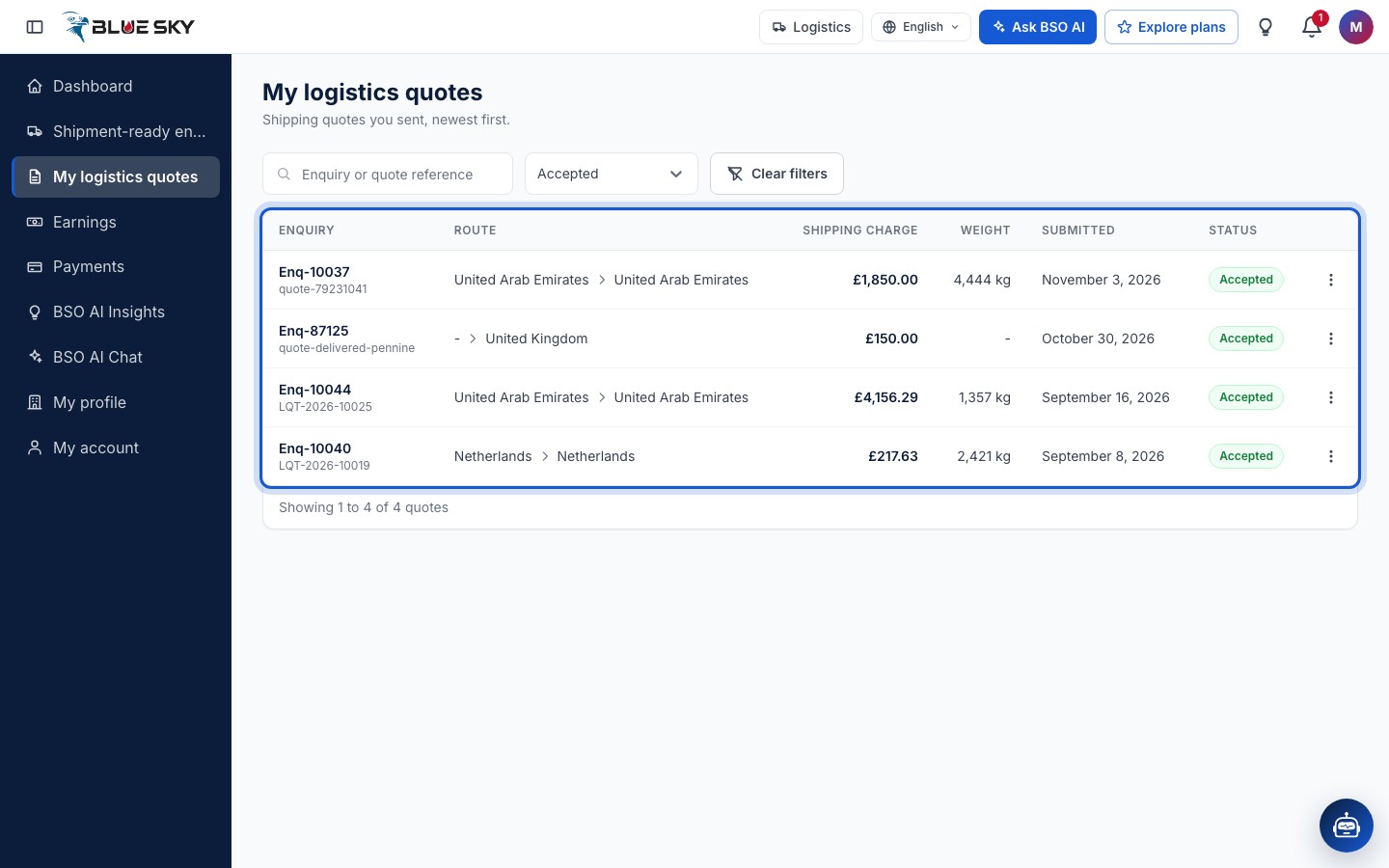
Pick Accepted to see only the shipments you were booked for. The footer counts the rows shown; Clear filters next to the search box brings the whole list back.
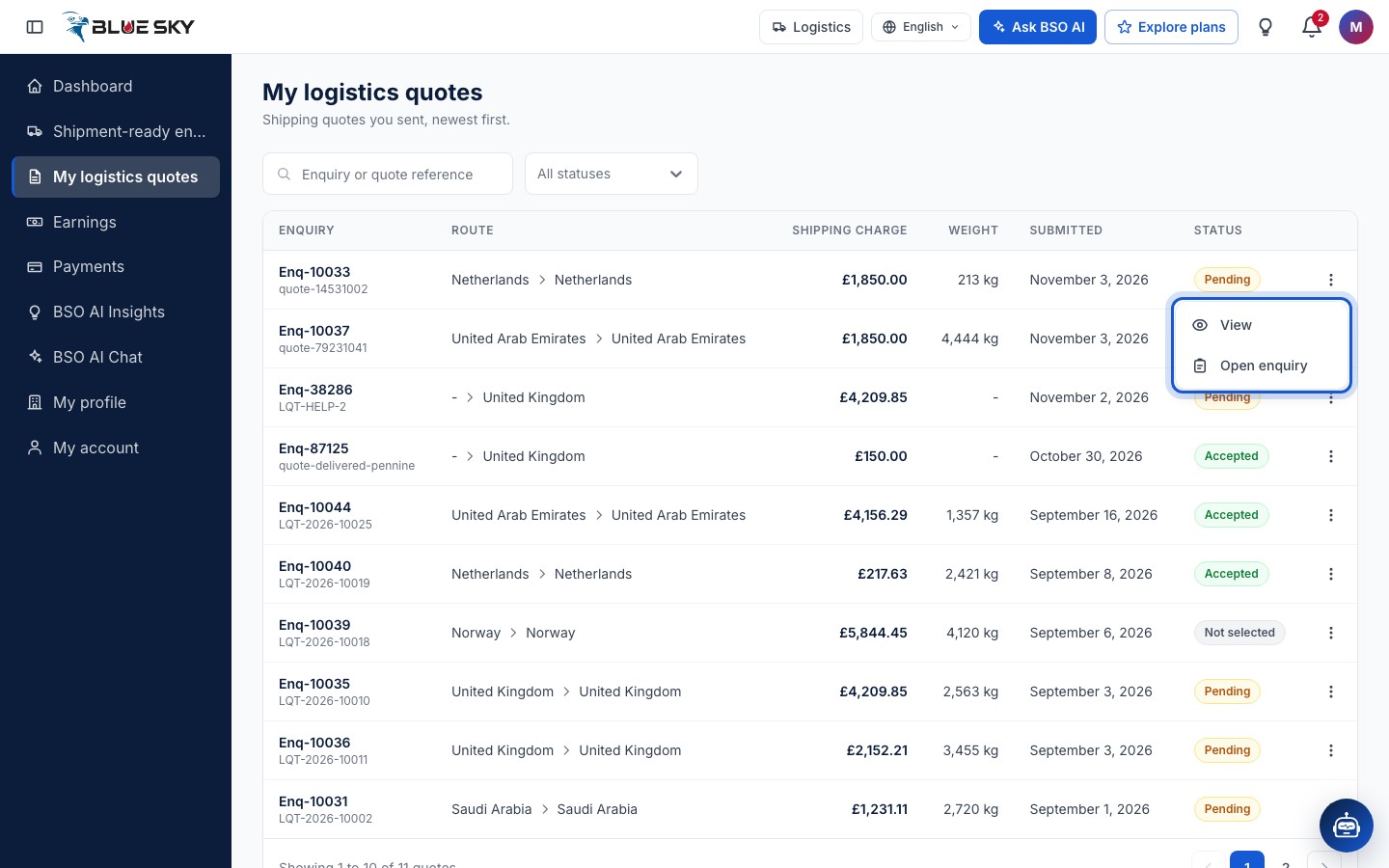
The row menu
The three dots at the end of a row open View, which opens the quote page, and Open enquiry, which opens the shipment's quote form again (the same page you quoted from, so you can send a new charge while no logistics provider has been picked). Clicking the row or the enquiry reference also opens the quote page.
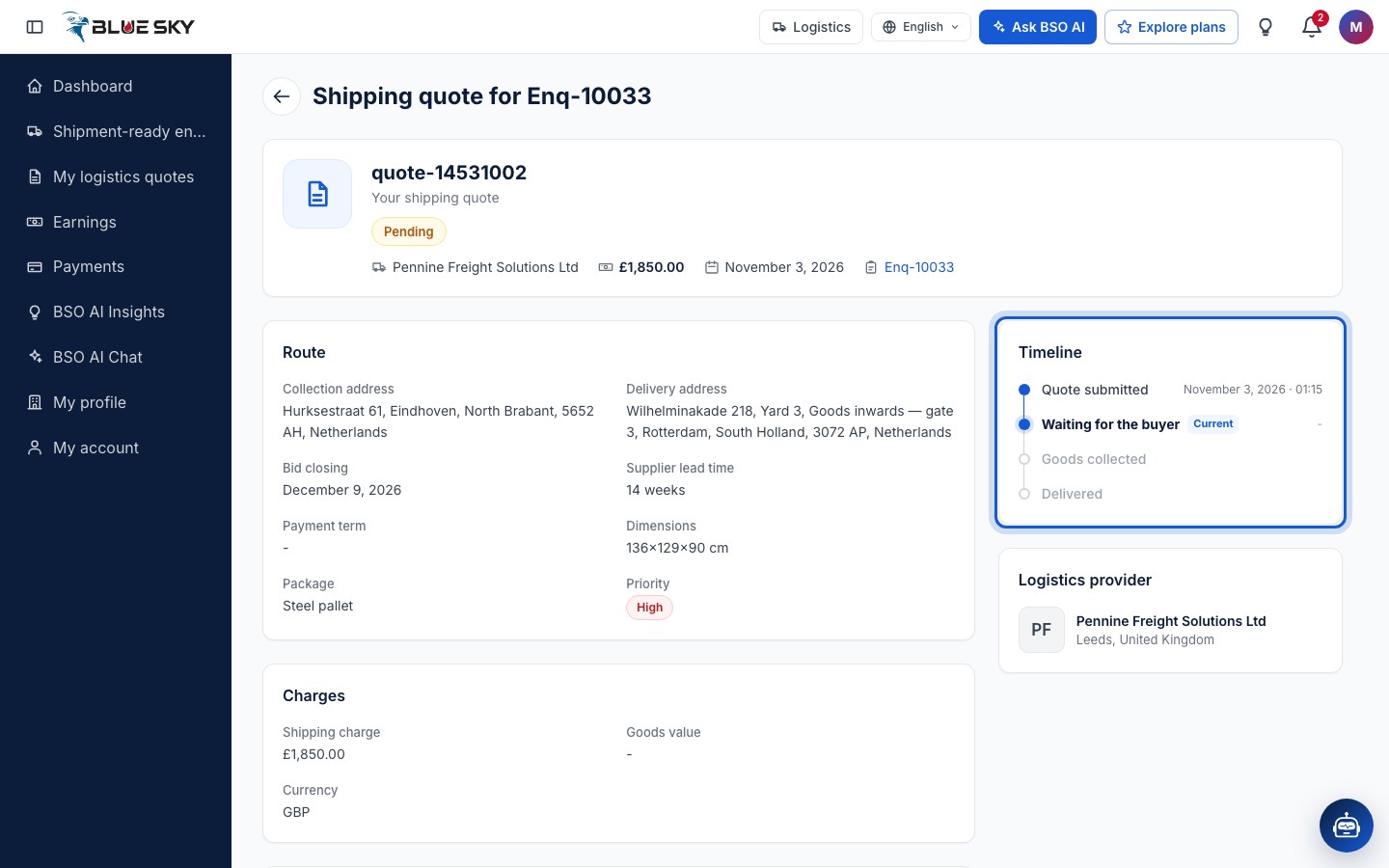
A quote waiting for the buyer
The quote page is headed Shipping quote for the enquiry reference. The header card shows your quote reference, Your shipping quote, the status chip, your company name, the Shipping charge, the date Submitted and a link to the enquiry. Route repeats the Collection address and Delivery address, Bid closing, the Supplier lead time, the Payment term, Dimensions, Package and Priority; Charges shows the Shipping charge, the Goods value and the Currency; Goods and Message and documents (your Note from the provider) follow.
The Timeline on the right has four steps: Quote submitted, Waiting for the buyer (which becomes Accepted by the buyer, or Not selected after a BSO award), Goods collected and Delivered. The Logistics provider card at the bottom right is your company as the buyer sees it.
An accepted quote
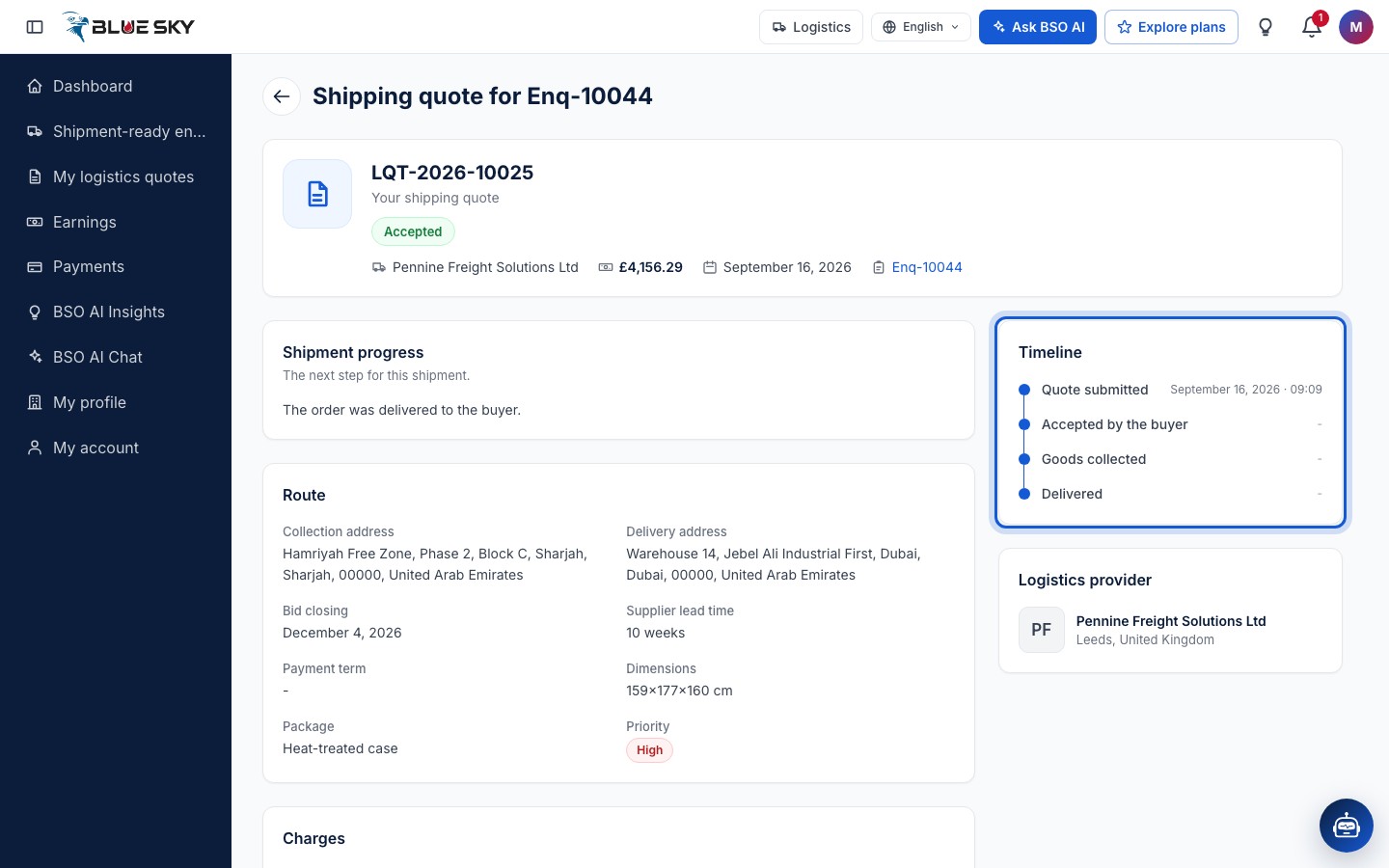
Once you are picked, the chip reads Accepted and a Shipment progress card appears above Route with the next step for this shipment: Confirm pickup, Upload shipping document, then Confirm delivery, in that order (Pickup, document and delivery). The card appears only on the quote that was picked. After the delivery the card reads The order was delivered to the buyer and the Timeline is complete.
A quote that was not picked
When the buyer books another logistics provider, your quote stays Pending in the list and on its page, and the shipment's row on the board reads Awarded to another provider until that logistics provider confirms the pickup. When the BSO team awards a shipment to another logistics provider, your quote reads Not selected in the list and on its page, with Not selected as the current step of its Timeline. Either way nothing else is needed from you.
Good to know
- You are told by email when your quote is accepted, and in the bell too if your browser or phone has allowed BSO notifications. The buyer's side of the choice is in Track your order.
- A Pending quote on a shipment that has no logistics provider yet can be replaced: open the shipment from the board (Find shipments to quote) or with Open enquiry and submit a new charge.
- What BSO pays you for an accepted and delivered shipment is on the Earnings page (Logistics earnings).
- Questions about a quote? Email support@bsoservices.ai, Monday to Friday 07:00 to 17:00 UK time.
Related guides
Quote a shipment
One shipping charge and a note, then Submit quote.
Find shipments to quote
The Shipment-ready board and the public Logistics board.
Pickup, document and delivery
Pickup code, shipping document, delivery code.
Logistics earnings
Your payouts: Pending, Ready to pay, Paid and On hold.
Track your order
The order page, Shipment ready and the shipping quotes.
Still stuck? We are here.
Open BSO AI Chat inside the platform, or email the support team. Monday to Friday, 07:00 to 17:00 UK time.