

When you sign in, BSO opens your dashboard. Every page you use while signed in has the same frame: a menu on the left and a bar across the top. The menu changes with the role you are using (buyer, supplier, logistics provider, recruiter or job seeker); the top bar is the same for everyone.
This guide walks through that frame once, using a buyer account, so you know where everything lives. The screenshots show a buyer, and the menu items for the other roles are listed in step 2.
Before you start
- A BSO account (Create your account) and a browser or phone you are signed in on.
Your dashboard home
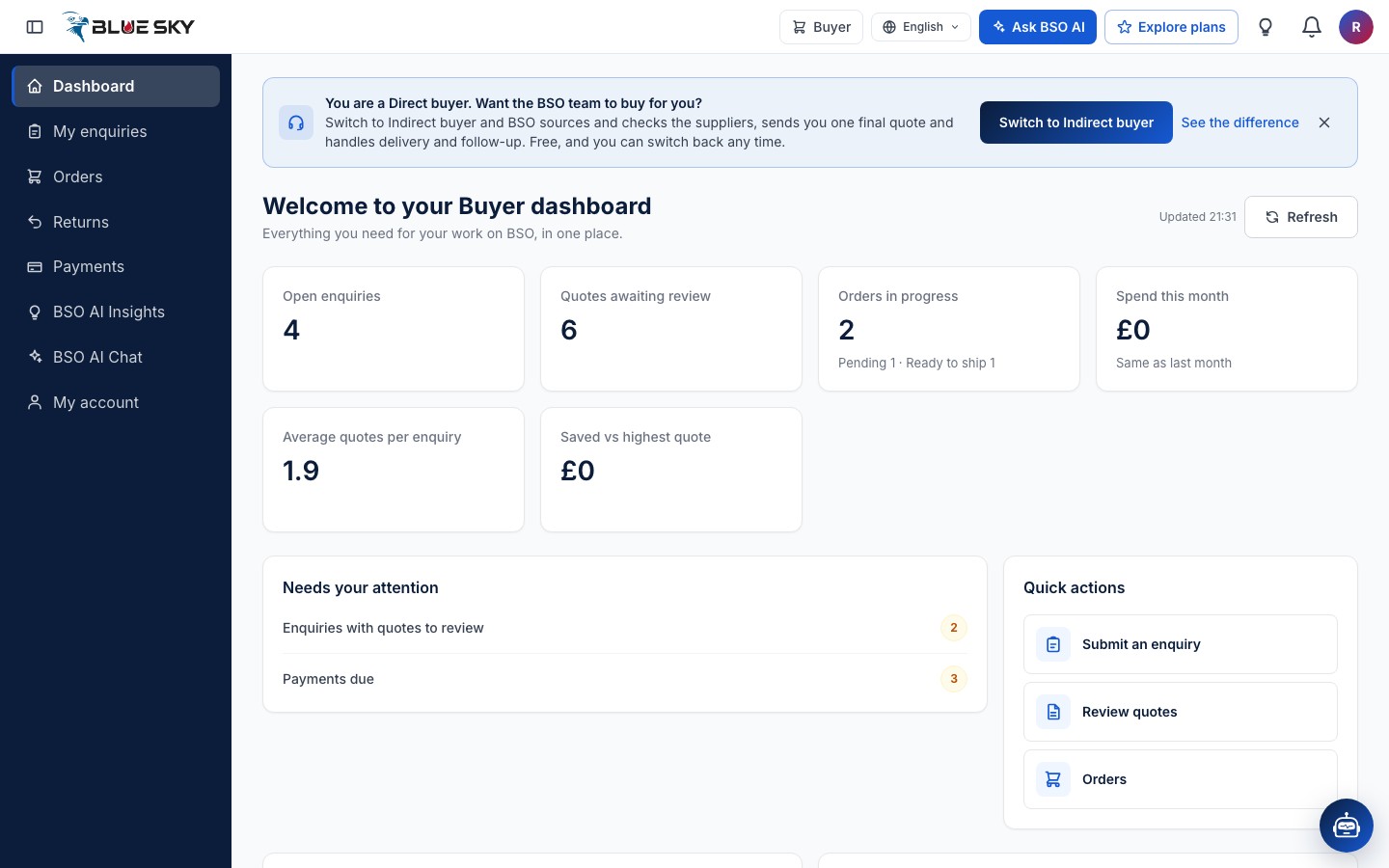
After sign-in you land on Dashboard. The heading says which role you are using, for example Welcome to your Buyer dashboard. Below it are your numbers, a Needs your attention list of things waiting for you, Quick actions, your latest BSO AI Insights and Recent activity. Refresh at the top right reloads the numbers.
The logo at the top left always brings you back to this page while you are signed in. A direct buyer also sees a blue notice at the top offering to switch to indirect buying; the cross at its right (Hide for now) closes it.
The left menu
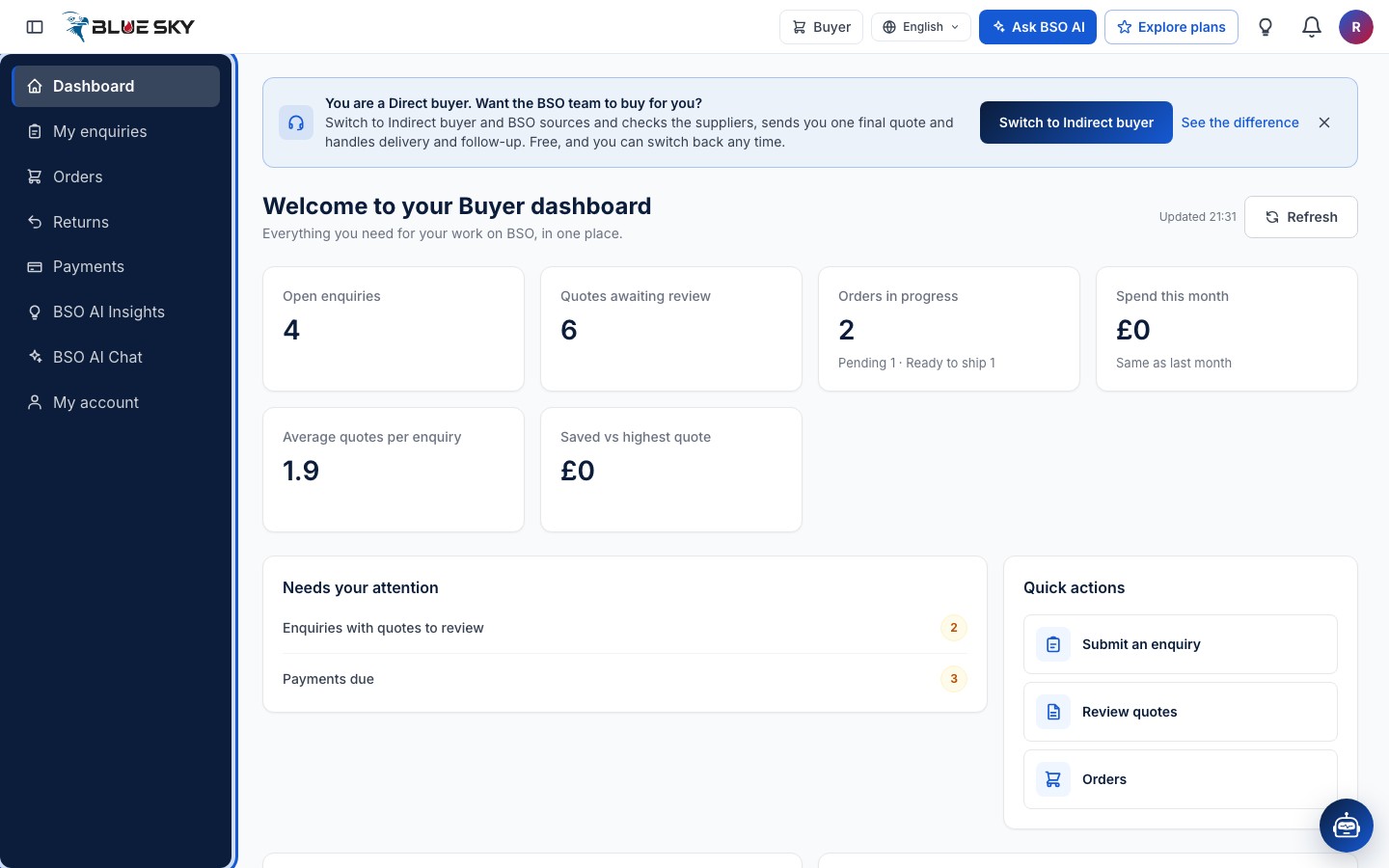
The dark menu on the left lists the pages for your role. A buyer sees Dashboard, My enquiries, Orders, Returns, Payments, BSO AI Insights, BSO AI Chat and My account.
Other roles see their own pages in the same place. Supplier: Dashboard, Open enquiries, My quotes, Orders, Returns, My products, Earnings, Payments, BSO AI Insights, BSO AI Chat, My profile, My account. Logistics provider: Dashboard, Shipment-ready enquiries, My logistics quotes, Earnings, Payments, BSO AI Insights, BSO AI Chat, My profile, My account. Recruiter: Dashboard, Posted jobs, Post a job, Find a resource, Hired resources, Payments, BSO AI Insights, BSO AI Chat, My account. Job seeker: Dashboard, Find jobs, My applications, Payments, BSO AI Insights, BSO AI Chat, My profile, My account.
The page you are on is highlighted. Payments and My account are in every menu.
Make the menu smaller
The first button in the top bar, Collapse menu, shrinks the menu to icons so the page gets more room. Hover an icon to see its name. The same button, now called Expand menu, brings the names back. BSO remembers your choice on that browser.
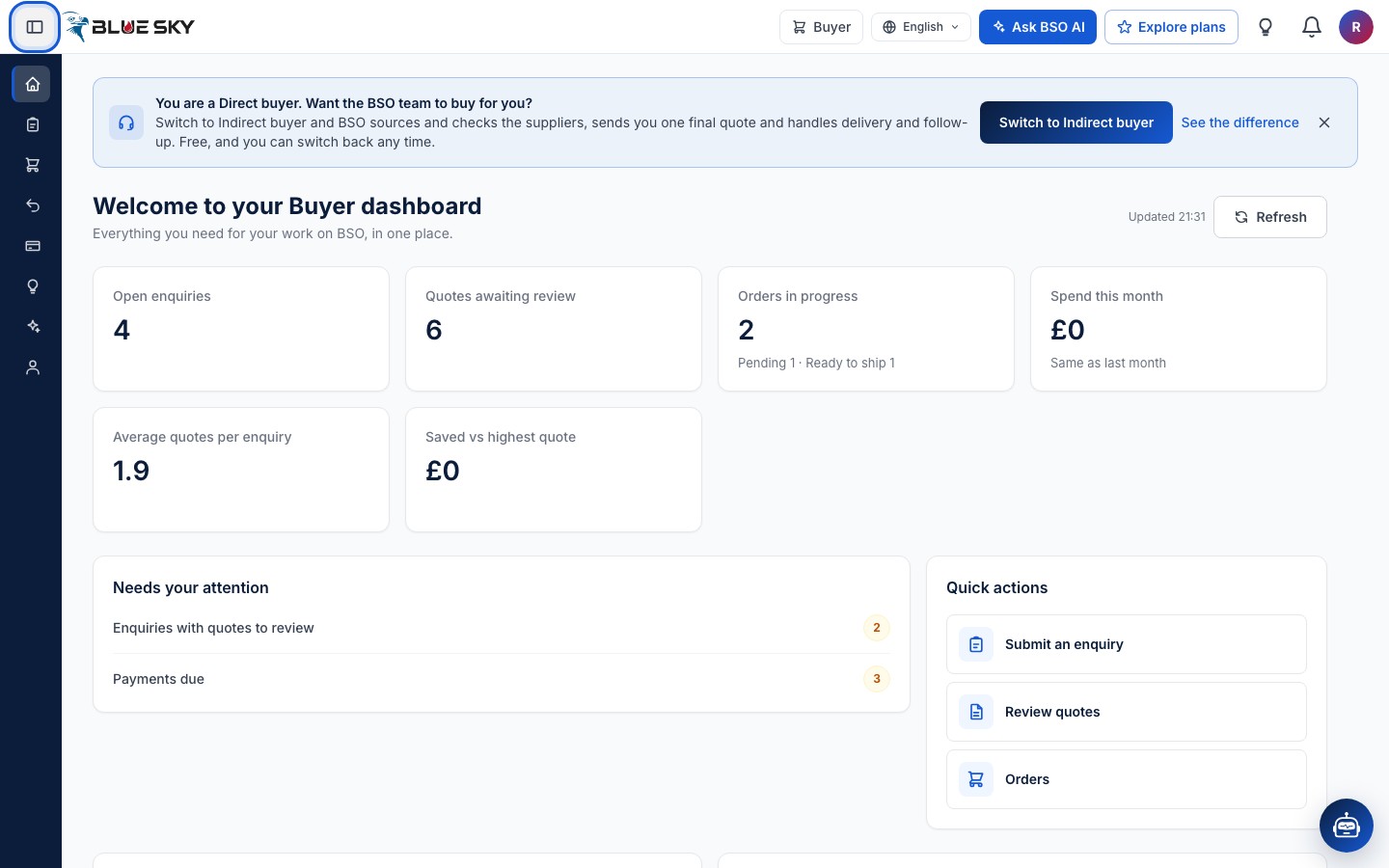
If the menu ever seems to have disappeared, look for this button at the top left.
The role you are using
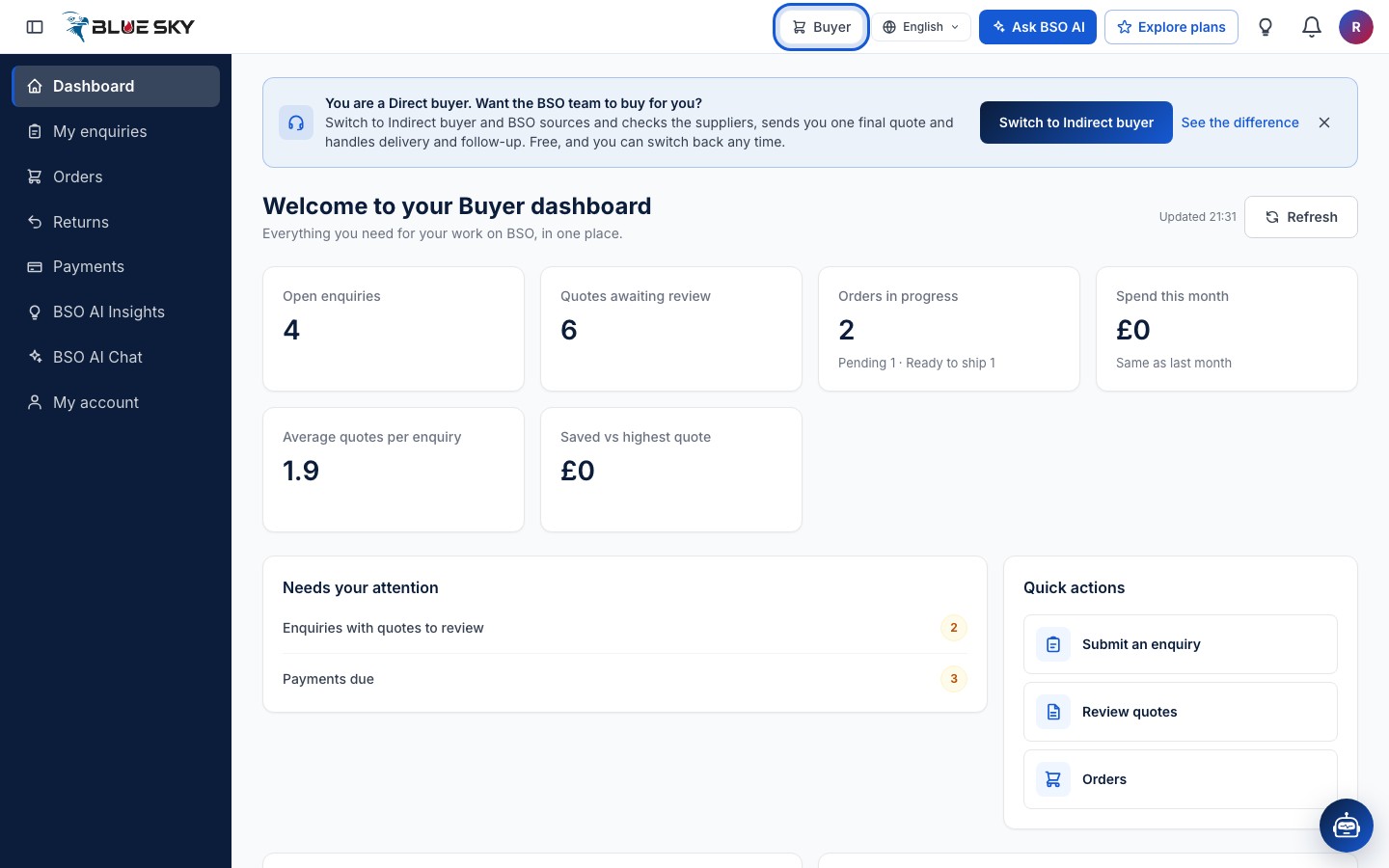
The first item on the right of the top bar names the role you are working in, for example Buyer. With one role it is just a label. Once your account holds two or more roles it becomes a drop-down, and picking another role switches the menu and the dashboard to that role. See Switch between roles and Add a role.
Change the language
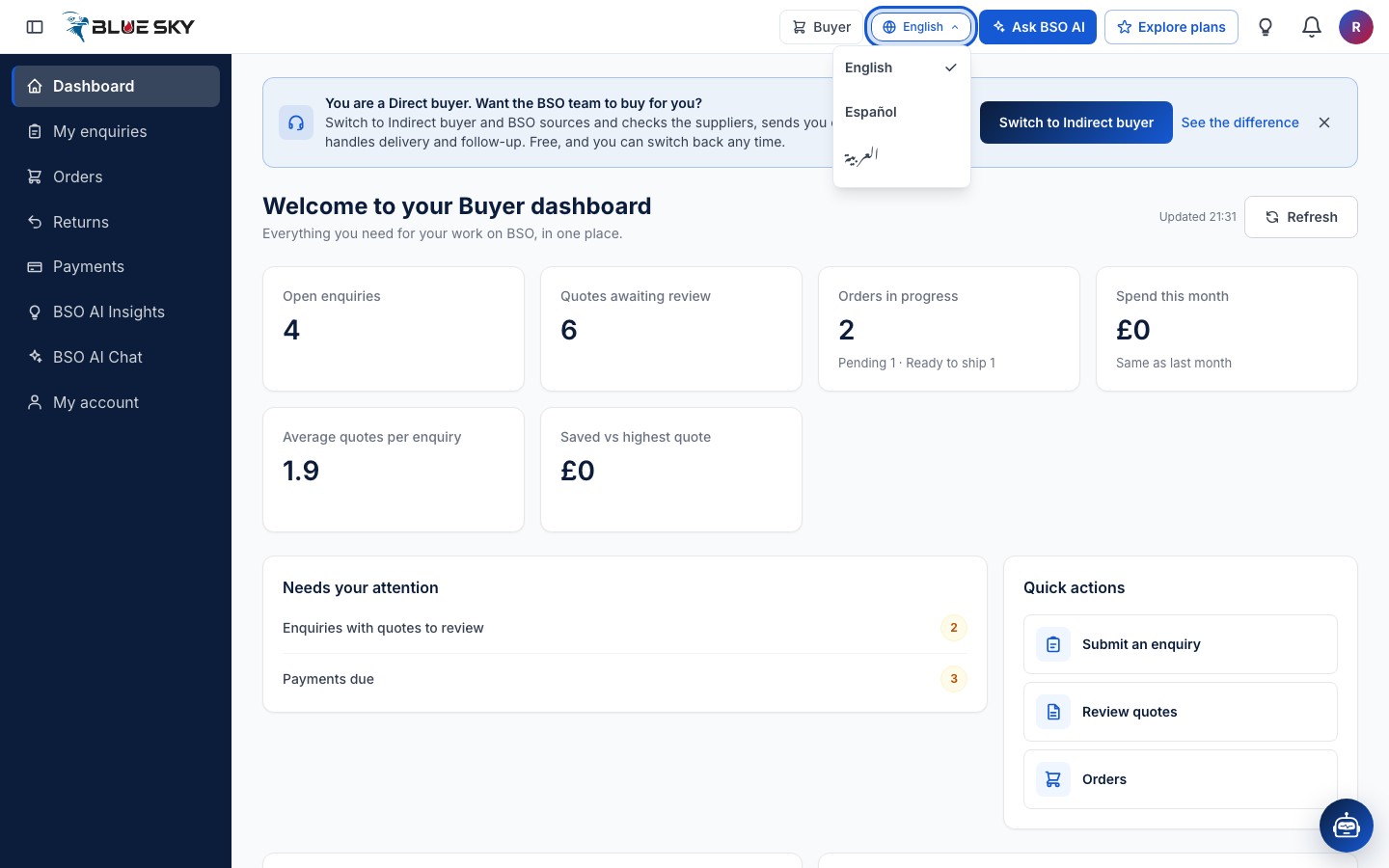
Next to the role is the language button, showing the current language. It offers English, Español and العربية. Arabic turns the whole platform right to left. The choice is kept for your next visit. More in Language and notifications.
Ask BSO AI
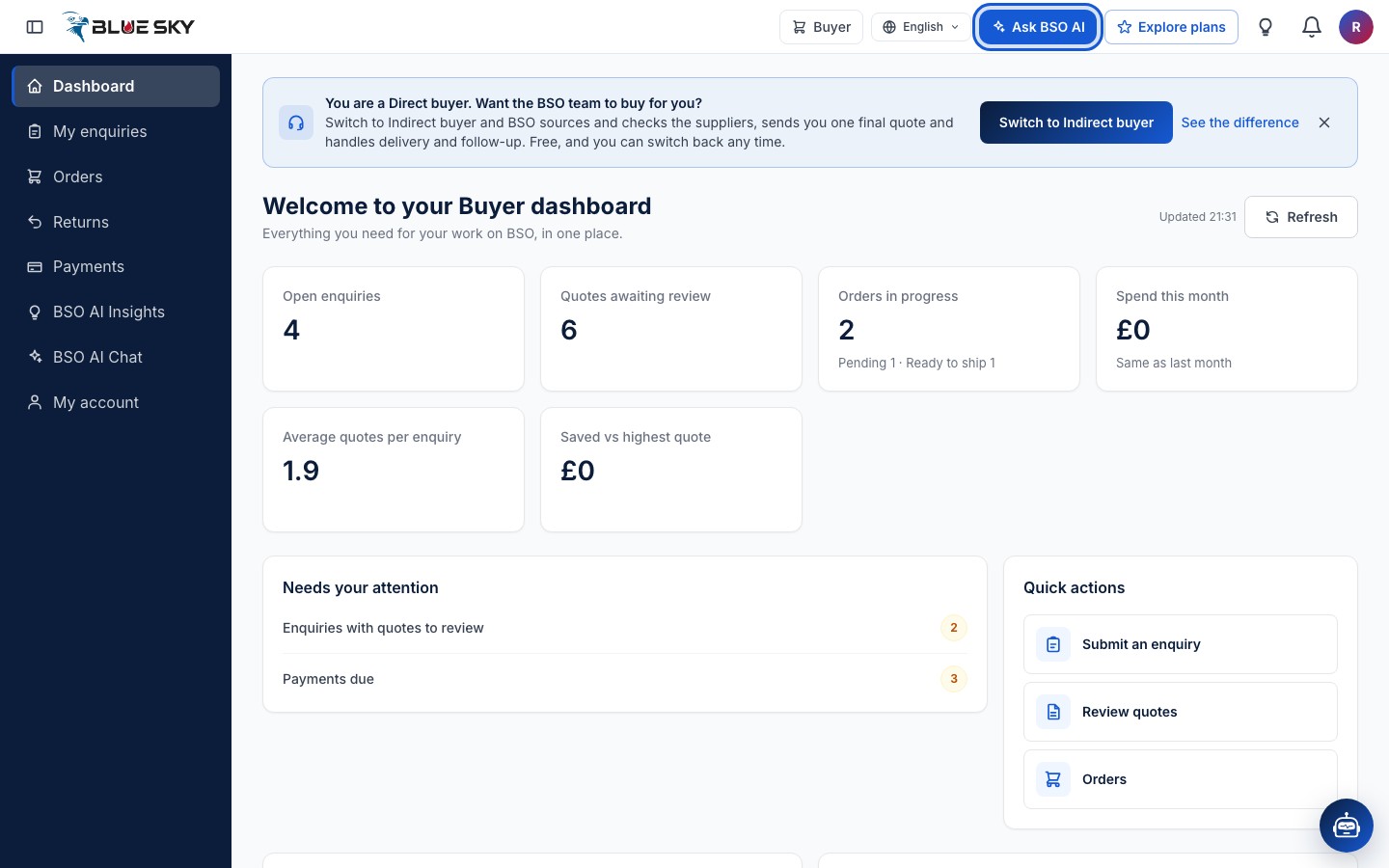
The blue Ask BSO AI button opens BSO AI Chat, the same page as BSO AI Chat in the menu. Ask it about your enquiries, quotes, orders or jobs in plain language, or ask it to prepare something for you, which you then approve. See Ask BSO AI.
Explore plans and the insights bulb
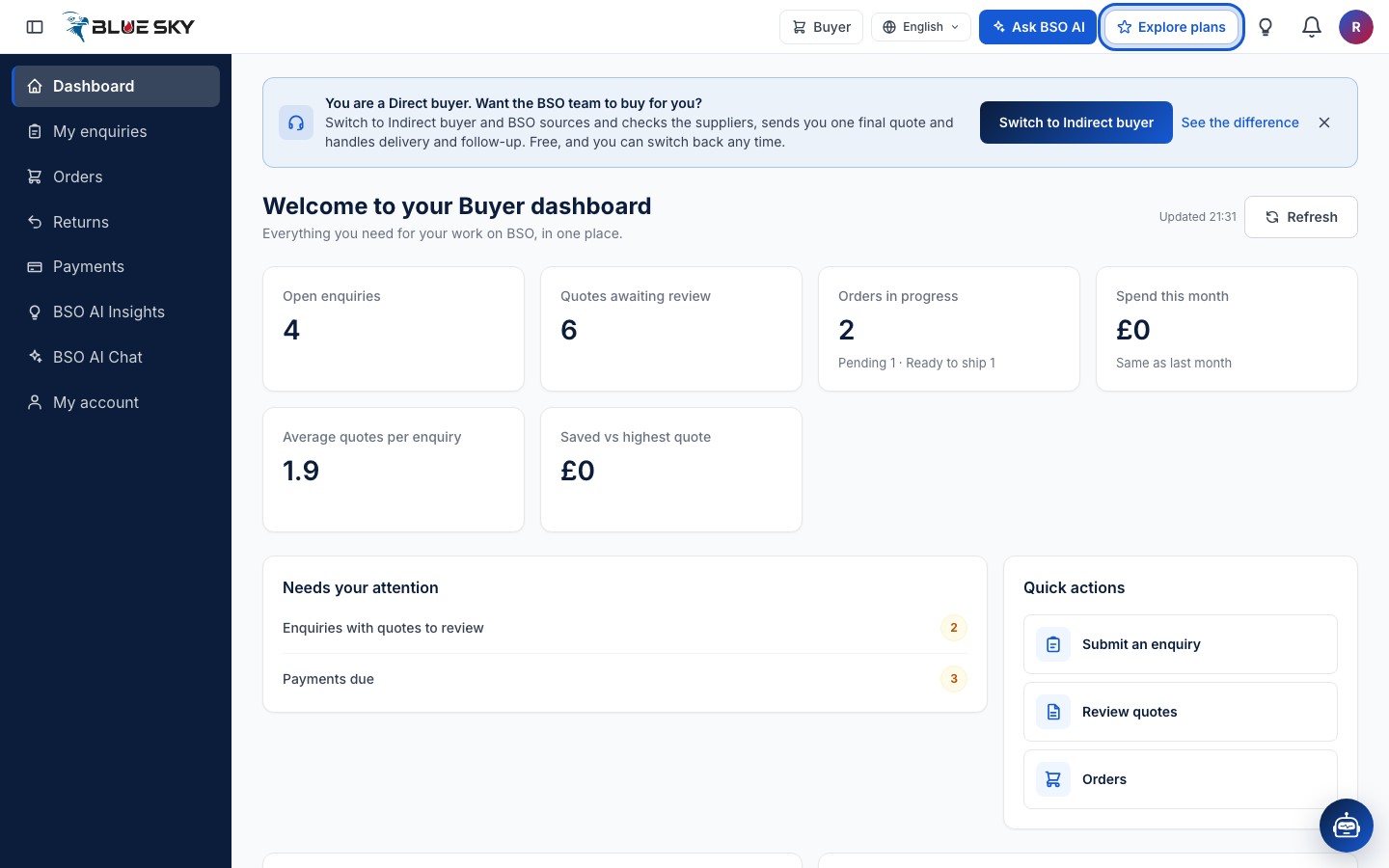
Explore plans opens the Plans page, where every plan is listed by role (Compare plans). Buying stays free; supplier, logistics and recruiter work needs a plan. The bulb next to it opens BSO AI Insights: a red number on the bulb means new suggestions are waiting.
Notifications
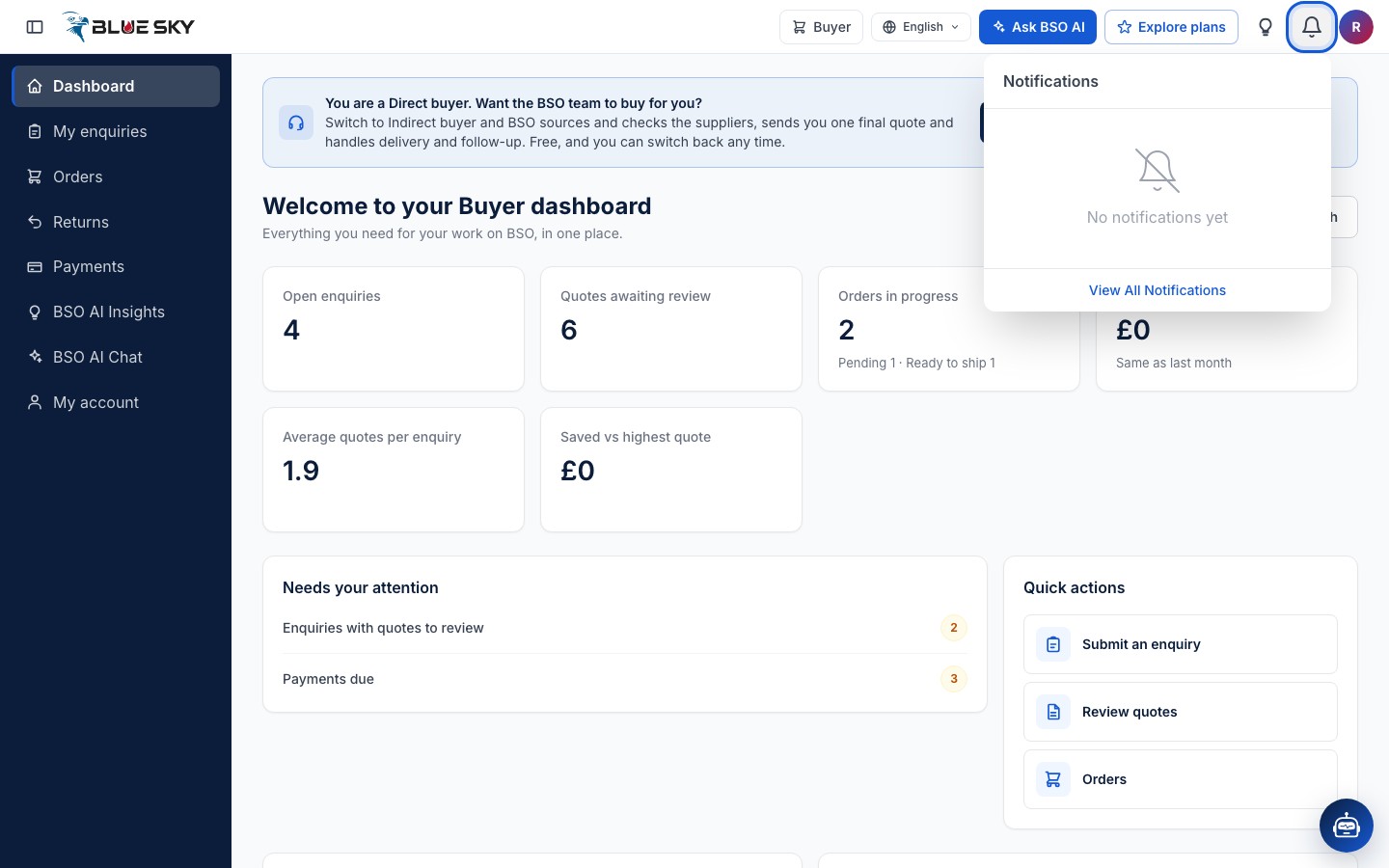
The bell opens your notifications. A red number on it is how many you have not read, and the list shows those unread ones. Click one to open the page it is about, and it is marked read. Mark all read appears when there is something unread.
View All Notifications opens the full Notifications page, where older ones live. What arrives there, and the emails that go with it, are explained in Language and notifications.
Your account menu
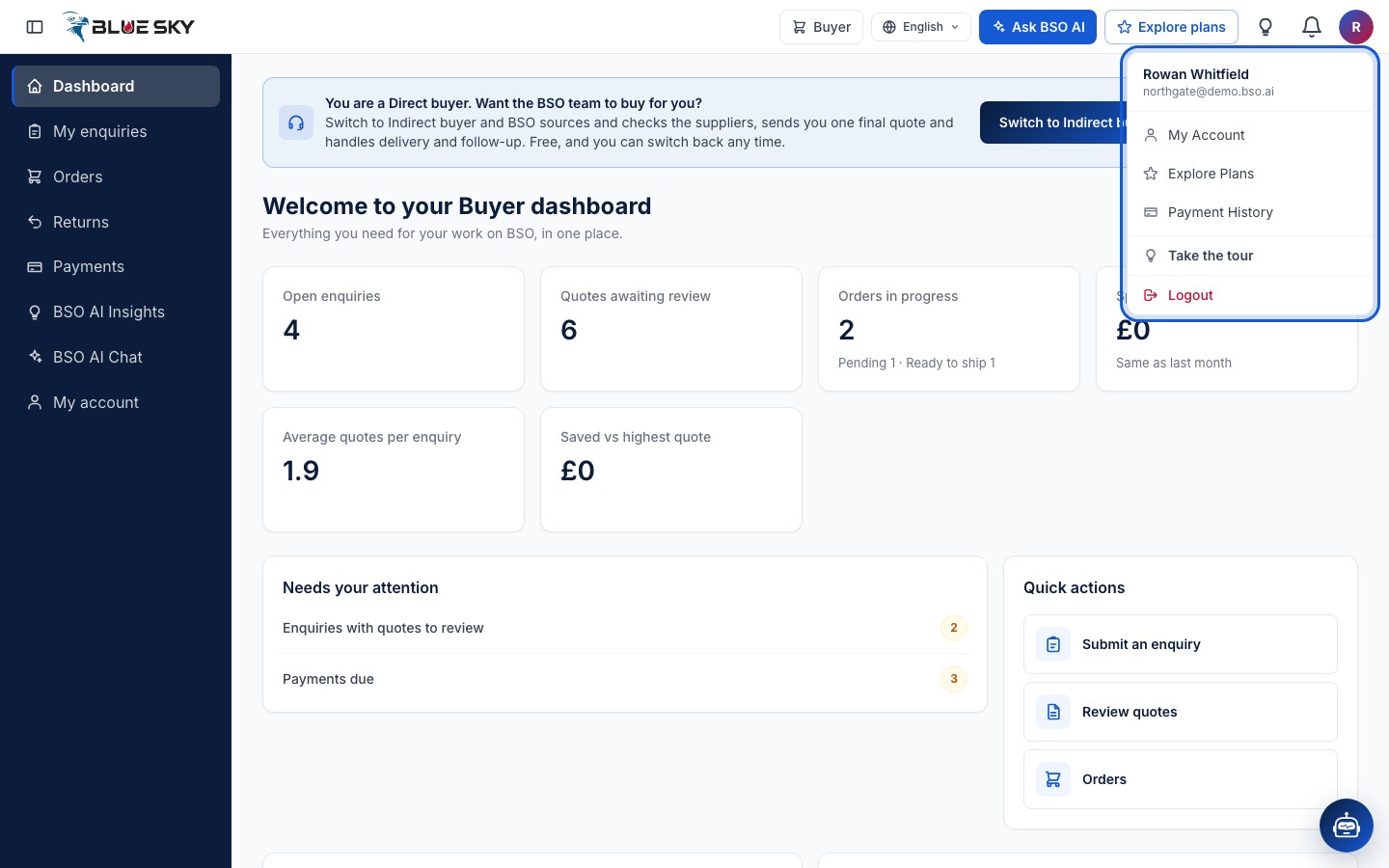
The round button with your initial (or photo) at the far right opens the account menu. It shows your name and email, then My account, Explore plans, Payments, Take the tour and Logout. My account holds your profile, password, addresses, company, team, roles, plan and billing and policies.
Take the tour again
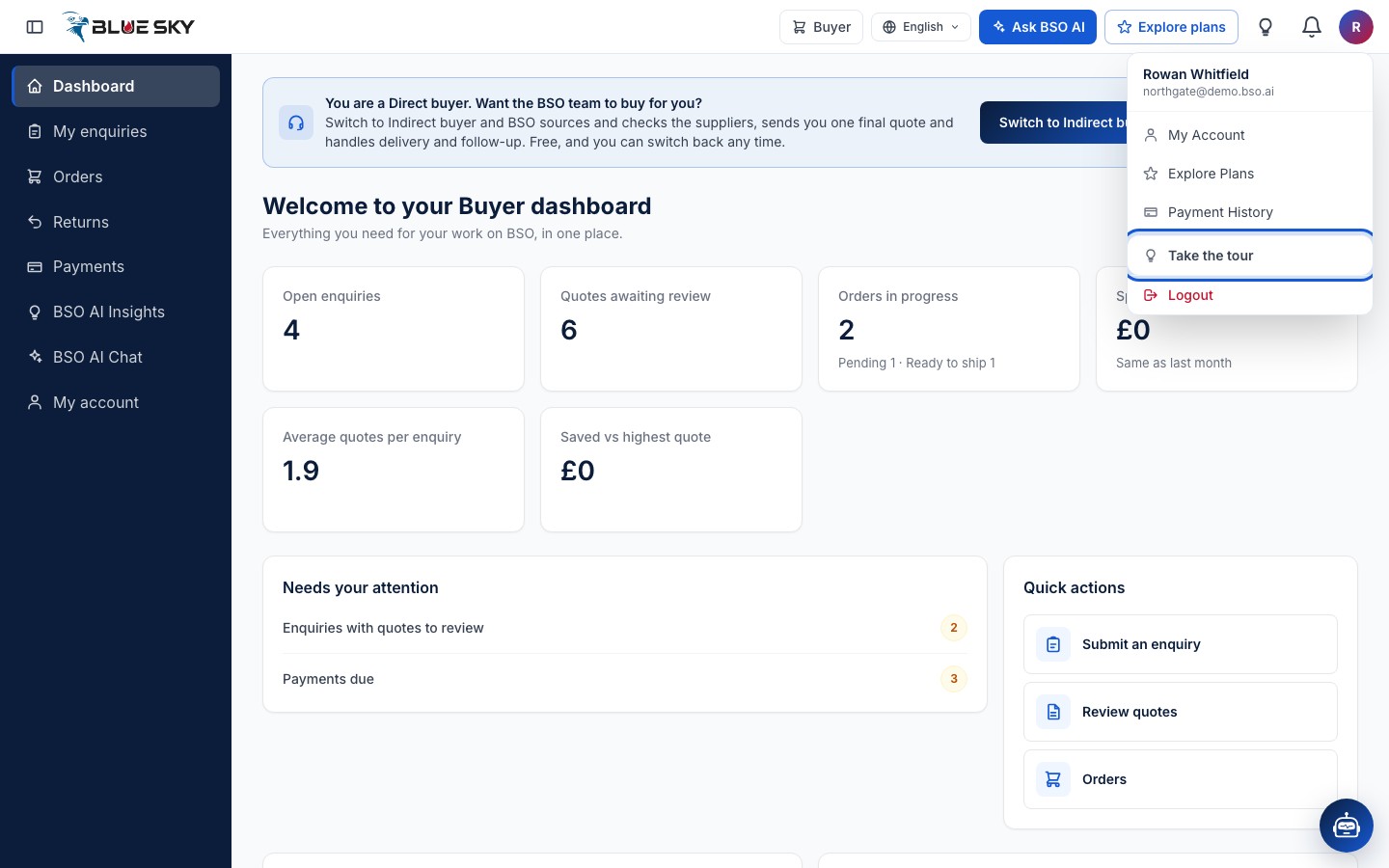
The first time you open the dashboard, a short welcome tour points at each part of the frame. If you skipped it, or want it again, open the account menu and click Take the tour. It runs on the role you are using, so a supplier sees the supplier menu explained.
Move through the tour
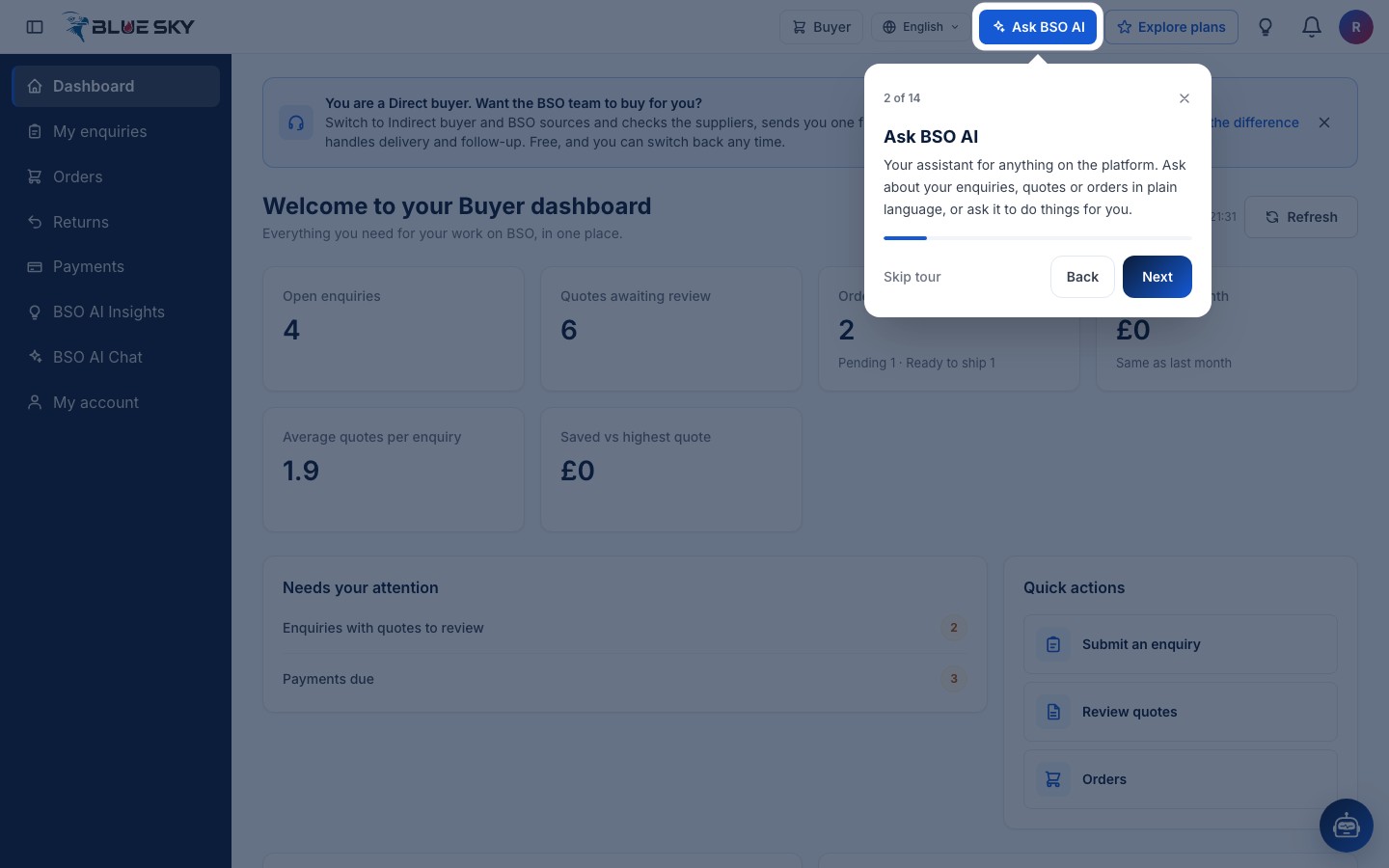
Each card explains one item and shows where you are, for example 2 of 14. Next and Back move between cards, Skip tour or the cross closes it, and the last card ends with Get started. The arrow keys and Enter also move between cards; Escape closes the tour. Once closed, it does not open again on its own.
On a phone
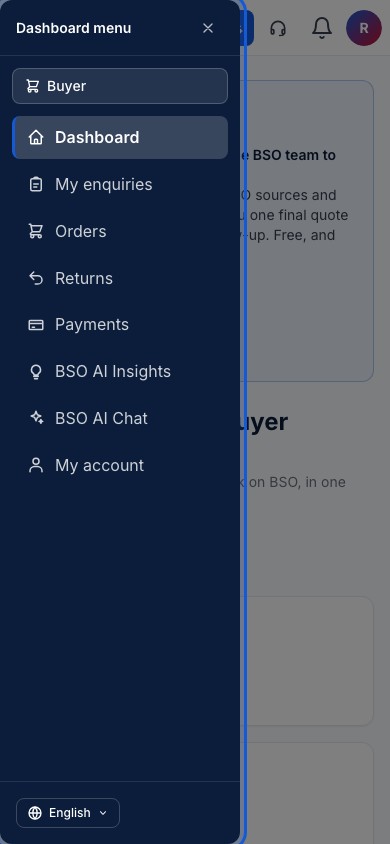
On a phone the menu is hidden. The button at the top left, Open menu, slides in the Dashboard menu: your role, the same menu items and the language switch at the bottom. Tap an item or the cross to close it.
The top bar keeps Ask BSO AI, the bell and your account menu. A headset button opens the BSO support chat. Explore plans is not in the phone bar; open it from the account menu instead.
Good to know
- Every page in the menu is also a link you can bookmark, for example bsoservices.ai/dashboard or bsoservices.ai/my-account.
- If the profile of the role you are using is not complete, the dashboard sends you to that role's profile form first. A new account starts as a buyer; see Add a role for the other roles.
- Logout is at the bottom of the account menu. Use it on any shared computer.
- Next: Add a role.
Related guides
Still stuck? We are here.
Open BSO AI Chat inside the platform, or email the support team. Monday to Friday, 07:00 to 17:00 UK time.