

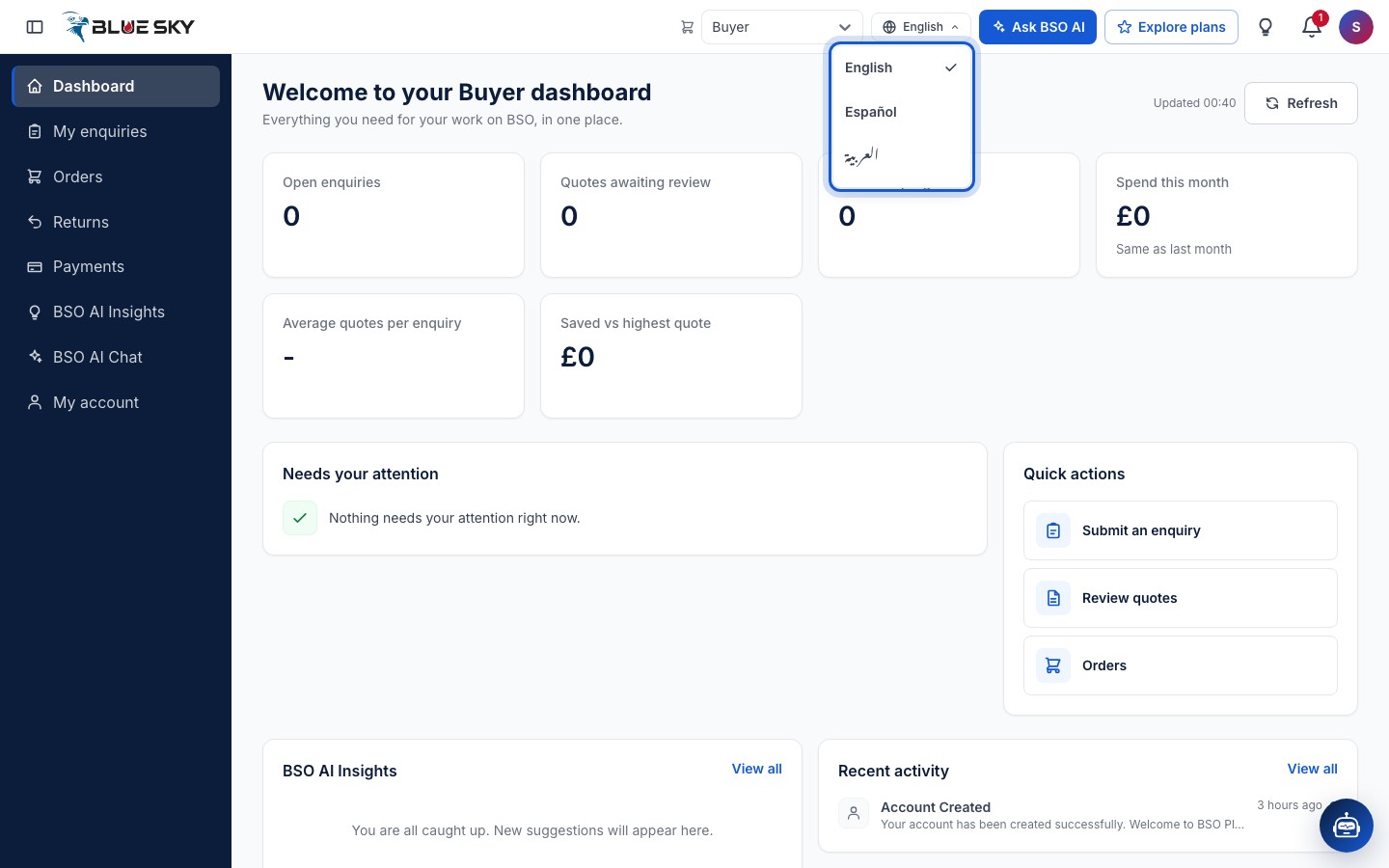
BSO works in English, Spanish and Arabic; Arabic runs right to left. The language switch sits in the top bar of every page, public or signed in, and when you are signed in your choice is saved on your account so other devices follow it.
Everything that happens on your enquiries, quotes, orders, jobs and payments produces a notification. It arrives in the bell at the top right and on the Notifications page; many events also send you an email. See Find your way around for the rest of the dashboard.
Before you start
- A BSO account, signed in (the language switch also works for visitors).
Pick a language
Click the language button in the top bar (it shows the current language, "English" to start with) and choose "English", "Español" or "العربية". On a phone the switch is at the bottom of the menu drawer.
Arabic runs right to left
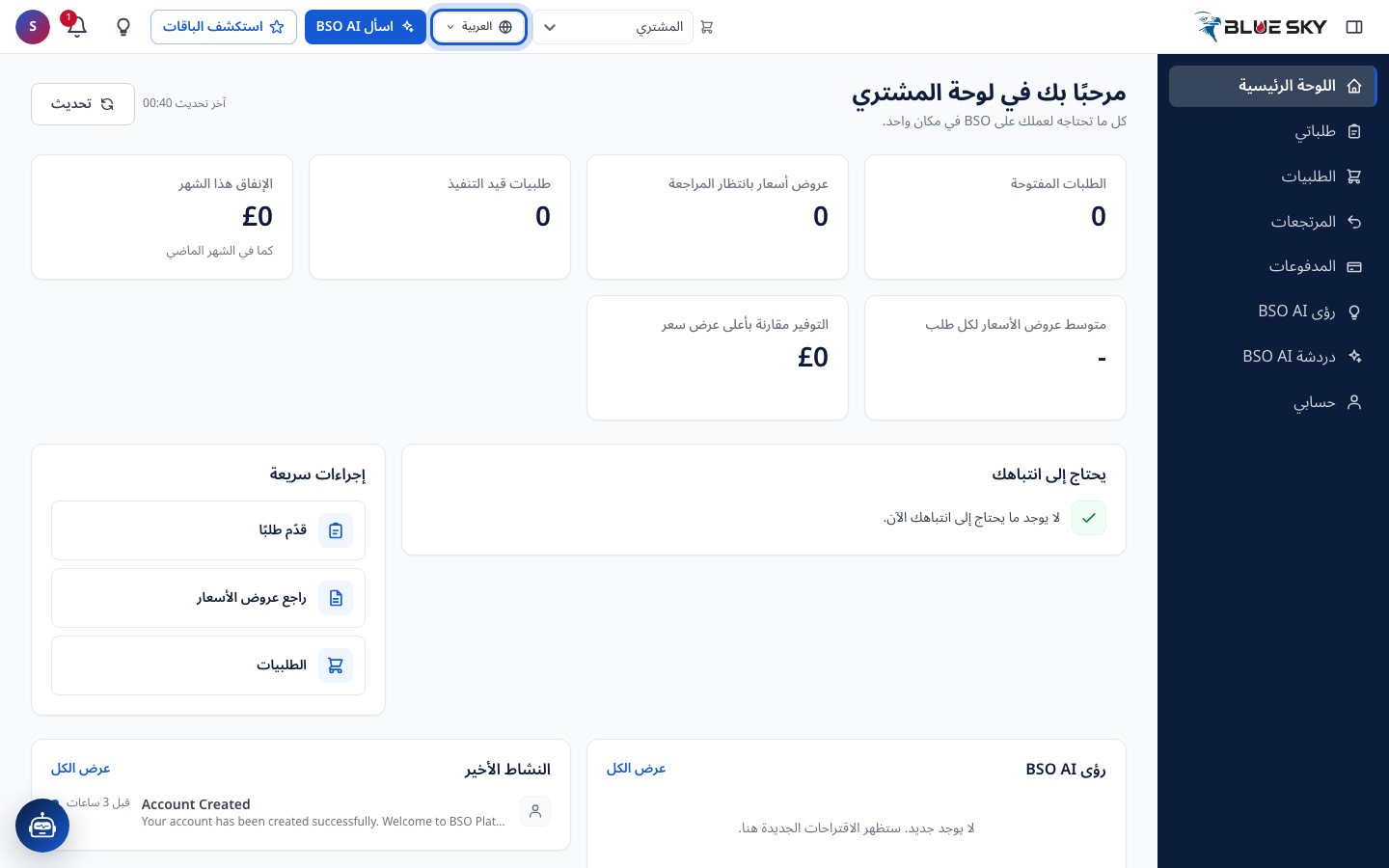
With Arabic the whole layout flips: the menu moves to the right and text runs right to left. Switch back the same way. Guides in the Help Center fall back to English until their translation exists.
Live talk speaks English for now whatever the site language.
Open the bell
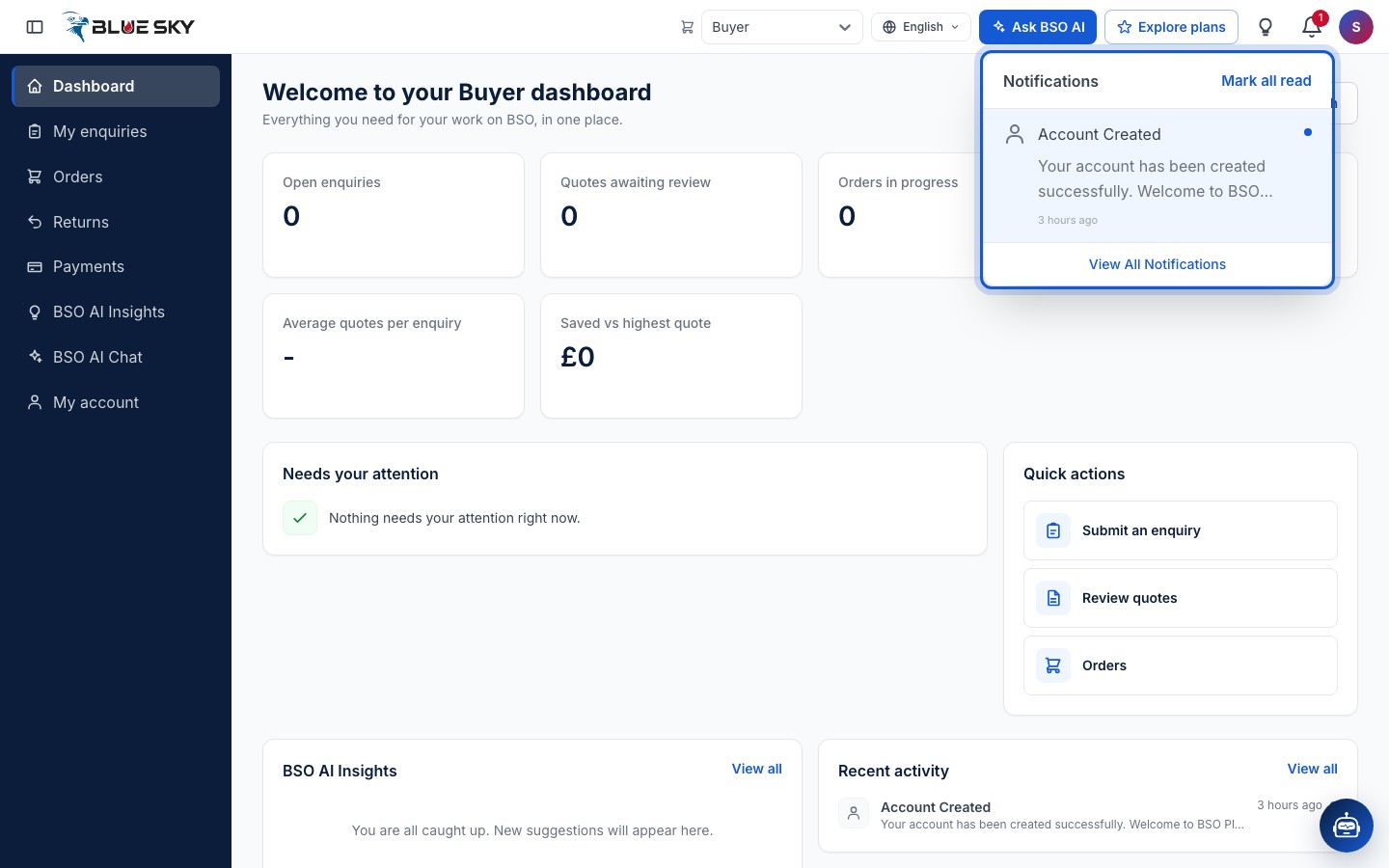
The bell at the top right carries a red badge with your unread count. Click it to see the latest unread notifications; click one to mark it read and open the enquiry, quote, order or payment it is about. "Mark all read" clears the badge and "View All Notifications" opens the full page.
Use the Notifications page
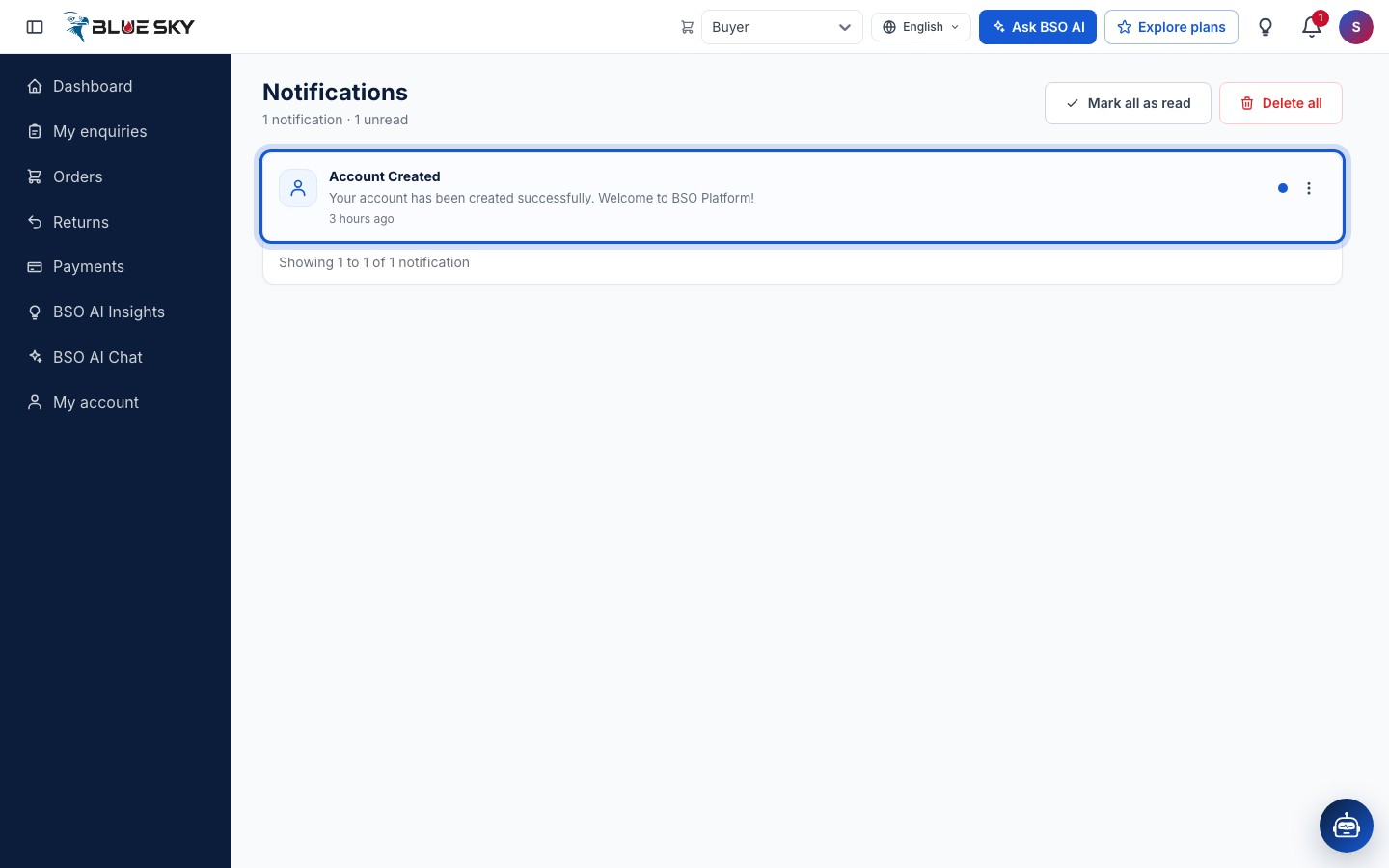
bsoservices.ai/notification lists every notification, newest first, with how long ago it arrived (a date once it is more than a week old). Unread ones are bold with a blue dot. Each row has a "More actions" menu with Mark as read and Delete; at the top, "Mark all as read" and "Delete all" act on the whole list (deleting cannot be undone).
Good to know
- Push notifications: if your browser asks whether bsoservices.ai may show notifications and you allow it, updates can also pop up on that device.
- Emails come from support@bsoservices.ai. If they stop arriving, check your spam folder.
- There is no chat between buyers and suppliers; the notifications, the enquiry notes and the quote messages are how news travels.
Related guides
Still stuck? We are here.
Open BSO AI Chat inside the platform, or email the support team. Monday to Friday, 07:00 to 17:00 UK time.