

The Billing card at the bottom of My account, Plan and billing has two tabs: Payment methods, the cards saved on your account, and Invoices and payments, the invoices for your plans and team seats. The Payments page in the left menu lists every payment you made on BSO, plans included.
This guide covers the cards and the plan invoices. Paying for an order, and the receipts for those payments, is in Payments and receipts.
Before you start
- A BSO account you are signed in to.
- A payment card, if you want to save one.
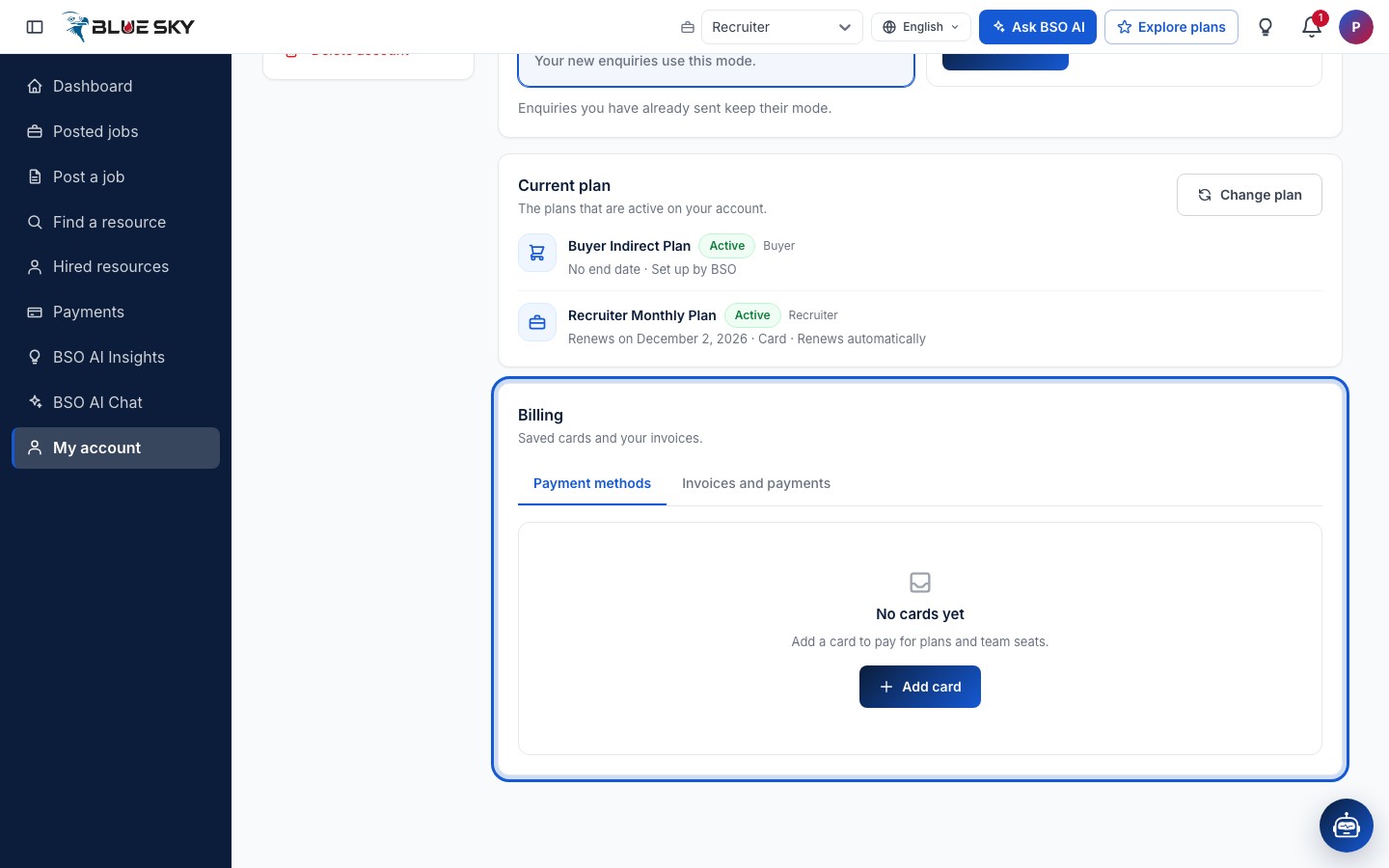
Open the Billing card
Go to My account, Plan and billing and scroll to Billing, described as Saved cards and your invoices. It opens on Payment methods. Until you have saved a card it says No cards yet, with an Add card button.
Add a card
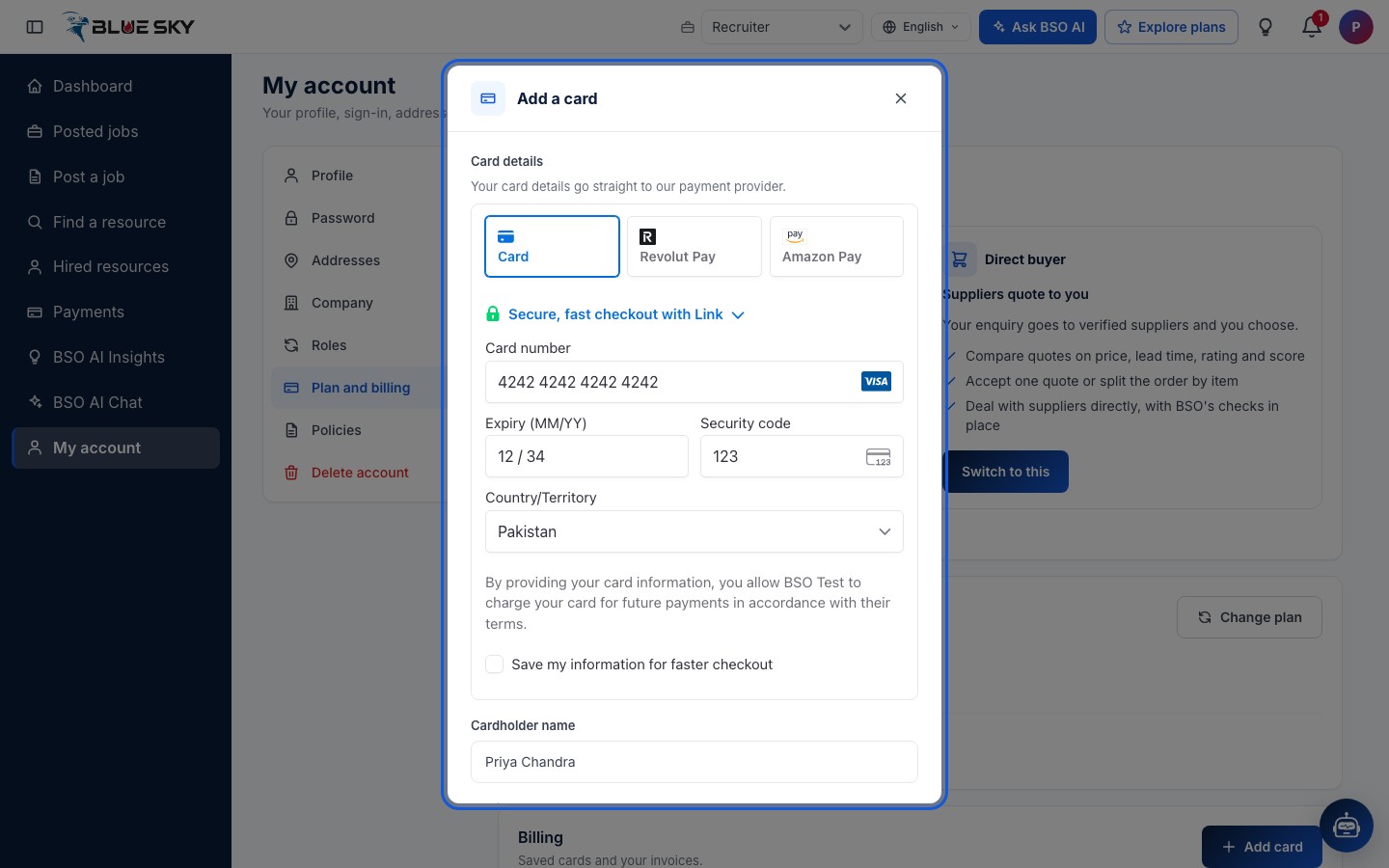
Add card opens the Add a card box. Card details go straight to the payment provider, Stripe: type the card number, expiry, security code and country in its form. Below it, fill in the Cardholder name, Email, Phone and the Billing address (address line, city, state or region, postal code and the two-letter country code). Tick Use as my default payment method if this card should be the one used first.
Click Add card at the bottom to save it, or Cancel to close the box without saving.
Manage your saved cards
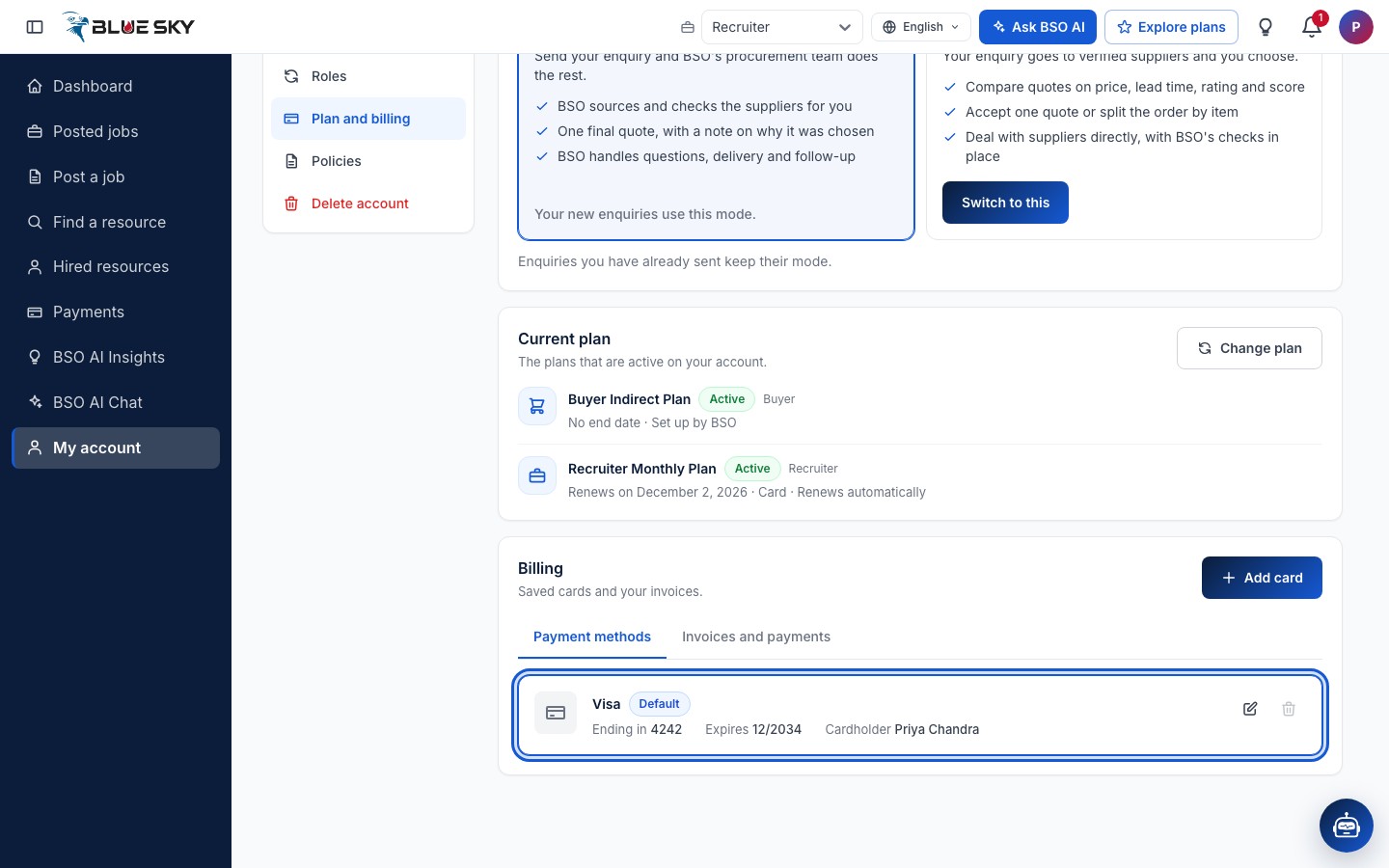
Each saved card is listed with its brand, the last four digits after Ending in, the expiry after Expires and the Cardholder. The card marked Default is used first. On any other card, Set as default makes it the default.
The pencil, Edit card, lets you change the billing details; the card number itself cannot be edited, so for a new card add it and remove the old one. The bin, Delete card, removes a card after a confirmation. The default card cannot be deleted: make another card the default first. Add card at the top right saves another card.
Open Invoices and payments
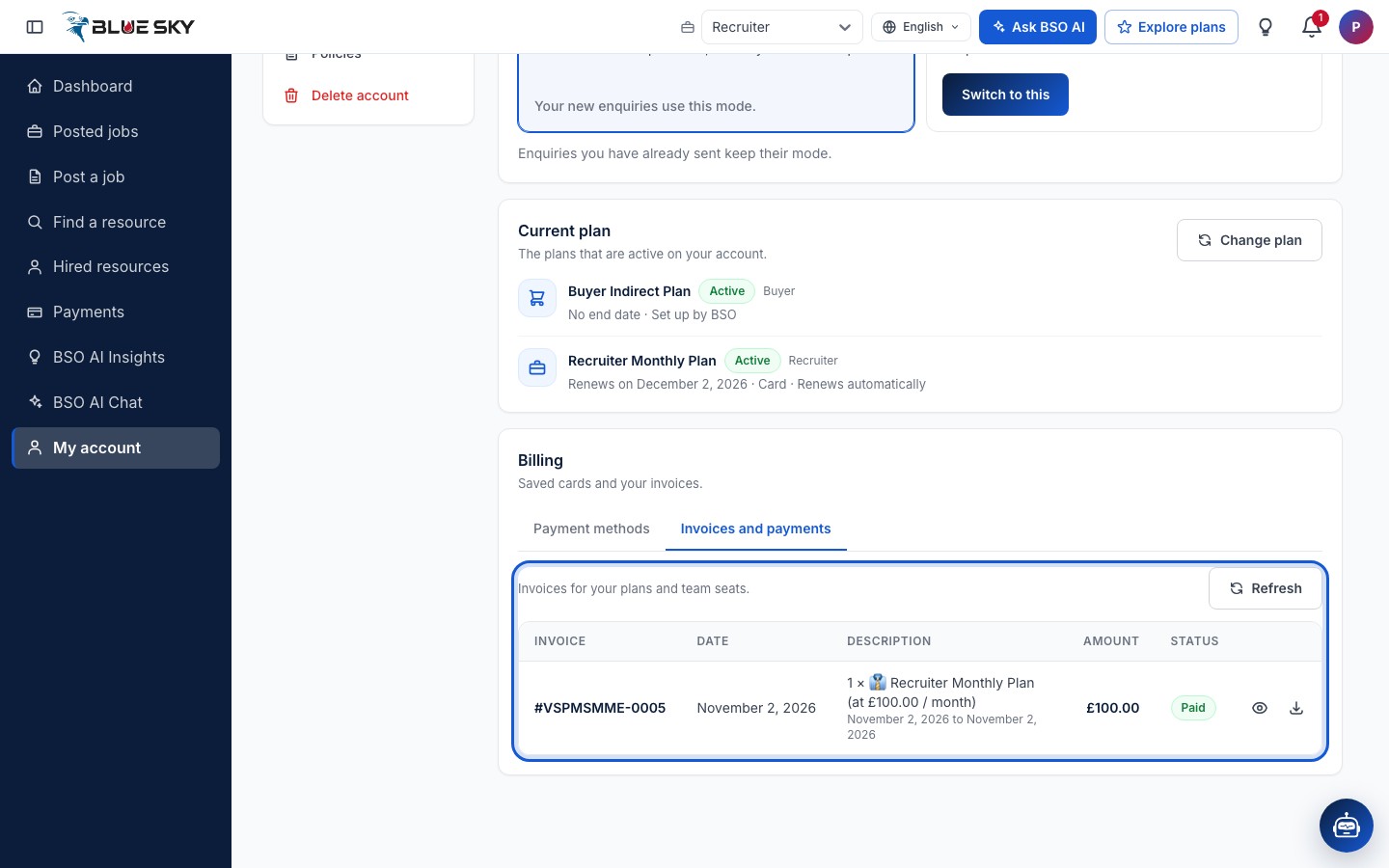
The Invoices and payments tab lists the invoices for your plans and team seats, one row per invoice: the Invoice number, Date, Description with the period it covers, Amount and Status. A settled invoice shows Paid. An invoice that still has to be paid shows Pending, with a Pay now button that opens Stripe's payment page and brings you back here afterwards.
The eye, View invoice, opens the details; the arrow, Download PDF, downloads the invoice. Refresh reloads the list.
Read an invoice
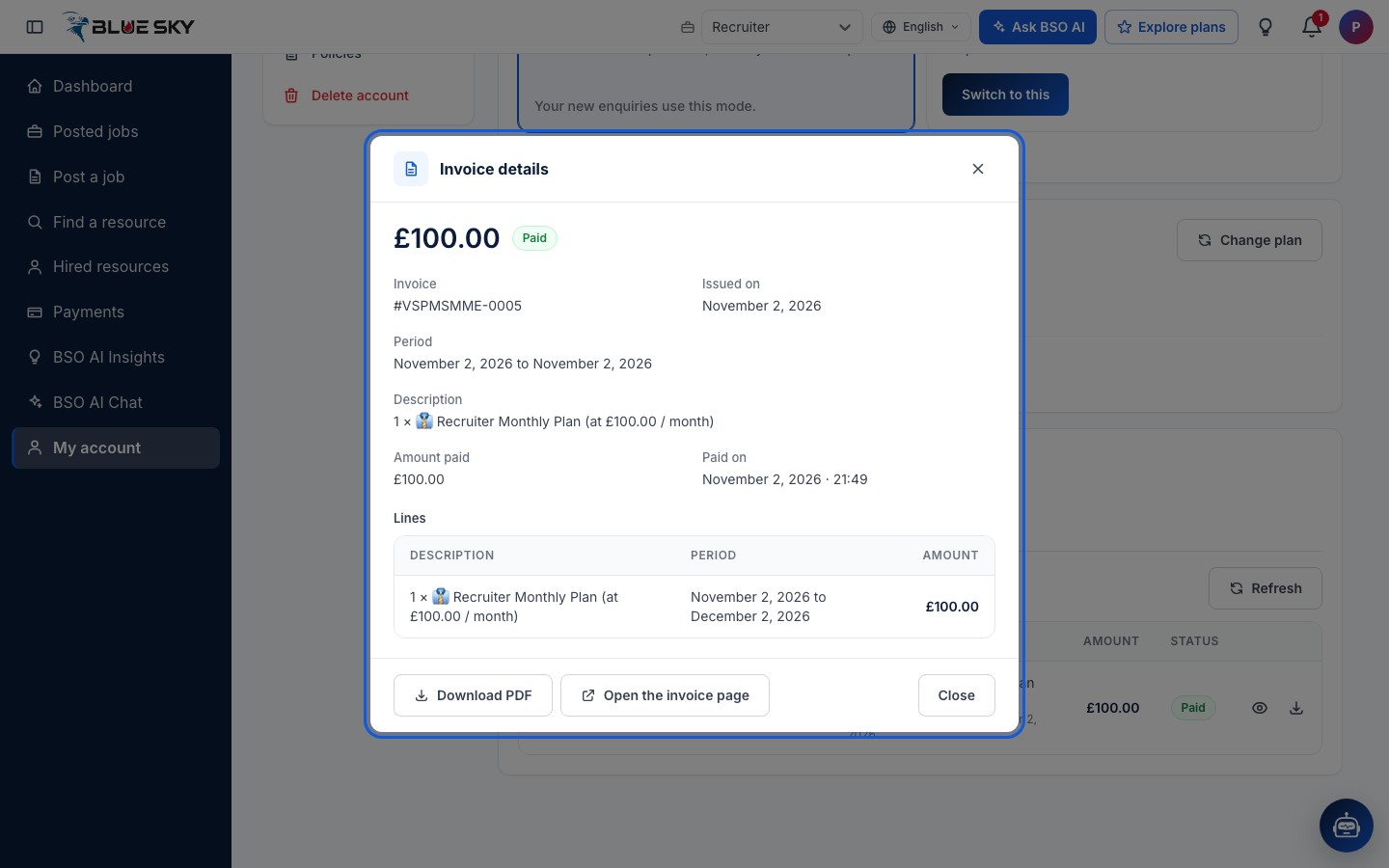
Invoice details shows the amount and status at the top, then the Invoice number, Issued on, Period, Description, Amount paid and Paid on, and the invoice lines. Download PDF saves the invoice; Open the invoice page opens Stripe's copy of it in a new tab; Close returns to the list.
See every payment on the Payments page
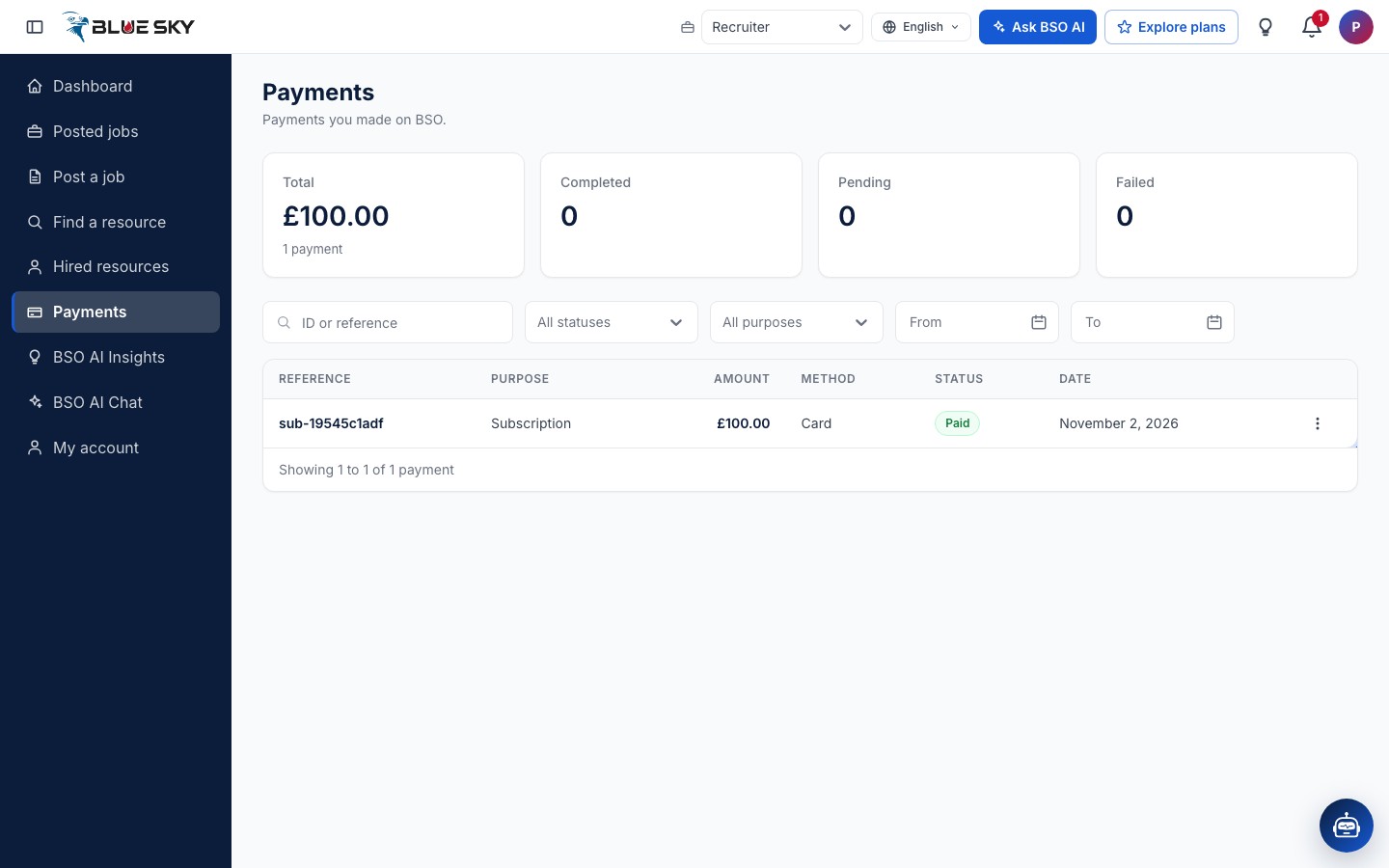
Payments in the left menu opens bsoservices.ai/payment-management, described as Payments you made on BSO. The old address payment-history and the account menu's Payments entry lead to the same page. A Receipts page (bsoservices.ai/receipts) lists every payment that has a card receipt, one row per payment, with a link to the receipt. It starts with totals, then a table with the Reference, Purpose, Amount, Method, Status and Date of each payment, with filters for status, purpose and dates above it.
A plan purchase appears with the purpose Subscription and the method Card. Order payments appear here too, with their own purposes.
Good to know
- A plan renews on the card you used when you bought it. The card box of a purchase asks for the card each time; see Buy a plan.
- Team seats are a one-off card payment made from My account, Team; the payment is listed on the Payments page rather than under Invoices and payments. See Invite your team.
- What each plan costs and when it renews is on Plan and billing above the Billing card; see Your plan.
- A missing invoice or a payment you do not recognise: support@bsoservices.ai, Monday to Friday 07:00 to 17:00 UK time.
Related guides
Still stuck? We are here.
Open BSO AI Chat inside the platform, or email the support team. Monday to Friday, 07:00 to 17:00 UK time.