

Payments, in the left menu, is the record of everything you have paid on BSO: the stages of your orders, logistics payments, and your plan. This guide shows how to read it, where the receipt is, and where the invoices for your plan live.
Before you start
- A buyer account with at least one payment (Pay by card or Pay by bank transfer).
Open Payments
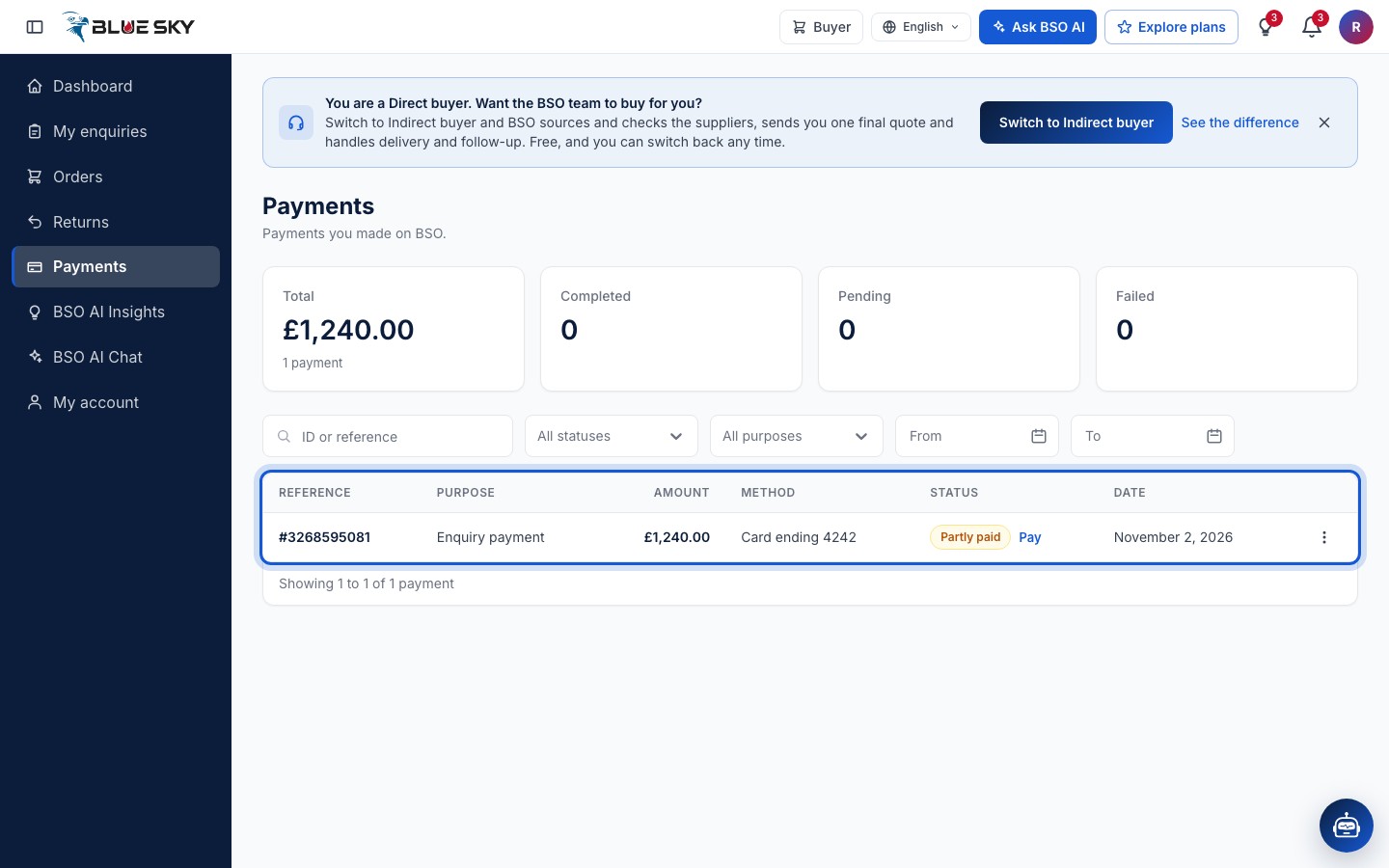
Click Payments in the left menu, or go to bsoservices.ai/payment-management. The page is Payments: Payments you made on BSO. Four boxes count the Total, Completed, Pending and Failed payments for the period.
Each row shows the Reference (the order number for an order payment), the Purpose, the Amount, the Method (Card ending in the last four digits, Bank transfer or Cash on delivery), the Status and the Date. Partly paid means some stages of that order are paid and others not; Under review is a bank transfer BSO has not confirmed yet; Completed means every stage is paid.
Filter the list
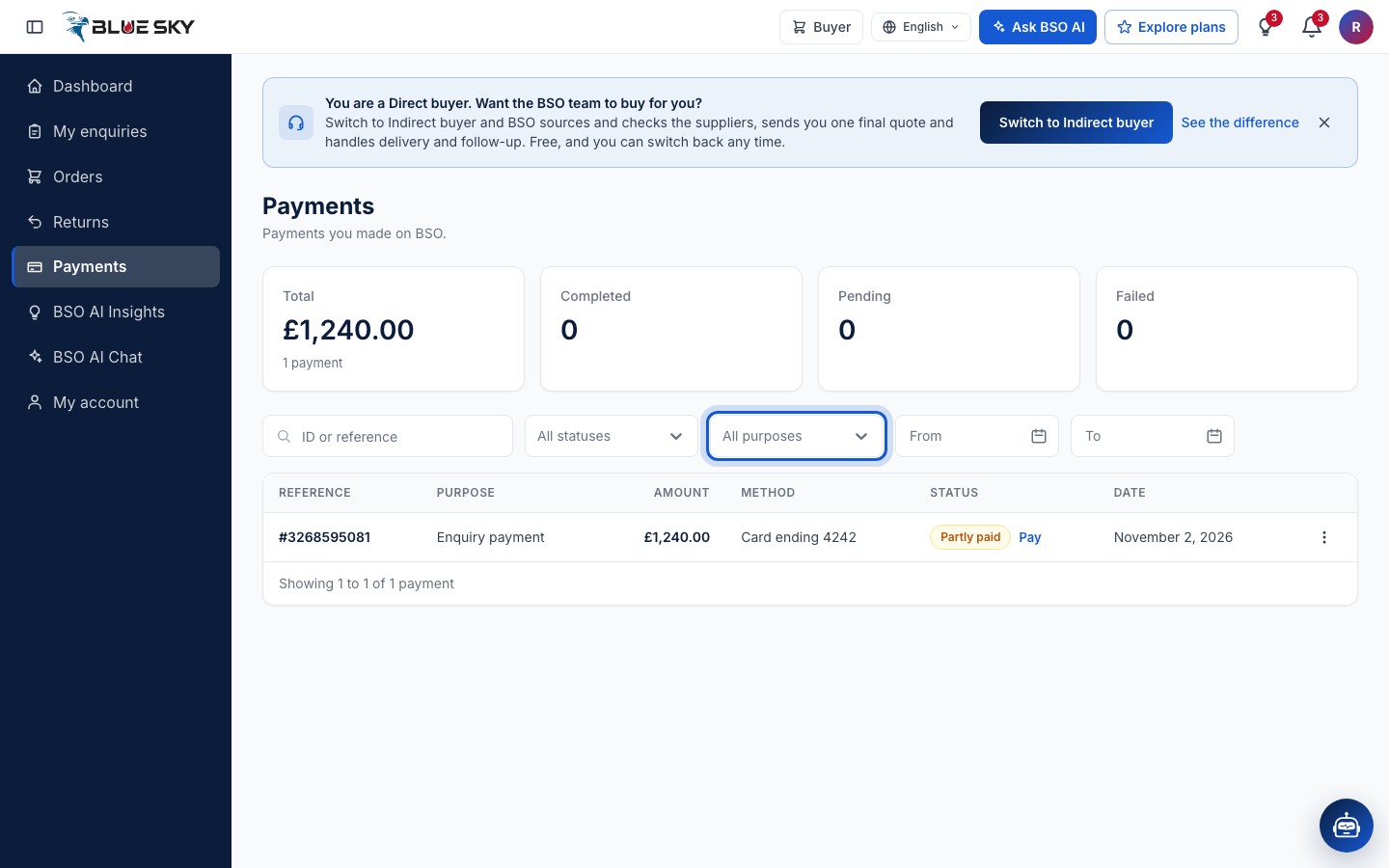
The search box takes an ID or reference. The filters narrow by status, by Purpose (Subscription, Enquiry payment, Logistics payment, Team member, Subscription renewal) and by date From and To. Clear filters removes them all.
Download a receipt
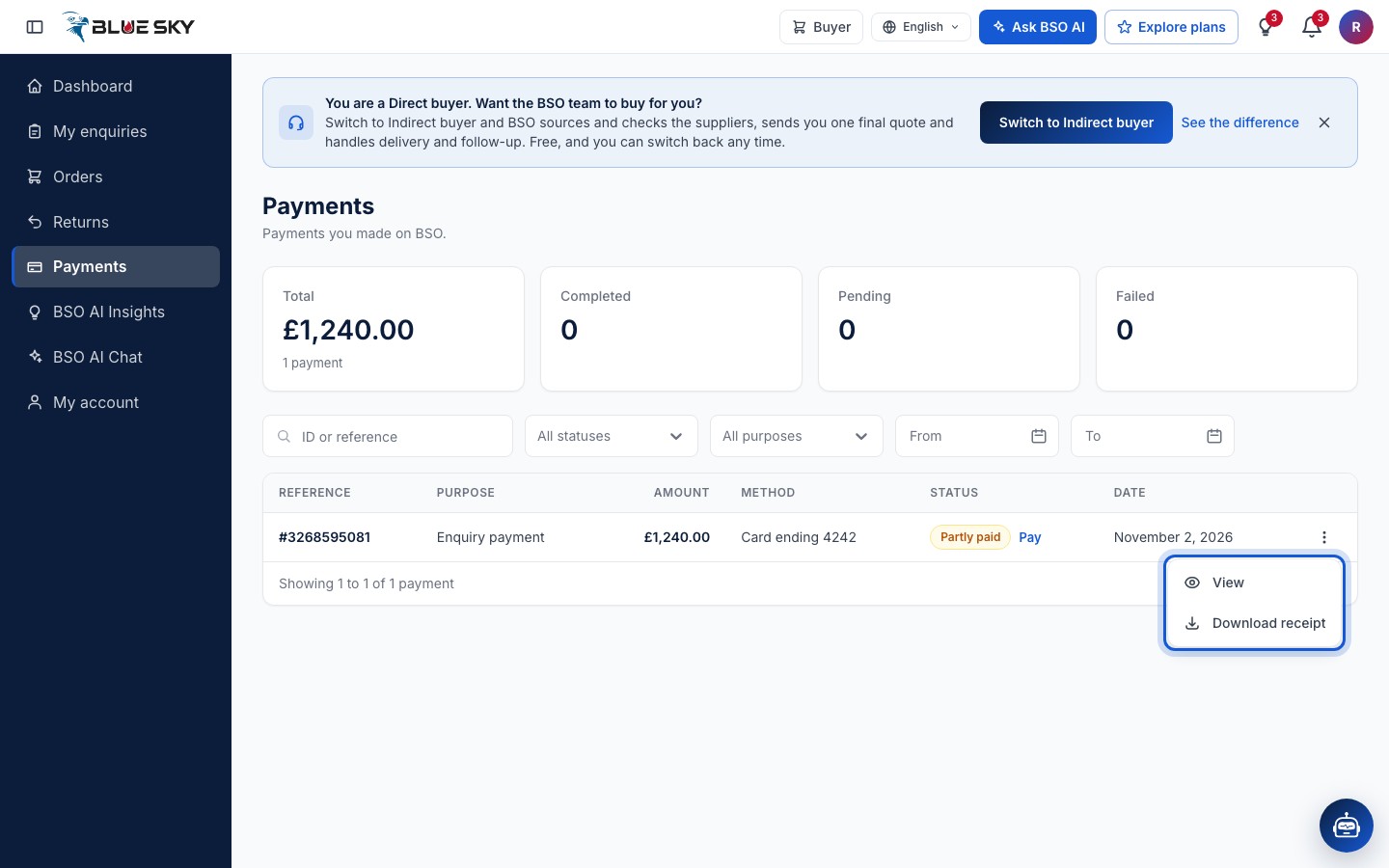
The three dots at the end of a row open View and, for a card payment, Download receipt: the Stripe receipt of the latest card stage opens in a new tab. A row with a stage still to pay shows a Pay link that takes you to the enquiry page, where Pay now lives.
Open the payment details
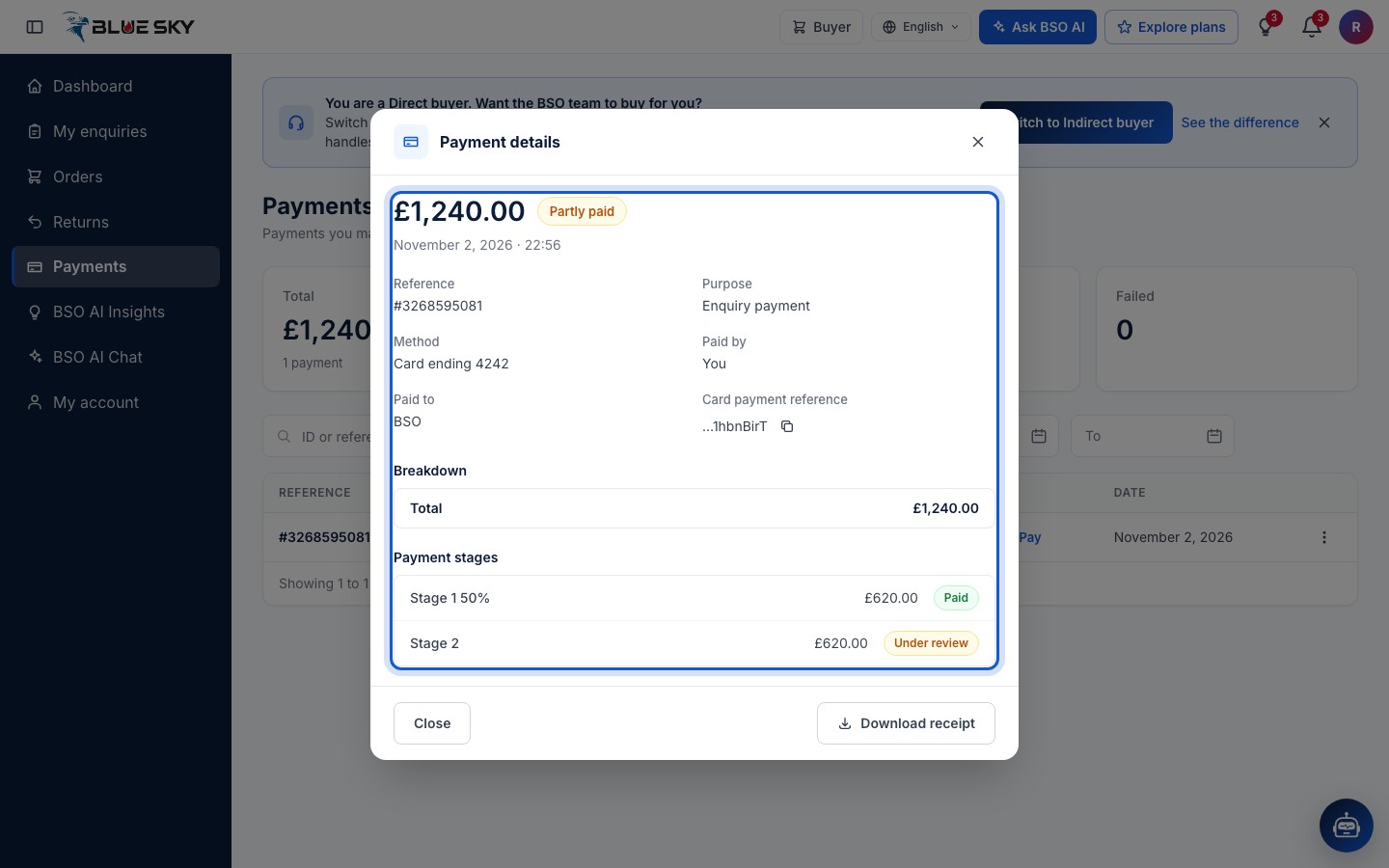
Click a row. Payment details shows the amount at the top, then the Reference, Purpose, Method, Paid by (You), Paid to (BSO) and, for a card payment, the Card payment reference you can copy for your bank; a payment with a single stage shows that Stage too. The Breakdown lists the Items, Delivery and Service charges that apply, the Total and, after a return, the Refunded amount. On a payment with several stages, Payment stages lists each one with its state and, for a card stage, Receipt with the receipt number. Download receipt is here too.
Find plan invoices under Billing
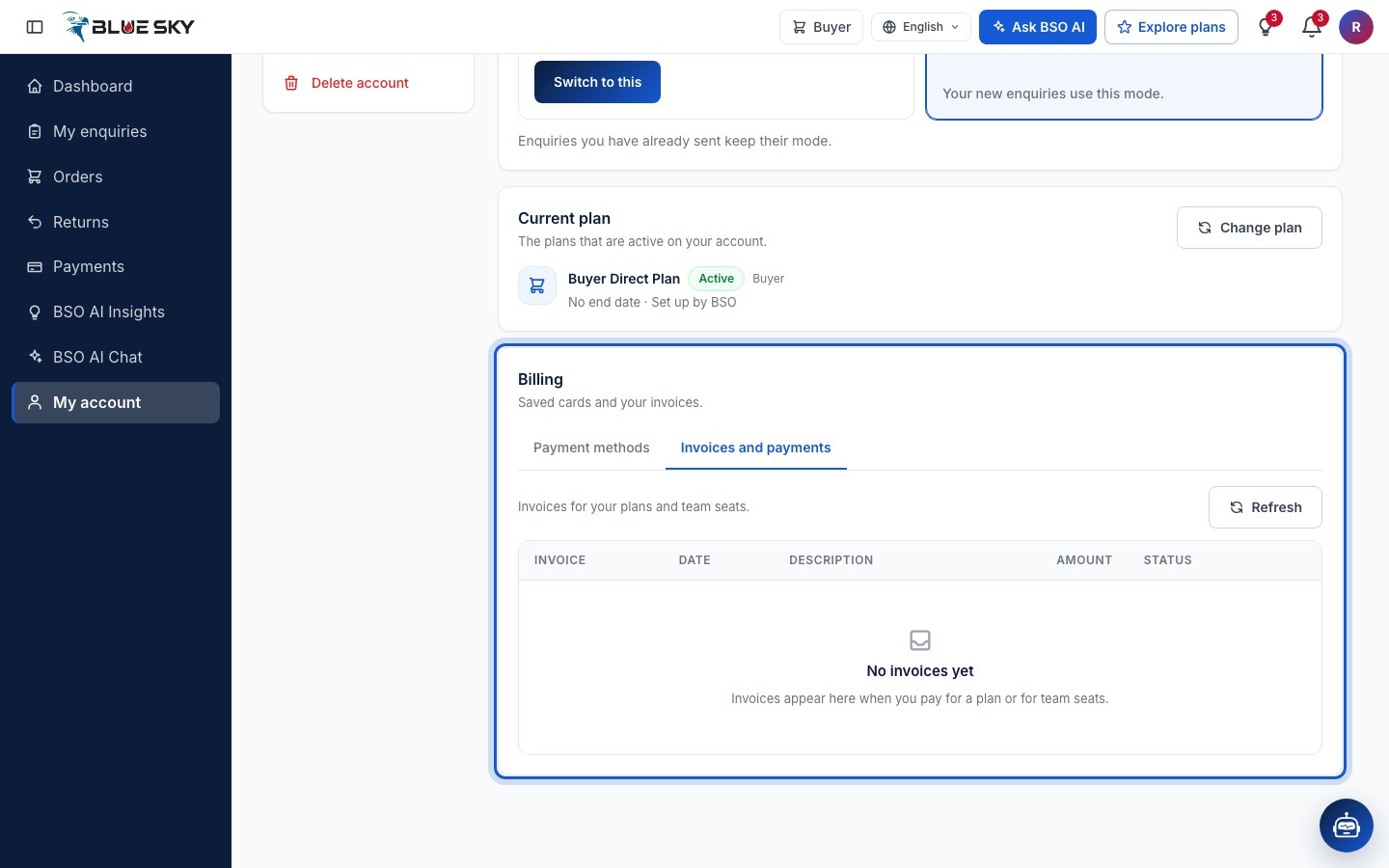
Invoices for your plan and team seats are not on the Payments page. Open My account, Plan and billing: the Billing card (Saved cards and your invoices) has two tabs, Payment methods and Invoices and payments, the second with Invoices for your plans and team seats. See Your plan.
Good to know
- The status of each stage is also on the enquiry page, in the Payment schedule, and the order's payment state is on the order page; see Track your order.
- A bank transfer stays Under review until the BSO team has matched it. If it has been more than two working days, email support@bsoservices.ai with the transaction ID.
Related guides
Still stuck? We are here.
Open BSO AI Chat inside the platform, or email the support team. Monday to Friday, 07:00 to 17:00 UK time.