

Once you have accepted a quote, the payment term you chose sets the stages you pay: for example an advance and the balance on delivery, or everything at once. Each stage is paid from the enquiry page, by card through Stripe or by bank transfer. This guide is the card way.
Before you start
- An enquiry with an accepted quote and a stage still to pay (Pay now shows at the top of its page).
- A credit or debit card. Your bank may ask you to confirm the payment in its app.
Click Pay now
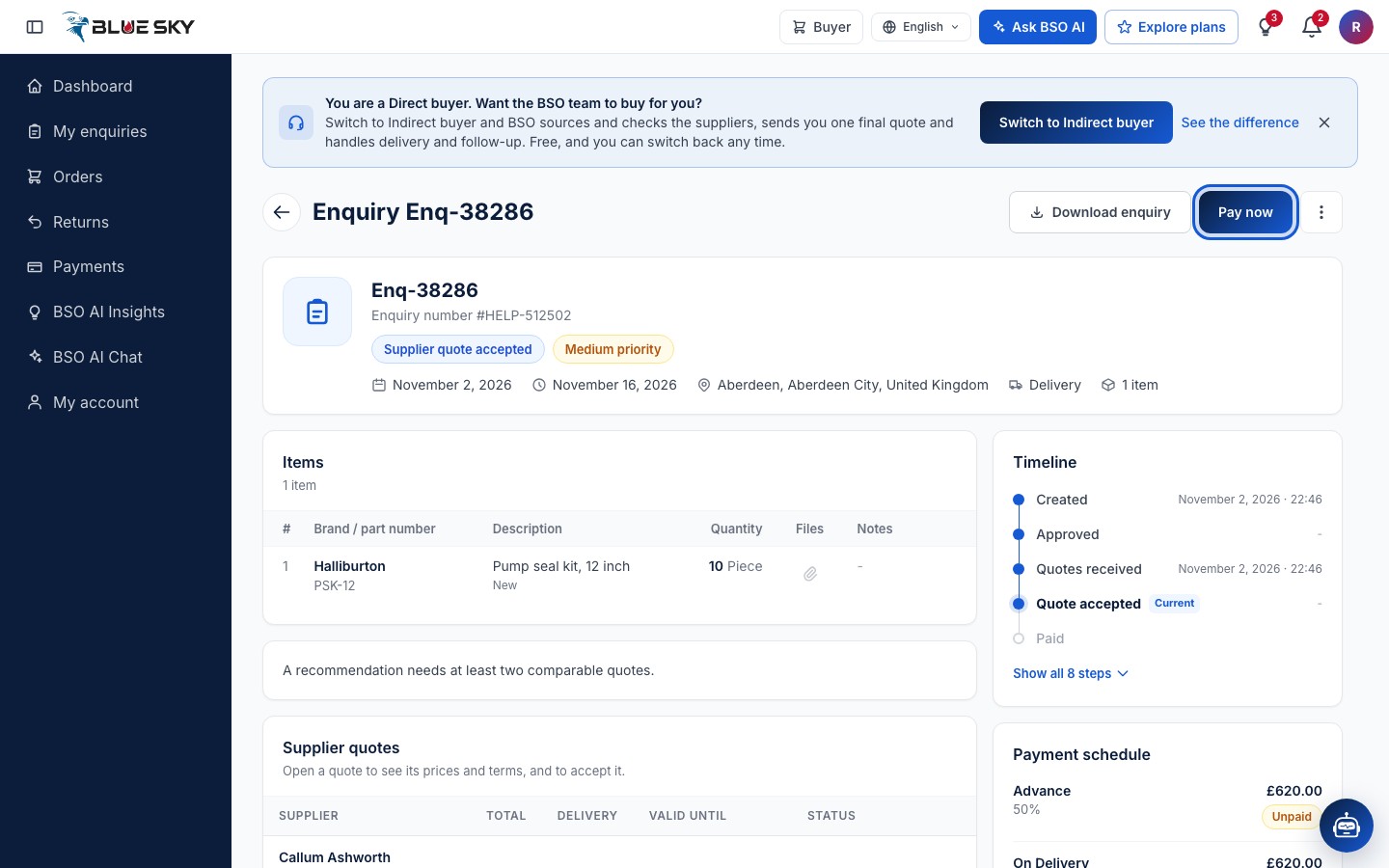
Open the enquiry from My enquiries in the left menu. Pay now sits at the top right, next to Download enquiry, and again on the Final quotation card. The Payment schedule on the right lists the stages with their share and amount, for example Advance 50% and On Delivery 50%, each Unpaid. Pay now always takes the next unpaid stage.
Choose Pay with Stripe
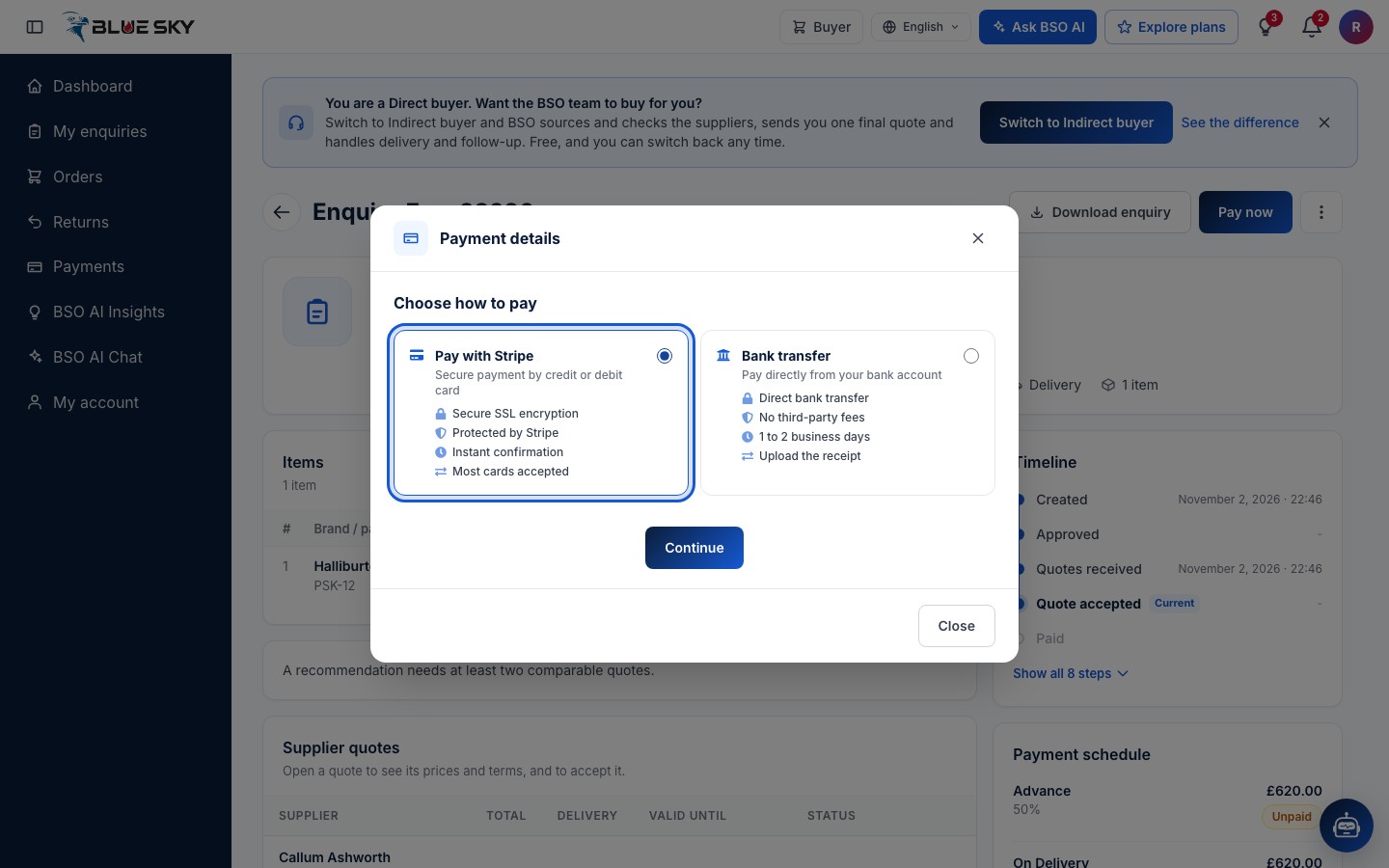
Payment details asks you to Choose how to pay. Pick Pay with Stripe (Secure payment by credit or debit card: Secure SSL encryption, Protected by Stripe, Instant confirmation, Most cards accepted). The other choice is Bank transfer. Click Continue.
Enter the card and confirm
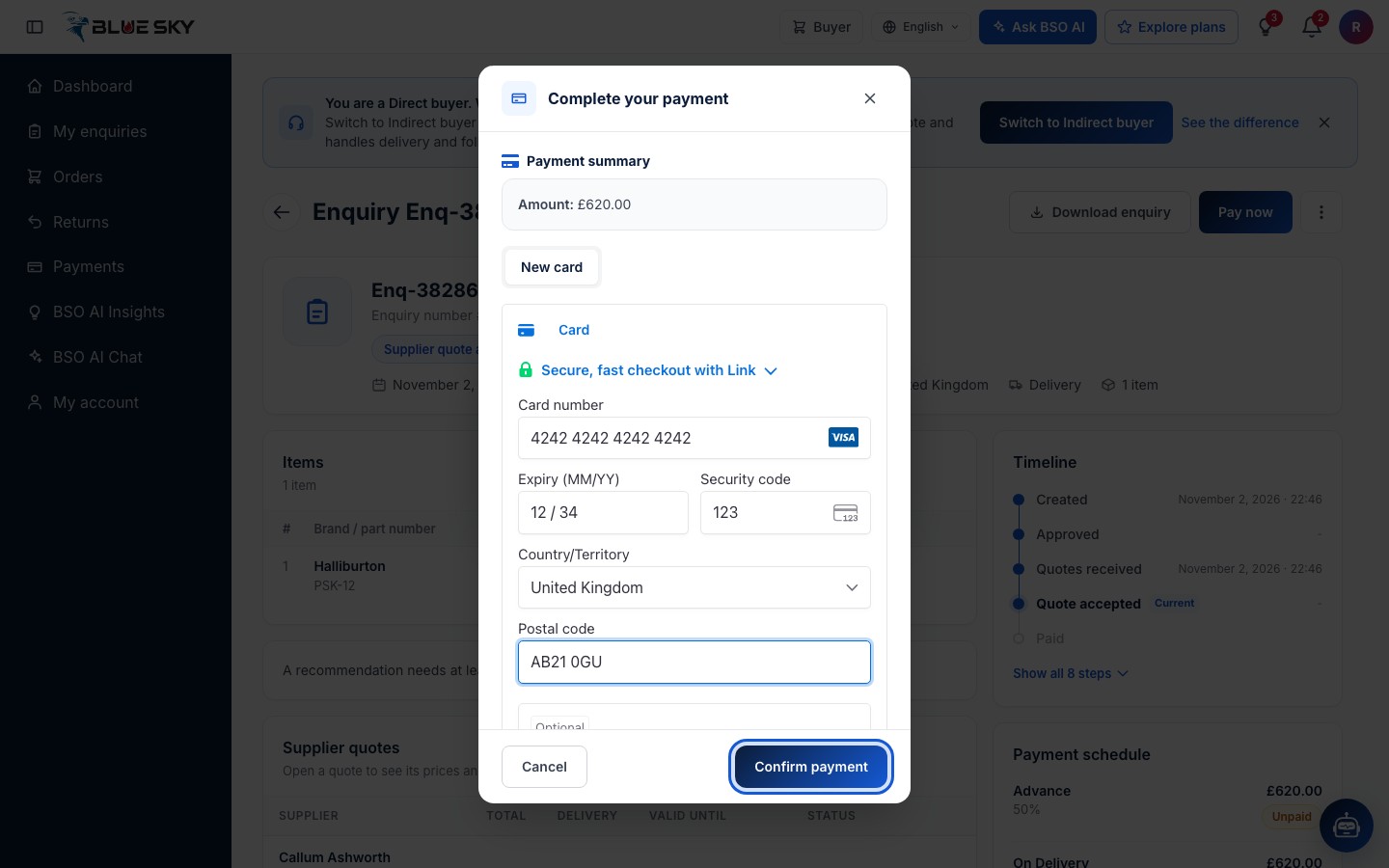
Complete your payment shows the Payment summary with the Amount of this stage. Under New card, the secure card box opens on Card: type the card number, expiry date and security code, with the country and postal code of the card. Other ways to pay that Stripe offers, such as Link, appear in the same box. The box belongs to Stripe; BSO never sees your card number.
Click Confirm payment. If your bank wants an extra check, its own screen opens; confirm it there and you come back to BSO.
The card is kept for next time: on your next payment a Saved cards tab appears next to New card, with your default card marked Default.
The stage is paid
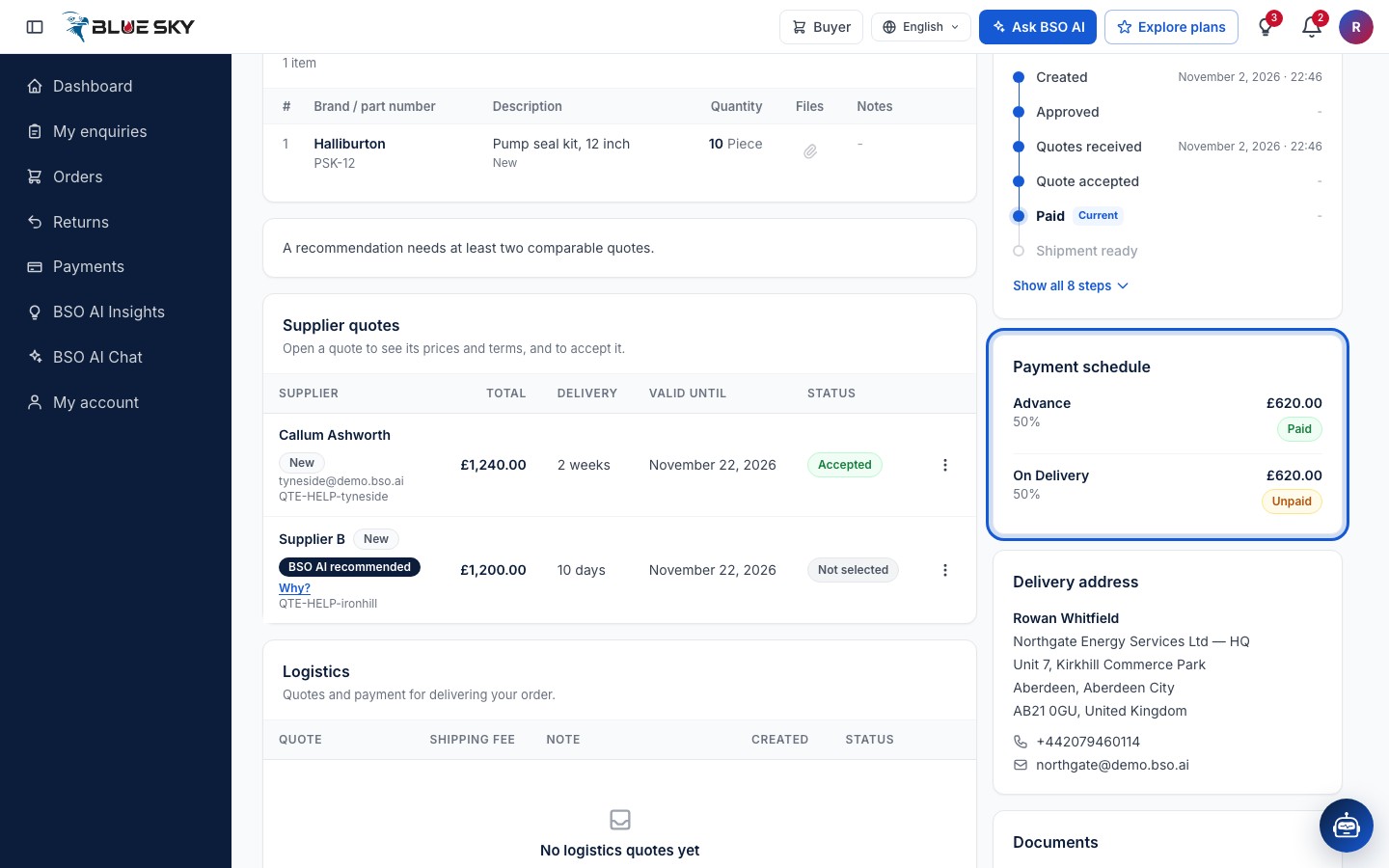
The enquiry page shows Payment successful and the stage in the Payment schedule now reads Paid. The Timeline moves to Paid. The next stage stays Unpaid until it is due; Pay now stays on the page while any stage is open.
Your order is created
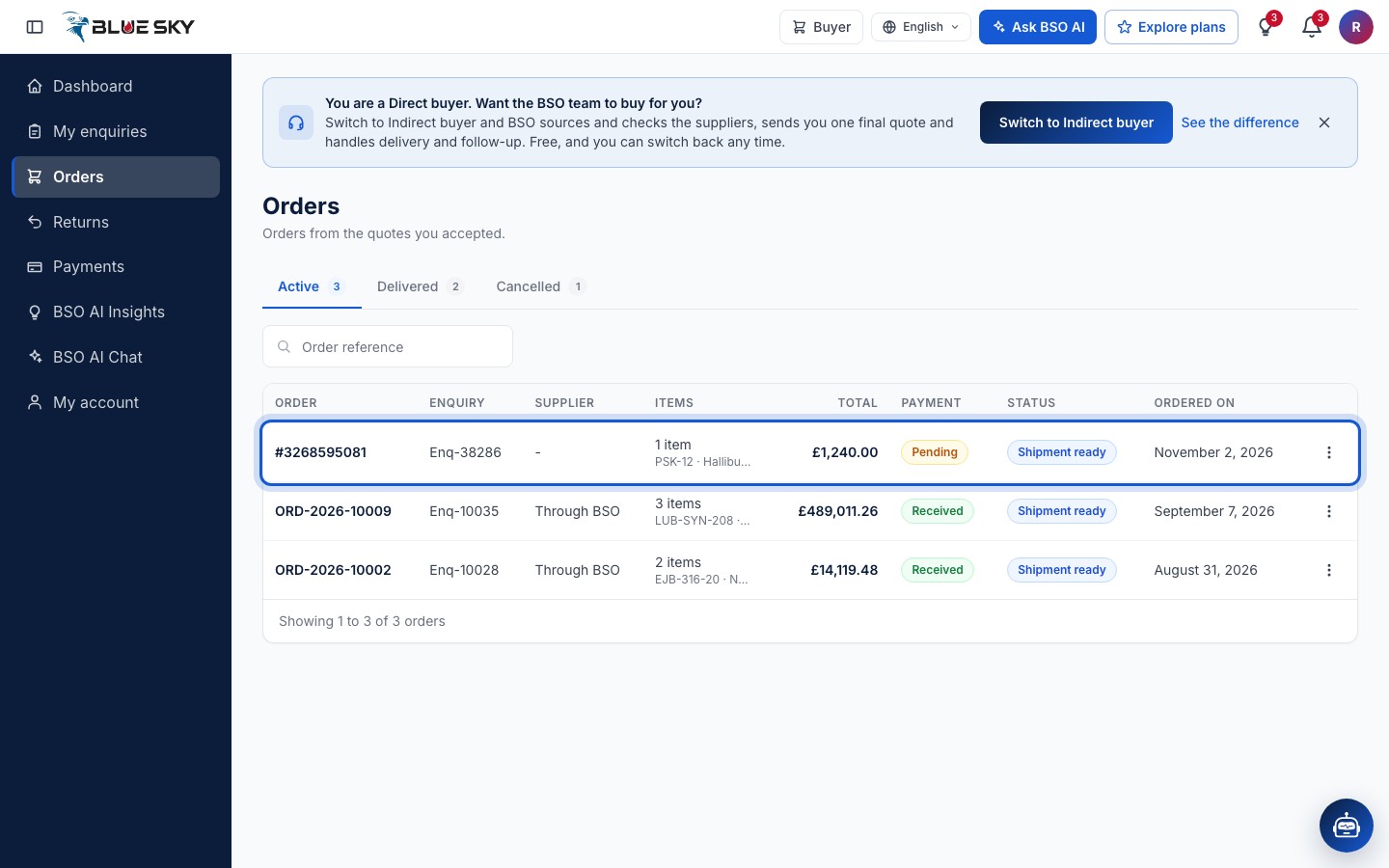
Your first payment creates the order. Open Orders in the left menu: the Active tab lists it with its order number, the enquiry, the supplier, the items, the total, the payment state and the date. See Track your order for what happens next and Payments and receipts for the receipt.
Good to know
- A declined card shows the message from Stripe and nothing is marked paid; try another card or pay by bank transfer.
- Every card payment has a Stripe receipt: open Payments in the left menu, then Download receipt on the row.
- Prices are as quoted, in pounds sterling. The amount of each stage is its share of the total shown on the enquiry.
- Next: Pay by bank transfer for the other way to pay, or Track your order.
Related guides
Still stuck? We are here.
Open BSO AI Chat inside the platform, or email the support team. Monday to Friday, 07:00 to 17:00 UK time.