

Any stage you can pay by card you can also pay from your bank. You transfer the amount to BSO's account, then tell BSO the transaction ID and upload the receipt. The stage shows Under review until the BSO team has matched the transfer, then Paid.
Before you start
- An enquiry with an accepted quote and a stage still to pay.
- Your online banking, and the receipt or confirmation of the transfer as a JPG, PNG or PDF.
Choose Bank transfer
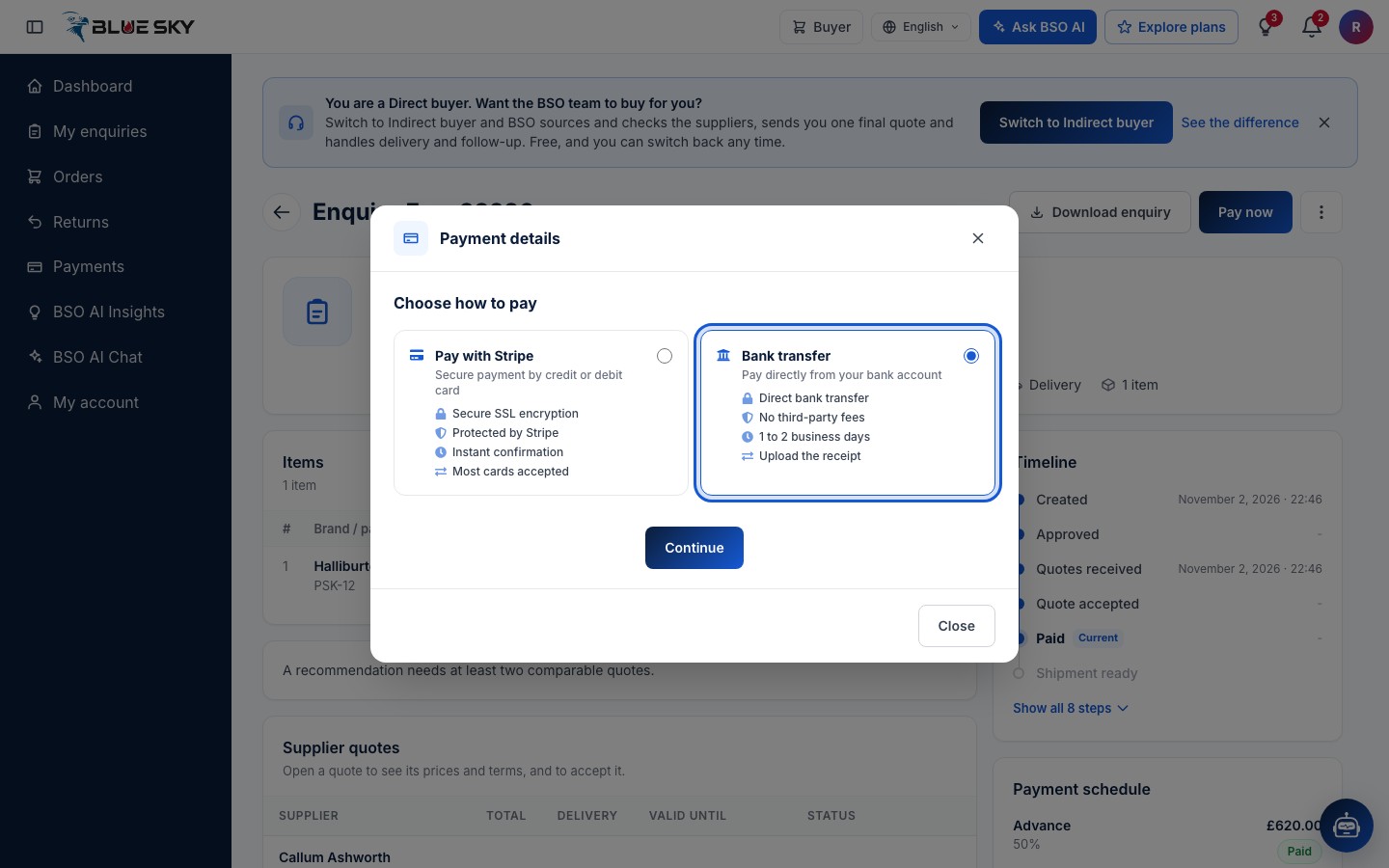
Open the enquiry and click Pay now. In Payment details pick Bank transfer (Pay directly from your bank account: Direct bank transfer, No third-party fees, 1 to 2 business days, Upload the receipt) and click Continue.
Make the transfer to BSO's account
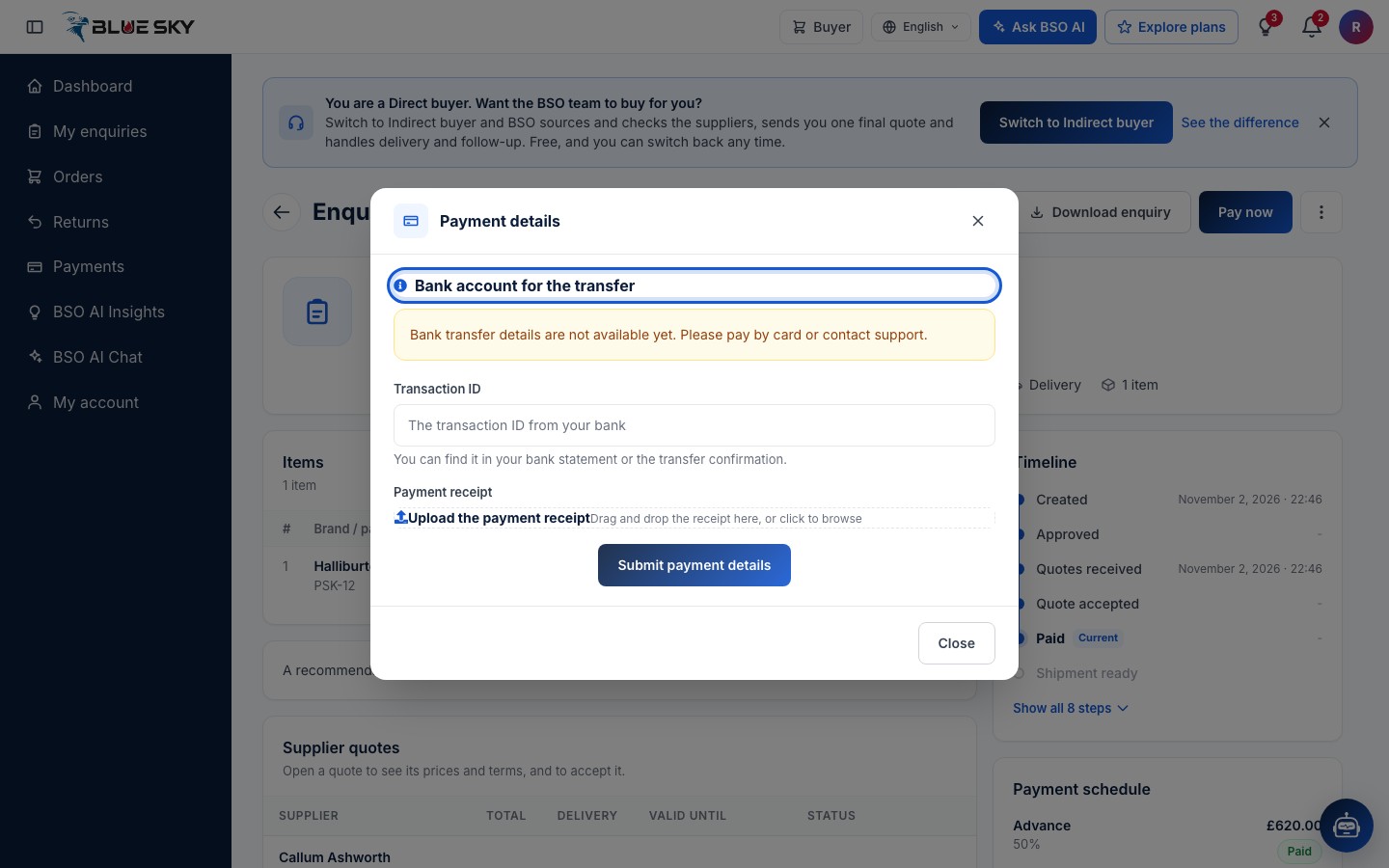
Bank account for the transfer shows BSO's bank details once the BSO team has set them up: the Account holder, Account number, Bank, SWIFT code and IBAN, and the Amount to transfer for this stage. Make the transfer from your bank for exactly that amount, and keep the receipt.
If the box says Bank transfer details are not available yet, the details have not been set up: pay by card or email support@bsoservices.ai.
Enter the transaction ID and upload the receipt
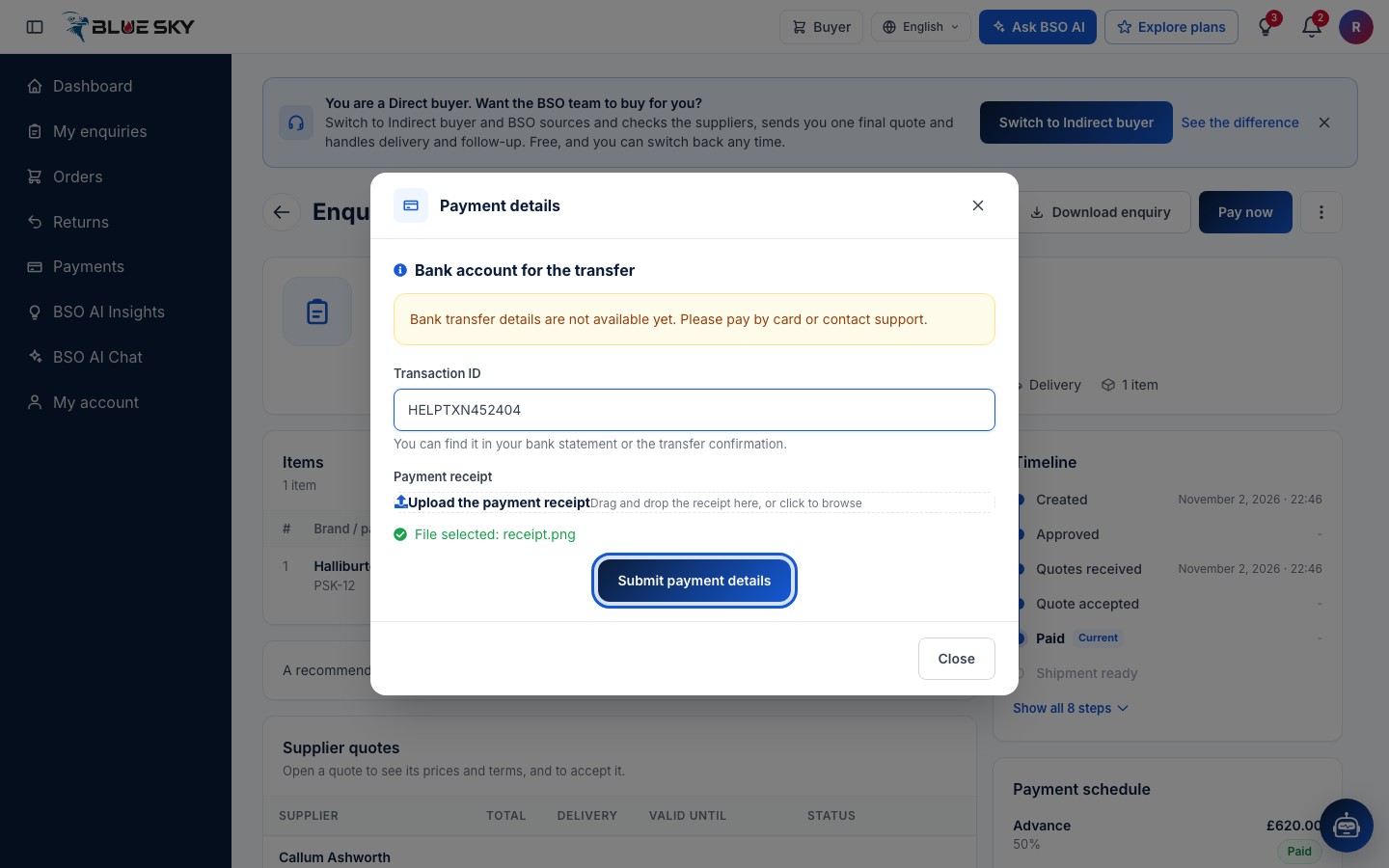
Transaction ID is the reference your bank gave the transfer: You can find it in your bank statement or the transfer confirmation. It has at least 5 and at most 50 characters.
Under Payment receipt, click Upload the payment receipt (or drag the file onto it). Use a JPG, PNG or PDF file of up to 5 MB; the box confirms File selected with its name. Click Submit payment details.
The stage is Under review
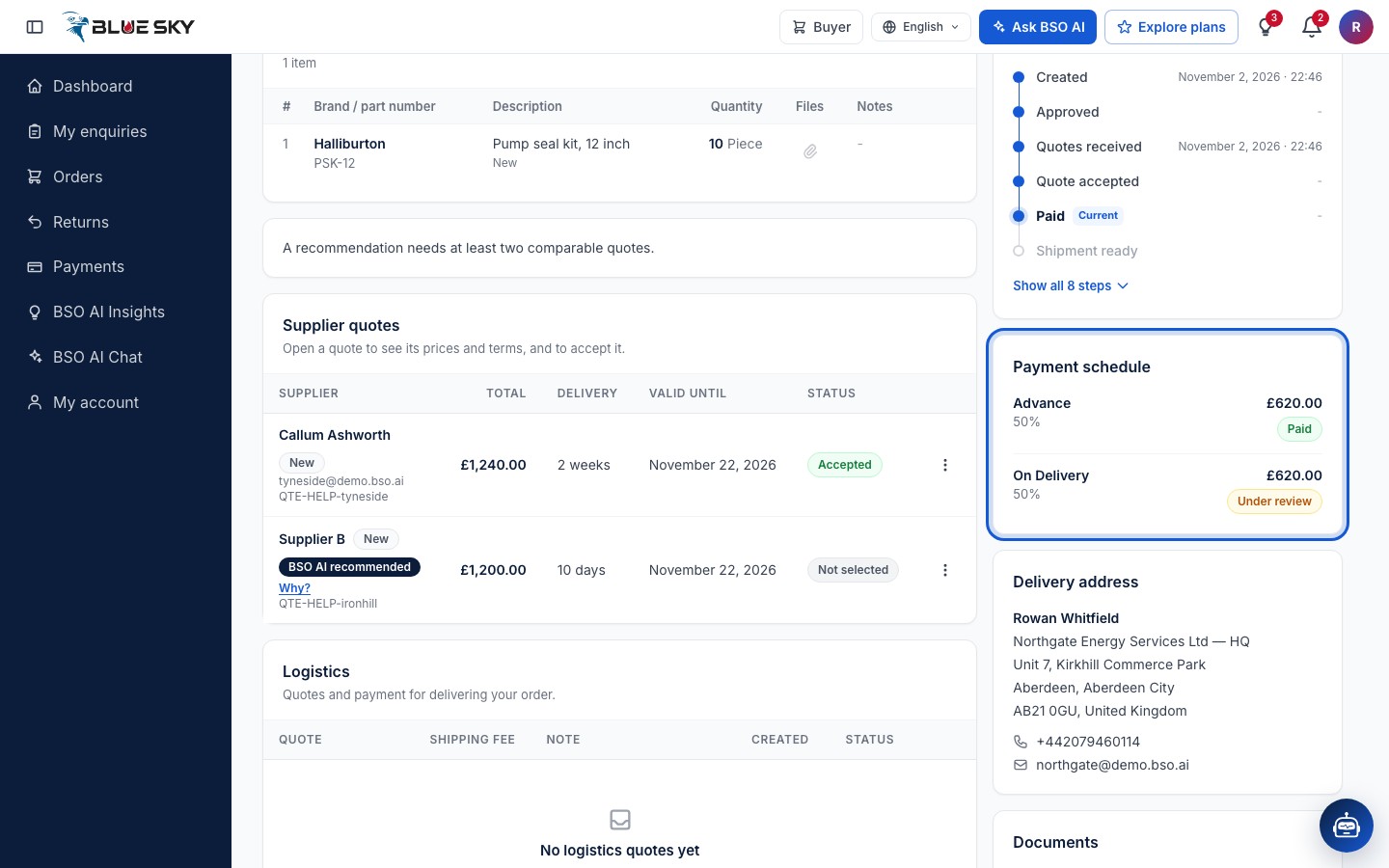
The page confirms Payment details submitted and the modal closes. In the Payment schedule the stage now reads Under review: the BSO team checks the transfer against the receipt and marks it Paid. You are told in the bell and by email when it is approved.
If this was your first payment on the enquiry, your order is created now, with the receipt upload, and appears under Orders. See Track your order.
Good to know
- On the Payments page the order has one row with one method (the first stage you paid) and one overall status, for example Card ending 4242 and Partly paid when you paid an earlier stage by card. The bank stage itself reads Under review under Payment stages in the payment's details, and in the enquiry's Payment schedule.
- Pay now disappears while a stage is under review and comes back for the next unpaid stage, so pay the stages one at a time.
- Refunds on a bank payment are made by BSO by bank transfer, not through the card network.
- Questions about a transfer? Email support@bsoservices.ai, Monday to Friday 07:00 to 17:00 UK time, with the enquiry reference and the transaction ID.
Related guides
Still stuck? We are here.
Open BSO AI Chat inside the platform, or email the support team. Monday to Friday, 07:00 to 17:00 UK time.