

Find a resource lists every job seeker who has listed themselves on BSO (the platform calls them resources; see List yourself as a job seeker for what they fill in). You can filter the list by skill, open a profile, and save people to a list of your own.
A person's email and phone number are shown to you only after they have applied to one of your jobs. Until then their profile carries a note instead. There is no chat on BSO; to reach someone who has not applied, invite them to a job (see Review applicants) and they apply.
Before you start
- The recruiter role (see Become a recruiter). Opening a profile needs an active recruiter plan or the All-in-One plan; the list itself is open to everyone.
Open Find a resource
Click Find a resource in the left menu. Each card shows the person's name, their headline, whether they are Open to work or Hired, their first skills, a View profile link and a bookmark button to save them. The search box takes a Name or title; the Skills box, Any skill until you pick one, filters by one or more skills.
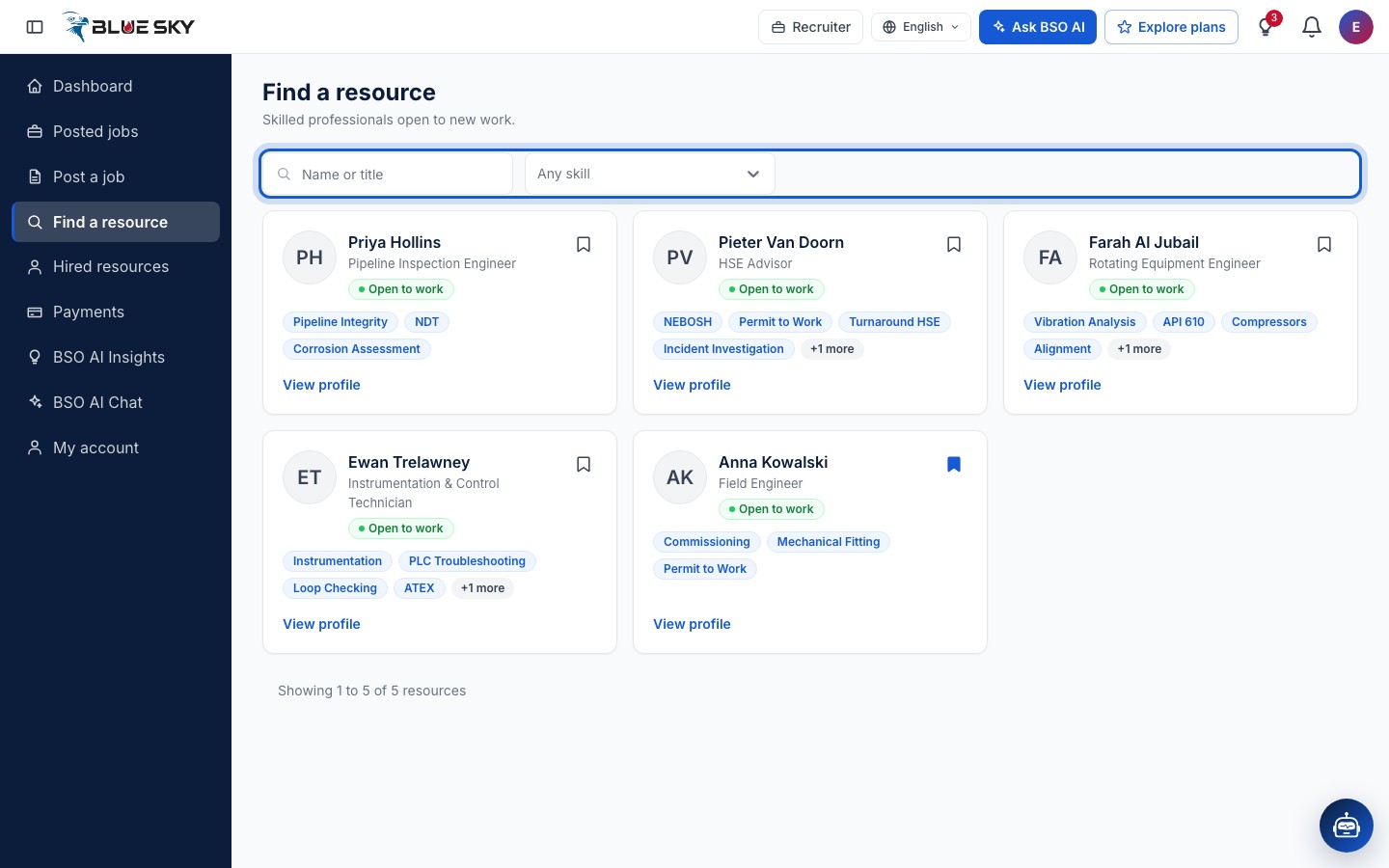
Filter by skill
Open the Skills box and pick a skill, or type to find one; the list offers a standard set of skills plus the skills of the people on the page you are looking at. Pick more than one to narrow further. The list refreshes as you choose; Clear filters resets the search and the skills.
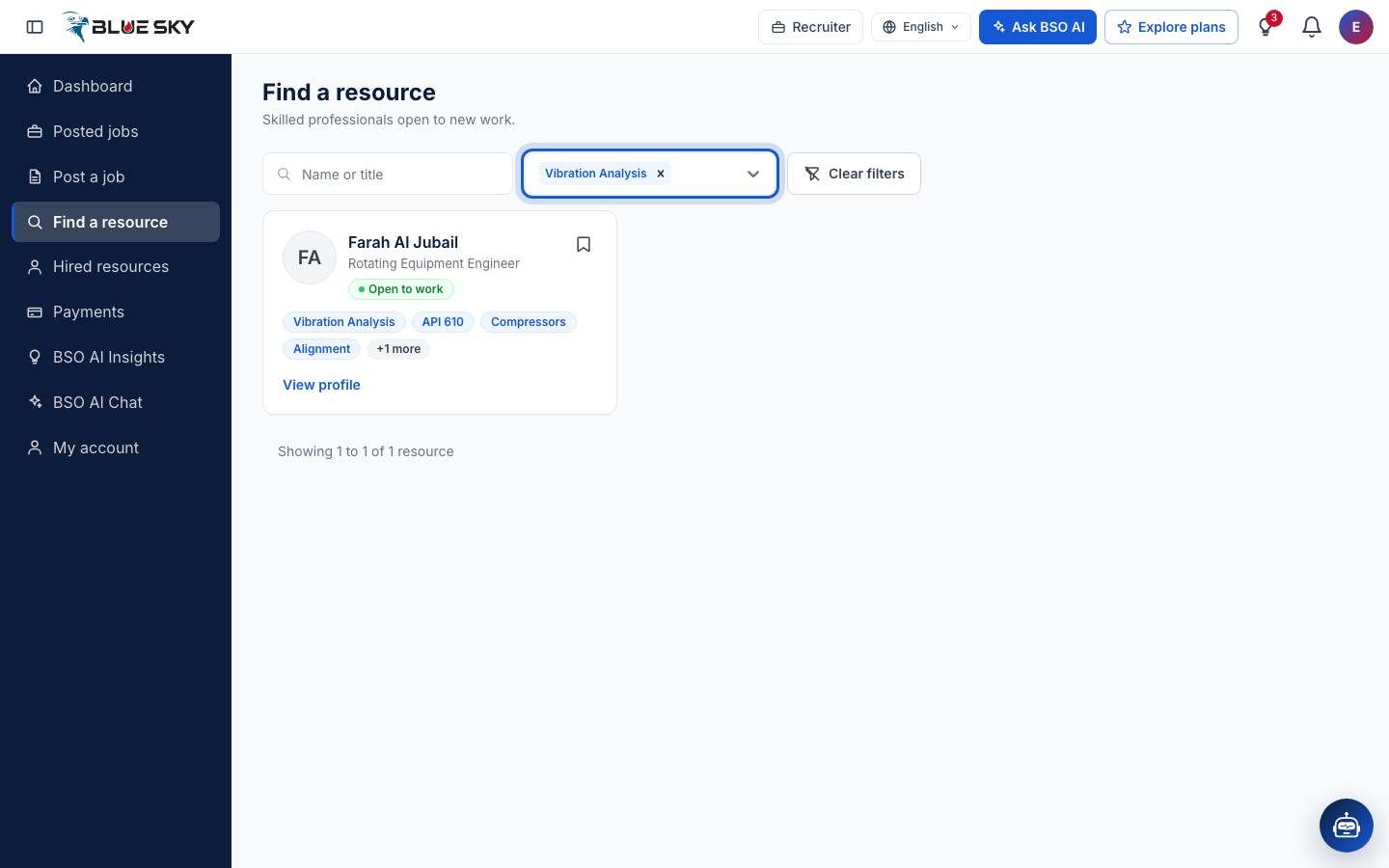
Open a profile
Click a card to open the Resource profile. The header shows the name, headline and availability; below are About, Experience, Education, Skills, the Resume (with a download when one was uploaded), Availability and rate, and Ratings and reviews.
When the person has not applied to any of your jobs, the header shows Contact details appear once they apply to one of your jobs in place of an email and phone. If your account has no active recruiter plan, a Purchase Required box opens instead of the profile.
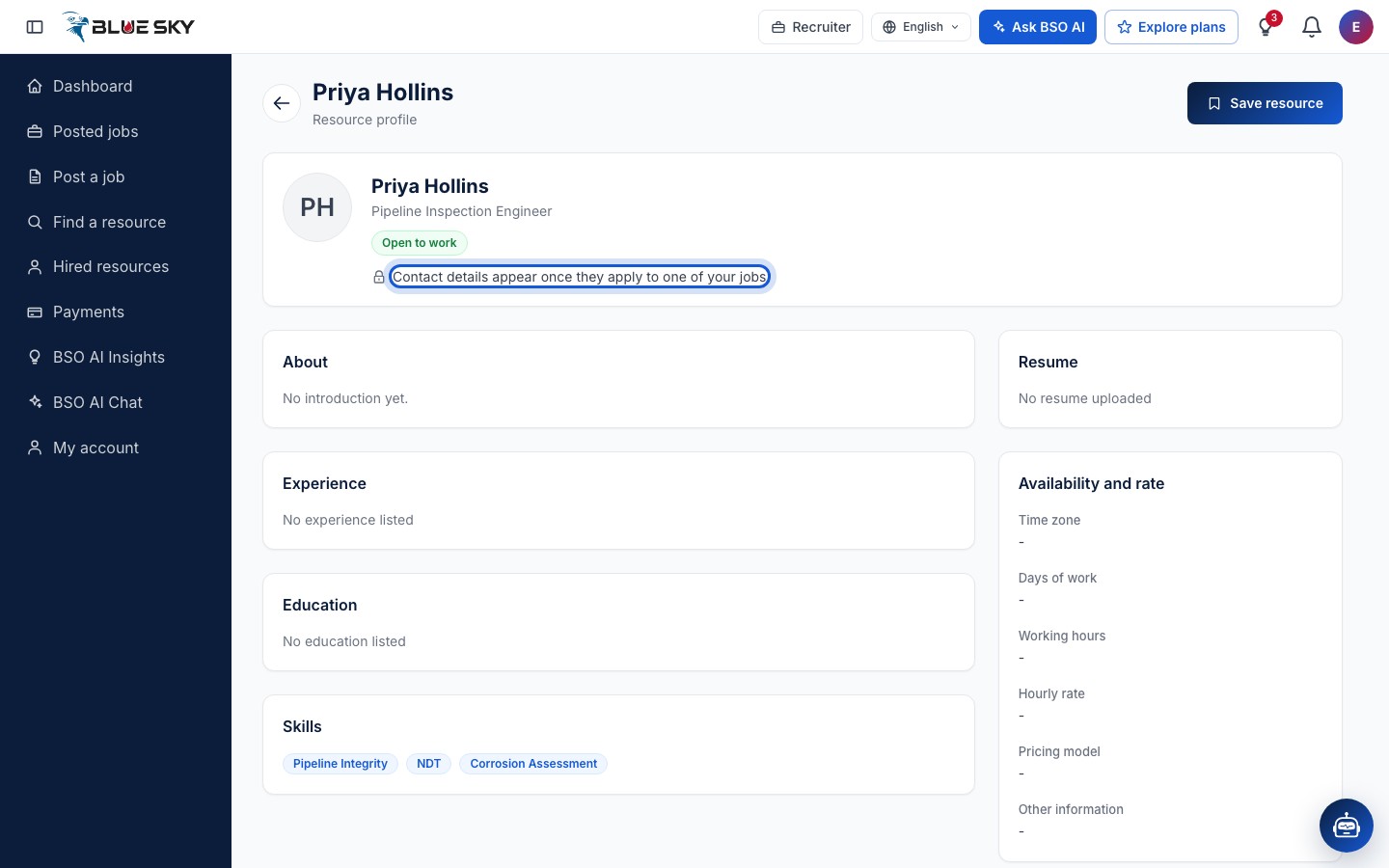
Save the person
Click Save resource at the top right of the profile. The page confirms with Resource saved and the button reads Saved; click it again to remove the person from your list. The bookmark on a card in Find a resource does the same without opening the profile.
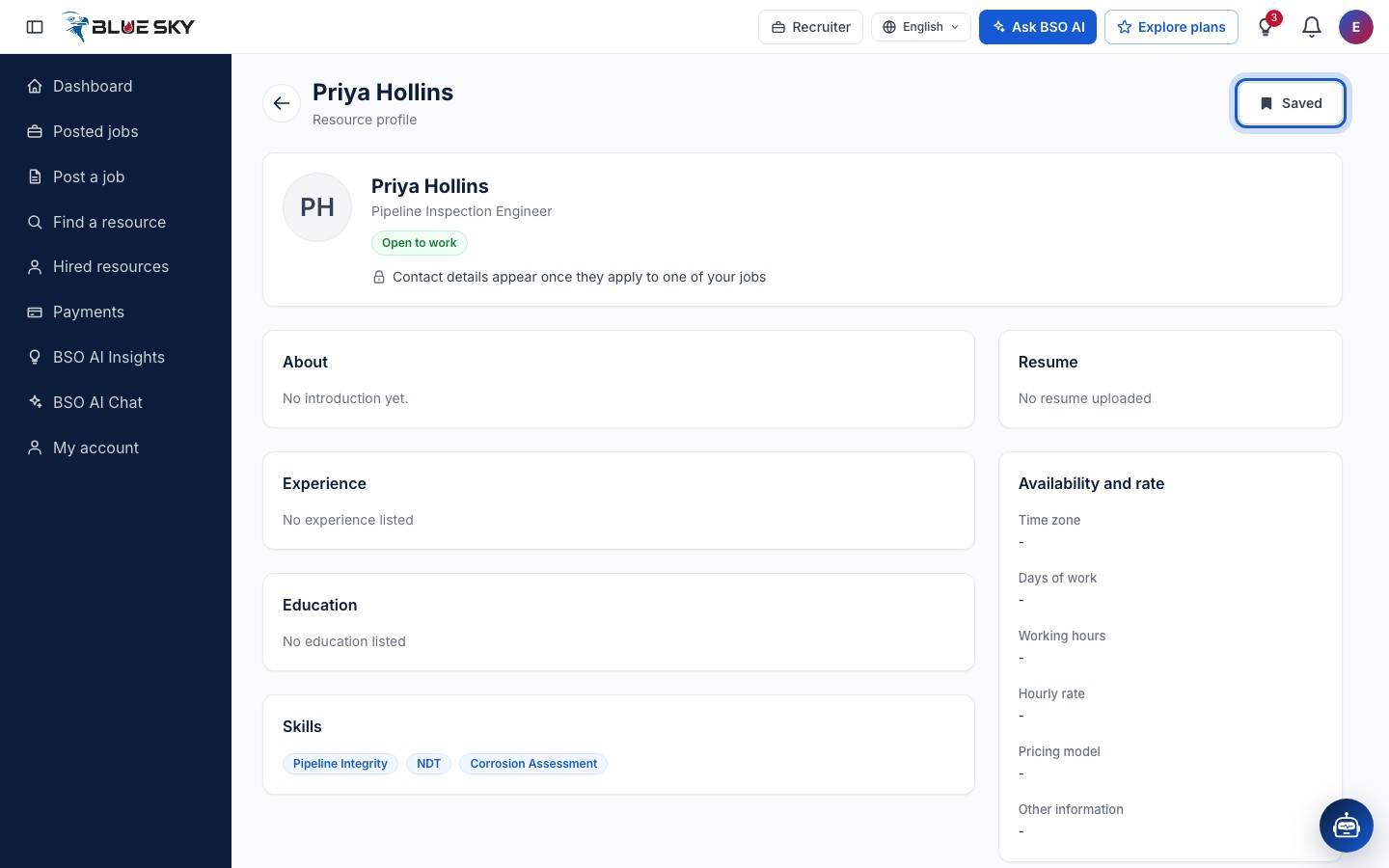
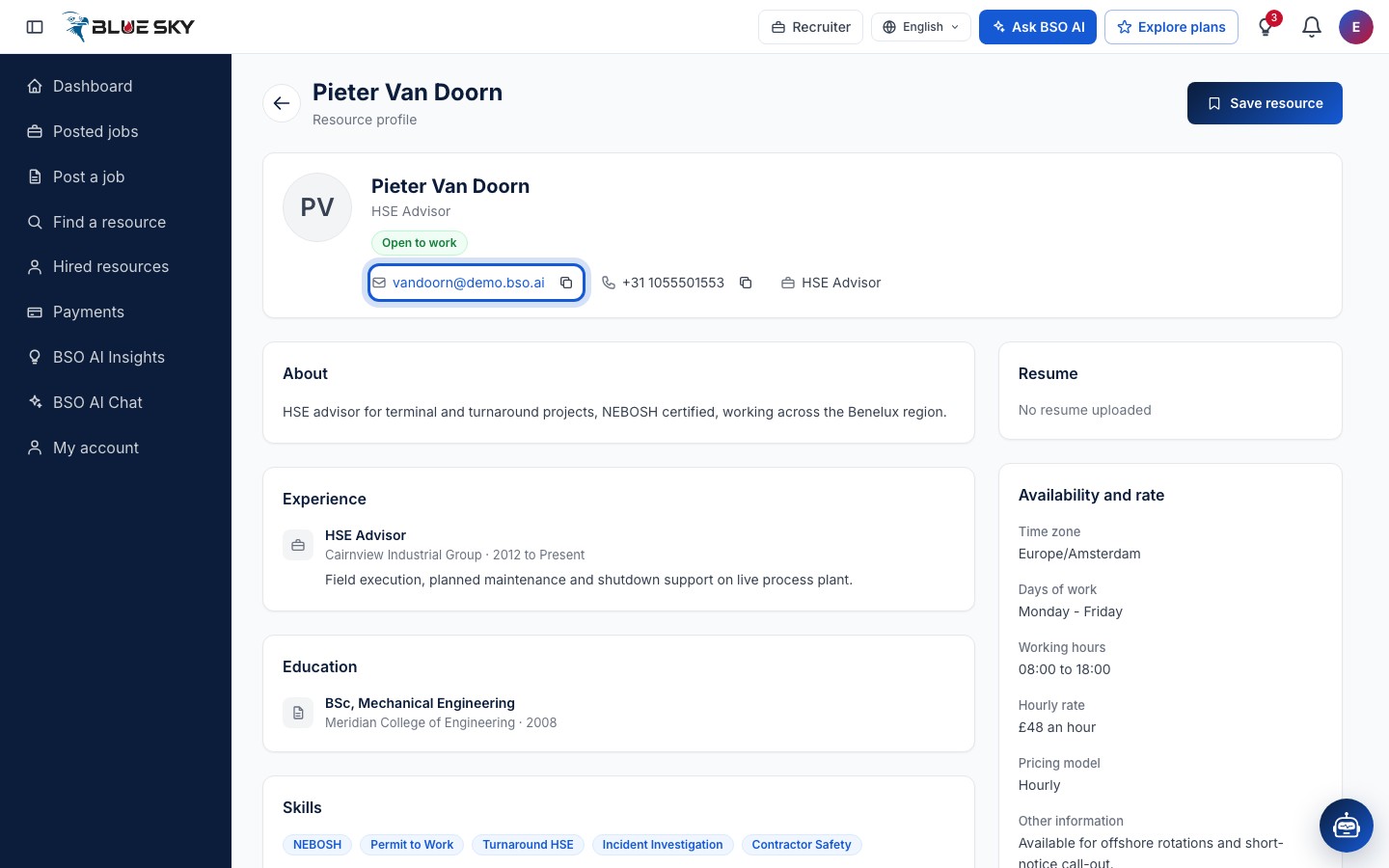
A profile with contact details
Once a person has applied to one of your jobs, their profile header shows their email address (click it to write to them) and phone number, with a copy button next to each. Any application counts, whatever its status.
Open Saved resources
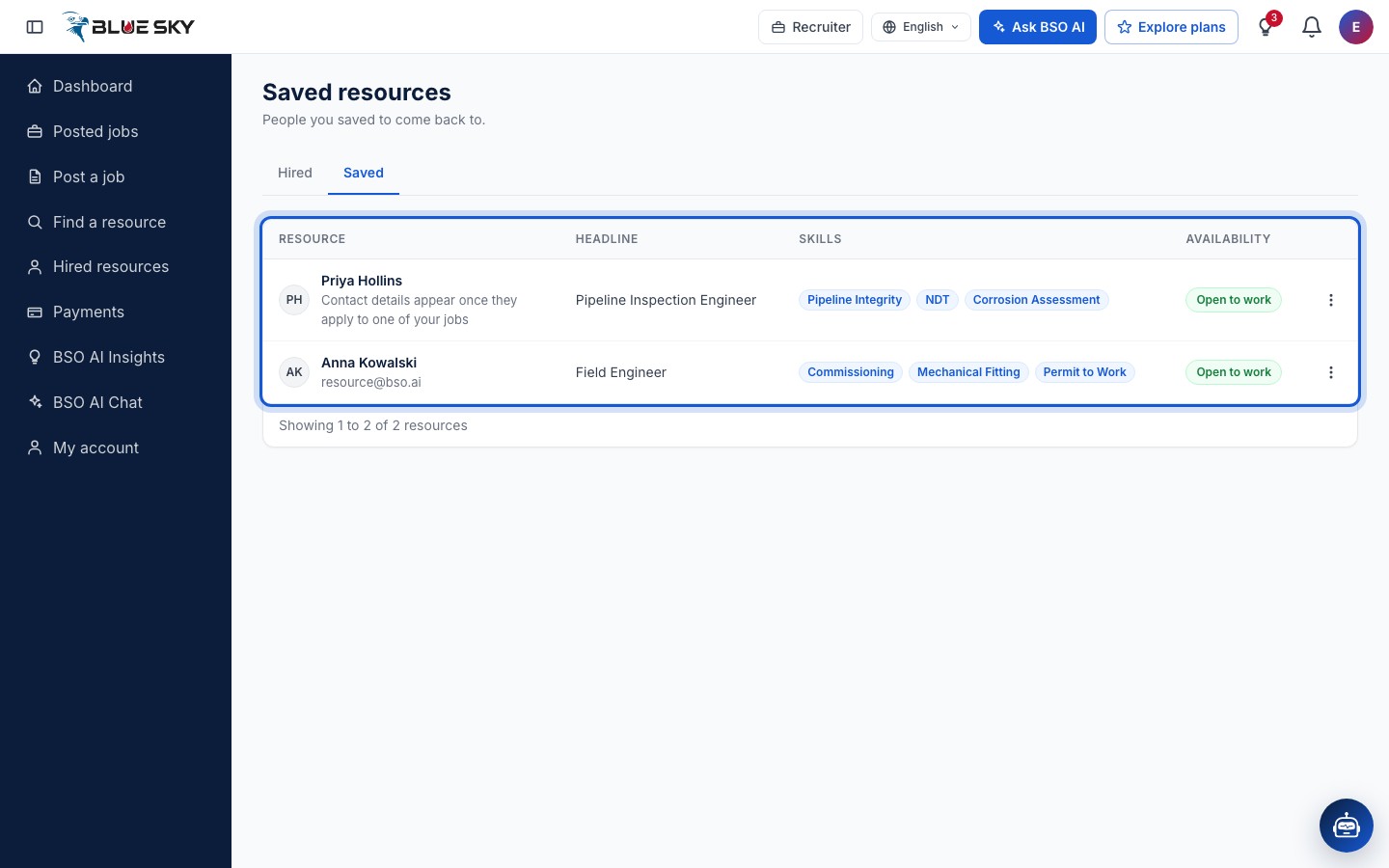
Go to Saved resources: it is the Saved tab next to Hired on the Hired resources page. The list has the columns Resource, Headline, Skills and Availability. A person who has not applied to your jobs shows the contact note under their name; one who has shows their email. More actions on a row offers View and Remove from saved, which asks you to confirm.
What visitors see
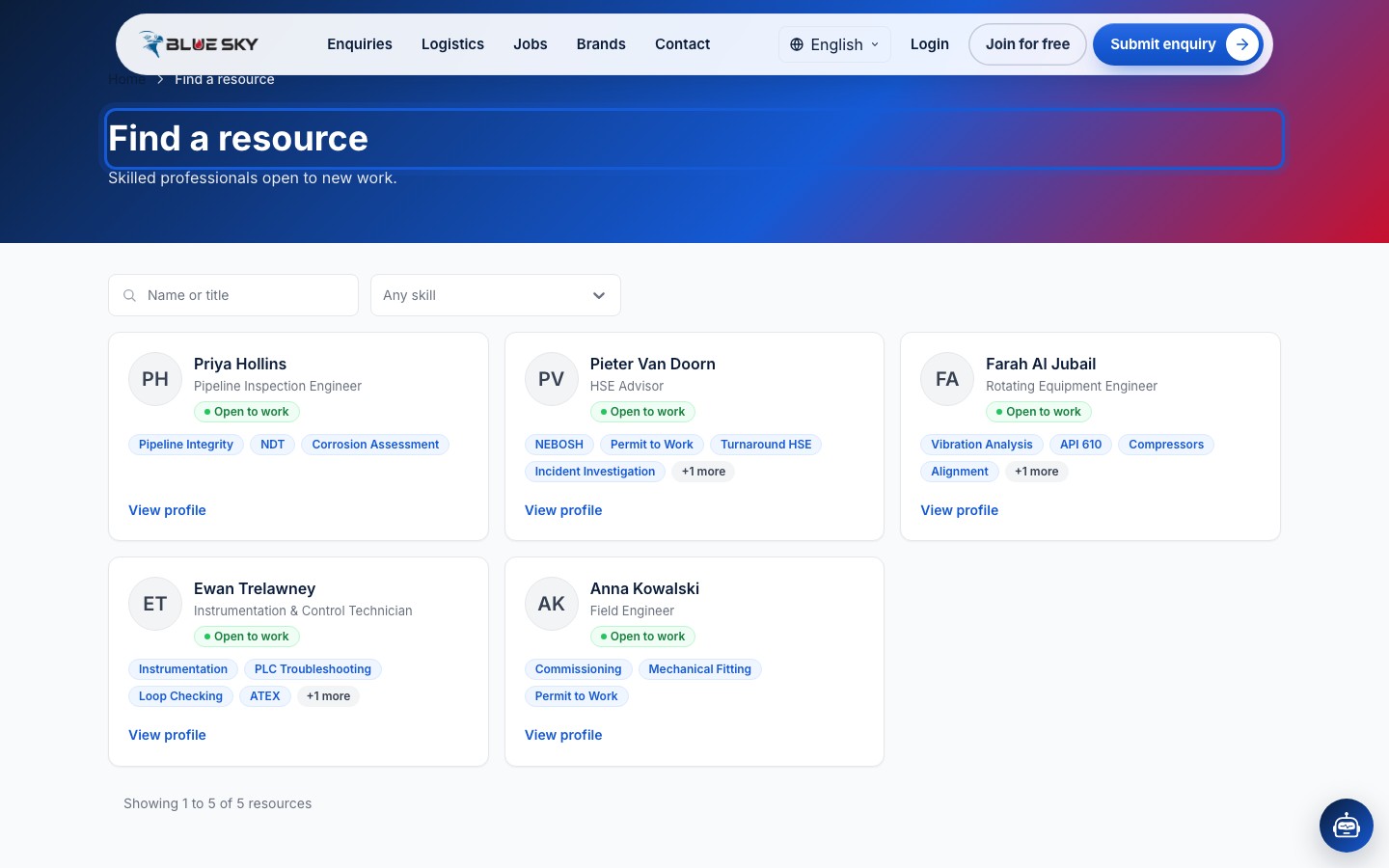
The same Find a resource page is on the public site at the same address, without the save buttons. The cards show the same names, headlines and skills.
Opening a profile needs the recruiter role
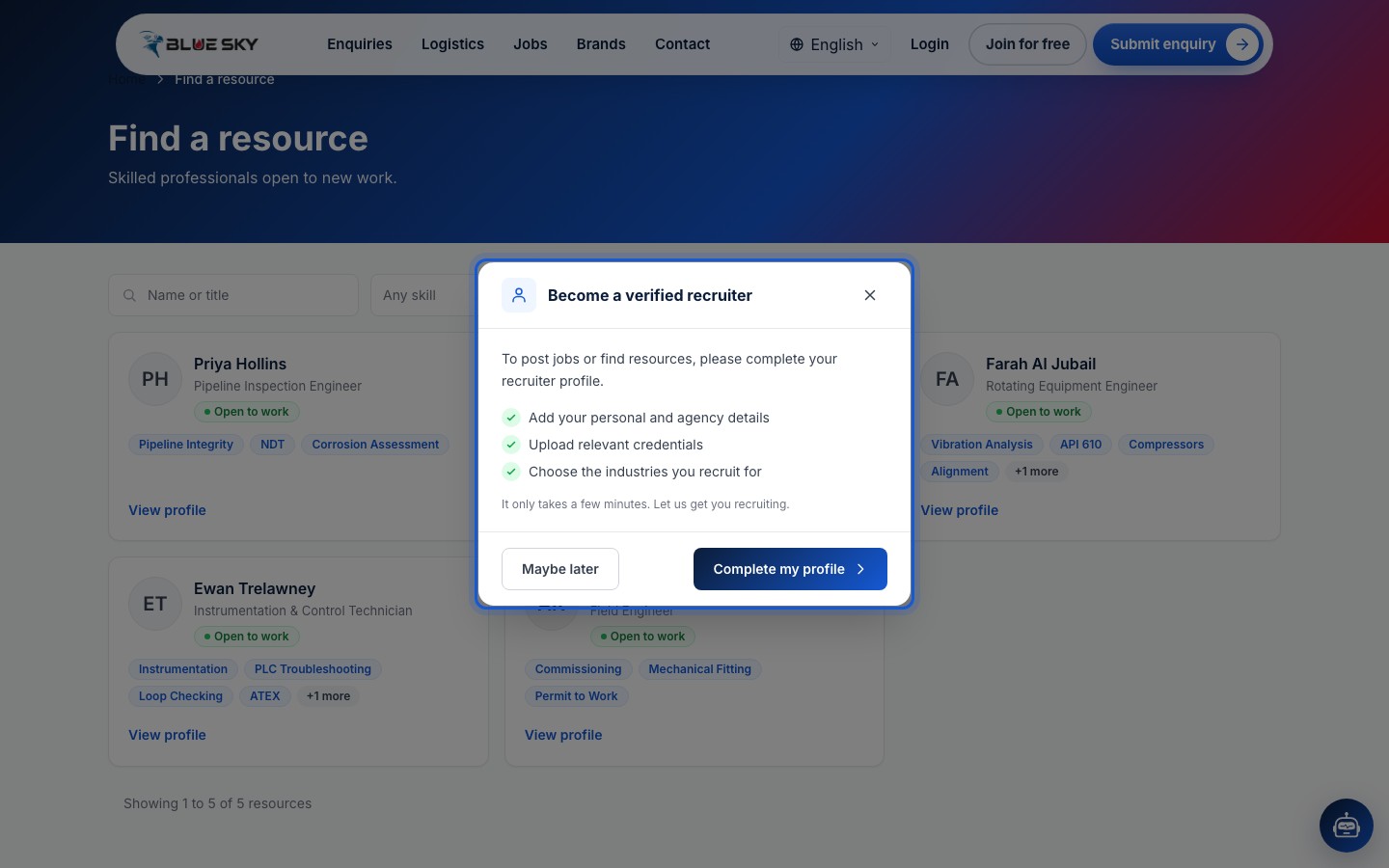
A visitor, or a signed-in account without the recruiter role, who clicks a card sees the box Become a verified recruiter. Complete my profile opens the recruiter profile form (a visitor is asked to sign in first); Maybe later closes the box. How to complete the profile and pick a plan is in Become a recruiter.
Good to know
- The Skills list offers a short standard list plus the skills of the people on the page you are looking at, so it grows as you page through. If a skill you expect is missing, nobody on that page has listed it.
- A person marked Hired is still listed and can still be saved; the chip comes from the hiring status they set on their own profile.
- People whose application you accepted are on the Hired tab next to Saved: see Hired resources and ratings.
Related guides
Still stuck? We are here.
Open BSO AI Chat inside the platform, or email the support team. Monday to Friday, 07:00 to 17:00 UK time.