

Being a job seeker on BSO is free. Recruiters find you by your skills and can invite you to apply; your email address and phone number reach a recruiter only once you have applied for one of their jobs. You need a BSO account first: see Create your account. In the role switch at the top of your dashboard this role is called Resource.
One account can hold several roles. If you already buy or sell on BSO, listing yourself adds the job seeker role next to the roles you have (see Add a role).
Before you start
- A BSO account, signed in.
- At least one job you have done and one qualification, with their years, and the time zone and hours you work.
- Your resume as a file is optional: you can add it later, or have BSO AI build one from what you fill in.
Open the Jobs page and click List yourself
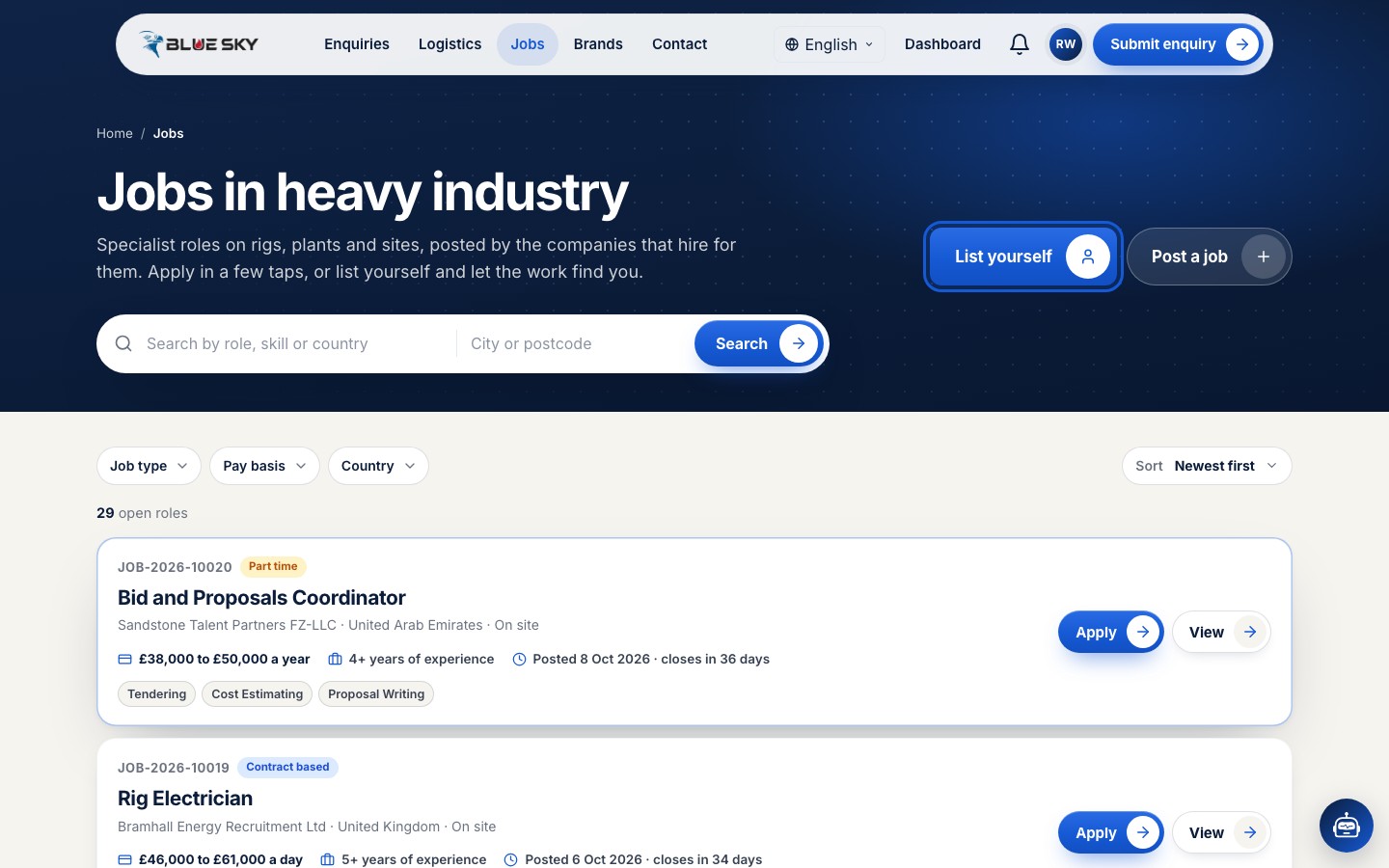
Sign in, then open Jobs from the top menu. Click List yourself at the top right of the page (the For job seekers card further down has a List yourself, it is free button that does the same). If you are not signed in, the button takes you to the sign-up page first.
Fill in your details
You will see Set up your job seeker profile at complete-profile-resource. It is one page, top to bottom, with no tabs. The panel beside it lists what you need: your name, phone and email, your work experience and education, and your time zone and working hours. Every field is tagged Required or Optional, and anything already on your account is filled in for you.
At the top, Add a photo is optional (JPG or PNG, up to 5 MB). Fill in your First name, Last name and Phone (pick the country code, then type the number without it). Email shows the address you signed up with; if you signed up with your phone number, type your email instead.
Profile title is the headline recruiters see, for example Rotating Equipment Engineer, up to 80 characters.
Already listed? Opening this page while you work as a job seeker takes you to Edit my profile instead.
Add your work experience and education
Under Work experience, add at least one role: the Job title, the Company, the year you started (From) and the year you left (To), or tick I work here now. The end year must not be before the start year. Key responsibilities is optional. Add work experience adds another entry, and Remove takes one away (the last one stays).
Under Education, add at least one qualification: the Degree, the Institution and the Year completed. Field of study is optional; choose it from the list. Add education adds another entry.
Set your time zone and working hours
Under Availability, choose your Time zone, then the Start time and End time of your working day. All three are required.
Tell recruiters more about you, if you like
Click More about you to open it. Everything in it is optional now and can be added or changed later from My profile. It opens by itself when some of these details are already saved.
Inside you can add your Specialisation, an Introduction (the short text recruiters read first), the Days you work, Other information (for example rotations, notice period or travel), your Hourly rate (GBP), which you can leave empty to agree the rate per job, and a Project pricing model.
Under Skills and Languages, type one, then click Add or press Enter. Each one shows as a chip and the × removes it. Skills matter most: recruiters search for job seekers by skill, and BSO AI scores applications on skills, experience, rate, availability and how many of your applications to other jobs were accepted.
Add your resume, or build one with BSO AI
Resume sits at the end of More about you and is optional. To use your own, click Add a file under Resume file and choose a PDF, a Word file or an image, up to 5 MB. It shows as a chip with its name; the × removes it, so you can add a different one. Recruiters can download it from your profile.
No resume to hand? Fill in the rest of the page first, then click Build my resume with BSO AI. BSO AI builds a PDF resume from the details on this page (the button says Building your resume while it works), and it replaces the resume file below.
Click Finish
The line above the button reminds you that your portfolio, certifications and testimonials can be added later from My profile. Click Finish.
If something required is missing or wrong, the page marks it in red with a short message and takes you to the first one. When everything is in, you will see Job seeker profile saved: the job seeker role is on your account and your dashboard opens as a job seeker. There is no extra confirmation box.
Tell recruiters whether you are open to work
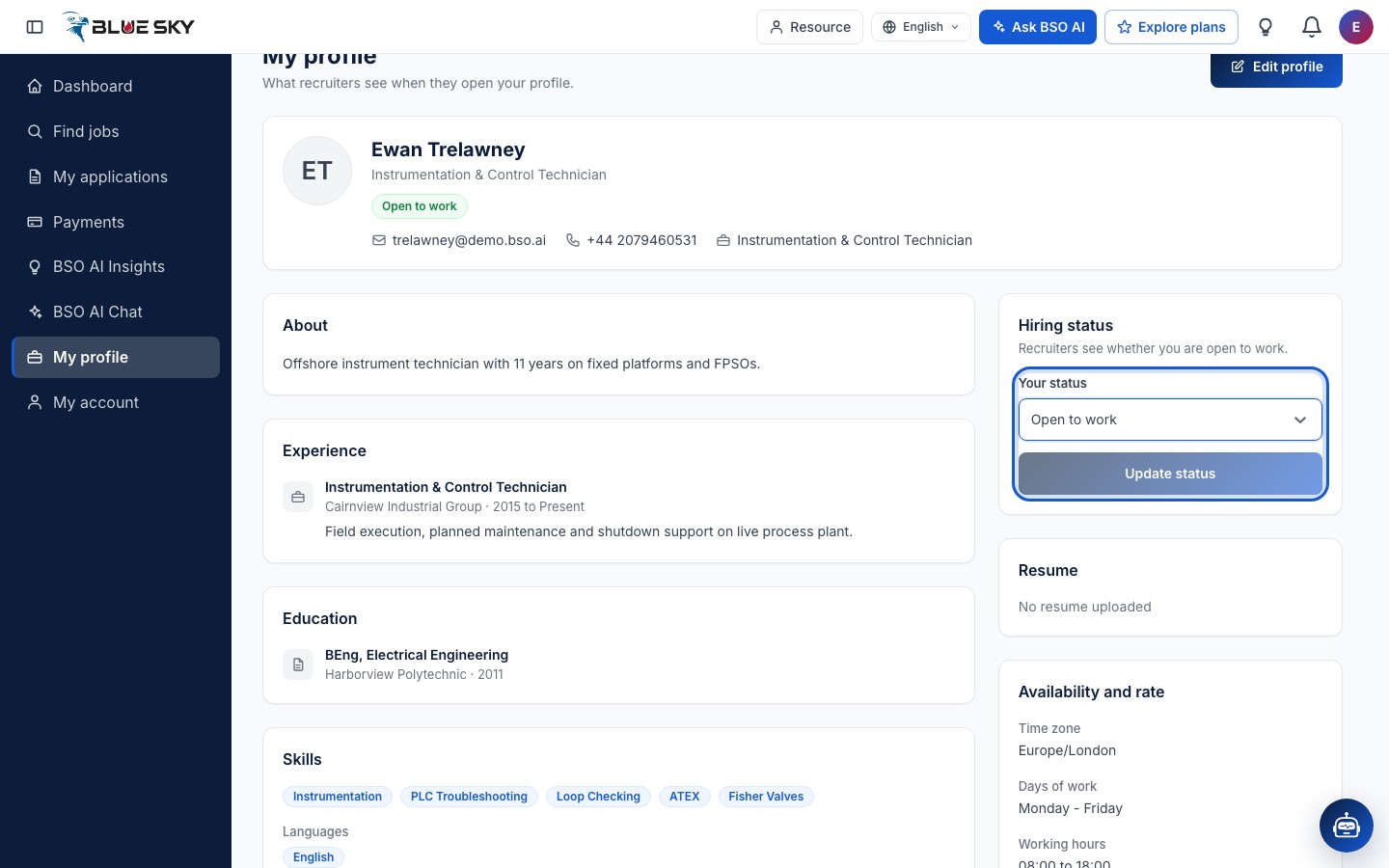
From now on your dashboard menu has Find jobs, My applications and My profile (the screenshots from here on show an account that already holds the job seeker role). Open My profile: it shows your profile as recruiters see it, with a Hiring status card on the right. Under Your status choose Open to work or Hired and click Update status. Recruiters can only invite you to apply while you are Open to work.
Keep your profile and resume up to date
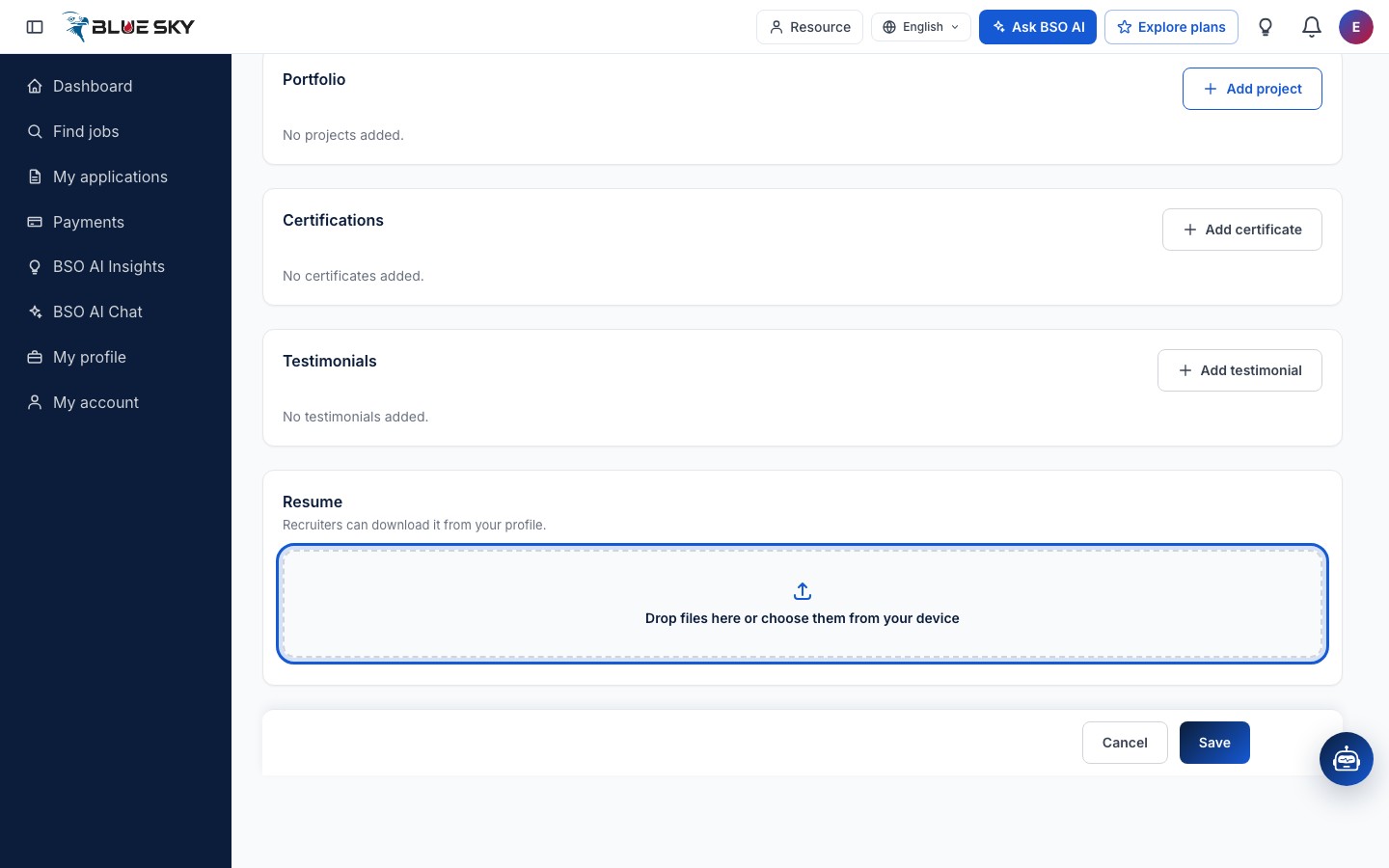
Click Edit profile on My profile to open Edit my profile. It has one section per part of your profile: Personal details, About, Experience, Education, Skills and languages, Availability and rate, Portfolio, Certifications, Testimonials and Resume. Fields marked required must be filled before you can save.
Drop your resume file into the Resume section; recruiters can download it from your profile, and it is offered as your CV whenever you apply for a job. Click Save when you are done, or Cancel to leave without saving.
Good to know
- Listing yourself costs nothing: there is no plan to buy and no card to add.
- Your email address and phone number are shown to a recruiter only after you apply for one of their jobs. Until then they see your profile without contact details.
- If the page says We could not open your profile, check your connection and click Try again. Nothing you typed is saved until you click Finish.
- Next: Find and save jobs and Apply for a job.
Related guides
Still stuck? We are here.
Open BSO AI Chat inside the platform, or email the support team. Monday to Friday, 07:00 to 17:00 UK time.