

You apply from the job page in your dashboard. The form asks for the recruiter's screening questions and your CV as a file; a cover letter is optional, typed in the box or added as a file (PDF, Word or image, up to 5 MB). Only job seekers can apply: another role is sent to the job seeker set-up first: see List yourself as a job seeker.
You can apply once per job, and only while the job is open: not after its application deadline, and not once the recruiter has closed it.
Before you start
- Your CV as a file. If you uploaded one on your profile, it is offered to you on the form.
- Optionally a cover letter, typed or as a file.
- Your answers to the screening questions the recruiter set, if the job has any.
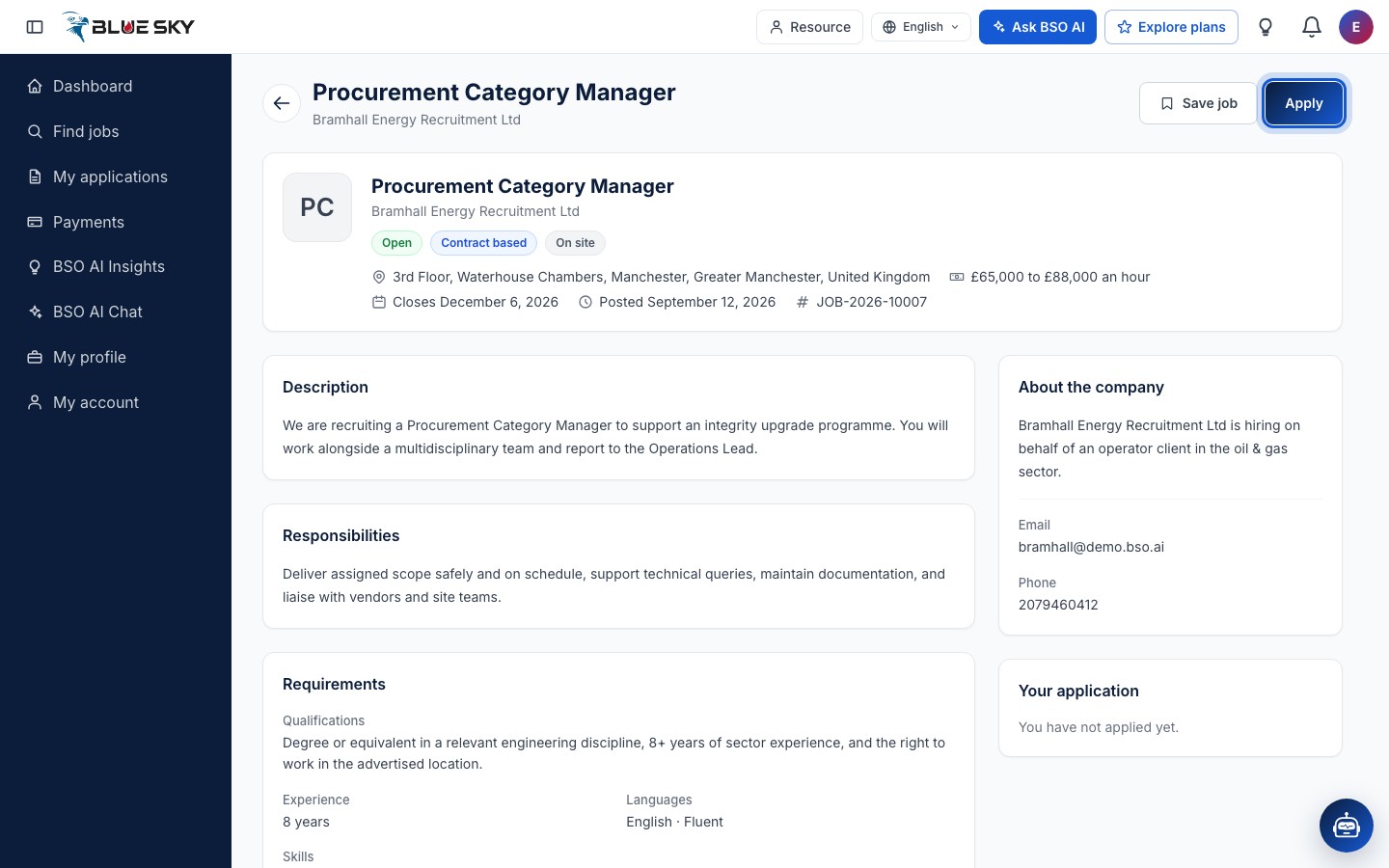
Open the job and click Apply
Find the job (see Find and save jobs) and open it. Check the Application deadline in the header. The Your application card on the right reads You have not applied yet. Click Apply at the top right. Apply is greyed out when the job is no longer taking applications.
Read the form
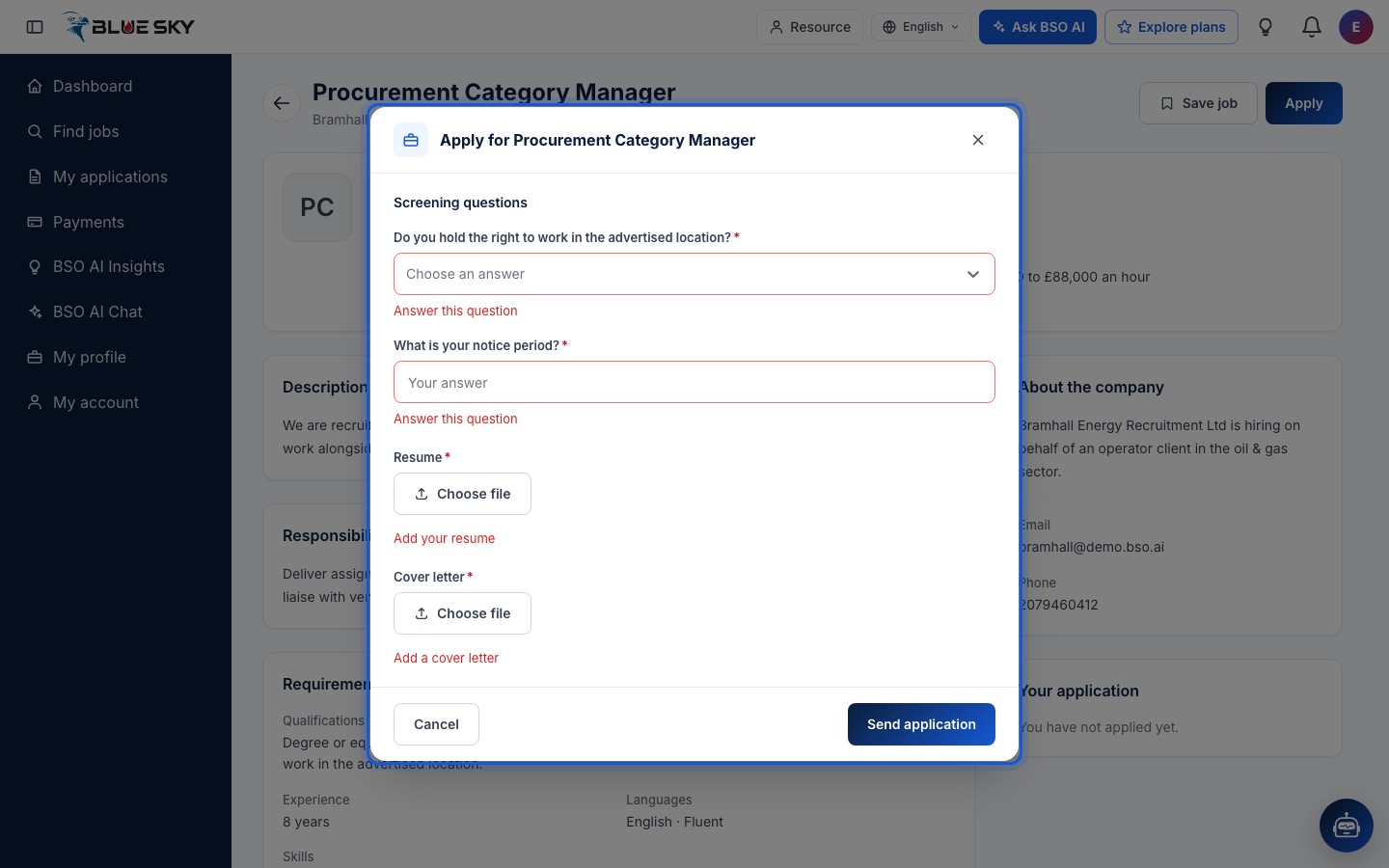
A form opens, headed Apply for followed by the job title. Under Screening questions are the recruiter's questions; the ones marked required must be answered. Some take a typed answer, others a choice from a list.
Below the questions are Resume (Choose file) and Cover letter (a text box, or Choose file). If you sent the form empty, it would ask you to answer each required question and add your resume; the cover letter is optional.
Answer the questions and add your files
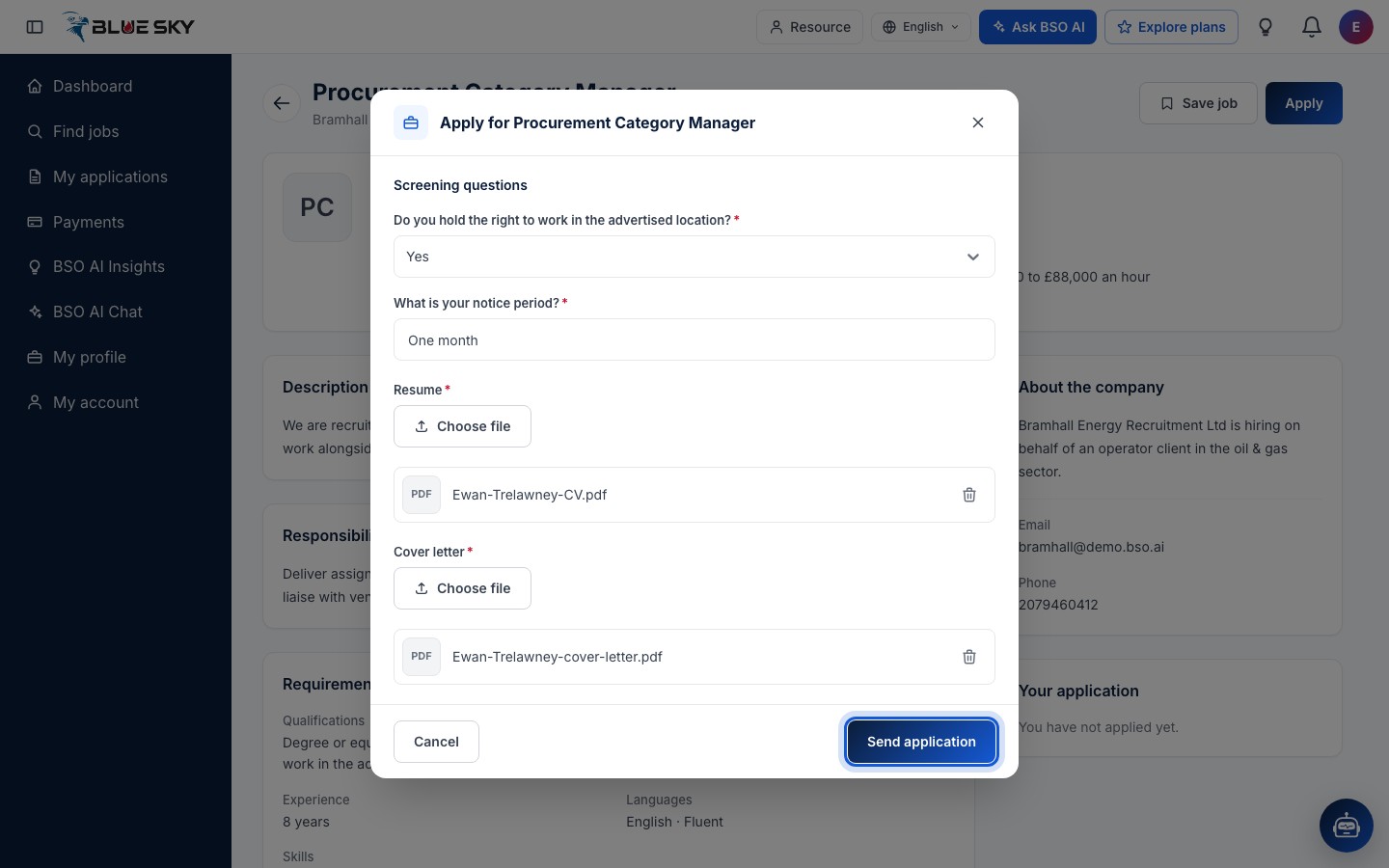
Answer every required question. Click Choose file under Resume and pick your CV file (if your profile already holds a CV it is listed here already), then type a cover letter or Choose file under Cover letter if you want to add one. Each file uploads straight away and is listed under its button, with a bin to remove it. Click Send application.
Your application is sent
The page confirms Application sent, and the Apply button becomes Applied and cannot be clicked again. You also get an email confirming that your application is pending.
Check what you sent
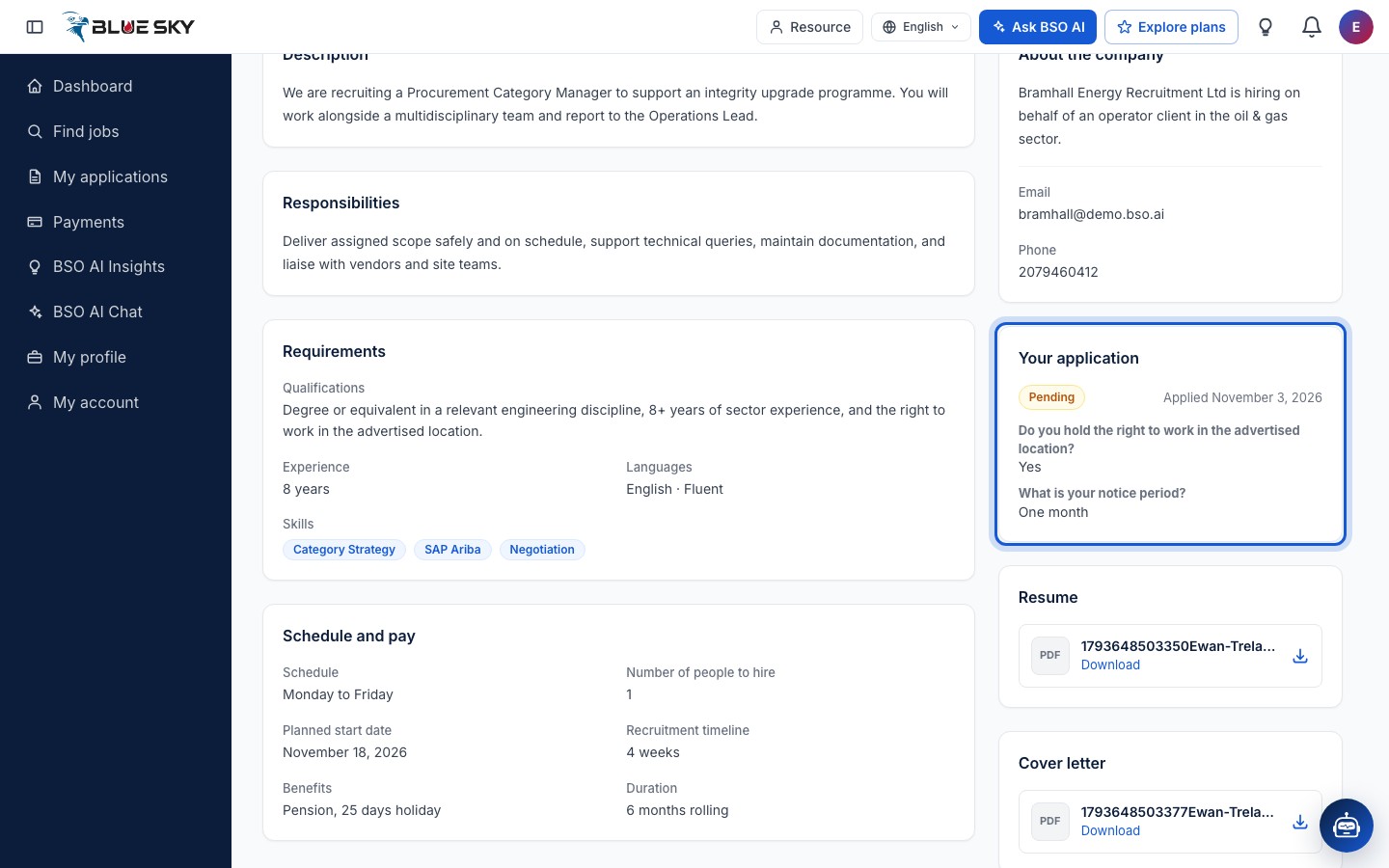
The Your application card now shows Pending, the date you applied and your answers. The Resume card under it lists the file you sent with a Download link, and the Cover letter card shows your text or file when you added one. This is also what the recruiter opens when they review your application.
Find it on My applications
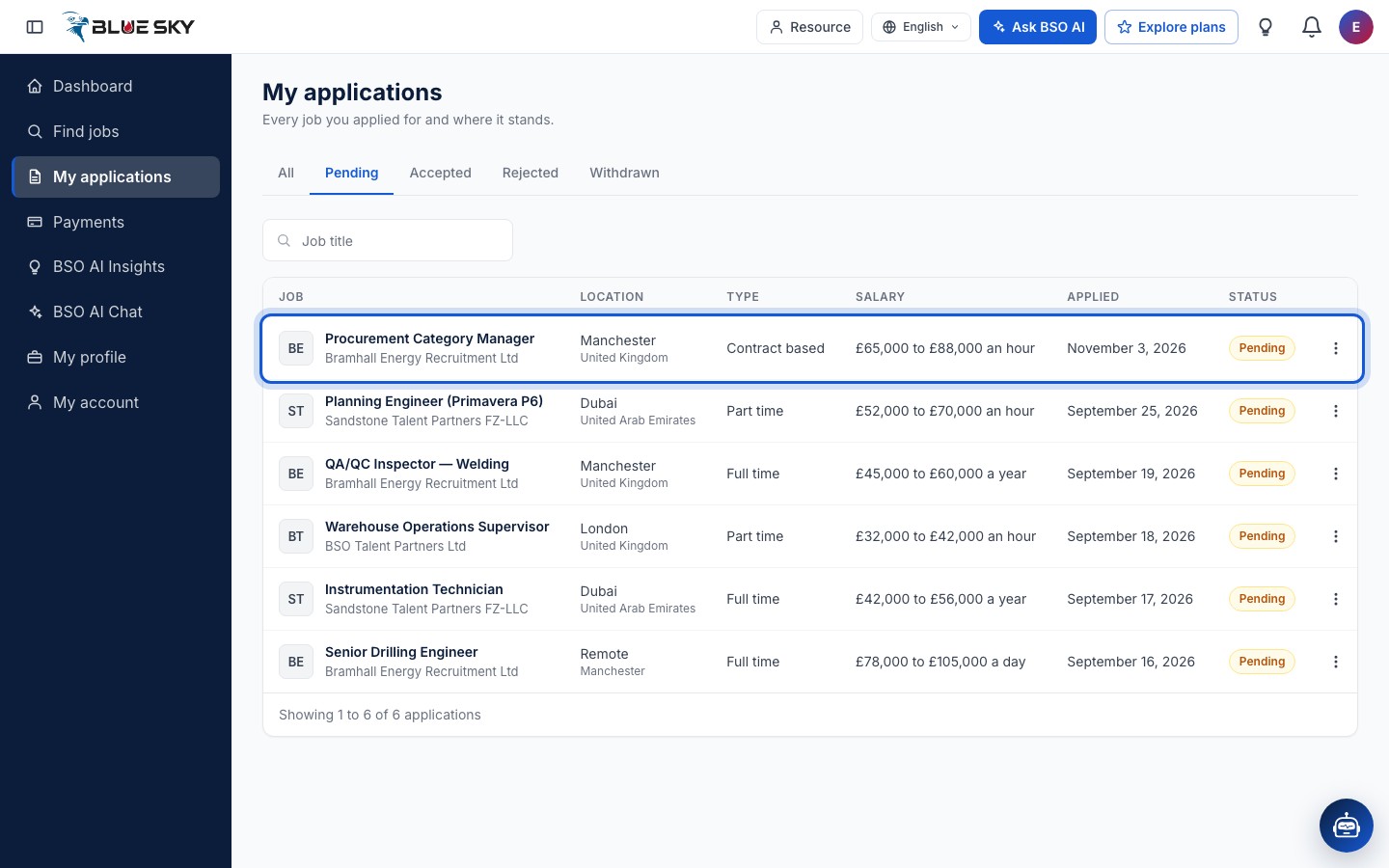
Open My applications from the left menu: the job is listed with the date you applied and the status Pending, and the Pending tab shows only the applications still waiting for an answer. From here on, see Track your applications.
Good to know
- One application per job: once you have applied, the Apply button reads Applied and the form does not open again.
- The recruiter sees your profile, your files and your answers, and from that moment also your email address and phone number. BSO AI scores applications out of 100 on skills, experience, rate, availability and how many of your applications to other jobs were accepted, to help the recruiter sort them.
- There is no chat between you and the recruiter on BSO. Their decision reaches you by email and in your dashboard: see Track your applications. How the recruiter sees your application: Review applicants.
Related guides
Still stuck? We are here.
Open BSO AI Chat inside the platform, or email the support team. Monday to Friday, 07:00 to 17:00 UK time.