

Everyone who applies for one of your jobs (see Apply for a job for their side) is listed on that job's applicants page with their experience, the date they applied, their status and a BSO AI match score out of 100. From the same page you accept or reject an application, open the full application, ask BSO AI for candidates who have not applied yet and invite them, and save a person to come back to.
An application is Pending until you decide. Accept and Reject each ask you to confirm, and the candidate is told by email (an accepted application is called shortlisted there, with a note that the team will be in touch with the interview details) and, when they have allowed BSO notifications on a device, in the bell of their dashboard. Accepted people also appear under Hired resources.
Before you start
- A posted job with at least one application.
- An active recruiter plan or the All-in-One plan, and the company name, registration number, incorporation date and VAT number on your recruiter profile: Accept and Reject need all of them.
Open the applicants of a job
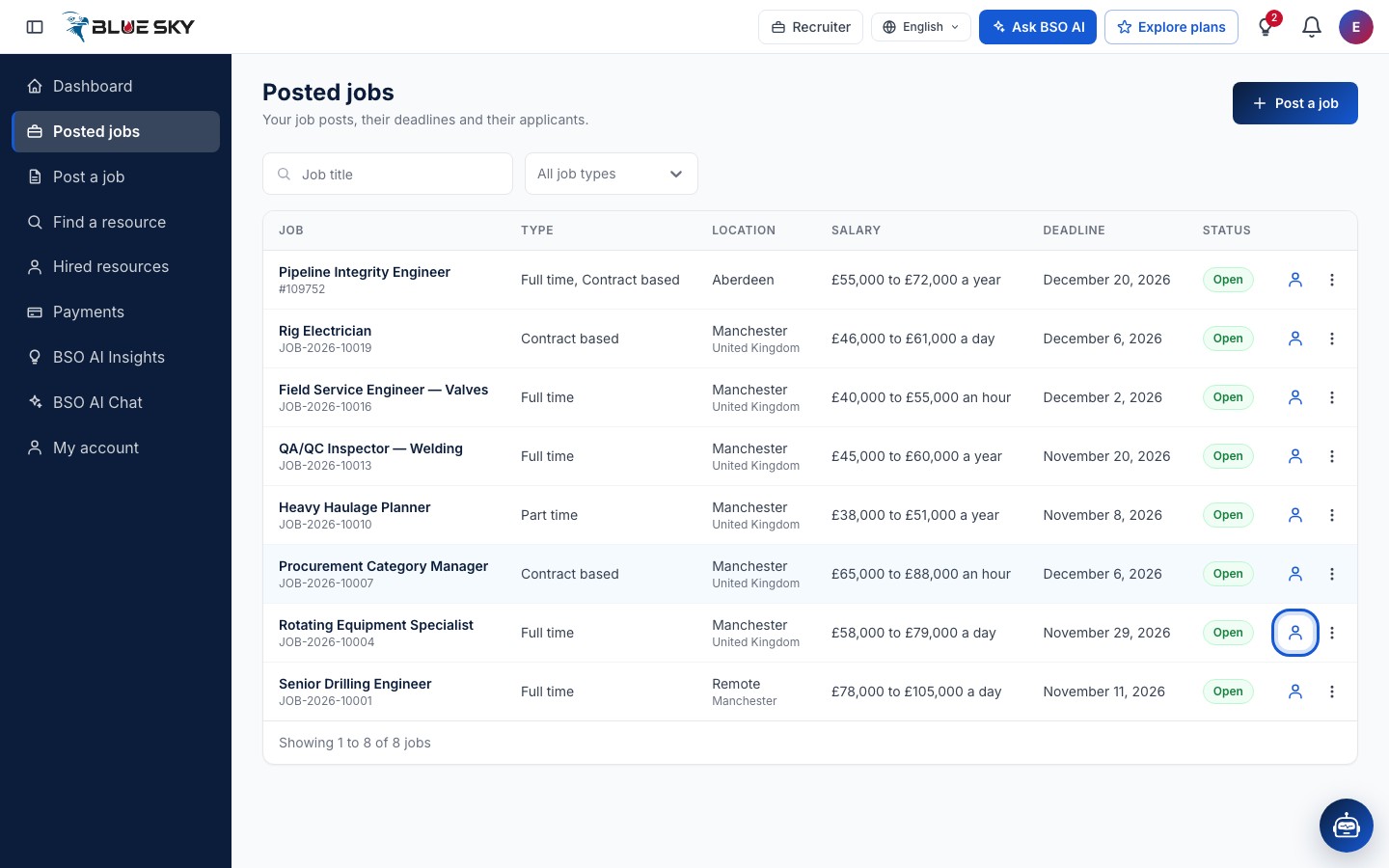
On Posted jobs, click the View applicants button at the end of the job's row, or open the job page and click View applicants at the top (the button shows the count). How to find your jobs is in Manage your jobs.
Read the list
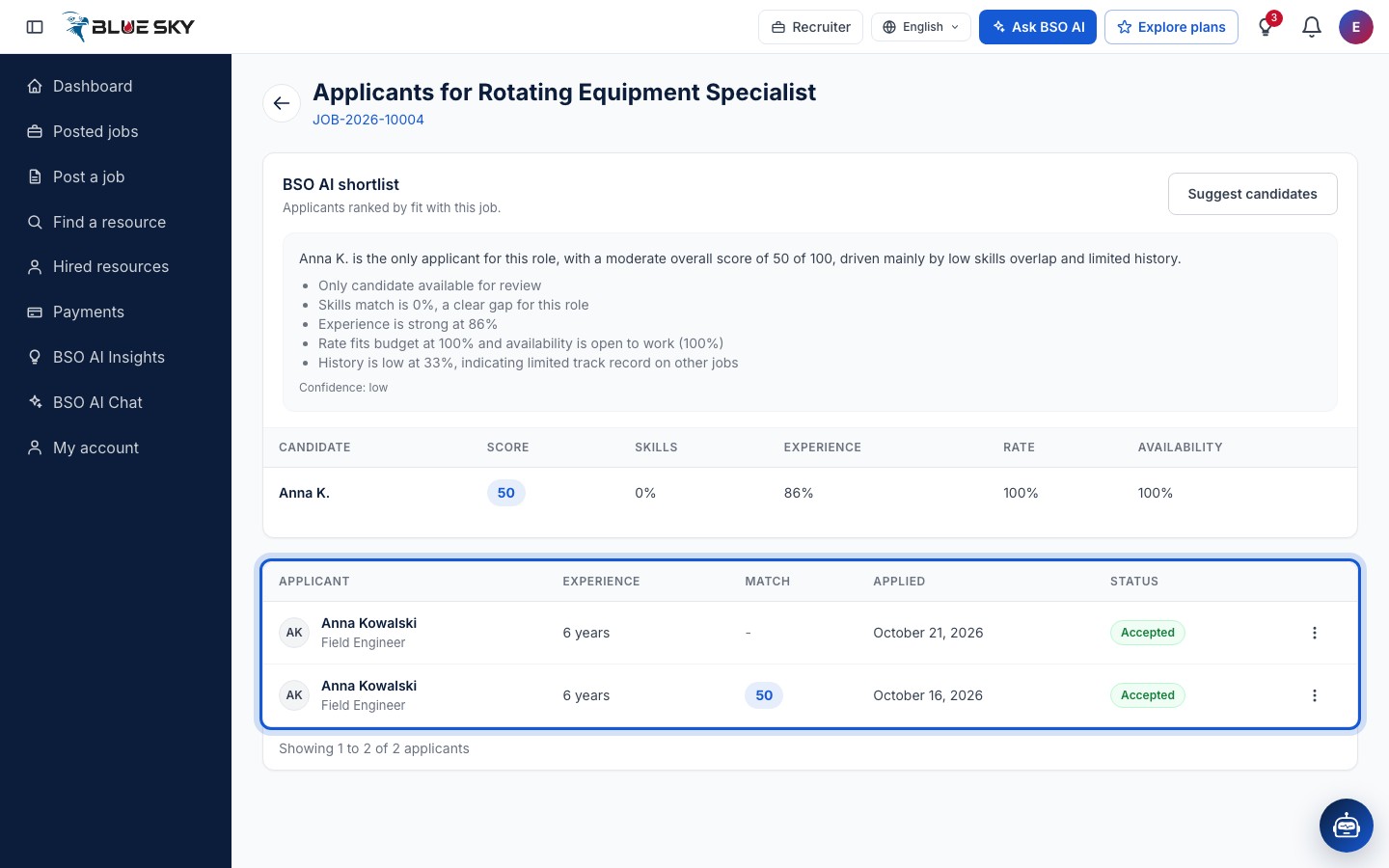
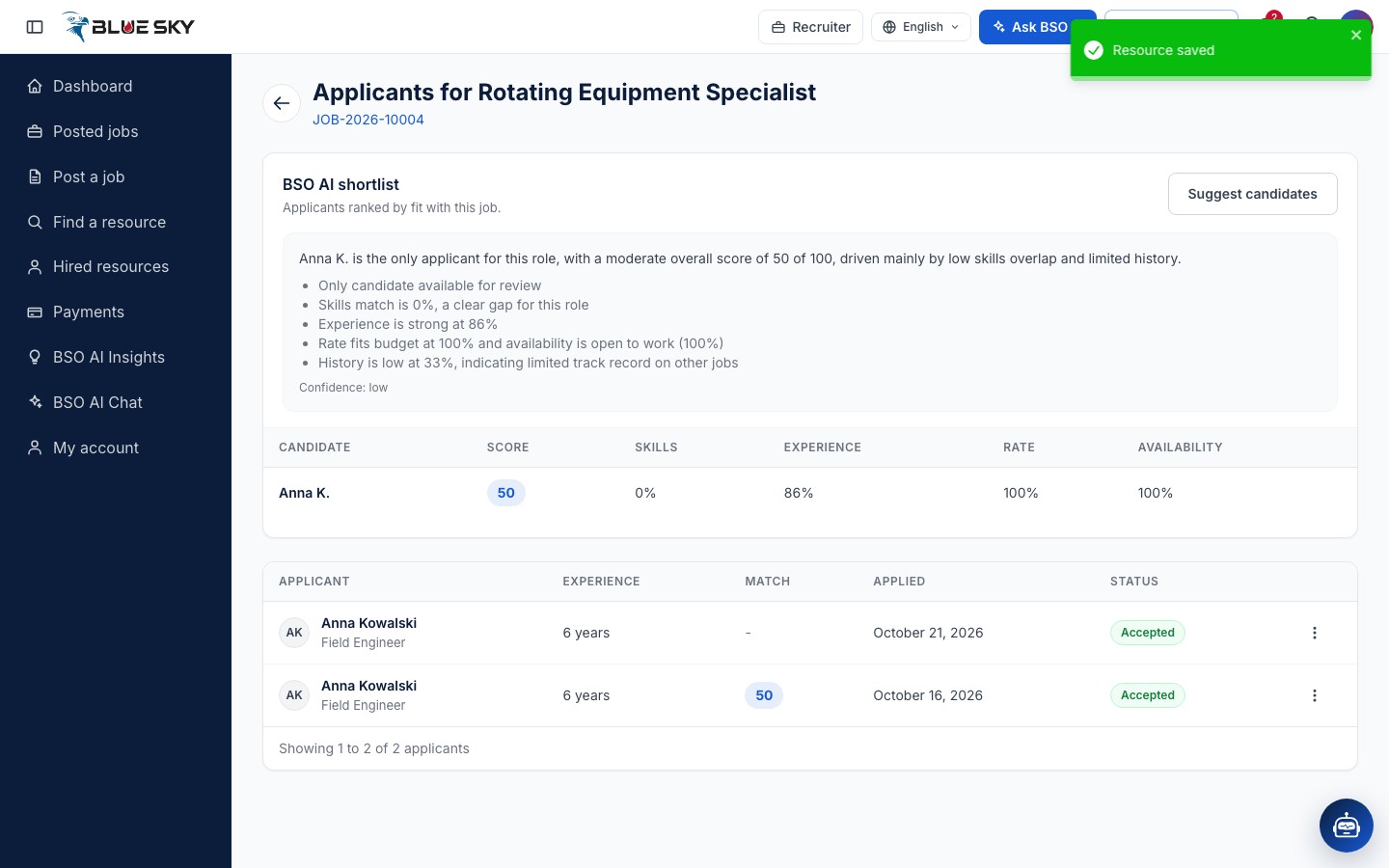
The page is headed Applicants for, followed by the job title, with the job reference under it as a link back to the job. The list has the columns Applicant, Experience, Match, Applied and Status. Match is the BSO AI score; it is empty for an application the ranking leaves out, such as a withdrawn or rejected one.
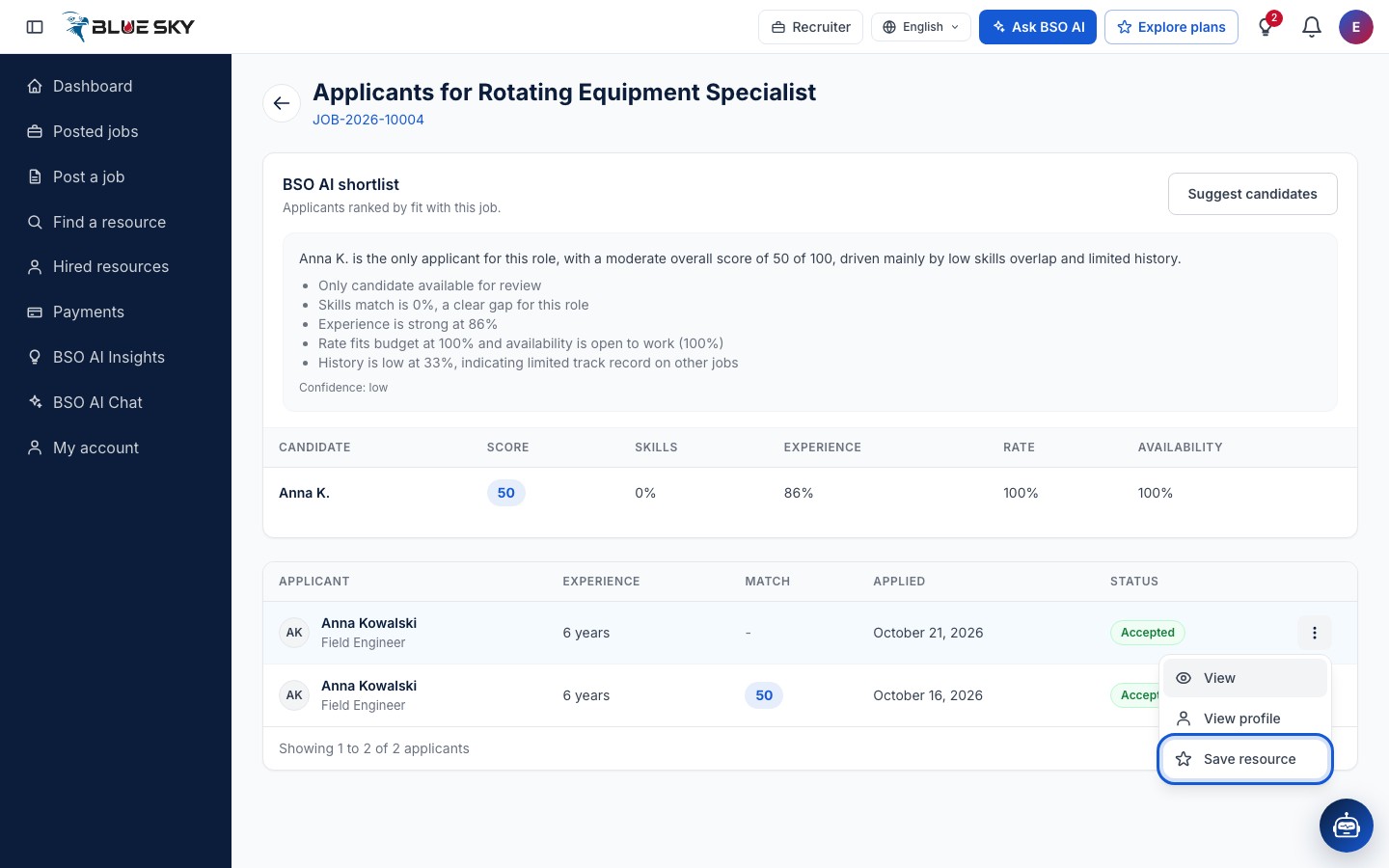
A Pending row has an Accept and a Reject button at its end. Every row has More actions with View (the full application), View profile and Save resource. Clicking the row opens the application.
Read the BSO AI shortlist
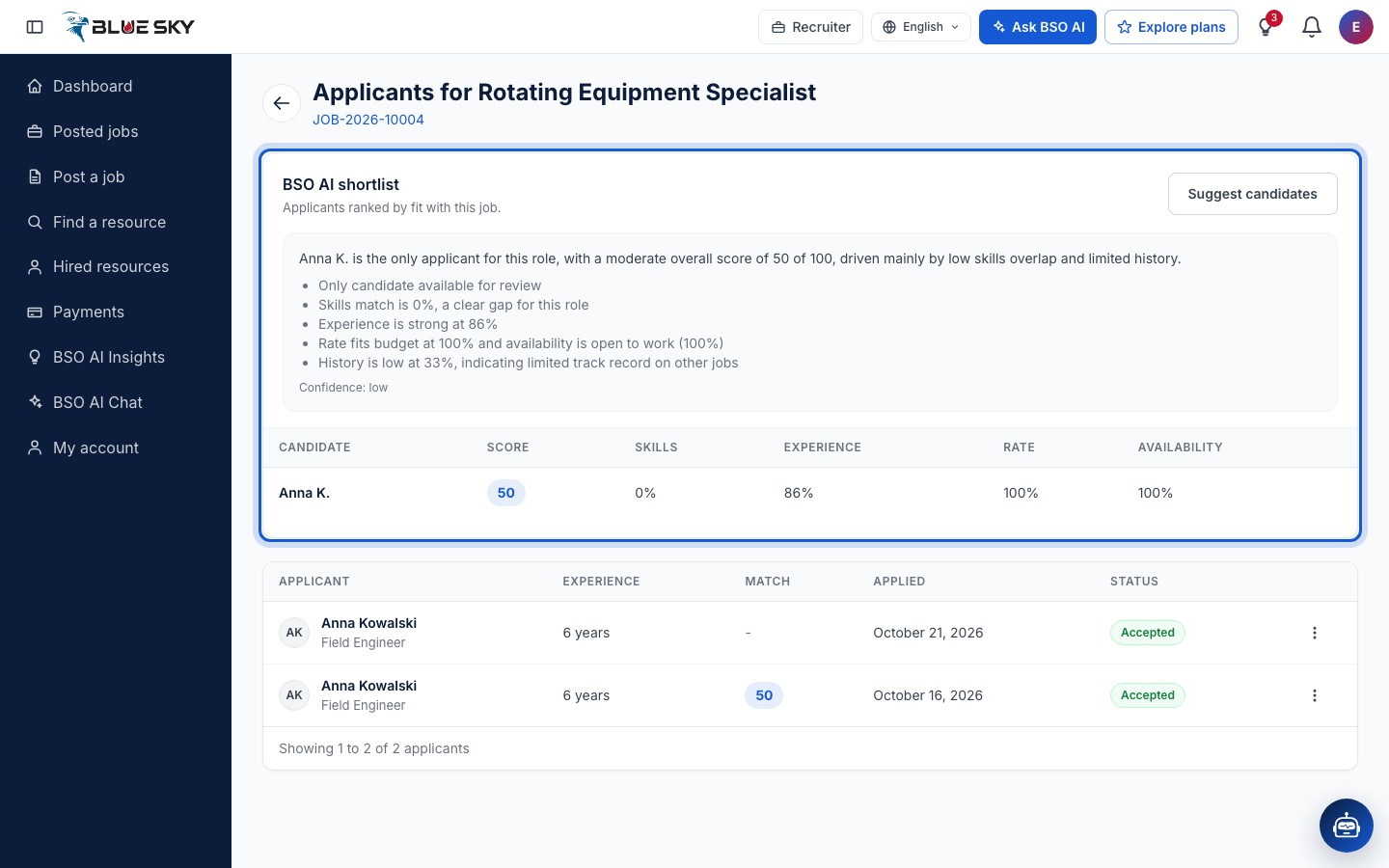
Above the list, the card BSO AI shortlist ranks the applicants by fit with the job, best first. Each row shows the candidate, their Score, and how well their Skills, Experience, Rate and Availability fit, as percentages. Over the table, BSO AI sums up the ranking in a few lines with a Confidence of high, medium or low.
The score is built from five parts: how much the job's skills list and the person's skills overlap, their years of experience against what the job asks for, their hourly rate against the pay you offer, whether they are open to work, and how many of their applications to other jobs on BSO were accepted.
See what is behind a score
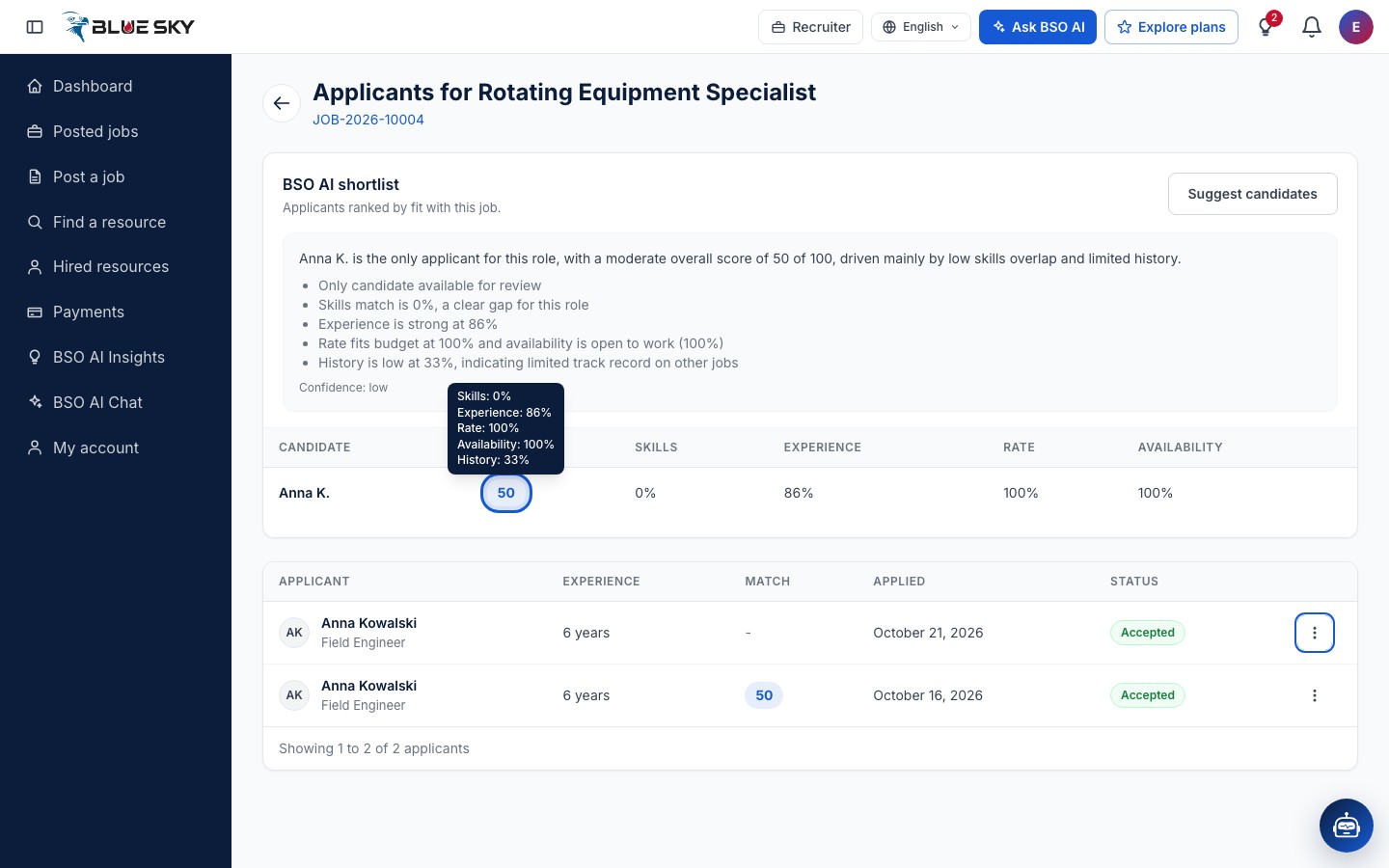
Hold the pointer over a score chip, in the shortlist or in the Match column, to see the five parts as percentages: Skills, Experience, Rate, Availability and History.
Ask for candidates who have not applied
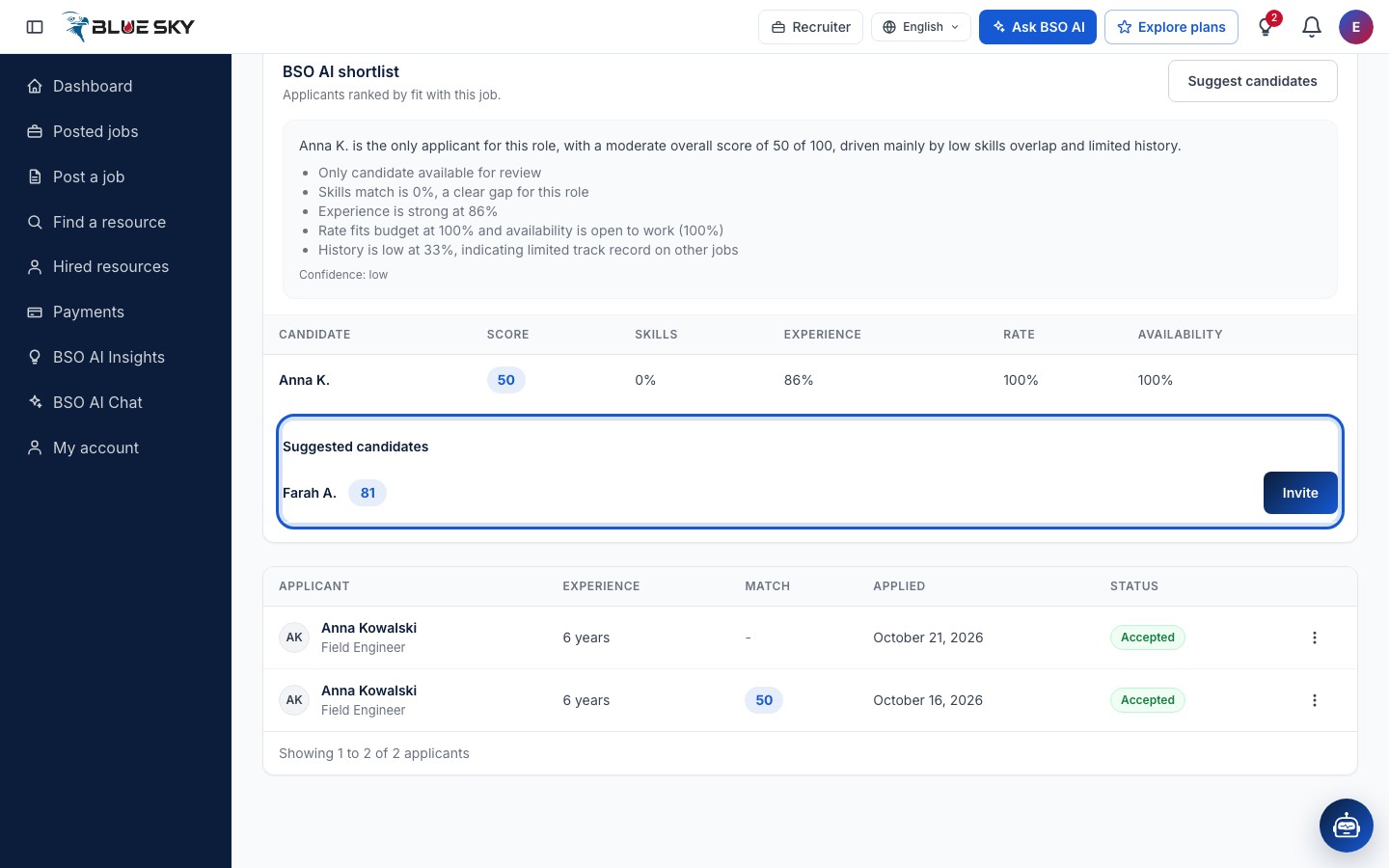
Click Suggest candidates at the top of the shortlist card. Under Suggested candidates, BSO AI lists job seekers who are open to work, share at least one skill with the job and have not applied to it, each with a score and an Invite button; it shows at most five, and only people who score reasonably well. A job with no skills list gets no suggestions, and neither the Post a job form nor Write with BSO AI collects skills today, so a job you post yourself gets none for now; the job in the screenshot carries a skills list. If nobody fits, the card says No matching candidates found.
Invite a candidate
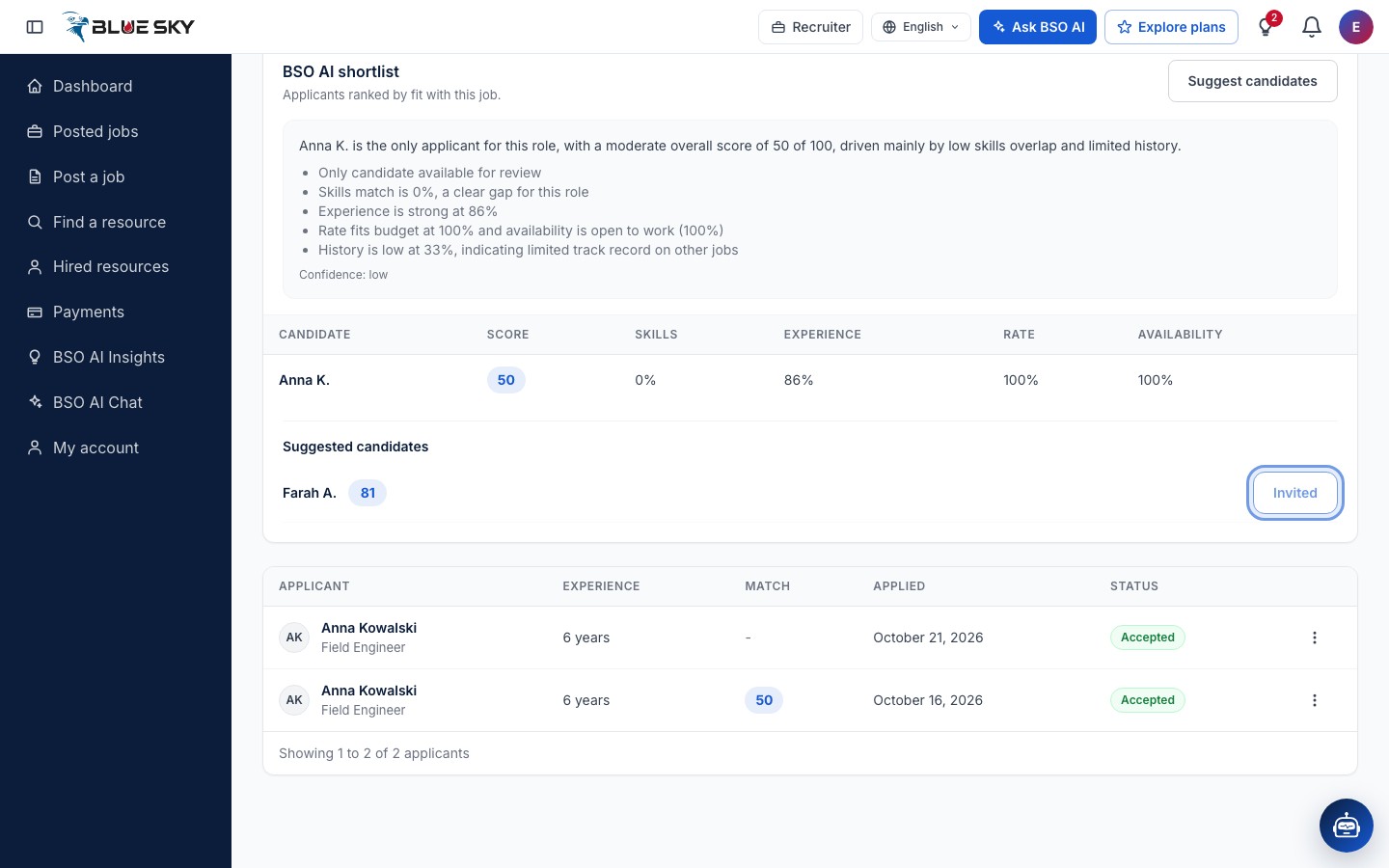
Click Invite. The button changes to Invited and cannot be clicked again. The person gets a notification in the bell of their dashboard, headed You've been invited to apply for and the job title, and a push notification on any phone where they allowed BSO notifications, and the job appears with the invitation wording under their BSO AI Insights; no email is sent. The invitation shows them the job, not your contact details, and they apply like anyone else (see Track your applications).
You can invite up to twenty people to one job and up to fifty people a day across your jobs.
Accept an application
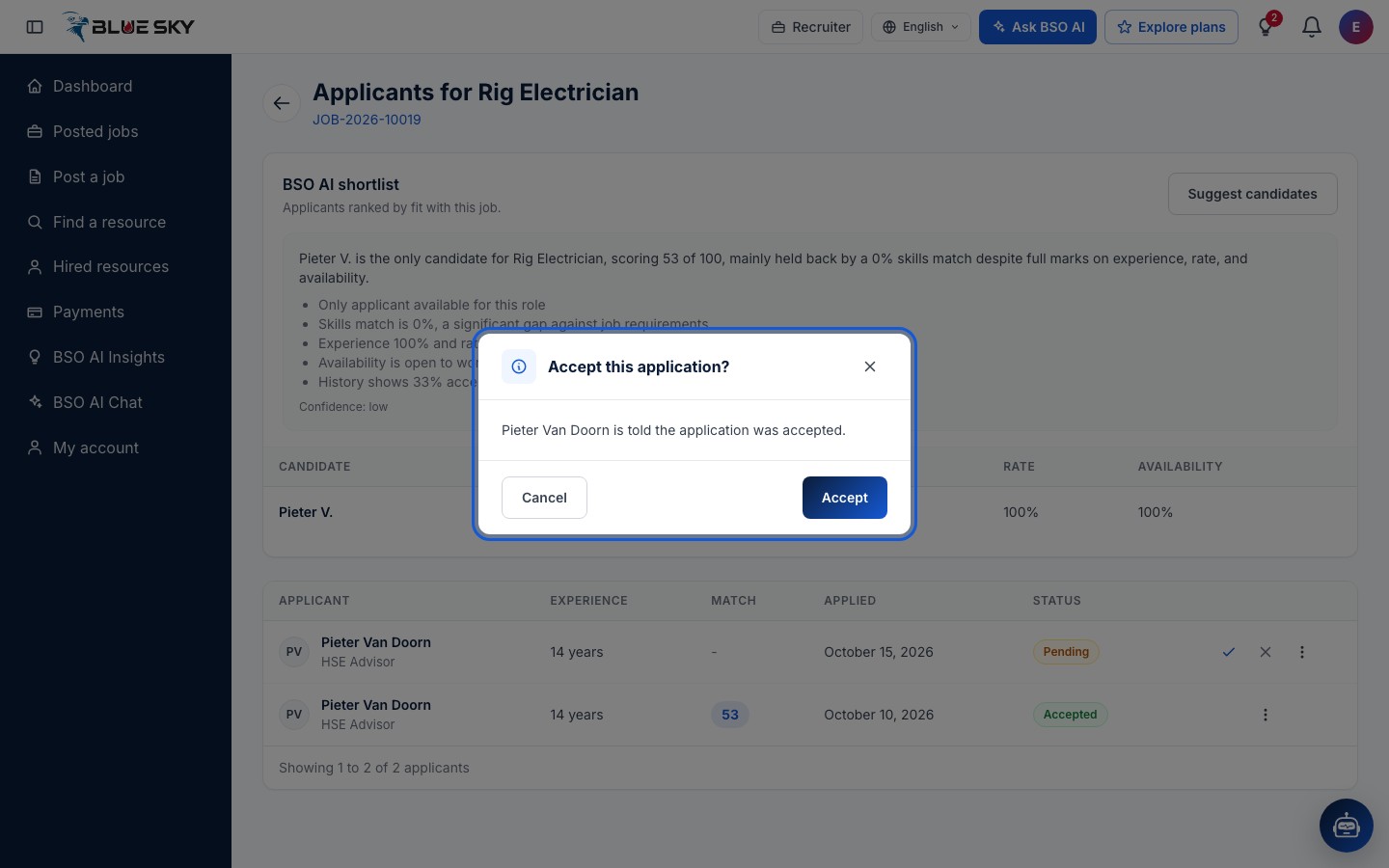
On a Pending row, click the Accept button (the tick). The box Accept this application? names the person and says they will be told the application was accepted. Click Accept to confirm, or Cancel.
What happens after Accept
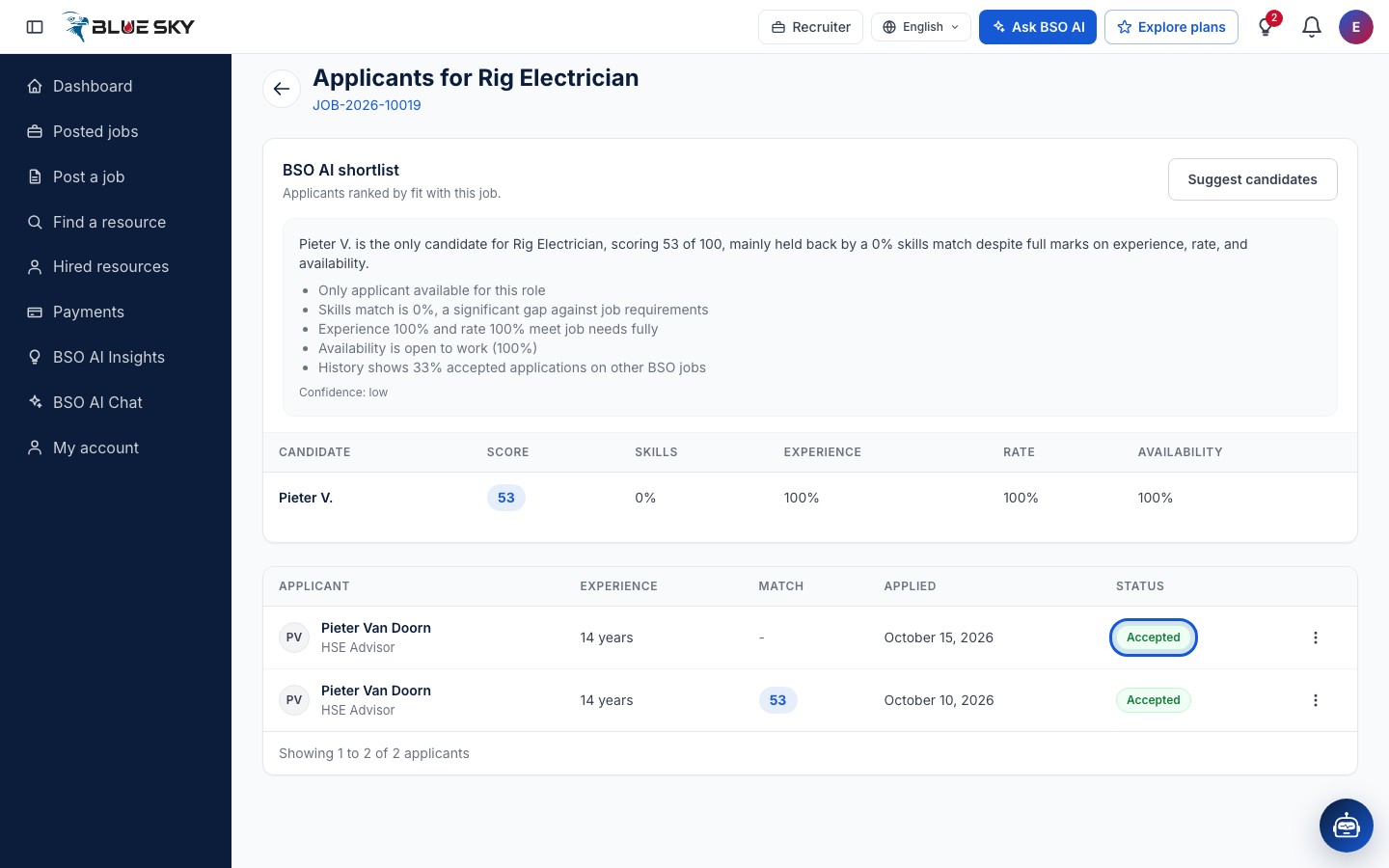
The page confirms with Application accepted, the row's status becomes Accepted and its Accept and Reject buttons disappear. The candidate receives an email saying they were shortlisted and that the team will reach out shortly with the interview details, and, when they allowed BSO notifications on a phone or browser, an Application shortlisted entry in their bell. The person is now listed under Hired resources: see Hired resources and ratings.
Open the full application
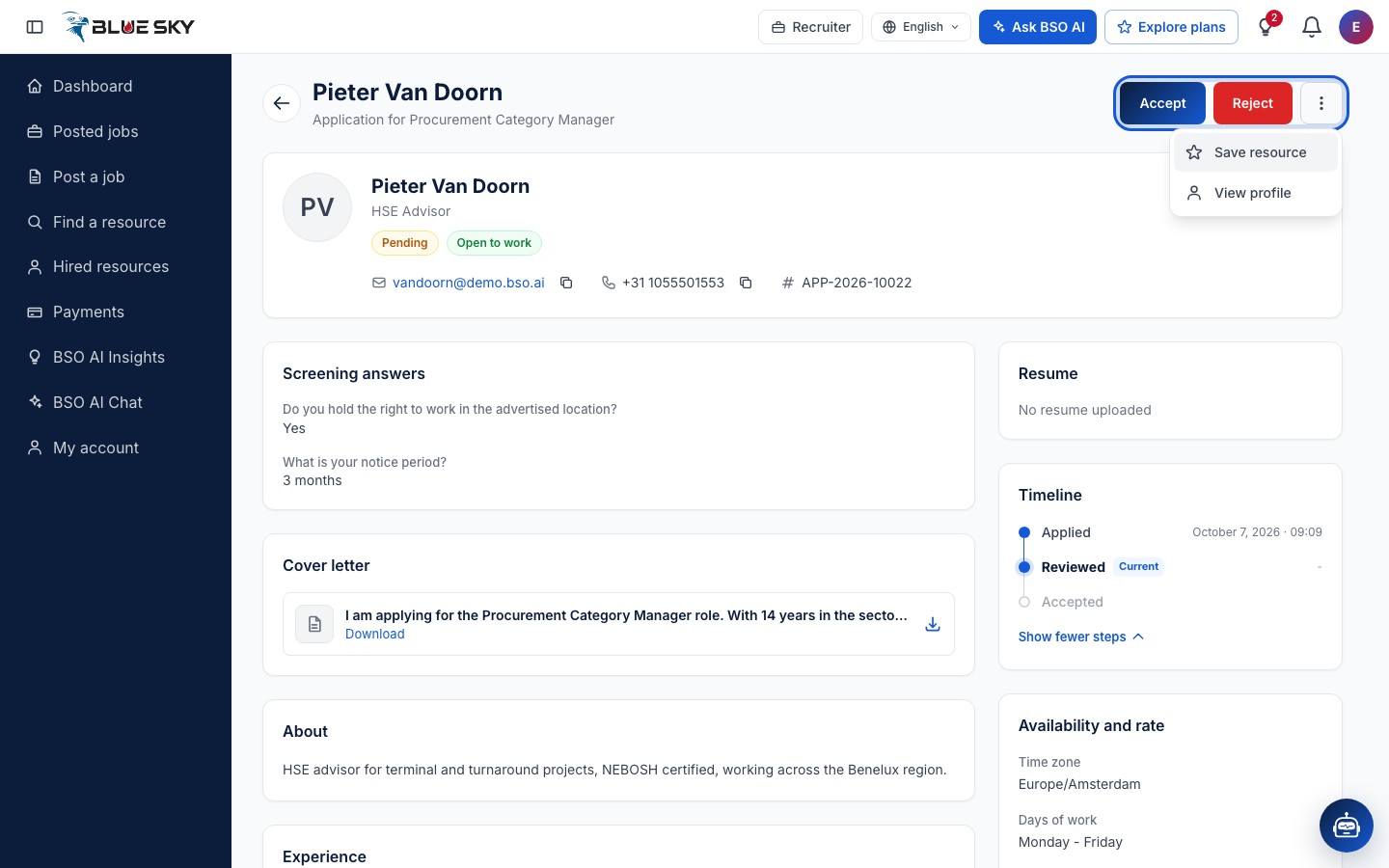
Click a row, or View in its menu, to open the application. The header shows the person's name, their headline, their status and whether they are Open to work or Hired, then their email, phone and the Application reference. Because they applied to your job, their contact details are shown here and on their profile.
Below are their Screening answers, the Cover letter (with Download), About, Experience, Education and Skills, and on the right the Resume, a Timeline (Applied, Reviewed, then Accepted or Rejected), Availability and rate, and Ratings and reviews. A pending application has Accept and Reject at the top; More actions holds Save resource, Download resume when a resume was sent, and View profile.
Reject an application
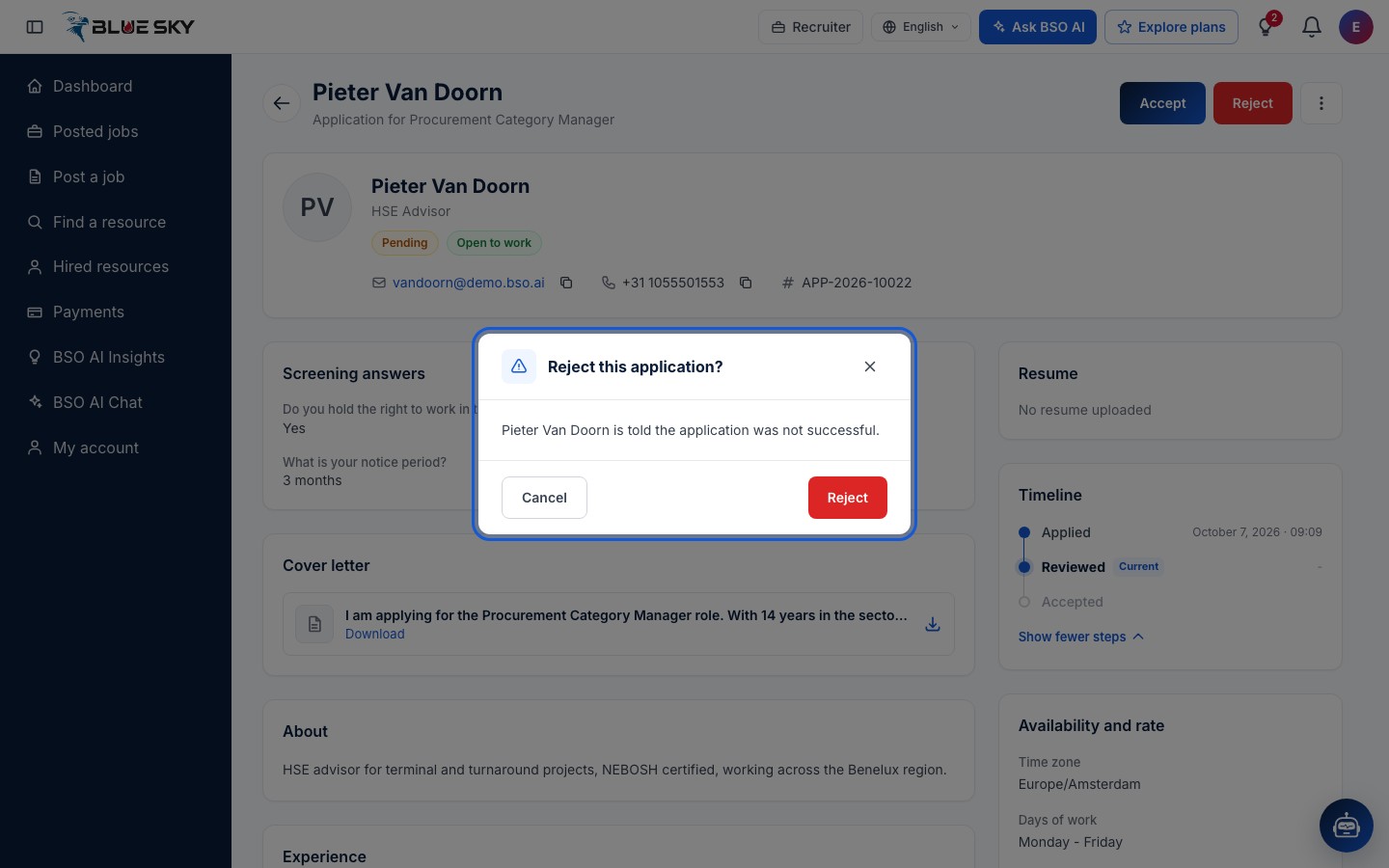
Click Reject at the top of the application, or the Reject button (the cross) on its row. The box Reject this application? names the person and says they will be told the application was not successful. Click Reject to confirm.
What happens after Reject
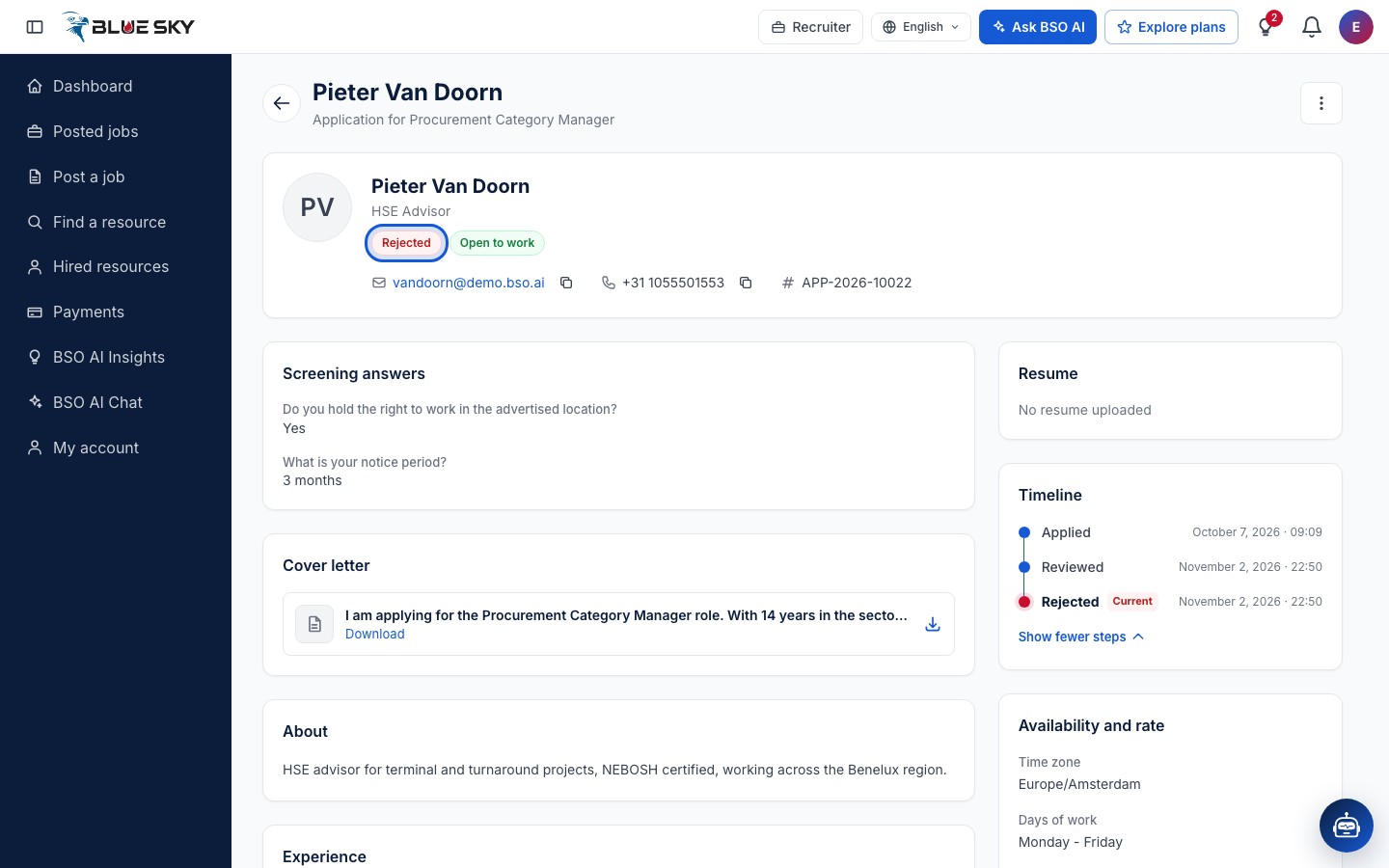
The page confirms with Application rejected. The status chip reads Rejected, the Timeline shows Reviewed and Rejected with the date and time, and the Accept and Reject buttons are gone. The candidate is told by email, and in their bell when they allowed BSO notifications on a device. A decision cannot be undone on the page.
Save a person for later
In a row's More actions menu, click Save resource (it is also under More actions on the application page). The person is added to your Saved resources list, whatever the state of their application.
Find them under Saved resources
The page confirms with Resource saved. Open Saved resources, the Saved tab next to Hired, to see everyone you saved; see Find a resource for that list and for searching job seekers by skill.
Good to know
- Suggestions depend on the skills on your job post and on the skills job seekers list on their profiles. Neither the Post a job form nor Write with BSO AI asks for skills today, so a job you post yourself has no skills list and gets no suggestions.
- There is no chat with candidates on BSO. Once someone has applied, their email and phone are on the application and on their profile, and that is how you reach them. How job seekers set up what you see: List yourself as a job seeker.
- The decision reaches the candidate on My applications in their dashboard too: see Track your applications. To post another job, see Post a job.
Related guides
Manage your jobs
Edit, close and reopen your posts from Posted jobs.
Find a resource
Search job seekers by skill and save the good ones.
Hired resources and ratings
Your hires in one list, with a rating for each.
Apply for a job
Send your CV and answers from the job page.
Track your applications
Your applications by status, and how decisions reach you.
Still stuck? We are here.
Open BSO AI Chat inside the platform, or email the support team. Monday to Friday, 07:00 to 17:00 UK time.