

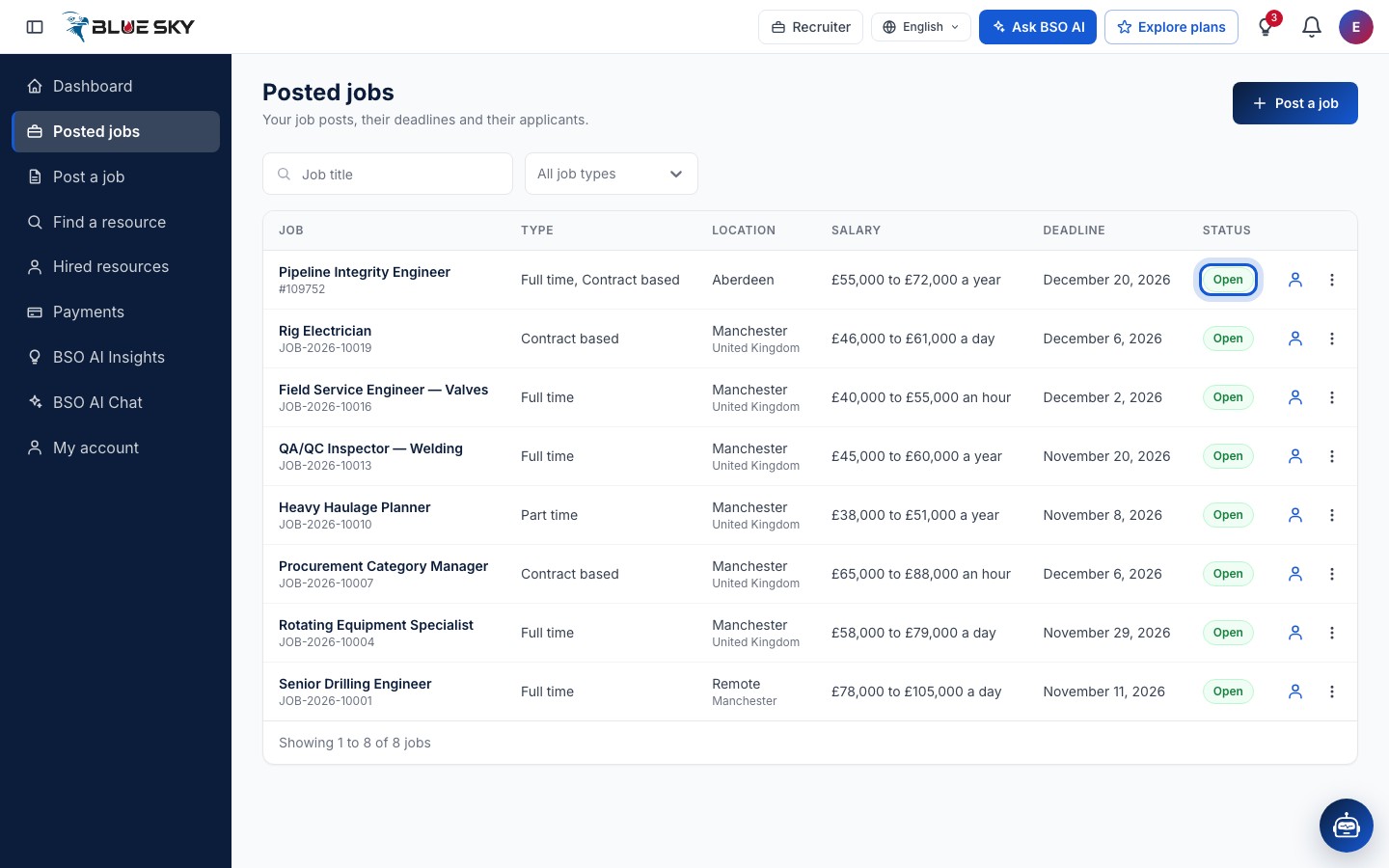
Every job you post (see Post a job) is listed on Posted jobs, newest first. From there you open its applicants, edit it, close it or reopen it. The same actions are on the job page itself.
A job can be Open, Closed or Expired. Open jobs are on the public Jobs page and take applications; a Closed job was closed by you; an Expired job has passed its application deadline. Closed and expired jobs are not shown to the public, but the people who applied can still open them.
Before you start
- A recruiter account with at least one job posted.
- An active recruiter plan or the All-in-One plan: editing and reopening need one, closing does not.
Open Posted jobs
Click Posted jobs in the left menu. The list has the columns Job, Type, Location, Salary, Deadline and Status, with the job's reference under its title. Search by Job title, filter by job type (All job types opens the list), and use Clear filters to reset. Each row has a View applicants button and a More actions button; clicking the row opens the job page.
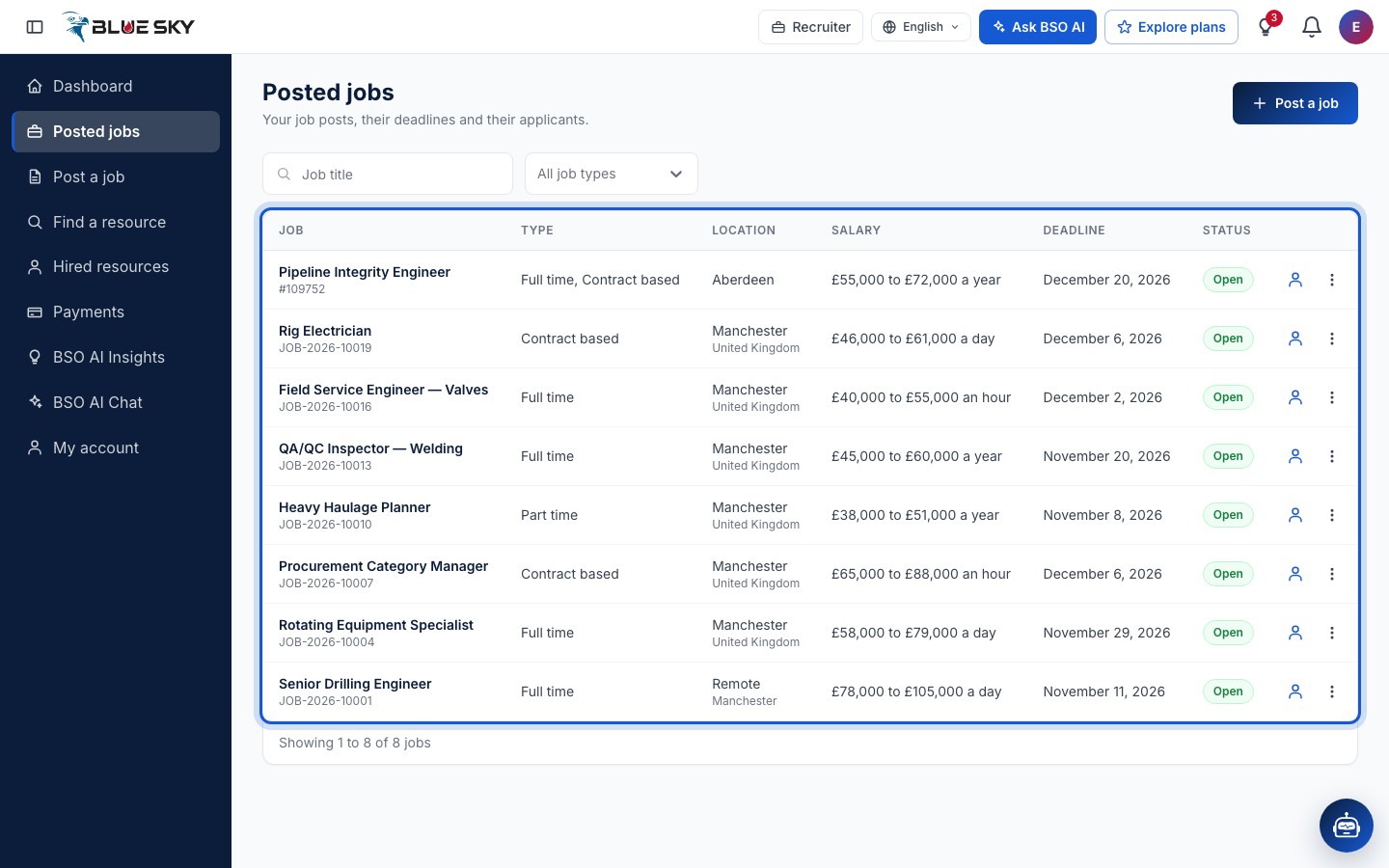
Open the row menu
More actions at the end of a row opens a menu with View, Edit and, for an open job, Close job. For a closed or expired job the last item is Reopen job instead.
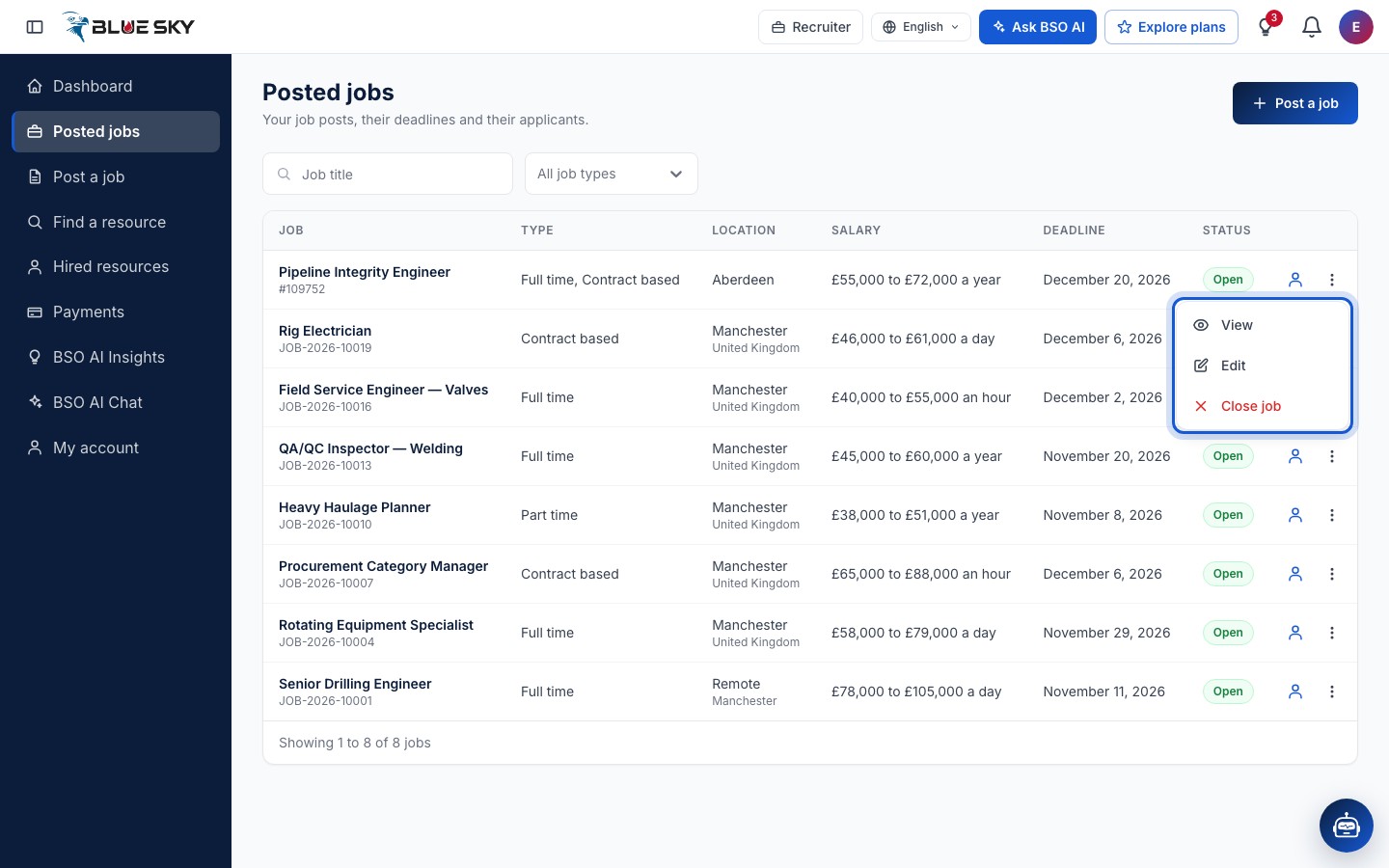
Edit the job
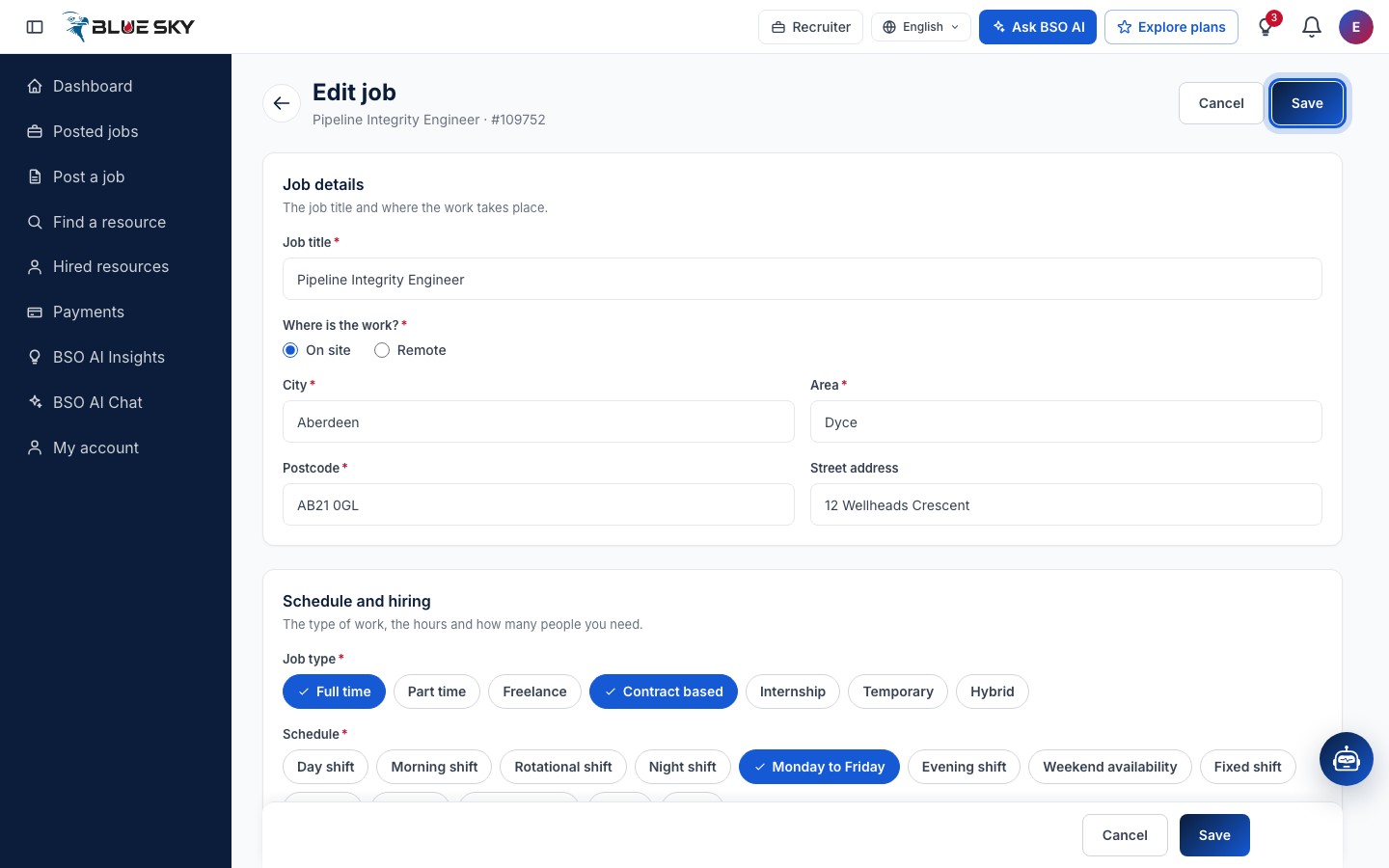
Edit opens Edit job: the whole job as one page, with the same sections as the posting steps, Job details, Schedule and hiring, Pay, Description, Contact and About the company. The subtitle shows the job title and its reference.
Change what you need and click Save (at the top right or in the bar at the bottom, which says Unsaved changes while there are any). Cancel drops the changes. A job written with BSO AI opens its brief and post instead, ready to edit and save.
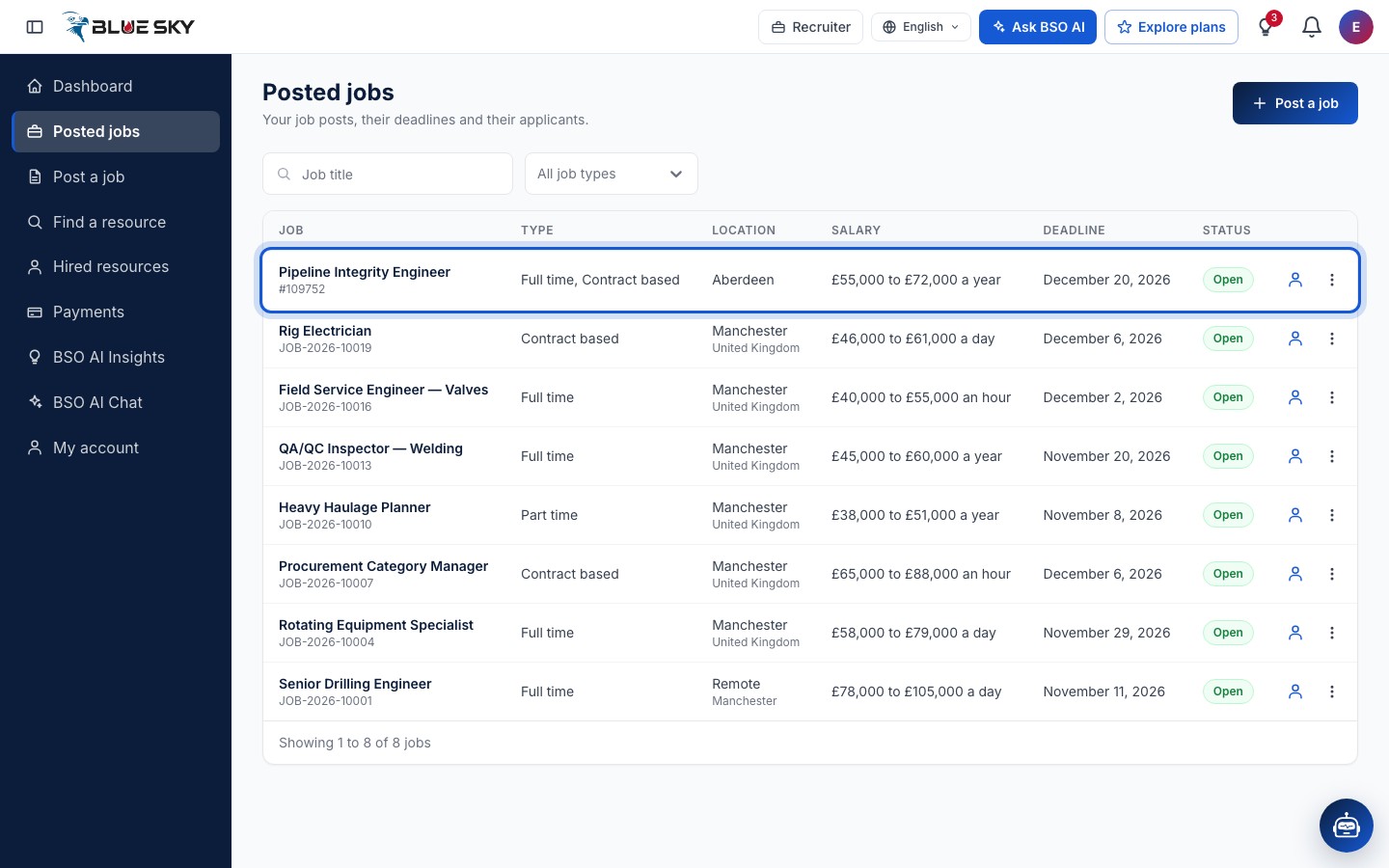
The change shows at once
Save returns you to Posted jobs with the message Job saved; the row shows the new values and the public job page shows them too. When you change the title, the description, the location, the salary or the deadline, everyone who applied is told in the bell of their dashboard that the job was updated (see Track your applications). Other changes are silent.
Close a job
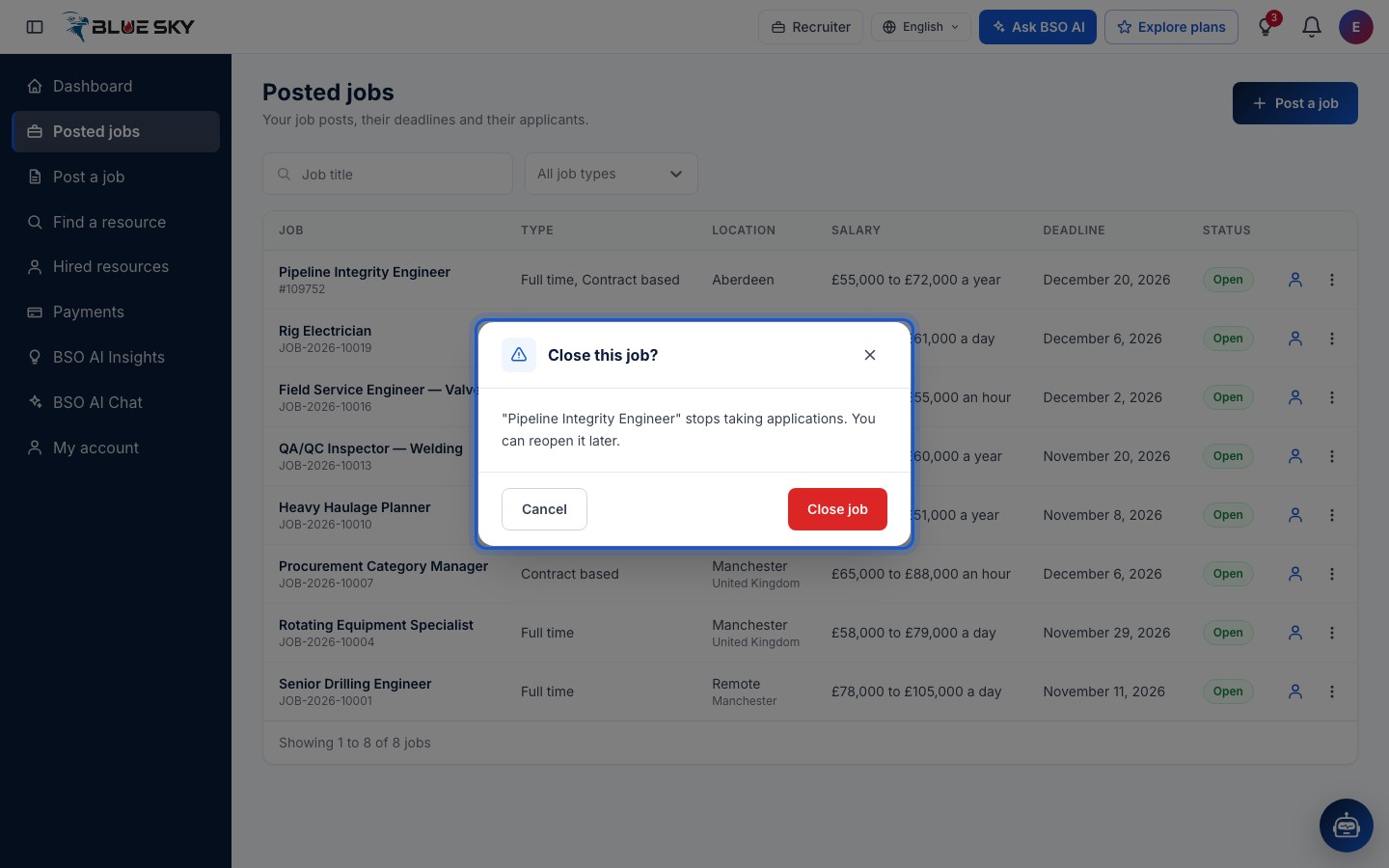
In the row menu, click Close job. The box Close this job? reminds you that the job stops taking applications and that you can reopen it later. Click Close job to confirm, or Cancel.
What a closed job looks like
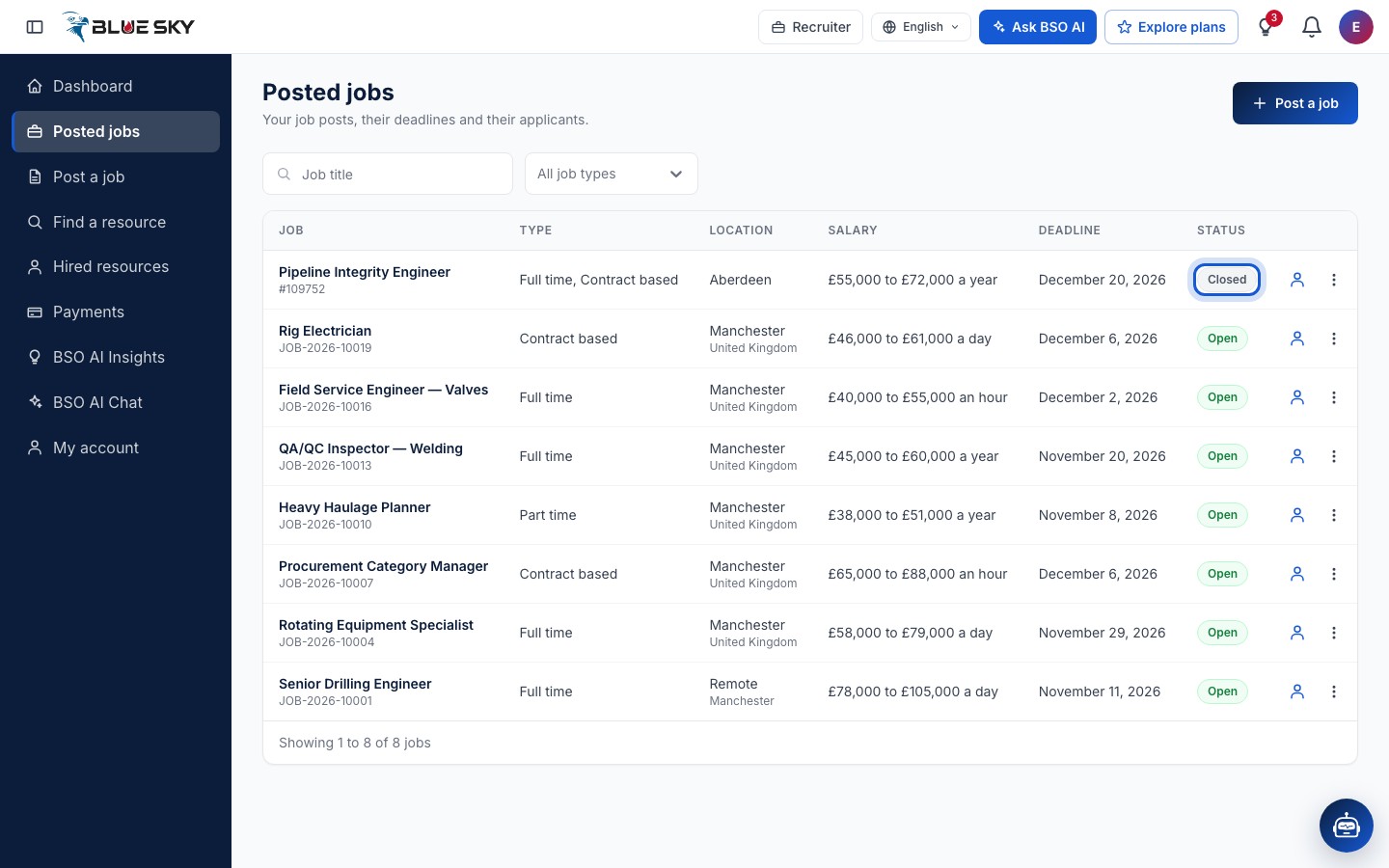
The status chip reads Closed and the row menu now offers Reopen job. The job is off the public Jobs page, Apply is greyed out for the job seekers who can still open it, and nobody new can apply. The applications you already have stay where they are: see Review applicants.
Check the public Jobs page
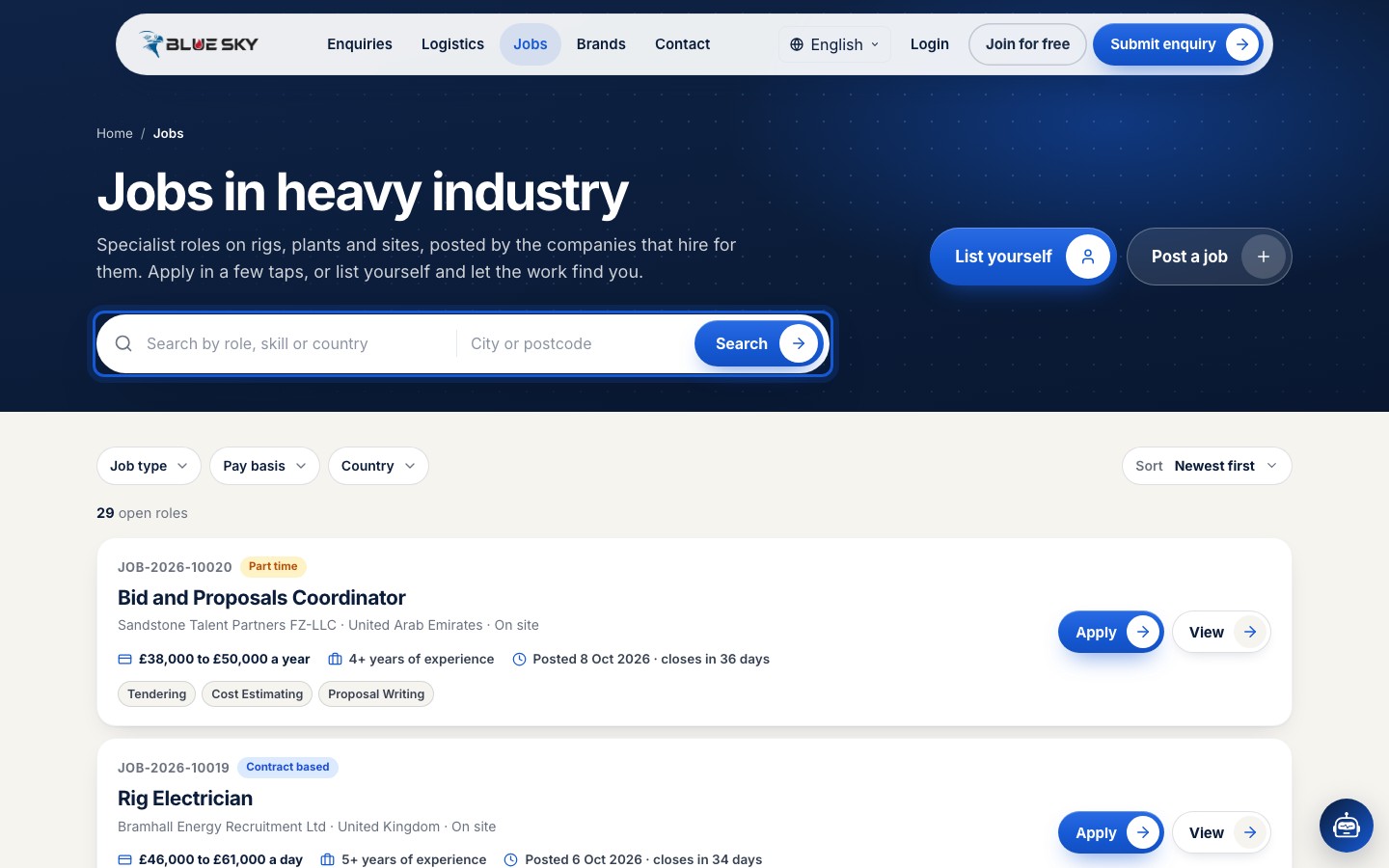
Open Jobs on the public site: a closed job is not listed, and neither is one whose deadline has passed. Open jobs show their title, company, place, pay, experience and how many days are left to apply.
Reopen a job
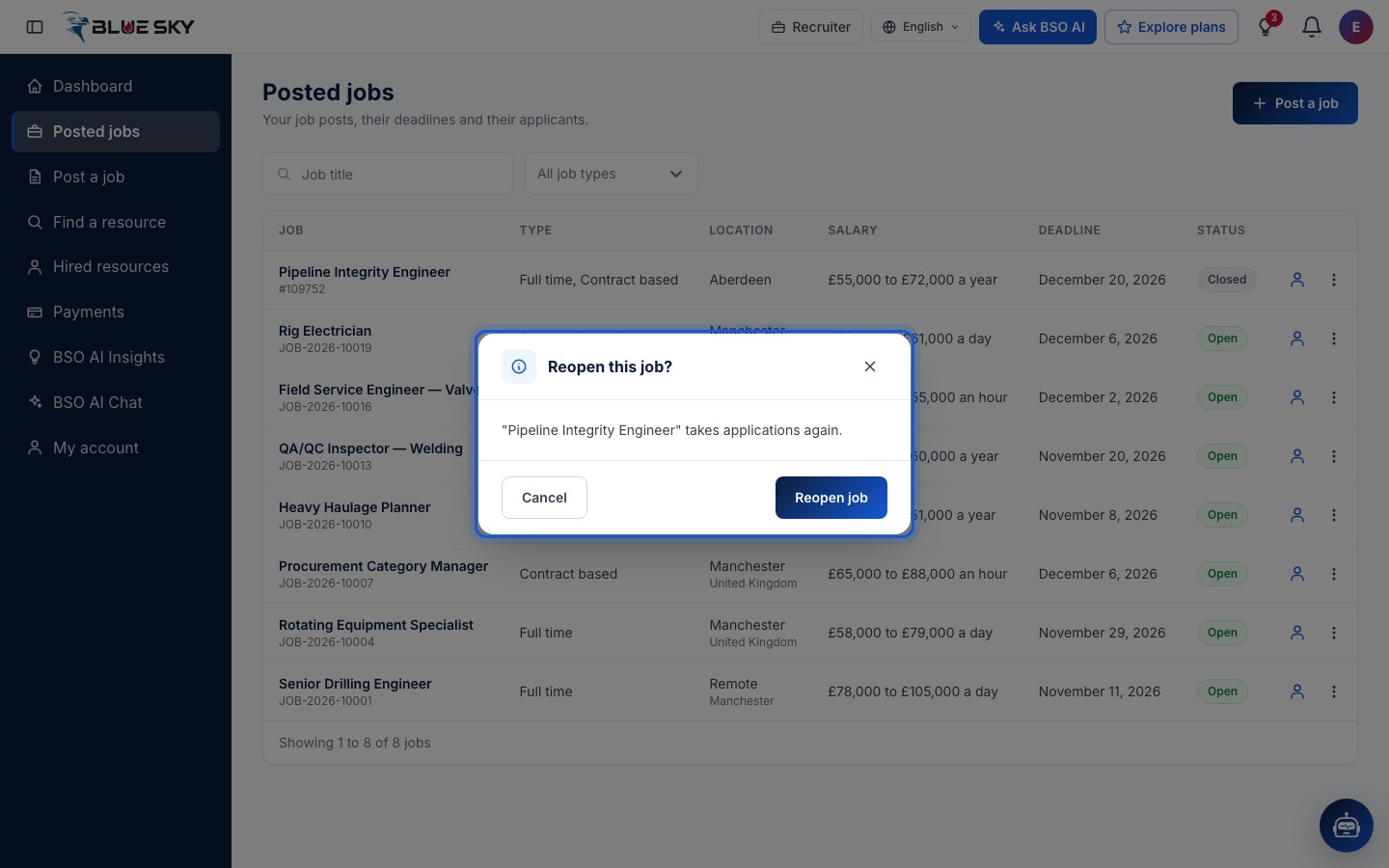
In the row menu of a closed job, click Reopen job. The box Reopen this job? says the job takes applications again. Click Reopen job to confirm. If the deadline has already passed, the job cannot be reopened as it is: open Edit, set a new deadline under Contact, save, and then reopen.
The job is open again
The status chip returns to Open and the job is back on the public Jobs page with the same applications and the same reference.
The job page as you see it
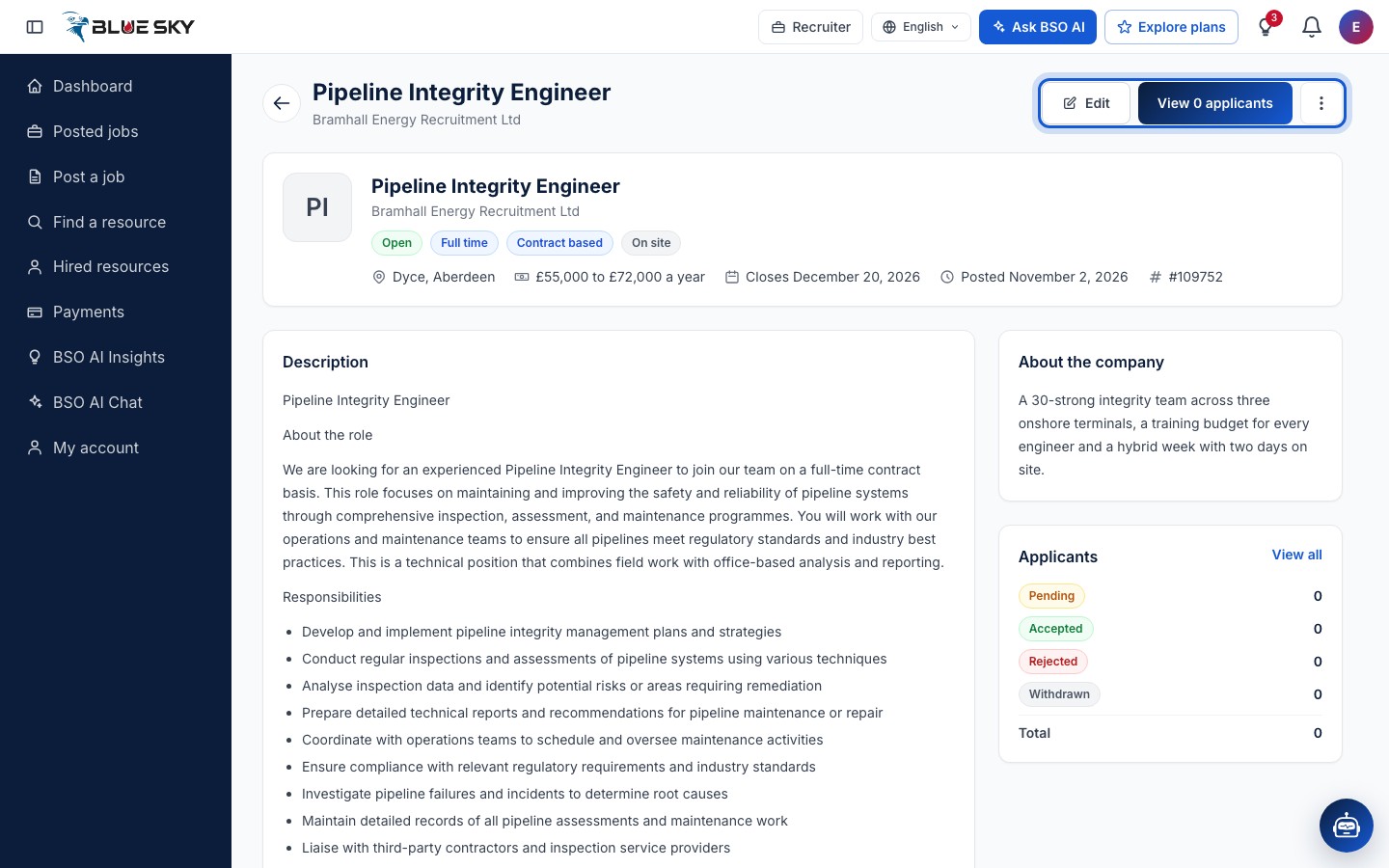
Click a job's title to open its page. As the owner you get Edit and View applicants at the top (the button counts the applicants), the description, requirements, schedule and pay, the screening questions, About the company, and an Applicants card with the counts by status: Pending, Accepted, Rejected, Withdrawn and Total. View all opens the applicants page.
Good to know
- An open job whose deadline has passed shows Expired in the Status column and the date in red. It can still be closed, and it can be reopened once you give it a new deadline.
- There is no delete: close a job you no longer need. Closed jobs stay on Posted jobs with their applications.
- The Deadline column says No deadline for jobs without one; those stay open until you close them.
Related guides
Still stuck? We are here.
Open BSO AI Chat inside the platform, or email the support team. Monday to Friday, 07:00 to 17:00 UK time.