

Jobs are posted from your recruiter dashboard and go live on the public Jobs page the moment you post them. You need the recruiter role, a completed company profile and an active plan first: see Become a recruiter.
There are two ways to write a job. The form takes you through seven steps and can write the description for you. Write with BSO AI takes a few sentences about the job and writes the whole post, which you check before posting.
Before you start
- The job title, where the work is, the type of work and the schedule.
- The pay: a range, a minimum, a maximum or an exact amount, and whether it is per hour, day, week, month or year.
- The email address that should receive updates about applications, and the application deadline if there is one.
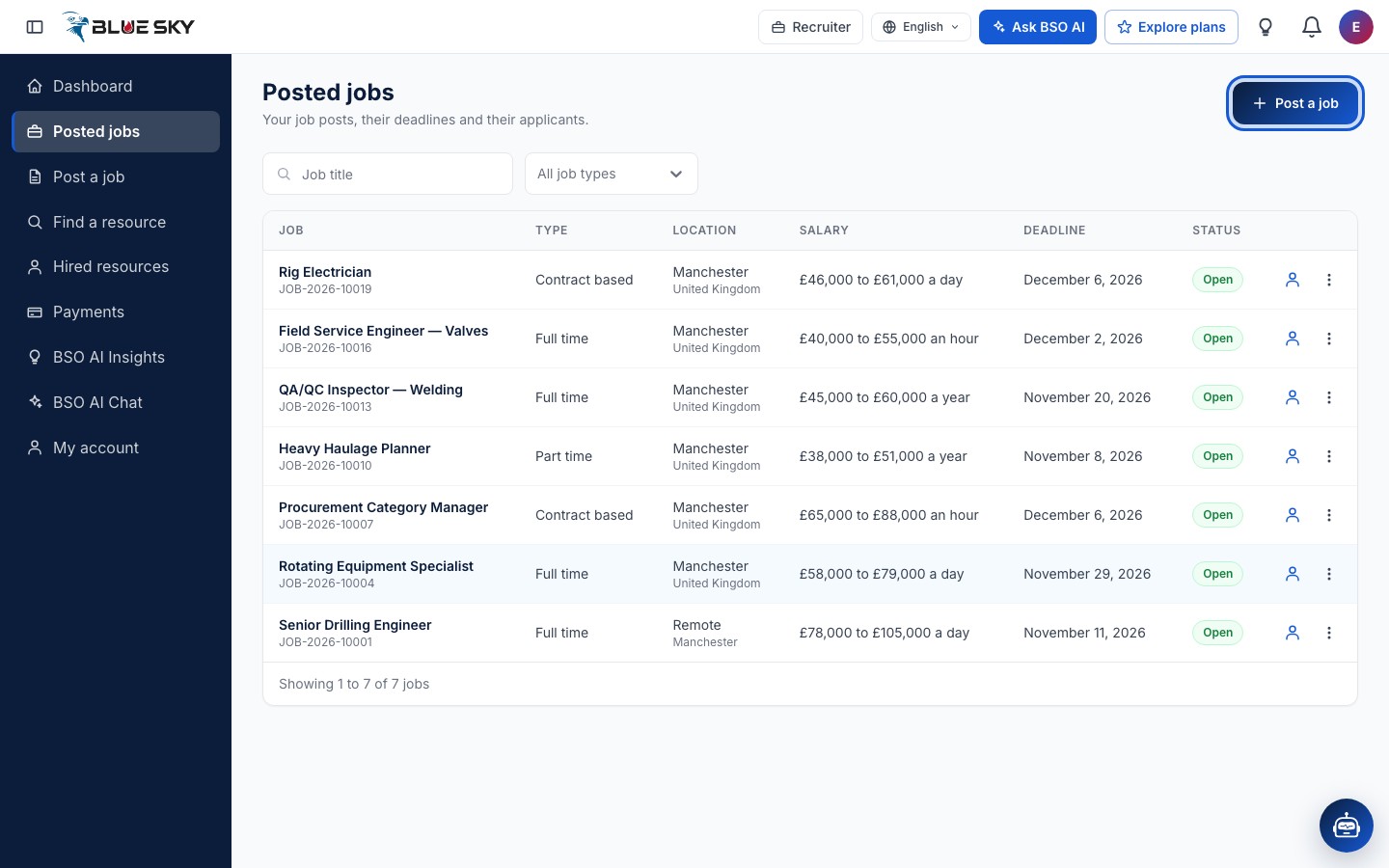
Click Post a job
Open Posted jobs from the left menu and click Post a job at the top right, or click Post a job in the left menu. If a Purchase Required box opens instead of the form, your account has no active recruiter plan yet.
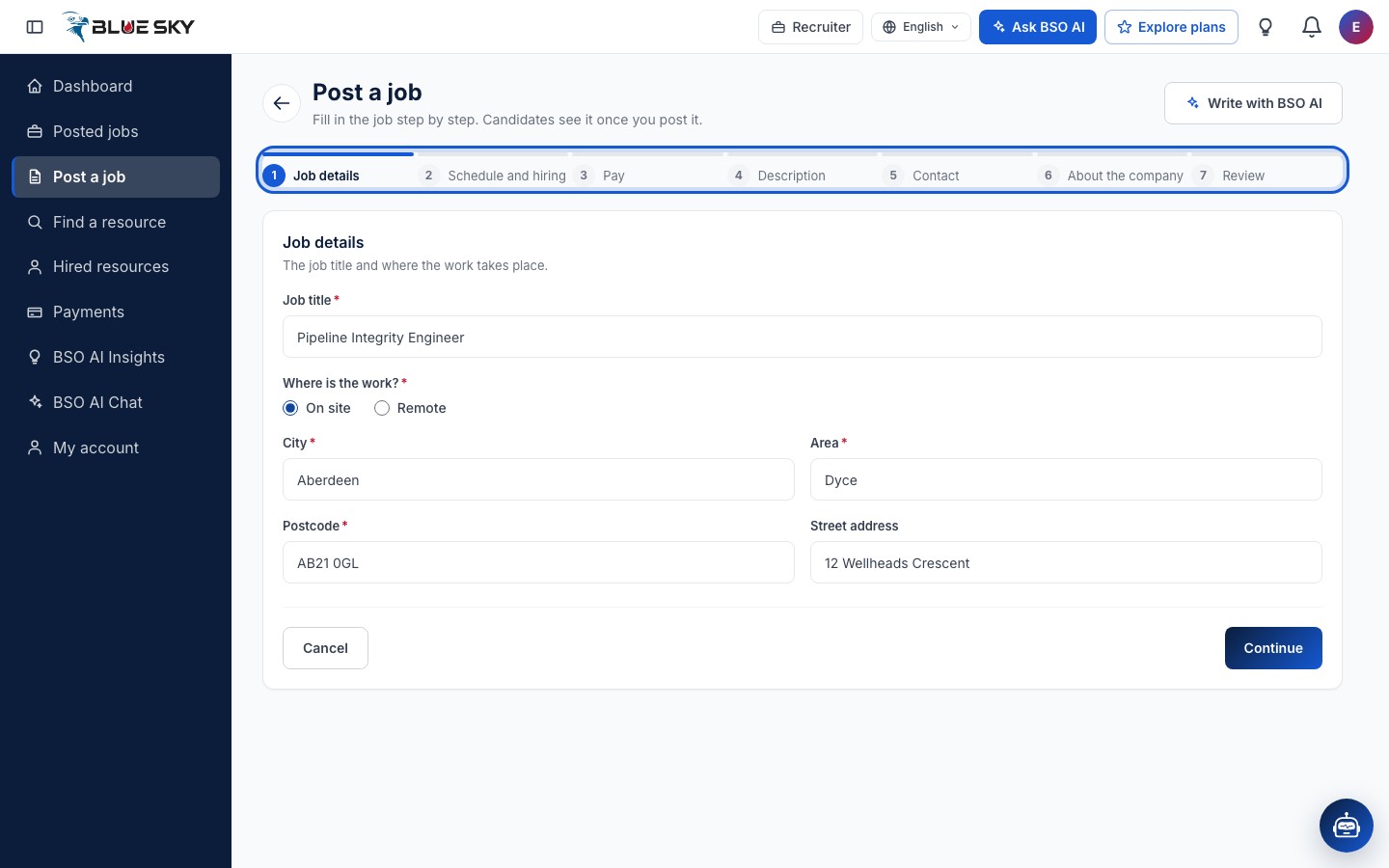
Step 1: Job details
The page Post a job shows the seven steps along the top: Job details, Schedule and hiring, Pay, Description, Contact, About the company and Review. Each step has Cancel, Back and Continue; Continue checks the step before moving on.
Type the Job title and answer Where is the work? with On site, Hybrid or Remote. On site and Hybrid ask for the Country and City of the office, with Area, Postcode and Street address optional. Remote asks Where should the job be advertised?, In one city (then the city) or Anywhere.
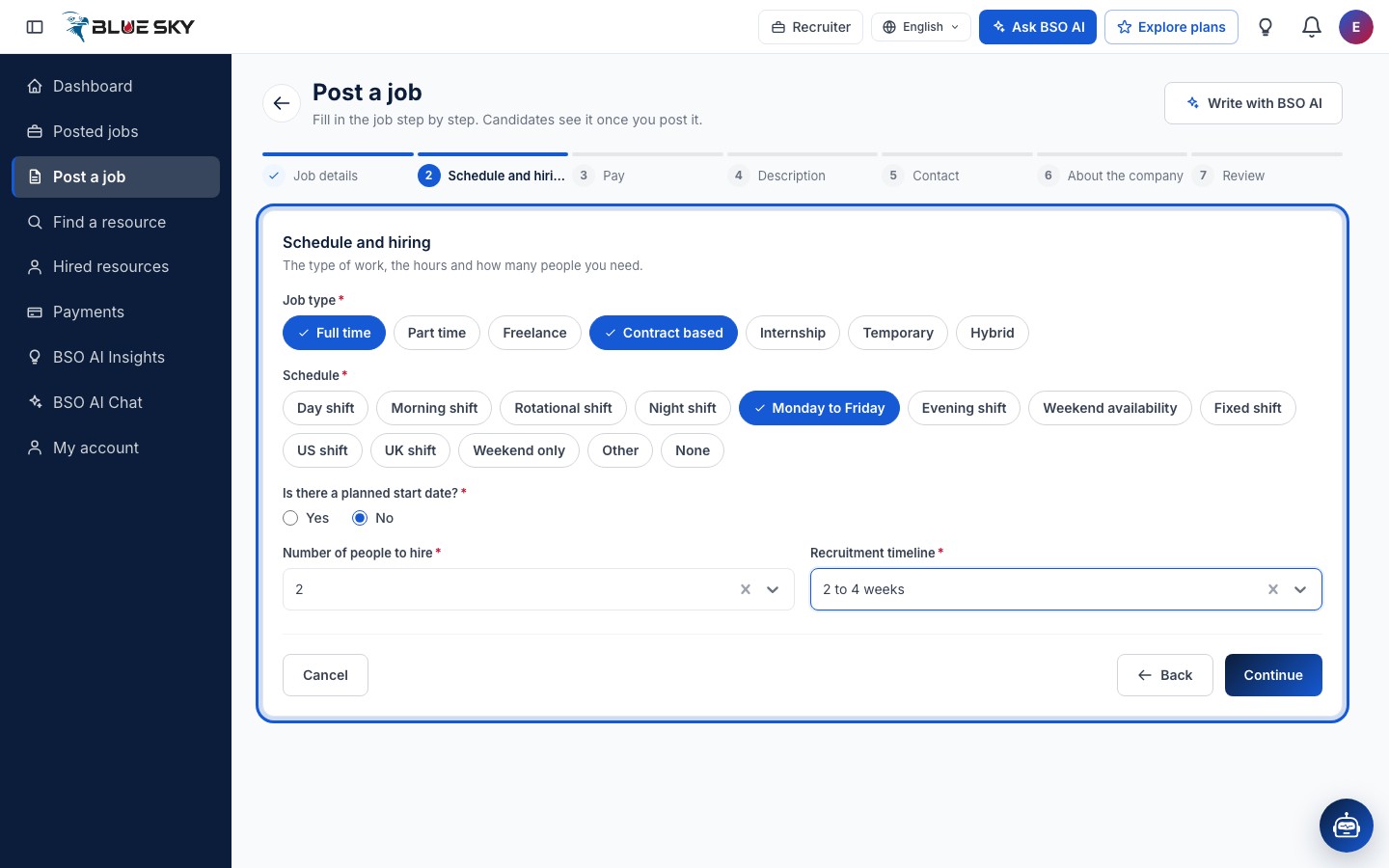
Step 2: Schedule and hiring
Pick one or more Job type chips (Full time, Part time, Freelance, Contract based, Internship, Temporary) and one or more Schedule chips (Day shift, Monday to Friday, Weekend only and so on). Answer Is there a planned start date? and, for Yes, pick the date. Choose the Number of people to hire (1 to 10, 10+ or Ongoing need for this role) and the Recruitment timeline, from 1 to 3 days up to More than 4 weeks.
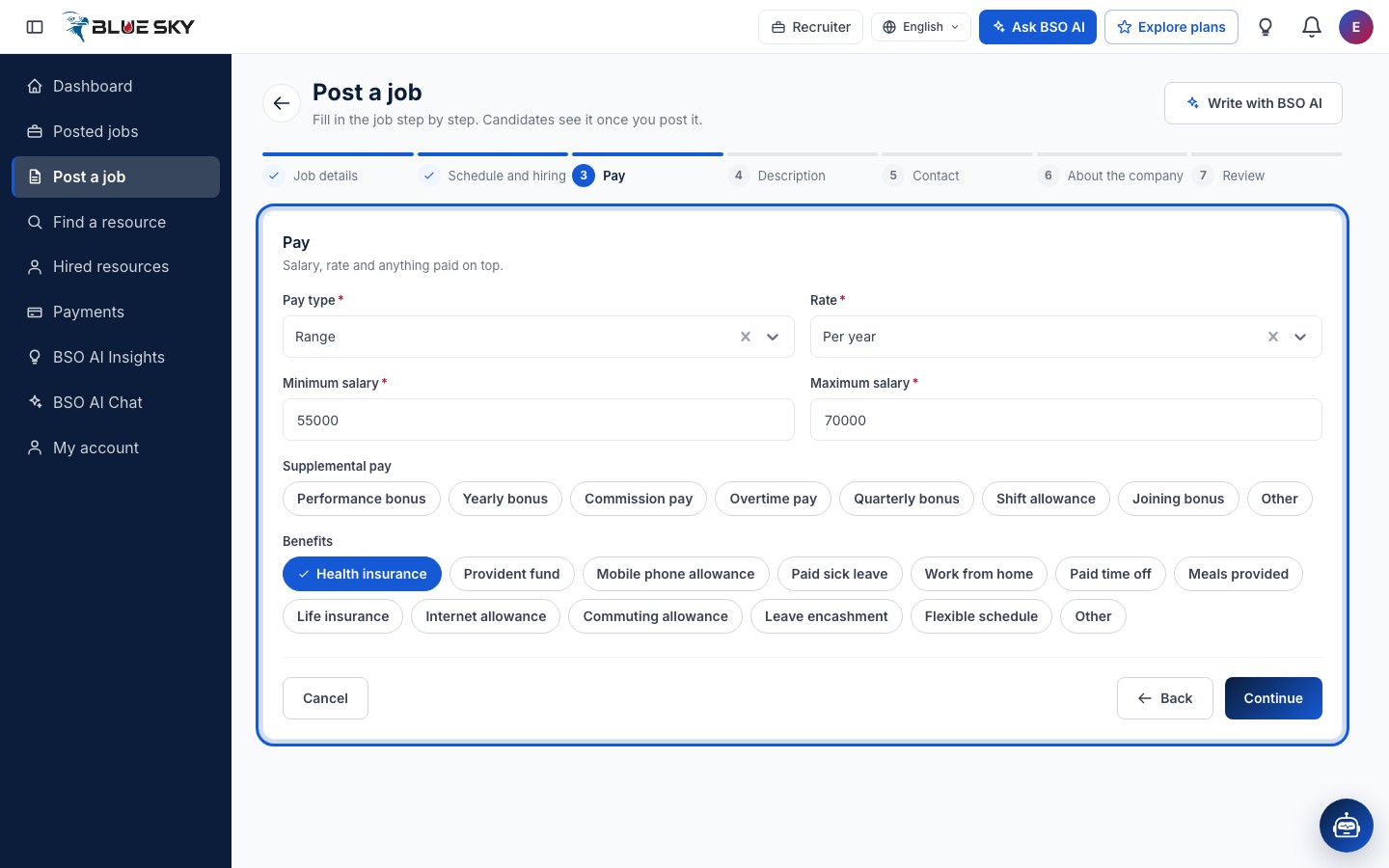
Step 3: Pay
Choose the Pay type (Range, Minimum, Maximum or Exact amount) and the Rate (Per hour, Per day, Per week, Per month or Per year). A Range asks for the Minimum salary and Maximum salary; the other types ask for one Salary figure. Supplemental pay (bonuses, overtime, allowances) and Benefits (health insurance, paid time off, flexible schedule and more) are optional chips.
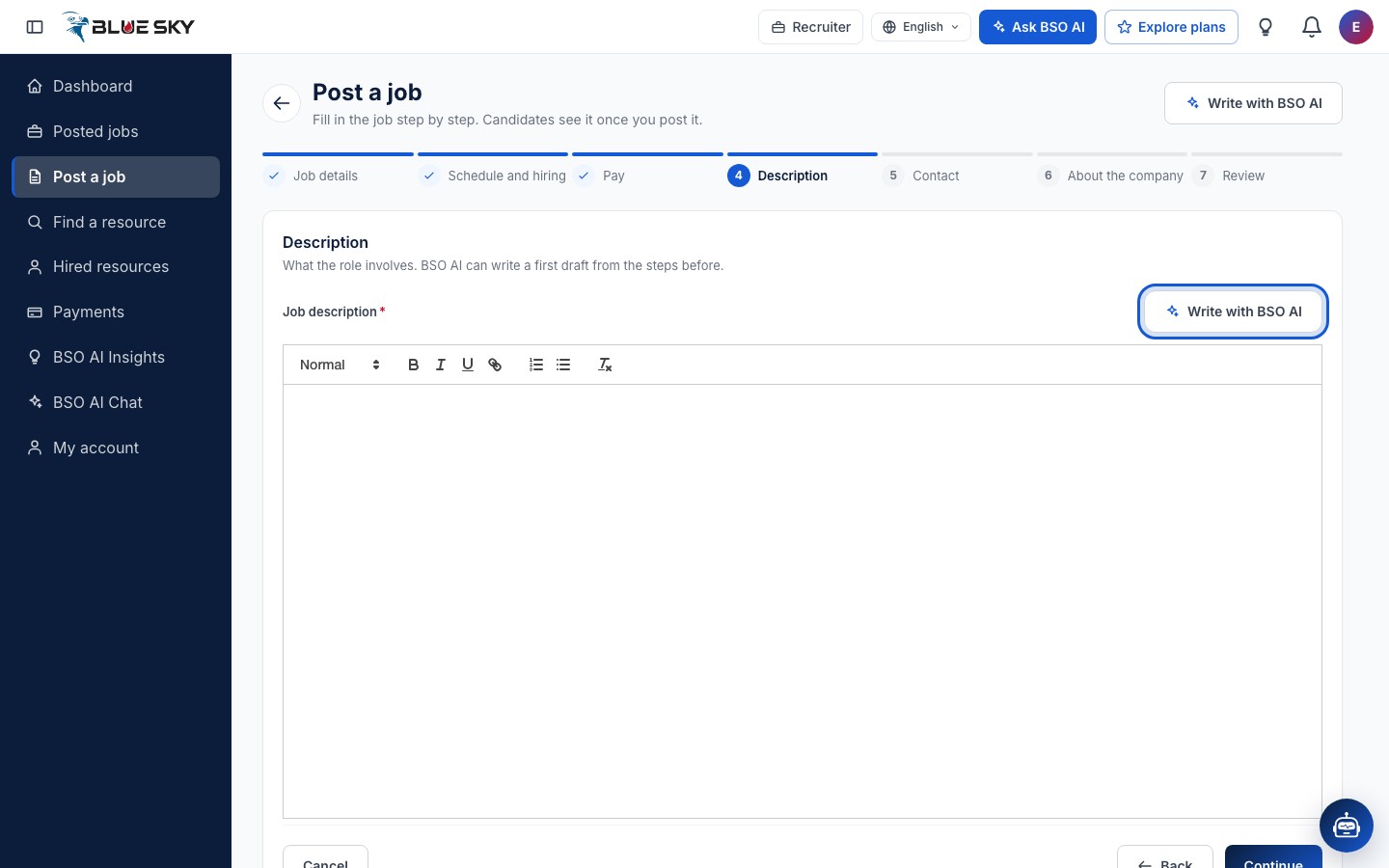
Step 4: Description, written by you or by BSO AI
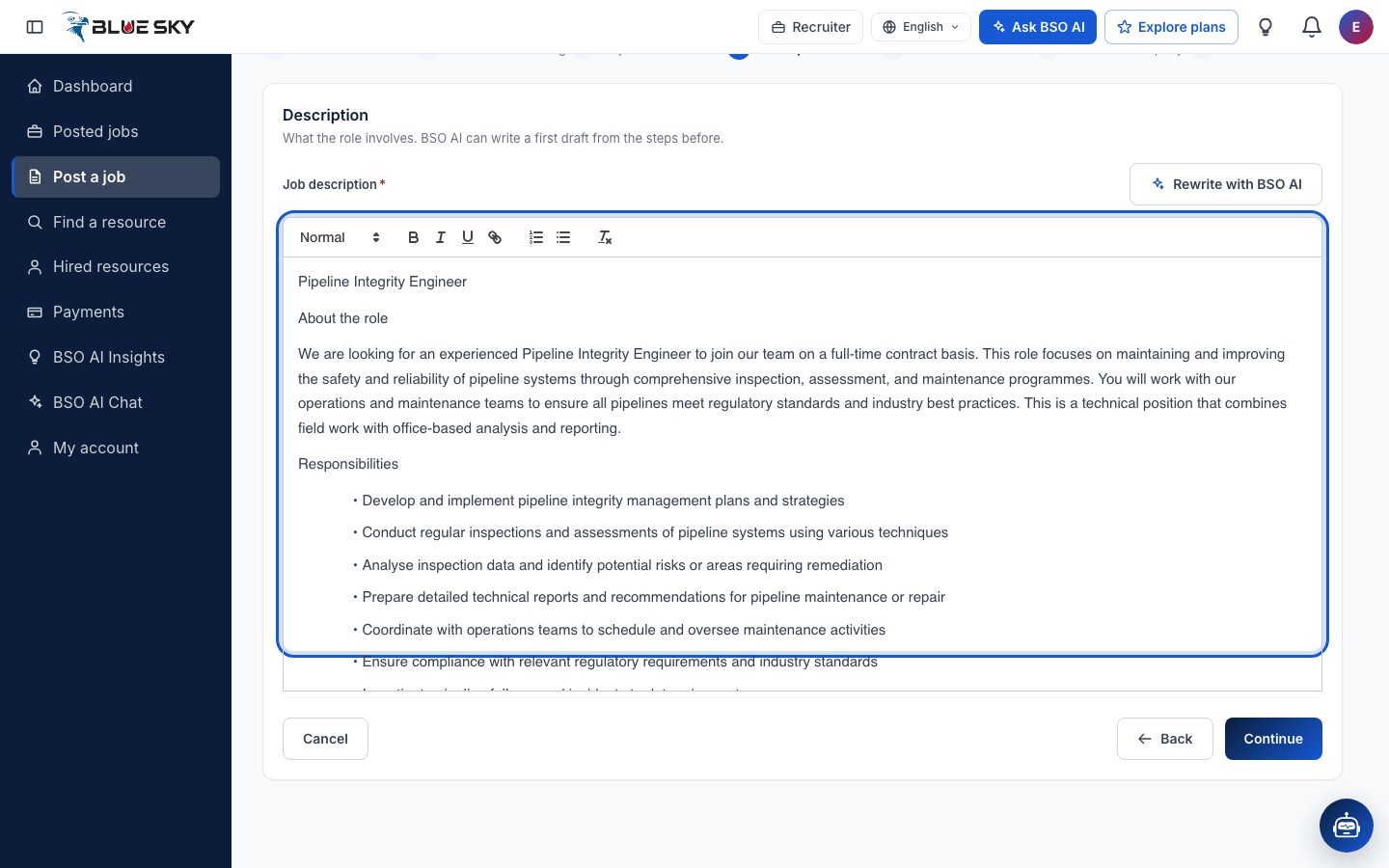
The Job description is a text editor with headings, bold, lists and links. Write it yourself, or click Write with BSO AI at the top right of the editor: BSO AI drafts the description from the steps you have filled in so far, and tells you to check it before you continue. The button then reads Rewrite with BSO AI, so you can try again.
BSO AI needs the job title, where the work is (with the office address for an on-site job), at least one job type, at least one schedule and the pay type first; it tells you which one is missing.
Check the draft
The draft lands in the editor, with an introduction, responsibilities, requirements and what you offer. Edit anything you like: it is your text from here on. A description is required and must be more than a few words long.
Step 5: Contact
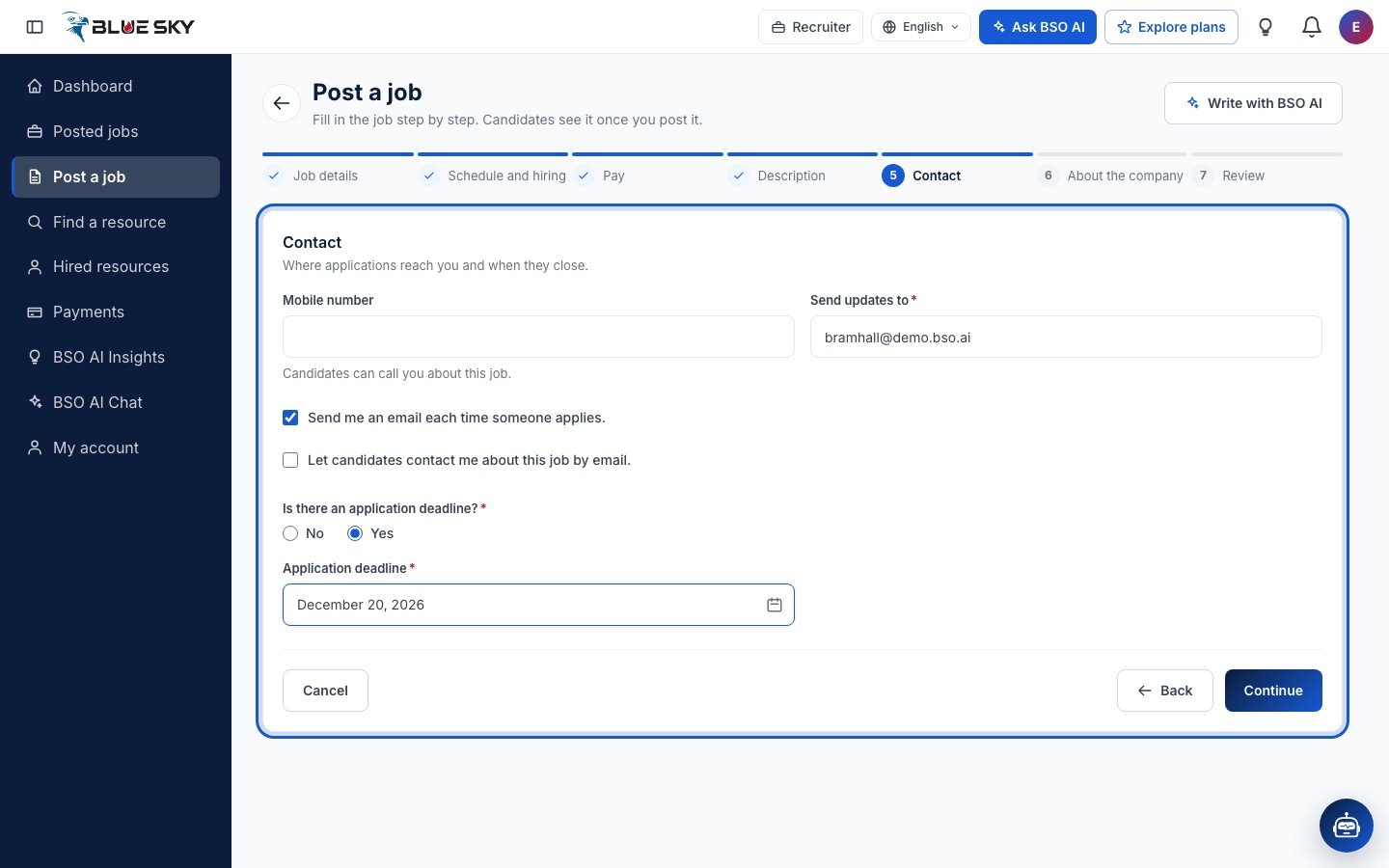
Send updates to is required and starts with your account email. Mobile number is optional; candidates can call you about this job if you add one. Tick Send me an email each time someone applies if you want an email per application, and Let candidates contact me about this job by email if candidates may write to you.
Answer Is there an application deadline? For Yes, pick the Application deadline from the calendar: it has to be a date after today. A job with a deadline stops taking applications once that day has passed.
Step 6: About the company
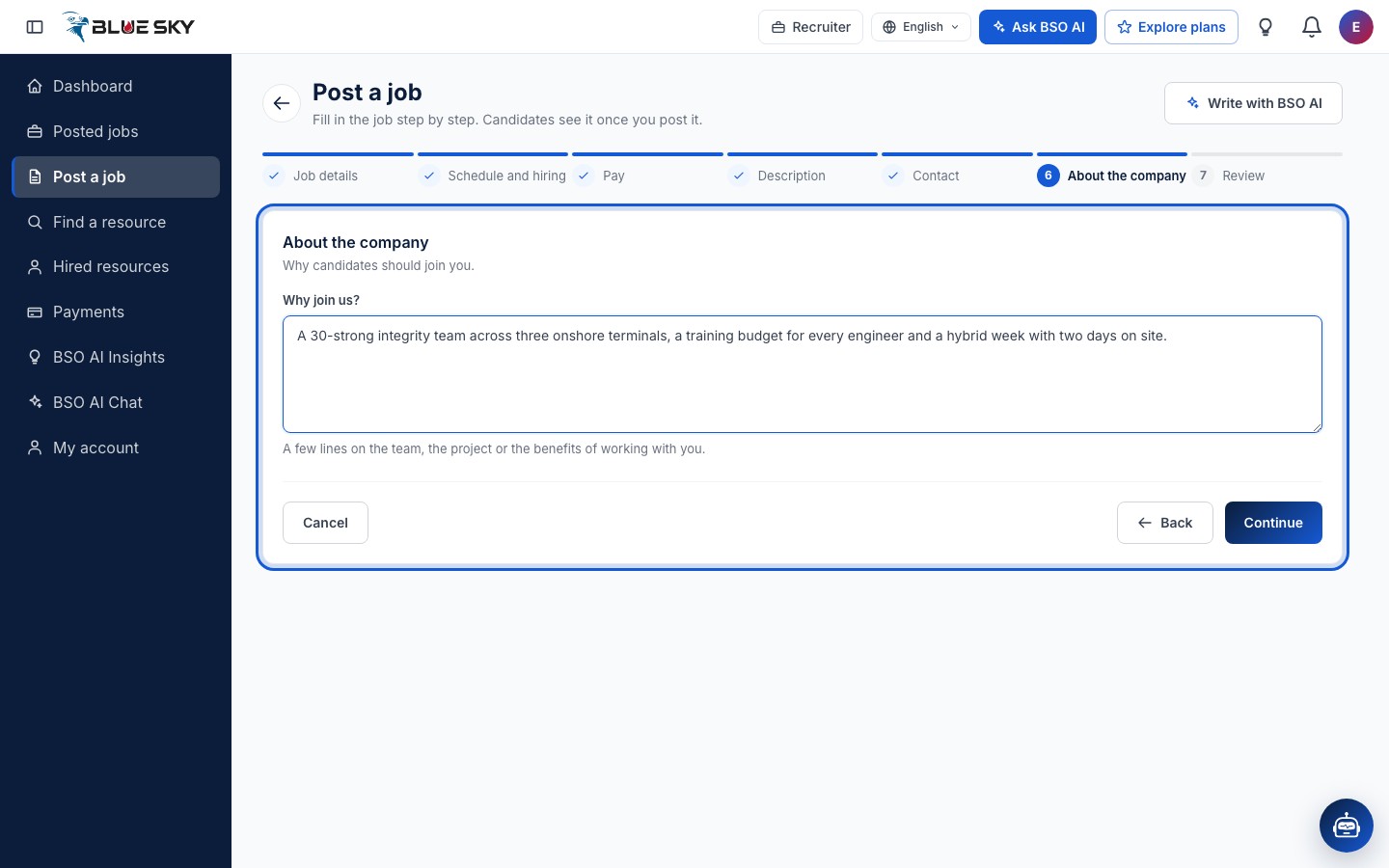
Why join us? is a free text box for a few lines on the team, the project or the benefits of working with you. It is optional and appears on the job page under About the company.
Step 7: Review and post
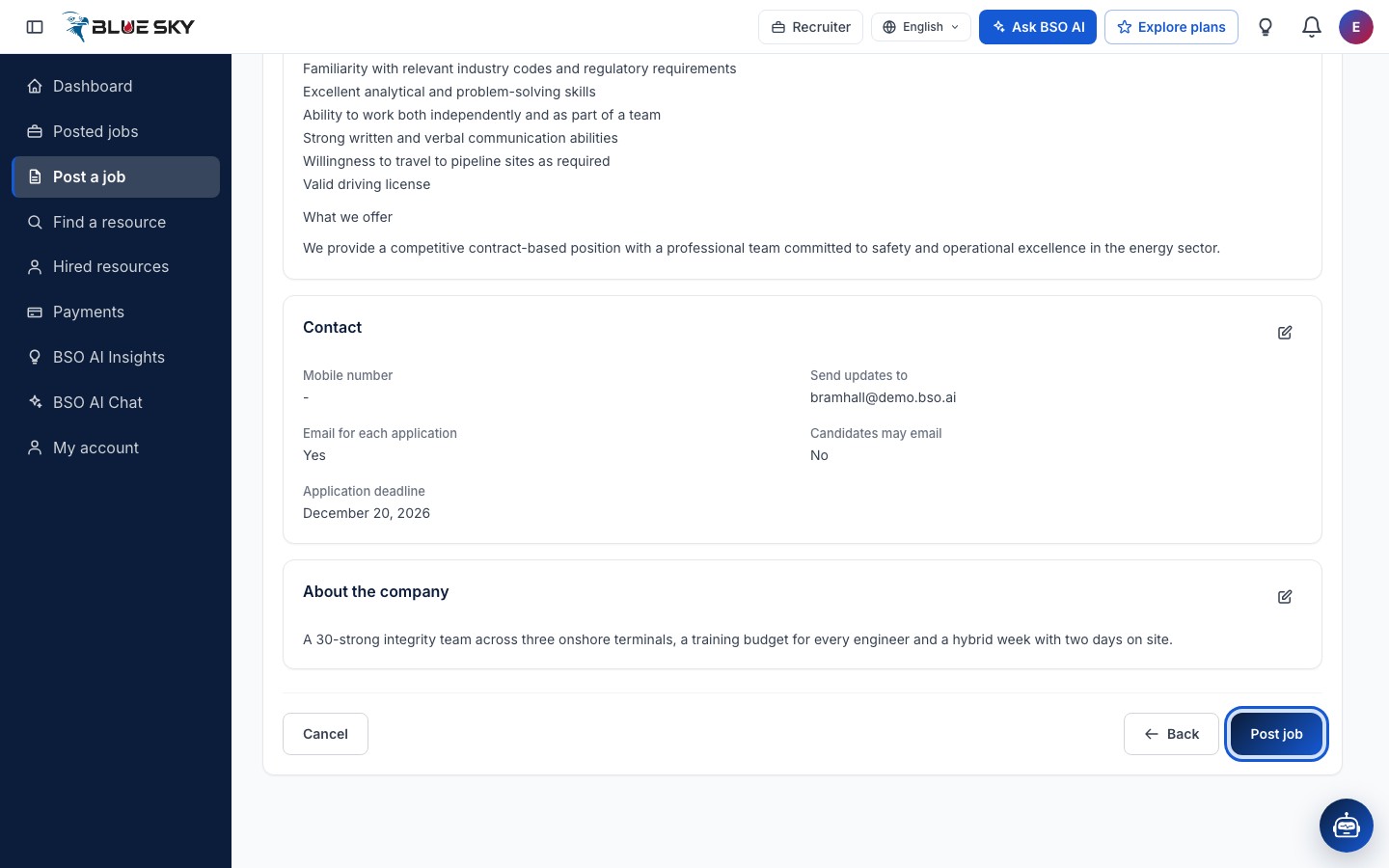
Review shows every section with what you entered. The pencil on each section (Edit Job details, Edit Pay and so on) takes you back to that step. When it all reads right, click Post job. Post job checks every step again and, if something is missing, opens the step that needs it.
Your job is live
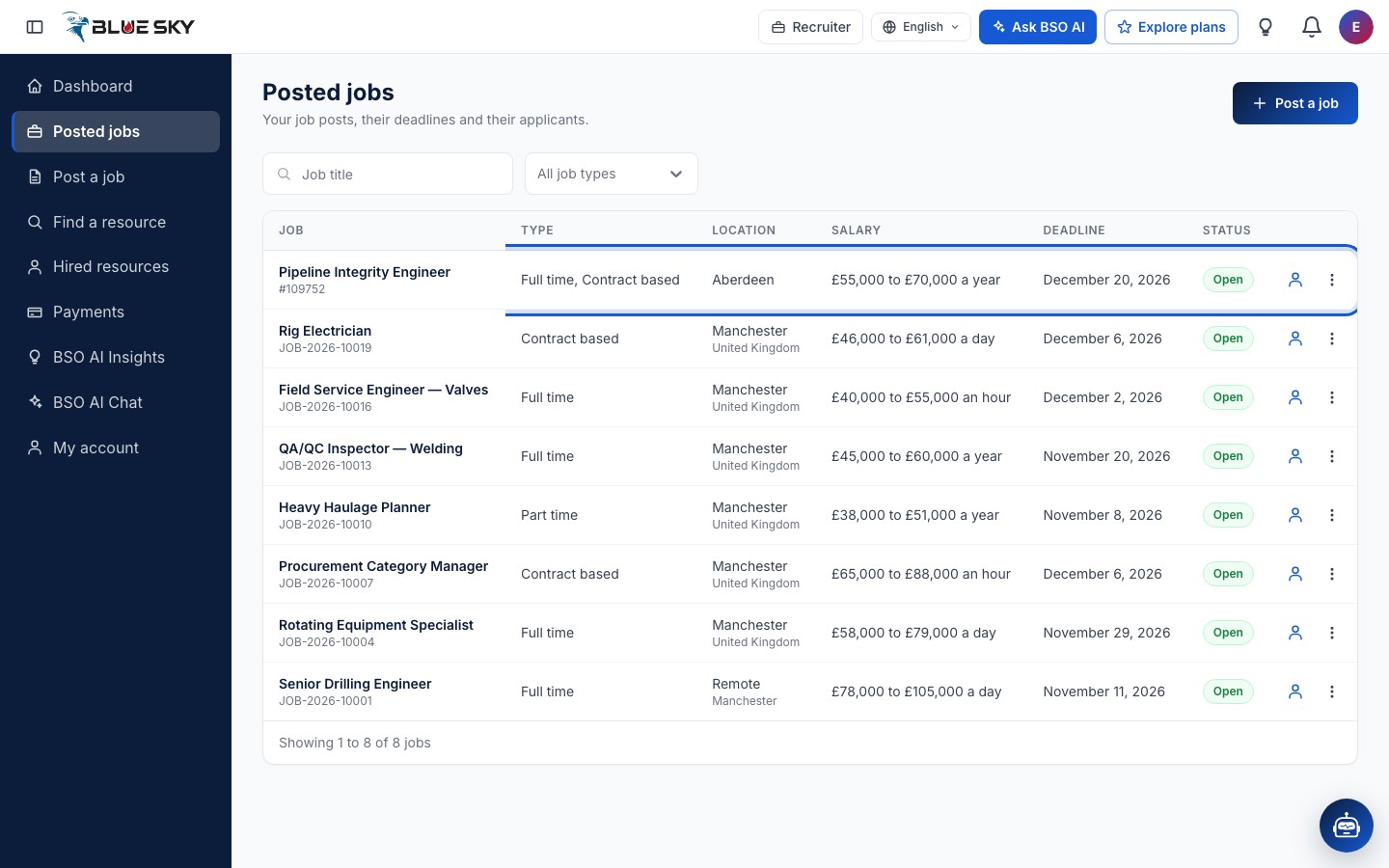
Posted jobs opens with the new job at the top, its reference under the title, and the status Open. It is on the public Jobs page straight away, where job seekers can apply: see Apply for a job for what they see. Editing, closing and reopening are in Manage your jobs.
Or: Write with BSO AI from a brief
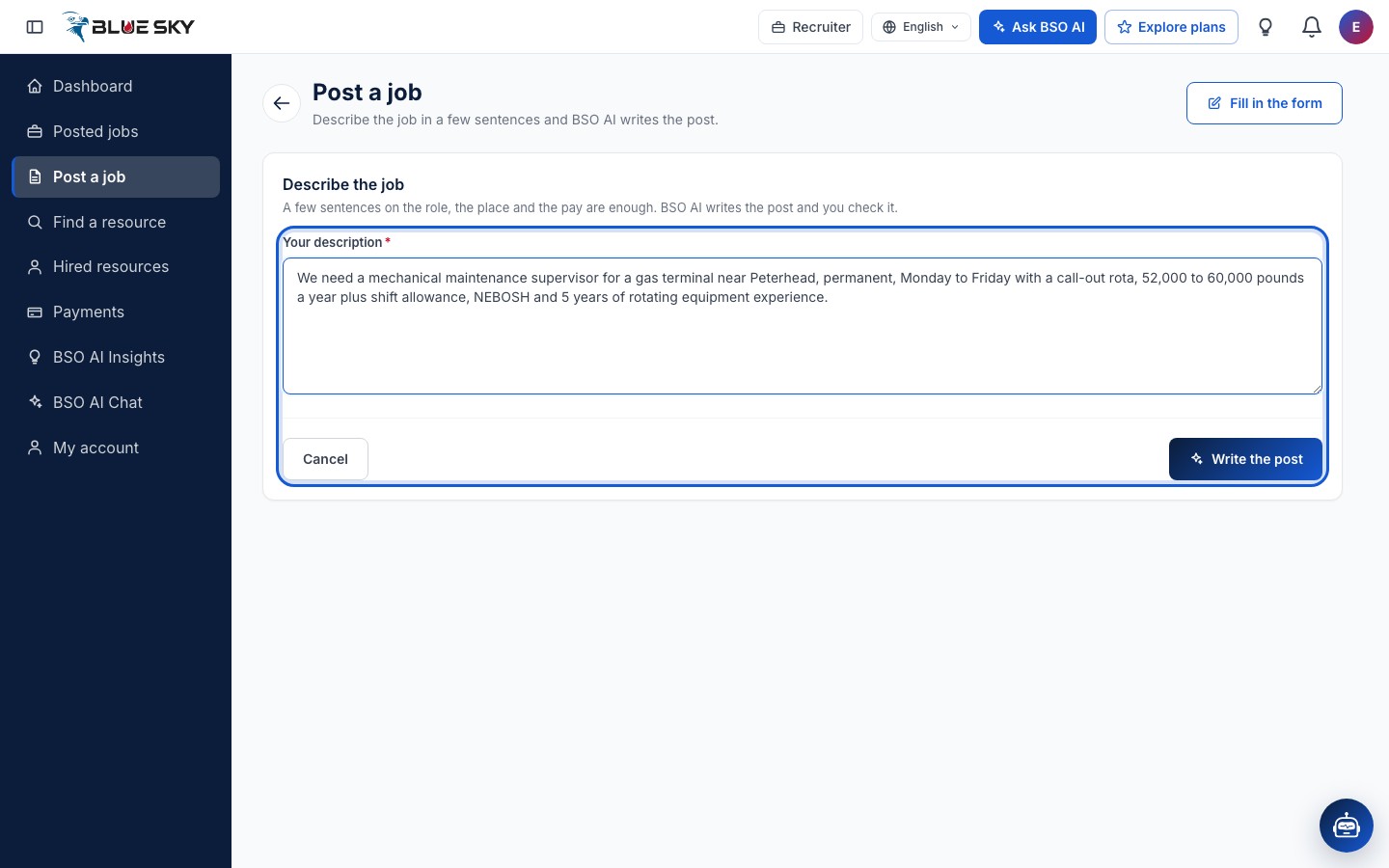
On Post a job, the Write with BSO AI button at the top right swaps the form for Describe the job: one box, Your description, for a few sentences on the role, the place and the pay. Click Write the post. Fill in the form at the top right takes you back to the seven steps.
Check the post, set the title, post
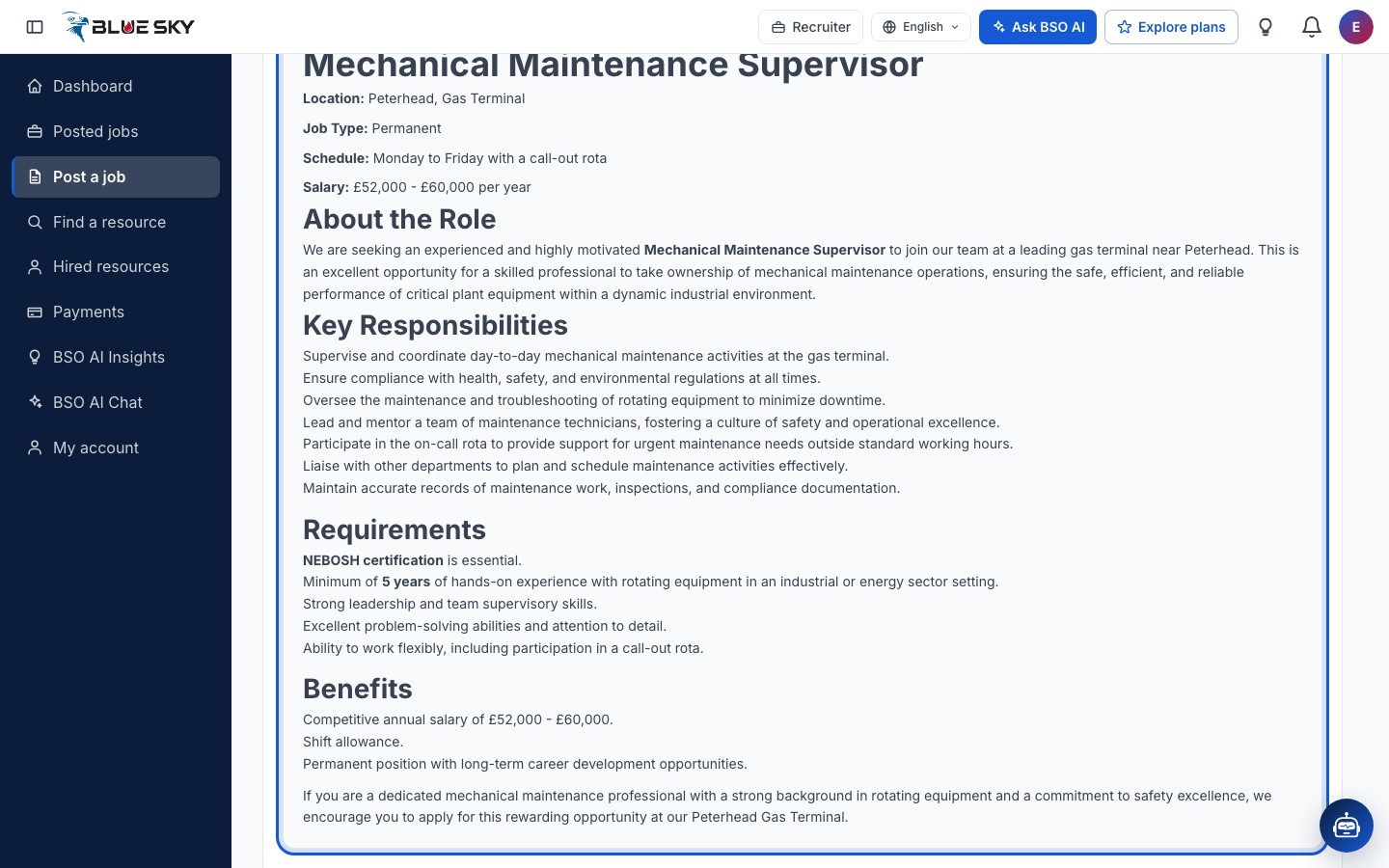
Check the post shows what BSO AI wrote: a headline, the location, type, schedule and pay it picked out of your brief, then the role, responsibilities, requirements and benefits. Set the Title in the job list (BSO AI suggests one), then click Post job. Back returns you to your brief. A job written this way shows the post as its description and is edited on the same two screens.
Good to know
- A job with no deadline stays open until you close it. With a deadline, the job shows Expired on Posted jobs once the day has passed and stops taking applications; set a new deadline in Edit to reopen it.
- Cancel on any step asks before dropping what you typed. The steps are not saved until you click Post job.
- Applications appear on the job's applicants page with a BSO AI match score: see Review applicants. You can also ask BSO AI about your jobs in the chat: see Ask BSO AI.
Related guides
Still stuck? We are here.
Open BSO AI Chat inside the platform, or email the support team. Monday to Friday, 07:00 to 17:00 UK time.