

Every open job on BSO is on the public Jobs page, which anyone can read. Each row shows the job reference, the type of work, the title, the company, the country, whether it is on site or remote, the pay, the experience asked for, when it was posted and when it closes.
Once you are signed in as a job seeker (see List yourself as a job seeker), the same page becomes Find jobs inside your dashboard, with a Saved jobs tab and, when BSO AI has picked roles for your profile, a BSO AI job matches block at the top.
Before you start
- Nothing, to browse. A BSO account with the job seeker role, to save a job or apply.
Open the Jobs page
Open Jobs from the top menu. Type a role, a skill or a country in the search box, and a city or postcode next to it, then click Search. Under the search, the Job type, Pay basis and Country chips narrow the list and Sort changes the order. The line above the list tells you how many open roles match.
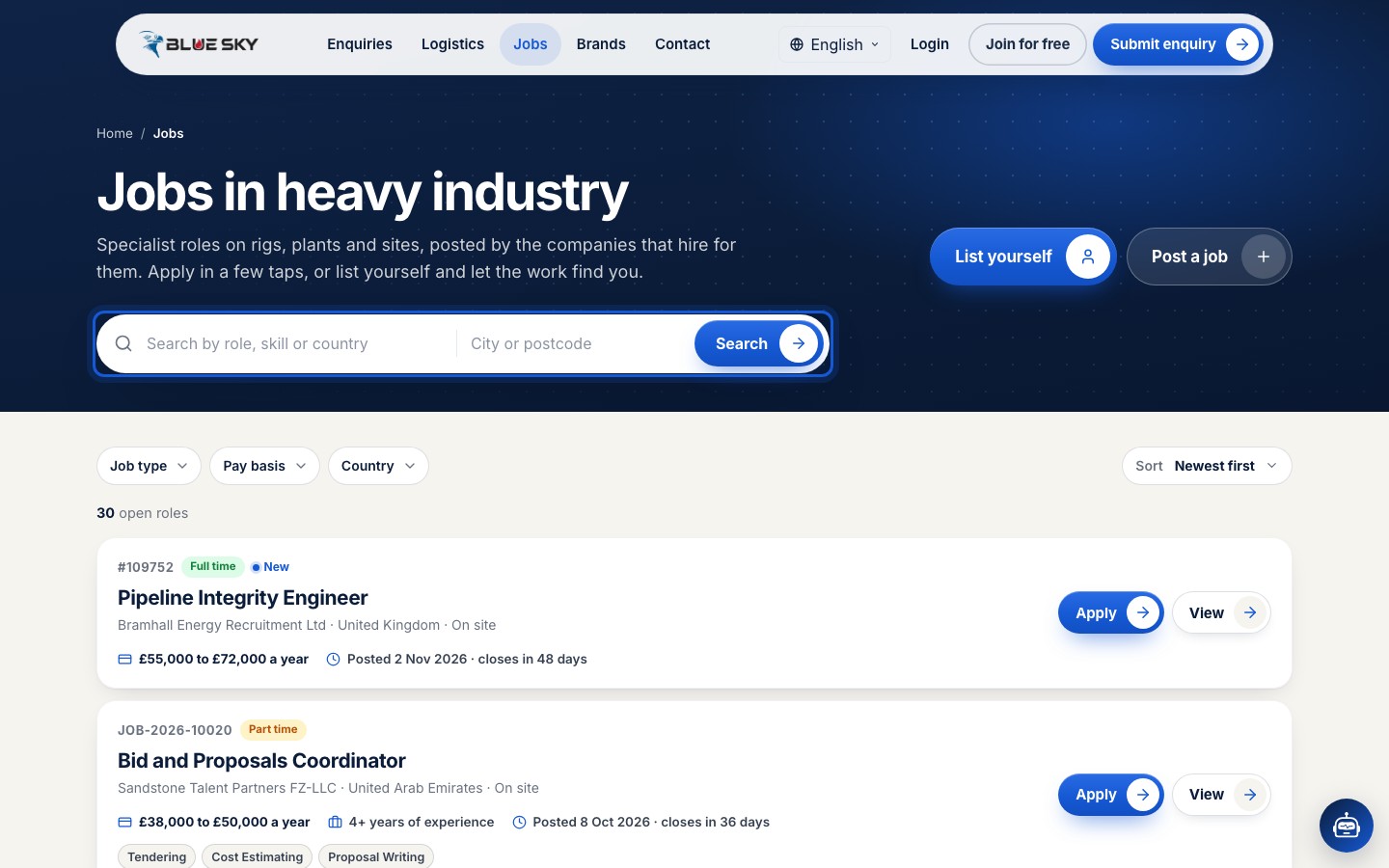
Open a job
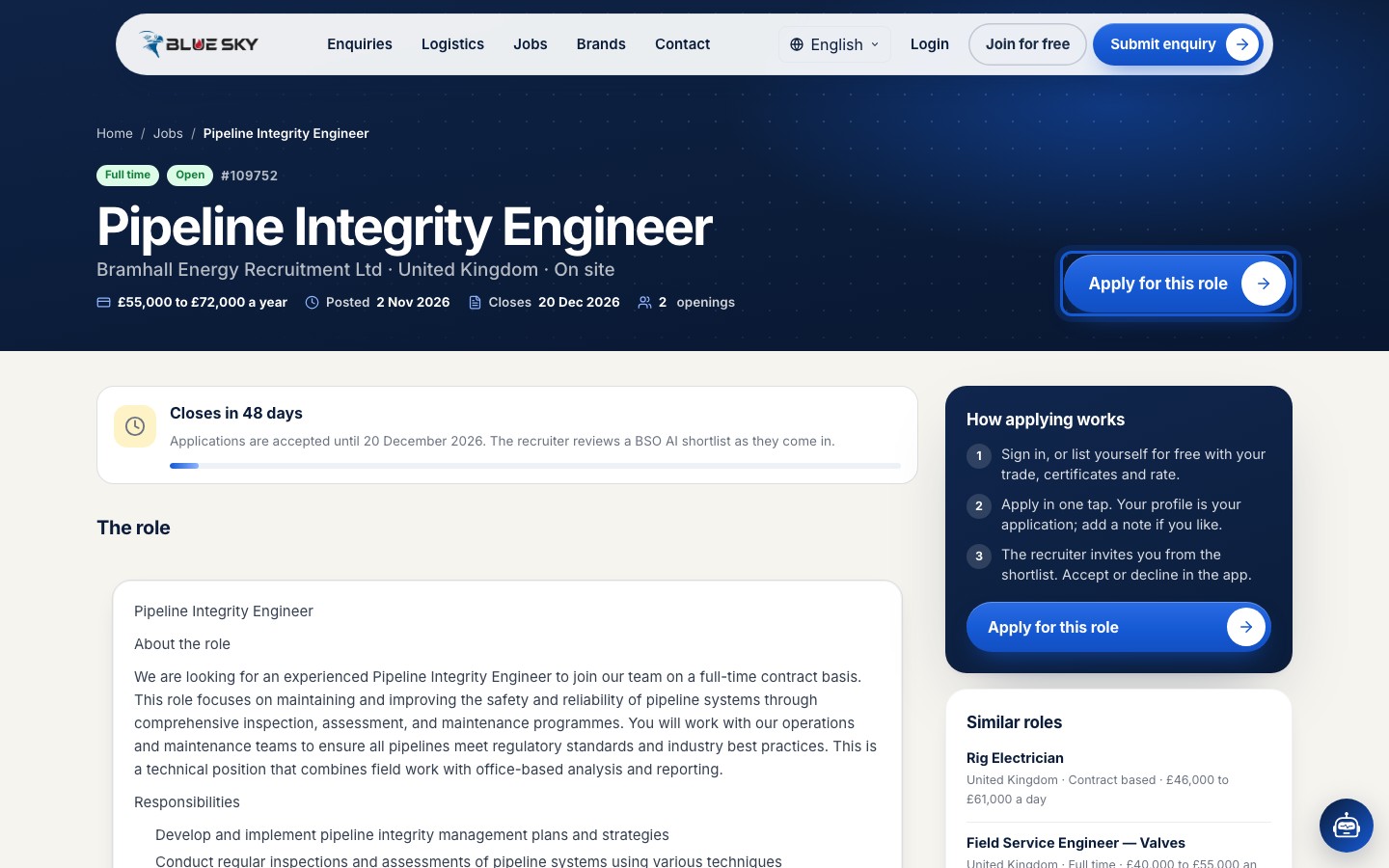
Click the title of a job, or View. The job page shows the type of work, whether it is still Open, the reference, the pay, the experience asked for, the posting date, the closing date and the number of openings. Below that: Closes in a number of days with the date until which applications are accepted, then The role, What you will do, What you need, Pay and terms, and Similar roles on the right.
Applying needs an account
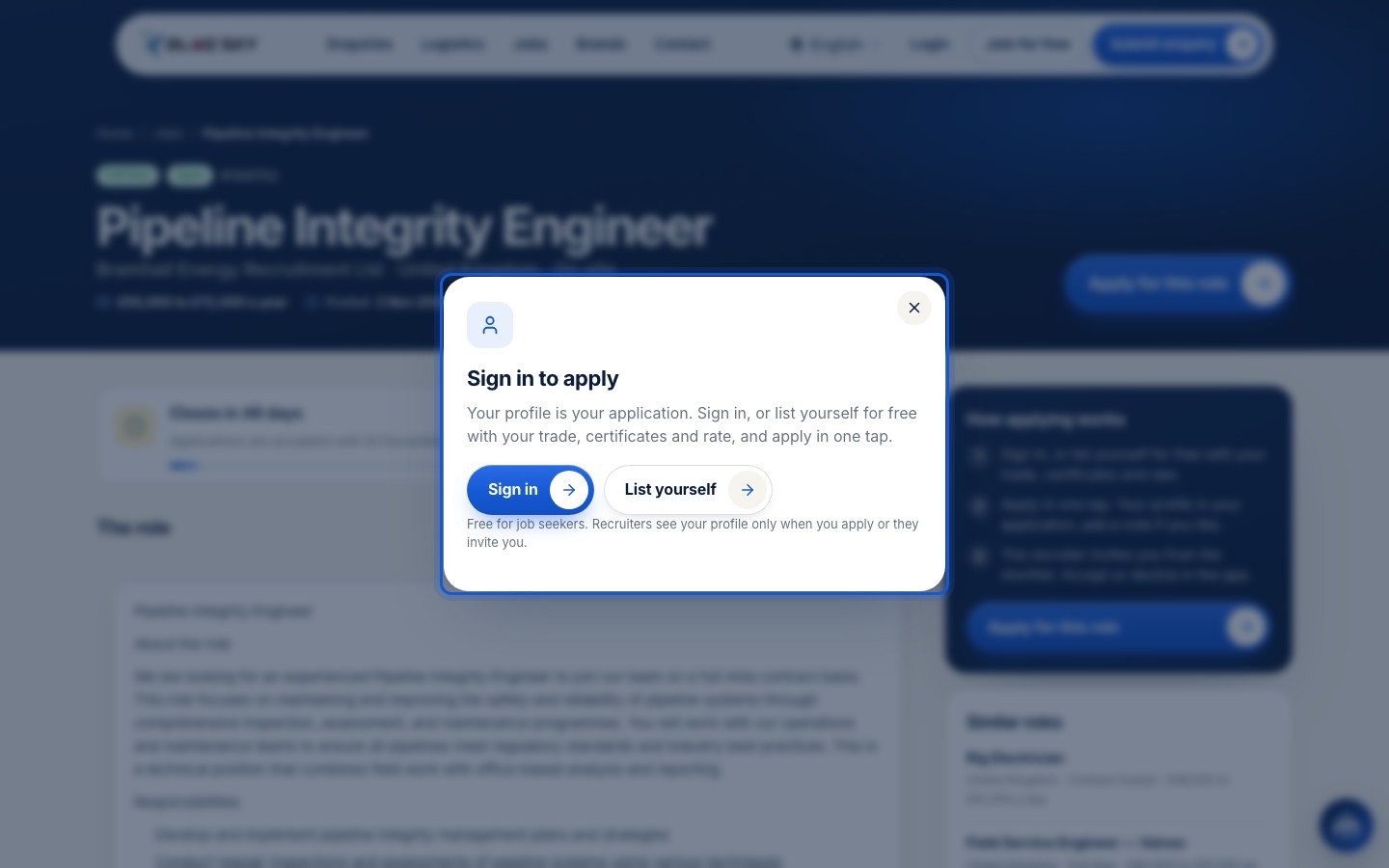
If you click Apply for this role before signing in, a Sign in to apply panel opens with two choices: Sign in, or List yourself to create a free job seeker profile. See Sign in, log out and reset your password and List yourself as a job seeker.
Find jobs in your dashboard
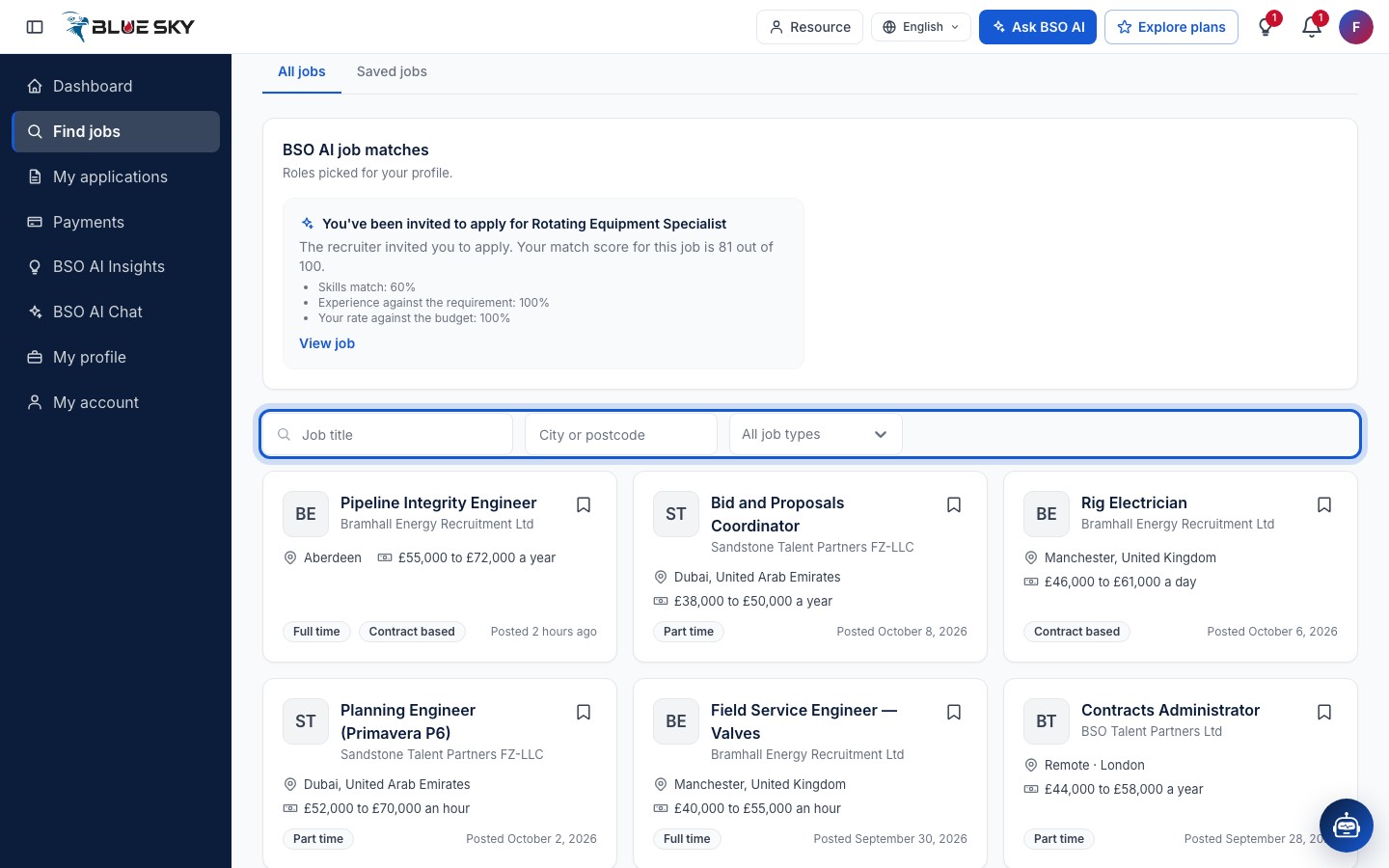
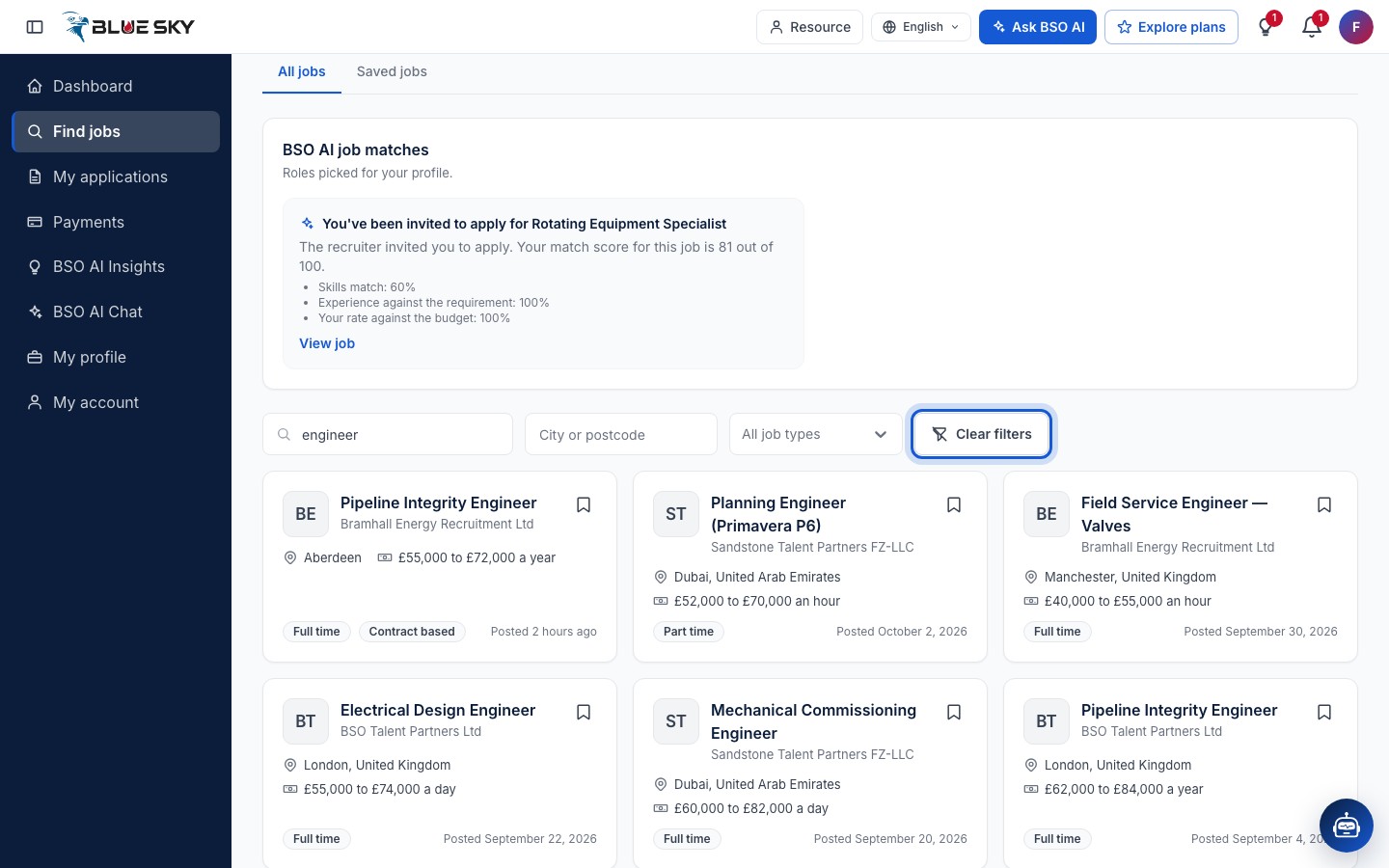
Signed in as a job seeker, open Find jobs from the left menu. The page has two tabs, All jobs and Saved jobs, and a filter bar: a search box for the job title, a box for a city or postcode, and a list of job types (Full time, Part time, Freelance, Contract based and so on).
When BSO AI has matched roles to your profile, a BSO AI job matches block appears above the filters with a View job link for each.
Narrow the list
Type part of a job title: the list narrows as you type. Pick a job type or a place in the same way. As soon as a filter is active a Clear filters button appears; click it to see every open job again.
Save a job for later
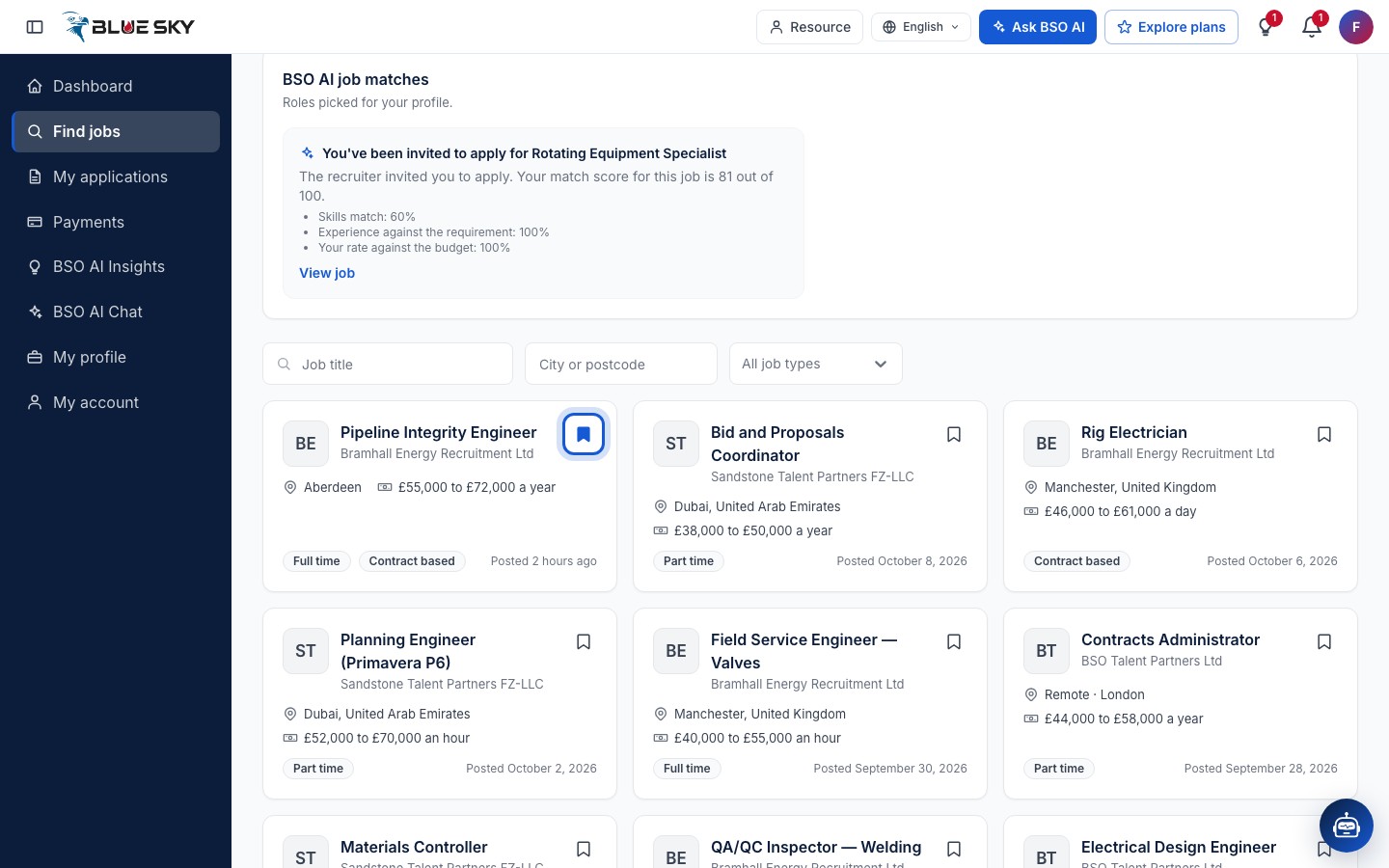
Each job card has a bookmark button at its top right, labelled Save job. Click it: the page confirms Job saved and the bookmark fills in. Clicking it again, now labelled Remove from saved, takes the job off your list. Cards of jobs you have already applied for carry an Applied mark.
Find your saved jobs
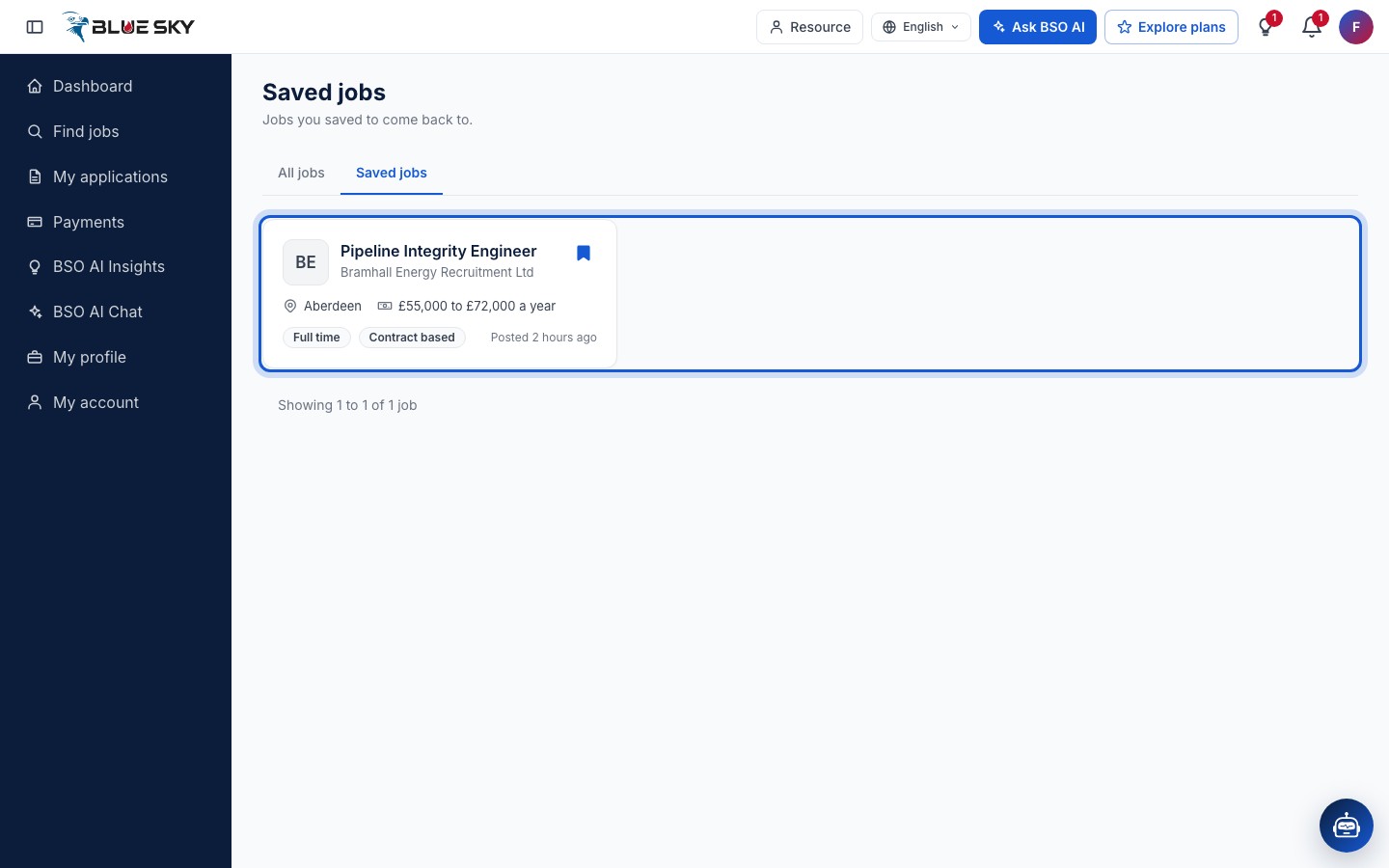
Open the Saved jobs tab, or go to Saved jobs. Your saved jobs are listed as cards; the bookmark on each one reads Remove from saved. A saved job stays readable for you even after it has closed.
Read the job in your dashboard
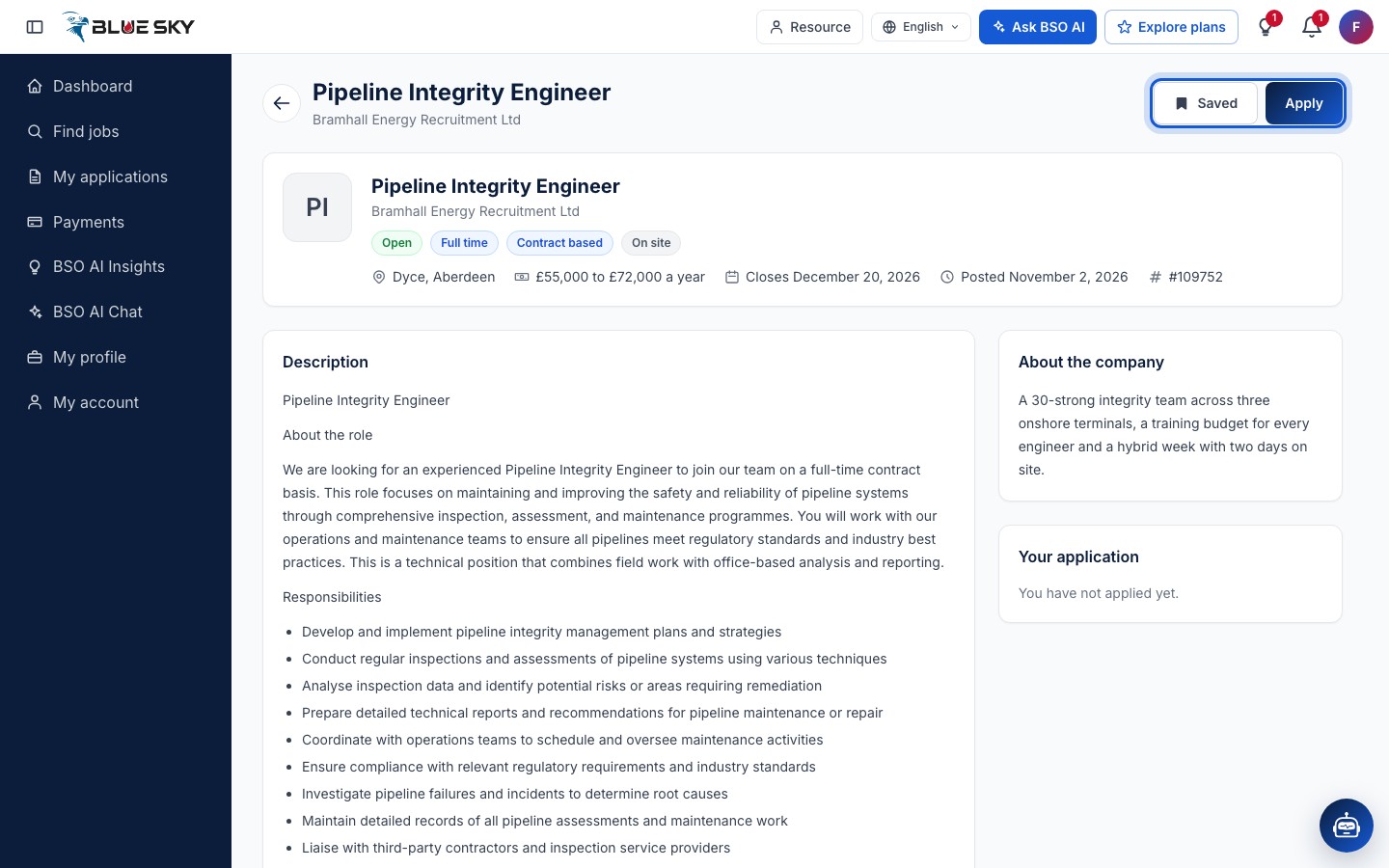
Click a card to open the job. At the top right are Save job (it reads Saved once you have saved the job) and Apply. The header shows the state of the job (Open, or Closed or Expired), the type of work, whether it is on site or remote, the Location, the Salary, the Application deadline, when it was Posted and the Job reference.
Below are the Description, Responsibilities, Requirements (qualifications, experience, languages and skills), Schedule and pay, About the company, and a Your application card on the right that says You have not applied yet until you do. See Apply for a job.
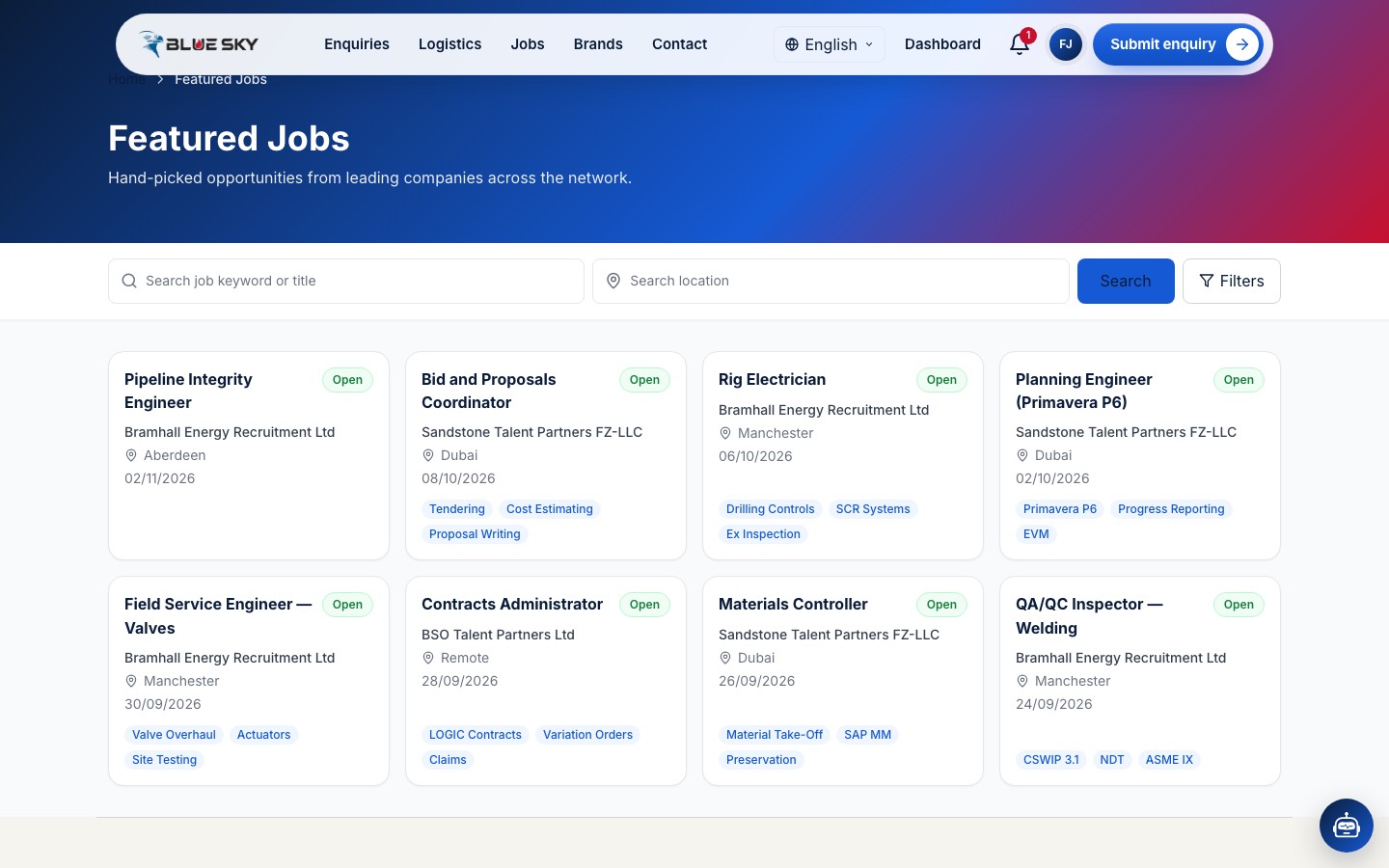
Featured Jobs
Featured Jobs shows the first eight open jobs as cards. It has its own search boxes, Search job keyword or title and Search location, with a Search button, and a Filters button that opens Skills, Job Type and Industries filters.
Good to know
- A job stops taking applications on its closing date, and a recruiter can close it earlier. Check the Application deadline before you start your application.
- Ask BSO AI which jobs fit your profile: see Ask BSO AI.
- Next: Apply for a job.
Related guides
List yourself as a job seeker
Add the free job seeker role and build your profile.
Apply for a job
Send your CV and answers from the job page.
Track your applications
Your applications by status, and how decisions reach you.
Sign in, log out and reset your password
Sign in, log out, and set a new password if you forget it.
Still stuck? We are here.
Open BSO AI Chat inside the platform, or email the support team. Monday to Friday, 07:00 to 17:00 UK time.