

Live talk is a voice conversation with BSO AI. In your dashboard it lives in BSO AI Chat; on the public pages it is the "Talk to us" button of the support chat. You speak, BSO AI listens, thinks and answers out loud, and the whole exchange is kept in the chat as text.
Live talk speaks English for now. If your site language is Spanish or Arabic the chat says so and the call still runs in English.
Before you start
- A browser with a microphone, and permission for bsoservices.ai to use it.
- For the dashboard version, a signed-in BSO account. The support bubble on the public pages works without one.
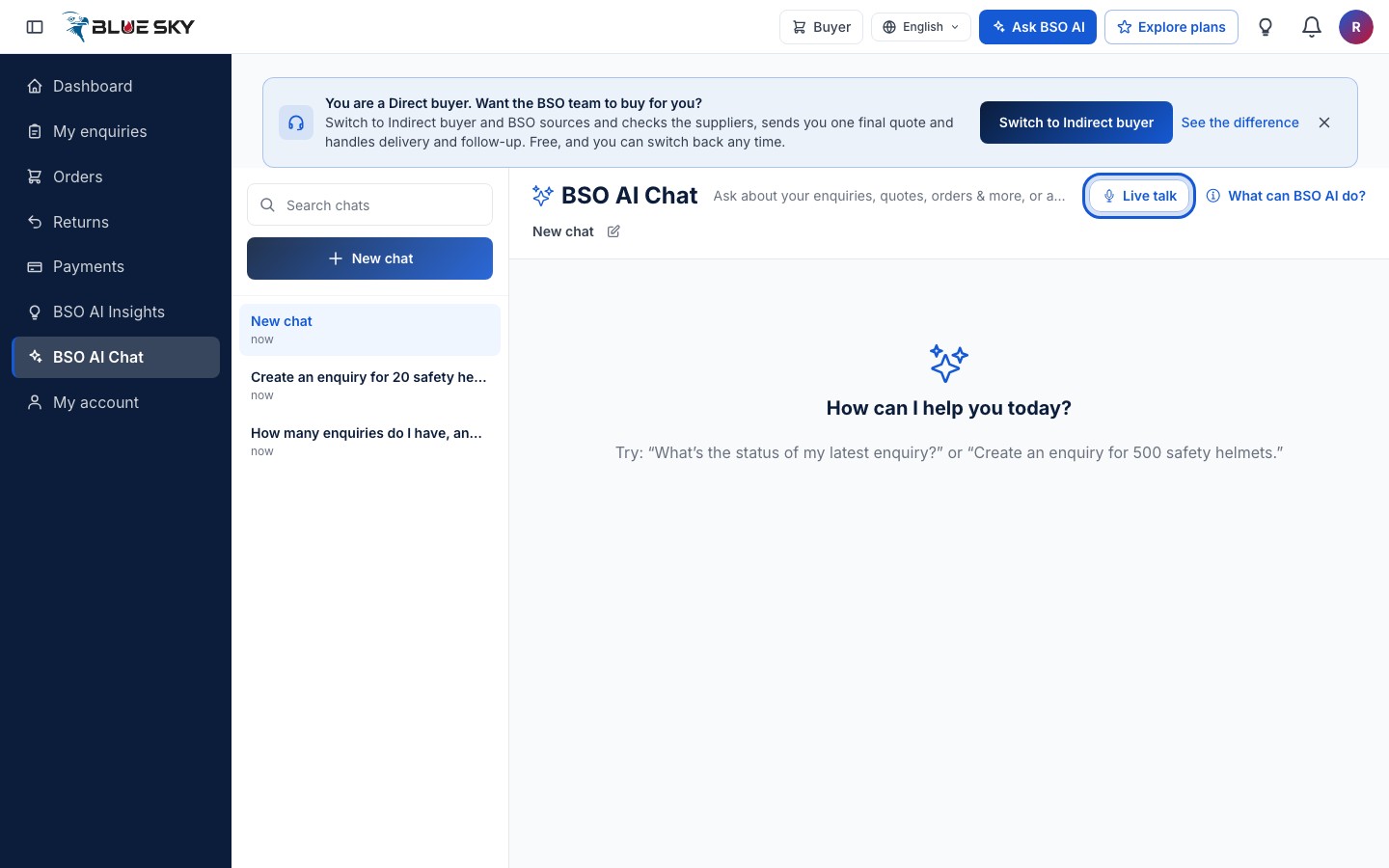
Click Live talk in the chat
Open BSO AI Chat and click "Live talk" at the top right of the conversation. The button is only shown in browsers that support calls.
Allow the microphone and talk
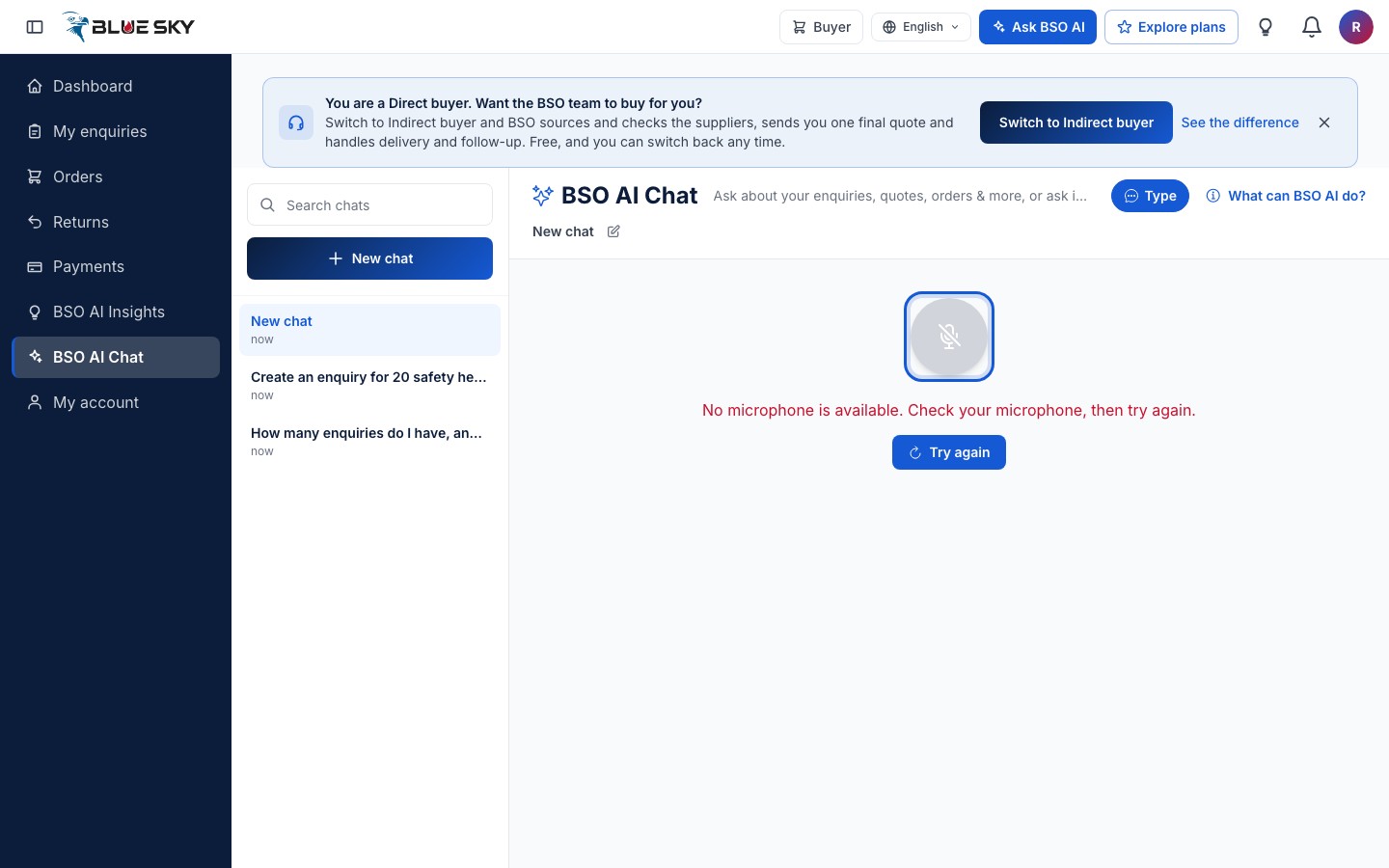
The text view is replaced by the live view: a large circle shows the state of the call (connecting, listening, thinking, speaking) and your words and BSO AI's replies appear below it as the call goes on. Speak after it says it is listening; a short pause sends what you said.
If the browser has no microphone, or you did not allow it, the circle turns grey and the message tells you what to check, with a "Try again" button.
On an iPhone the microphone is paused while BSO AI speaks, so wait for it to finish before you answer.
Go back to typing
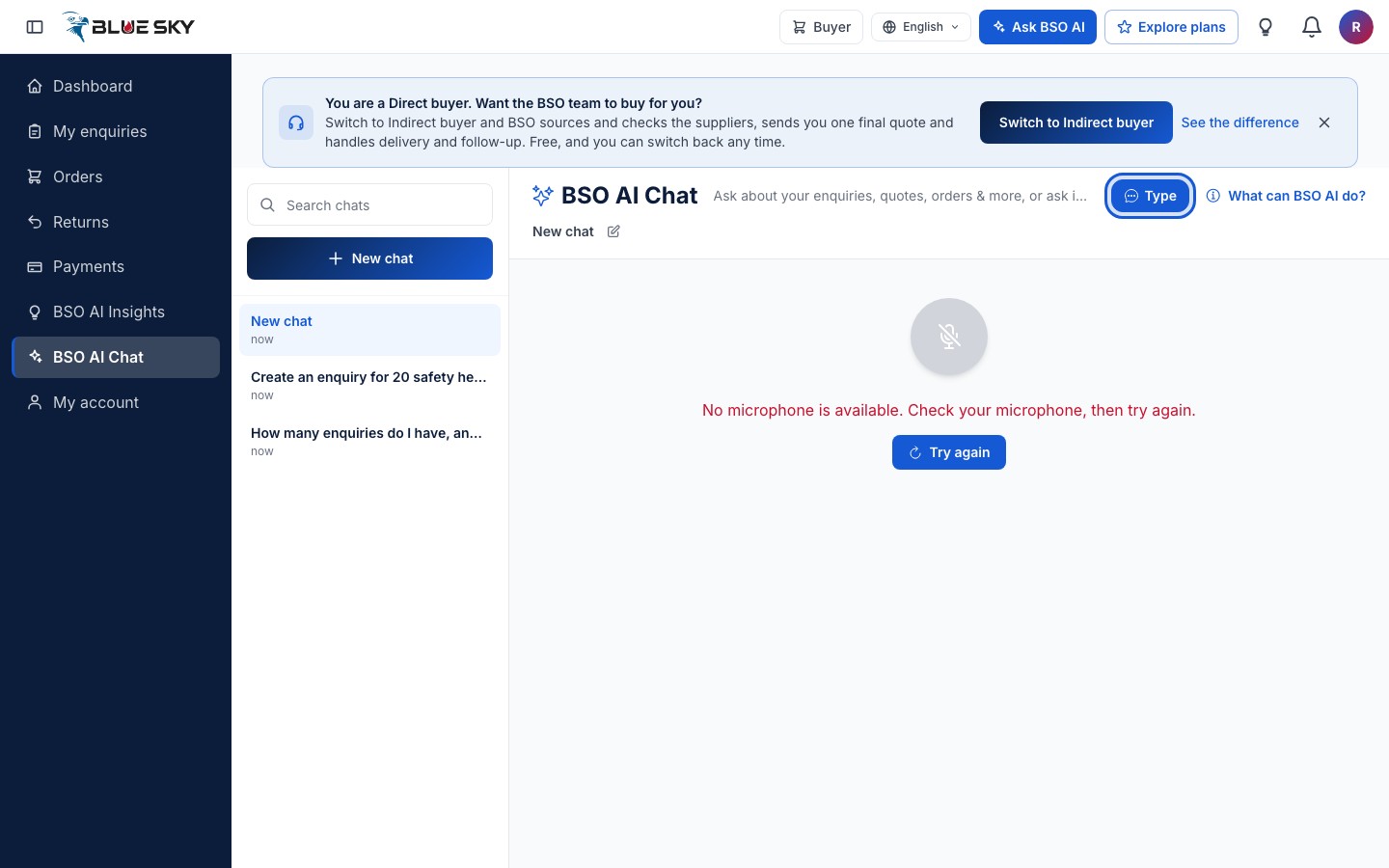
Click "Type" (the same button) to end the call. The conversation stays in the chat as ordinary messages, so you can carry on by typing or read it back later.
On the public pages: open the support chat
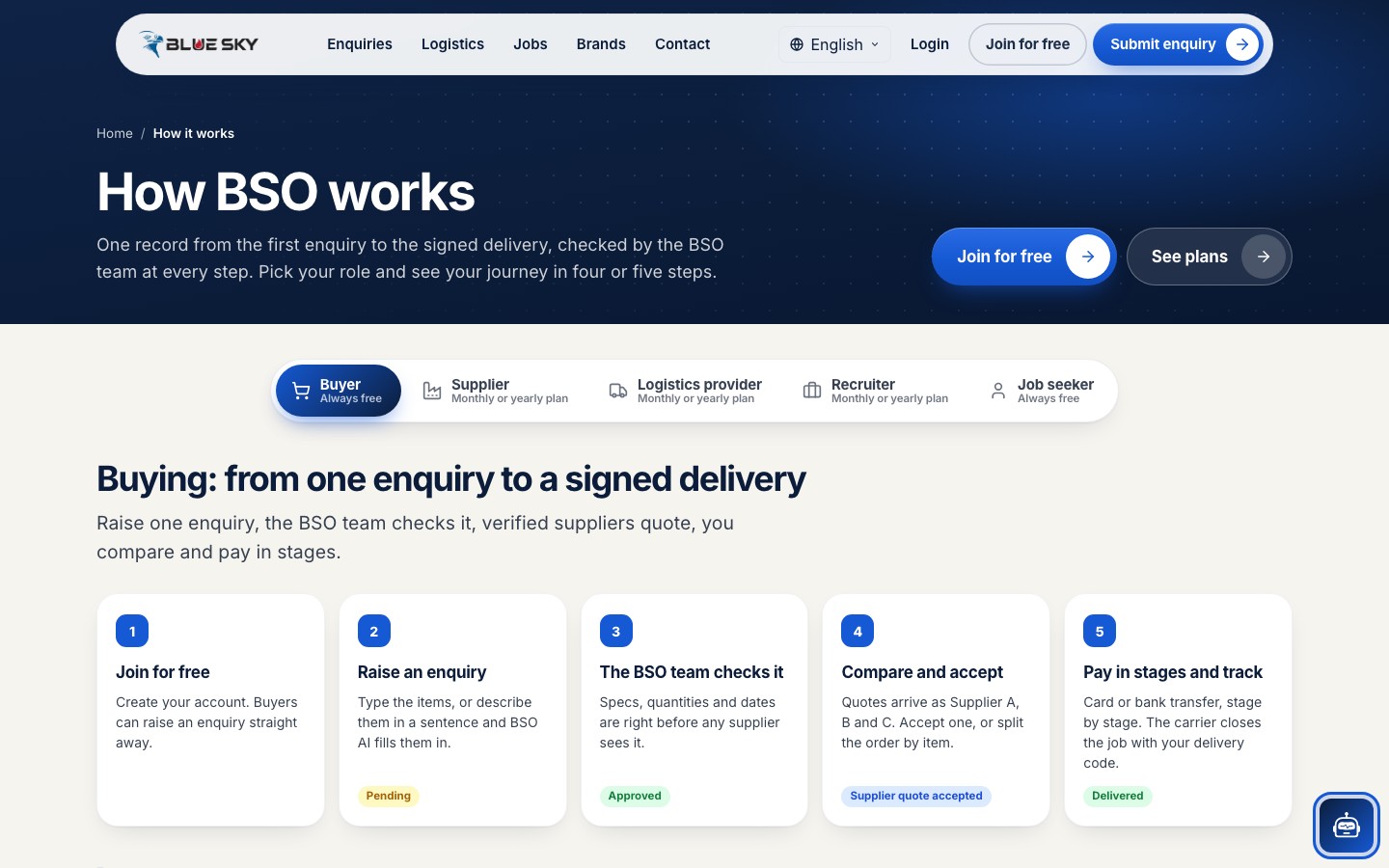
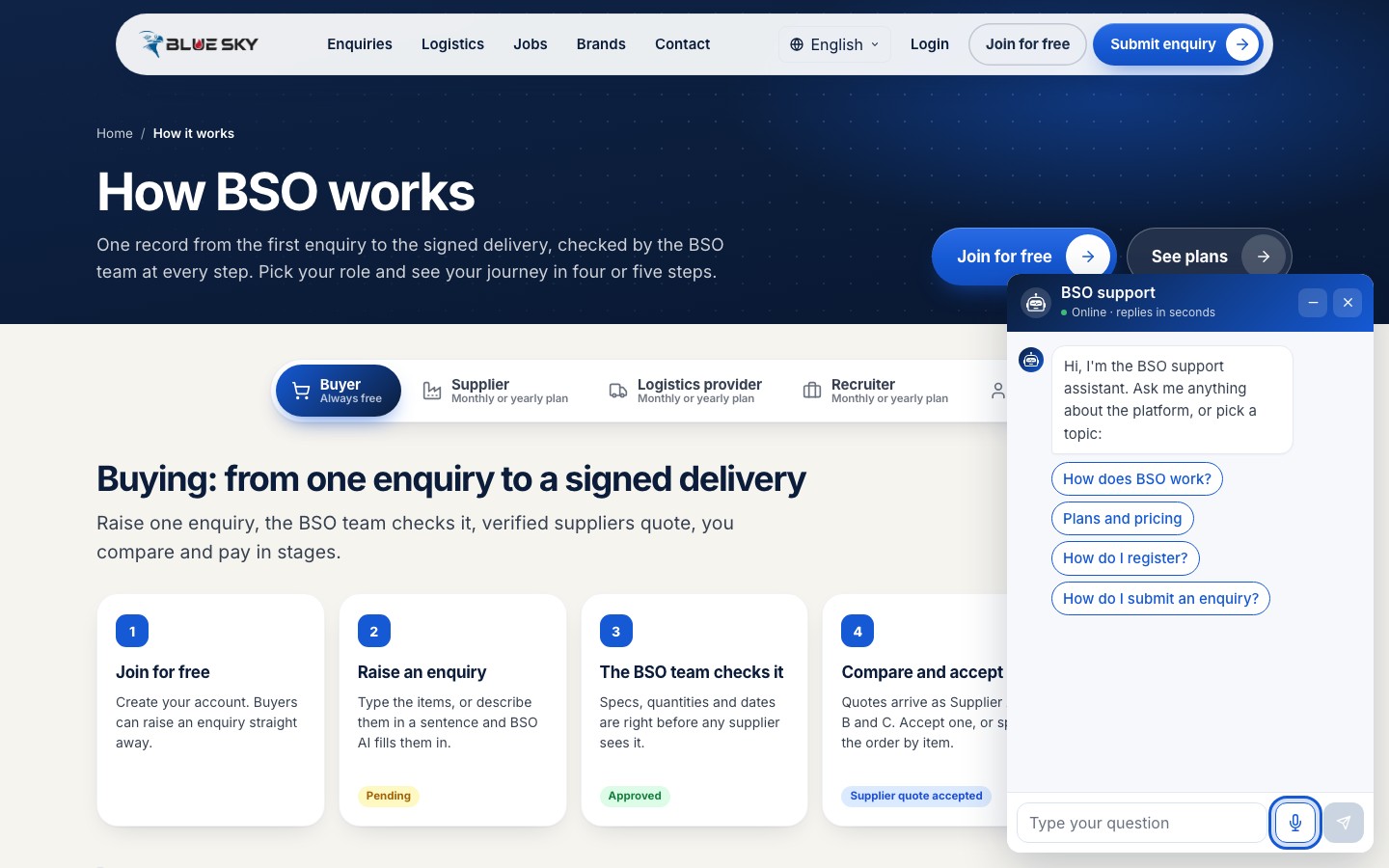
The support chat is the round button at the bottom corner of every page except BSO AI Chat ("Chat with BSO support"), for visitors and signed-in users alike. It explains the platform and the plans and has no access to accounts or orders.
Click Talk to us
In the support chat, click the microphone button next to the message box ("Talk to us") to talk instead of typing. The same live view opens inside the bubble; "Type" brings the text chat back.
Good to know
- A call ends on its own after two minutes of silence when you are signed in, and after one minute in the public support chat. The chat shows a line saying why it ended.
- Public calls are capped at ten minutes; a line in the chat tells you when that happens, and you can keep typing.
- Only one live talk per account at a time: if a call is already running on another tab or device, the new one is refused with a message saying so, and the first call carries on.
- In a call BSO AI can prepare the same actions as in the text chat. The approval card appears in the live view and you approve by tapping it, never by voice: see Let BSO AI act for you.
Related guides
Still stuck? We are here.
Open BSO AI Chat inside the platform, or email the support team. Monday to Friday, 07:00 to 17:00 UK time.