

BSO AI can do more than answer: it can prepare an enquiry, a saved address, a profile change, a product, a job and more. The rule never changes: before anything on your account changes, you see a preview card and nothing happens until you click Approve. This guide shows the flow on a saved address; it is the same for every action. If you have not used the chat yet, start with Ask BSO AI.
Before you start
- A BSO account, signed in. Actions follow the plans active on your account: with the buyer plan (the free one chosen at sign-up) BSO AI can prepare enquiries, with a supplier plan quotes and products, with a recruiter plan jobs.
- The details the matching form asks for. BSO AI asks for anything that is missing instead of guessing.
Tell BSO AI what you want done
In BSO AI Chat, write the request in plain words, for example that you want a new enquiry for 20 safety helmets. BSO AI collects the same details as the website form: when something is missing it asks for it, in one message, with the choices on offer. It never fills in a date, a price or a priority on its own.
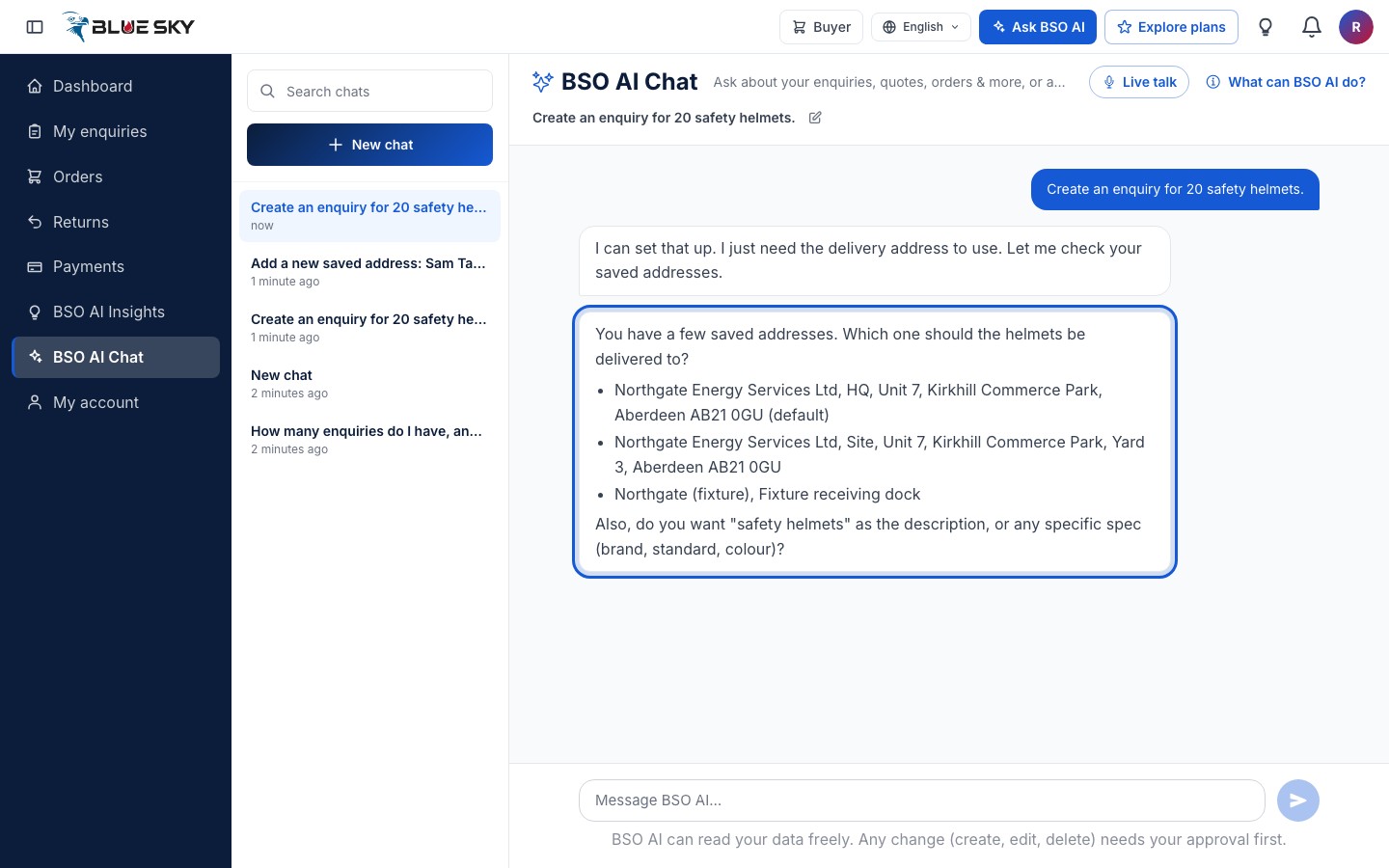
Give as much as you can in the first message (items, quantities, dates, address) and there is less to ask.
Check the preview card
When BSO AI has everything it needs, an "Approval needed" card appears in the chat. The chip at the top right names the action, the lines below show exactly what will be saved, and a Reference line shows which record a change applies to. Nothing has been saved yet.
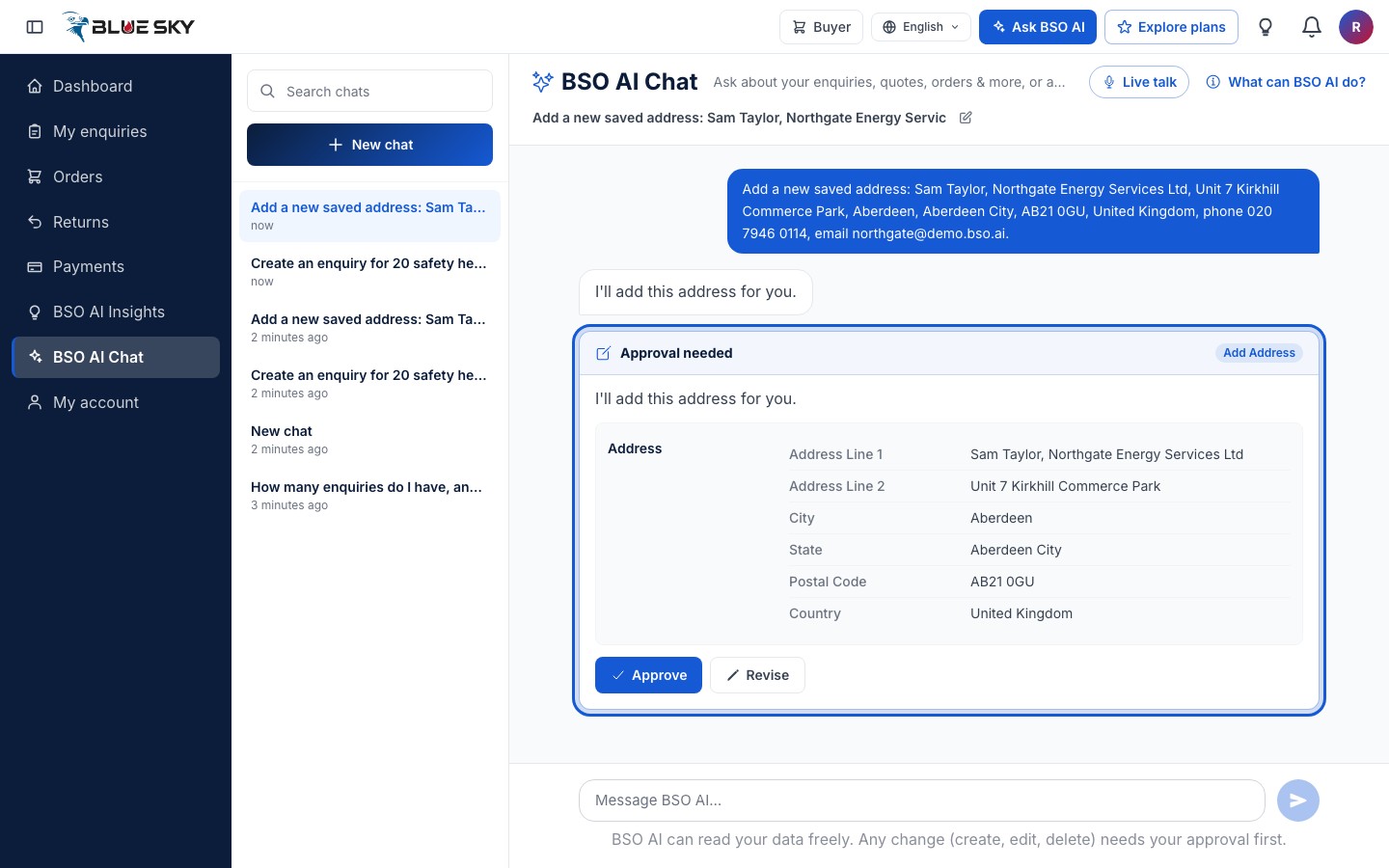
Approve, or Revise
Click "Approve" and BSO AI carries the action out through the same checks as the website form, then confirms it in the chat. Click "Revise" if anything is wrong: the proposal is dropped, nothing is created, and you can type the corrected request.
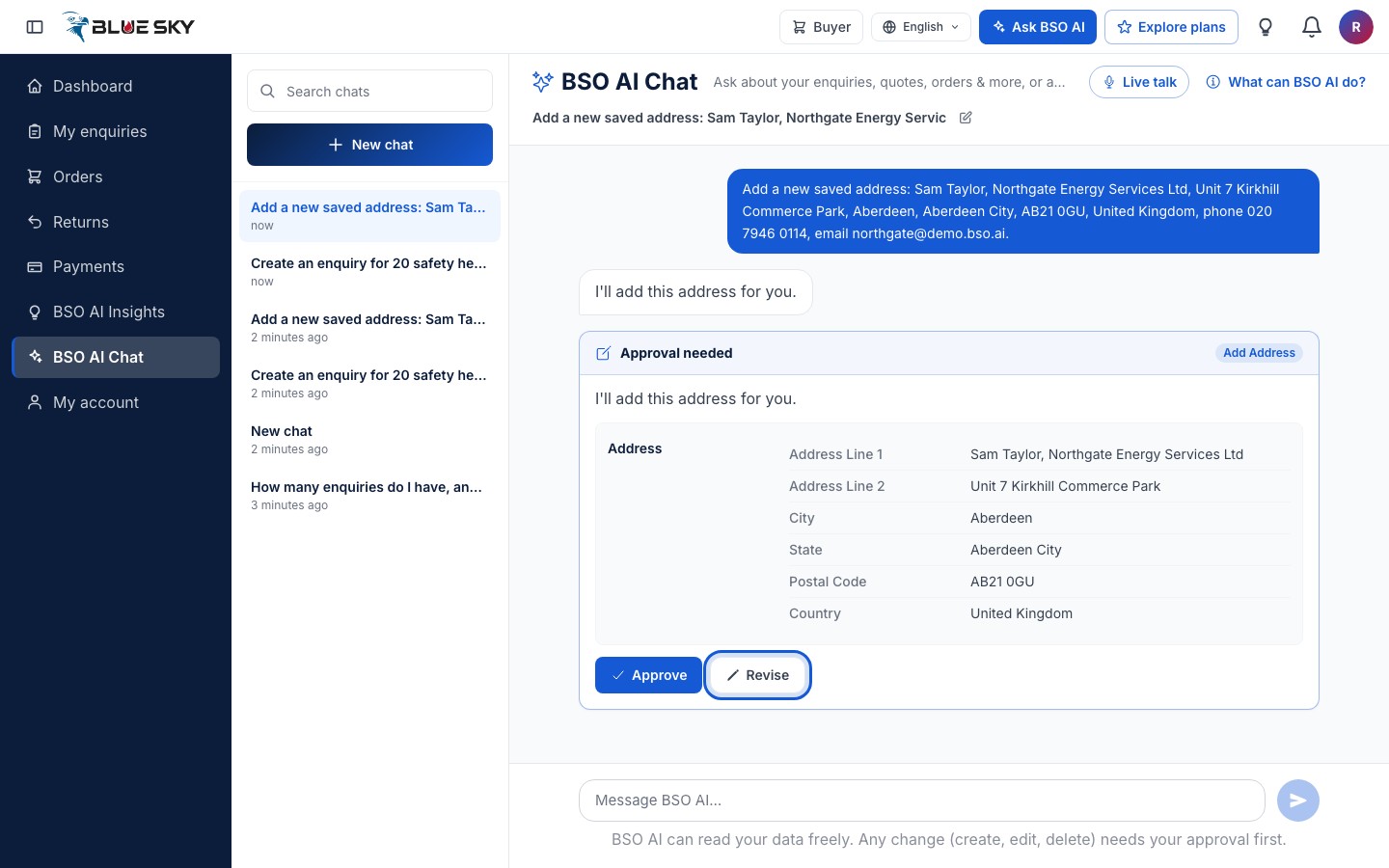
BSO AI proposes one change at a time. While a card is waiting, answer it before you ask for the next thing.
Carry on
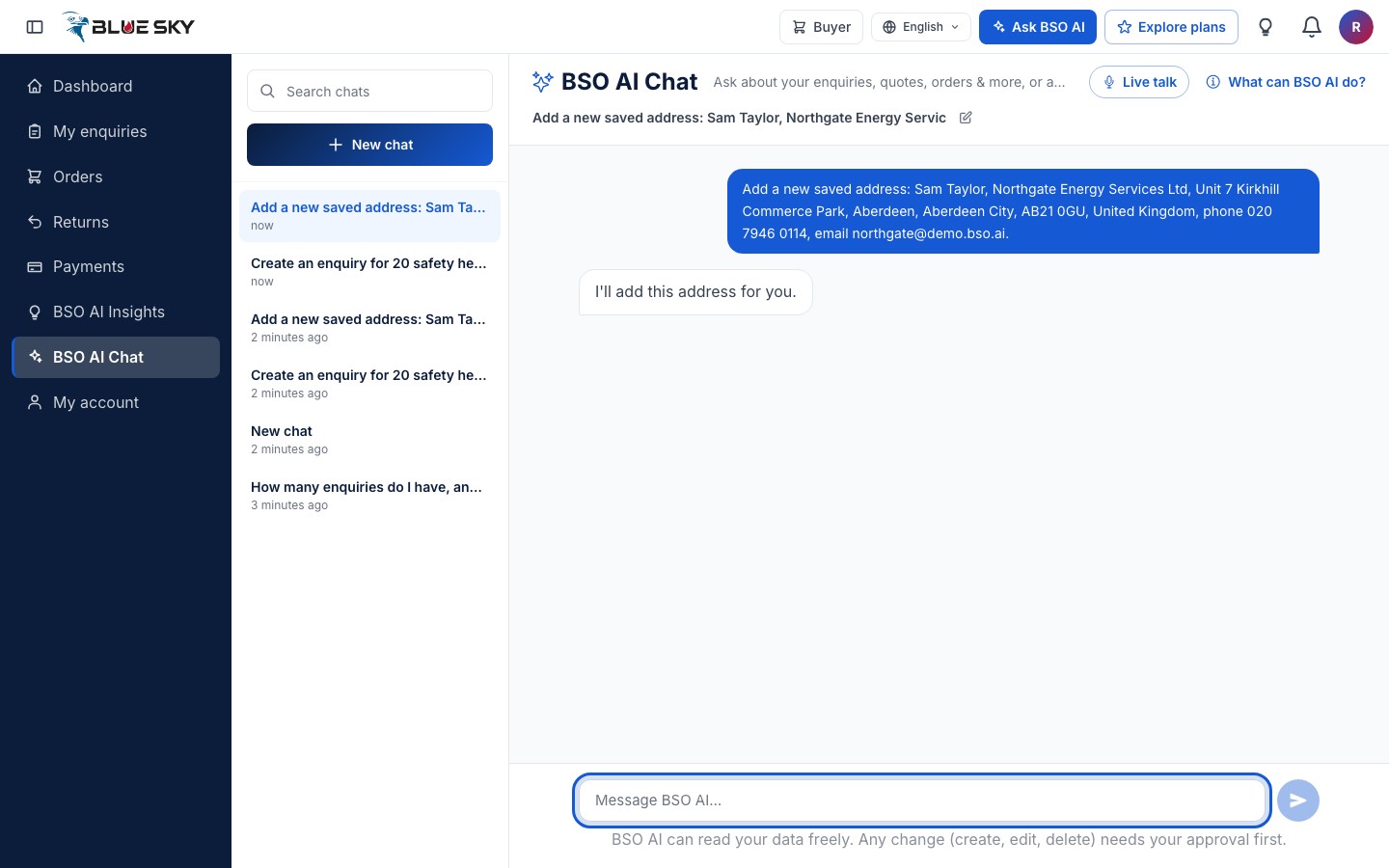
After Revise the card is gone and the chat continues. After Approve a short confirmation line appears in the chat, and the record is on its usual page (a new enquiry under My enquiries in the left menu, a new address under Addresses).
Good to know
- What BSO AI never changes: payments, invoices, plans and subscriptions. It can read them to answer a question, but it has no action for checkout, card details or your plan; those stay on the Payments and Plan and billing pages.
- Applying to a job needs a CV file and a cover letter file, which the chat cannot take: BSO AI gives you the job's link and you apply from the job page.
- An action that is not offered is one your roles or plan do not include; BSO AI tells you so.
- The same cards appear in Live talk: the approval is always a tap on the card, never a spoken yes.
- See also Submit an enquiry and Saved addresses for what the forms themselves ask for.
Related guides
Still stuck? We are here.
Open BSO AI Chat inside the platform, or email the support team. Monday to Friday, 07:00 to 17:00 UK time.