

Once an order is Delivered you can ask to return some or all of its items. The return has its own page with a next step, a timeline and the decision, and the Returns page in the left menu lists them all.
Who answers depends on how you bought. On a direct order the return is between you and the supplier: the supplier accepts or rejects it, and BSO steps in only when the supplier gives no answer within its window, or when you ask BSO to review a rejection. On an indirect order BSO is your counterparty and handles the whole return and the refund. See Indirect or direct.
Before you start
- A delivered order, within its return window: the order page says until when you can ask.
- For items that arrived damaged or faulty, photos of them.
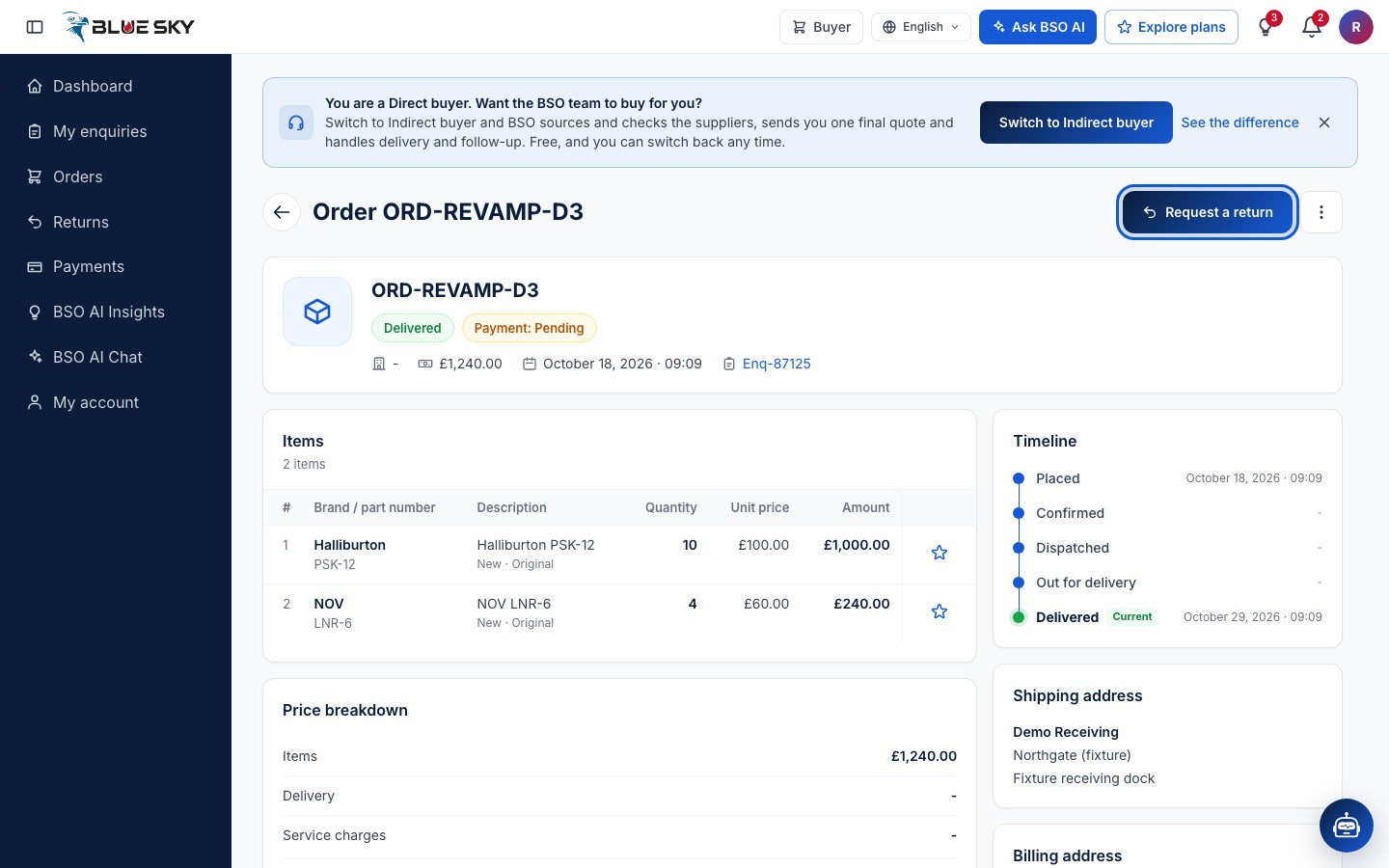
Click Request a return on the order
Open the delivered order from Orders. Request a return is at the top right. The Returns card lower down shows any returns on this order and the date until which you can ask (You can ask to return items until that date). Only the buyer of the order can ask, and only one return can be open on an order at a time.
Choose the items
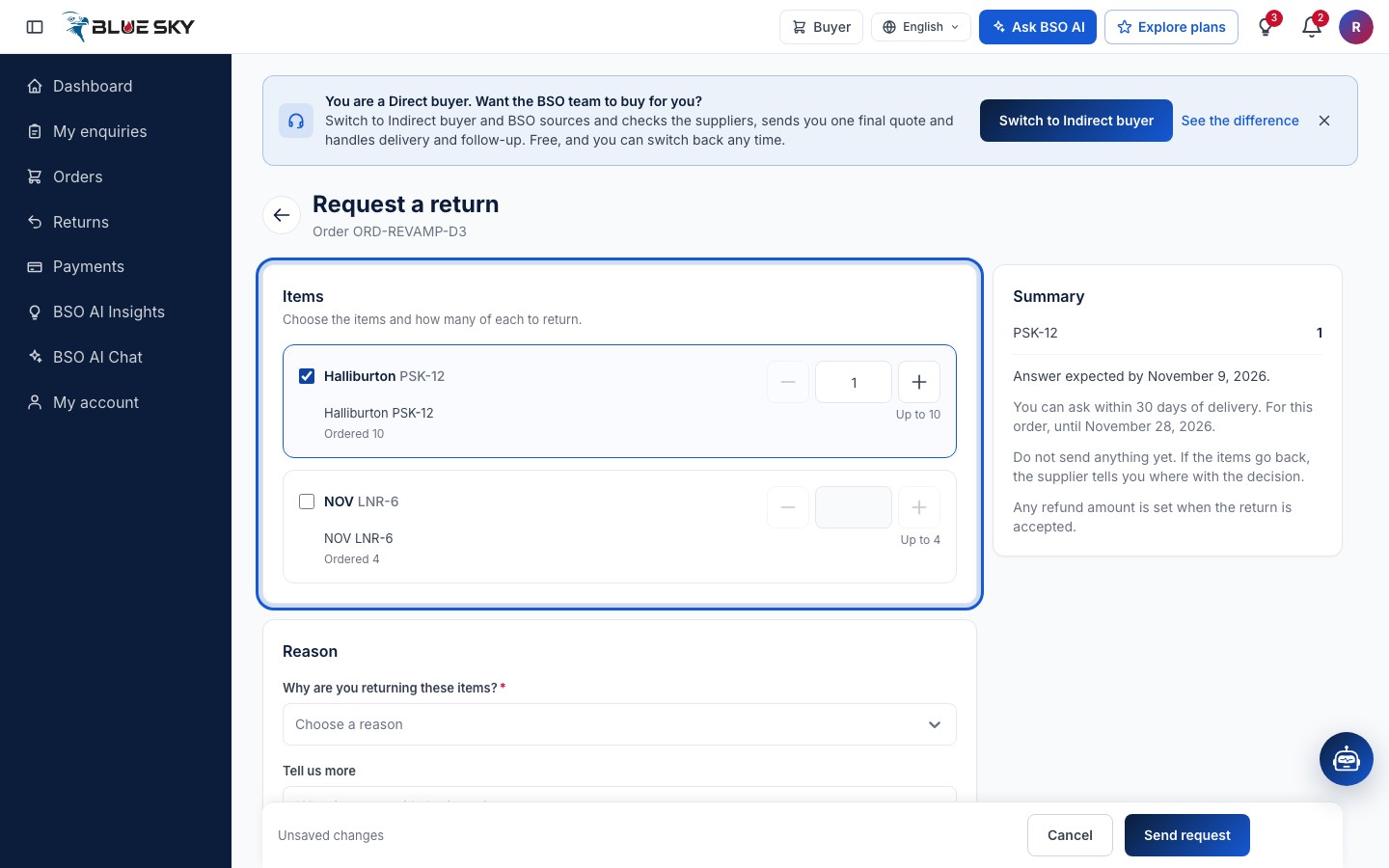
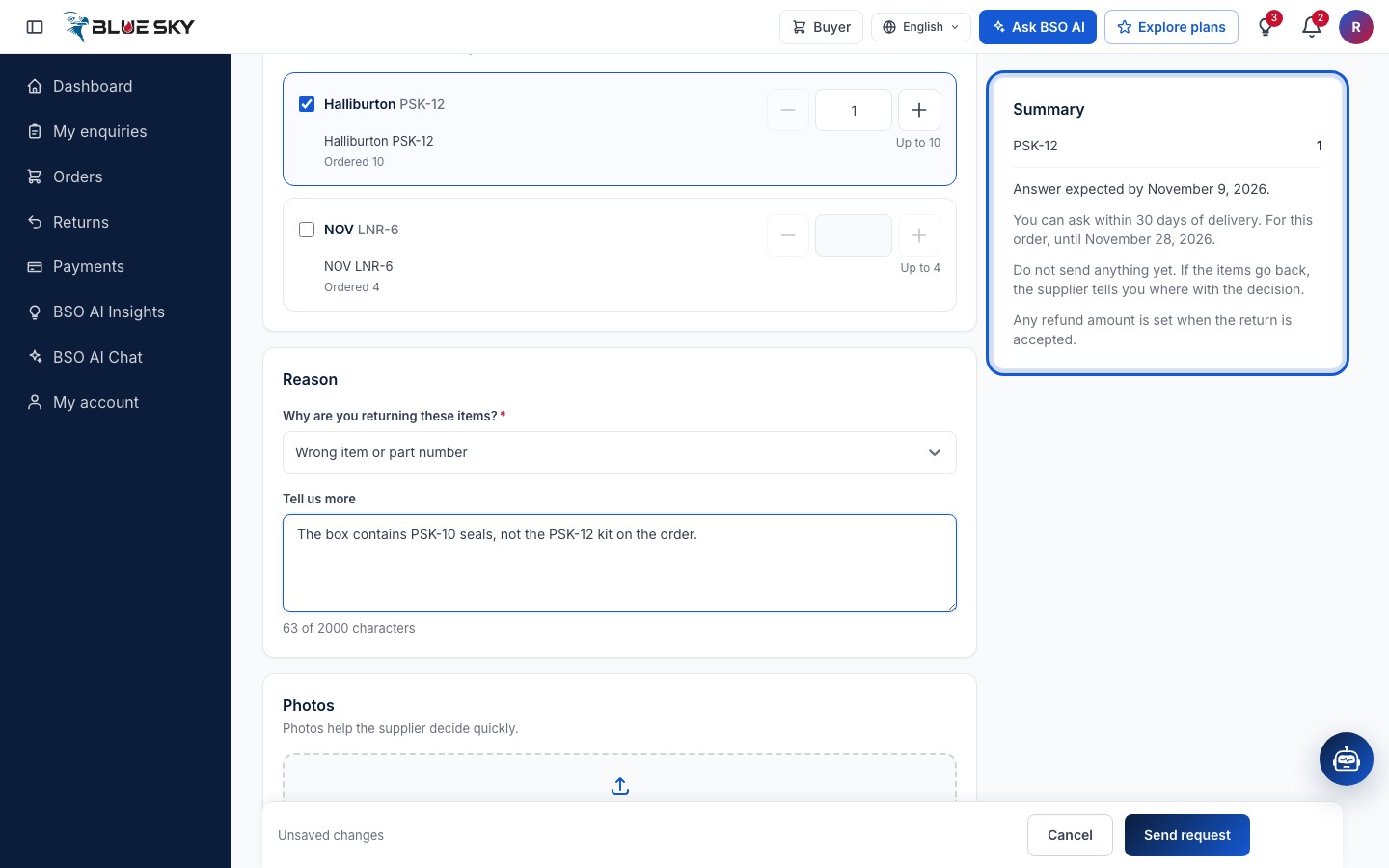
The page is Request a return, with the order number under the title. Under Items, Choose the items and how many of each to return: tick a line and set the quantity with the plus and minus buttons. Each line shows how many were Ordered and Up to how many you can still return. The Summary on the right lists what you have chosen.
Give the reason
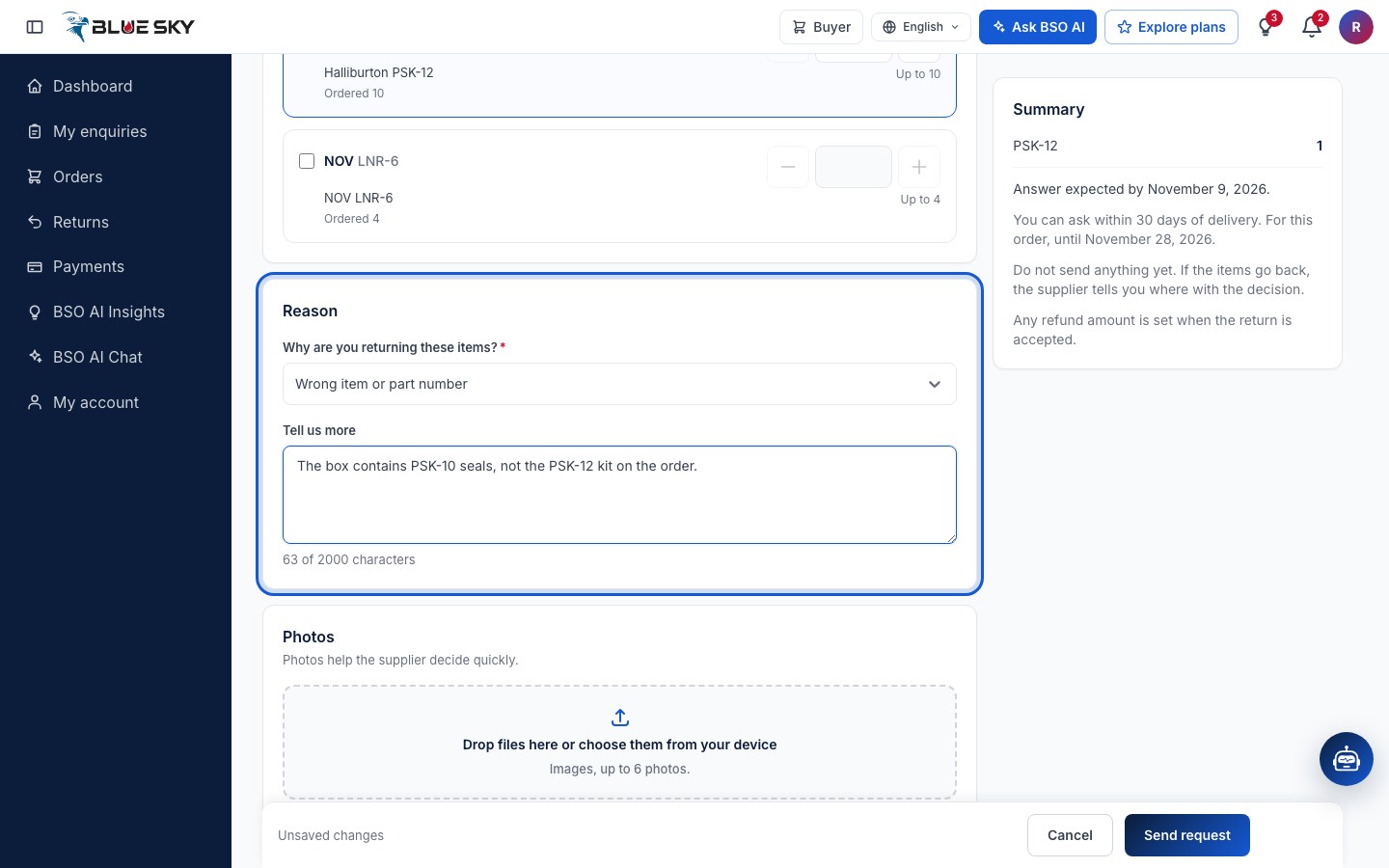
Under Reason, Why are you returning these items? offers Arrived damaged, Faulty or not working, Wrong item or part number, Not as described, No longer needed and Something else. Tell us more takes the details (What is wrong with the items?), up to 2000 characters; it is required for Something else.
Add photos
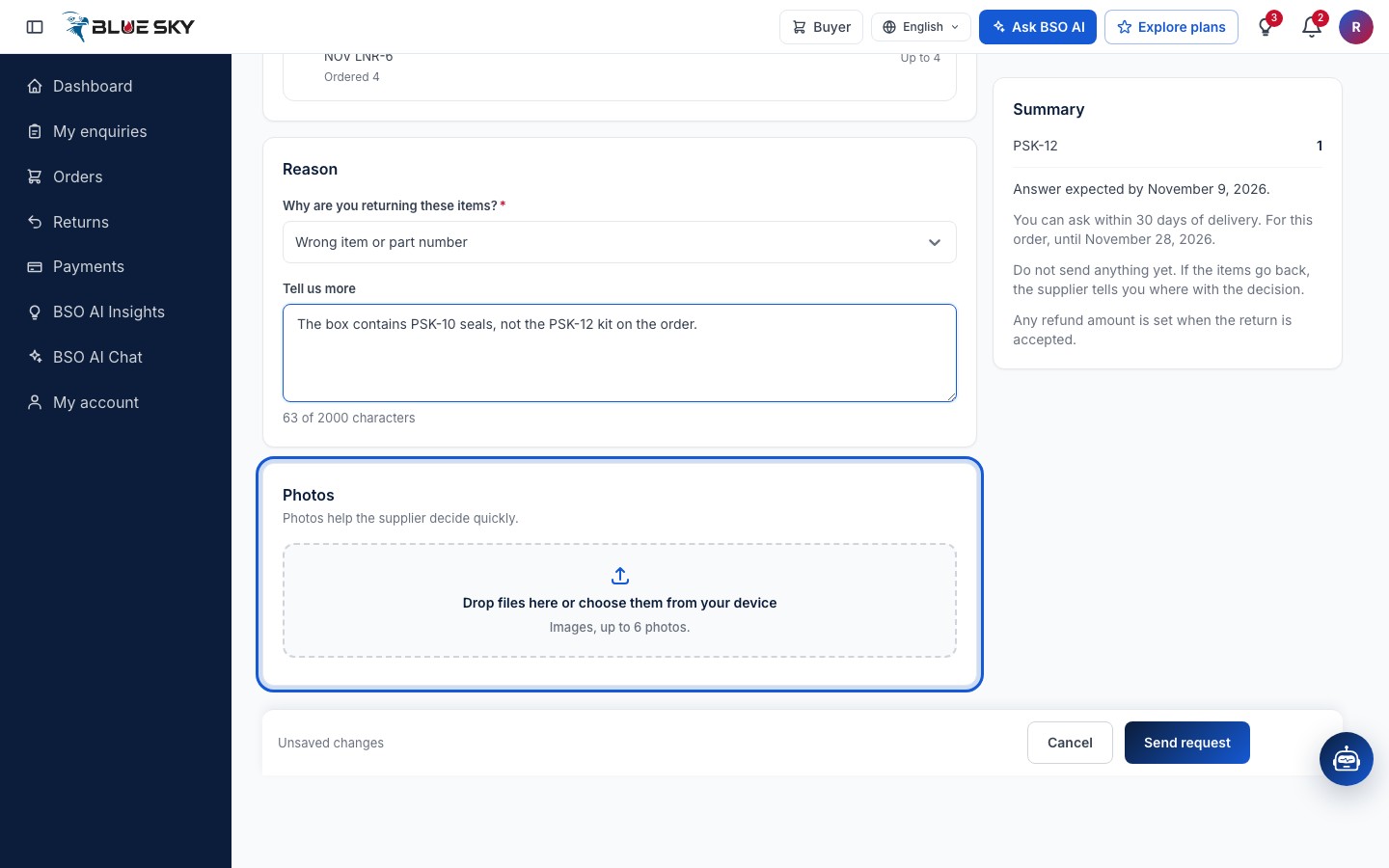
Photos help the supplier decide quickly: drop image files on the box or choose them from your device, up to 6 photos. For Arrived damaged and Faulty or not working at least one photo is required; for the other reasons it is optional.
Check the Summary and send
The Summary says when an answer is expected, the return window (You can ask within so many days of delivery, and the date for this order), and two reminders: Do not send anything yet. If the items go back, the supplier (or BSO, on an indirect order) tells you where with the decision. Any refund amount is set when the return is accepted.
Click Send request in the bar at the bottom. The page confirms Return requested. You can follow it here.
Follow the return
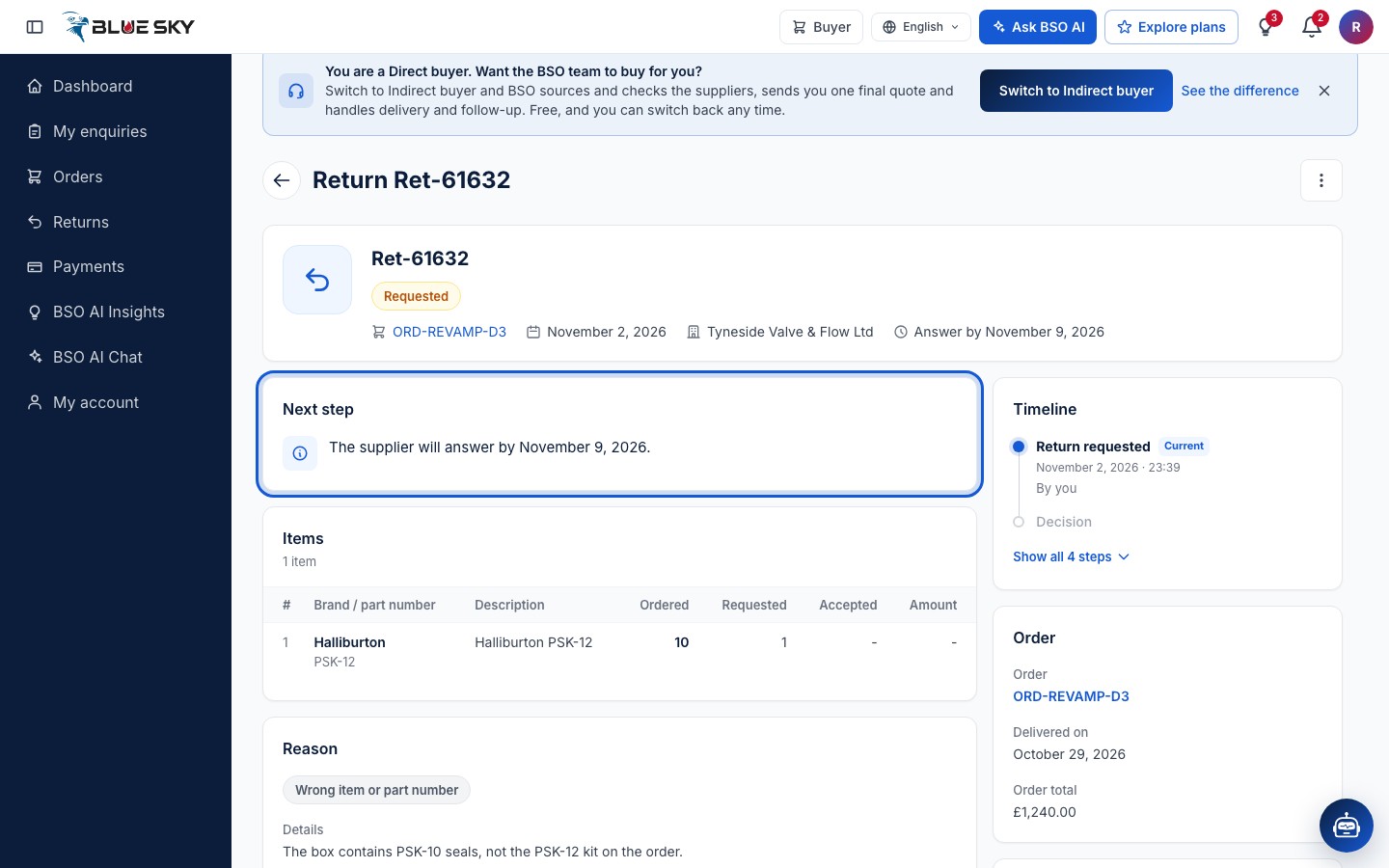
The return page is headed Return and its reference (like Ret-61632), with the status Requested, the order, the date, the other party and the deadline (Answer by a date). Next step says what happens now, for example The supplier will answer by that date. Below: the Items with the quantities requested and accepted, the Reason and photos, the Decision once it is made, the Timeline, the Order and the Other party.
The supplier (or BSO) can accept the return with a refund, a partial refund or a replacement, saying whether the items go back, or reject it with a reason. If the supplier does not answer by the deadline, the return passes to BSO. What the supplier sees is in Returns on your orders.
Withdraw, or ask BSO to review
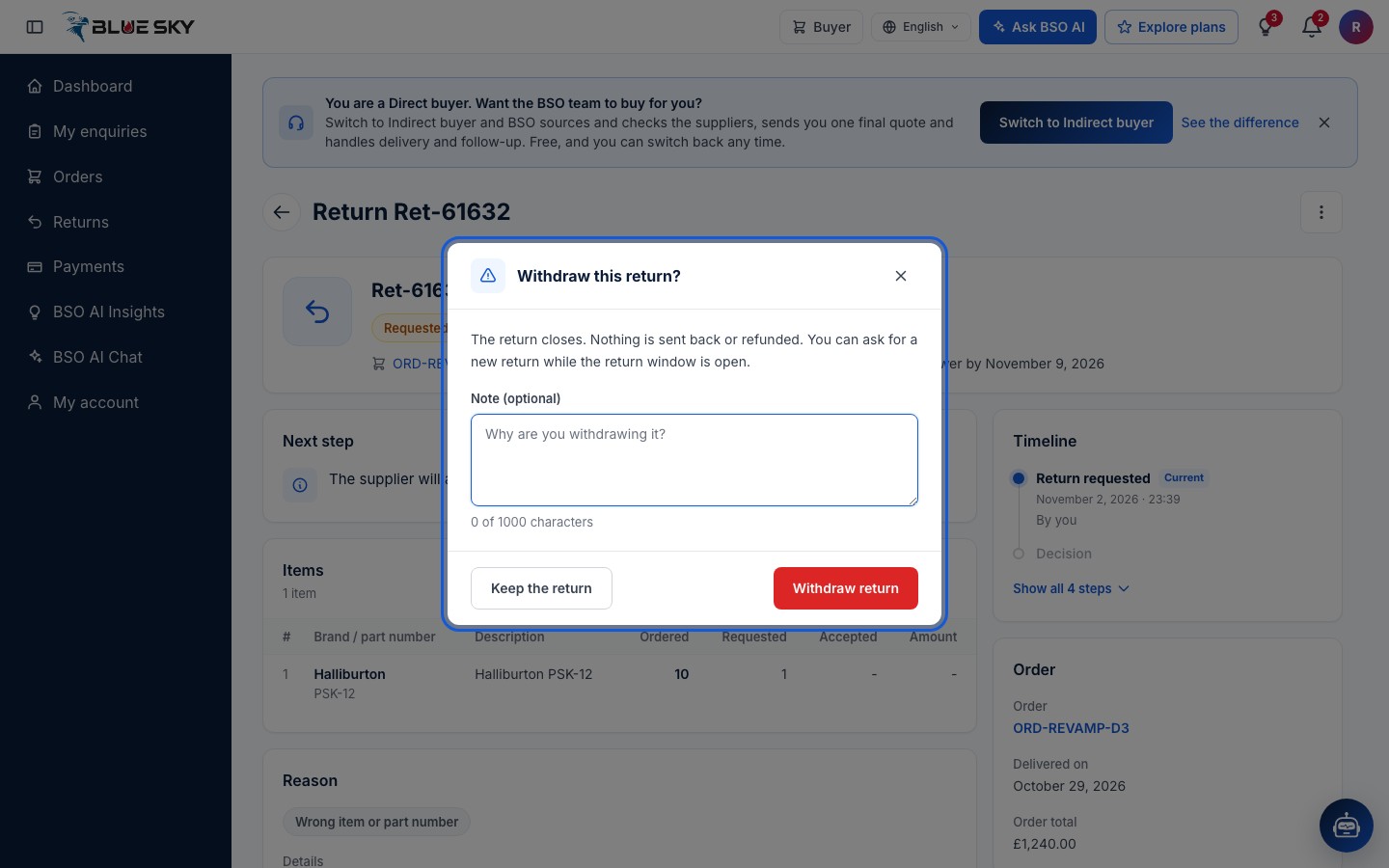
The three dots at the top right open Open order and Withdraw return. Withdraw this return? explains: The return closes. Nothing is sent back or refunded. You can ask for a new return while the return window is open. It has a Note (optional) box (Why are you withdrawing it?); Keep the return closes the box. You can withdraw while the return is Requested, Under review or Accepted, as long as no refund has started.
If the supplier rejects the return, the page shows the reason and an Ask BSO to review button, with the date until which you can ask. BSO looks at the return again and decides; you can ask once, and you must say why you disagree.
Find your returns
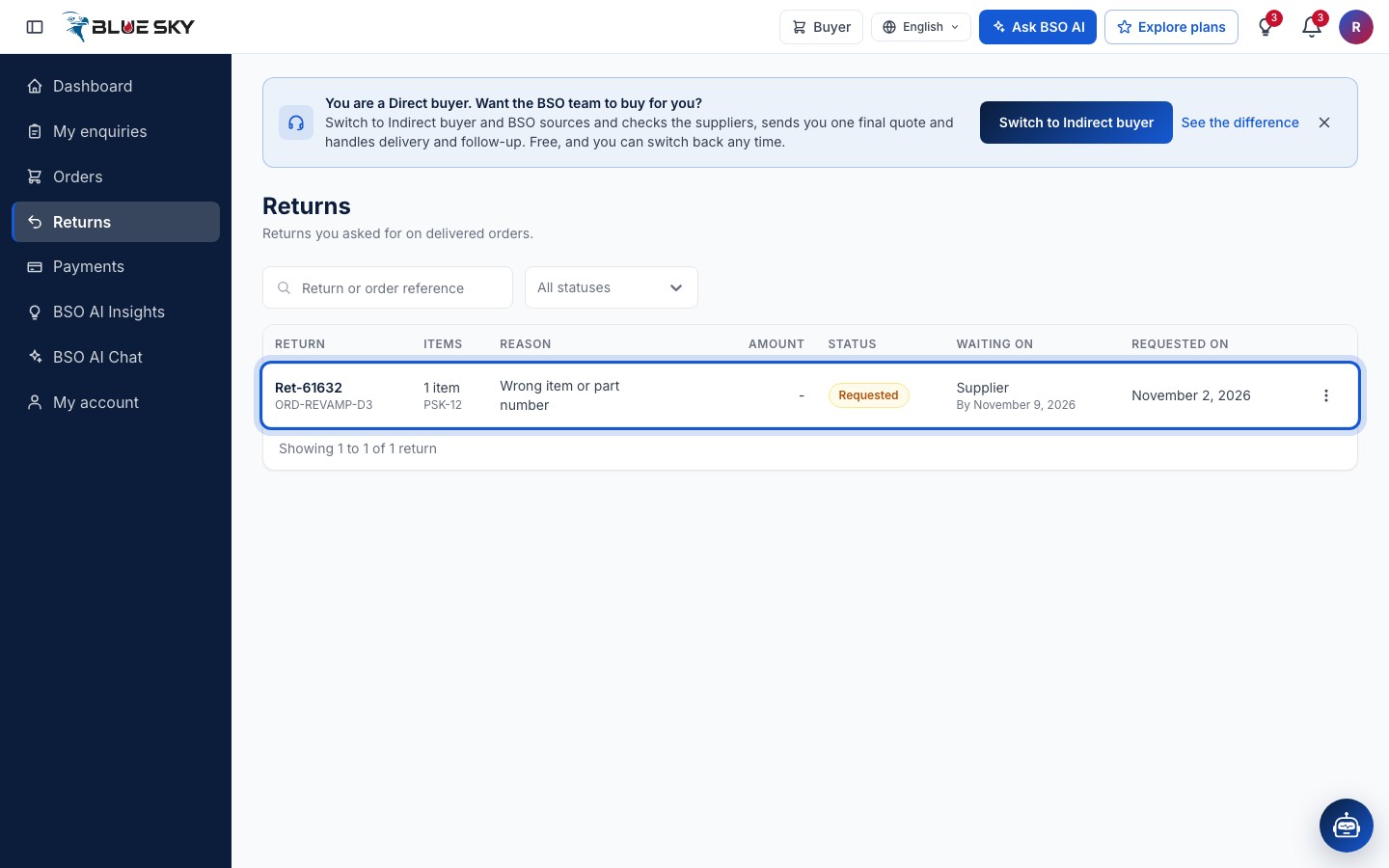
Returns in the left menu lists Returns you asked for on delivered orders: the Return and order reference, the Items, the Reason, the Amount, the Status, who it is Waiting on and by when, and Requested on. The status filter has Waiting for you and Open as well as every status: Requested, Under review, Accepted, Rejected, Sent back, Received, Resolved and Closed.
Good to know
- When a return is accepted and the items must go back, the decision tells you where to send them and by when. Send them yourself, then click Mark as sent back on the return page with the logistics provider and the tracking number. The other side confirms when they arrive.
- Refunds: a card payment goes back to the card through Stripe (usually 5 to 10 working days to appear); a bank transfer is refunded by BSO by bank transfer. The Refund section of the return page shows the amount and its state. A resolved return closes by itself after a while.
- On an indirect order the Other party card reads BSO and explains that BSO handles this return for you, from the decision to the refund or the replacement.
- Questions about a return? Email support@bsoservices.ai, Monday to Friday 07:00 to 17:00 UK time, with the return reference. The order itself is in Track your order.
Related guides
Still stuck? We are here.
Open BSO AI Chat inside the platform, or email the support team. Monday to Friday, 07:00 to 17:00 UK time.