

The enquiry form has a Use BSO AI mode: instead of typing each part into a row, you describe what you need in plain words and BSO AI fills in the items for you. You check them, change anything that is not right, and send the enquiry the same way as in Submit an enquiry.
Before you start
- A buyer account you are signed in to.
- What you need, with the brand, part number, quantity and condition where you know them.
Choose Use BSO AI
On Send an enquiry click the Use BSO AI card (Describe what you need and BSO AI fills in the items). A card called Describe what you need appears below Enquiry details: BSO AI turns your words into items you can check before sending.
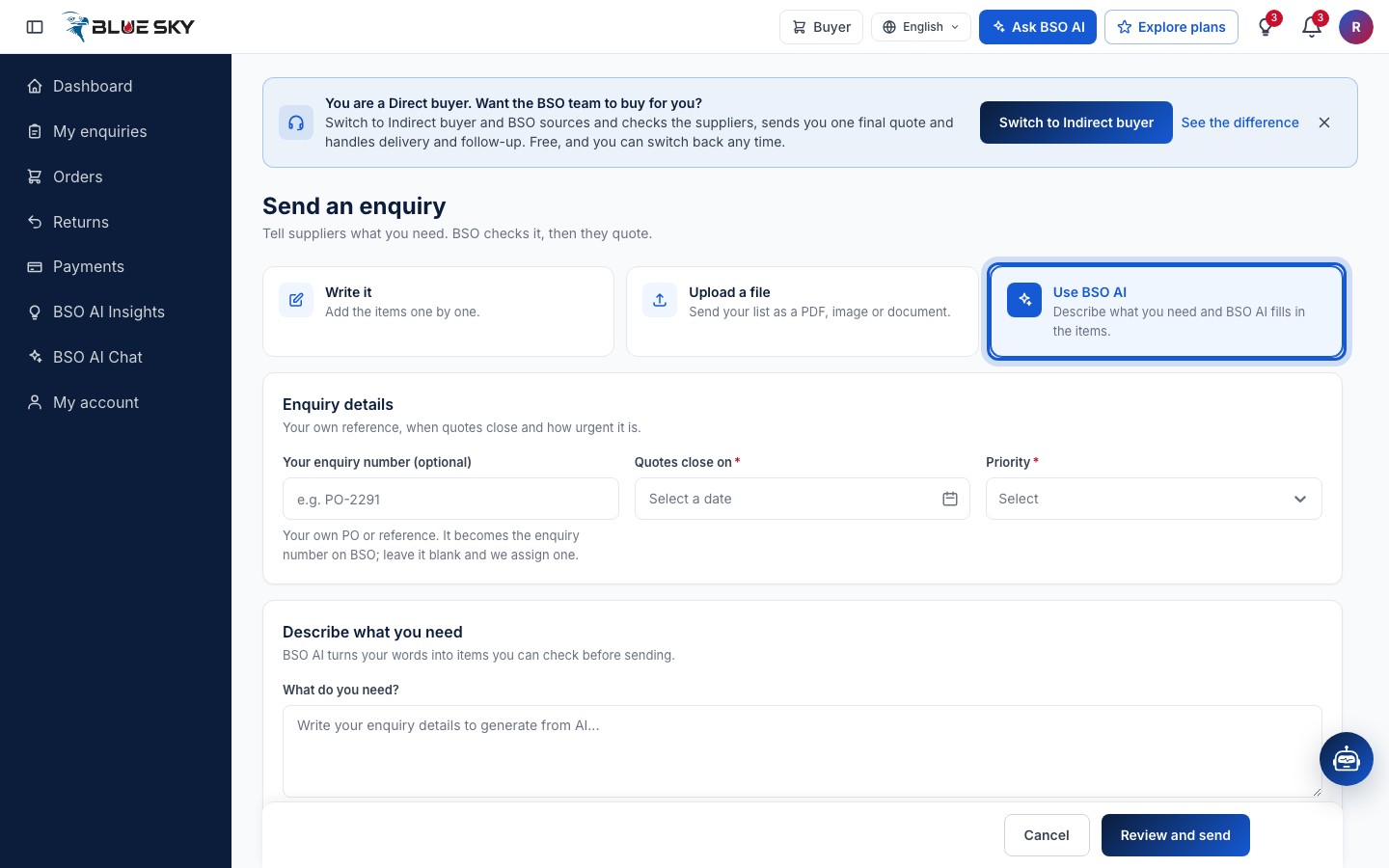
Describe what you need and click Generate
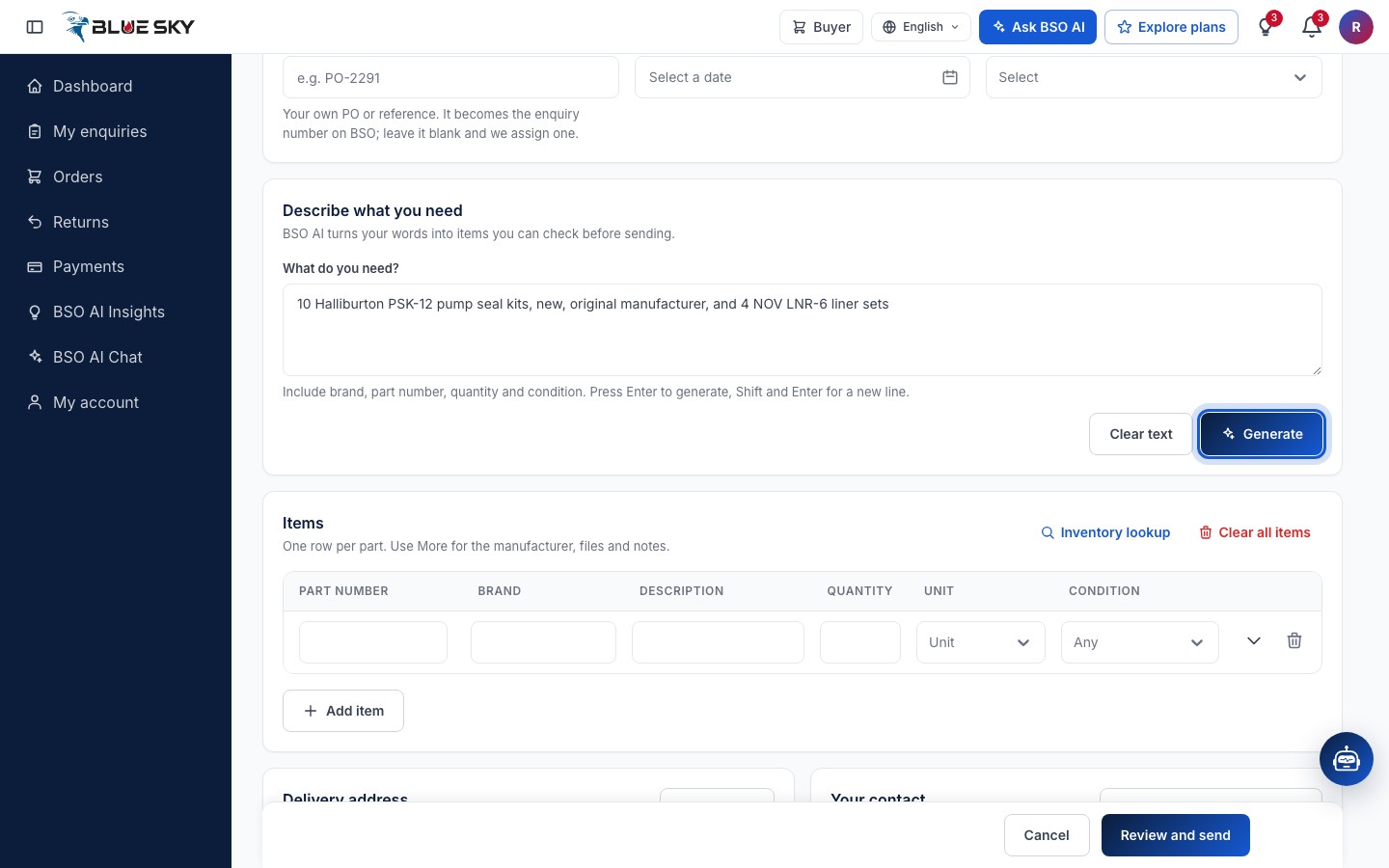
Type into What do you need? Include brand, part number, quantity and condition. Press Enter to generate, Shift and Enter for a new line. Clear text empties the box.
For example: 10 Halliburton PSK-12 pump seal kits, new, original manufacturer, and 4 NOV LNR-6 liner sets. Then click Generate.
Check the items BSO AI added
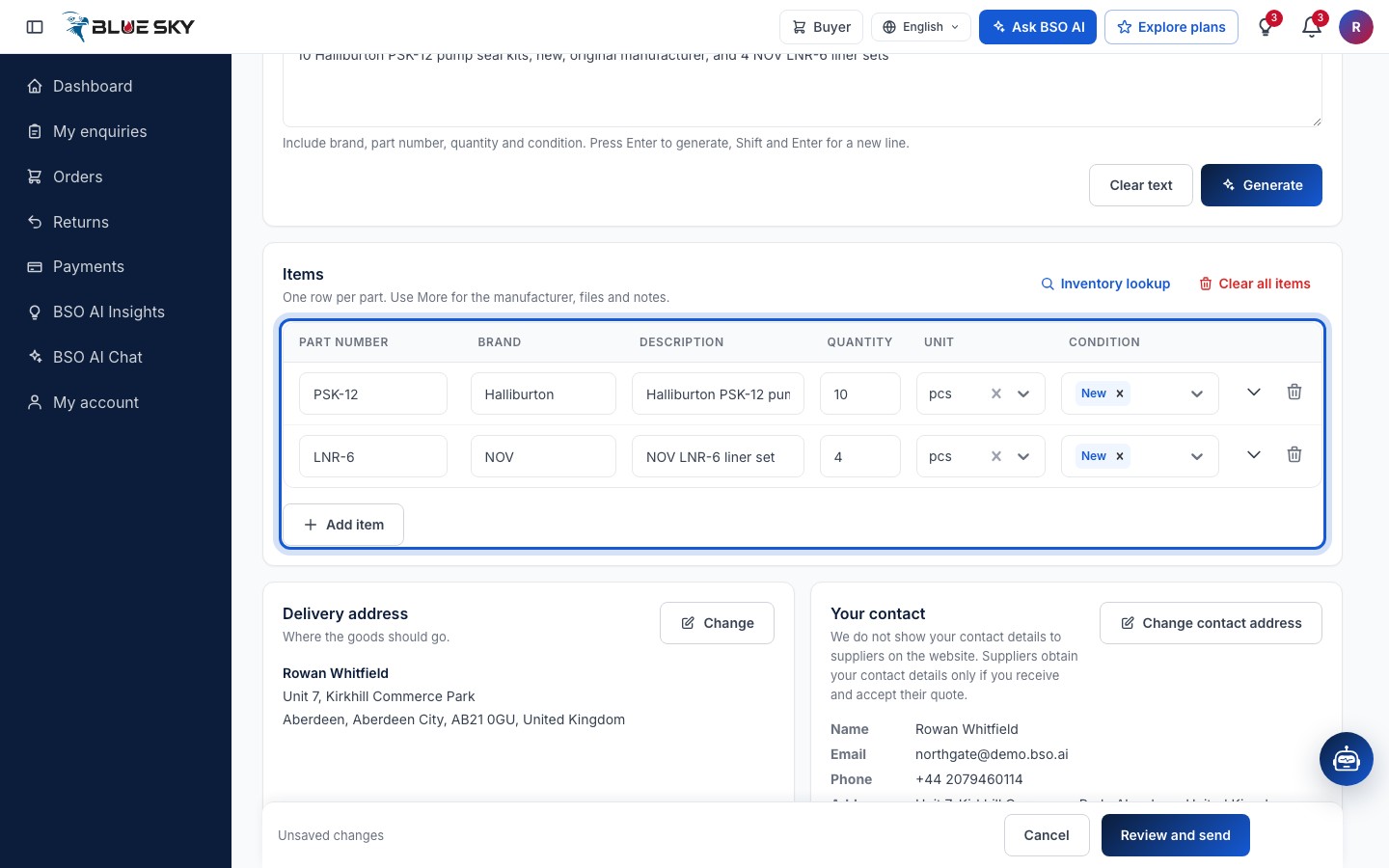
The Items card fills with one row per part BSO AI found: Part number, Brand, Description, Quantity, Unit and Condition, and under More details the manufacturer and notes where your words gave them. A message says how many items BSO AI added; you can generate more or close the AI box. The example above gives two rows: PSK-12 by Halliburton, 10 pcs, New, and LNR-6 by NOV, 4 pcs, New.
Read every row and correct anything that is not right, exactly as you would on a row you typed yourself. A part that is already in your list is not added again. If BSO AI cannot make out an item, a quantity and a unit from your words, it says so: add more detail or type that item by hand.
Finish the enquiry
Fill in Enquiry details (your own number, Quotes close on, Priority), check the delivery address, then Review and send and Confirm & Submit, as in Submit an enquiry. The enquiry appears in My enquiries.
Good to know
- Upload a file is the other shortcut: send your list as a PDF, image or document and BSO AI reads it and lists the items for you.
- You can also ask BSO AI in the chat to draft an enquiry from a conversation; it asks for the same details as the form and nothing is sent until you approve it. See Ask BSO AI.
- BSO AI fills in what you said. Quantities, part numbers and conditions you did not mention stay for you to add.
Related guides
Still stuck? We are here.
Open BSO AI Chat inside the platform, or email the support team. Monday to Friday, 07:00 to 17:00 UK time.