

Products you add appear in the public catalogue once BSO approves them, with your company shown as the supplier, and they widen the categories you are matched to on the enquiry board. The form is one page: the product, its variant, images, a description and the terms to accept. BSO AI can fill most of it from a short description.
Before you start
- The supplier role on your account.
- The product's brand, category, part number, stock quantity and price, at least one specification and one tag, and one or more images.
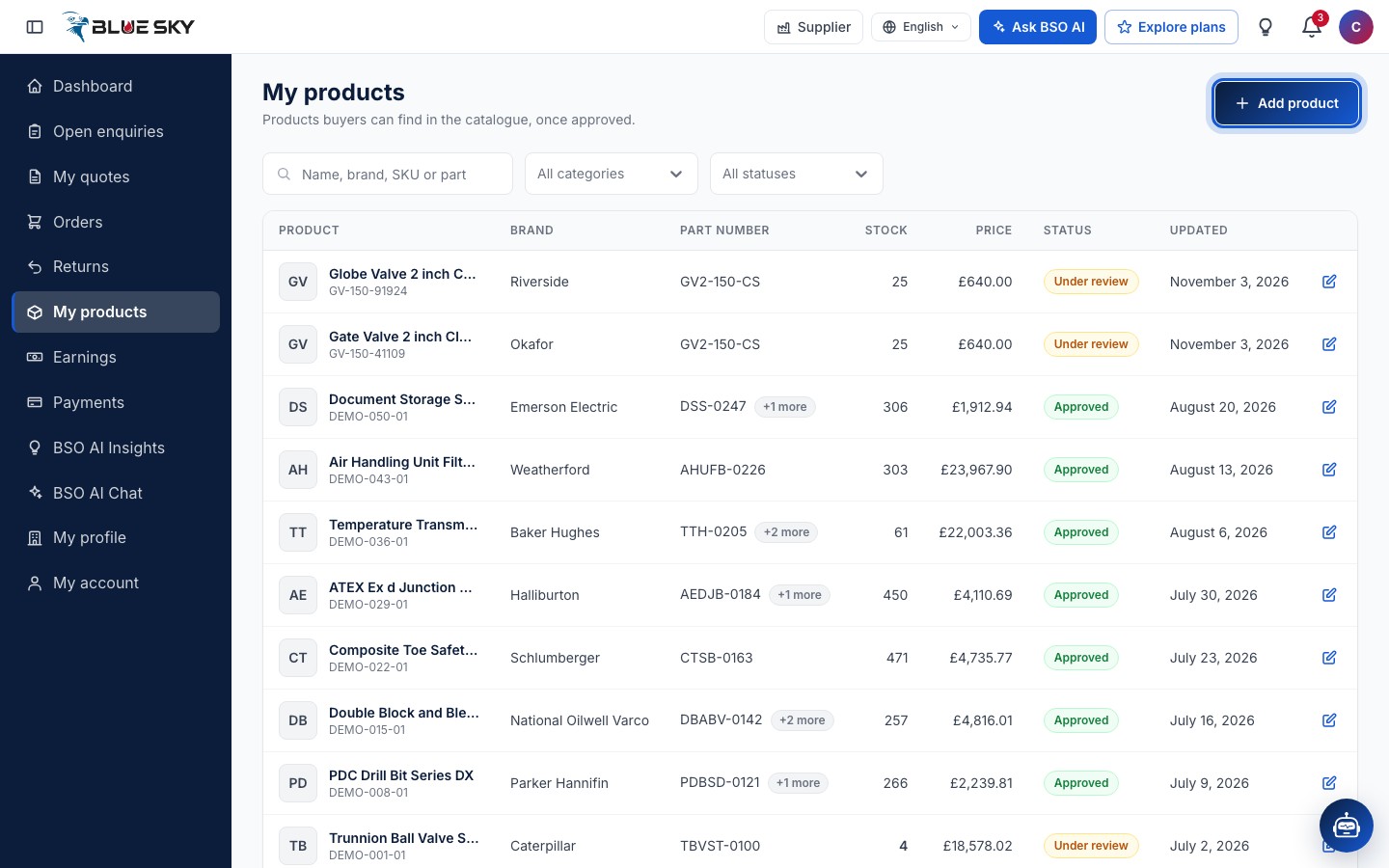
Click Add product
Open My products in the left menu, bsoservices.ai/inventory-product-list, and click Add product at the top right.
The Add product form
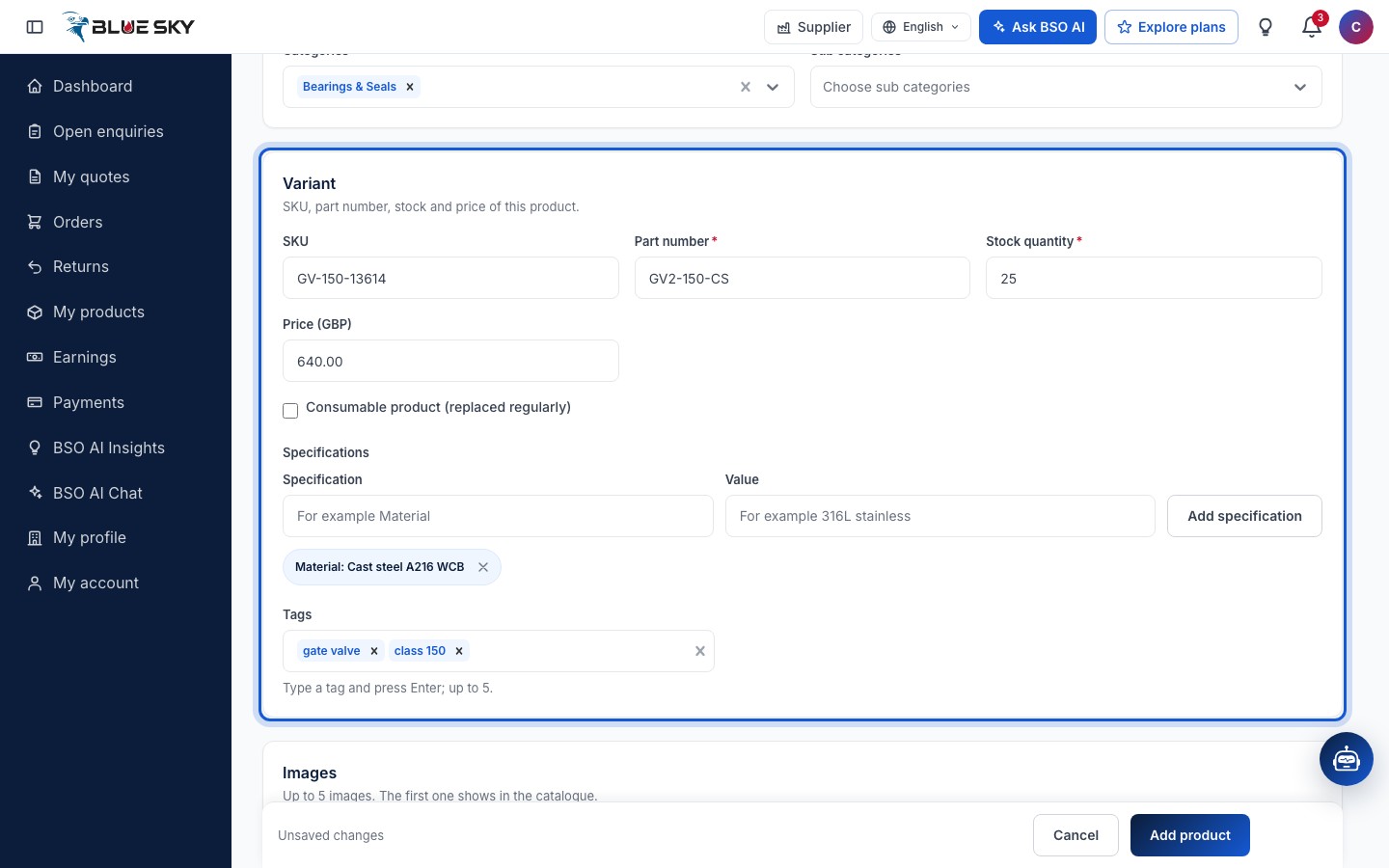
The form at add-product has five cards: Product (Choose a product from the catalogue or type a new name), Variant (SKU, part number, stock and price of this product), Images, Description and Warranty and terms. Cancel and Add product sit at the top right and in the bar at the bottom.
Fill with BSO AI (optional)
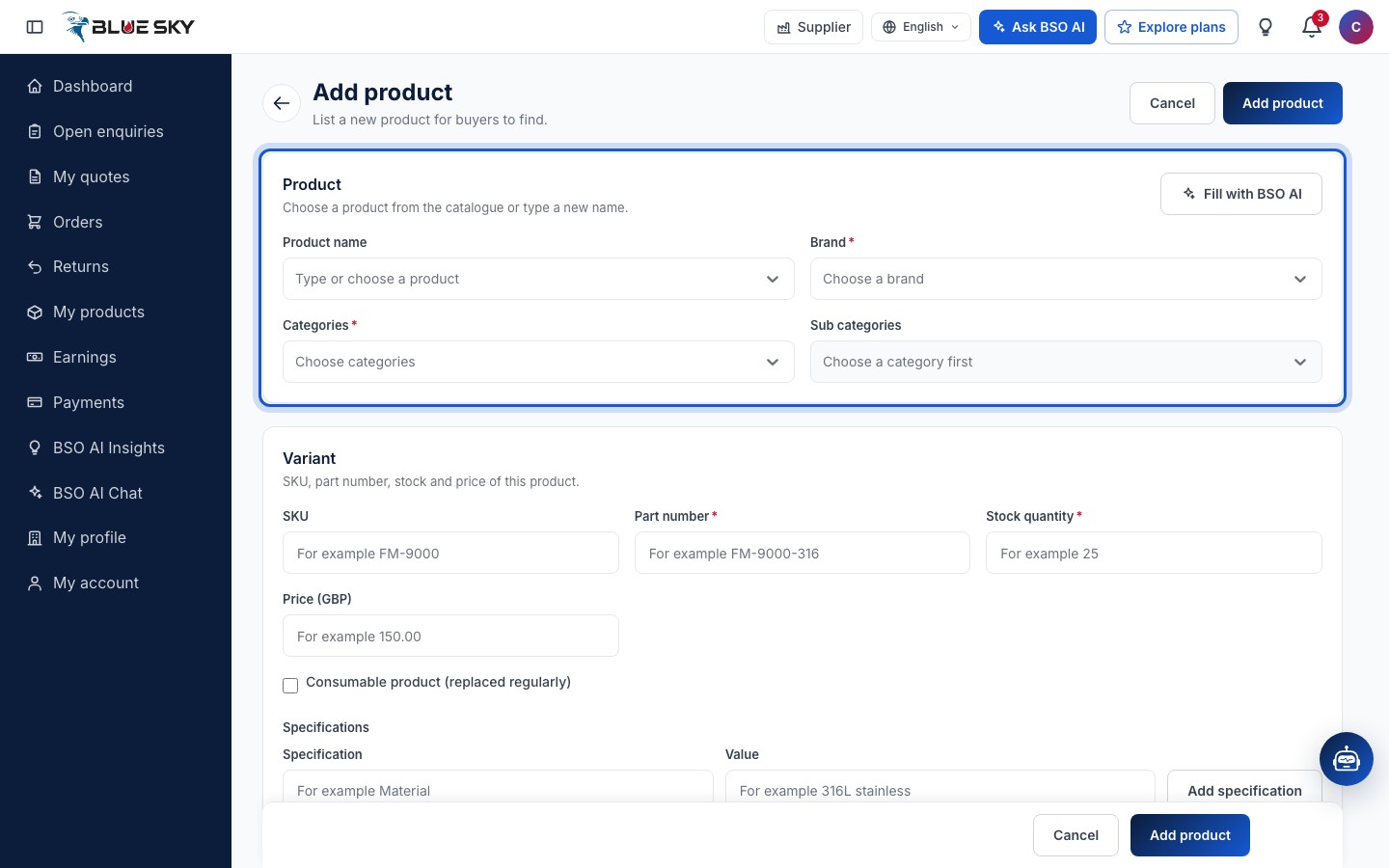
Fill with BSO AI on the Product card opens Fill the product with BSO AI. Describe the product in a few sentences under About the product and click Fill the form: BSO AI fills the name, brand, categories, SKU and specifications. Check them before you save; a brand or category it names that is not in the catalogue is added for approval.
Name, brand and categories
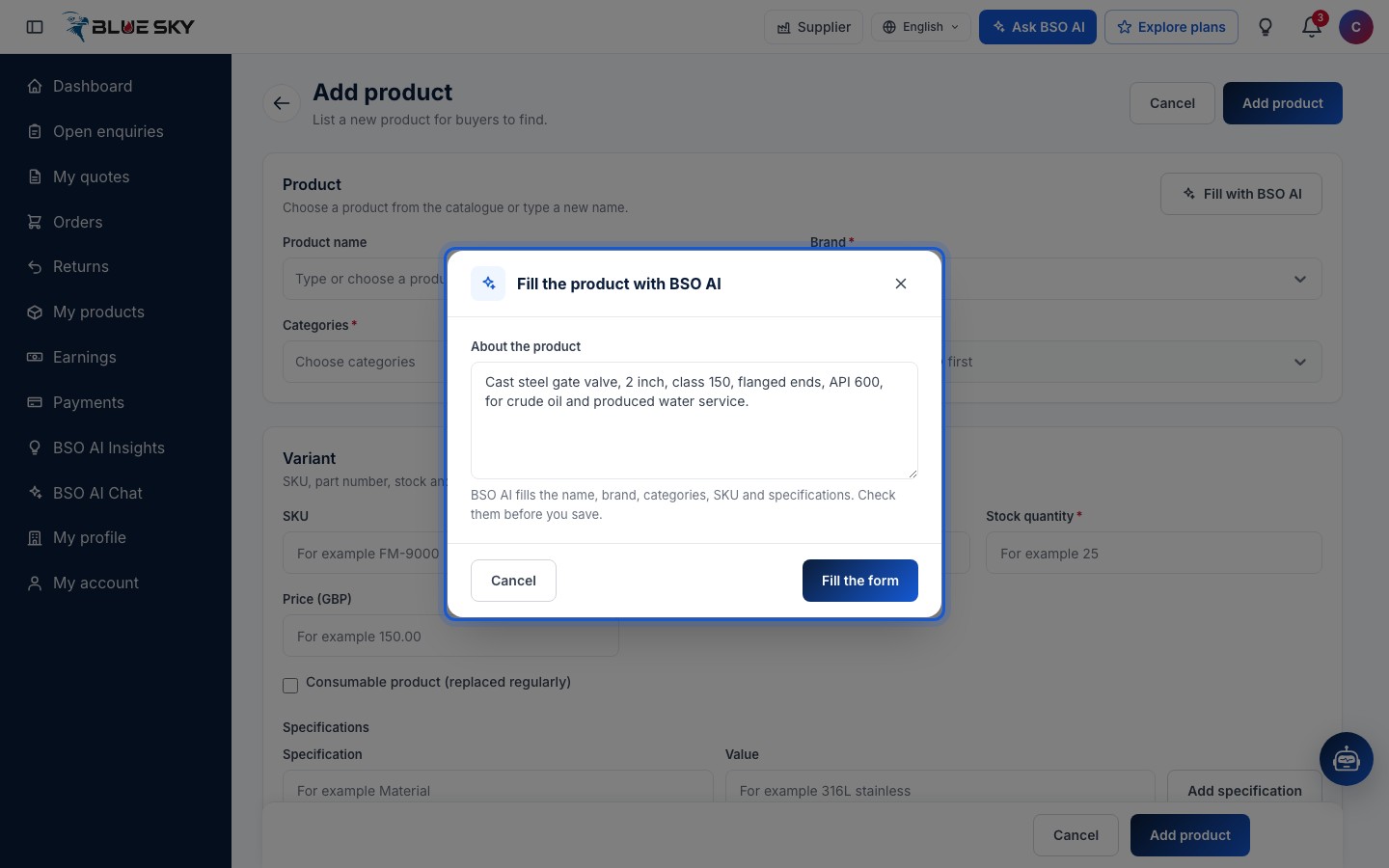
Product name: type or choose a product. Pick an existing catalogue product to add your own variant of it, or type a new name and choose Add. Brand and Categories are required; Sub categories open once a category is chosen.
If your brand or category is not listed, type it and choose the Add option: it is created and sent to BSO for approval together with the product.
The variant: SKU, part number, stock and price
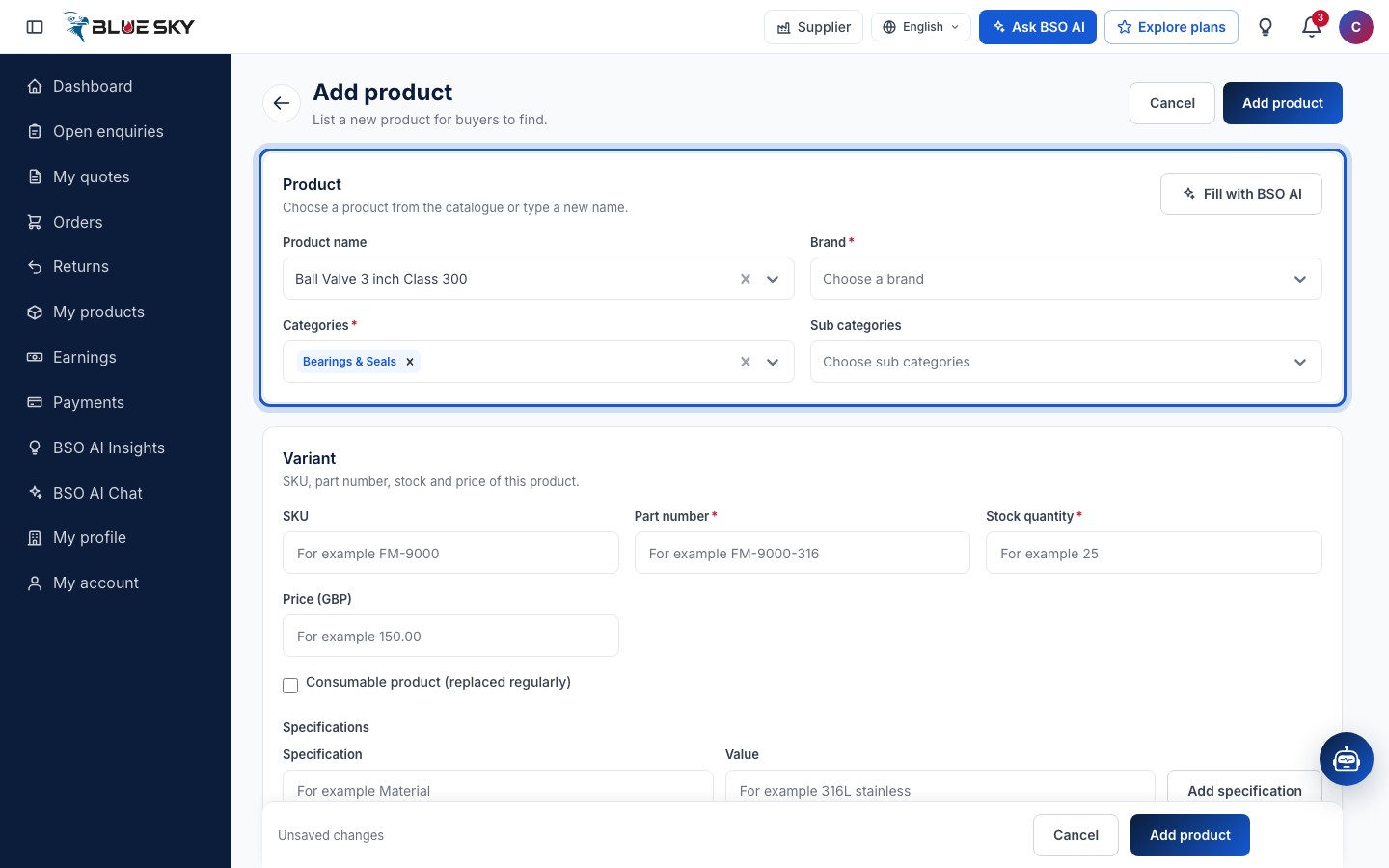
Under Variant enter the SKU (letters, numbers and hyphens; it must not be in use on another product), the Part number, the Stock quantity (a whole number) and the Price (GBP). Tick Consumable product (replaced regularly) for items that are replaced on a schedule and give the Typical lifetime (days).
Specifications take a Specification and a Value each (for example Material and 316L stainless); click Add specification for each one. At least one specification is required. Tags: type a tag and press Enter; at least one tag is required, up to 5.
Images
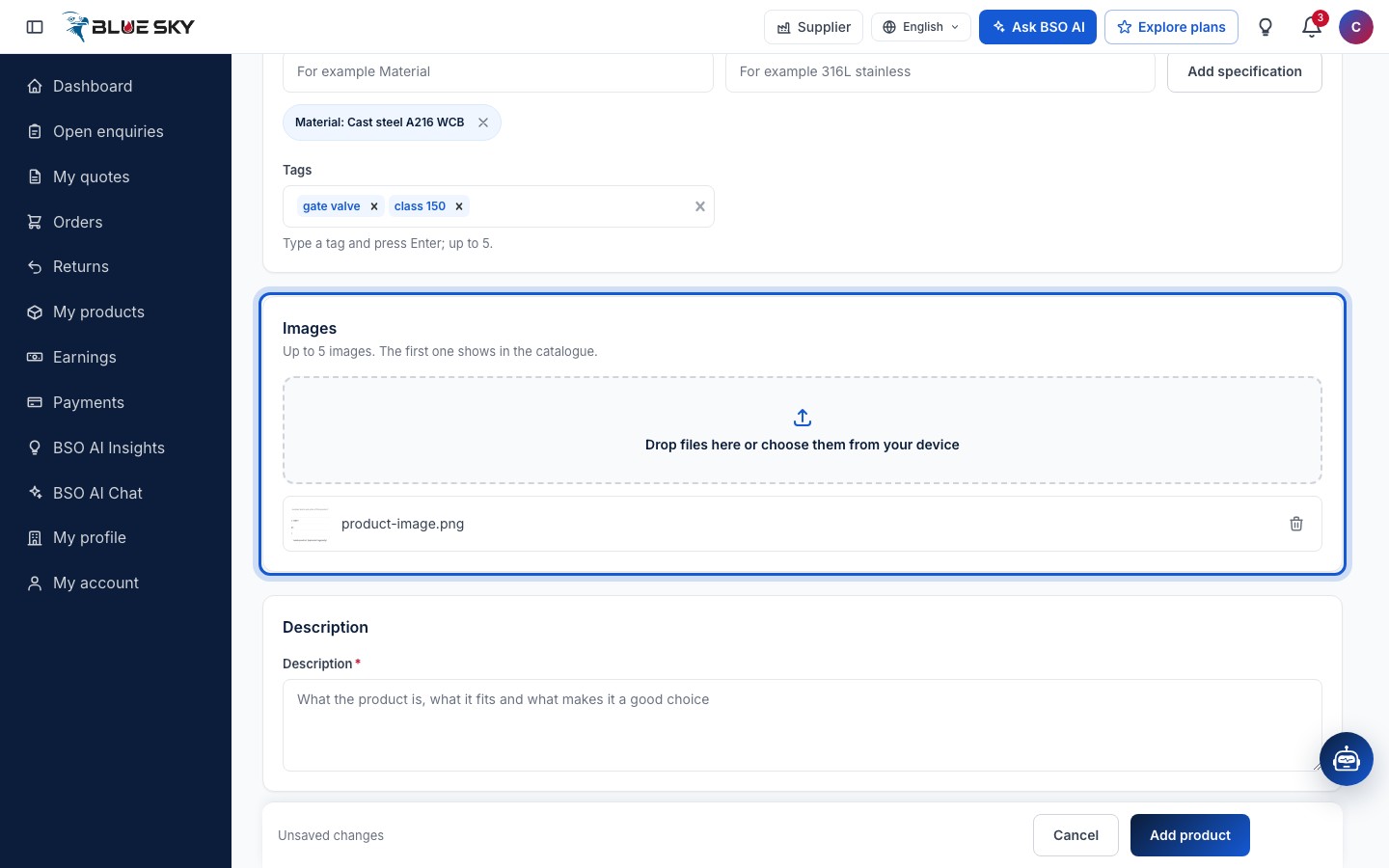
Images: up to 5 images, the first one shows in the catalogue. Drop files on the box or choose them from your device.
Description, warranty and terms
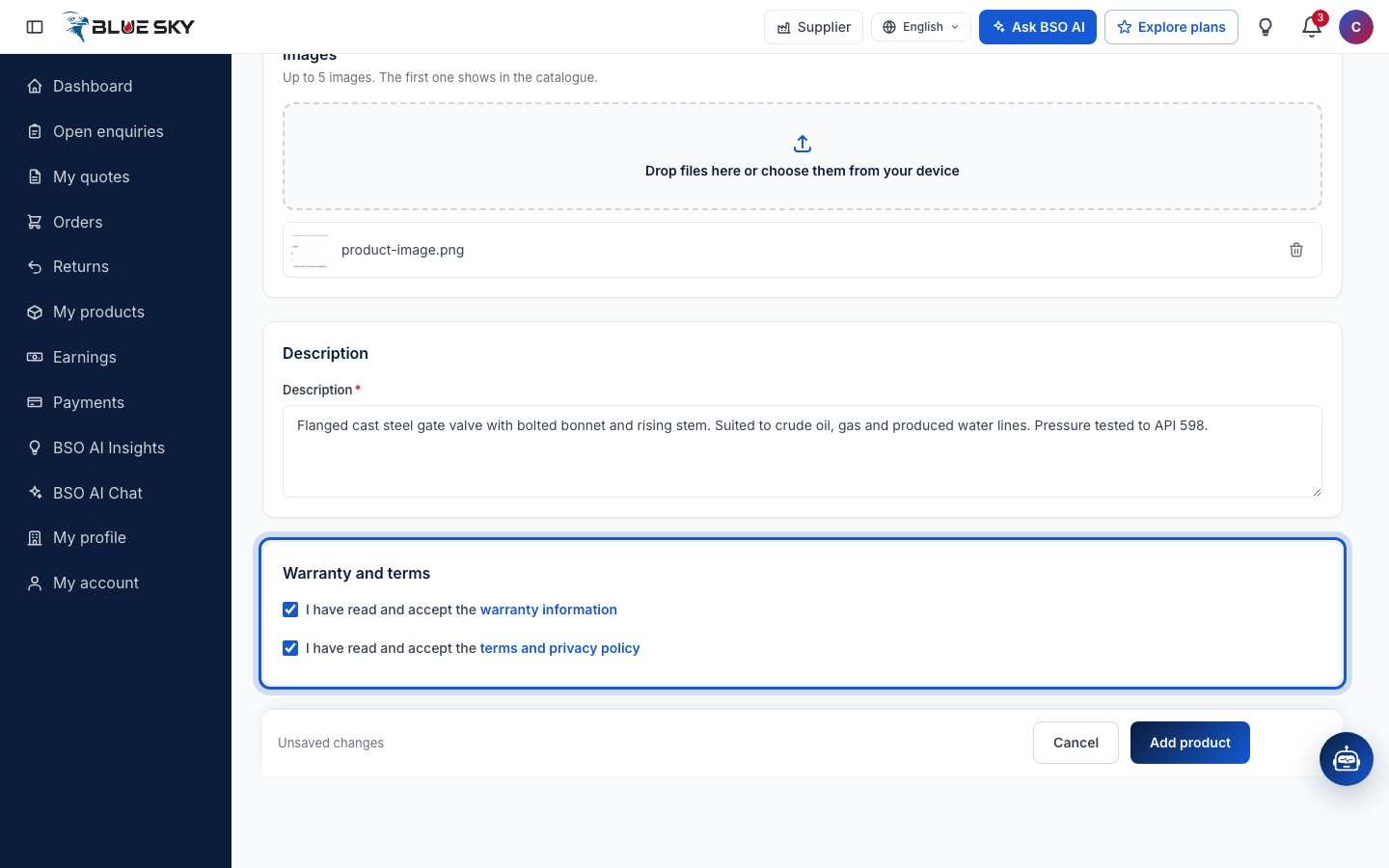
Write the Description (what the product is, what it fits and what makes it a good choice; 10 to 1000 characters). Under Warranty and terms tick I have read and accept the warranty information (the link opens the text, with Accept) and I have read and accept the terms and privacy policy. Then click Add product.
The product waits for approval
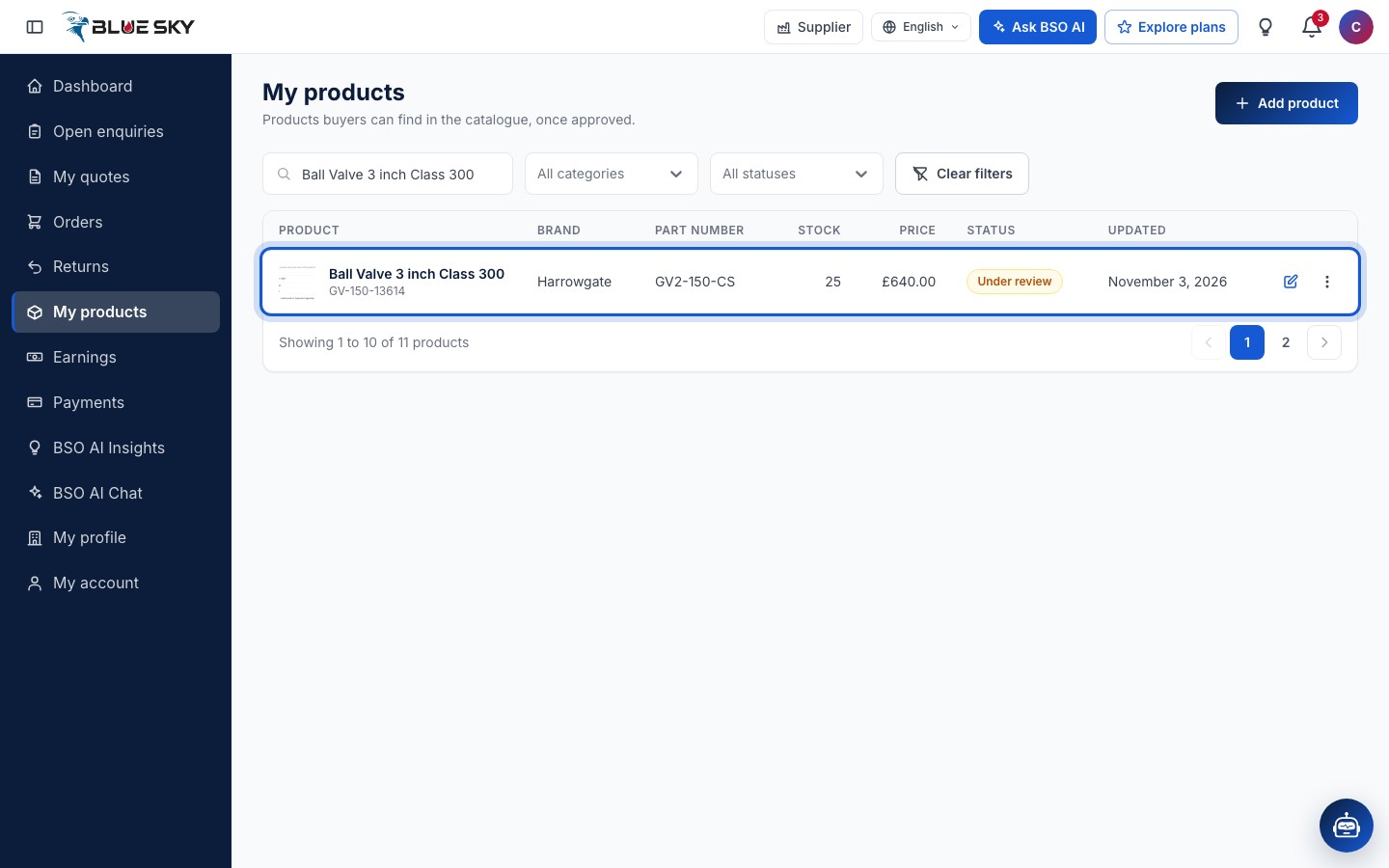
The page confirms Product added. and returns to My products, where the new row reads Under review. BSO reviews every new product; it appears in the catalogue once approved, and its public page opens only then. Managing the list is in Manage your products.
Good to know
- Editing an approved product sends it back to Under review until BSO approves the change.
- Every product you add, approved or still under review, adds its categories to My categories on the enquiry board; see Find enquiries to quote.
- Buyers see your company card on the product page; keep it up to date in Your profile and BSO score.
- Questions about a product or its approval? Email support@bsoservices.ai, Monday to Friday 07:00 to 17:00 UK time.
Related guides
Still stuck? We are here.
Open BSO AI Chat inside the platform, or email the support team. Monday to Friday, 07:00 to 17:00 UK time.